Comments
 2017 · 557 page(s) (30 MB)
 English
 1
1
 March 25 · 2026
 Log in

 Embed
Embed
No comments yet. You can be the first!
What did others read after this?



Content extract
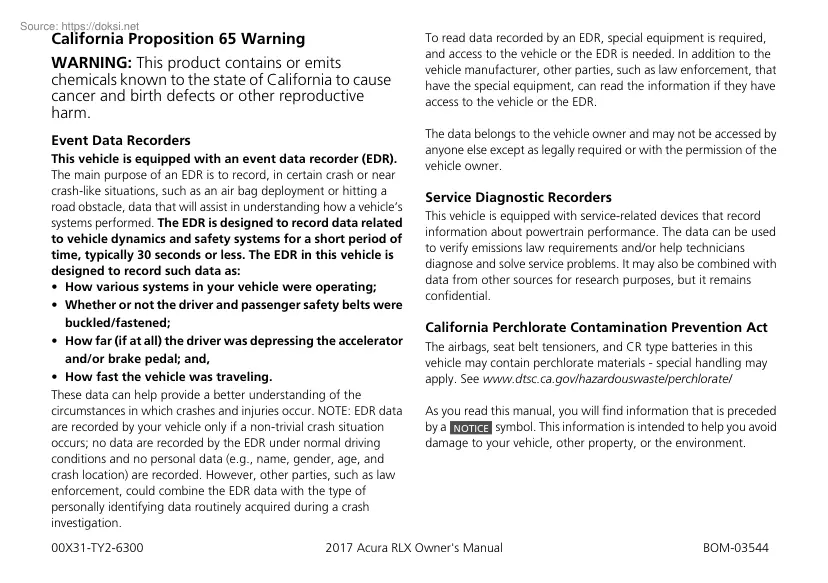
17 ACURA RLX-31TY26300.book 0 ページ 2016年6月17日 金曜日 午前8時12分 California Proposition 65 Warning WARNING: This product contains or emits chemicals known to the state of California to cause cancer and birth defects or other reproductive harm. To read data recorded by an EDR, special equipment is required, and access to the vehicle or the EDR is needed. In addition to the vehicle manufacturer, other parties, such as law enforcement, that have the special equipment, can read the information if they have access to the vehicle or the EDR. Event Data Recorders The data belongs to the vehicle owner and may not be accessed by anyone else except as legally required or with the permission of the vehicle owner. This vehicle is equipped with an event data recorder (EDR). The main purpose of an EDR is to record, in certain crash or near crash-like situations, such as an air bag deployment or hitting a road obstacle, data that will assist in
understanding how a vehicle’s systems performed. The EDR is designed to record data related to vehicle dynamics and safety systems for a short period of time, typically 30 seconds or less. The EDR in this vehicle is designed to record such data as: • How various systems in your vehicle were operating; • Whether or not the driver and passenger safety belts were buckled/fastened; • How far (if at all) the driver was depressing the accelerator and/or brake pedal; and, • How fast the vehicle was traveling. These data can help provide a better understanding of the circumstances in which crashes and injuries occur. NOTE: EDR data are recorded by your vehicle only if a non-trivial crash situation occurs; no data are recorded by the EDR under normal driving conditions and no personal data (e.g, name, gender, age, and crash location) are recorded. However, other parties, such as law enforcement, could combine the EDR data with the type of personally identifying data routinely acquired
during a crash investigation. 00X31-TY2-6300 Service Diagnostic Recorders This vehicle is equipped with service-related devices that record information about powertrain performance. The data can be used to verify emissions law requirements and/or help technicians diagnose and solve service problems. It may also be combined with data from other sources for research purposes, but it remains confidential. California Perchlorate Contamination Prevention Act The airbags, seat belt tensioners, and CR type batteries in this vehicle may contain perchlorate materials - special handling may apply. See wwwdtsccagov/hazardouswaste/perchlorate/ As you read this manual, you will find information that is preceded by a NOTICE symbol. This information is intended to help you avoid damage to your vehicle, other property, or the environment. 2017 Acura RLX Owner's Manual BOM-03544 17 ACURA RLX-31TY26300.book 1 ページ 2016年6月17日 金曜日 午前8時12分 A
Few Words About Safety You will find this important safety information in a variety of forms, including: Your safety, and the safety of others, is very important. And operating this vehicle safely is an important responsibility. Safety Labels - on the vehicle. Safety Messages - preceded by a safety alert symbol 3 and one of three signal words: DANGER, WARNING, or CAUTION. These signal words mean: To help you make informed decisions about safety, we have provided operating procedures and other information on labels and in this manual. This information alerts you to potential hazards that could hurt you or others. Of course, it is not practical or possible to warn you about all the hazards associated with operating or maintaining your vehicle. You must use your own good judgment. 3DANGER You WILL be KILLED or SERIOUSLY HURT if you don’t follow instructions. 3WARNING You CAN be KILLED or SERIOUSLY HURT if you don’t follow instructions. 3CAUTION You CAN be HURT if you
don’t follow instructions. Safety Headings - such as Important Safety Precautions. Safety Section - such as Safe Driving. Instructions - how to use this vehicle correctly and safely. This entire book is filled with important safety information - please read it carefully. Contents This owner’s manual should be considered a permanent part of the vehicle and should remain with the vehicle when it is sold. This owner’s manual covers all models of your vehicle. You may find descriptions of equipment and features that are not on your particular model. Images throughout this owner’s manual (including the front cover) represent features and equipment that are available on some, but not all, models. Your particular model may not have some of these features. 2 Safe Driving P. 25 For Safe Driving P. 26 Seat Belts P. 30 Airbags P. 37 2 Instrument Panel P. 67 Indicators P. 68 Gauges and Multi-Information Display P. 97 2 Controls P. 113 Clock P. 114 Locking and Unlocking the
Doors P. 115 Opening and Closing the Moonroof P. 136 Adjusting the Seats P. 156 2 Features P. 191 Audio System P. 192 Customized Features P. 262 Audio System Basic Operation P. 196 HomeLink® Universal Transceiver P. 288 This owner’s manual is for vehicles sold in the United States and Canada. 2 Driving P. 337 The information and specifications included in this publication were in effect at the time of approval for printing. Honda Motor Co, Ltd reserves the right, however, to discontinue or change specifications or design at any time without notice and without incurring any obligation. Before Driving P. 338 Towing a Trailer P. 343 Multi-View Rear Camera * P. 426 Surround View Camera System * P. 427 2 Maintenance P. 441 Before Performing Maintenance P. 442 Maintenance MinderTM P. 445 Checking and Maintaining Wiper Blades P. 468 Climate Control System Maintenance P. 483 2 Handling the Unexpected P. 489 Tools P. 490 If a Tire Goes Flat P. 491 Overheating P. 516 Indicator, Coming
On/Blinking P. 518 When You Cannot Open the Trunk P. 529 2 Information P. 531 Specifications P. 532 Emissions Testing P. 537 Identification Numbers P. 534 Warranty Coverages P. 539 Contents Child Safety P. 52 Exhaust Gas Hazard P. 64 Opening and Closing the Trunk P. 128 Security System P. 131 Operating the Switches Around the Steering Wheel P. 137 Interior Lights/Interior Convenience Items P. 163 Audio Error Messages P. 253 Bluetooth® HandsFreeLink® P. 290 Quick Reference Guide P. 4 Safe Driving P. 25 Instrument Panel P. 67 Controls P. 113 Features P. 191 Driving P. 337 Maintenance P. 441 Handling the Unexpected P. 489 Information P. 531 Index P. 546 Safety Labels P. 65 Opening and Closing the Windows P. 134 Adjusting the Mirrors P. 153 Climate Control System P. 181 General Information on the Audio System P. 258 AcuraLink® P. 330 When Driving P. 344 Refueling P. 437 Braking P. 402 Fuel Economy and CO2 Emissions P. 439 Maintenance Under the Hood P.
450 Checking and Maintaining Tires P. 471 Cleaning P. 484 Replacing Light Bulbs P. 462 Battery P. 480 Accessories and Modifications P. 488 Engine Does Not Start P. 509 Fuses P. 522 Refueling P. 530 Jump Starting P. 512 Emergency Towing P. 527 Devices that Emit Radio Waves P. 535 Authorized Manuals P. 541 Reporting Safety Defects P. 536 Client Service Information P. 542 Parking Your Vehicle P. 417 Remote Transmitter Care P. 481 Shift Lever Does Not Move P. 515 When You Cannot Unlock the Fuel Fill Door P. 528 Quick Reference Guide Visual Index Quick Reference Guide ❙ System Indicators (P 68) ❙ Gauges (P 97) ❙ Multi-Information Display (P 98) ❙ (Vehicle Stability Assist (VSA®) System OFF) Button (P 394) ❙ Lane Departure Warning (LDW) Button * (P 380) ❙ Road Departure Mitigation (RDM) Button * (P 383) ❙ Parking Sensor System Button* (P 419) ❙ Headlight Washer Button * (P 147) ❙ Collision Mitigation Braking SystemTM (CMBSTM) OFF Button * (P 412) ❙
Audio/Information Screen (P 205) ❙ Navigation System () See the Navigation System Manual ❙ Hazard Warning Button ❙ On Demand Multi-Use DisplayTM (P 197) ❙ Audio System (P 192) ❙ Climate Control System (P 181) ❙ CAMERA Button * (P 428) ❙ Rear Window Defogger/ Heated Mirror Button (P 149) ❙ Front Seat Heater Buttons * (P 176) ❙ Front Seat Heater and Seat Ventilation Buttons * (P 177) ❙ ENGINE START/STOP Button (P 137) ❙ Steering Wheel Adjustments (P 152) 4 ❙ Paddle Shifter (Shift down) (P 354) ❙ Audio Remote Controls (P 195) ❙ Brightness Control (P 148) ❙ Paddle Shifter (Shift up) (P 354) Quick Reference Guide ❙ Headlights/Turn Signals (P 140, 141) ❙ CAMERA Button * (P 428) ❙ Wipers/Washers (P 145) ❙ Cruise Control Buttons * (P 356) ❙ Adaptive Cruise Control (ACC) with Low Speed Follow (LSF) Buttons * (P 361) ❙ Right Selector Wheel (P 98) ❙ TRIP Button (P 99) ❙ Distance Button * (P 369) ❙ Lane Keeping Assist System (LKAS) Button
* (P 388) ❙ Horn (Press an area around .) ❙ Heated Steering Wheel Button * (P 175) ❙ Voice Control Buttons (P 211) ❙ Bluetooth® HandsFreeLink® System Voice Control Buttons (P 290) * Not available on all models 5 Visual Index Quick Reference Guide ❙ Memory Buttons (P 151) ❙ SET Button (P 151) ❙ Power Window Switches (P 134) ❙ Power Door Lock Master Switch (P 126) ❙ Door Mirror Controls (P 154) ❙ Trunk Release Button (P 128) ❙ Fuel Fill Door Release Button (P 438) ❙ Rearview Mirror (P 153) ❙ Driver’s Front Airbag (P 40) ❙ Passenger’s Front Airbag (P 40) ❙ Electric Parking Brake Switch (P 402) ❙ Automatic Brake Hold Button (P 405) ❙ SPORT Button (P 355) ❙ Shift Lever Automatic Transmission (P 351) ❙ Passenger’s Side Interior Fuse Box (P 525) ❙ Driver’s Knee Airbag (P 44) ❙ Driver’s Side Interior Fuse Box (P 524) ❙ Hood Release Handle (P 451) 6 ❙ Glove Box (P 165) ❙ Accessory Power Socket (P 171) ❙ USB Port (P 193)
❙ Auxiliary Input Jack (P 193) ❙ Accessory Power Socket (P 171) ❙ Seat Belts (P 30) ❙ Moonroof Switch (P 136) Quick Reference Guide ❙ Side Curtain Airbags (P 48) ❙ Map Lights (P 164) ❙ Grab Handle ❙ Coat Hook (P 172) ❙ Map Lights (P 164) ❙ Sunglasses Holder (P 178) ❙ Power Rear Sunshade Button * (P 179) ❙ Sun Visors ❙ Vanity Mirrors ❙ Front Seat (P 156) ❙ Side Airbags (P 46) ❙ Seat Belt (Installing a Child Seat) (P 59) ❙ Seat Belt to Secure a Child Seat (P 61) ❙ Rear Seat ❙ LATCH to Secure a Child Seat (P 57) * Not available on all models 7 Visual Index Quick Reference Guide ❙ Maintenance Under the Hood (P 450) ❙ Windshield Wipers (P 145, 468) ❙ Power Door Mirrors (P 154) ❙ Side Turn Signal Lights (P 140, 464) ❙ Door Lock/Unlock Control (P 118) ❙ Headlights (P 141, 462) ❙ Front Side Marker Lights (P 140, 464) ❙ Daytime Running Lights (P 144) ❙ Tires (P 471, 491) ❙ Front Turn Signal/Parking Lights (P 140, 463) ❙
How to Refuel (P 438) ❙ High-Mount Brake Light (P 467) ❙ Opening/Closing the Trunk (P 128) ❙ Emergency Trunk Release Lever (P 130) ❙ Trunk Release Button (P 128) ❙ Multi-View Rear Camera * (P 426) ❙ Surround View Camera System * (P 427) ❙ Rear License Plate Lights (P 467) ❙ Back-Up Lights (P 466) ❙ Taillights (P 466) ❙ Rear Turn Signal Lights (P 465) ❙ Rear Side Marker Lights (P 465) ❙ Brake/Taillights (P 465) 8 Safe Driving (P 25) Child Safety (P 52) All children 12 and younger should be seated in the rear seat. Smaller children should be properly restrained in a forward-facing child seat. Infants must be properly restrained in a rear-facing child seat. Quick Reference Guide Airbags (P 37) Your vehicle is fitted with airbags to help protect you and your passengers during a moderate-to-severe collision. Exhaust Gas Hazard (P 64) Your vehicle emits dangerous exhaust gases that contain carbon monoxide. Do not run the engine in confined spaces where
carbon monoxide gas can accumulate. Seat Belts (P 30) Before Driving Checklist (P 29) Fasten your seat belt and sit upright well back in the seat. Check that your passengers are wearing their seat belts correctly. Before driving, check that the front seats, head restraints, steering wheel, and mirrors have been properly adjusted. Fasten your lap belt as low as possible. * Not available on all models 9 Instrument Panel (P 67) Quick Reference Guide Gauges (P 97)/Multi-Information Display (P 98)/System Indicators (P 68) System Indicators Blind Spot Information (BSI) Indicator * Electric Power Steering (EPS) System Indicator Malfunction Indicator Lamp Low Oil Pressure Indicator SPORT Mode Indicator Vehicle Stability Assist (VSA®) System Indicator System Indicators Multi-Information Display CRUISE MAIN Indicator * Adaptive Cruise Control (ACC) with Low Speed Follow (LSF) Indicator * Tachometer CRUISE CONTROL Indicator * Lane Keeping Assist System (LKAS) Indicator *
Speedometer Immobilizer System Indicator Keyless Access System Indicator Charging System Indicator Automatic Brake Hold System Indicator U.S U.S Electric Parking Brake Indicator Canada 10 Brake System Indicator (Red) Brake System Indicator (Amber) Canada Temperature Gauge Shift Lever Position Indicator Security System Alarm Indicator Fuel Gauge Gear Position Indicator Canada Electric Parking Brake System Indicator U.S Canada VSA® OFF Indicator U.S Automatic Brake Hold Indicator Turn Signal and Hazard Warning Indicators Supplemental Restraint System Indicator Anti-lock Brake System (ABS) Indicator System Indicators Lights Indicators Low Tire Pressure/ TPMS Indicator Lights On Indicator System Message Indicator High Beam Indicator Lane Departure Warning (LDW) Indicator */Road Departure Mitigation (RDM) Indicator * Forward Collision Warning (FCW) Indicator */Collision Mitigation Braking SystemTM (CMBSTM) Indicator * Low Fuel Indicator Precision All-Wheel SteerTM
(P-AWS®) System Indicator Seat Belt Reminder Indicator Controls (P 113) ENGINE START/STOP Button (P 137) Press the button to changes the vehicle’s power mode. Turn Signals (P 140) Turn Signal Control Lever Right You can also adjust the time manually. Quick Reference Guide Clock (P 114) The navigation system receives signals from GPS satellites, updating the clock automatically. Left a Enter the Clock Adjustment screen. 2 Clock (P 114) b Rotate to change hour, then press Lights (P 141) Light Control Switches . c Rotate press to change minute, then . High Beam Low Beam Flashing * Not available on all models 11 Quick Reference Guide Wipers and Washers Steering Wheel (P 152) (P 145) To adjust, push and hold the adjustment switch to move the steering wheel to the desired position. Wiper/Washer Control Lever Adjustment Ring : Low sensitivity*1 : Lower speed, fewer sweeps*2 : High sensitivity*1 : Higher speed, more sweeps*2 Trunk Release Button To unlock
and open the trunk: Pull toward you to spray washer fluid. MIST OFF AUTO*1: Wiper speed varies automatically INT*2: Low speed with intermittent LO: Low speed wipe HI: High speed wipe Unlocking the Front Doors from the Inside (P 124) Pull either front door inner handle to unlock and open it in one motion. *1:Models with auto wiper *2:Models without auto wiper Unlocking and opening the driver’s door from the inner handle unlocks all the other doors. 12 Trunk (P 128) • Press the trunk release button on the driver’s door. • Press the trunk release button on the keyless access remote. • Press the trunk release button on the trunk lid. Power Door Mirrors (P 154) Folding Button * Selector Switch Power Window Lock Button Quick Reference Guide With the power mode in ON, move the selector switch to L or R. Push the appropriate edge of the adjustment switch to adjust the mirror. Press the folding button * to fold in and out the door mirrors. Power Windows (P 134)
With the power mode in ON, open and close the power windows. If the power window lock button is in the off position, each passenger’s window can be opened and closed with its own switch. If the power window lock button is in the on position (indicator on), each passenger’s window switch is disabled. Indicator Adjustment Switch Window Switch * Not available on all models 13 Climate Control System (P 181) Quick Reference Guide Press the AUTO button to activate the climate control system. Press the button to turn the system on or off. Press the button to defrost the windshield. The climate control system is voice operable. (P 211) On Demand Multi-Use DisplayTM Fan Control Icon A/C (Air Conditioning) and SYNC (Synchronized) Icon Recirculation/Fresh Air Mode Icon Driver’s Side Mode Control Icon Passenger’s Side Mode Control Icon Driver’s Side Temperature Icon Passenger’s Side Temperature Icon Driver’s Side Temperature Control Switch Passenger’s Side
Temperature Control Switch (On/off) Button AUTO Button (Windshield Defroster) Button Air flows from dashboard vents. Air flows from floor and dashboard vents. Air flows from floor vents. Air flows from floor and windshield defroster vents. (driver’s side only) 14 Features (P 191) Audio/Information Screen On Demand Multi-Use DisplayTM CD Slot Quick Reference Guide Audio system (P 196) (Power) Button VOL (Volume) Knob Audio Source *1 (CD Eject) Button Shortcuts*1 Preset Icons*1 TAG*1 Tune (Tune Down) Icon*1 PHONE Button More (Tune Up) Icon*1 INFO Button AUDIO Button NAV Button BACK Button Button MENU Button SETTINGS Button Interface Dial/ENTER Button *1:Icons that appear on the screen vary by the source selected. 15 Audio Remote Controls (P 195) Left Selector Wheel Quick Reference Guide SOURCE Button SOURCE Button Press to change the audio mode: FM/AM/ CD/SiriusXM®/HDD/USB/iPod/Bluetooth® Audio/Pandora® */AhaTM/AUX. Left Selector Wheel Roll to adjust the
volume up/down. Radio:Shift to change the preset station. Shift and hold to select the next or previous strong station. CD/HDD/USB device: Shift to skip to the beginning of the next song or return to the beginning of the current song. Shift and hold to change a folder. 16 Driving (P 337) Paddle Shifters (P354) Paddle shifters allow you to shift gears much like a manual transmission (1st through 6th). This is useful for engine braking M Indicator Shift Lever Release Button Shifting Park Turn off or start the engine. Transmission is locked. Shift Down (Paddle Shifter Reverse Used when reversing. Neutral Transmission is not locked. Drive Normal driving. The sequential shift mode can be used. Shift Lever Position Indicator Selected Gear Number Shift Up (+ Paddle Shifter D-paddle shift mode: The transmission will shift back to automatic mode once the system detects that the vehicle is cruising. Sequential shift mode: Holds the selected gear, and the M indicator comes on,
when the SPORT mode is on. The selected gear position is shown in the instrument panel. Quick Reference Guide Automatic Transmission (P 351) Shift to (P and depress the brake pedal when starting the engine. SPORT Button Depress the brake pedal and press the release button to move out of (P . Press the release button to move the shift lever. Move the shift lever without pressing the release button. * Not available on all models 17 Quick Reference Guide VSA® OFF Button (P 394) Refueling (P 437) The vehicle stability assist (VSA®) system helps stabilize the vehicle during cornering, and helps maintain traction while accelerating on loose or slippery road surfaces. VSA® comes on automatically every time you start the engine. To turn VSA® on or off, press and hold the button until you hear a beep. Fuel recommendation: Unleaded premium gasoline with a pump octane number 91 or higher Fuel tank capacity: 18.5 US gal (70 L) release button. Cruise Control * (P 356)
Cruise control allows you to maintain a set speed without keeping your foot on the accelerator pedal. To use cruise control, press the CRUISE button, then press the RES/+/SET/– switch down once you have achieved the desired speed (above 25 mph or 40 km/h). Collision Mitigation Braking SystemTM (CMBSTM) OFF Button* (P 412) When a possible collision is likely unavoidable, the CMBSTM can help you to reduce the vehicle speed and the severity of the collision. To turn the CMBSTM on or off, press and hold the button until you hear a beep. Tire Pressure Monitoring System (TPMS) (P 398) The TPMS monitors tire pressure. The TPMS is turned on automatically every time you start the engine. 18 a Press the fuel fill door b After refueling, wait for about five seconds before removing the filler nozzle. Wait for five seconds Maintenance (P 441) Check engine oil and engine coolant. Add when necessary Check brake fluid. Check the battery condition monthly. Quick Reference Guide
Under the Hood (P 450) Wiper Blades (P 468) Replace blades if they leave streaks across the windshield. a Pull the hood release handle under the corner of the dashboard. b Locate the hood latch lever, push up the lever and lift the hood. Tires (P 471) Lights (P 462) Inspect tires and wheels regularly. Check tire pressures regularly. Install snow tires for winter driving. Inspect all lights regularly. c When finished, close the hood and make sure it is firmly locked in place. * Not available on all models 19 Handling the Unexpected Quick Reference Guide Flat Tire (P 491) Engine Won’t Start (P 509) Overheating (P 516) Park in a safe location and repair the flat tire using the temporary tire repair kit. If the battery is dead, jump start using a booster battery. Park in a safe location. If you do not see steam under the hood, open the hood, and let the engine cool down. Blown Fuse Emergency Towing (P 518) (P 522) (P 527) Identify the indicator and
consult the owner’s manual. Check for a blown fuse if an electrical device does not operate. Call a professional towing service if you need to tow your vehicle. Vehicles with optional spare tire kit Park in a safe location and replace the flat tire with the compact spare tire in the trunk. Indicators Come On 20 (P 489) 17 ACURA RLX-31TY26300.book 21 ページ 2016年6月17日 金曜日 午前8時12分 What to Do If The shift lever should be moved to (P . Why does the brake pedal pulsate slightly when applying the brakes? This can occur when the ABS activates, and does not indicate a problem. Apply firm, steady pressure on the brake pedal Never pump the brake pedal. The rear door cannot be opened from inside the vehicle. Why? Check if the childproof lock is in the LOCK position. If so, open the rear door with the outside door handle. To cancel this function, push the lever to the UNLOCK position. Quick Reference Guide The power mode does not
change from ON to VEHICLE OFF (LOCK). Why? 21 17 ACURA RLX-31TY26300.book 22 ページ 2016年6月17日 金曜日 午前8時12分 Quick Reference Guide 22 Why do the doors lock after I unlocked the doors using a remote transmitter? If you do not open the doors within 30 seconds, the doors are relocked automatically for security. Why does the beeper sound when I open the driver’s door? The beeper sounds when: The power mode is in ACCESSORY. The exterior lights are left on. Why does the beeper sound when I start driving? The beeper sounds when the driver and/or front passenger are not wearing their seat belts. Why does the beeper sound when I turn the engine off? The beeper sounds when you turn off the engine with the driver’s door open. Why do I hear a screeching sound when I apply the brake pedal? The brake pads may need to be replaced. Have your vehicle inspected by a dealer. 17 ACURA RLX-31TY26300.book 23 ページ
2016年6月17日 金曜日 午前8時12分 Press the electric parking brake switch with the brake pedal depressed. Depressing the accelerator pedal does not release the parking brake automatically. Why? Is it possible to use unleaded gasoline with a Pump Octane Number (PON) of 87 or lower on this vehicle? Unleaded gasoline with a Pump Octane Number (PON) of 91 or higher is recommended. Use of lower octane gasoline can cause occasional metallic knocking noise in the engine and will result in decreased engine performance. Use of gasoline with a pump octane less than 87 can lead to engine damage. Fasten the driver’s seat belt. Check if the shift lever is in (P or (N . If so, move the lever to any other position. Quick Reference Guide Pressing the electric parking brake switch does not release the parking brake. Why? 23 17 ACURA RLX-31TY26300.book 24 24 ページ 2016年6月17日 金曜日 午前8時12分 Safe Driving
You can find many safety recommendations throughout this chapter, and throughout this manual. For Safe Driving Important Safety Precautions. 26 Your Vehicle’s Safety Features. 28 Safety Checklist . 29 Seat Belts About Your Seat Belts . 30 Fastening a Seat Belt . 33 Seat Belt Inspection. 36 Airbags Airbag System Components . 37 Types of Airbags . 40 Front Airbags (SRS) . 40 Driver’s Knee Airbag . 44 Side Airbags. 46 Side Curtain Airbags . 48 Airbag System Indicators. 49 Airbag Care . 51 Child Safety Protecting Child Passengers . 52 Safety Labels Label Locations . 65 Safety of Infants and Small Children. 54 Safety of Larger Children . 62 Exhaust Gas Hazard Carbon Monoxide Gas . 64 25 For Safe Driving The following pages explain your vehicle’s safety features and how to use them properly. The safety precautions below are ones that we consider to be among the most important. Safe Driving Important Safety Precautions ■ Always wear your seat belt A seat belt is your best
protection in all types of collisions. Airbags are designed to supplement seat belts, not replace them. So even though your vehicle is equipped with airbags, make sure you and your passengers always wear your seat belts, and wear them properly. ■ Restrain all children Children ages 12 and under should ride properly restrained in a back seat, not the front seat. Infants and small children should be restrained in a child seat Larger children should use a booster seat and a lap/shoulder seat belt until they can use the belt properly without a booster seat. ■ Be aware of airbag hazards While airbags can save lives, they can cause serious or fatal injuries to occupants who sit too close to them, or are not properly restrained. Infants, young children, and short adults are at the greatest risk. Be sure to follow all instructions and warnings in this manual. ■ Don’t drink and drive Alcohol and driving don’t mix. Even one drink can reduce your ability to respond to changing
conditions, and your reaction time gets worse with every additional drink. So don’t drink and drive, and don’t let your friends drink and drive, either. 26 1Important Safety Precautions Some states, provinces and territories prohibit the use of cell phones other than hands-free devices by the driver while driving. 17 ACURA RLX-31TY26300.book 27 ページ 2016年6月17日 金曜日 午前8時12分 uuFor Safe DrivinguImportant Safety Precautions ■ Pay appropriate attention to the task of driving safely ■ Control your speed Excessive speed is a major factor in crash injuries and deaths. Generally, the higher the speed, the greater the risk, but serious injuries can also occur at lower speeds. Never drive faster than is safe for current conditions, regardless of the maximum speed posted. Safe Driving Engaging in cell phone conversation or other activities that keep you from paying close attention to the road, other vehicles, and pedestrians could
lead to a crash. Remember, situations can change quickly, and only you can decide when it is safe to divert some attention away from driving. ■ Keep your vehicle in safe condition Having a tire blowout or a mechanical failure can be extremely hazardous. To reduce the possibility of such problems, check your tire pressures and condition frequently, and perform all regularly scheduled maintenance. 27 uuFor Safe DrivinguYour Vehicle’s Safety Features Your Vehicle’s Safety Features 1Your Vehicle’s Safety Features 10 9 Safe Driving Your vehicle is equipped with many features that work together to help protect you and your passengers during a crash. 10 6 11 7 9 7 11 12 8 Safety Cage Crush Zones Seats and Seat-Backs Head Restraints Collapsible Steering Column 6 Seat Belts 7 Front Airbags 8 Knee Airbag 9 Side Airbags 10 Side Curtain Airbags 11 Door Locks 12 Seat Belt Tensioners/Seat Belt e-pretensioners * The following checklist will help you take an active role in
protecting yourself and your passengers. 28 * Not available on all models Some features do not require any action on your part. These include a strong steel framework that forms a safety cage around the passenger compartment, front and rear crush zones, a collapsible steering column, and tensioners that tighten the front seat belts in a sufficient crash. However, you and your passengers cannot take full advantage of these features unless you remain seated in the correct position and always wear your seat belts. In fact, some safety features can contribute to injuries if they are not used properly. uuFor Safe DrivinguSafety Checklist Safety Checklist 2 Locking/Unlocking the Doors from the Inside P. 124 • Adjust your seat to a position suitable for driving. Be sure the front seats are adjusted as far to the rear as possible while allowing the driver to control the vehicle. Sitting too close to a front airbag can result in serious or fatal injury in a crash. 1Safety Checklist
If the door and/or trunk open message appears on the multi-information display, a door and/or the trunk is not completely closed. Close all doors and the trunk tightly until the message disappears. 2 Multi-Information Display Warning and Information Messages P. 86 Safe Driving For the safety of you and your passengers, make a habit of checking these items each time before you drive. • After everyone has entered the vehicle, be sure all doors are closed and locked. Locking the doors helps prevent an occupant from being ejected and an outsider from unexpectedly opening a door. 2 Adjusting the Seats P. 156 • Adjust head restraints to the proper position. Head restraints are most effective when the center of the head restraint aligns with the center of your head. Taller persons should adjust their head restraint to the highest position. 2 Adjusting the Head Restraints P. 159 • Always wear your seat belt, and make sure you wear it properly. Confirm that any passengers are
properly belted as well. 2 Fastening a Seat Belt P. 33 • Protect children by using seat belts or child seats according to a child’s age, height and weight. 2 Child Safety P. 52 29 Seat Belts About Your Seat Belts Safe Driving Seat belts are the single most effective safety device because they keep you connected to the vehicle so that you can take advantage of many built-in safety features. They also help keep you from being thrown against the inside of the vehicle, against any passengers, or out of the vehicle. When worn properly, seat belts also keep your body properly positioned in a crash so that you can take full advantage of the additional protection provided by the airbags. In addition, seat belts help protect you in almost every type of crash, including: - frontal impacts - side impacts - rear impacts - rollovers ■ Lap/shoulder seat belts All five seating positions are equipped with lap/shoulder seat belts with emergency locking retractors. In normal driving the
retractor lets you move freely while keeping some tension on the belt. During a collision or sudden stop the retractor locks to restrain your body. The front passenger’s and rear seat belts also have a lockable retractor for use with child seats. 2 Installing a Child Seat with a Lap/Shoulder Seat Belt P. 59 30 1About Your Seat Belts 3 WARNING Not wearing a seat belt properly increases the chance of serious injury or death in a crash, even though your vehicle has airbags. Be sure you and your passengers always wear seat belts and wear them properly. Seat belts cannot completely protect you in every crash. But in most cases, seat belts can reduce your risk of serious injury. Most states and all Canadian provinces and territories require you to wear seat belts. The emergency locking retractor may lock if you lean forward too quickly. Slower movements will allow the belt to extend fully without locking. uuSeat BeltsuAbout Your Seat Belts ■ Proper use of seat belts 1About Your
Seat Belts ■ Seat Belt Reminder If a rear seat passenger moves around and extends the seat belt, the lockable retractor may activate. If this happens, release the retractor by unfastening the seat belt and allow the belt to retract completely. Then refasten the belt. Safe Driving Follow these guidelines for proper use: • All occupants should sit upright, well back in the seat, and remain in that position for the duration of the trip. Slouching and leaning reduce the effectiveness of the belt and can increase the chance of serious injury in a crash. • Never place the shoulder part of a lap/shoulder seat belt under your arm or behind your back. This could cause very serious injuries in a crash • Two people should never use the same seat belt. If they do, they could be very seriously injured in a crash. • Do not put any accessories on the seat belts. Devices intended to improve comfort or reposition the shoulder part of a seat belt can reduce the protective capability and
increase the chance of serious injury in a crash. 1Seat Belt Reminder Your vehicle monitors front seat belt use. If the power mode is set to ON before the driver’s seat belt is fastened, the beeper will sound and the indicator will blink. If the driver does not fasten the belt before the beeper stops, the indicator will remain on. The beeper will periodically sound and the indicator will blink while driving until the driver’s and/or front passenger’s seat belt is fastened. Continued The indicator will also come on if a front passenger does not fasten their seat belt within six seconds after the power mode is set to ON. When no one is sitting in the front passenger’s seat, the indicator will not come on and the beeper will not sound. The indicator also may not come on and the beeper may not sound when the occupant is not heavy enough to trigger the weight sensor. Such occupants (e.g, infants and smaller children) should be moved to the rear seat as a deploying front airbag
likely will injure or kill them. 2 Protecting Child Passengers P. 52 31 uuSeat BeltsuAbout Your Seat Belts ■ Automatic Seat Belt Tensioners Safe Driving The front seats are equipped with automatic seat belt tensioners to enhance safety. The tensioners automatically tighten the front seat belts during a moderate-to-severe frontal collision, sometimes even if the collision is not severe enough to inflate the front airbags or the driver’s knee airbag. ■ Seat Belt e-pretensioners * Are the motor-powered pretensioners that start to retract the front seat belts when the CMBSTM, brake assist system, or VSA® system is in operation. They may also activate when you steer the vehicle hard, or the vehicle is impacted. After being retracted, the seat belts are slackened to their original positions. As convenient features, the e-pretensioners slightly retract the seat belts when you latch the seat belt buckle, depress the brake pedal more aggressively than you normally do, or make a
sharp turn, and fully retract when you release the seat belt buckle. 32 * Not available on all models 1Automatic Seat Belt Tensioners The seat belt tensioners can only operate once. If a tensioner is activated, the SRS indicator will come on. Have a dealer replace the tensioner and thoroughly inspect the seat belt system as it may not offer protection in a subsequent crash. During a moderate-to-severe side impact, the tensioner on that side of the vehicle also activates. 1Seat Belt e-pretensioners * If only the e-pretensioners were activated, no components need to be replaced. The e-pretensioners may not work if: • Supplemental Restraint System Indicator is on. • Vehicle Stability Assist (VSA®) System Indicator is on. • A warning message for e-pretensioners appears on multi-information display. uuSeat BeltsuFastening a Seat Belt Fastening a Seat Belt After adjusting a front seat to the proper position, and while sitting upright and well back in the seat: 2 Adjusting the
Seats P. 156 1. Pull the seat belt out slowly Correct Seated Posture. No one should sit in a seat with an inoperative seat belt or one that does not appear to be working correctly. Using a seat belt that is not working properly may not protect the occupant in a crash. Have a dealer check the belt as soon as possible. Never insert any foreign objects into the buckle or retractor mechanism. Safe Driving Pull out slowly. 1Fastening a Seat Belt 2. Insert the latch plate into the buckle, then tug on the belt to make sure the buckle is secure. u Make sure that the belt is not twisted or caught on anything. Latch Plate Buckle Models with CMBSTM When you or the front passenger insert the latch plate into the buckle, the front seat belt retracts automatically. 2 Seat Belt e-pretensioners * P. 32 * Not available on all models Continued 33 uuSeat BeltsuFastening a Seat Belt Safe Driving Lap belt as low as possible 3. Position the lap part of the belt as low as possible across
your hips, then pull up on the shoulder part of the belt so the lap part fits snugly. This lets your strong pelvic bones take the force of a crash and reduces the chance of internal injuries. 4. If necessary, pull up on the belt again to remove any slack, then check that the belt rests across the center of your chest and over your shoulder. This spreads the forces of a crash over the strongest bones in your upper body. ■ Adjusting the Shoulder Anchor The front seats have adjustable shoulder anchors to accommodate taller and shorter occupants. 1. Move the anchor up and down while holding the release button. 2. Position the anchor so that the belt rests across the center of your chest and over your shoulder. Push 34 1Fastening a Seat Belt 3 WARNING Improperly positioning the seat belts can cause serious injury or death in a crash. Make sure all seat belts are properly positioned before driving. To release the belt, push the red PRESS button then guide the belt by hand until it has
retracted completely. When exiting the vehicle, be sure the belt is out of the way and will not get caught by closing the door. 1Adjusting the Shoulder Anchor The shoulder anchor height can be adjusted to four levels. If the belt contacts your neck, lower the height one level at a time. After an adjustment, make sure that the shoulder anchor position is secure. ■ Advice for Pregnant Women Wear the shoulder belt across the chest avoiding the abdomen. 1Advice for Pregnant Women Each time you have a checkup, ask your doctor if it is okay for you to drive. To reduce the risk of injuries to both you and your unborn child that can be caused by an inflating front airbag: • When driving, sit upright and adjust the seat as far back as possible while allowing full control of the vehicle. • When sitting in the front passenger’s seat, adjust the seat as far back as possible. Safe Driving If you are pregnant, the best way to protect yourself and your unborn child when driving or
riding in a vehicle is to always wear a seat belt and keep the lap part of the belt as low as possible across the hips. uuSeat BeltsuFastening a Seat Belt Wear the lap part of the belt as low as possible across the hips. 35 uuSeat BeltsuSeat Belt Inspection Seat Belt Inspection Regularly check the condition of your seat belts as follows: Safe Driving • Pull each belt out fully, and look for frays, cuts, burns, and wear. • Check that the latch plates and buckles work smoothly and the belts retract easily. u If a belt does not retract easily, cleaning the belt may correct the problem. Only use a mild soap and warm water. Do not use bleach or cleaning solvents Make sure the belt is completely dry before allowing it to retract. Any belt that is not in good condition or working properly will not provide proper protection and should be replaced as soon as possible. A belt that has been worn during a crash may not provide the same level of protection in a subsequent crash. Have
your seat belts inspected by a dealer after any collision. 36 1Seat Belt Inspection 3 WARNING Not checking or maintaining seat belts can result in serious injury or death if the seat belts do not work properly when needed. Check your seat belts regularly and have any problem corrected as soon as possible. 17 ACURA RLX-31TY26300.book 37 ページ 2016年6月17日 金曜日 午前8時12分 Airbags Airbag System Components 11 10 9 8 Safe Driving 9 6 13 9 7 9 12 6 9 9 Continued 37 17 ACURA RLX-31TY26300.book 38 ページ 2016年6月17日 金曜日 午前8時12分 uuAirbagsuAirbag System Components Safe Driving The front, driver’s knee, front side, and side curtain airbags are deployed according to the direction and severity of impact. Both side curtain airbags are deployed in a rollover. The airbag system includes: a Two SRS (Supplemental Restraint System) front airbags. The driver’s airbag is stored in the
center of the steering wheel; the front passenger’s airbag is stored in the dashboard. Both are marked SRS AIRBAG. b Driver’s knee airbag. The knee airbag is stored under the steering column. It is marked SRS AIRBAG. c Two side airbags, one for the driver and one for a front passenger. The airbags are stored in the outer edges of the seatbacks. Both are marked SIDE AIRBAG d Two side curtain airbags, one for each side of the vehicle. The airbags are stored in the ceiling, above the side windows. The front and rear pillars are marked SIDE CURTAIN AIRBAG. 38 e An electronic control unit that, when the vehicle is on, continually monitors information about the various impact sensors, seat and buckle sensors, rollover sensor, airbag activators, seat belt tensioners, and other vehicle information. During a crash event the unit records such information. f Automatic front seat belt tensioners. In addition, the driver's and front passenger's seat belt buckles incorporate
sensors that detect whether or not the belts are fastened. Models with CMBS TM The front seat belt tensioners also include the e-pretensioners. g A driver’s seat position sensor. If the seat is too far forward, the airbag will inflate with less force. h Weight sensors in the front passenger’s seat. The front passenger’s airbag will be turned off if the weight on the seat is approximately 65 lbs (29 kg) or less (the weight of an infant or small child). i Impact sensors that can detect a moderate-to-severe front or side impact. j An indicator on the dashboard that alerts you that the front passenger’s front airbag has been turned off. k An indicator on the instrument panel that alerts you to a possible problem with your airbag system or seat belt tensioners. l Safing Sensor m A rollover sensor that can detect if your vehicle is about to roll over and signal the control unit to deploy both side curtain airbags. ■ Important Facts About Your Airbags What you should
do: Always wear your seat belt properly, and sit upright and as far back from the steering wheel as possible while allowing full control of the vehicle. A front passenger should move their seat as far back from the dashboard as possible. 1Important Facts About Your Airbags Do not attempt to deactivate your airbags. Together, airbags and seat belts provide the best protection. When driving, keep hands and arms out of the deployment path of the front airbag by holding each side of the steering wheel. Do not cross an arm over the airbag cover. Safe Driving Airbags can pose serious hazards. To do their job, airbags must inflate with tremendous force. So, while airbags help save lives, they can cause burns, bruises, and other minor injuries, sometimes even fatal ones if occupants are not wearing their seat belts properly and sitting correctly. uuAirbagsuAirbag System Components Remember, however, that no safety system can prevent all injuries or deaths that can occur in a severe crash,
even when seat belts are properly worn and the airbags deploy. Do not place hard or sharp objects between yourself and a front airbag. Carrying hard or sharp objects on your lap, or driving with a pipe or other sharp object in your mouth, can result in injuries if your front airbag inflates. Do not attach or place objects on the front and driver’s knee airbag covers. Objects on the covers marked SRS AIRBAG could interfere with the proper operation of the airbags or be propelled inside the vehicle and hurt someone if the airbags inflate. 39 uuAirbagsuTypes of Airbags Types of Airbags Safe Driving Your vehicle is equipped with four types of airbags: • Front airbags: Airbags in front of the driver’s and front passenger’s seats. • Driver’s knee airbag: Airbag under the steering column. • Side airbags: Airbags in the driver’s and front passenger’s seat-backs. • Side curtain airbags: Airbags above the side windows. Each is discussed in the following pages. 1Types
of Airbags Front Airbags (SRS) 1Front Airbags (SRS) The front SRS airbags inflate in a moderate-to-severe frontal collision to help protect the head and chest of the driver and/or front passenger. SRS (Supplemental Restraint System) indicates that the airbags are designed to supplement seat belts, not replace them. Seat belts are the occupant’s primary restraint system. ■ Housing Locations The front airbags are housed in the center of the steering wheel for the driver, and in the dashboard for the front passenger. Both airbags are marked SRS AIRBAG 40 The airbags can inflate whenever the power mode is in ON. After an airbag inflates in a crash, you may see a small amount of smoke. This is from the combustion process of the inflator material and is not harmful. People with respiratory problems may experience some temporary discomfort. If this occurs, get out of the vehicle as soon as it is safe to do so. Dual-Stage, Multiple-Threshold Front Airbags (SRS) Your vehicle is
equipped with dual-stage, multiplethreshold front airbags (SRS). During a frontal crash severe enough to cause one or both front airbags to deploy, the airbags can inflate at different rates, depending on the severity of the crash, whether the seat belts are latched, and/or other factors. Frontal airbags are designed to supplement the seat belts to help reduce the likelihood of head and chest injuries in frontal crashes. uuAirbagsuFront Airbags (SRS) ■ Operation Safe Driving Front airbags are designed to inflate during moderate-to-severe frontal collisions. When the vehicle decelerates suddenly, the sensors send information to the control unit which signals one or both front airbags to inflate. A frontal collision can be either head-on or angled between two vehicles, or when a vehicle crashes into a stationary object, such as a concrete wall. ■ How the Front Airbags Work 1How the Front Airbags Work While your seat belt restrains your torso, the front airbag provides
supplemental protection for your head and chest. The front airbags deflate immediately so that they won’t interfere with the driver’s visibility or the ability to steer or operate other controls. Although the driver’s and front passenger’s airbags normally inflate within a split second of each other, it is possible for only one airbag to deploy. This can happen if the severity of a collision is at the margin, or threshold, that determines whether or not the airbags will deploy. In such cases, the seat belt will provide sufficient protection, and the supplemental protection offered by the airbag would be minimal. The total time for inflation and deflation is so fast that most occupants are not aware that the airbags deployed until they see them lying in front of them. Continued 41 17 ACURA RLX-31TY26300.book 42 ページ 2016年6月17日 金曜日 午前8時12分 uuAirbagsuFront Airbags (SRS) ■ When front airbags should not deploy Safe Driving
42 Minor frontal crashes: Front airbags were designed to supplement seat belts and help to save lives, not to prevent minor scrapes, or even broken bones that might occur during a less than moderate-to-severe frontal crash. Side impacts: Front airbags can provide protection when a sudden deceleration causes a driver or front passenger to move towards the front of the vehicle. Side airbags and side curtain airbags have been specifically designed to help to reduce the severity of injuries that can occur during a moderate-to-severe side impact which can cause the driver or passenger to move towards the side of the vehicle. Rear impacts: Head restraints and seat belts are your best protection during a rear impact. Front airbags cannot provide any significant protection and are not designed to deploy in such collisions. Rollovers: Seat belts, and in vehicles equipped with a rollover sensor, side curtain airbags offer the best protection in a rollover. Because front airbags could provide
little if any protection, they are not designed to deploy during a rollover. ■ When front airbags deploy with little or no visible damage Because the airbag system senses sudden deceleration, a strong impact to the vehicle framework or suspension might cause one or more of the airbags to deploy. Examples include running into a curb, the edge of a hole, or other low fixed object that causes a sudden deceleration in the vehicle chassis. Since the impact is underneath the vehicle, damage may not be readily apparent. ■ When front airbags may not deploy, even though exterior damage appears severe Since crushable body parts absorb crash energy during an impact, the amount of visible damage does not always indicate proper airbag operation. In fact, some collisions can result in severe damage but no airbag deployment because the airbags would not have been needed or would not have provided protection even if they had deployed. uuAirbagsuFront Airbags (SRS) ■ Advanced Airbags
1Advanced Airbags Driver’s Seat Position Sensor Based on information from this sensor and the severity of the impact, the advanced airbag system determines the optimal deployment of the driver’s airbag. The passenger’s advanced front airbag system has weight sensors. Passenger’s Seat Weight Sensors Although we recommend against letting children under the age of 12 sit in passenger seat, if the sensors detect the weight of a child (up to about 65 lbs or 29 kg), the system will automatically turn off the passenger’s front airbag. If there is a problem with the driver’s seat position sensor, the SRS indicator will come on and the airbag will inflate with full (normal) force, regardless of the driver’s seating position. For both advanced front airbags to work properly: • Do not spill any liquid on or under the seats. • Do not put any object under the passenger’s seat. • Make sure any objects are positioned properly on the floor. Improperly positioned objects can
interfere with the advanced airbag sensors. • All occupants should sit upright and wear their seat belts properly. • Do not place any cover over the passenger side dashboard. 2 Passenger Airbag Off Indicator P. 50 Safe Driving Your front airbags have advanced features to help reduce the likelihood of airbag related injuries to smaller occupants. The driver’s advanced front airbag system includes a seat position sensor. Make sure the floor mat behind the front passenger's seat is hooked to the floor mat anchor. An improperly placed mat can interfere with the advanced airbag sensors. 2 Floor Mats P. 485 43 uuAirbagsuDriver’s Knee Airbag Driver’s Knee Airbag The driver’s knee SRS airbag inflates in a moderate-to-severe frontal collision to help keep the driver in the proper position and to help maximize the benefit provided by the vehicle’s other safety features. Safe Driving SRS (Supplemental Restraint System) indicates that the airbag is designed to
supplement seat belts, not replace them. Seat belts are the occupant’s primary restraint system. ■ Housing Locations The driver’s knee airbag is housed under the steering column. The airbag is marked SRS AIRBAG. Housing Location ■ Operation When inflated When the driver’s front airbag inflates, the driver’s knee airbag also inflates. Even if the collision is not severe enough to deploy the front airbag, the knee airbag may inflate alone. Knee Airbag 44 1Driver’s Knee Airbag Do not attach accessories on or near the driver’s knee airbag. They can interfere with the proper operation of the airbag, or hurt someone if an airbag inflates. 17 ACURA RLX-31TY26300.book 45 ページ 2016年6月17日 金曜日 午前8時12分 uuAirbagsuDriver’s Knee Airbag ■ When driver’s knee airbag deploys with little or no visible damage ■ When driver’s knee airbag may not deploy, even though exterior damage Safe Driving Because the airbag
system senses sudden deceleration, a strong impact to the vehicle framework or suspension might cause one or more of the airbags to deploy. Examples include running into a curb, the edge of a hole, or other low fixed object that causes a sudden deceleration in the vehicle chassis. Since the impact is underneath the vehicle, damage may not be readily apparent. appears severe Since crushable body parts absorb crash energy during an impact, the amount of visible damage does not always indicate proper airbag operation. In fact, some collisions can result in severe damage but no airbag deployment because the airbags would not have been needed or would not have provided protection even if they had deployed. 45 uuAirbagsuSide Airbags Side Airbags The side airbags help protect the torso and pelvis of the driver or a front passenger during a moderate-to-severe side impact. Safe Driving ■ Housing Locations The side airbags are housed in the outside edge of the driver’s and
passenger’s seatbacks. Both are marked SIDE AIRBAG. Housing Location ■ Operation When inflated Side Airbag 46 When the sensors detect a moderate-tosevere side impact, the control unit signals the side airbag on the impact side to immediately inflate. 1Side Airbags Make sure you and your front seat passenger always sit upright. Leaning into the path of a side airbag can prevent the airbag from deploying properly and increases your risk of serious injury. Do not attach accessories on or near the side airbags. They can interfere with the proper operation of the airbags, or hurt someone if an airbag inflates. Do not cover or replace the front seat-back covers without consulting a dealer. Improperly replacing or covering front seat-back covers can prevent your side airbags from properly deploying during a side impact. 17 ACURA RLX-31TY26300.book 47 ページ 2016年6月17日 金曜日 午前8時12分 uuAirbagsuSide Airbags ■ When a side airbag
deploys with little or no visible damage ■ When a side airbag may not deploy, even though visible damage appears severe It is possible for a side airbag to not deploy during an impact that results in apparently severe damage. This can occur when the point of impact was toward the far front or rear of the vehicle, or when the vehicle’s crushable body parts absorbed most of the crash energy. In either case, the side airbag would not have been needed nor provided protection even if it had deployed. Safe Driving Because the airbag system senses sudden acceleration, a strong impact to the side of the vehicle’s framework can cause a side airbag to deploy. In such cases, there may be little or no damage, but the side impact sensors detected a severe enough impact to deploy the airbag. 47 uuAirbagsuSide Curtain Airbags Side Curtain Airbags Safe Driving The side curtain airbags help protect the heads of the driver and passengers in outer seating positions during a
moderate-to-severe side impact. The side curtain airbags equipped in this vehicle are also designed to help reduce the likelihood of partial and complete ejection of vehicle occupants through side windows in crashes, particularly rollover crashes. ■ Housing Locations The side curtain airbags are located in the ceiling above the side windows on both sides of the vehicle. 1Side Curtain Airbags If the SRS control unit senses that your vehicle is about to rollover, it immediately deploys both side curtain airbags and activates both front seat belt tensioners. If the impact is on the passenger's side, the passenger's side curtain airbag deploys even if there is no passenger in the passenger seat. To get the best protection from the side curtain airbags, occupants should wear their seat belts properly and sit upright and well back in their seats. Do not attach any objects to the side windows or roof pillars as they can interfere with the proper operation of the side curtain
airbags. Side Curtain Airbag Storage ■ Operation The side curtain airbag is designed to deploy in a rollover or a moderate-to-severe side impact. Deployed Side Curtain Airbag 48 uuAirbagsuAirbag System Indicators ■ When side curtain airbags deploy in a frontal collision One or both side curtain airbags may also inflate in a moderate-to-severe angled frontal collision. Safe Driving Airbag System Indicators If a problem occurs in the airbag system, the SRS indicator will come on and a message appears on the multi-information display. ■ Supplemental Restraint System (SRS) Indicator 1Supplemental Restraint System (SRS) Indicator ■ When the power mode is set to ON 3 WARNING The indicator comes on for a few seconds, then goes off. This tells you the system is working properly. Ignoring the SRS indicator can result in serious injury or death if the airbag systems or tensioners do not work properly. Have your vehicle checked by a dealer as soon as possible if the SRS
indicator alerts you to a possible problem. If the indicator comes on at any other time, or does not come on at all, have the system checked by a dealer as soon as possible. If you don’t, your airbags and seat belt tensioners may not work properly when they are needed. Continued 49 uuAirbagsuAirbag System Indicators ■ Passenger Airbag Off Indicator U.S Canada ■ When the passenger airbag off Safe Driving indicator comes on The indicator comes on to alert you that the passenger’s front airbag has been turned off. This occurs when the weight sensors detect about 65 lbs (29 kg) or less, the weight of an infant or small child, on the seat. 1Passenger Airbag Off Indicator If the indicator comes on with no front passenger and no objects on the passenger’s seat, or with an adult riding there, something may be interfering with the weight sensor, such as: • An object hanging on the seat or in the seat-back pocket. • A child seat or other object pressing against the
rear of the seat-back. • A rear passenger pushing or pulling on the back of the front passenger’s seat. • The front seat or seat-back is forced back against Children under the age of 12 should always ride properly restrained in a back seat. 2 Child Safety P. 52 50 an object on the seat or floor behind it. • An object placed under the front passenger’s seat. Objects placed on the seat can also cause the indicator to come on. If none of these conditions exist, have your vehicle checked by a dealer as soon as possible. If the front passenger seat is empty, the passenger’s front airbag will not deploy and the indicator will not come on. The passenger airbag off indicator may come on and goes off repeatedly if the total weight on the seat is near the airbag cutoff threshold. uuAirbagsuAirbag Care Airbag Care You do not need to, and should not, perform any maintenance on or replace any airbag system components yourself. However, you should have your vehicle
inspected by a dealer in the following situations: If an airbag has inflated, the control unit and other related parts must be replaced. Similarly, once an automatic seat belt tensioner has been activated, it must be replaced. We recommend against the use of salvaged airbag system components, including the airbag, tensioners, sensors, and control unit. Safe Driving ■ When the airbags have deployed 1Airbag Care ■ When the vehicle has been in a moderate-to-severe collision Even if the airbags did not inflate, have your dealer inspect the following: the driver’s seat position sensor, weight sensors in the passenger’s seat, front seat belt tensioners, and each seat belt that was worn during the crash. ■ Do not remove or modify a front seat without consulting a dealer This would likely disable or affect the proper operation of the driver’s seat position sensor or the weight sensors in the passenger’s seat. If it is necessary to remove or modify a front seat to
accommodate a person with disabilities, contact an Acura dealer, or for U.S vehicles, Acura Client Service at 1-800-382-2238 and for Canadian vehicles, Acura Client Services at 1-866-78-ACURA. 51 Child Safety Protecting Child Passengers Each year, many children are injured or killed in vehicle crashes because they are either unrestrained or not properly restrained. In fact, vehicle crashes are the number one cause of death of children ages 12 and under. Safe Driving To reduce the number of child deaths and injuries, every state, Canadian province and territory requires that infants and children be properly restrained when they ride in a vehicle. Children should sit properly restrained in a rear seat. This is because: • An inflating front or side airbag can injure or kill a child sitting in the front seat. • A child in the front seat is more likely to interfere with the driver’s ability to safely control the vehicle. • Statistics show that children of all sizes and ages
are safer when they are properly restrained in a rear seat. 52 1Protecting Child Passengers 3 WARNING Children who are unrestrained or improperly restrained can be seriously injured or killed in a crash. Any child too small for a seat belt should be properly restrained in a child seat. A larger child should be properly restrained with a seat belt, using a booster seat if necessary. The National Highway Traffic Safety Administration and Transport Canada recommend that all children ages 12 and under be properly restrained in a rear seat. Some states or provinces/territories have laws restricting where children may ride. • Any child who is too small to wear a seat belt correctly must be restrained in an approved child seat that is properly secured to the vehicle using either the seat belt or the lower anchors of the LATCH system. • Never put a seat belt over yourself and a child. During a crash, the belt would likely press deep into the child and cause serious or fatal
injuries. • Never let two children use the same seat belt. Both children could be very seriously injured in a crash. • Do not allow children to operate the doors, windows or seat adjustments. • Do not leave children in the vehicle unattended, especially in hot weather when the inside of the vehicle can get hot enough to kill them. They could also activate vehicle controls causing it to move unexpectedly. 1Protecting Child Passengers 3 WARNING Allowing a child to play with a seat belt or wrap one around their neck can result in serious injury or death. Instruct children not to play with any seat belt and make sure any unused seat belt a child can reach is buckled, fully retracted, and locked. Safe Driving • Never hold a child on your lap because it is impossible to protect them in the event of a collision. uuChild SafetyuProtecting Child Passengers To deactivate a lockable retractor, release the buckle and allow the seat belt to wind up all the way. To remind you of the
passenger’s front airbag hazards and child safety, your vehicle has warning labels on the dashboard (U.S models) and on the front visors. Please read and follow the instructions on these labels. 2 Safety Labels P. 65 53 uuChild SafetyuSafety of Infants and Small Children Safety of Infants and Small Children ■ Protecting Infants Safe Driving An infant must be properly restrained in a rear-facing, reclining child seat until the infant reaches the seat manufacturer’s weight or height limit for the seat, and the infant is at least one year old. Many experts recommend use of a rear-facing seat for a child up to two years old if the child’s height and weight are appropriate for a rearfacing seat. ■ Positioning a rear-facing child seat Child seats must be placed and secured in a rear seating position. 1Protecting Infants 3 WARNING Placing a rear-facing child seat in the front seat can result in serious injury or death during a crash. Always place a rear-facing child seat in
the rear seat, not the front. Rear-facing child seats should never be installed in a forward facing position. Always refer to the child seat manufacturer’s instructions before installation. When properly installed, a rear-facing child seat may prevent the driver or a front passenger from moving their seat all the way back, or from locking their seat-back in the desired position. It can also interfere with proper operation of the passenger’s advanced front airbag system. 2 Airbags P. 37 If this occurs, we recommend that you install the child seat directly behind the front passenger’s seat, move the seat as far forward as needed, and leave it unoccupied. Or, you may wish to get a smaller rear-facing child seat. 54 uuChild SafetyuSafety of Infants and Small Children ■ Protecting Smaller Children 1Protecting Smaller Children 3 WARNING Placing a forward-facing child seat in the front seat can result in serious injury or death if the front airbag inflates. If you must place
a forward-facing child seat in front, move the vehicle seat as far back as possible, and properly restrain the child. Safe Driving If a child is at least one year old and has exceeded the weight and height limitations of a rear-facing child seat, the child should be properly restrained in a firmly secured forward-facing child seat until they exceed the weight and height limitations for the forward-facing child seat. ■ Forward-facing child seat placement We strongly recommend placing a forwardfacing child seat in a rear seating position. Educate yourself about the laws and regulations regarding child seat use where you are driving, and follow the child seat manufacturer’s instructions. Placing a forward-facing child seat in the front seat can be hazardous, even with advanced front airbags that automatically turn the passenger’s front airbag off. A rear seat is the safest place for a child. Continued Many experts recommend use of a rear-facing seat for a child up to two years
old if the child's height and weight are appropriate for a rear-facing seat. 55 uuChild SafetyuSafety of Infants and Small Children ■ Selecting a Child Seat Safe Driving Most child seats are LATCH-compatible (Lower Anchors and Tethers for CHildren). Some have a rigid-type connector, while others have a flexible-type connector. Both are equally easy to use. Some existing and previously owned child seats can only be installed using the seat belt. Whichever type you choose, follow the child seat manufacturer’s use and care instructions including recommended expiration dates as well as the instructions in this manual. Proper installation is key to maximizing your child’s safety. In seating positions and vehicles not equipped with LATCH, a LATCH compatible child seat can be installed using the seat belt and a top tether for added security. This is because all child seats are required to be designed so that they can be secured with the seat belt. In addition, the child seat
manufacturer may advise that a seat belt be used to attach a LATCH-compatible seat once a child reaches a specified weight. Please read the child seat owner’s manual for proper installation instructions. ■ Important consideration when selecting a child seat Make sure the child seat meets the following three requirements: • The child seat is the correct type and size for the child. • The child seat is the correct type for the seating position. • The child seat is compliant with Federal Motor Vehicle Safety Standard 213 or Canadian Motor Vehicle Safety Standard 213. 56 1Selecting a Child Seat Installation of a LATCH-compatible child seat is simple. LATCH-compatible child seats have been developed to simplify the installation process and reduce the likelihood of injuries caused by incorrect installation. 17 ACURA RLX-31TY26300.book 57 ページ 2016年6月17日 金曜日 午前8時12分 uuChild SafetyuSafety of Infants and Small Children ■
Installing a LATCH-Compatible Child Seat Safe Driving A LATCH-compatible child seat can be installed in either of the two outer rear seats. A child seat is attached to the lower anchors with either the rigid or flexible type of connectors. 1. Locate the lower anchors under the marks Marks Lower Anchors Rigid Type 2. Place the child seat on the vehicle seat then attach the child seat to the lower anchors according to the instructions that came with the child seat. u When installing the child seat, make sure that the lower anchors are not obstructed by the seat belt or any other object. Continued 57 uuChild SafetyuSafety of Infants and Small Children 1Installing a LATCH-Compatible Child Seat Safe Driving For your child’s safety, when using a child seat installed using the LATCH system, make sure that the child seat is properly secured to the vehicle. A child seat that is not properly secured will not adequately protect a child in a crash and may cause injury to the child
or other vehicle occupants. Flexible Type Tether Strap Hook Anchor 58 3. Open the tether anchor cover behind the head restraint. 4. Raise the head restraint to its highest position, then route the tether strap between the head restraint legs, and secure the tether strap hook to the anchor. 5. Tighten the tether strap as instructed by the child seat manufacturer. 6. Make sure the child seat is firmly secured by rocking it forward and back and side to side; little movement should be felt. 7. Make sure any unused seat belt that a child can reach is buckled, the lockable retractor is activated, and the belt is fully retracted and locked. uuChild SafetyuSafety of Infants and Small Children ■ Installing a Child Seat with a Lap/Shoulder Seat Belt 1Installing a Child Seat with a Lap/Shoulder Seat Belt A child seat that is not properly secured will not adequately protect a child in a crash and may cause injury to the child or other vehicle occupants. Safe Driving 1. Place the child
seat on the vehicle seat 2. Route the seat belt through the child seat according to the seat manufacturer’s instructions, and insert the latch plate into the buckle. u Insert the latch plate fully until it clicks. 3. Slowly pull the shoulder part of the belt all the way out until it stops. This activates the lockable retractor. 4. Let the seat belt retract a few inches and check that the retractor has switched modes by pulling on the webbing. It should not pull out again until it is reset by removing the latch plate from the buckle. u If you are able to pull the shoulder belt out, the lockable retractor is not activated. Slowly pull the seat belt all the way out, and repeat steps 3 – 4. Continued 59 uuChild SafetyuSafety of Infants and Small Children Safe Driving 5. Grab the shoulder part of the seat belt near the buckle, and pull up to remove any slack from the lap part of the belt. u When doing this, place your weight on the child seat and push it into the vehicle seat.
6. Make sure the child seat is firmly secured by rocking it forward and back and side to side; little movement should be felt. 7. Make sure any unused seat belt that a child can reach is buckled, the lockable retractor is activated, and the belt is fully retracted and locked. 60 1Installing a Child Seat with a Lap/Shoulder Seat Belt To deactivate a lockable retractor, release the buckle and allow the seat belt to wind up all the way. uuChild SafetyuSafety of Infants and Small Children ■ Adding Security with a Tether A tether anchorage point is provided behind each rear seating position. If you have a child restraint system that comes with a tether but can be installed with a seat belt, the tether may be used for additional security. Always use a tether for forward-facing child seats when using the seat belt or lower anchors. Safe Driving Tether Anchorage Points 1Adding Security with a Tether 1. Locate the appropriate tether anchorage point and lift the cover. Anchor Cover
Outer Position Tether Strap Hook 2. Raise the head restraint to its highest position, then route the tether strap through the head restraint legs. Make sure the strap is not twisted. Tether Strap Hook 3. Secure the tether strap hook to the anchor 4. Tighten the tether strap as instructed by the child seat manufacturer. Anchor Center Position Anchor 61 uuChild SafetyuSafety of Larger Children Safety of Larger Children ■ Protecting Larger Children Safe Driving The following pages give instructions on how to check proper seat belt fit, what kind of booster seat to use if one is needed, and important precautions for a child who must sit in front. ■ Checking Seat Belt Fit When a child is too big for a child seat, secure the child in a rear seat using the lap/ shoulder seat belt. Have the child sit upright and all the way back, then answer the following questions. ■ Checklist • Do the child’s knees bend comfortably over the edge of the seat? • Does the shoulder belt
cross between the child’s neck and arm? • Is the lap part of the seat belt as low as possible, touching the child’s thighs? • Will the child be able to stay seated like this for the whole trip? If you answer yes to all these questions, the child is ready to wear the lap/shoulder seat belt correctly. If you answer no to any question, the child needs to ride on a booster seat until the seat belt fits properly without a booster seat. 62 1Safety of Larger Children 3 WARNING Allowing a child age 12 or under to sit in front can result in injury or death if the passenger’s front airbag inflates. If a larger child must ride in front, move the vehicle seat as far to the rear as possible, have the child sit up properly and wear the seat belt properly, using a booster seat if needed. uuChild SafetyuSafety of Larger Children ■ Booster Seats 1Booster Seats When installing a booster seat, make sure to read the instructions that came with it, and install the seat accordingly.
There are high- and low-type booster seats. Choose a booster seat that allows the child to wear the seat belt correctly. Safe Driving If a lap/shoulder seat belt cannot be used properly, position the child in a booster seat in a rear seat. For the child’s safety, check that the child meets the booster seat manufacturer’s recommendations. Some U.S states, and Canadian provinces and territories require children to use a booster seat until they reach a given age or weight (e.g six years or 60 lbs). Be sure to check current laws in the state or province, or territory where you intend to drive. ■ Protecting Larger Children-Final Checks Your vehicle has a rear seat where children can be properly restrained. If you ever have to carry a group of children, and a child must ride in front: • Make sure you read and fully understand the instructions and safety information in this manual. • Move the front passenger seat as far back as possible. • Have the child sit upright and well
back in the seat. • Check that the seat belt is properly positioned so that the child is secure in the seat. ■ Monitoring child passengers We strongly recommend that you keep an eye on child passengers. Even older, more mature children sometimes need to be reminded to fasten their seat belts and sit up properly. 63 Exhaust Gas Hazard Carbon Monoxide Gas The engine exhaust from this vehicle contains carbon monoxide, a colorless, odorless, and highly toxic gas. As long as you properly maintain your vehicle, carbon monoxide gas will not get into the interior. Safe Driving ■ Have the exhaust system inspected for leaks whenever • The exhaust system is making an unusual noise. • The exhaust system may have been damaged. • The vehicle is raised for an oil change. When you operate a vehicle with the trunk open, airflow can pull exhaust gas into the interior and create a hazardous condition. If you must drive with the trunk open, open all the windows and set the climate
control system as shown below. 1. Select the fresh air mode 2. Select the mode. 3. Set the fan speed to high 4. Set the temperature control to a comfortable setting Adjust the climate control system in the same manner if you sit in your parked vehicle with the engine running. 64 1Carbon Monoxide Gas 3 WARNING Carbon monoxide gas is toxic. Breathing it can cause unconsciousness and even kill you. Avoid any enclosed areas or activities that expose you to carbon monoxide. An enclosed area such as a garage can quickly fill up with carbon monoxide gas. Do not run the engine with the garage door closed. Even when the garage door is open, drive out of the garage immediately after starting the engine. 17 ACURA RLX-31TY26300.book 65 ページ 2016年6月17日 金曜日 午前8時12分 Safety Labels Label Locations These labels are in the locations shown. They warn you of potential hazards that can cause serious injury or death Read these labels carefully. Sun
Visors U.S models Safe Driving If a label comes off or becomes hard to read (except for the U.S dashboard label which may be removed by the owner), contact a dealer for a replacement. Canadian models Dashboard U.S models only Radiator Cap 65 17 ACURA RLX-31TY26300.book 66 66 ページ 2016年6月17日 金曜日 午前8時12分 Instrument Panel This chapter describes the buttons, indicators, and gauges that are used while driving. Indicators . 68 Multi-Information Display Warning and Information Messages. 86 Gauges and Multi-Information Display. 97 Gauges. 97 Multi-Information Display . 98 67 Indicators Indicator Name On/Blinking Comes on for a few seconds when you set the power mode to ON, then goes off. Comes on when the brake fluid level is low. Comes on if there is a problem with the brake system. Comes on when you set the power mode to ON, and goes off when the Low Oil Pressure engine starts. Indicator Comes on when the engine
oil pressure is low. U.S Instrument Panel 68 Canada Explanation Brake System Indicator (Red) 2 What to do when the indicator comes on while driving P. 519 Comes on along with the ABS indicator - Have your vehicle checked by a dealer. 2 If the Brake System Indicator (Red) Comes On P. 519 (Red) Comes on while driving - Check the brake fluid level. Comes on while driving - Immediately stop in a safe place. 2 If the Low Oil Pressure Indicator Comes On P. 518 Message uuIndicatorsu Indicator Name On/Blinking Explanation Message Comes on for a few seconds when Blinks and the electric parking brake you set the power mode to ON, then system indicator comes on at the same goes off. time - There is a problem with the electric Comes on when the parking brake is parking brake system. The parking brake applied, and goes off when it is may not be set. released. Comes on for about 15 seconds then goes off when you pull the electric parking brake switch with the power
mode in OFF. Comes on for about 15 seconds then goes off when you set the power mode to OFF with the parking brake applied. Canada Electric Parking Brake Indicator Comes on when you press the electric parking brake switch without depressing the brake pedal. Comes on for a few seconds when you set the power mode to ON, then goes off. Comes on if there is a problem with the electric parking brake system. Electric Parking Brake System Indicator Instrument Panel U.S Depress the brake pedal to release the parking brake. 2 Parking Brake P. 402 Comes on while driving - Avoid using the parking brake and have your vehicle checked by a dealer immediately. 2 If the Electric Parking Brake System Indicator Comes On P. 520 Continued 69 uuIndicatorsu Indicator Name On/Blinking Comes on for a few seconds when you set the power mode to ON, then goes off. Comes on when the automatic brake hold system is on. Explanation Message Automatic Brake Hold System Indicator
Instrument Panel 70 U.S Canada Comes on for a few seconds when you set the power mode to ON, then goes off. Automatic Brake Comes on when the automatic brake Hold Indicator hold is activated. 2 Automatic Brake Hold P. 405 2 Automatic Brake Hold P. 405 17 ACURA RLX-31TY26300.book 71 ページ 2016年6月17日 金曜日 午前8時12分 uuIndicatorsu Indicator Name On/Blinking U.S Canada Brake System Indicator (Amber) Message Comes on while driving - Have your vehicle checked by a dealer. With this indicator on, your vehicle still has normal braking ability. U.S Canada Instrument Panel Comes on for a few seconds when you set the power mode to ON, then goes off. Comes on if there is a problem with a system related to braking other than the conventional brake system. Comes on if there is a problem with hydraulic brake boost system. Explanation (Amber) Continued 71 uuIndicatorsu Indicator Name On/Blinking Comes on when you
set the power mode to ON, and goes off either when the engine starts or after several seconds if the engine did not start. If “readiness codes” have not been set, it blinks five times before it goes off. Comes on if there is a problem with the emissions control system. Blinks when a misfire in the engine’s cylinders is detected. Instrument Panel Malfunction Indicator Lamp Explanation Message Readiness codes are part of the on board diagnostics for the emissions control systems. 2 Testing of Readiness Codes P. 537 Comes on while driving - Have your vehicle checked by a dealer. Blinks while driving - Stop in a safe place where there are no flammable objects. Stop the engine for 10 minutes or more, and wait for it to cool down. Then, take the vehicle to a dealer. 2 If the Malfunction Indicator Lamp Comes On or Blinks P. 519 Comes on when you set the power mode to ON, and goes off when the Charging System engine starts. Indicator Comes on when the battery is not
charging. 2 If the Charging System Indicator Comes On P. 518 Indicates the current shift lever Shift Lever Position Indicator position. Transmission Indicator 72 Blinks if the transmission system has a problem. Comes on while driving - Turn off the climate control system and rear defogger in order to reduce electricity consumption. 2 Shifting P. 351 Blinks while driving - Avoid sudden starts and acceleration and have your vehicle checked by a dealer immediately. uuIndicatorsu Indicator Name M (sequential shift mode) Indicator/Gear Position Indicator On/Blinking Comes on when the manual sequential shift mode is applied. Comes on when the fuel reserve is running low (approximately 2.8 US gal/10.5 Liter left) Blinks if there is a problem with the fuel gauge. Message Instrument Panel Low Fuel Indicator 2 Sequential Shift Mode P. 353 Comes on and the beeper sounds if you are not wearing a seat belt when you set the power mode to ON. If the front
passenger is not wearing a seat belt, the indicator comes on about a few seconds later. Blinks while driving if either you or the front passenger has not fastened a seat belt. The beeper sounds and the indicator blinks at regular intervals. Seat Belt Reminder Indicator Explanation The beeper stops and the indicator goes off when you and the front passenger fasten their seat belts. Stays on after you or the front passenger has fastened the seat belt - A detection error may have occurred in the sensor. Have your vehicle checked by a dealer. 2 Seat Belt Reminder P. 31 Comes on - Refuel your vehicle as soon as possible. Blinks - Have your vehicle checked by a dealer. Continued 73 uuIndicatorsu Indicator Name On/Blinking Comes on for a few seconds when you set the power mode to ON, then goes off. If it comes on at any other time, there is a problem with the ABS. Comes on for a few seconds when you set the power mode to ON, then goes off. Comes on if a problem with any
of the following is detected: - Supplemental restraint system - Side airbag system - Side curtain airbag system - Seat belt tensioner Stays on constantly or does not come on at all - Have your vehicle checked by a dealer. Comes on when you set the power mode to ON, and goes off when the engine starts. Comes on if there is a problem with the EPS system. Stays on constantly or does not come on at all - Have your vehicle checked by a dealer. Anti-lock Brake System (ABS) Indicator Instrument Panel Supplemental Restraint System Indicator Electric Power Steering (EPS) System Indicator 74 Explanation Stays on constantly - Have your vehicle checked by a dealer. With this indicator on, your vehicle still has normal braking ability but no anti-lock function. 2 Anti-lock Brake System (ABS) P. 407 2 If the Electric Power Steering (EPS) System Indicator Comes On P. 520 Message uuIndicatorsu Indicator Name On/Blinking Vehicle Stability Assist (VSA®) System Indicator
Comes on for a few seconds when you set the power mode to ON, then goes off. Comes on when you deactivate VSA®. Message Stays on constantly - Have your vehicle checked by a dealer. 2 Vehicle Stability Assist (VSA®), aka Electronic Stability Control (ESC), System P. 393 Instrument Panel Comes on for a few seconds when you set the power mode to ON, then goes off. Blinks when VSA® is active. Comes on if there is a problem with the VSA® system or hill start assist system. Explanation Vehicle Stability Assist (VSA®) OFF Indicator 2 VSA® OFF Button P. 394 Continued 75 17 ACURA RLX-31TY26300.book 76 ページ 2016年6月17日 金曜日 午前8時12分 uuIndicatorsu Indicator Name Instrument Panel Low Tire Pressure/TPMS Indicator * Not available on all models Explanation Comes on for a few seconds when you set the power mode to ON. Comes on if the tire pressure of any of the tires becomes significantly low. Blinks for about one
minute, and then stays on if there is a problem with the TPMS, or when a compact spare tire * is temporarily installed. Comes on for a few seconds when you set the power mode to ON, then goes off. Comes on along with a beep when a problem is detected. A system message on the multi-information display appears at the same time. System Message Indicator 76 On/Blinking Message Comes on while driving - Stop in a safe place, check tire pressures, and inflate the tire(s) if necessary. Blinks and remains on - Have your vehicle checked by a dealer. If the vehicle is fitted with a compact spare *, get your regular tire repaired or replaced and put back on your vehicle as soon as you can. While the indicator is on, roll the right selector wheel to see the message again. Refer to the Indicators information in this chapter when a system message appears on the multi-information display. Take the appropriate action for the message. The multi-information display does not return to the
normal screen unless the warning is canceled, or the right selector wheel is rolled. uuIndicatorsu Indicator Name On/Blinking Turn Signal Indicators High Beam Indicator Comes on when the high beam headlights are on. Security System Alarm Indicator If you set the power mode to ACCESSORY or VEHICLE OFF (LOCK) while the exterior lights are on, a chime sounds when the driver’s door is opened. Blinks - You cannot start the engine. Set the power mode to VEHICLE OFF (LOCK), then select the ON mode again. Repeatedly blinks - The system may be malfunctioning. Have your vehicle checked by a dealer. Do not attempt to alter this system or add other devices to it. Electrical problems can occur. Comes on briefly when you set the power mode to ON, then goes off. Comes on if the immobilizer system cannot recognize the key information. Does not blink or blinks rapidly - A turn signal light bulb has blown. Change the bulb immediately. 2 Replacing Light Bulbs P.
463, 464, 465 Comes on whenever the light switch is on, or in AUTO when the exterior lights are on. Lights On Indicator Immobilizer System Indicator Message Instrument Panel Blinks when you operate the turn signal lever. Blink along with all turn signals when you press the hazard warning button. Explanation Blinks when the security system alarm has been set. 2 Security System Alarm P. 131 Indicator Continued 77 uuIndicatorsu Indicator Name On/Blinking Comes on for a few seconds when you set the power mode to ON, then goes off. Comes on as soon as a problem is detected in the keyless access system or keyless starting system. Instrument Panel Keyless Access System Indicator CRUISE MAIN Indicator * Comes on when you press the CRUISE button. CRUISE CONTROL Indicator * Comes on if you have set a speed for cruise control. Comes on for a few seconds when you set the power mode to ON, then goes off. If it comes on at any other time, there is a problem with
the Precision AllWheel SteerTM (P-AWS®) system. Precision AllWheel SteerTM (PAWS®) System Indicator Comes on for a few seconds when you set the power mode to ON, then goes off. Comes on when you press the SPORT button. Explanation Message Have your vehicle checked by a dealer. 2 Cruise Control * P. 356 2 Cruise Control * P. 356 Comes on while driving - Have your vehicle checked by a dealer. The system may limit the vehicle speed to 50 mph (80 km/h) or less. SPORT Mode Indicator 78 * Not available on all models 2 SPORT Mode P. 355 uuIndicatorsu Indicator Name On/Blinking Stays on constantly without FCW off Have your vehicle checked by a dealer. Comes on when the FCW system shuts itself off. Stays on - The temperature inside the FCW system is too high. The system activates when the temperature inside the system cools down. Message Instrument Panel Comes on for a few seconds when you change the power mode to ON, then goes off. Comes on when
you have customized FCW to turn off. Comes on if there is a problem with the FCW system. Forward Collision Warning (FCW) Indicator * Explanation 2 Automatic shutoff P. 376 Stays on - The area around the camera is blocked by dirt, mud, etc. Stop your vehicle in a safe place, and wipe it off with a soft cloth. Have your vehicle checked by a dealer if the indicator and message come back on after you cleaned the area around the camera. 2 Automatic shutoff P. 376 * Not available on all models Continued 79 uuIndicatorsu Indicator Name On/Blinking Explanation Comes on for a few seconds when you change the power mode to ON, then goes off. Comes on if there is a problem with the LDW system. Stays on constantly - Have your vehicle checked by a dealer. Comes on when the LDW system shuts itself off. Stays on - The temperature inside the LDW camera is too high. Use the climate control system to cool down the camera. The system activates when the temperature inside the
camera cools down. Instrument Panel Lane Departure Warning (LDW) Indicator * 2 Lane Departure Warning Camera (LDW Camera) P. 379 Stays on - The area around the camera is blocked by dirt, mud, etc. Stop your vehicle in a safe place, and wipe it off with a soft cloth. Have your vehicle checked by a dealer if the indicator and message come back on after you cleaned the area around the camera. 2 Lane Departure Warning Camera (LDW Camera) P. 379 80 * Not available on all models Message uuIndicatorsu Indicator Name On/Blinking Explanation Stays on constantly - Have your vehicle checked by a dealer. Comes on when the RDM system shuts itself off. Stays on - The temperature inside the camera is too high. Use the climate control system to cool down the camera. The system activates when the temperature inside the camera cools down. Road Departure Mitigation (RDM) Indicator * Instrument Panel Comes on for a few seconds when you change the power mode to ON, then
goes off. Comes on if there is a problem with the RDM system. Message 2 Front Sensor Camera * P. 359 Stays on - The area around the camera is blocked by dirt, mud, etc. Stop your vehicle in a safe place, and wipe it off with a soft cloth. Have your vehicle checked by a dealer if the indicator and message come back on after you cleaned the area around the camera. 2 Front Sensor Camera * P. 359 * Not available on all models Continued 81 uuIndicatorsu Indicator Name Instrument Panel Adaptive Cruise Control (ACC) with Low Speed Follow (LSF) Indicator (Amber) * On/Blinking Explanation Comes on for a few seconds when you change the power mode to ON, then goes off. Comes on if there is a problem with ACC with LSF. Comes on if anything covers the radar sensor cover and prevents the sensor from detecting a vehicle in front. May come on when driving in bad weather (rain, snow, fog, etc.) ACC with LSF has been automatically canceled. Comes on while driving -
Have your vehicle checked by a dealer. When the radar sensor gets dirty, stop your vehicle in a safe place, and wipe off dirt using a soft cloth. Have your vehicle checked by a dear if the indicator does not go off even after you clean the sensor cover. Comes on when you press the MAIN button. Comes on if the temperature inside Adaptive Cruise the camera is too high. Control (ACC) with Low Speed ACC with LSF has been automatically canceled. Follow (LSF) Indicator (Green) * 2 Adaptive Cruise Control (ACC) with Low Speed Follow (LSF) * P. 361 Use the climate control system to cool down the camera. Goes off - The camera has been cooled down. Pressing the MAIN button can resume the system. 2 Front Sensor Camera * P. 359 2 Adaptive Cruise Control (ACC) with Low Speed Follow (LSF) * P. 361 82 * Not available on all models Message uuIndicatorsu Indicator Name Comes on for a few seconds when you change the power mode to ON, then goes off. Comes on if there is a problem
with the LKAS. Comes on when you press the MAIN button. Comes on if the temperature inside the camera is too high. The LKAS has been automatically canceled. Lane Keeping Assist System (LKAS) Indicator (Green) * Message Stays on constantly - Have your vehicle checked by a dealer. 2 Lane Keeping Assist System (LKAS) * P. 386 Use the climate control system to cool down the camera. Goes off - The camera has been cooled down. Pressing the LKAS button can resume the system. 2 Front Sensor Camera * P. 359 2 Lane Keeping Assist System (LKAS) * P. 386 Comes on when the area around the camera is blocked by dirt, mud, etc. Stop your vehicle in a safe place, and wipe it off with a soft cloth. May come on when driving in bad weather (rain, snow, fog, etc.) * Not available on all models Explanation Instrument Panel Lane Keeping Assist System (LKAS) Indicator (Amber) * On/Blinking Have your vehicle checked by a dealer if the indicator and message come back on after you
cleaned the area around the camera. Continued 83 uuIndicatorsu Indicator Name On/Blinking Explanation Comes on for a few seconds when you change the power mode to ON, then goes off. Stays on while BSI is turned off. Instrument Panel Blind Spot Information (BSI) Indicator * 2 Blind Spot Information (BSI) System * P. 396 Comes on if there is a problem with the system. Comes on while driving - Have your vehicle checked by a dealer. Comes on for a few seconds when you change the power mode to ON, then goes off. Comes on when you deactivate the CMBSTM. A multi-information display message appears for five seconds. Comes on if there is a problem with the CMBSTM. Stays on constantly without the CMBSTM off - Have your vehicle checked by a dealer. Collision Mitigation Braking SystemTM (CMBSTM) Indicator * 84 * Not available on all models Comes on when mud, snow, or ice Comes on while driving - Remove accumulates in the vicinity of sensor. the obstacle in
the vicinity of sensor. 2 Collision Mitigation Braking SystemTM (CMBSTM) * P. 409 Message uuIndicatorsu Indicator Name On/Blinking Comes on when the CMBSTM system shuts itself off. Explanation Stays on - The area around the camera is blocked by dirt, mud, etc. Stop your vehicle in a safe place, and wipe it off with a soft cloth. When the radar sensor gets dirty, stop your vehicle in a safe place, and wipe off dirt using a soft cloth. Have your vehicle checked by a dealer if the message does not disappear even after you clean the sensor cover. Instrument Panel 2 Front Sensor Camera * P. 359 Collision Mitigation Braking SystemTM (CMBSTM) Indicator * Message 2 Collision Mitigation Braking SystemTM (CMBSTM) * P. 409 Stays on - The temperature inside the camera is too high. Use the climate control system to cool down the camera. The system activates when the temperature inside the camera cools down. 2 Front Sensor Camera * P. 359 * Not available on all models 85
uuIndicatorsuMulti-Information Display Warning and Information Messages Multi-Information Display Warning and Information Messages The following messages appear only on the multi-information display. Roll the right selector wheel to see the message again with the system message indicator on. Message Condition Explanation Instrument Panel Appears if any door or the trunk is not completely closed. Goes off when all doors and the trunk are closed Appears if any door or the trunk is opened while driving. The beeper sounds. Appears if there is a problem a problem with the epretensioner system *. Have your vehicle checked by a dealer. Appears when the washer fluid is low. Refill the washer fluid. 2 Refilling Window Washer Fluid P. 461 86 Appears when the scheduled maintenance is due soon. Consequently, Maintenance Due Now and Maintenance Past Due follow. Appears when the engine coolant temperature gets abnormally high. * Not available on all models 2 Maintenance
Minder Messages on the MultiInformation Display P. 447 2 Overheating P. 516 uuIndicatorsuMulti-Information Display Warning and Information Messages Message Condition Explanation Appears when the transmission fluid temperature is too high. Stop in a safe place in (P . Let the engine idle until the message disappears. Appears when there is a problem with the sensor on the battery. Have your vehicle checked by a dealer. Appears along with the battery charging system indicator when the battery is not charging. 2 Checking the Battery P. 480 Turn off the climate control system and rear defogger to reduce electricity consumption. 2 If the Charging System Indicator Comes On P. 518 U.S Appears when the starter system has a problem. As a temporary measure, press and hold the ENGINE START/STOP button for up to 15 seconds while depressing the brake pedal and manually start the engine. Have your vehicle checked by a dealer. Appears if the keyless access remote
battery is too weak to start the engine or the key is not within operating range to start the engine. A beeper sounds six times. Bring the keyless access remote in front of the ENGINE START/STOP button to be touched with. Instrument Panel Canada 2 If the Keyless Access Remote Battery is Weak P. 510 Continued 87 uuIndicatorsuMulti-Information Display Warning and Information Messages Message Condition Instrument Panel Appears after the driver’s door is opened when the power mode is in ACCESSORY. Appears when the power mode is in ACCESSORY. Explanation Press the ENGINE START/STOP button twice with your foot off the brake pedal to change the power mode to VEHICLE OFF (LOCK). Appears when you close the door with the power mode in ON without the keyless access remote inside the vehicle. Disappears when you bring the keyless access remote back inside the vehicle and close the door. 2 Keyless Access Remote Reminder P. 139 88 Appears when the keyless
access remote battery becomes weak. Appears three seconds after you bring the keyless access remote in front of the ENGINE START/STOP button when To Start, Hold Remote Near Start Button appears. To Start Engine: Brake + Push appears sequentially. Appears when you set the power mode to ACCESSORY or ON. Replace the battery as soon as possible. 2 Replacing the Button Battery P. 481 Unless you bring the keyless access remote in front of the ENGINE START/STOP button, this message does not appear. 2 If the Keyless Access Remote Battery is Weak P. 510 2 Starting the Engine P. 344 uuIndicatorsuMulti-Information Display Warning and Information Messages Message Condition Explanation Appears if you press the ENGINE START/STOP button to turn the engine off without the shift lever in (P . Move the shift lever to (P . The power mode changes to VEHICLE OFF. Appears if there is a problem with the radiator system. Drive slowly to prevent overheating and have your vehicle
checked by a dealer as soon as possible. Appears when there is a problem with the headlights. Appears while driving - The low beam headlights may not be on. When conditions allow you to drive safety, have your vehicle checked by a dealer as soon as possible. Appears if the automatic brake hold is automatically canceled while it is in operation. Immediately depress the brake pedal. Appears when the automatic brake hold system is turned off. Instrument Panel 2 Automatic Brake Hold P. 405 Continued 89 uuIndicatorsuMulti-Information Display Warning and Information Messages Message Condition Instrument Panel Explanation Appears when the automatic brake hold button is pressed without wearing the driver’s seat belt. Appears when the automatic brake hold button is pressed without depressing the brake pedal while the automatic brake hold is in operation. 2 Automatic Brake Hold P. 405 Press the automatic brake hold button with the brake pedal
depressed. 2 Automatic Brake Hold P. 405 Appears when the parking brake is applied automatically while it is in operation. Flashes when the system senses a likely collision with a vehicle in front of you. Fasten the driver’s seat belt. 2 Automatic Brake Hold P. 405 2 Parking Brake P. 402 Take the appropriate means to prevent a collision (apply the brakes, change lanes, etc.) 2 Collision Mitigation Braking SystemTM (CMBSTM) * P. 409 2 Forward Collision Warning (FCW) P. 375 2 Adaptive Cruise Control (ACC) with Low Speed Follow (LSF) * P. 361 90 * Not available on all models uuIndicatorsuMulti-Information Display Warning and Information Messages Models with parking sensor system Message Condition Appears if there is a problem with the parking sensor system. Explanation Check if the area around the sensor(s) is covered with mud, ice, snow, etc. If the indicator(s) stays on even after you clean the area, have the system checked by a dealer. Message Condition
Appears when your vehicle is too close to the traffic lane lines. The beeper sounds Explanation Take appropriate action to keep your vehicle within the lane lines. Instrument Panel Models with lane departure warning system 2 Lane Departure Warning (LDW) P. 378 Continued 91 uuIndicatorsuMulti-Information Display Warning and Information Messages Models with ACC with LSF Message Condition You can resume the set speed after the condition that caused ACC with LSF to cancel improves. Press the RES/ +/SET/– switch up. Instrument Panel 2 Adaptive Cruise Control (ACC) with Low Speed Follow (LSF) * P. 361 92 Appears when ACC with LSF has been automatically canceled. Explanation Appears when the distance between your vehicle and the vehicle ahead of you is too close while ACC with LSF is in operation. Appears when pressing the RES/+/SET/– switch down while the distance between your vehicle and the vehicle ahead of you is too close. Appears when the
driver’s seat belt is unfastened while your vehicle is automatically stopped by ACC with LSF. Appears when pressing the RES/+/SET/– switch down while the driver’s seat belt is unfastened. * Not available on all models ACC with LSF has been automatically canceled. 2 Adaptive Cruise Control (ACC) with Low Speed Follow (LSF) * P. 361 ACC with LSF cannot be set. 2 Adaptive Cruise Control (ACC) with Low Speed Follow (LSF) * P. 361 ACC with LSF has been automatically canceled. 2 Adaptive Cruise Control (ACC) with Low Speed Follow (LSF) * P. 361 ACC with LSF cannot be set. 2 Adaptive Cruise Control (ACC) with Low Speed Follow (LSF) * P. 361 uuIndicatorsuMulti-Information Display Warning and Information Messages Models with ACC with LSF Message Condition Appears when the shift lever is moved into any position other than (D while ACC with LSF is in operation. Appears when pressing the RES/+/SET/– switch down while the shift lever is in any position other than
(D . Appears when the vehicle is stopped on a very steep slope while ACC with LSF is in operation. Appears when pressing the RES/+/SET/– switch down while the vehicle is stopped on a very steep slope. * Not available on all models ACC with LSF has been automatically canceled. 2 Adaptive Cruise Control (ACC) with Low Speed Follow (LSF) * P. 361 ACC with LSF cannot be set. 2 Adaptive Cruise Control (ACC) with Low Speed Follow (LSF) * P. 361 Instrument Panel Explanation ACC with LSF has been automatically canceled. 2 Adaptive Cruise Control (ACC) with Low Speed Follow (LSF) * P. 361 ACC with LSF cannot be set. 2 Adaptive Cruise Control (ACC) with Low Speed Follow (LSF) * P. 361 Continued 93 uuIndicatorsuMulti-Information Display Warning and Information Messages Models with ACC with LSF Message Condition Instrument Panel 94 Explanation Appears when the parking brake is applied automatically while ACC with LSF is in operation. Appears when pressing
the RES/+/SET/– switch down while the parking brake is applied. Appears when pressing the RES/+/SET/– switch down while the vehicle is moving and the brake pedal is depressed. Appears if ACC with LSF is canceled while your vehicle is automatically stopped by ACC with LSF. * Not available on all models ACC with LSF has been automatically canceled. 2 Adaptive Cruise Control (ACC) with Low Speed Follow (LSF) * P. 361 2 Parking Brake P. 402 ACC with LSF cannot be set. 2 Adaptive Cruise Control (ACC) with Low Speed Follow (LSF) * P. 361 2 Parking Brake P. 402 ACC with LSF cannot be set. 2 Adaptive Cruise Control (ACC) with Low Speed Follow (LSF) * P. 361 Immediately depress the brake pedal. uuIndicatorsuMulti-Information Display Warning and Information Messages Models with LKAS Message Condition Lane Keeping Assist System (LKAS) Appears when the vehicle is driving out of a detected line. The steering wheel vibrates rapidly Explanation Keep the vehicle within
the lane you are driving. The color of either line changes from white to amber as the vehicle gets closer to that side of the lane line. Road Departure Mitigation (RDM) System Appears when the vehicle is driving out of a detected line. 2 Road Departure Mitigation (RDM) System * P. 382 When you selected Warning Only - The steering wheel vibrates rapidly when the vehicle is drifting out of a detected line. Keep the vehicle within the lane you are driving. The color of either line changes from white to amber as the vehicle gets closer to that side of the lane line. When you selected Normal or Wide You can change the setting for the road departure mitigation system. Normal, Wide, and Warning Only can be selected. 2 Customized Features P. 103, 262 - The steering wheel vibrates rapidly when the vehicle is drifting out of a detected line. The system also steers the vehicle to help you remain within your driving lane. Blinks when you fail to steer the vehicle. The beeper
sounds simultaneously. Operate the steering wheel to resume the LKAS. Appears when the LKAS is in operation, or the LKAS button is pressed, but there is a problem with a system related to the LKAS. The LKAS cancels automatically The beeper sounds simultaneously. If any other system indicators come on, such as the VSA®, ABS and brake system, take appropriate action. * Not available on all models Instrument Panel 2 Lane Keeping Assist System (LKAS) * P. 386 2 Indicators P. 68 Continued 95 uuIndicatorsuMulti-Information Display Warning and Information Messages Models with two-way keyless access remote Message Condition Appears when you unlock and open the driver’s door while the engine is running by two-way keyless access remote. Instrument Panel 96 Explanation 2 Remote Engine Start with Vehicle Feedback * P. 346 * Not available on all models Gauges and Multi-Information Display Gauges Gauges include the speedometer, tachometer, fuel gauge, and related
indicators. They are displayed when the power mode is in ON. ■ Speedometer Displays your driving speed in mph or km/h. Shows the number of engine revolutions per minute. ■ Fuel Gauge Displays the amount of fuel left in the fuel tank. 1Fuel Gauge Instrument Panel ■ Tachometer NOTICE You should refuel when the needle approaches E . Running out of fuel can cause the engine to misfire, damaging the catalytic converter. The actual amount of remaining fuel may differ from the fuel gauge reading. ■ Temperature Gauge Displays the temperature of the engine coolant. 1Temperature Gauge NOTICE Driving with the temperature gauge pointer in the upper zone can cause serious engine damage. Pull safely to the side of the road and allow engine temperature to return to normal. 2 Overheating P. 516 97 17 ACURA RLX-31TY26300.book 98 ページ 2016年6月17日 金曜日 午前8時12分 uuGauges and Multi-Information DisplayuMulti-Information Display
Multi-Information Display The multi-information display shows the odometer, trip meter, outside temperature indicator, and other gauges. It also displays important messages such as warnings and other helpful information. ■ Switching the Display Instrument Panel ■ Main displays Roll the right selector wheel to change the display. Blank Screen Right Selector Wheel 98 * Not available on all models Vehicle Settings Instant Fuel Economy/ Average Fuel Economy Tire Pressure for Each Tire Range Engine Oil Life Elapsed Time Average Speed Turn-by-Turn Directions This message shows when ACC with LSF * and the LKAS * are off. Compass Current Mode for ACC with LSF * and the LKAS * 17 ACURA RLX-31TY26300.book 99 ページ 2016年6月17日 金曜日 午前8時12分 uuGauges and Multi-Information DisplayuMulti-Information Display ■ Lower displays Press the TRIP button to change the display. TRIP TRIP Odometer Instrument Panel Outside
temperature TRIP Trip A Trip B TRIP Button Continued 99 uuGauges and Multi-Information DisplayuMulti-Information Display ■ Odometer Shows the total number of miles or kilometers that your vehicle has accumulated. ■ Trip Meter Instrument Panel Shows the total number of miles or kilometers driven since the last reset. Meters A and B can be used to measure two separate trips. 1Trip Meter Switch between trip meter A and trip meter B by pressing the TRIP button. ■ Resetting a trip meter To reset a trip meter, display it, then press and hold the TRIP button. The trip meter is reset to 0.0 ■ Outside Temperature Shows the outside temperature in Fahrenheit (U.S) or Celsius (Canada) ■ Adjusting the outside temperature display Adjust the temperature reading up to ± 5°F (U.S) or ± 3°C (Canada) if the temperature reading seems incorrect. 1Outside Temperature The temperature sensor is in the front bumper. Road heat and exhaust from another vehicle can affect the
temperature reading when your vehicle speed is less than 19 mph (30 km/h). It may take several minutes for the display to be updated after the temperature reading has stabilized. Use the multi-information display’s customized features to correct the temperature. 2 Customized Features P. 103, 262 ■ Average Fuel Economy Shows the estimated average fuel economy of each trip meter in mpg (U.S) or l/100 km (Canada). The display is updated at set intervals When a trip meter is reset, the average fuel economy is also reset. 100 1Average Fuel Economy You can change when to reset the average fuel economy. 2 Customized Features P. 103, 262 uuGauges and Multi-Information DisplayuMulti-Information Display ■ Instant Fuel Economy Shows the instant fuel economy as a bar graph in mpg (U.S) or l/100 km (Canada) ■ Range ■ Elapsed Time 1Elapsed Time You can change when to reset the elapsed time. 2 Customized Features P. 103, 262 Shows the time elapsed since Trip A or Trip B was
reset. ■ Average Speed Instrument Panel Shows the estimated distance you can travel on the remaining fuel. This distance is estimated from the fuel economy of your previous trips. 1Average Speed Shows the average speed in mph (U.S) or km/h (Canada) since Trip A or Trip B was reset. You can change when to reset the average speed. 2 Customized Features P. 103, 262 ■ Current Mode for ACC with LSF Models with ACC with LSF Shows the current mode for ACC with LSF. 2 To Switch ACC with LSF to Cruise Control P. 373 ■ Turn-by-Turn Directions 1Turn-by-Turn Directions Shows you turn-by-turn driving directions to your destination linked with the navigation system. You can select whether the turn-by-turn display comes on during the route guidance. 2 Customized Features P. 103, 262 2 Refer to the Navigation System Manual Continued 101 uuGauges and Multi-Information DisplayuMulti-Information Display ■ Engine Oil Life Shows the remaining oil life and Maintenance MinderTM. 2
Maintenance MinderTM P. 445 ■ Tire Pressure Monitor Instrument Panel 102 Shows each tire’s pressure. 2 Tire Pressure Monitoring System (TPMS) P. 398 uuGauges and Multi-Information DisplayuMulti-Information Display ■ Customized Features 1Customized Features To customize other features, roll the right selector wheel. 2 List of customizable options P. 106 2 Example of customization settings P. 111 Use the multi-information display to customize certain features. ■ How to customize Multi-information Display: Goes to Vehicle Settings. Right Selector Wheel Roll: Changes the customize menus and items. Push: Enter the selected item. Continued Customization is possible when you see the driver’s ID (Driver 1 or Driver 2) on the screen. The driver’s ID indicates which remote transmitter you have used to unlock the driver’s door. The customized settings are recalled every time you unlock the driver’s door with that remote. Instrument Panel Select the Vehicle
Settings screen by rolling the right selector wheel while the power mode is in ON, and the vehicle is at a complete stop. Push the right selector wheel. When you customize settings: Shift to (P . Customizing is also available from the audio/ information screen. You cannot have Vehicle Settings displayed on the multi-information display while the audio/ information screen shows the same menu. 2 Customized Features P. 262 103 17 ACURA RLX-31TY26300.book 104 ページ 2016年6月17日 金曜日 午前8時12分 uuGauges and Multi-Information DisplayuMulti-Information Display ■ Customization flow Roll the right selector wheel to select Vehicle Settings and push the right selector wheel. Vehicle Settings Push Driver Assist System Setup Push Instrument Panel Roll Meter Setup Push Roll Roll Push Forward Collision Warning Distance ACC Forward Vehicle Detect Beep * ACC Display Speed Unit * Roll Road Departure Mitigation Setting * Lane Keeping Assist
Suspend Beep * Blind Spot Info * Roll Driving Position Setup Push Language Selection Adjust Outside Temp. Display “Trip A” Reset Timing “Trip B” Reset Timing Turn by Turn Display Memory Position Link Roll Roll Auto Tilt & Telescopic Auto Seatbelt Tension * Keyless Access Setup Push Roll Roll 104 * Not available on all models Door Unlock Mode Keyless Access Light Flash Keyless Access Beep Remote Start System On/Off * 17 ACURA RLX-31TY26300.book 105 ページ 2016年6月17日 金曜日 午前8時12分 uuGauges and Multi-Information DisplayuMulti-Information Display Roll Lighting Setup Push Interior Light Dimming Time Headlight Auto Off Timer Instrument Panel Roll Roll Auto Light Sensitivity Door Setup Push Roll Push Roll Roll Wiper Setup Roll Maintenance Info. Auto Door Lock Auto Door Unlock Key And Remote Unlock Mode Keyless Lock Answer Back Security Relock Timer Auto Folding Door Mirror * Wiper Action * Push Roll
Front Wiper Action * Roll Default All Roll Exit * Not available on all models Continued 105 17 ACURA RLX-31TY26300.book 106 ページ 2016年6月17日 金曜日 午前8時12分 uuGauges and Multi-Information DisplayuMulti-Information Display ■ List of customizable options Setup Group Instrument Panel Driver Assist System Setup Customizable Features Description Selectable Settings Forward Collision Warning Distance Changes at which distance FCW * or CMBSTM alerts, or turns FCW * on and off. Long/Normal*1/Short/Off ACC Forward Vehicle Detect Beep * Causes the system to beep when the system detects a vehicle, or when the vehicle goes out of the ACC with LSF range. On/Off*1 ACC Display Speed Unit * Changes the speed unit for ACC with LSF on the multiinformation display. mph*1/km/h (U.S) mph/km/h*1 (Canada) Road Departure Mitigation Setting * Changes the setting for the road departure mitigation system. Normal*1/Wide/Warning Only Lane
Keeping Assist Suspend Beep * Causes the system to beep when the LKAS is suspended. On/Off*1 Blind Spot Info * Changes the setting for the blind spot information. Audible And Visual Alert*1/Visual Alert/Off *1:Default Setting 106 * Not available on all models 17 ACURA RLX-31TY26300.book 107 ページ 2016年6月17日 Customizable Features Description Selectable Settings English*1/French/Spanish Adjust Outside Temp. Display Adjusts the temperature reading by a few degrees. -5°F ~ ±0°F*1 ~ +5°F (U.S) -3°C ~ ±0°C*1 ~ +3°C (Canada) “Trip A” Reset Timing Changes the setting of how to reset trip meter A, average fuel economy A, average speed A, and elapsed time A. When Refueled/IGN Off/ Manually Reset*1 “Trip B” Reset Timing Changes the setting of how to reset trip meter B, average fuel economy B, average speed B, and elapsed time B. When Refueled/IGN Off/ Manually Reset*1 Turn by Turn Display Selects whether the turn-by-turn display
comes on during the route guidance. On*1/Off Instrument Panel Changes the displayed language. Language Selection Meter Setup 午前8時12分 uuGauges and Multi-Information DisplayuMulti-Information Display Setup Group 金曜日 *1:Default Setting Continued 107 17 ACURA RLX-31TY26300.book 108 ページ 2016年6月17日 金曜日 午前8時12分 uuGauges and Multi-Information DisplayuMulti-Information Display Setup Group Instrument Panel Driving Position Setup Keyless Access Setup Lighting Setup Customizable Features Selectable Settings Memory Position Link Turns the driving position memory system on and off. On*1/Off Auto Tilt and Telescopic Moves the steering wheel fully up when you get in/ get out of the vehicle. On*1/Off Auto Seatbelt Tension * Turns the auto seatbelt tension setting for the seat belt e-pretensioner on and off. On*1/Off Door Unlock Mode Changes which doors unlock when you grab the driver’s door
handle. Driver Door Only*1/All Doors Keyless Access Light Flash Causes some exterior lights to flash when you unlock/lock the doors. On*1/Off Keyless Access Beep Causes the beeper to sound when you unlock/lock the doors. On*1/Off Remote Start System On/ Off * Turns the remote engine start feature on and off. On*1/Off Interior Light Dimming Time Changes the length of time the interior lights stay on after you close the doors. 60sec/30sec*1/15sec Headlight Auto Off Timer Changes the length of time the exterior lights stay on after you close the driver’s door. 60sec/30sec/15sec*1/0sec Auto Light Sensitivity Changes the timing for the headlights to come on. Max/High/Mid*1/Low/Min *1:Default Setting 108 Description * Not available on all models 17 ACURA RLX-31TY26300.book 109 ページ 2016年6月17日 Customizable Features Description Selectable Settings With Vehicle Speed*1/Shift from P/Off Auto Door Unlock Changes the setting for when the
doors automatically unlock. All Doors When Driver’s Door Opens*1/All Doors When Shifted To Park/All Doors When Ignition Switched Off/Off Key And Remote Unlock Mode Sets up either the driver’s door or all doors to unlock on the first operation of the remote or built-in key. Driver Door*1/ All Doors Keyless Lock Answer Back LOCK/UNLOCK- The exterior lights flash. LOCK (2nd push)- The beeper sounds. On*1/Off Security Relock Timer Changes the time it takes for the doors to relock and the security system to set after you unlock the vehicle without opening any door. 90sec/60sec/30sec*1 Auto Folding Door Mirror * Changes how you can fold the door mirrors. Auto Fold With Keyless*1/ Manual Only Instrument Panel Changes the setting for when the doors automatically lock. Auto Door Lock Door Setup 午前8時12分 uuGauges and Multi-Information DisplayuMulti-Information Display Setup Group 金曜日 *1:Default Setting * Not available on all models Continued 109
17 ACURA RLX-31TY26300.book 110 ページ 2016年6月17日 金曜日 午前8時12分 uuGauges and Multi-Information DisplayuMulti-Information Display Setup Group Customizable Features Description Selectable Settings Wiper Action * Changes the setting for the automatic intermittent wipers in the AUTO position. Rain Sensing*1/Intermittent/ Speed Sensitive Front Wiper Action * Changes the setting for the wipers in the INT position. Speed Sensitive*1/ Intermittent Maintenance Reset Resets/Cancels the engine oil life display when you have performed the maintenance service. Cancel/Reset Cancels/Resets all the customized settings as default. Cancel/Set Wiper Setup Instrument Panel Maintenance Info. Default All *1:Default Setting 110 * Not available on all models 17 ACURA RLX-31TY26300.book 111 ページ 2016年6月17日 金曜日 午前8時12分 uuGauges and Multi-Information DisplayuMulti-Information Display ■
Example of customization settings The steps for changing the “Trip A” Reset Timing setting to When Refueled are shown below. The default setting for “Trip A” Reset Timing is Manually Reset 1. Roll the right selector wheel to select Vehicle Settings, then push the right selector wheel. Instrument Panel 2. Roll the right selector wheel until Meter Setup appears on the display. 3. Push the right selector wheel u Language Selection appears first on the display. Continued 111 17 ACURA RLX-31TY26300.book 112 ページ 2016年6月17日 金曜日 午前8時12分 uuGauges and Multi-Information DisplayuMulti-Information Display Instrument Panel 4. Roll the right selector wheel until “Trip A” Reset Timing appears on the display, then push the right selector wheel. u The display switches to the customization setup screen, where you can select When Refueled, IGN Off, Manually Reset, or Exit. 5. Roll the right selector wheel and select When Refueled,
then push the right selector wheel. u The When Refueled Setup screen appears, then the display returns to the customization menu screen. 6. Roll the right selector wheel until Exit appears on the display, then push the right selector wheel. 7. Repeat Step 6 until you return to the normal screen. 112 Controls This chapter explains how to operate the various controls necessary for driving. Clock . 114 Locking and Unlocking the Doors Key Types and Functions . 115 Low Keyless Access Remote Signal Strength. 117 Locking/Unlocking the Doors from the Outside . 118 Locking/Unlocking the Doors from the Inside . 124 Childproof Door Locks . 126 Auto Door Locking/Unlocking . 127 Opening and Closing the Trunk. 128 Security System . 131 Immobilizer System . 131 Security System Alarm. 131 Opening and Closing the Windows . 134 Opening and Closing the Moonroof . 136 Operating the Switches Around the Steering Wheel ENGINE START/STOP Button. 137 Turn Signals . 140 Light Switches. 141 Daytime
Running Lights . 144 Wipers and Washers . 145 Brightness Control . 148 Rear Defogger/Heated Door Mirror Button.149 Driving Position Memory System . 150 Adjusting the Steering Wheel. 152 Adjusting the Mirrors. 153 Interior Rearview Mirror . 153 Power Door Mirrors . 154 Adjusting the Seats . 156 Front Seats . 156 Interior Lights/Interior Convenience Items . 163 Interior Lights . 163 Interior Convenience Items . 165 Climate Control System . 181 Using Automatic Climate Control . 181 Automatic Climate Control Sensors.190 113 Clock Adjusting the Clock The clock is automatically updated through the navigation system, so the time does not need to be adjusted. You can also adjust the time manually in the audio/information screen, with the power mode in ON. ■ Adjusting the Time ■ Using the Settings menu on the audio/information screen Controls System settings Clock/Wallpaper Type Hour Clock Display 114 1. Press the SETTINGS button 2. Rotate to select System Settings, then press .
3. Move or to select the Clock tab. 4. Rotate to select Clock Adjustment, then press . 5. Rotate to change hour, then press . 6. Rotate to change minute, then press . 1Adjusting the Clock These indications are used to show how to operate the interface dial. Rotate to select. Press to enter. You can customize the clock display to show the 12 hour clock or 24 hour clock. 2 Customized Features P. 262 Locking and Unlocking the Doors Key Types and Functions This vehicle comes with the following keys: 1Key Types and Functions All the keys have an immobilizer system. The immobilizer system helps to protect against vehicle theft. 2 Immobilizer System P. 131 ■ Keys ■ Keyless access remote Models without two-way keyless access remote Models with two-way keyless access remote The keys contain precision electronics. Adhere to the following advice to prevent damage to the electronics: • Do not leave the keys in direct sunlight, or in locations with high temperature or high humidity.
• Do not drop the keys or set heavy objects on them. • Keep the keys away from liquids. • Do not take the keys apart except for replacing the battery. If the circuits in the keys are damaged, the engine may not start, and the keyless access system may not work. If the keys do not work properly, have them inspected by a dealer. Controls Use the keyless access remote to start and stop the engine, to lock and unlock the doors and to open the trunk. You can also use the keyless access system to lock and unlock the doors and trunk. Models with two-way keyless access remote You can remotely start the engine using the two-way keyless access remote. 2 Remote Engine Start with Vehicle Feedback * P. 346 * Not available on all models Continued 115 17 ACURA RLX-31TY26300.book 116 ページ 2016年6月17日 金曜日 午前8時12分 uuLocking and Unlocking the DoorsuKey Types and Functions Models without two-way keyless access remote Release Knob Built-in
Key Controls Models with two-way keyless access remote Release Knob Built-in Key 116 The built-in key can be used to lock/unlock the doors when the keyless access remote battery becomes weak and the power door lock/ unlock operation is disabled. To remove the built-in key, pull it out while sliding the release knob. To reinstall the builtin key, push the built-in key into the keyless access remote until it clicks. uuLocking and Unlocking the DoorsuLow Keyless Access Remote Signal Strength ■ Key Number Tag 1Key Number Tag Contains a number that you will need if you purchase a replacement key. Keep the key number tag separate from the key in a safe place outside of your vehicle. If you wish to purchase an additional key, contact a dealer. If you lose your key and you cannot start the engine, contact a dealer. Controls Low Keyless Access Remote Signal Strength The vehicle transmits radio waves to locate the keyless access remote when locking/ unlocking the doors, opening
the trunk, or to start the engine. In the following cases, locking/unlocking the doors, opening the trunk, or starting the engine may be inhibited or operation may be unstable: • Strong radio waves are being transmitted by nearby equipment. • You are carrying the keyless access remote together with telecommunications equipment, laptop computers, cell phones, or wireless devices. • A metallic object is touching or covering the keyless access remote. 1Low Keyless Access Remote Signal Strength Communication between the keyless access remote and the vehicle consumes the keyless access remote’s battery. The keyless access remote battery lasts about two years. This changes by how often you use the remote The battery is consumed whenever the keyless access remote is receiving strong radio waves. Avoid placing it near electrical appliances such as televisions and personal computers. 117 uuLocking and Unlocking the DoorsuLocking/Unlocking the Doors from the Outside
Locking/Unlocking the Doors from the Outside ■ Using the Keyless Access System Models with door lock buttons on all doors Controls When you carry the keyless access remote, you can lock/unlock the doors and open the trunk. You can lock/unlock the doors within a radius of about 32 inches (80 cm) of the outside door handle. You can open the trunk within about 32 inches (80 cm) radius from the trunk release button. Models with door lock buttons on the front doors ■ Locking the vehicle Door Lock Button 118 * Not available on all models Press the door lock button on the front or rear * door. u Some exterior lights flash; the beeper sounds; all the doors lock; and the security system sets. 1Locking/Unlocking the Doors from the Outside You can lock or unlock doors using the remote transmitter or keyless access system only when the power mode is in VEHICLE OFF. 1Using the Keyless Access System • Do not leave the keyless access remote in the vehicle when you get out. Carry it
with you • Even if you are not carrying the keyless access remote, you can lock/unlock the doors while someone else with the remote is within range. • The door may be unlocked if the door handle is covered with water in heavy rain or in a car wash if the keyless access remote is within range. • If you grip a front or rear * door handle wearing gloves, the door sensor may be slow to respond or may not respond by unlocking the doors. • The door may not open if you pull it immediately after gripping the door handle. Grip the handle again and confirm that the door is unlocked before pulling the handle. • Even within the 32 inches (80 cm) radius, you may not be able to lock/unlock the doors with the keyless access remote if it is above or below the outside handle. • The keyless access remote may not operate if it is too close to the door and door glass. uuLocking and Unlocking the DoorsuLocking/Unlocking the Doors from the Outside ■ Unlocking the vehicle 2 Using the
Trunk Release Button P. 128 If the distance at which the remote transmitter works varies, the battery is probably low. If the LED does not come on when you press a button, the battery is dead. 2 Replacing the Button Battery P. 481 You can customize the door lock mode and keyless lock acknowledgement setting. 2 Customized Features P. 103, 262 If you do not open a door within 30 seconds of unlocking the vehicle, the doors will automatically relock. Controls Trunk Release Button 1Using the Keyless Access System Grab the driver’s door handle: u The driver’s door unlocks. u Some exterior lights flash twice and the beeper sounds twice. Grab the front passenger’s or rear * door handle: u All the doors unlock. u Some exterior lights flash twice and the beeper sounds twice. Press the trunk release button: u The trunk unlocks and opens. u The beeper sounds. When you go into the front side of the keyless access system working range with all the doors locked, the front and rear * door
outer handle ambient lights come on for 30 seconds. The lights do not come on if you have previously stayed within the range for more than five minutes, or the doors have been locked for a few days. The feature activates again after you drive the vehicle, then lock the doors. The light flash, beep and unlock settings can be customized using the audio/information screen or multi-information display. 2 Customized Features P. 103, 262 * Not available on all models Continued 119 uuLocking and Unlocking the DoorsuLocking/Unlocking the Doors from the Outside ■ Using the Remote Transmitter LED Unlock Button ■ Locking the doors Lock Button Controls Press the lock button. Once: u Some exterior lights flash, all the doors lock, and the security system sets. Twice (within five seconds after the first push): u The beeper sounds and verifies the security system is set. LED*1 Unlock Button Lock Button 1Using the Remote Transmitter If you do not open a door within 30 seconds of
unlocking the vehicle with the remote transmitter, the doors will automatically relock. You can change the relock timer setting. 2 Customized Features P. 103, 262 If the interior light switch is in the door activated position, the interior lights come on when you press the unlock button. No doors opened: The lights fade out after 30 seconds. Doors relocked with the remote: The lights go off immediately. 2 Interior Lights P. 163 The remote transmitter uses low-power signals, so the operating range may vary depending on the surroundings. The remote will not lock the vehicle when a door is open. *1: Checking Door Lock Status P. 123 120 * Not available on all models uuLocking and Unlocking the DoorsuLocking/Unlocking the Doors from the Outside ■ Unlocking the doors 1Using the Remote Transmitter Press the unlock button. Once: u Some exterior lights flash twice, and the driver’s door unlocks. Twice: u The remaining doors unlock. If the distance at which the remote transmitter
works varies, the battery is probably low. If the LED does not come on when you press a button, the battery is dead. 2 Replacing the Button Battery P. 481 You can customize the door unlock mode setting. 2 Customized Features P. 103, 262 Controls Continued 121 uuLocking and Unlocking the DoorsuLocking/Unlocking the Doors from the Outside ■ Locking/Unlocking the Doors Using a Key If the keyless remote battery or the vehicle battery is dead, use the key instead of the keyless remote. Fully insert the key and turn it. Lock When you lock the driver’s door with a key, all the other doors lock at the same time. When unlocking, the driver’s door unlocks first. Turn the key a second time within a few seconds to unlock the remaining doors. If you unlock the doors with the key, the alarm goes off when you open the hood or move the shift lever out of (P before the power mode is set to ON. Controls You can customize the door unlock mode setting. 2 Customized Features P. 103, 262
Unlock ■ Locking a Door Without Using a Key ■ Locking the front doors Push the lock tab forward a or push the master door lock switch in the lock direction b, and close the door. ■ Locking the rear doors Push the lock tab forward and close the door. ■ Lockout prevention system The doors cannot be locked when the keyless access remote is inside the vehicle, and any door is open. 122 1Locking/Unlocking the Doors Using a Key 1Locking a Door Without Using a Key When you lock the driver’s door, all the other doors lock at the same time. Make sure you have the key in your hand before locking the door to prevent it from being locked in the vehicle. uuLocking and Unlocking the DoorsuLocking/Unlocking the Doors from the Outside ■ Checking Door Lock Status * Red Green Amber You can remotely check if your vehicle’s doors are all locked or any are unlocked using the keyless access remote from extended distances. Lock Button 1Checking Door Lock Status * Operate the
remote in an open space. If there are buildings or other obstacles between your vehicle and the remote, the remote may not work even within the operable range. However, the range of unlock, all doors, and panic functions are the same as the standard keyless access remote. 2 Using the Remote Transmitter P. 120 Controls When checking the door lock status, you can also start or stop the engine. 2 Remote Engine Start with Vehicle Feedback * P. 346 Press the lock button, the Amber (LEFT) LED blinks once. Then after three seconds one of the following feedback will come: • Green (center) comes on: Acknowledges that the doors are locked. • Red (right) comes on: Acknowledges that doors are not locked, or any door is not completely closed. • Red (right) blinks three times: The remote does not receive the door lock status from the vehicle. * Not available on all models 123 uuLocking and Unlocking the DoorsuLocking/Unlocking the Doors from the Inside Locking/Unlocking the Doors from
the Inside ■ Using the Lock Tab Lock Tab To Lock 1Using the Lock Tab ■ Locking a door Push the lock tab forward. ■ Unlocking a door To Unlock Controls 124 Pull the lock tab rearward. When you lock the door using the lock tab on the driver's door, all the other doors lock at the same time. When you unlock the door using the lock tab on the driver’s door, only the driver’s door will unlock. uuLocking and Unlocking the DoorsuLocking/Unlocking the Doors from the Inside ■ Unlocking Using the Front Door Inner Handle 1Unlocking Using the Front Door Inner Handle Pull the front door inner handle. u The door unlocks and opens in one motion. The inner front door handles are designed to allow front seat occupants to open the door in one motion. However this feature requires that front seat occupants never pull a front door inner handle while the vehicle is in motion. Children should always ride in a rear seat where childproof door locks are provided. 2 Childproof
Door Locks P. 126 Unlocking and opening the driver’s door from the inner handle unlocks all the other doors. Controls Inner Handle To avoid all the doors to be unlocked, use the lock tab on the driver’s door to unlock, then lock again before opening the door. u This setting works for one time only. If you do not want all the doors to be unlocked all the time, customize the Auto Door Unlock setting to Off using the multi-information display or audio/information screen. Continued 125 uuLocking and Unlocking the DoorsuChildproof Door Locks ■ Using the Master Door Lock Switch Press the master door lock switch in as shown to lock or unlock all doors. To Lock 1Using the Master Door Lock Switch When you lock/unlock either front door using the master door lock switch, all the other doors lock/ unlock at the same time. To Unlock Controls Master Door Lock Switch Childproof Door Locks 1Childproof Door Locks The childproof door locks prevent the rear doors from being opened
from the inside regardless of the position of the lock tab. ■ Setting the Childproof Door Locks Slide the lever in the rear door to the lock position, and close the door. ■ When opening the door Unlock Lock 126 Open the door using the outside door handle. To open the door from the inside when the childproof door lock is on, put the lock tab in the unlock position, lower the rear window, put your hand out of the window, and pull the outside door handle. uuLocking and Unlocking the DoorsuAuto Door Locking/Unlocking Auto Door Locking/Unlocking Your vehicle locks all doors and unlocks the driver’s door automatically when a certain condition is met. ■ Auto Door Locking ■ Drive lock mode 1Auto Door Locking/Unlocking You can turn off or change to another auto door locking/unlocking setting using the audio/ information screen or multi-information display. 2 Customized Features P. 103, 262 All doors lock when the vehicle’s speed reaches about 10 mph (15 km/h). ■
Auto Door Unlocking All doors unlock when the driver’s door is opened. Controls ■ Driver’s door open mode 127 Opening and Closing the Trunk Precautions for Opening/Closing the Trunk ■ Opening the trunk Open the trunk all the way. u If it is not fully opened, the trunk lid may begin to close under its own weight. ■ Closing the trunk Keep the trunk lid closed while driving to: u Avoid possible damage. u Prevent exhaust gas from leaking into the vehicle. 2 Exhaust Gas Hazard P. 64 Controls Using the Trunk Release Button Pressing the trunk release button on the driver’s door. 2 When You Cannot Open the Trunk P. 529 Trunk Release Button 128 uuOpening and Closing the TrunkuUsing the Remote Transmitter Trunk Release Button Push up the release button on the trunk lid after the doors are unlocked. 2 When You Cannot Open the Trunk P. 529 1Using the Trunk Release Button • Do not leave the keyless access remote in the vehicle when you get out. Carry it with you
• Even if you are not carrying the keyless access Even if the trunk is locked, you can open the trunk if you carry the keyless access remote. u The beeper sounds. Trunk Release Button Controls Using the Remote Transmitter remote, you can unlock the trunk while someone else with the remote is within range. • Do not leave the keyless access remote inside the trunk and close the lid. The beeper sounds and the trunk cannot be closed. Press the trunk release button for approximately one second to unlock and open the trunk. Trunk Release Button 129 uuOpening and Closing the TrunkuEmergency Trunk Opener Emergency Trunk Opener Lever The trunk release lever allows you to open the trunk from inside for your safety. Pull the release lever in the direction of the arrow. Controls 130 1Emergency Trunk Opener Parents should decide if their children should be shown how to use this feature. Security System Immobilizer System The immobilizer system prevents a key that has not
been pre-registered from starting the engine. Each key contains electronic transmitters that use electronic signals to verify the key. Security System Alarm NOTICE Leaving the keyless access remote in the vehicle can result in theft or accidental movement of the vehicle. Always take the key with you whenever you leave the vehicle unattended. Do not alter the system or add other devices to it. Doing so may damage the system and make your vehicle inoperable. 1Security System Alarm The security system alarm activates when the trunk, hood or doors are forcibly opened. The alarm does not go off if the trunk or doors are opened with the key, remote transmitter or keyless access system. Controls Pay attention to the following when pressing the ENGINE START/STOP button: • Do not allow objects that emit strong radio waves near the ENGINE START/ STOP button. • Make sure the key is not covered by or touching a metal object. • Do not bring a key from another vehicle’s immobilizer
system with the keyless access remote. 1Immobilizer System The security alarm continues for a maximum of two minutes until the security system deactivates. However, the alarm goes off when a door is opened with the key, then the shift lever is moved out of (P or the hood is opened before the power mode is set to ON. ■ When the security system alarm activates The horn sounds intermittently and all of the exterior lights flash. ■ To deactivate the security system alarm Unlock the vehicle using the remote transmitter or keyless access system. The system, along with the horn and flashing lights, is deactivated. Continued 131 uuSecurity SystemuSecurity System Alarm ■ Setting the security system alarm Controls The security system alarm automatically sets when the following conditions have been met: • The power mode is set to VEHICLE OFF (LOCK). • The hood and trunk are closed. • All doors are locked from outside with the key, remote transmitter or keyless access
system. ■ When the security system alarm sets The security system indicator in the instrument panel blinks. When the blinking interval changes after about 15 seconds, the security system is set. ■ To cancel the security system alarm The security system is canceled when the vehicle is unlocked using the remote transmitter, or you grab either front door * or any door handle while carrying the keyless access remote, or the power mode is set to ON. The security system indicator goes off at the same time. 1Security System Alarm Do not set the security system alarm when someone is in the vehicle or a window is open. The system can accidentally activate when: • Unlocking the door with the lock tab. • Opening the trunk with the trunk release button on the driver’s door or the emergency trunk opener. • Moving the shift lever out of (P . • Opening the hood with the hood release. If the battery goes dead after you have set the security system alarm, the security alarm may go off
once the battery is recharged or replaced. If this occurs, deactivate the security system alarm by unlocking a door using the remote transmitter or keyless access system. Do not attempt to alter this system or add another device to it. 132 * Not available on all models 17 ACURA RLX-31TY26300.book 133 ページ 2016年6月17日 金曜日 午前8時12分 uuSecurity SystemuSecurity System Alarm ■ Panic Mode ■ The panic button on the remote Panic Button transmitter If you press the panic button for approximately one second, the following will occur for about 30 seconds: • The horn sounds. • Some exterior lights flash. Controls Panic Button ■ Canceling panic mode Press any button on the remote transmitter, or set the power mode to ON. 133 Opening and Closing the Windows Opening/Closing the Power Windows The power windows can be opened and closed when the power mode is in ON, using the switches on the doors. The driver’s side switches can
be used to open and close all of the windows. The power window lock button on the driver’s side must be switched off (not pushed in, indicator off) to open and close the windows from anywhere other than the driver’s seat. Controls When the power window lock button is pushed in, you can only operate the driver’s window. Turn the power window lock button on when children are in the vehicle ■ Opening/Closing the Windows with Auto-Open/Close Function ON OFF Power Window Lock Button Driver’s Window Switch Indicator Front Passenger’s Window Switch Rear Passenger’s Window Switches 134 ■ Automatic operation 1Opening/Closing the Power Windows 3 WARNING Closing a power window on someone’s hands or fingers can cause serious injury. Make sure your passengers are away from the windows before closing them. The power windows can be operated for up to 10 minutes after you set the power mode to VEHICLE OFF (LOCK). Opening either front door cancels this function. To open:
Push the switch down firmly. To close: Pull the switch up firmly. Auto Reverse If a power window senses resistance when closing automatically, it stops closing and reverse direction. The window opens or closes completely. To stop the window at any time, push or pull the switch briefly. The driver’s window auto reverse function is disabled when you continuously pull up the switch. ■ Manual operation To open: Push the switch down lightly, and hold it until the desired position is reached. To close: Pull the switch up lightly, and hold it until the desired position is reached. The auto reverse function stops sensing when the window is almost closed to ensure that it fully closes. 17 ACURA RLX-31TY26300.book 135 ページ 2016年6月17日 金曜日 午前8時12分 uuOpening and Closing the WindowsuOpening/Closing the Power Windows ■ Opening the Windows and Moonroof with the Remote To open: Press the unlock button twice within 10 seconds and hold it
down the second time. If the windows stop midway, repeat the procedure. Unlock Button Close Open Controls ■ Opening/Closing the Windows/Moonroof with the Key To open: Unlock the driver’s door with the key. Within 10 seconds of returning the key to the central position, turn the key in the unlock direction and hold it there. To close: Lock the driver’s door with the key. Within 10 seconds of returning the key to the central position, turn the key in the lock direction and hold it there. Release the key to stop the windows/ moonroof at the desired position. If you want further adjustment, repeat the same operation. 135 Opening and Closing the Moonroof ■ Opening/Closing the Moonroof You can only operate the moonroof when the power mode is in ON. Use the switch in the front of the ceiling to open and close the moonroof. ■ Automatic operation To open: Pull the switch back firmly. Open To close: Push the switch forward firmly. Controls Close Tilt The moonroof will
automatically open or close all the way. To stop the moonroof midway, touch the switch briefly. ■ Manual operation To open: Pull the switch back lightly, and hold it until the desired position is reached. To close: Push the switch forward lightly, and hold it until the desired position is reached. ■ Tilting the moonroof up To tilt: Push on the center of the moonroof switch. To close: Push the switch forward firmly, then release. 136 1Opening/Closing the Moonroof 3 WARNING Opening or closing the moonroof on someone’s hands or fingers can cause serious injury. Make sure all hands and fingers are clear of the moonroof before opening or closing it. NOTICE Opening the moonroof in below freezing temperature or when it is covered with snow or ice can damage the moonroof panel or motor. The power moonroof can be operated for up to 10 minutes after you set the power mode to VEHICLE OFF (LOCK). Opening either front door cancels this function. When resistance is detected, the auto
reverse function causes the moonroof to change directions, then stop. Auto reverse stops sensing when the moonroof is almost closed to ensure that it fully closes. Make sure that all objects, including fingers, are clear of the moonroof. Operating the Switches Around the Steering Wheel ENGINE START/STOP Button ■ Changing the Power Mode Indicator 1ENGINE START/STOP Button ENGINE START/STOP Button Operating Range Operating Range VEHICLE OFF (LOCK) Indicator in the button is off. The power to all electrical components is turned off. ON Indicator in the button is on. All electrical components can be used. Controls ACCESSORY Indicator in the button is on. Indicator in the button blinks (from ON to ACCESSORY). Operate the audio system and other accessories in this position. You can start the engine when the keyless access remote is inside the vehicle. The engine may also run if the keyless access remote is close to the door or window, even if it is outside the vehicle. ON mode:
Indicator in the button is off, if the engine is running. If the keyless access remote battery is weak, beeper sounds and the To Start, Hold Remote Near Start Button message appears on the multi-information display. 2 If the Keyless Access Remote Battery is Weak P. 510 Without depressing the brake pedal Press the button. Press the button without the shift lever in (P . Shift to (P then press the button. Shift to (P . Continued 137 17 ACURA RLX-31TY26300.book 138 ページ 2016年6月17日 金曜日 午前8時12分 uuOperating the Switches Around the Steering WheeluENGINE START/STOP Button ■ Automatic Power Off If you leave the vehicle for 30 to 60 minutes with the shift lever in (P and the power mode in ACCESSORY, the vehicle automatically goes into the mode similar to VEHICLE OFF (LOCK) to avoid the battery drain. When in this mode, you cannot lock or unlock doors with the remote transmitter or the keyless access system. Controls Press the ENGINE
START/STOP button to switch the mode to VEHICLE OFF (LOCK). ■ Power Mode Reminder If you open the driver’s door when the power mode is set to ACCESSORY, a warning buzzer sounds. 138 uuOperating the Switches Around the Steering WheeluENGINE START/STOP Button ■ Keyless Access Remote Reminder Warning buzzers may sound from inside or/ and outside the vehicle to remind you that the keyless access remote is out of the vehicle. If the buzzer continues even after the remote is put back inside, place it to be within its operational range. If the keyless access remote is taken out of the vehicle, and the driver’s door is closed, warning buzzers sound from both inside and outside the vehicle. A warning message on the multi-information display notifies the driver inside that the remote is out. ■ When the power mode is in ACCESSORY If the keyless access remote is taken out of the vehicle, and the driver’s door is closed, a warning buzzer sounds from outside the vehicle. When
the keyless access remote is within the system’s operational range, and the driver’s door is closed, the warning function cancels. If the keyless access remote is taken out of the vehicle after the engine has been started, you can no longer change the ENGINE START/STOP button mode or restart the engine. Always make sure if the remote is in your vehicle when you operate the ENGINE START/STOP button. Removing the keyless access remote from the vehicle through a window does not activate the warning buzzer. Controls ■ When the power mode is in ON 1Keyless Access Remote Reminder Do not put the keyless access remote on the dashboard or in the glove box. It may cause the warning buzzer to go off. Under some other conditions that can prevent the vehicle from locating the remote, the warning buzzer may also go off even if the remote is within the system’s operational range. 139 17 ACURA RLX-31TY26300.book 140 ページ 2016年6月17日 金曜日
午前8時12分 uuOperating the Switches Around the Steering WheeluTurn Signals Turn Signals Right Turn The turn signals can be used when the power mode is in ON. ■ One-touch turn signal When you lightly push up or down and release the turn signal lever, the exterior turn signals and turn signal indicator blink three times. Left Turn Controls 140 This feature can be used when signaling for a lane change. uuOperating the Switches Around the Steering WheeluLight Switches Light Switches ■ Manual Operation High Beams 1Light Switches Rotating the light switch turns the lights on and off, regardless of the power mode setting. ■ Low beams If you sense that the level of the headlights is abnormal, have the vehicle inspected by a dealer. Turns on parking, side marker, tail, and rear license plate lights Turns on headlights, parking, side marker, tail, and rear license plate lights When in high beams, pull the lever back to return to low beams. ■ Flashing the
high beams Do not leave the lights on when the engine is off because it will cause the battery to discharge. Controls Push the lever forward until you hear a click. When the lights are on, the lights on indicator in the instrument panel will be on. 2 Lights On Indicator P. 77 ■ High beams Flashing the high beams Low Beams If you leave the power mode in VEHICLE OFF (LOCK) with the lights on, a light on reminder chime will sound when you open the driver’s door. Your vehicle is equipped with the automatic headlight adjusting system that automatically adjusts the vertical angle of the headlights. If you find a significant change in the vertical angle of the headlights, there may be a problem with the system. Have your vehicle checked by a dealer. Pull the lever back, and release it. ■ Lights off Turn the lever to OFF either when: • The shift lever is in (P . • The parking brake is applied. To turn the lights on again, turn the lever to OFF to cancel the lights off mode.
Even if you do not cancel the lights off mode, the lights come on automatically when: • The shift lever is moved out of (P . • The parking brake is released. • The vehicle starts to move. Continued 141 uuOperating the Switches Around the Steering WheeluLight Switches ■ Automatic Lighting Control 1Automatic Lighting Control Automatic lighting control can be used when the power mode is in ON. We recommend that you turn on the lights manually when driving at night, in a dense fog, or in dark areas such as long tunnels or parking facilities. When the light switch is in AUTO, the headlights and other exterior lights will switch on and off automatically depending on the ambient brightness. The light sensor is in the location shown below. Do not cover this light sensor with anything; otherwise, the automatic lighting system may not work properly. Controls Models with automatic intermittent wipers You can change the auto light sensitivity setting. Light Sensor 2
Customized Features P. 103, 262 Models without automatic intermittent wipers Light Sensor 142 uuOperating the Switches Around the Steering WheeluLight Switches ■ Headlight Integration with Wipers * The headlights automatically come on when the wipers are used several times within a certain intervals with the headlight switch in AUTO. The headlights automatically go off a few minutes later if the wipers are stopped. ■ Automatic Lighting Off Feature If you set the power mode to VEHICLE OFF (LOCK) with the headlight switch on, but do not open the door, the lights turn off after 10 minutes (three minutes, if the switch is in the AUTO position). The lights turn on again when you unlock or open the driver’s door. If you unlock the door, but do not open it within 15 seconds, the lights go off. If you open the driver’s door, you will hear a lights on reminder chime. Adjust the auto light sensitivity as follows: Setting The exterior lights come on when the ambient light is
at MAX HIGH MID LOW MIN Bright Dark 2 Customized Features P. 103, 262 1Headlight Integration with Wipers * Controls The headlights, all other exterior lights, and the instrument panel lights turn off 15 seconds after you set the power mode to VEHICLE OFF (LOCK), take the remote with you, and close the driver's door. 1Automatic Lighting Control This feature activates during the headlights are off in AUTO. The instrument panel brightness does not change when the headlights come on. At dark ambient light levels, the automatic lighting control feature turns on the headlights, regardless of the number of wiper sweeps. 1Automatic Lighting Off Feature You can change the headlight auto off timer setting. 2 Customized Features P. 103, 262 * Not available on all models 143 uuOperating the Switches Around the Steering WheeluDaytime Running Lights Daytime Running Lights The low beam headlights come on slightly dimmer than normal when the following conditions have been met: •
The power mode is in ON. • The headlight switch is AUTO, or in . • The parking brake is released. The low beam headlights return to the original brightness once the headlight switch is turned on, or when the head light switch is in AUTO and it is getting darker outside. Controls 144 1Daytime Running Lights U.S models The daytime running lights come on dimmer when the headlight switch is in than when it is in AUTO. In AUTO, if the ambient brightness is dark, the low beam headlights come on. uuOperating the Switches Around the Steering WheeluWipers and Washers Wipers and Washers The windshield wipers and washers can be used when the power mode is in ON. ■ MIST Pull to use washer. The wipers run at high speed until you release the lever. INT *: Low speed with intermittent AUTO *: Wiper speed varies automatically LO: Low speed wipe HI: High speed wipe Change the wiper switch setting according to the amount of rain. ■ AUTO * 2 Automatic Intermittent Wipers * P. 146 ■
Adjusting wiper operation Turn the adjustment ring to adjust the wiper delay. Lower speed, fewer sweeps Models without automatic intermittent wipers If the vehicle speeds up while the wipers are operating intermittently, the length of the wipe interval shortens. When the vehicle starts moving, the wipers make a single sweep. When the vehicle speeds up, the wiper operation’s shortest delay setting ( ) and the LO setting become the same. All models Higher speed, more sweeps Turn the washers off if no washer fluid comes out. The pump may get damaged. ■ Washer Sprays while you pull the lever toward you. When you release the lever, the wipers make two or three more sweeps before stopping. * Not available on all models In cold weather, the blades may freeze to the windshield, becoming stuck. Operating the wipers in this condition may damage them. Use the defroster to warm the windshield, then turn the wipers on. Controls OFF NOTICE Do not use the wipers when the windshield is
dry. The windshield will get scratched, or the rubber blades will get damaged. NOTICE ■ Wiper switch (OFF, INT *, LO, HI) MIST 1Wipers and Washers Continued The wiper motor may stop motor operation temporarily to prevent an overload. Wiper operation will return to normal within a few minutes, once the circuit has returned to normal. 145 uuOperating the Switches Around the Steering WheeluWipers and Washers ■ Automatic Intermittent Wipers * 1Wipers and Washers When you push the lever down to AUTO, the windshield wipers sweep once, and go into the automatic mode. Controls Adjustment Ring The wipers operate intermittently, at low speed, or at high speed and stops in accordance with the amount of rainfall the rainfall sensor detects. ■ AUTO sensitivity adjustment When in AUTO, you can also adjust the rainfall sensor sensitivity using the adjustment ring. If the wipers stop operating due to any obstacle such as the build-up of snow, park the vehicle in a safe place.
Rotate the wiper switch to OFF, and set the power mode to ACCESSORY or VEHICLE OFF (LOCK), then remove the obstacle. 1Automatic Intermittent Wipers * The rainfall sensor is in the location shown below. Rainfall Sensor Sensor sensitivity Low sensitivity: Lower speed, fewer sweeps High sensitivity: Higher speed, more sweeps 146 * Not available on all models Do not put the wiper lever in AUTO when cleaning the windshield or driving through a car wash. If the wiper lever is in AUTO, and the power mode is in ON, the rainfall sensor may respond to your hand or car wash liquids, and the wipers may operate automatically. uuOperating the Switches Around the Steering WheeluWipers and Washers ■ Headlight Washers * Headlight Washer Button 1Headlight Washers * Turn the headlights on and press the headlight washer button to operate. The headlight washers also operate when you turn the windshield washers for the first time after the power mode sets to ON. The headlight washers use the
same fluid reservoir as the windshield washers. Controls * Not available on all models 147 uuOperating the Switches Around the Steering WheeluBrightness Control Brightness Control (+ Button (- Button When the power mode is in ON, you can use the (+ or (- button to adjust instrument panel brightness. To brighten: Press the (+ button. To dim: Press the (- button. Controls You will hear a beep when the brightness reaches minimum or maximum. The multiinformation display will return to its original state several seconds after you adjust the brightness. ■ Brightness level indicator The brightness level is shown on the multiinformation display while you are adjusting it. 1Brightness Control Instrument panel brightness varies, depending on whether the exterior lights are on or off. The instrument panel dims to reduce glare when they are on. When it is bright outside and the headlight integration with the wiper is activated, the instrument panel brightness does not change.
Pushing or rolling the right selector wheel changes to a different display. If you press the (+ button until the brightness display is up to max, the beeper sounds. This cancels the reduced instrument panel brightness when the parking lights are on. The brightness can be set differently for when the exterior lights are on, and when they are off. 148 uuOperating the Switches Around the Steering WheeluRear Defogger/Heated Door Mirror Button Rear Defogger/Heated Door Mirror Button Press the rear defogger and heated door mirror button to defog the rear window and mirrors when the power mode is in ON. The rear defogger and heated door mirrors automatically switch off after 10-30 minutes depending on the outside temperature. NOTICE When cleaning the inside of the rear window, be careful not to damage the heating wires and antenna line. It is critical to wipe the window from side to side along the defogger heating wires and antenna line. This system consumes a lot of power, so turn it
off when the window has been defogged. Also, do not use the system for a long period when the engine is idling. This may weaken the battery, making it difficult to start the engine. Controls However, if the outside temperature is 32°F (0°C) or below, they do not automatically switch off. 1Rear Defogger/Heated Door Mirror Button 149 uuOperating the Switches Around the Steering WheeluDriving Position Memory System Driving Position Memory System You can store two driver’s seat (except for power lumbar), steering wheel and door mirror positions with the driving position memory system. When you unlock and open the driver’s door with a remote transmitter, or keyless access system, the seat and door mirrors adjust automatically to one of the two preset positions. The steering wheel will move to the stored position when you set the power mode to ACCESSORY. Controls The multi-information display shows you which remote transmitter you used to unlock the vehicle when you enter.
• DRIVER 1 transmitter is linked to memory button 1. • DRIVER 2 transmitter is linked to memory button 2. DRIVER 1 150 DRIVER 2 1Driving Position Memory System Using the audio/information screen or multiinformation display, you can disable the automatic seat, steering wheel and door mirrors adjustment function. 2 Customized Features P. 103, 262 uuOperating the Switches Around the Steering WheeluDriving Position Memory System ■ Storing a Position in Memory Memory Button 1 Memory Button 2 ■ Recalling the Stored Position Memory Buttons 1. Move the shift lever to (P 2. Apply the parking brake 3. Press a memory button ( (1 or (2 ) u You will hear the beep, and the indicator light will blink. After you press the SET button, the storing operation will be canceled when: • You do not press the memory button within five seconds. • You readjust the seat, the steering wheel or the outside mirror position before the double-beep. • You set the power mode to any position
except ON. Controls SET Button 1. Set the power mode to ON Adjust the driver’s seat, the steering wheel and the door mirrors to the desired position. 2. Press the SET button u You will hear the beep, and the memory button indicator light will blink. 3. Press memory button (1 or (2 within five seconds of pressing the SET button. u Once the seat, the steering wheel and the outside mirror positions have been memorized, the indicator light on the button you pressed stays on. 1Storing a Position in Memory 1Recalling the Stored Position The seat will stop moving if you: • Press the SET button, or a memory button ( (1 or (2 ). • Adjust the seat, the steering wheel or the door mirror position. • Shift into any position except (P . The seat, the steering wheel and the door mirrors will automatically move to the memorized positions. When it has finished moving, you will hear the beep, and the indicator light stays on. 151 uuOperating the Switches Around the Steering
WheeluAdjusting the Steering Wheel Adjusting the Steering Wheel The steering wheel height and distance from your body can be adjusted so that you can comfortably grip the steering wheel in an appropriate driving posture. Push and hold the adjustment switch to move the steering wheel in, out, up or down. Make sure you can see the instrument panel gauges and indicators. 1Adjusting the Steering Wheel 3 WARNING Adjusting the steering wheel position while driving may cause you to lose control of the vehicle and be seriously injured in a crash. Adjust the steering wheel only when the vehicle is stopped. Controls 152 Adjustment Switch Make any steering wheel adjustments before you start driving. Adjusting the Mirrors Interior Rearview Mirror Adjust the angle of the rearview mirror when you are sitting in the correct driving position. 1Adjusting the Mirrors Keep the inside and outside mirrors clean and adjusted for best visibility. Adjust the mirrors before you start driving. 2
Front Seats P. 156 ■ Automatic Dimming Rearview Mirror and Power Door Mirrors * The auto dimming function cancels when the shift position is in (R . Controls When driving after dark, the automatic dimming rearview mirror and power door mirrors * reduce the glare from headlights behind you. Press the auto button to turn this function on and off. When activated, the auto indicator comes on. 1Automatic Dimming Rearview Mirror and Power Door Mirrors * Sensor Indicator Auto Button * Not available on all models 153 17 ACURA RLX-31TY26300.book 154 ページ 2016年6月17日 金曜日 午前8時12分 uuAdjusting the MirrorsuPower Door Mirrors Power Door Mirrors Selector Switch You can adjust the door mirrors when the power mode is in ON. ■ Mirror position adjustment Folding Button Adjustment Switch Controls L/R selector switch: Select the left or right mirror. After adjusting the mirror, return the switch to the center position. Mirror position
adjustment switch: Press the switch left, right, up, or down to move the mirror. ■ Folding door mirrors * Press the folding button to fold in and out the door mirrors. ■ Reverse Tilt Door Mirror Slide the selector switch to left or right to tilt down either side door mirror. 154 * Not available on all models If activated, either side door mirror automatically tilts downward when you put the shift lever in (R ; this improves close-in visibility on the selected side of the vehicle when backing up. The mirror automatically returns to its original position when you shift out of (R . To activate this feature, set the power mode to ON and slide the selector switch to the left or right side. uuAdjusting the MirrorsuPower Door Mirrors ■ Automatic Folding Door Mirror Function * ■ Folding in the door mirrors Press the lock button on the keyless access remote, or press the door lock button on any door. u The mirrors start folding in automatically. 1Automatic Folding Door
Mirror Function * You can turn the automatic folding door mirror function on and off. 2 Customized Features P. 103, 262 1Folding out the door mirrors ■ Expanded View Driver’s Mirror 1Expanded View Driver’s Mirror Outer Segment The driver’s side door mirror has outer and inner segments. The outer segment is slightly curved to provide a wider angle view than a standard flat mirror. This wider view may help you check areas that are not visible using a standard door mirror. The door mirrors do not fold out automatically if they have been folded in using the folding button. Controls ■ Folding out the door mirrors Press the unlock button on the keyless access remote, or grab the door handle on any door. u The mirrors start folding out automatically. Objects visible in the outer segment of the driver’s side door mirror appear smaller than objects in the rest of the mirror. But in fact, they are closer than they appear. Do not rely on your mirrors. Always look to the side
and behind your vehicle before changing lanes. Inner Segment * Not available on all models 155 Adjusting the Seats Front Seats Allow sufficient space. Move back. Controls Adjust the driver’s seat as far back as possible while allowing you to maintain full control of the vehicle. You should be able to sit upright, well back in the seat and be able to adequately depress the pedals without leaning forward, and grip the steering wheel comfortably. The passenger’s seat should be adjusted in a similar manner, so that it is as far back from the front airbag in the dashboard as possible. ■ Adjusting the front power seats 3 WARNING Sitting too close to a front airbag can result in serious injury or death if the front airbags inflate. Always sit as far back from the front airbags as possible while maintaining control of the vehicle. The National Highway Traffic Safety Administration and Transport Canada recommend that drivers allow at least 10 inches (25 cm) between the center
of the steering wheel and the chest. Horizontal Position Adjustment Always make seat adjustments before driving. Height Adjustment Seat-back Angle Adjustment 156 1Adjusting the Seats 17 ACURA RLX-31TY26300.book 157 ページ 2016年6月17日 金曜日 午前8時12分 uuAdjusting the SeatsuFront Seats Higher part of the Lumbar support Press the top: To increase the higher part of the lumbar support. Press the bottom: To increase the lower part of the lumbar support. (The higher part support is decreased.) Press the front: To increase the entire lumbar support. Press the rear: To decrease the entire lumbar support. Lumbar Support Adjustment Switch Continued Controls Lower part of the Lumbar support ■ Lumbar Support Adjustment Switch 157 uuAdjusting the SeatsuFront Seats ■ Adjusting the Seat-Backs 1Adjusting the Seat-Backs Adjust the driver’s seat-back to a comfortable, upright position, leaving ample space between your chest and the
airbag cover in the center of the steering wheel. Controls 158 The front seat passenger should also adjust their seat-back to a comfortable, upright position. Reclining a seat-back so that the shoulder part of the belt no longer rests against the occupant’s chest reduces the protective capability of the belt. It also increases the chance of sliding under the belt in a crash and being seriously injured. The farther a seat-back is reclined, the greater the risk of injury. 3 WARNING Reclining the seat-back too far can result in serious injury or death in a crash. Adjust the seat-back to an upright position, and sit well back in the seat. Do not put a cushion, or other object, between the seat-back and your back. Doing so may interfere with proper seat belt or airbag operation. If you cannot get far enough away from the steering wheel and still reach the controls, we recommend that you investigate whether some type of adaptive equipment may help. uuAdjusting the SeatsuHead
Restraints Head Restraints 1Adjusting the Head Restraints ■ Adjusting the Head Restraints Your vehicle is equipped with head restraints in all seating positions. ■ Adjusting the front and rear outer head restraint positions To raise the head restraint: Pull it upward. To lower the head restraint: Push it down while pressing the release button. Continued Improperly positioning head restraints reduces their effectiveness and increases the likelihood of serious injury in a crash. Make sure head restraints are in place and positioned properly before driving. In order for the head restraint system to work properly: • Do not hang any items on the head restraints, or from the restraint legs. • Do not place any object between an occupant and the seat-back. • Install each restraint in its proper location. Controls Position head in the center of the head restraint. Head restraints are most effective for protection against whiplash and other rearimpact crash injuries when the
center of the back of the occupant’s head rests against the center of the restraint. The tops of the occupant’s ears should be level with the center height of the restraint. 3 WARNING 159 uuAdjusting the SeatsuHead Restraints ■ Changing the Rear Center Seat Head Restraint Positions Controls A passenger sitting in the center back seating position should adjust the height of their head restraint to an appropriate position before the vehicle begins moving. To raise the head restraint: Pull it upward. To lower the head restraint: Push it down while pressing the release button. ■ Removing and Reinstalling the Head Restraints Head restraints can be removed for cleaning or repair. 160 1Removing and Reinstalling the Head Restraints 3 WARNING To remove a head restraint: Pull the restraint up as far as it will go. Then push the release button, and pull the restraint up and out. Failure to reinstall, or correctly reinstall, the head restraints can result in severe injury
during a crash. To reinstall a head restraint: Insert the legs back in place, then adjust the head restraint to an appropriate height while pressing the release button. Pull up on the restraint to make sure it is locked in position. Always replace the head restraints before driving. uuAdjusting the SeatsuMaintain a Proper Sitting Position Maintain a Proper Sitting Position After all occupants have adjusted their seats and head restraints, and put on their seat belts, it is very important that they continue to sit upright, well back in their seats, with their feet on the floor, until the vehicle is safely parked and the engine is off. Sitting improperly can increase the chance of injury during a crash. For example, if an occupant slouches, lies down, turns sideways, sits forward, leans forward or sideways, or puts one or both feet up, the chance of injury during a crash is greatly increased. 3 WARNING Sitting improperly or out of position can result in serious injury or death in
a crash. Always sit upright, well back in the seat, with your feet on the floor. Controls In addition, an occupant who is out of position in the front seat can be seriously or fatally injured in a crash by striking interior parts of the vehicle or being struck by an inflating front airbag. 1Maintain a Proper Sitting Position 161 17 ACURA RLX-31TY26300.book 162 ページ 2016年6月17日 金曜日 午前8時12分 uuAdjusting the SeatsuArmrest Armrest ■ Using the Rear Seat Armrest Pull down the armrest in the center seat-back. Controls 162 Interior Lights/Interior Convenience Items Interior Lights ■ Interior Light Switches Door Activated Position Off On 1Interior Light Switches ■ ON The interior lights go off immediately in the following situations: • When you lock the driver’s door. • When you close the driver’s door in ACCESSORY mode. • When you set the power mode to ON. Controls The interior lights come on regardless whether
the doors are open or closed. ■ Door activated The interior lights come on in the following situations: • When any doors are opened. • You unlock the driver’s door. • When the power mode is set to VEHICLE OFF (LOCK). ■ OFF The interior lights remain off regardless whether the doors are open or closed. In the door activated position, the interior lights fade out and go off about 30 seconds after the doors are closed. The lights go off after 30 seconds in the following situations: • When you unlock the driver’s door but do not open it. • When you set the power mode to VEHICLE OFF (LOCK) but do not open a door. You can change the interior lights dimming time. 2 Customized Features P. 103, 262 If you leave any doors open, the interior lights go off after about 15 minutes. Continued 163 uuInterior Lights/Interior Convenience ItemsuInterior Lights ■ Map Lights Front Controls 164 Rear 1Map Lights The map lights can be turned on and off by pressing the (map
light) button. When the ceiling light switch is in the door activated position and any door is open, the map light will not go off when you press the (map light) button. uuInterior Lights/Interior Convenience ItemsuInterior Convenience Items Interior Convenience Items ■ Glove Box 1Glove Box Press the release button to open the glove box. 3 WARNING An open glove box can cause serious injury to your passenger in a crash, even if the passenger is wearing the seat belt. Always keep the glove box closed while driving. Controls Release Button Glove Box ■ Removable shelf Tab The shelf in the glove box is detachable. To remove it, disengage the tabs. Shelf The removable shelf can be stored upside down in the glove box. Continued 165 uuInterior Lights/Interior Convenience ItemsuInterior Convenience Items ■ Valet Mode 1Valet Mode You can lock the glove box, trunk, and/or navigation system, entering a PIN code from the On Demand Multi-Use DisplayTM. Controls To
lock: 1. Select Shortcuts 2. Select Valet 3. Select the item you want to be PINprotected from the locked area, then select OK. Locked Area 166 If you need to give the key to someone else, lock the trunk pass-through cover first, and give the keyless access remote without a built-in key as a valet key. 2 Trunk Pass-through Cover P. 174 uuInterior Lights/Interior Convenience ItemsuInterior Convenience Items 4. The previous code is displayed Select OK u You will receive a confirmation message on the display. Select OK The PIN code entering screen also appears when you press: • The glove box open button • The trunk release button on the driver's door, on the trunk, or on the remote While the glove box or the trunk is PIN-protected. If you have locked all the items of the locked area, the PIN code entering screen appears with the power mode in ACCESSORY. You can cancel the valet mode when you manually open the trunk. 2 When You Cannot Open the Trunk P. 529 Controls When
you enter the PIN code for the first time or if you want to change the code: 1. Select Shortcuts 2. Select Valet 3. Select the item you want to be PINprotected from the locked area, then select OK. 4. Enter your selected four-digit PIN code, then select OK. 5. You will be asked to enter the same fourdigit PIN code again Enter, then select OK u You will receive a confirmation message on the display. Select OK 1Valet Mode If you have only set Navi, Phone, Audio PINprotected but forgot your four-digit PIN code, you need to go to a dealer to have the set valet mode reset. To unlock: 1. Select Valet 2. Select Unlock 3. Enter the four-digit PIN code you have previously selected, then select OK. Continued 167 uuInterior Lights/Interior Convenience ItemsuInterior Convenience Items ■ Console Compartment 1Console Compartment Your vehicle has a multi-function center console. It includes a storage compartment, an armrest, and a sliding tray. Push the button on either side of the
console compartment to open the console compartment. Controls 168 Button Button Sliding Tray You can put small items in the sliding tray located in the console compartment lid. To use the tray, push the button, then slide the console compartment lid out fully. To close the lid, push the button. It is automatically slid back. The console compartment light comes on when the parking lights are on. 17 ACURA RLX-31TY26300.book 169 ページ 2016年6月17日 金曜日 午前8時12分 uuInterior Lights/Interior Convenience ItemsuInterior Convenience Items ■ Center Pocket Slide the lid using release knob to use the center pocket. To close it, push the release knob. It is automatically slid back. Controls Knob Continued 169 uuInterior Lights/Interior Convenience ItemsuInterior Convenience Items ■ Beverage Holders 1Beverage Holders ■ Front seat beverage holders Press the raised detent to open the lid. To close the lid, push it down until it
latches. NOTICE Spilled liquids damage the upholstery, carpeting, and electrical components in the interior. Be careful when you are using the beverage holders. Hot liquid can scald you. Push Controls ■ Front door beverage holders ■ Rear seat beverage holders The rear beverage holders are in the rear seat armrest. Open the beverage holders by pulling the latch up on the front. Latch 170 uuInterior Lights/Interior Convenience ItemsuInterior Convenience Items ■ Accessory Power Sockets 1Accessory Power Sockets The accessory power sockets can be used when the power mode is in ACCESSORY or ON. ■ Accessory power socket (center pocket) Open the lid and the cover to use it. NOTICE Do not insert an automotive type cigarette lighter element. This can overheat the power socket. The accessory power sockets are designed to supply power for 12-volt DC accessories that are rated 180 watts (15 amps) or less. ■ Accessory power socket (console compartment) Open the console
lid and the cover to use it. Continued Controls To prevent battery drain, only use the power socket with the engine running. When both sockets are being used, the combined power rating of the accessories should not exceed 180 watts (15 amps). 171 uuInterior Lights/Interior Convenience ItemsuInterior Convenience Items ■ Coat Hooks 1Coat Hooks There is a coat hook on the rear grab handle of both sides. Pull it down to use it Controls 172 There is a coat hook on the door pillar of both sides. The coat hooks are not designed for large or heavy items. uuInterior Lights/Interior Convenience ItemsuInterior Convenience Items ■ Tie-down Anchors Hook 1Tie-down Anchors The tie-down anchors on the trunk floor can be used to install a net for securing items. 1Cargo Hooks The cargo hooks in the trunk can be used to install a net for securing items. Controls ■ Cargo Hooks Distribute cargo evenly on the floor of the trunk, placing the heaviest items on the bottom and as
far forward as possible. 2 Maximum Load Limit P. 341 Distribute cargo evenly on the floor of the trunk, placing the heaviest items on the bottom and as far forward as possible. 2 Maximum Load Limit P. 341 Hook Continued 173 17 ACURA RLX-31TY26300.book 174 ページ 2016年6月17日 金曜日 午前8時12分 uuInterior Lights/Interior Convenience ItemsuInterior Convenience Items ■ Trunk Pass-through Cover Lock Button Controls 174 Cover Pull the rear seat armrest down and push the button to open the cover. You have access to the trunk from this opening in the rear seat-back. The cover latches when you push it back to the original position. You can lock and unlock this cover using the built-in key. uuInterior Lights/Interior Convenience ItemsuInterior Convenience Items ■ Heated Steering Wheel * 1Heated Steering Wheel * The power mode must be in ON to use the heated steering wheel. Do not use the heated steering wheel continuously when the
engine is off. Under such conditions, the battery may be weakened, making the engine difficult to start. Press the button on the left side of the steering wheel. The heated steering wheel is turned off every time you start the engine, even if you turned it on the last time you drove the vehicle. * Not available on all models Continued Controls When a comfortable temperature is reached, press the button again to turn it off. 175 uuInterior Lights/Interior Convenience ItemsuInterior Convenience Items ■ Front Seat Heaters * 1Front Seat Heaters * The power mode must be in ON to use the seat heaters. Heat induced burns are possible when using seat heaters. Persons with a diminished ability to sense temperature (e.g, persons with diabetes, lower-limb nerve damage, or paralysis) or with sensitive skin should not use seat heaters. Controls 176 3 WARNING Press the seat heater button: Once - The HI setting (three indicators on) Twice - The MID setting (two indicators on)
Three times - The LO setting Four times - The OFF setting (no indicators on) * Not available on all models Do not use the seat heaters even in LO when the engine is off. Under such conditions, the battery may be weakened, making the engine difficult to start. uuInterior Lights/Interior Convenience ItemsuInterior Convenience Items ■ Front Seat Heaters and Seat Ventilation * 1Front Seat Heaters and Seat Ventilation * The power mode must be in ON to use the seat heaters and ventilation. 3 WARNING Heat induced burns are possible when using seat heaters. Press the seat heater or the seat ventilation button: Once - The HI setting (three indicators on) Twice - The MID setting (two indicators on) Three times - The LO setting Four times - The OFF setting (no indicators on) * Not available on all models Continued Controls Persons with a diminished ability to sense temperature (e.g, persons with diabetes, lower-limb nerve damage, or paralysis) or with sensitive skin should not
use seat heaters. Do not use the seat heaters and the seat ventilation even in LO when the engine is OFF. Under such conditions, the battery may be weakened, making the engine difficult to start. 177 uuInterior Lights/Interior Convenience ItemsuInterior Convenience Items ■ Rear Seat Heaters * 1Rear Seat Heaters * The power mode must be in ON to use the seat heaters. Controls There is no heater in the rear center seating position. Press the seat heater button: Once - The HI setting (three indicators on) Twice - The MID setting (two indicators on) Three times - The LO setting Four times - The OFF setting (no indicators on) 3 WARNING Heat induced burns are possible when using seat heaters. Persons with a diminished ability to sense temperature (e.g, persons with diabetes, lower-limb nerve damage, or paralysis) or with sensitive skin should not use seat heaters. Do not use the seat heaters even in LO when the engine is off. Under such conditions, the battery may be weakened,
making the engine difficult to start. ■ Sunglasses Holder 1Sunglasses Holder To open the sunglasses holder, push and release the indent. To close, push it again until it latches. You can store eyeglasses and other small items in this holder. Push 178 * Not available on all models Keep the holder closed while driving except when accessing stored items. uuInterior Lights/Interior Convenience ItemsuInterior Convenience Items ■ Power Rear Sunshade * 1Power Rear Sunshade * 3 WARNING The power rear sunshade can be operated with the power mode in ON. To raise: Press the button. Front To lower: Press the button again. If the sunshade stops while moving, check for and clear any obstacles, then push the button again. Opening or closing the sunshade on someone’s hands or fingers can cause serious injury. Make sure all hands and fingers are clear of the sunshade before opening or closing it. Controls Rear * Not available on all models Continued 179 uuInterior
Lights/Interior Convenience ItemsuInterior Convenience Items ■ Expanded Rear Door Sunshades * Hook Controls 180 Tab * Not available on all models Pull the tab and roll up the sunshade all the way. Use the hooks to hang it 1Expanded Rear Door Sunshades * Use the sunshades only when the windows are fully closed. Using the shade while a window is open can unhook and blow off the shade, hitting and possibly hurting anyone sitting near the window. Climate Control System Using Automatic Climate Control The automatic climate control system maintains the interior temperature you select. The system also selects the proper mix of heated or cooled air that raises or lowers the interior temperature to your preference as quickly as possible. On Demand Multi-Use DisplayTM 1Using Automatic Climate Control If any buttons/icons on the touch screen are pressed while using the climate control system in AUTO, the function of the button/icon that was pressed will take priority. The AUTO
indicator will go off, but functions unrelated to the button/icon that was pressed will be controlled automatically. Driver’s Side Temperature Passenger’s Side Temperature Driver’s Side Temperature Control Switch Passenger’s Side Temperature Control Switch (On/off) Button AUTO Button Use the system when the engine is running. 1. Press the AUTO button 2. Adjust the interior temperature using the driver’s side or passenger’s side temperature control switch. 3. Press the (on/off) button to cancel. If the interior is very warm, you can cool it down more rapidly by partially opening the windows, turning the system on auto, and setting the temperature to low. Change the fresh mode to recirculation mode until the temperature cools down. Controls To prevent cold air from blowing in from outside, the fan may operate at low speed for a while after the AUTO button has been pressed. When you set the temperature to the lower or upper limit, Lo or Hi is displayed. Pressing the
button switches the climate control system between on and off. When turned on, the system returns to your last selection. When you unlock the doors with your remote, the driver’s ID (Driver 1 or Driver 2) is detected, and the climate control settings are turned to the respective mode automatically when you set the power mode to ON. In addition to the button/switch operations, you can control the climate control system from the On Demand Multi-Use DisplayTM touch screen. Continued 181 uuClimate Control SystemuUsing Automatic Climate Control ■ Operating from the On Demand Multi-Use DisplayTM On Demand Multi-Use DisplayTM A/C (Air Conditioning) and SYNC (Synchronized) Icon Recirculation/ Fresh Air mode Icon Controls Driver’s Side Vent Mode Icon Passenger’s Side Vent Mode Icon Driver’s Side Temperature Control Icon Passenger’s Side Temperature Control Icon Fan Control Icon 182 1Using Automatic Climate Control You can store two customized climate control settings to
the system and recall them from the On Demand Multi-Use DisplayTM. 2 Shortcuts P. 198 uuClimate Control SystemuUsing Automatic Climate Control ■ Changing the interior temperature setting The side you selected. Temperature bar: Select a point where your desired temperature setting is. Farther to the left is for a lower, and to the right for a higher setting. 3/4: To raise or lower the temperature setting one degree at a time. While you select and hold 3/4, the temperature decreases or increases. MAX COOL ON/OFF: To rapidly cool down the interior. u The AUTO indicator comes on. The setting returns to the previously selected value when you select it again. MAX HEAT ON/OFF: To rapidly warm up the interior. u The AUTO indicator comes on. The setting returns to the previously selected value when you select it again. Continued When you set the temperature to the lower or upper limit, Lo or Hi is displayed. When you set the MAX COOL or MAX HEAT, MAX COOL or MAX HEAT is displayed.
Controls Temperature Bar 1Using Automatic Climate Control 1. Select the driver’s or passenger’s side temperature control. 2. Change the temperature setting from the following: 183 uuClimate Control SystemuUsing Automatic Climate Control ■ Switching the vent mode The side you selected. 1Switching the vent mode 1. Select the driver’s or passenger’s side vent mode. 2. Select a desired vent mode icon, or Driver Mode Auto (driver’s side)/Passenger Mode Auto (passenger’s side): The system automatically selects the vent mode most suitable to the ambient environment. Controls Vent mode : Dashboard vents and back of the center console : Dashboard and floor vents, and back of the center console : Floor vents : Floor and defroster vents (driver’s side only) ■ A/C on and off 1. Select A/C 2. Select ON or OFF 184 While the climate control system is in AUTO, Driver Mode Auto or Passenger Mode Auto is highlighted. uuClimate Control SystemuUsing Automatic Climate
Control ■ SYNC on and off 1SYNC on and off When you press the button, the system changes to synchronized mode. When the system is in dual mode, the driver’s side temperature and vent mode, and the passenger’s side temperature and vent mode can be set separately. You can also return to dual mode by changing the passenger’s side temperature or switching the vent mode. The system adjusts each temperature based on the information of the sunlight sensor and the sun position updated by the navigation system’s GPS. ■ Changing the fan speed Fan Speed Level Indicators Controls 1. Select SYNC 2. Select ON for synchronized mode, and OFF for dual mode. u When in synchronized mode, the passenger’s side temperature and vent mode become the same as the driver’s side settings. 3. Adjust the temperature or change the mode from the driver’s side. 1Changing the fan speed 1. Select . 2. Change the fan speed with one of the following: The fan speed level indicators: Select your
desired speed level. The smaller indicator is for a slower speed, and the larger for a faster speed. (+ / (- : To go up or down one level at a time. Fan AUTO: The system automatically selects the fan speed most suitable to the ambient environment. Continued While the climate control system is in AUTO, Fan AUTO is highlighted. 185 uuClimate Control SystemuUsing Automatic Climate Control ■ Switching between the recirculation and fresh air modes 1. Select , or currently shown. 2. Switch the mode depending on environmental conditions to the following: Controls 186 (recirculation mode): Recirculates air from the vehicle’s interior through the system. (auto mode): Automatically switch between the recirculation and fresh air modes most suitable to environmental conditions. If the ambient temperature is low, the mode may not change to recirculation to keep the windows from fogging up. (fresh air mode): Maintains outside ventilation. Keep the system in fresh air mode in normal
situations. 1Switching between the recirculation and fresh air modes While the climate control system is in AUTO, highlighted. is uuClimate Control SystemuUsing Automatic Climate Control ■ Shortcuts 1Shortcuts You can store two sets of your preferred temperature, fan speed, and vent mode settings to the climate control system. To store a set of the climate control settings: 1. Select Shortcuts 2. Adjust the climate control system to your preference. You can also store a set by pressing and holding the preset number you want to store that setting after step 3. 2 Climate Control System P. 181 Controls 3. Select Climate 4. Select Edit 5. Select Add 6. Select Preset 1 or Preset 2 you want to store your settings to. To recall one of the settings: 1. Select Shortcuts 2. Select Climate 3. Select Preset 1 or Preset 2 To delete a preset: 1. Select Shortcuts 2. Select Climate 3. Select Edit 4. Select Delete 5. Select Preset 1 or Preset 2 you want to delete. Continued 187
uuClimate Control SystemuUsing Automatic Climate Control ■ Defrosting the Windshield and Windows Pressing the button turns the air conditioning system on and automatically switches the system to fresh air mode. Press the button again to turn off, the system returns to the previous settings. 1Defrosting the Windshield and Windows For your safety, make sure you have a clear view through all the windows before driving. Do not set the temperature near the upper or lower limit. When cold air hits the windshield, the outside of the windshield may fog up. If the side windows fog up, adjust the vents so that the air hits the side windows. Controls 1To rapidly defrost the windows ■ To rapidly defrost the windows 1. Press the button. 2. Select the recirculation mode 2 Switching between the recirculation and fresh air modes P. 186 188 After defrosting the windows, switch over to fresh air mode. If you keep the system in recirculation mode, the windows may fog up from humidity. This
impedes visibility. uuClimate Control SystemuUsing Automatic Climate Control ■ Rear Temperature Control Dial Dial up to raise the temperature. Rear Temperature Control Dial The rear temperature can be adjusted when the climate control system is on. Controls Position of driver’s temperature You can set the rear passenger compartment temperature different than the driver’s, using the rear temperature control dial. 1Rear Temperature Control Dial Dial down to lower the temperature. 189 17 ACURA RLX-31TY26300.book 190 ページ 2016年6月17日 金曜日 午前8時12分 uuClimate Control SystemuAutomatic Climate Control Sensors Automatic Climate Control Sensors The automatic climate control system is equipped with sensors. Do not cover or spill any liquid on them. Sensor Controls Sensor 190 Features This chapter describes how to operate technology features. Audio System About Your Audio System. 192 USB Port . 193 Auxiliary Input Jack .
193 Audio System Theft Protection . 194 Audio Remote Controls. 195 Audio System Basic Operation . 196 On Demand Multi-Use DisplayTM. 197 Audio/Information Screen . 205 Adjusting the Sound . 209 Display Setup . 210 Voice Control Operation . 211 Playing AM/FM Radio . 216 Playing SiriusXM® Radio . 221 Playing a CD . 224 Playing Hard Disk Drive (HDD) Audio. 227 Playing an iPod . 237 Song By VoiceTM (SBV). 241 Playing Internet Radio . 245 Playing a USB Flash Drive . 248 Playing Bluetooth® Audio. 251 Audio Error Messages CD Player. 253 Hard Disk Drive (HDD) Audio. 254 iPod/USB Flash Drive . 255 Pandora® . 256 AhaTM Radio. 257 General Information on the Audio System SiriusXM® Radio Service . 258 Recommended CDs . 259 Compatible iPod, iPhone, and USB Flash Drives .261 Customized Features .262 Defaulting All the Settings.286 Deleting all HDD Data .287 HomeLink® Universal Transceiver .288 Bluetooth® HandsFreeLink® Using HFL . 290 HFL Menus . 292 AcuraLink® .330 191 Audio System
About Your Audio System See the Navigation System Manual for information on the navigation system. 1About Your Audio System The audio system features AM/FM radio and the SiriusXM® Radio service. It can also play audio CDs, WMA/MP3/AAC files, Hard Disk Drive (HDD) audio, USB flash drives, and iPod, iPhone and Bluetooth® devices. SiriusXM® Radio is available on a subscription basis only. For more information on SiriusXM® Radio, contact a dealer. 2 General Information on the Audio System P. 258 You can operate the audio system from the buttons and switches on the panel, the icons on the touchscreen interface. SiriusXM® Radio is available in the United States and Canada, except Hawaii, Alaska, and Puerto Rico. iPod SiriusXM® is a registered trademark of Sirius XM Radio, Inc. Features Video CDs, DVDs, and 3-inch (8-cm) mini CDs are not supported. Remote Controls iPod, iPhone and iTunes are trademarks of Apple Inc. State or local laws may prohibit the operation of handheld
electronic devices while operating a vehicle. When the screen is viewed through polarized sunglasses, a rainbow pattern may appear on the screen due to optical characteristics of the screen. If this is disturbing, please operate the screen without polarized sunglasses. 192 uuAudio SystemuUSB Port USB Port Install the iPod dock connector or the USB flash drive to the USB port. 1USB Port • Do not leave the iPod or USB flash drive in the If the audio system does not recognize the iPod, try reconnecting it a few times or reboot the device. To reboot, follow the manufacturer’s instructions provided with the iPod or visit www.applecom/ipod Auxiliary Input Jack Features vehicle. Direct sunlight and high temperatures may damage it. • We recommend using an extension cable with the USB port. • Do not connect the iPod or USB flash drive using a hub. • Do not use a device such as a card reader or hard disk drive, as the device or your files may be damaged. • We recommend
your data backed up before using the device in your vehicle. • Displayed messages may vary depending on the device model and software version. 1Auxiliary Input Jack Use the jack to connect standard audio devices. 1. Open the AUX cover 2. Connect a standard audio device to the input jack using a 1/8 inch (3.5 mm) stereo miniplug. u The audio system automatically switches to the AUX mode. You can return to the AUX mode by selecting Change Source on the Audio menu screen or Audio Source on the On Demand Multi-Use DisplayTM. 193 17 ACURA RLX-31TY26300.book 194 ページ 2016年6月17日 金曜日 午前8時12分 uuAudio SystemuAudio System Theft Protection Audio System Theft Protection The audio system is disabled when it is disconnected from the power source, such as when the battery is disconnected or goes dead. In certain conditions, the system may display Enter code. If this occurs, reactivate the audio system ■ Reactivating the audio system 1. Set
the power mode to ON 2. Turn on the audio system 3. Press and hold the audio system power button for more than two seconds u The audio system is reactivated when the audio control unit establishes a connection with the vehicle control unit. If the control unit fails to recognize the audio unit, you must go to a dealer and have the audio unit checked. Features 194 uuAudio SystemuAudio Remote Controls Audio Remote Controls Allows you to operate the audio system while driving. SOURCE Button Left Selector Wheel Cycles through the audio modes as follows: FM AM SiriusXM® CD HDD USB iPod Bluetooth® Audio Pandora® * AhaTM AUX 1Audio Remote Controls Some mode appears only when an appropriate device or medium is used. To select audio mode, press the SOURCE button, then move the left selector wheel to the right or left. SOURCE Button * Not available on all models Features Left Selector Wheel Roll Up: To increase the volume. Roll Down: To decrease the volume. Push: To mute. Push
again to unmute • When listening to the radio Move to the right: To select the next preset radio station. Move to the left: To select the previous preset radio station. Move to the right and hold: To select the next strong station. Move to the left and hold: To select the previous strong station. • When listening to a CD, HDD, iPod, USB flash drive, or Bluetooth® Audio Move to the right: To skip to the next song. Move to the left: To go back to the beginning of the current or previous song. Move to the right and hold: To go the group up. (Bluetooth® Audio only) Move to the left and hold: To go the group down. (Bluetooth® Audio only) • When listening to a CD, HDD or USB flash drive Move to the right and hold: To skip to the next folder. Move to the left and hold: To go back to the previous folder. • When listening to Pandora® * Move to the right: To skip to the next song. Move to the right and hold: To select the next station. Move to the left and hold: To select the
previous station. 195 Audio System Basic Operation To use the audio system function, the power mode must be in ACCESSORY or ON. Use the interface dial or MENU button to BACK Button MENU Button access some audio functions. Press to switch between the normal and extended display for some functions. Button Features 196 Interface Dial Interface dial: Rotate left or right to scroll through the available choices. Press to set your selection. Move right, left, up or down to select secondary menu. MENU button: Press to select any mode. The available mode includes Sound, Change Source, Refresh Station List, Save Preset, Radio Text, Music Search, and play modes. Play modes can be also selected from Scan, Random/Repeat, and so on. BACK button: Press to go back to the previous display. button: Press to change the audio/ information screen brightness. Press once and make an adjustment. u Each time you press , the mode switches between the daytime mode, nighttime mode and off mode.
1Audio System Basic Operation Voice Control System The navigation system is voice operable. 2 Voice Control Operation P. 211 These indications are used to show how to operate the interface dial. Rotate to select. Press to enter. Move , , or to select secondary menu. Audio Menu Items 2 Sound P. 209 2 Refresh Station List P. 218 2 Save Preset P. 217, 223 2 Radio Text P. 219 2 Music Search P. 225, 229, 239, 249 2 Scan P. 226, 230, 250 2 Random/Repeat P. 226, 230, 240, 250 When you unlock the doors with your remote, the driver’s ID (Driver 1 or Driver 2) is detected, and the audio system settings and preset memory are turned to the respective mode automatically when you set the power mode to ON. uuAudio System Basic OperationuOn Demand Multi-Use DisplayTM On Demand Multi-Use DisplayTM Use the On Demand Multi-Use DisplayTM to operate the audio system. 1On Demand Multi-Use DisplayTM Icons that appear on the screen vary by the source selected. ■ Selecting an Audio Source
Select X to go back to the previous screen. Select Audio Source. Use the / / / icons to turn the page. 1Selecting an Audio Source You can change the order of source icons displayed. Features Source List Icons Select Audio Source, then select an icon on the source list to switch the audio source. ■ Displaying the Menu Items 1. Select Audio Source, , then Edit Order. 2. Select two icons, then select Done The locations of these icons are switched. To go back to the original display order, select Default. Select More. Menu Items Select More to display the menu items. Continued 197 uuAudio System Basic OperationuOn Demand Multi-Use Display TM ■ Shortcuts Shortcuts Icon Features 198 1Shortcuts You can preset the settings of four or three categories (Places, Phone, Climate, Audio) from Shortcuts. The preset memory is cleared when it is disconnected from the power source, such as when the battery is disconnected or goes dead. uuAudio System Basic OperationuOn
Demand Multi-Use DisplayTM ■ Places 1Places See the Navigation System Manual for how to store address book entries, and enter your home address. Features You can store up to six addresses, and the home address for your preset destinations. To store an address on the selected preset number: 1. Select Shortcuts 2. Select Places 3. Select Edit or No Entry u If you select No Entry, go to step 6. 4. Select Add u All the six preset icons appear. 5. Select the preset number to which you want to store an address. 6. The screen changes to a list of addresses stored in your address book. 7. Select an address you want to store as a preset. To enter one of the preset addresses, or Home as your destination: 1. Select Shortcuts 2. Select Places 3. Select a preset number or Home u The system starts to calculate the route to your selected destination. Continued 199 17 ACURA RLX-31TY26300.book 200 ページ 2016年6月17日 金曜日 uuAudio System Basic OperationuOn Demand
Multi-Use Display 午前8時12分 TM To delete a preset address: 1. Select Shortcuts 2. Select Places 3. Select Edit 4. Select Delete 5. Select the preset number with the destination you want to delete Features 200 uuAudio System Basic OperationuOn Demand Multi-Use DisplayTM ■ Phone 1Phone Dial icon You can make a call using the keyboard on the On Demand Multi-Use DisplayTM to input numbers. 2 To make a call using a phone number P. 318 Features You can preset five speed dial entries, and make a call from one of the preset numbers, or call history when the phone is paired and connected to the vehicle‘s Bluetooth® HandsFreeLink® (HFL) system. 2 Phone Setup P 296 To preset a speed dial: 1. Select Shortcuts 2. Select Phone 3. Select Speed Dial 4. Select Edit or No Entry u If you select No Entry, go to step 6. 5. Select Add u Five presets appear. Select a No Entry preset or an existing preset. u The screen changes to a list of previously stored speed dial entries.
6. Select a number you want to store as a shortcut. To make a call from a speed dial entry: 1. Select Shortcuts 2. Select Phone 3. Select Speed Dial 4. Select a preset number u Dialing starts automatically. Continued 201 uuAudio System Basic OperationuOn Demand Multi-Use Display TM To delete a speed dial: 1. Select Shortcuts 2. Select Phone 3. Select Speed Dial 4. Select Edit 5. Select Delete 6. Select the preset number with the phone number you want to delete. Features 202 To make a call from call history: 1. Select Shortcuts 2. Select Phone 3. Select Call History 4. Select a phone number u Dialing starts automatically. 1Phone The call history displays the last six dialed, received, or missed calls. uuAudio System Basic OperationuOn Demand Multi-Use DisplayTM ■ Audio 1Audio You can store up to six radio stations, and HDD audio album/play lists when playing AM, FM, or SiriusXM® radio, or HDD audio. To preset a station or song: 1. Select Shortcuts 2. Tune to a radio
station or select a song from HDD audio. You can also preset a station or song by pressing and holding the preset icon you want to store that station or song after step 3. 2 Playing AM/FM Radio P. 216 2 Playing SiriusXM® Radio P. 221 2 Playing Hard Disk Drive (HDD) Audio P. 227 Features 3. Select Audio 4. Select Edit or No Entry u If you select No Entry, go to step 6. 5. Select Add 6. Select the preset icon you want to store the station or song to. To play a preset station or song: 1. Select Shortcuts 2. Select Audio 3. Select a preset icon To delete a preset station or song: 1. Select Shortcuts 2. Select Audio 3. Select Edit 4. Select Delete 5. Select the preset icon with the radio station or a song you want to delete. Continued 203 uuAudio System Basic OperationuOn Demand Multi-Use Display TM ■ Adjusting the Sound 1Adjusting the Sound 1. Select More, then Sound 2. Use (+ , (- or other icons to adjust the setting. Select Off, Low, Mid or High for the SVC setting. 2
Adjusting the Sound P. 209 Instead of using (+ , (- or icons, you can also touch the point where your desired setting is. 1Changing the Screen Settings Features ■ Changing the Screen Settings 1. Select More, then Screen Settings 2. Use (+ , (- or other icons to adjust the setting. The followings are adjustable screen settings: • Sync Display Brightness Selects whether the screen brightness synchronizes with the instruments panel brightness. • Brightness • Contrast • Black Level • Display Changes between the daytime or nighttime modes. • Beep Mutes a beep that sounds every time you touch the screen. • Keyboard Changes the on-screen keyboard from the alphabetical order to the qwerty type. • Vibration Turns on and off the vibration when you touch the screen. • Fade Timer Sets the screen black out timing. Instead of using (+ , (- or icons, you can also touch the point where your desired setting is. 204 17 ACURA RLX-31TY26300.book 205 ページ
2016年6月17日 金曜日 午前8時12分 uuAudio System Basic OperationuAudio/Information Screen Audio/Information Screen Displays the audio status and wallpaper. From this screen, you can go to various setup options. ■ Switching the Display Press the NAV, PHONE, INFO and AUDIO buttons to go to the corresponding display. Navigation Phone Info Audio NAV Button PHONE Button INFO Button AUDIO Button NAV Button PHONE Button INFO Button Features Models with surround view camera system AUDIO Button Models without surround view camera system Continued 205 uuAudio System Basic OperationuAudio/Information Screen ■ Audio Shows the current audio information. ■ Navigation Shows the navigation screen. 2 Refer to the Navigation System Manual ■ Phone Shows the HFL information. 2 Bluetooth® HandsFreeLink® P 290 ■ Info Shows the Trip Computer or Clock/Wallpaper and other information. Rotate to select an item, then press . Features ■
Trip computer (Current Drive) Shows the range, and instant and average fuel economy of the current trip, as well as the average fuel economy from your last trip. ■ Trip computer (History of Trip A) Shows the range, average fuel economy and distances traveled for the current trip, as well as the average fuel economy and distances traveled during the last three driving cycles. Each time you reset the trip meter A, the information on the display updates. The history of the previous three driving cycles is kept. ■ Deleting the history manually 1. Move on the History of Trip A screen to select Delete History, then press 2. You will receive a confirmation message on the screen Rotate to select Yes, then press . ■ Clock/Wallpaper Shows a clock screen or an image you import. 206 uuAudio System Basic OperationuAudio/Information Screen ■ Wallpaper Setup 1Wallpaper Setup You can change, store, and delete the wallpaper on the audio/information screen. ■ Import wallpaper You
can import up to three images, one at a time, for wallpaper from a USB flash drive. 1. Connect the USB flash drive to the USB port. 2 USB Port P. 193 Continued in the USB flash drive’s root directory. Images in a folder cannot be imported. • The file name must be fewer than 64 characters. • The file format of the image that can be imported is BMP (bmp) or JPEG (jpg). • The individual file size limit is 6 MB. • The maximum image size is 1,680 x 936 pixels. If the image size is less than 420 × 234 pixels, the image is displayed in the middle of the screen with the extra area appearing in black. • Up to 255 files can be selected. • If the USB flash drive does not have any pictures, the No files detected message appears. Features 2. Press the SETTINGS button 3. Rotate to select System Settings, then press . 4. Move or to select the Clock tab. 5. Rotate to select Clock/Wallpaper Type, then press . 6. Move to select Wallpaper. u The screen will change to the wallpaper
list. 7. Move to select Add New, then press 8. Rotate to select a desired picture. u The preview is displayed on the left side on the screen. 9. Press , then move to select Start Import. u The confirmation message will appear. Then the display will return to the wallpaper list. • When importing wallpaper files, the image must be 207 uuAudio System Basic OperationuAudio/Information Screen ■ Select wallpaper From the pop-up menu, rotate to select Preview and press to see a preview at full-size screen. Features ■ Delete wallpaper 1. Press the SETTINGS button 2. Rotate to select System Settings, then press . 3. Move or to select the Clock tab. 4. Rotate to select Clock/Wallpaper Type, then press . 5. Move to select Wallpaper. u The screen changes to the wallpaper list. 6. Rotate to select a wallpaper that you want to delete, then press u The preview is displayed on the left side on the screen. 7. Press u The pop-up menu appears on the screen. 8. Rotate to select Delete,
then press . u The confirmation message will appear. 9. Rotate to select Yes, then press to delete completely. u The display will return to the wallpaper list. 208 1Wallpaper Setup 1. Press the SETTINGS button 2. Rotate to select System Settings, then press . 3. Move or to select the Clock tab. 4. Rotate to select Clock/Wallpaper Type, then press . 5. Move to select Wallpaper. u The screen changes to the wallpaper list. 6. Rotate to select a desired wallpaper. u The preview is displayed on the left side on the screen. 7. Press u The pop-up menu appears on the screen. 8. Rotate to select Set, then press . u The display will return to the wallpaper list. . To go back to the previous screen, press OK, or press the BACK button. to select When the file size is large, it takes a while to be previewed. uuAudio System Basic OperationuAdjusting the Sound Adjusting the Sound 1. Press the MENU button 2. Rotate to select Sound, then press Rotate choices: to scroll through the
following Bass MENU Button 1Adjusting the Sound . The SVC has four modes: Off, Low, Mid, and High. SVC adjusts the volume level based on the vehicle speed. As you go faster, audio volume increases As you slow down, audio volume decreases. DTS Neural Surround is a trademark of DTS, Inc. On Demand Multi-Use DisplayTM Treble 2 Adjusting the Sound P. 204 Fader Features Balance Center Subwoofer SVC Speed-sensitive Volume Compensation DTS Neural Surround 209 uuAudio System Basic OperationuDisplay Setup Display Setup You can change the brightness or color theme of the audio/information screen. ■ Changing the Screen Brightness 1. Press the SETTINGS button 2. Rotate to select System Settings, then press . 3. Move or to select the Display tab. 4. Rotate to select Brightness, then press . 5. Rotate to adjust the setting. Features ■ Changing the Screen’s Color Theme 1. Press the SETTINGS button 2. Rotate to select System Settings, then press . 3. Move or to select the
Others tab. 4. Rotate to select Background Color, then press . 5. Rotate to select the setting you want, then press . 210 1Changing the Screen Brightness You can change the Contrast and Black Level settings in the same manner. uuAudio System Basic OperationuVoice Control Operation Voice Control Operation Your vehicle has a voice control system that allows hands-free operation of most of the navigation system functions. The voice control system uses the (Talk) and (hang-up/back) buttons on the steering wheel and a microphone near the map lights on the ceiling. 1Voice Control Operation ■ Voice Recognition 1Voice Recognition The voice control system can only be used from the driver’s seat because the microphone unit removes noises from the front passenger’s side. Features To achieve optimum voice recognition when using the voice control system: • Make sure the correct screen is displayed for the voice command that you are using. • Close the windows and moonroof. •
Adjust the dashboard and side vents so air does not blow onto the microphone on the ceiling. • Speak clearly in a clear, natural speaking voice without pausing between words. • Reduce any background noise if possible. The system may misinterpret your command if more than one person is speaking at the same time. • Refer to the Voice Help feature. When you press the button, a helpful prompt asks what you would like to do. Press and release the button again to bypass this prompt and give a command. 2 Refer to the Navigation System Manual Continued 211 17 ACURA RLX-31TY26300.book 212 ページ 2016年6月17日 金曜日 午前8時12分 uuAudio System Basic OperationuVoice Control Operation ■ Voice Portal Screen Features When the (Talk) button is pressed, available voice commands appear on the screen. For a complete list of commands, say “Voice Help” after the beep or select Voice Help. You can see the list of commands in Voice Info on the Info
menu screen. Select Info, then select . 212 ■ Phone Call This can be only used when the phone is connected. When the system recognizes the Phone call command, the screen will change the dedicated screen for the voice recognition of the phone. • Call <Your Contact Name> • Call <Phone Number> ■ Music Search This can be only used when the iPod or HDD device is connected. ■ Voice Help You can see a list of the available commands on the screen. • Navigation Commands • Useful Commands • Phone Commands • Audio Commands • On Screen Commands • Music Search Commands • General Commands • Climate Control Commands • All Commands • Voice Settings • Getting Started ■ Navigation The screen changes the navigation screen. 2 Refer to the Navigation System Manual uuAudio System Basic OperationuVoice Control Operation ■ Audio ■ Useful Commands ■ Phone Commands The system accepts these commands on the voice portal top screen. • Call <Your
Contact Name> • Call <Phone Number> • What time is it? • What is today's date? The system accepts these commands on the dedicated screen for the voice recognition of the phone. • Call <Your Contact Name> • Call <Phone Number> Features When the system recognizes the Audio command, the screen will change the dedicated screen for the voice recognition of the audio. • Audio On*1 • Audio off*1 • FM • AM • SXM • Disc • HDD • USB • iPod • Bluetooth® Audio • Pandora * • Aha • AUX 2 Audio Commands P. 214 *1: These commands toggle the function on and off, so the command may not match your intended action. ■ Climate Control The screen changes the climate control screen. 2 Climate Control Commands P. 215 * Not available on all models Continued 213 17 ACURA RLX-31TY26300.book 214 ページ 2016年6月17日 金曜日 午前8時12分 uuAudio System Basic OperationuVoice Control Operation ■ Audio
Commands The system accepts these commands on the dedicated screen for the voice recognition of the audio. ■ Radio FM Commands • Radio tune to <87.7-1079> FM • Radio FM preset <1-12> ■ Radio AM Commands Features • Radio tune to <530-1710> AM • Radio AM preset <1-6> ■ Radio SXM Commands • SXM channel <1-999> • Radio SXM preset <1-12> ■ Disc Commands ■ USB Commands • USB play • USB play track <1-30> ■ Bluetooth® Audio Commands • Bluetooth® Audio play NOTE: Bluetooth® Audio commands may not work on some phones or Bluetooth® Audio devices. • Disc play • Disc play track <1-30> ■ Pandora Commands * ■ HDD Commands ■ Aha Commands • Aha radio play • HDD play • HDD play track <1-30> • Music Search • What album is this? • What am I listening to? 214 ■ iPod Commands • iPod play • iPod play track <1-30> • Music Search • What album is this? • What am I
listening to? * Not available on all models • Pandora play ■ AUX Commands • AUX play ■ On Screen Commands The system accepts the the voice command operation of the voice recognition screen. 17 ACURA RLX-31TY26300.book 215 ページ 2016年6月17日 金曜日 午前8時12分 uuAudio System Basic OperationuVoice Control Operation ■ Music Search Commands The system accepts these commands on the Music Search screen. ■ Using Song By Voice Song By VoiceTM is a feature that allows you to select music from your iPod or HDD device using Voice Commands. To activate this mode, you must press the (Talk) button and say: “Music Search”. • Music Search • What am I listening to? • Who am I listening to? • Who is this? • What's playing? • Who's playing? • What album is this? • Play artist <Name> • Play album <Name> • Play song <Name> • Play composer <Name> • Play genre <Name> • Play
playlist <Name> ■ List Commands • List artist <Name> • List album <Name> • List composer <Name> • List genre <Name> • List playlist <Name> ■ General Commands • What time is it? • What is today's date? ■ Climate Control Commands The system accepts these commands on the Climate control screen. • Climate Control Automatic • Climate Control On*1 • Climate Control Off*1 • Air conditioner On*1 • Air conditioner Off*1 • Defrost On*1 • Defrost Off*1 • Vent • Dash and Floor • Floor Vents • Floor and Defrost • Fan Speed Up • Fan Speed Down • Fan Speed <1-7> • Temperature Up • Temperature Down • Temperature Max Heat • Temperature Max Cool • Temperature <57-87> Degrees (U.S) • Temperature <18-32> Degrees (Canada) Features ■ Song By Voice Commands ■ Play Commands *1: These commands toggle the function on and off, so the command may not match your intended action. 215
17 ACURA RLX-31TY26300.book 216 ページ 2016年6月17日 金曜日 午前8時12分 uuAudio System Basic OperationuPlaying AM/FM Radio Playing AM/FM Radio Audio/Information Screen Audio Source Select to change a band or change an audio source. (Power) Button Press to turn the audio system on and off. VOL (Volume) Knob (Pushed out) Turn to adjust the volume. Features Tune Select to switch to tune mode. On Demand Multi-Use DisplayTM Preset Icons Select to store a station. To listen to a stored channel, select 1-6 (AM) or 1-12 (FM). Models with HD RadioTM feature iPod/iPhone TAG Select to tag the song if it is played on an HD RadioTM station. The iPod/iPhone should be connected to the audio system to store the tagged song information on your device. More Select to display the menu items. Skip/Seek Icons Select or to search up and down the selected band for a station with a strong signal. Tune Up/Down Icons Select or to tune the radio frequency. Scan
Select to sample each of the strongest stations on the selected band for 10 seconds. MENU Button Press to display the menu items. Interface Dial/ENTER Button Press and turn to select preset radio stations. Move up, down, right and left to select secondary menu. BACK Button Press to go back to the previous display. 216 uuAudio System Basic OperationuPlaying AM/FM Radio ■ Preset Memory 1Playing AM/FM Radio You can control the AM/FM radio using voice commands. 2 Voice Control Operation P. 211 To store a station: Interface Dial 1. Tune to the selected station 2. Press the MENU button 3. Rotate to select Save Preset, then press . 4. Rotate to select the preset number you want to store that station, then press . Switching the Audio Mode Press the SOURCE button on the steering wheel. 2 Audio Remote Controls P. 195 You can also switch the mode by pressing the MENU button and selecting Change Source on the Audio menu screen. You can store 6 AM stations and 12 FM stations into the
preset memory. On Demand Multi-Use DisplayTM 1. Tune to the selected station 2. Select More 3. Select Save Preset 4. Select the preset number you want to store that station Features You can also store that station by the following procedure. 1. Tune to the selected station 2. Rotate to select the preset number you want to store the station. 3. Press and hold for a few seconds. The ST indicator appears on the display indicating stereo FM broadcasts. Stereo reproduction in AM is not available. Models with HD RadioTM feature HD Radio Technology manufactured under license from iBiquity Digital Corporation. US and Foreign Patents. HD Radio™ and the HD, HD Radio, and "Arc" logos are proprietary trademarks of iBiquity Digital Corp. You can also store that station by the following procedure. 1. Tune to the selected station 2. Change the display to the preset screen 3. Select and hold the preset number you want to store that station Continued 217 uuAudio System Basic
OperationuPlaying AM/FM Radio ■ Radio Data System (RDS) 1Playing AM/FM Radio Provides text data information related to your selected RDS-capable FM station. ■ To find an RDS station from Station List 1. Move tab. 2. Rotate . or to select the Station List to select the station, then press Features ■ Manual update Updates your available station list at any time. 1. Press the MENU button while listening to an FM station 2. Rotate to select Refresh Station List, then press . 218 Models with HD RadioTM feature iTunes Tagging “iTunes” in “iTunes Tagging” is a trademark of Apple Inc. When an HD RadioTM station is selected, the HD indicator appears on the audio/information screen and On Demand Multi-Use DisplayTM. If you want to have the information on the song played from the HD RadioTM station, select TAG in On Demand Multi-Use DisplayTM or select Tag Song in the menu with Interface dial. If iPod/iPhone is connected, the tag is transferred to the connected device
immediately, otherwise the tag will be transferred when the device will be connected and select Tag Song in the menu with Interface dial. uuAudio System Basic OperationuPlaying AM/FM Radio ■ Radio text 1Radio text Display the radio text information of the selected RDS station. 1. Press the MENU button 2. Rotate to select Radio Text, then press . The text indicator comes on when you received a text message. The indicator stays on until you read the message. ■ Scan Samples each of the strongest stations on the selected band for 10 seconds. Interface Dial 1. Press the MENU button 2. Rotate to select Scan, then press . To turn off scan, press to select Cancel Scan, or press the BACK button. Features On Demand Multi-Use DisplayTM 2 Playing AM/FM Radio P. 216 To turn off scan, select Stop Scan. Models with HD RadioTM feature ■ Tag song to device You can store the TAG information in the connected iPod/iPhone. If the iPod/iPhone is not connected to the audio system, the
information is stored in the audio unit temporarily, then once the device is connected to the system, data is transferred to the iPod/iPhone. To store the TAG information to the iPod/iPhone, or the audio system: 1. Press the MENU button 2. Rotate to select Tag Song, then press . 3. Select the song you want to save the information Continued 219 17 ACURA RLX-31TY26300.book 220 ページ 2016年6月17日 金曜日 午前8時12分 uuAudio System Basic OperationuPlaying AM/FM Radio ■ Tagged song list Displays the TAG information saved to the audio system. 1. Press the MENU button 2. Rotate to select Tagged Song List, then press . ■ HD subchannel Displays the subchannel list when an HD RadioTM station is selected. Interface Dial 1. Press the MENU button 2. Rotate to select HD Subchannel, then press . 3. Rotate to select a channel from a list, then press . Features On Demand Multi-Use DisplayTM Select the or when the subchannel number is displayed.
You can also select the channel by the following procedure. 1. Select More 2. Select HD Subchannel 3. Select the channel number 220 17 ACURA RLX-31TY26300.book 221 ページ 2016年6月17日 金曜日 午前8時12分 uuAudio System Basic OperationuPlaying SiriusXM® Radio Playing SiriusXM® Radio Audio/Information Screen Audio Source Select to change an audio source. (Power) Button Press to turn the audio system on and off. VOL (Volume) Knob (Pushed out) Turn to adjust the volume. Preset Icons Select to store a station. To listen to a stored channel, select 1-12. Features Tune Select to switch to tune mode. On Demand Multi-Use DisplayTM More Select to display the menu items. Skip/Seek Icons Select or to the previous or next channel. In channel mode, select and hold to change the channel rapidly. Scan Select to sample each of the strongest stations on the selected band for 10 seconds. BACK Button Press to go back to the previous display. Category
Up/Down Icons Select or to display and select an SiriusXM® Radio category. MENU Button Press to display the menu items. Interface Dial/ENTER Button Press and turn to select preset radio stations. Move up, down, right and left to select secondary menu. Continued 221 uuAudio System Basic OperationuPlaying SiriusXM® Radio ■ To Play the SiriusXM® Radio 1Playing SiriusXM® Radio You can control the SiriusXM® radio using voice commands. 2 Voice Control Operation P. 211 1. Select the SiriusXM® mode 2 Audio Remote Controls P. 195 2 On Demand Multi-Use DisplayTM P. 197 In the channel mode, all available channels are selectable. In the category mode, you can select a channel within a category (Jazz, Rock, Classical, etc.) Interface Dial 2. Press the MENU button 3. Rotate to select Channel List, then press . 4. Rotate to select a channel from a list, then press . On Demand Multi-Use DisplayTM Features 2. Select a channel using the , , , icons on the tune mode screen or the
preset numbers (1-12) on the preset mode screen. Interface Dial On Demand Multi-Use Display TM 1. Select More 2. Select XM Tune Mode 3. Select Channel Mode or Category Mode 222 SiriusXM® Radio stations load in ascending order, which can take about a minute. Once they have loaded you will be able to scroll up or down to make your selections. To change the tune mode: 1. Press the MENU button 2. Rotate to select XM Tune Mode, then press . 3. Rotate to select Channel Mode or Category Mode, then press There may be instances when SiriusXM® Radio does not broadcast all the data fields (artist name, title). This does not indicate a problem with your audio system. . uuAudio System Basic OperationuPlaying SiriusXM® Radio ■ Preset Memory To store a station: 1Playing SiriusXM® Radio You can store 12 SiriusXM® stations into the preset memory. Interface Dial 1. Tune to the selected station 2. Press the MENU button 3. Rotate to select Save Preset, then press . 4. Rotate to
select the preset number you want to store that station, then press . Features You can also store that station by the following procedure. 1. Tune to the selected station 2. Rotate to select the preset number you want to store the station. 3. Press and hold for a few seconds. On Demand Multi-Use DisplayTM 1. Tune to the selected station 2. Select More 3. Select Save Preset 4. Select the preset number you want to store that station You can also store that station by the following procedure. 1. Tune to the selected station 2. Change the display to the preset screen 3. Select and hold the preset number you want to store that station 223 17 ACURA RLX-31TY26300.book 224 ページ 2016年6月17日 金曜日 午前8時12分 uuAudio System Basic OperationuPlaying a CD Playing a CD Your audio system supports audio CDs, CD-Rs and CD-RWs in either MP3, WMA, or AAC*1 format. With the CD loaded, select the CD mode Audio/Information Screen On Demand Multi-Use
DisplayTM Audio Source Select to change an audio source. (Power) Button Press to turn the audio system on and off. Features VOL (Volume) Knob (Pushed out) Turn to adjust the volume. Scan Select to use a scan feature. Random Select to use a random feature. Interface Dial/ENTER Button Press and turn to select an item, then press to set your selection. Move up, down, right and left to select secondary menu. BACK Button Press to go back to the previous display. *1:Only AAC format files recorded with iTunes are playable on this unit. 224 CD Slot Insert a CD about halfway into the CD slot. (CD Eject) Button Press to eject a CD. Folder Up/Down Icons Select to skip to the next folder, and to skip to the beginning of the previous folder in MP3, WMA, or AAC. Repeat Select to use a repeat feature. More Select to display the menu items. Skip/Seek Icons Select or to change tracks (files in MP3, WMA, or AAC). Select and hold to move rapidly within a track/file. MENU Button Press to display the
menu items. uuAudio System Basic OperationuPlaying a CD ■ How to Select a File from the Music Search List 1Playing a CD (MP3/WMA/AAC) NOTICE 1. Press the MENU button 2. Rotate to select Music Search, then press . 3. Rotate , move or , then press to select a file from the Music Search list. File Selection You can also select a file by the following procedure. 1. Rotate or press to display the song list. 2. Rotate , move or , then press to select a file from the list. Continued WMA and AAC files protected by digital rights management (DRM) cannot be played. The audio system displays Unplayable File, then skips to the next file. Text data appears on the display under the following circumstances: • When you select a new folder, file, or track. • When you change the audio mode to CD. • When you insert a CD. If you eject the CD but do not remove it from the slot, the system reloads the CD automatically after several seconds. Features Folder Selection Do not use CDs
with adhesive labels. The label can cause the CD to jam in the unit. You can control a CD audio using voice commands. 2 Voice Control Operation P. 211 225 uuAudio System Basic OperationuPlaying a CD ■ How to Select a Play Mode 1How to Select a Play Mode You can select scan, repeat, and random modes when playing a track or file. Interface Dial 1. Press the MENU button 2. Rotate to select Scan or Random/ Repeat, then press . 3. Rotate to select a mode, then press On Demand Multi-Use Display TM 1. Select Scan, Random, or Repeat 2 Playing a CD P. 224 Random/Repeat is selected. 2. Select a mode Features ■ To turn off a play mode Interface Dial 1. Press the MENU button 2. Rotate to select the mode you want to turn off, then press On Demand Multi-Use Display TM 1. Select Scan, Random, or Repeat 2 Playing a CD P. 224 2. Select the mode you want to turn off 226 . . Play Mode Menu Items Scan Scan Folders (MP3/WMA/AAC): Provides 10-second sampling of the first file in
each of the main folders. Scan Tracks: Provides 10-second sampling of all tracks on the CD (all files in the current folder in MP3, WMA, or AAC). Random/Repeat Repeat Folder (MP3/WMA/AAC): Repeats all files in the current folder. Repeat Track: Repeats the current track/file. Random in Folder (MP3/WMA/AAC): Plays all files in the current folder in random order. Random All Tracks: Plays all tracks/files in random order. 17 ACURA RLX-31TY26300.book 227 ページ 2016年6月17日 金曜日 午前8時12分 uuAudio System Basic OperationuPlaying Hard Disk Drive (HDD) Audio Playing Hard Disk Drive (HDD) Audio The Hard Disk Drive (HDD) Audio function plays tracks from music CDs that have been recorded onto the built-in HDD. You can arrange the tracks in playlists or play the tracks using various search methods. Audio/Information Screen On Demand Multi-Use DisplayTM Audio Source Select to change an audio source. (Power) Button Press to turn the audio system on and
off. Scan Select to use a scan feature. Random Select to use a random feature. Interface Dial/ENTER Button Press and turn to select an item, then press to set your selection. Move up, down, right and left to select secondary menu. BACK Button Press to go back to the previous display or cancel a setting. (CD Eject) Button Press to eject a CD. Playlist/Album Up/Down Icons Select to skip to the next playlist/ album, and to skip to the beginning of the previous playlist/album. Repeat Select to use a repeat feature. Features VOL (Volume) Knob (Pushed out) Turn to adjust the volume. CD Slot Insert a CD about halfway into the CD slot. More Select to display the menu items. Skip/Seek Icons Select or to change tracks. Select and hold to move rapidly within a track. MENU Button Press to display the menu items. SETTINGS Button Press to go the Setting menu screen. Continued 227 uuAudio System Basic OperationuPlaying Hard Disk Drive (HDD) Audio ■ Recording a Music CD to HDD
1Recording a Music CD to HDD The songs on music CDs are automatically recorded by factory default to the HDD the first time you play each disc. You can then play the songs directly from the HDD Recording Indicator Album AAA 01 Track AAA 10 If you stop the engine or the power system is turned off while recording a CD, there may be pauses between songs when you play back from the HDD. 01’23” Artist AAA You can add tracks to user playlists, where you can mix and match tracks from other CDs recorded on the HDD. 2 Editing an Album or Playlist P. 231 2 Editing Track Information P. 234 Recording Ready to record Repeat, random, and scan functions are not available during recording. Features You can play music from other sources (e.g, SiriusXM®, HDD, etc.) while recording ■ Stop Recording 1. Press the MENU button 2. Rotate to select Cancel Record to HDD, then press ■ Recording a CD Manually 1. Press the MENU button 2. Rotate to select Rec to HDD, then press 228 . Please
note that there is no compensation offered in the case of unsuccessful recording of audio data or the loss of audio data due to any cause whatsoever. Clearing the HDD Any music tracks stored on the HDD can be deleted. 2 Deleting all HDD Data P. 287 . uuAudio System Basic OperationuPlaying Hard Disk Drive (HDD) Audio ■ How to Select a Track from the Music Search List 1How to Select a Track from the Music Search List You can control the HDD audio using voice commands. 2 Voice Control Operation P. 211 2 Song By VoiceTM (SBV) P. 241 Music tracks recorded on HDD cannot be recorded onto CDs or other devices. Tracks are recorded at four times the playback speed using ultra-efficient compression technology; therefore, sound quality may vary slightly from the original. If the HDD is ever replaced, all music data is lost and cannot be recovered. If there is a problem, you may see an error message on the display. 2 Hard Disk Drive (HDD) Audio P. 254 Features 1. Press the MENU button 2.
Rotate to select Music Search, then press . 3. Rotate , move or , then press to select a track from the Music Search list. u Title information is displayed if found in the Gracenote® Album Info (Gracenote® Media Database) stored on the HDD. u The HDD has two types of playlists: original playlists and user playlists. An original playlist is automatically created for each album when a music CD is recorded. You can customize up to six user playlists provided on the HDD by adding tracks from your original playlists. You can also select a track by the following procedure. 1. Rotate or press to display the song list. 2. Rotate , move or , then press to select a track from the list. Continued 229 uuAudio System Basic OperationuPlaying Hard Disk Drive (HDD) Audio ■ How to Select a Play Mode 1How to Select a Play Mode Play Mode Menu Items Scan Scan Albums: Provides 10-second sampling of the first track in each album. Scan Tracks: Provides 10-second sampling of all tracks on HDD. You
can select scan, repeat, and random modes when playing a track. Interface Dial 1. Press the MENU button 2. Rotate to select Scan or Random/ Repeat, then press . 3. Rotate to select a mode, then press On Demand Multi-Use Display TM 1. Select Scan, Random, or Repeat 2 Playing Hard Disk Drive (HDD) Audio P. 227 Random/Repeat is selected. Features 2. Select a mode ■ To turn off a play mode Interface Dial 1. Press the MENU button 2. Rotate to select the mode you want to turn off, then press On Demand Multi-Use Display TM 1. Select Scan, Random, or Repeat 2 Playing Hard Disk Drive (HDD) Audio P. 227 2. Select the mode you want to turn off 230 . . Random/Repeat The following menu items vary depending on the category you selected by the Music Search list. Repeat Artist: Repeats all tracks in the current artist. Repeat Album: Repeats all tracks in the current album. Repeat Track: Repeats the current track. Random in Artist: Plays all tracks in the current artist in random order.
Random in Album: Plays all tracks in the current album in random order. Random All Tracks: Plays all tracks in random order. uuAudio System Basic OperationuPlaying Hard Disk Drive (HDD) Audio ■ Editing an Album or Playlist 1Editing an Album or Playlist To delete an album: Rotate to select Delete, then press The maximum number of songs in each of the six user playlists is 999. Adding new songs overwrites the oldest songs. The maximum number of original playlists is 999 with a maximum of 99 songs in each playlist. Each album CD counts as an original playlist. Adding a track from a user playlist into the same user playlist will cause the track to appear twice in the playlist. Deleting an album (original playlist) also deletes the album tracks you have stored in any user playlists. Deleting a user playlist or deleting all tracks from a user playlist does not remove the playlist folder. The folder retains the playlist name and artist information. Features Change the playlist
name, album name, genre, and track order of the current playlist. You can also delete tracks, playlists, and albums ■ Editing an album 1. Press the MENU button 2. Rotate to select Edit/Delete, then press . 3. Rotate to select Albums, then press . u The pop-up menu appears on the screen. 4. Rotate to select an album that you want to edit or delete, then press . 5. To edit an album name: Rotate to select Edit Name, then press . u Enter the name using the interface dial or the On Demand Multi-Use DisplayTM. Icon . To edit track information or delete a track: Rotate to select List Tracks, then press . 2 Editing Track Information P. 234 Select Continued to enter symbols. 231 uuAudio System Basic OperationuPlaying Hard Disk Drive (HDD) Audio ■ Editing a playlist Features 1. Press the MENU button 2. Rotate to select Edit/Delete, then press . 3. Rotate to select Playlists, then press . u The pop-up menu appears on the screen. 4. Rotate to select a playlist that you want to edit
or delete, then press . 5. To edit a playlist name: Rotate to select Edit Name, then press . u Enter the name using the interface dial or the On Demand Multi-Use DisplayTM. To delete a playlist: Rotate to select Delete, then press . To edit track information or delete a track: Rotate to select List Tracks, then press . 2 Editing Track Information P. 234 232 17 ACURA RLX-31TY26300.book 233 ページ 2016年6月17日 金曜日 午前8時12分 uuAudio System Basic OperationuPlaying Hard Disk Drive (HDD) Audio ■ Creating a new playlist Continued Features 1. Press the MENU button 2. Rotate to select Edit/Delete, then press . 3. Rotate to select Playlists, then press . 4. Rotate to select Create New Playlist, then press . u Enter the name using the interface dial or the On Demand Multi-Use DisplayTM, then select tracks from the Music Search list. 233 17 ACURA RLX-31TY26300.book 234 ページ 2016年6月17日 金曜日
午前8時12分 uuAudio System Basic OperationuPlaying Hard Disk Drive (HDD) Audio ■ Editing Track Information Features Change the track title, artist name, genre and composer. You can also delete tracks 1. Press the MENU button 2. Rotate to select Edit/Delete, then press . 3. Rotate to select Tracks, then press . 4. Rotate to select a track you want to edit or delete, then press . u The pop-up menu appears on the screen. 5. To edit track information: Rotate to select Edit Name, then press . u Enter the track name, track artist, etc. using the interface dial or the On Demand Multi-Use DisplayTM. Move , rotate to select OK, then press . To delete a track: Rotate to select Delete, then press 234 . 17 ACURA RLX-31TY26300.book 235 ページ 2016年6月17日 金曜日 午前8時12分 uuAudio System Basic OperationuPlaying Hard Disk Drive (HDD) Audio ■ Displaying Music Information Continued Features Music information (album name, artist name,
genre) can be acquired by accessing the Gracenote® Album Info. 1. Press the MENU button 2. Rotate to select Edit/Delete, then press . 3. Rotate to select Albums, then press . 4. Rotate to select an album you want to edit, then press . u The pop-up menu appears on the screen. 5. Rotate to select Edit Name, then press . 6. Move to select Get Music Info, then press . u The system starts to access the Gracenote® Album Info. 235 uuAudio System Basic OperationuPlaying Hard Disk Drive (HDD) Audio ■ Updating Gracenote® Album Info Features 236 Update the Gracenote® Album Info (Gracenote® Media Database) that is included with the navigation system. 1. Insert the update disc into the disc slot or connect the USB flash drive that includes the update. 2. Press the SETTINGS button in the HDD mode. 3. Move or to select the CD/HDD tab. 4. Rotate to select Update Gracenote Album Info, then press . 5. Rotate to select Update by USB or Update by CD, then press . u The system starts
updating and the confirmation message appears on the screen. Press to finish. 1Updating Gracenote® Album Info To acquire updated files: • Consult a dealer. • U.S: Visit wwwacuracom • Canada: Visit www.acuraca Once you perform an update, any information you edited before will be overwritten or erased. uuAudio System Basic OperationuPlaying an iPod Playing an iPod Connect the iPod using your dock connector to the USB port, then select the iPod mode. 2 USB Port P. 193 Audio/Information Screen USB Indicator Appears when an iPod is connected. Album Art Audio Source Select to change an audio source. (Power) Button Press to turn the audio system on and off. Play/Pause Icon Select to resume or play a song. Shuffle Select to use a shuffle feature. Interface Dial/ENTER Button Press and turn to select an item, then press to set your selection. Move up, down, right and left to select secondary menu. On Demand Multi-Use DisplayTM Repeat Select to use a repeat feature. Features
VOL (Volume) Knob (Pushed out) Turn to adjust the volume. Album Art Icon Album Bar Select to search for an album. More Select to display the menu items. Skip/Seek Icons Select or to change songs. Select and hold to move rapidly within a song. MENU Button Press to display the menu items. BACK Button Press to go back to the previous display. Continued 237 uuAudio System Basic OperationuPlaying an iPod ■ How to Select an Album 1How to Select an Album You can select albums in the category you selected by the Music Search list. Select X to go back to the previous screen. Select an album image. Select the album bar. Album Bar Features 238 This function may not be available depending on models or versions. Album Image 1. Select the album bar u The image of the current album is displayed. 2. Select or icon to search for an album. u When the album image you are looking for appears, select it to play. uuAudio System Basic OperationuPlaying an iPod ■ How to Select a
Song from the Music Search List 1How to Select a Song from the Music Search List 1. Press the MENU button 2. Rotate to select Music Search, then press . You can control an iPod using voice commands. 2 Voice Control Operation P. 211 2 Song By VoiceTM (SBV) P. 241 Available operating functions vary on models or versions. Some functions may not be available on the vehicle’s audio system. If there is a problem, you may see an error message on the audio/information screen. 2 iPod/USB Flash Drive P. 255 Features 3. Rotate , move or , then press to select a song from the Music Search list. You can also select a song by the following procedure. 1. Rotate or press to display the song list. 2. Rotate , move or , then press to select a song from the list. Continued 239 uuAudio System Basic OperationuPlaying an iPod ■ How to Select a Play Mode 1How to Select a Play Mode You can select repeat and shuffle modes when playing a file. Interface Dial 1. Press the MENU button 2. Rotate
to select Shuffle/Repeat, then press . 3. Rotate to select a mode, then press . On Demand Multi-Use DisplayTM 1. Select Shuffle or Repeat 2 Playing an iPod P. 237 2. Select a mode Features ■ To turn off a play mode Interface Dial 1. Press the MENU button 2. Rotate to select the mode you want to turn off, then press On Demand Multi-Use Display TM 1. Select Shuffle or Repeat 2 Playing an iPod P. 237 2. Select the mode you want to turn off 240 . Play Mode Menu Items Repeat Song: Repeats the current track. Shuffle Albums: Plays all available albums in a selected list (playlists, artists, albums, songs, genres, or composers) in random order. Shuffle All Songs: Plays all available files in a selected list (playlists, artists, albums, songs, genres, or composers) in random order. uuAudio System Basic OperationuSong By VoiceTM (SBV) Song By VoiceTM (SBV) Use SBV to search for and play music from your HDD or iPod using voice commands. 1Song By VoiceTM (SBV) Setting options:
■ To enable SBV • On (factory default): Song By VoiceTM commands 1. Press the SETTINGS button 2. Rotate to select System Settings, then press . 3. Move or to select the Voice Reco tab. 4. Rotate to select Song by Voice, then press . 5. Rotate to select On or Off, then press . are available. • Off: Disable the feature. Features Continued 241 uuAudio System Basic OperationuSong By Voice TM (SBV) ■ Searching for music using SBV 1Searching for music using SBV Features 1. Set the Song by Voice setting to On 2. Press the (Talk) button and say “Music Search” to activate the SBV feature for the HDD and iPod. 3. Press the button and say a command. u Example 1: Say “(List) ‘Artist A’“ to view a list of songs by that artist. Select the desired song to start playing. u Example 2: Say “Play ‘Artist A’“ to start playing songs by that artist. 4. To cancel SBV, press the (hang-up/back) button on the steering wheel. The selected song continues playing. Once
you have canceled this mode, you need to press the button and say “Music Search” again to re-activate this mode. 242 Song By VoiceTM Commands List 2 Song By Voice Commands P. 215 NOTE: Song By VoiceTM commands are available for tracks stored on the HDD or iPod. You can add phonetic modifications of difficult words so that it is easier for SBV to recognize artists, songs, albums, and composers in voice commands. 2 Phonetic Modification P. 243 uuAudio System Basic OperationuSong By VoiceTM (SBV) ■ Phonetic Modification 1Phonetic Modification Continued Phonetic Modification is grayed out when Song By Voice is set to Off. You can store up to 2,000 phonetic modification items. Features Add phonetic modifications of difficult or foreign words so that it is easier for SBV to recognize artists, songs, albums, and composers in voice commands when searching for music on the HDD or iPod. 1. Press the SETTINGS button 2. Rotate to select System Settings, then press . 3. Move or to
select the Voice Reco tab. 4. Rotate to select Song by Voice Phonetic Modification, then press . 5. Move and rotate to select New Modification, then press . 6. Rotate to select HDD or iPod, then press . 243 17 ACURA RLX-31TY26300.book 244 ページ 2016年6月17日 uuAudio System Basic OperationuSong By Voice TM Features 244 金曜日 午前8時12分 (SBV) 7. Rotate to select the item to modify (e.g, Artist), then press u The list of the selected item appears on the screen. 8. Rotate to select an entry (e.g, No Name), then press . u The pop-up menu appears on the screen. u The listen to the current phonetic modification, rotate to select Play, then press . u To delete the current phonetic modification, rotate to select Delete, then press . 9. Rotate to select Modify, then press . 10. Enter the phonetic spelling you wish to use (e.g, “Artist A”) when prompted 11. Move to select OK to exit u The artist “No Name” is phonetically modified to
“Artist A.” When in the SBV mode, you can press the (Talk) button and use the voice command “Play ‘Artist A’” to play songs by the artist “No Name.” uuAudio System Basic OperationuPlaying Internet Radio Compatible phones only Playing Internet Radio 1Playing Internet Radio Connect a compatible phone through Bluetooth®. iPhone You can also connect the phone using your dock connector to the USB port. Select Audio Source to select Pandora or Aha mode. Pandora®, the Pandora logo, and the Pandora trade dress are trademarks or registered trademarks of Pandora Media, Inc., used with permission Pandora is currently available exclusively in the United States. Audio/Information Screen Album Art Bluetooth® Indicator Appears when your phone is connected to HFL. Audio Source Select Pandora® or AhaTM. USB Indicator Appears when a phone is connected. Rating Icon On Demand Multi-Use DisplayTM VOL (Volume) Knob (Pushed out) Turn to adjust the volume. Features (Power)
Button Press to turn the audio system on and off. Station Up/Down Icons Select to change a station. Skip Icon Select to skip a song. Play/Pause Icon Select to resume or play a song. More Select to display the menu items. BACK Button Press to go back to the previous display. Like/Dislike Icons Select to evaluate a song. Interface Dial/ENTER Button Press and turn to select an item, then press to set your selection. Move up, down, right and left to select secondary menu. Continued 245 uuAudio System Basic OperationuPlaying Internet Radio U.S models 1Playing Internet Radio ■ Pandora® Menu You can operate some of the Pandora® menu items from your vehicle’s audio system. The available items are: • Skip Forward • Bookmark Track • Play/Pause • Bookmark Artist • Station List • Change Source • Like • Sound • Dislike ■ Operating a menu item Features The menu items are shown in the lower half of the audio/information screen. Rotate to select an item and
press . To select Change Source or Sound, press the MENU button, then press . To find out if your phone is compatible with this feature, visit www.acuracom/handsfreelink, or call 1-888-528-7876. Pandora® is a personalized Internet radio service that selects music based on an artist, song, or genre a user enters, and streams what is likely to be of interest. To use this service in your vehicle, the Pandora® app must first be installed on your phone. Visit www.pandoracom for more information If you cannot operate Pandora® through the audio system, it may be streaming through Bluetooth® Audio. Make sure Pandora® mode on your audio system is selected. 1Pandora® Menu You can control Pandora® using voice commands. 2 Voice Control Operation P. 211 Available operating functions vary on software versions. Some functions may not be available on the vehicle’s audio system. If there is a problem, you may see an error message on the audio/information screen. 2 Pandora® P. 256 There are
restrictions on the number of songs you can skip or dislike in a given hour. 246 uuAudio System Basic OperationuPlaying Internet Radio ■ AhaTM Radio Menu 1AhaTM Radio Menu You can operate some of the AhaTM menu items from your vehicle’s audio system. The available items are: • Like • View text • Dislike • View list • Play/Pause • Reply • 15sec Back • Change Source • 30sec Skip • Stations • Sound ■ Operating a menu item To select Sound, Change Source or Stations, press the MENU button, then press . You can control AhaTM Radio using voice commands. 2 Voice Control Operation P. 211 Available operating functions vary on software versions. Some functions may not be available on the vehicle’s audio system. If there is a problem, you may see an error message on the audio/information screen. 2 AhaTM Radio P. 257 Features The menu items are shown in the lower half of the audio/information screen. Rotate to select an item and press . AhaTM by Harman is
a cloud-based service that organizes your favorite web content into live radio stations. You can access podcasts, internet radio, location-based services, and audio updates from social media sites. The menu items vary depending on the station you selected. To use this service in your vehicle, the AcuraLink app must be installed on your phone. Visit owners.acuracom/apps for more information You must have a previously set up Aha account prior to using the service in your vehicle. Visit www.aharadiocom for more information 247 uuAudio System Basic OperationuPlaying a USB Flash Drive Playing a USB Flash Drive Your audio system reads and plays sound files on a USB flash drive in either MP3, WMA, or AAC*1 format. Connect your USB flash drive to the USB port, then select the USB mode. 2 USB Port P. 193 Audio/Information Screen Audio Source Select to change an audio source. Features (Power) Button Press to turn the audio system on and off. VOL (Volume) Knob (Pushed out) Turn to adjust
the volume. Scan Select to use a scan feature. Random Select to use a random feature. BACK Button Press to go back to the previous display. Interface Dial/ENTER Button Press and turn to select an item, then press to set your selection. Move up, down, right and left to select secondary menu. *1:Only AAC format files recorded with iTunes are playable on this unit. 248 USB Indicator Appears when a USB flash drive is connected. On Demand Multi-Use DisplayTM Folder Up/Down Icons Select to skip to the next folder, and to skip to the beginning of the previous folder. Repeat Select to use a repeat feature. More Select to display the menu items. Skip/Seek Icons Select or to change files. Select and hold to move rapidly within a file. MENU Button Press to display the menu items. uuAudio System Basic OperationuPlaying a USB Flash Drive ■ How to Select a File from the Music Search List 1Playing a USB Flash Drive 1. Press the MENU button 2. Rotate to select Music Search, then press .
You can control a USB flash drive using voice commands. 2 Voice Control Operation P. 211 Use the recommended USB flash drives. 2 General Information on the Audio System P. 258 Files in WMA/AAC format protected by digital rights management (DRM) cannot be played. The audio system displays Unplayable File, and then skips to the next file. Folder Selection File Selection You can also select a file by the following procedure. 1. Rotate or press to display the song list. 2. Rotate , move or , then press to select a file from the list. Continued If there is a problem, you may see an error message on the audio/information screen. 2 iPod/USB Flash Drive P. 255 Features 3. Rotate , move or , then press to select a file from the Music Search list. 249 uuAudio System Basic OperationuPlaying a USB Flash Drive ■ How to Select a Play Mode 1How to Select a Play Mode Play Mode Menu Items Scan Scan Folders: Provides 10-second sampling of the first file in each of the main folders. Scan
Tracks: Provides 10-second sampling of all files in the current folder. You can select scan, repeat, and random modes when playing a file. Interface Dial 1. Press the MENU button 2. Rotate to select Scan or Random/ Repeat, then press . 3. Rotate to select a mode, then press On Demand Multi-Use Display TM 1. Select Scan, Random, or Repeat 2 Playing a USB Flash Drive P. 248 Random/Repeat is selected. 2. Select a mode Features ■ To turn off a play mode Interface Dial 1. Press the MENU button 2. Rotate to select the mode you want to turn off, then press On Demand Multi-Use Display TM 1. Select Scan, Random, or Repeat 2 Playing a USB Flash Drive P. 248 2. Select the mode you want to turn off 250 . . Random/Repeat Repeat Folder: Repeats all files in the current folder. Repeat Track: Repeats the current file. Random in Folder: Plays all files in the current folder in random order. Random All Tracks: Plays all files in random order. uuAudio System Basic OperationuPlaying
Bluetooth® Audio Playing Bluetooth® Audio Your audio system allows you to listen to music from your Bluetooth-compatible phone. This function is available when the phone is paired and connected to the vehicle’s Bluetooth® HandsFreeLink® (HFL) system. 2 Phone Setup P. 296 Audio/Information Screen Audio Source Select to change an audio source. Pause Icon Interface Dial/ ENTER Button Press and turn to select an item, then press to set your selection. Move up, down, right and left to select secondary menu. On Demand MultiUse DisplayTM Folder Up/Down Icons Select or to change folders. Not all Bluetooth-enabled phones with streaming audio capabilities are compatible with the system. For a list of compatible phones: • U.S: Visit wwwacuracom/handsfreelink, or call 1888-528-7876 • Canada: Visit www.handsfreelinkca, or call 1-888528-7876 In some states, it may be illegal to perform some data device functions while driving. If more than one phone is paired to the HFL system,
there will be a delay before the system begins to play. You can control Bluetooth® Audio using voice commands. 2 Voice Control Operation P. 211 Features (Power) Button Press to turn the audio system on and off. VOL (Volume) Knob (Pushed out) Turn to adjust the volume. Bluetooth® Indicator Appears when your phone is connected to HFL. 1Playing Bluetooth® Audio Play Icon More Select to display the menu items. Skip/Seek Icons Select or to change files. MENU Button Press to display the menu items. Continued 251 uuAudio System Basic OperationuPlaying Bluetooth® Audio ■ To Play Bluetooth® Audio Files 1To Play Bluetooth® Audio Files 1. Make sure that your phone is paired and connected to HFL. 2. Select the Bluetooth® Audio mode If the phone is not recognized, another HFLcompatible phone, which is not compatible for Bluetooth® Audio, may already be connected. To play the audio files, you may need to operate your phone. If so, follow the phone maker’s operating
instructions. The pause function may not be available on some phones. Switching to another mode pauses the music playing from your phone. This function may not be available on some phones. Features ■ To pause or resume a file Interface Dial 1. Press the MENU button 2. Rotate to select Play or Pause, then press . On Demand Multi-Use DisplayTM Select the play icon or pause icon. ■ Switching to HFL 1Switching to HFL Press the (pick-up) button on the steering wheel to receive a call when Bluetooth® Audio is playing. 2 Bluetooth® HandsFreeLink® P. 290 Press the (hang-up/back) button to end the call and return to Bluetooth® Audio. Button Button 252 If you receive a call while Bluetooth® Audio is in the pause mode, it will resume play after ending the call. Audio Error Messages CD Player If a disc error occurs, you may see the following error messages. Error Message Unplayable File Bad Disc Please Check Owner’s Manual Push Eject Cause Track/file format not
supported Solution Current track/file will be skipped. The next supported track/file plays automatically. Press the (eject) button and remove the disc, and check that the error message is cleared. Check that the disc is not damaged or deformed, and insert the disc again. Mechanical error 2 Protecting CDs P. 260 Mecha Error If the error message reappears, press the button, and pull out the disc. Insert a different disc. If the new disc plays, there is a problem with the first disc. If the error message repeats, or the disc cannot be removed, contact a dealer. Do not try to force the disc out of the player. Servo error Check Disc Disc error Heat Error High temperature Features Bad Disc Please Check Owner’s Manual Check that the disc is not damaged or deformed. 2 Protecting CDs P. 260 Turn the audio system off and allow the player to cool down until the error message is cleared. 253 17 ACURA RLX-31TY26300.book 254 ページ 2016年6月17日
金曜日 午前8時12分 uuAudio Error MessagesuHard Disk Drive (HDD) Audio Hard Disk Drive (HDD) Audio If an error occurs while playing the Hard Disk Drive (HDD) Audio, you may see the following error messages. If you cannot clear the error message, contact a dealer Error Message HDD access error. Please consult your dealer. Features 254 Solution The display system temperature is too high. For protection, the system will shut off until the display cools down. Turn the audio system off and allow the player to cool down until the error message is cleared. The navigation system temperature is too low. For protection, the system will shut off until it warms up. The navigation system has difficulty reading the HDD when the temperature is below approximately -22°F (-30°C). The navigation system starts up automatically when the display warms up. Unplayable File Appears when a file format not supported. Current track will be skipped. The next supported track plays
automatically 17 ACURA RLX-31TY26300.book 255 ページ 2016年6月17日 金曜日 午前8時12分 uuAudio Error MessagesuiPod/USB Flash Drive iPod/USB Flash Drive If an error occurs while playing an iPod or USB flash drive, you may see the following error messages. If you cannot clear the error message, contact a dealer Error Message Solution Appears when there is a problem with the audio system. Check if the device is compatible with the audio system. Incompatible USB Device Please Check Owner’s Manual Appears when an incompatible device is connected. Disconnect the device Then turn the audio system off, and turn it on again. Do not reconnect the device that caused the error Unsupported Version Appears when an unsupported iPod is connected. If it appears when a supported iPod is connected, update the iPod software to the newer version. Connect Retry Appears when the system does not acknowledge the iPod. Reconnect the iPod Unplayable File
Appears when the files in the USB flash drive are DRM or an unsupported format. This error message appears for about 3 seconds, then plays the next song. Features USB Error iPod Appears when the iPod is empty. USB flash drive No Data Appears when the USB flash drive is empty or there are no MP3, WMA, or AAC files in the USB flash drive. iPod and USB flash drive Check that compatible files are stored on the device. Unsupported Appears when an unsupported device is connected. If it appears when a supported device is connected, reconnect the device. 255 17 ACURA RLX-31TY26300.book 256 ページ 2016年6月17日 金曜日 午前8時12分 uuAudio Error MessagesuPandora® U.S models Pandora® If an error occurs while playing Pandora®, you may see the following error messages. If you cannot clear the error message, contact a dealer. Error Message Features 256 Solution Incompatible USB Device Please Check Owner’s Manual Appears when an incompatible
device is connected. Disconnect the device. Then turn the audio system off, and turn it again Do not reconnect the device that caused the error. No stations have been created. Please create a station on the device. Appears when there is no station list on the device. Use the device to create a station. Music licenses force us to limit the number of tracks you may Appears when you try to skip a song or select Dislike over the skip each hour. predetermined number of times in an hour. Unable to save rating. Unable to save bookmark or Unable to skip Appears when the commanded operation is failed. Try again later No data Appears when no data is available with Pandora® activated. Reboot the app and reconnect the device. PANDORA Unsupported Appears when Pandora® version is not supported. Update Pandora® to the latest version. PANDORA system maintenance Appears when the Pandora® server is in maintenance. Try again later. Cannot connect to PANDORA. When stopped, make sure PANDORA
is running on the phone. For iPhone, set connection priority to USB and reconnect. Appears when Pandora® is unable to play music. Check your device. 17 ACURA RLX-31TY26300.book 257 ページ 2016年6月17日 金曜日 午前8時12分 uuAudio Error MessagesuAhaTM Radio AhaTM Radio If an error occurs while playing AhaTM Radio, you may see the following error messages. If you cannot clear the error message, contact a dealer. Error Message Solution Cannot connect to aha. When stopped, make sure aha is running on the phone. For iPhone, set connection priority to USB and reconnect. Appears when the AhaTM app is not activated. Check your device Incompatible USB Device Please Check Owner’s Manual Appears when an incompatible device is connected. Disconnect the device. Then turn the audio system off, and turn it on again Do not reconnect the device that caused the error. Features 257 General Information on the Audio System SiriusXM® Radio Service
■ Subscribing to SiriusXM® Radio 1. You need your radio ID ready before registering for subscription To see the ID in the display: Turn the interface dial until 0 appears. 2. Have your radio ID and credit card number ready, and either call or visit the SiriusXM® website to subscribe. ■ Receiving SiriusXM® Radio Features Switch to the SiriusXM® mode by pressing the SOURCE button repeatedly or operating the On Demand Multi-Use DisplayTM, and stay in this mode for about 30 minutes until the service is activated. Make sure your vehicle is in an open area with good reception. ■ SiriusXM® Radio Display Messages Loading: SiriusXM® is loading the audio or program information. Ch off air: The channel is not currently broadcasting. Ch unauthorized: SiriusXM® radio is receiving information update from the network. No signal: The signal is too weak in the current location. Ch unavailable: No such channel exists, the channel is not part of your subscription, or the artist or title
information is unavailable. Check antenna: There is a problem with the SiriusXM® antenna. Contact a dealer 258 1Subscribing to SiriusXM® Radio Contact Information for SiriusXM® Radio: • U.S: SiriusXM® Radio at wwwsiriusxmcom or (800) 852-9696 • Canada: SiriusXM® Canada at www.xmradioca, or (877) 209-0079 1Receiving SiriusXM® Radio The SiriusXM® satellites are in orbit over the equator; therefore, objects south of the vehicle may cause satellite reception interruptions. Satellite signals are more likely to be blocked by tall buildings and mountains the farther north you travel from the equator. You may experience reception problems under the following circumstances: • In a location with an obstruction to the south of your vehicle. • In tunnels • On the lower level of a multi-tiered road • Large items carried on the roof rack uuGeneral Information on the Audio System uRecommended CDs Recommended CDs • Use only high-quality CD-R or CD-RW discs labeled for
audio use. • Use only CD-R or CD-RW discs on which the recordings are closed. • Play only standard round-shaped CDs. 1Recommended CDs A Dual-disc cannot play on this audio unit. If recorded under certain conditions, a CD-R or CD-RW may not play either. The CD packages or jackets should have one of these marks. For DTS patents, see http://patents.dtscom Manufactured under license from DTS Licensing Limited. DTS, the Symbol, & DTS and the Symbol together are registered trademarks, and DTS Digital Surround and DTS Neural Surround are trademarks of DTS, Inc. DTS, Inc All Rights Reserved Also includes: Features ■ CDs with MP3, WMA or AAC files • Some software files may not allow for audio play or text data display. • Some versions of MP3, WMA or AAC formats may be unsupported. Continued 259 uuGeneral Information on the Audio SystemuRecommended CDs ■ Protecting CDs Follow these precautions when handling or storing CDs: • Store a CD in its case when it is not
being played. • When wiping a CD, use a soft clean cloth from the center to the outside edge. • Handle a CD by its edge. Never touch either surface • Never insert foreign objects into the CD player. • Keep CDs out of direct sunlight and extreme heat. • Do not place stabilizer rings or labels on the CD. • Avoid fingerprints, liquids, and felt-tip pens on the CD. 1Protecting CDs NOTICE Do not insert a damaged CD. It may be stuck inside and damage the audio unit. Examples: Bubbled, wrinkled, labeled, and excessively thick CDs Bubbled/ Wrinkled Features Using Printer Label Kit Sealed With Plastic Ring Poor quality Damaged CDs CDs Chipped/ Cracked Small CDs 3-inch (8-cm) CD 260 With Label/ Sticker Warped Burrs uuGeneral Information on the Audio SystemuCompatible iPod, iPhone, and USB Flash Drives Compatible iPod, iPhone, and USB Flash Drives ■ iPod and iPhone Model Compatibility Model iPod (5th generation) iPod classic 80GB/160GB (launch in 2007) iPod
classic 120GB (launch in 2008) iPod classic 160GB (launch in 2009) iPod nano (1st to 7th generation) released between 2005 and 2012 iPod touch (1st to 5th generation) released between 2007 and 2012 iPhone 3G/iPhone 3GS/iPhone 4/iPhone 4s/iPhone 5/iPhone 5c/iPhone 5s/iPhone 6/ iPhone 6 Plus/iPhone 6s/iPhone 6s Plus • Use a recommended USB flash drive of 256 MB or higher. • Some digital audio players may not be compatible. • Some USB flash drives (e.g, a device with security lockout) may not work • Some software files may not allow for audio play or text data display. • Some versions of MP3, WMA, or AAC formats may be unsupported. This system may not work with all software versions of these devices. 1USB Flash Drives Files on the USB flash drive are played in their stored order. This order may be different from the order displayed on your PC or device. Features ■ USB Flash Drives 1iPod and iPhone Model Compatibility 261 Customized Features Use the
audio/information screen to customize certain features. When you customize setting, make sure that the vehicle is at a complete stop and shift to (P . ■ How to customize Select your desired setting item by pressing the SETTINGS button, then rotating while the power mode is ON, and the vehicle is at a complete stop. Press Audio/Information Screen Features SETTINGS Button 262 1Customized Features To customize other features, rotate , move or , and press . 2 List of customizable options P. 272 , , 17 ACURA RLX-31TY26300.book 263 ページ 2016年6月17日 金曜日 午前8時12分 uuCustomized Featuresu ■ Customization flow Press the SETTINGS button. Display System Settings Bluetooth Guidance Volume Interface Dial Feedback Message Auto Reading Verbal Reminder Bluetooth Status Bluetooth Device List Edit Pairing Code Features Default Sound/ Beep Sync Display Brightness Brightness Contrast Black Level Voice Reco Guidance Volume Voice
Prompt Song by Voice Song by Voice Phonetic Modification Phonebook Phonetic Modification Opening Sound Volume Continued 263 17 ACURA RLX-31TY26300.book 264 ページ 2016年6月17日 金曜日 午前8時12分 uuCustomized Featuresu Clock Clock/Wallpaper Type Clock Wallpaper Clock Adjustment Clock Format Auto Time Zone * Auto Daylight * Clock Reset Others Features 264 * Not available on all models Units Language Voice Command Tips Background Color Header Clock Display System Device Information Factory Data Reset 17 ACURA RLX-31TY26300.book 265 ページ 2016年6月17日 金曜日 午前8時12分 uuCustomized Featuresu Driver Assist System Setup Meter Setup Default Driving Position Setup Keyless Access Setup Lighting Setup * Not available on all models Language Selection Adjust Outside Temp. Display “Trip A” Reset Timing “Trip B” Reset Timing Turn by Turn Display Memory Position Link Auto Tilt &
Telescopic Auto Seatbelt Tension * Features Vehicle Settings Forward Collision Warning Distance ACC Forward Vehicle Detect Beep * ACC Display Speed Unit * Road Departure Mitigation Setting * Lane Keeping Assist Suspend Beep * Blind Spot Info * Door Unlock Mode Keyless Access Light Flash Keyless Access Beep Remote Start System On/Off * Interior Light Dimming Time Headlight Auto Off Timer Auto Light Sensitivity Continued 265 17 ACURA RLX-31TY26300.book 266 ページ 2016年6月17日 金曜日 午前8時12分 uuCustomized Featuresu Door Setup Wiper Setup Features 266 Maintenance Info. * Not available on all models Auto Door Lock Auto Door Unlock Key And Remote Unlock Mode Keyless Lock Answer Back Security Relock Timer Auto Folding Door Mirror * Wiper Action * Front Wiper Action * Maintenance Reset 17 ACURA RLX-31TY26300.book 267 ページ 2016年6月17日 金曜日 午前8時12分 uuCustomized Featuresu Camera
Settings*1 Fixed Guideline Dynamic Guideline Default Camera Settings*2 Rear Camera Fixed Guideline Dynamic Guideline Features Default Cross Traffic Monitor *1: Models with multi-view rear camera *2: Models with multi-view rear camera and cross traffic monitor Continued 267 17 ACURA RLX-31TY26300.book 268 ページ 2016年6月17日 金曜日 午前8時12分 uuCustomized Featuresu Camera Settings*3 MVCS Default Features *3: Models with surround view camera system (MVCS) 268 Guidelines Fixed Guideline Dynamic Guideline Automatically show camera after reverse Default camera mode in forward Default camera mode in Preferences reverse Show camera when decelerating Clear parking guideline automatically Display Cross Traffic Monitor 17 ACURA RLX-31TY26300.book 269 ページ 2016年6月17日 金曜日 午前8時12分 uuCustomized Featuresu Audio Settings Recording from CD*1 Recording Quality*1 CD/HDD HDD Info*1 Update
Gracenote Album Info*1 Delete all HDD Data*1 Bluetooth Bluetooth Device List*1 Connect Bluetooth Audio Device*1 Source Select Popup Other HD Radio Mode *, 1 Features Default Cover Art*1 *1: May change depending on your currently selected source. * Not available on all models Continued 269 17 ACURA RLX-31TY26300.book 270 ページ 2016年6月17日 金曜日 午前8時12分 uuCustomized Featuresu Phone Connect Phone Default Bluetooth Device List Disconnect Edit Bluetooth Device Add Bluetooth Device Phone Settings Features Edit Speed Dial Auto Transfer Auto Answer Ring Tone Automatic Phone Sync Use Contact Photo Default Text/Email Default 270 Add Bluetooth Device Enable Text/Email Select Account New Text/Email Alert 17 ACURA RLX-31TY26300.book 271 ページ 2016年6月17日 金曜日 午前8時12分 uuCustomized Featuresu Navi Settings Info Settings See the Navigation System Manual. AcuraLink Msg Notice
Delete AcuraLink Message AcuraLink Subscription Status Clock Clock/Wallpaper Type Clock Adjustment Clock Format Auto Time Zone * Auto Daylight * Clock Reset Info Screen Preference Default Others * Not available on all models Features AcuraLink Continued 271 uuCustomized Featuresu ■ List of customizable options Setup Group Customizable Features Features Sound/ Beep Bluetooth Selects whether the display brightness synchronizes with the instrument panel brightness. Brightness Changes the brightness of the audio/information screen. Contrast Changes the contrast of the audio/information screen. Black Level Changes the black level of the audio/information screen. Guidance Volume Changes the volume of the audio speakers. Interface Dial Feedback Sets if and when the system reads aloud a selection made using the Interface Dial. On*1/Off/Auto Message Auto Reading Selects whether the system automatically reads out messages, and, if selected, whether only
when driving. On/Off/Auto*1 Verbal Reminder Turns the verbal reminders on and off. On*1/Off Bluetooth Status Turns the Bluetooth® on and off. On*1/Off Bluetooth Device List Pairs a new phone to HFL, edits and deletes a paired phone, and creates a security PIN. *1:Default Setting On*1/Off 2 Phone Setup P. 296 Edit Pairing Code 272 Selectable Settings Sync Display Brightness Display System Settings Description Changes a pairing code. 2 To change the pairing code setting P. 298 Random/Fixed*1 uuCustomized Featuresu Setup Group Customizable Features Voice Reco Opening Selectable Settings Guidance Volume Changes the volume of the voice prompt. Voice Prompt Turns the voice prompt on and off. On*1/Off Song by Voice Turns the Song By VoiceTM on and off. On*1/Off Song by Voice Phonetic Modification Modifies a voice command for music stored in the HDD or an iPod. Phonebook Phonetic Modification Modifies a voice command for the phonebook. Sound Volume
Changes the volume of the system’s startup sound. Clock Clock/ Wallpaper Type 2 Song By VoiceTM (SBV) P. 241 2 Phonetic Modification P. 243 2 Phonebook Phonetic Modification P. 311 Changes the clock display type. Analog/Digital*1/ Small Digital/Off Changes the wallpaper type. Imports an image file for a new wallpaper. Deletes an image file for a wallpaper. Blank/Galaxy*1/ Metallic Wallpaper 2 Wallpaper Setup P. 207 Clock Clock Adjustment Adjusts Clock. 2 Clock P. 114 Clock Format Selects the digital clock display from 12H to 24H. 12H*1/24H Auto Time Zone * Sets the navigation system to automatically adjust the clock when driving through different time zones. On*1/Off *1:Default Setting * Not available on all models Features System Settings Description Continued 273 uuCustomized Featuresu Setup Group Customizable Features Description Auto Daylight * Sets the navigation system to automatically adjust the clock (“spring ahead” or
“fall back” by one hour) when a daylight saving time change occurs. Clock Reset Resets the settings of all items in the Clock group. Units * Changes the distance unit on the navigation map screen. miles*1/km (U.S) miles/km*1 (Canada) Language Changes the display language. English*1/French/ Spanish Voice Command Tips Alerts you when manual control of the system is disabled to prevent distraction while driving. Only voice commands are available. On*1/Off Background Color Changes the background color of the audio/ information screen and the On Demand MultiUse DisplayTM. Blue*1/Amber/Red/ Green Header Clock Display Selects whether the clock display comes on. On/Off*1 System Device Information Displays the system/device information. Clock Features System Settings Others Factory Data Reset Default 274 *1:Default Setting * Not available on all models Resets all the settings to their factory default. 2 Defaulting All the Settings P. 286 Cancels /Resets all
customized items in the System Settings group as default. Selectable Settings On*1/Off Default/OK 17 ACURA RLX-31TY26300.book 275 ページ 2016年6月17日 金曜日 午前8時12分 uuCustomized Featuresu Setup Group Driver Assist System Setup Description Selectable Settings Forward Collision Warning Distance Changes at which distance FCW * or CMBSTM alerts, or turns FCW * on and off. Long/Normal*1/ Short/Off ACC Forward Vehicle Detect Beep * Causes the system to beep when the system detects a vehicle, or when the vehicle goes out of the ACC with LSF range. On/Off*1 ACC Display Speed Unit * Changes the speed unit for ACC with LSF on the multi-information display. mph*1/km/h (U.S) mph/km/h*1 (Canada) Road Departure Mitigation Setting * Changes the setting for the road departure mitigation system. Normal*1/Wide/ Warning Only Lane Keeping Assist Suspend Beep * Causes the system to beep when the LKAS is suspended. On/Off*1 Blind Spot
Info * Changes the setting for the blind spot information. Audible And Visual Alert*1/Visual Alert/ Off Features Vehicle Settings Customizable Features *1:Default Setting * Not available on all models Continued 275 17 ACURA RLX-31TY26300.book 276 ページ 2016年6月17日 金曜日 午前8時12分 uuCustomized Featuresu Setup Group Vehicle Settings Meter Setup Features *1:Default Setting 276 Customizable Features Description Selectable Settings Language Selection Changes the displayed language on the multiinformation display. English*1/French/ Spanish Adjust Outside Temp. Display Adjusts the temperature reading by a few degrees. -5°F ~ ±0°F*1 ~ +5°F (U.S) -3°C ~ ±0°C*1 ~ +3°C (Canada) “Trip A” Reset Timing Changes the setting of how to reset trip meter A, average fuel economy A, average speed A, and elapsed time A. When Refueled/IGN Off/Manually Reset*1 “Trip B” Reset Timing Changes the setting of how to reset
trip meter B, average fuel economy B, average speed B, and elapsed time B. When Refueled/IGN Off/Manually Reset*1 Turn by Turn Display Selects whether the turn-by-turn display comes on during the route guidance. On*1/Off 17 ACURA RLX-31TY26300.book 277 ページ 2016年6月17日 金曜日 午前8時12分 uuCustomized Featuresu Setup Group Customizable Features Driving Position Setup Lighting Setup Selectable Settings Memory Position Link Turns the driving position memory system on and off. On*1/Off Auto Tilt & Telescopic Moves the steering wheel fully up when you get in/get out of the vehicle. On*1/Off Auto Seatbelt Tension * Turns the auto seatbelt tension setting for the seat belt e-pretensioner on and off. On*1/Off Door Unlock Mode Changes which doors unlock when you grab the driver’s door handle. Driver Door Only*1/ All Doors Keyless Access Light Flash Causes some exterior lights to flash when you unlock/lock the doors.
On*1/Off Keyless Access Beep Causes the beeper to sound when you unlock/ lock the doors. On*1/Off Remote Start System On/ Off * Turns the remote engine start feature on and off. On*1/Off Interior Light Dimming Time Changes the length of time the interior lights stay on after you close the doors. 60seconds/30seconds*1/ 15seconds Headlight Auto Off Timer Changes the length of time the exterior lights stay on after you close the driver’s door. 60seconds/30seconds/ 15seconds*1/0seconds Auto Light Sensitivity Changes the timing for the headlights to come on. Max/High/Mid*1/ Low/Min Features Vehicle Settings Keyless Access Setup Description *1:Default Setting * Not available on all models Continued 277 17 ACURA RLX-31TY26300.book 278 ページ 2016年6月17日 金曜日 午前8時12分 uuCustomized Featuresu Setup Group Customizable Features Features Vehicle Settings With Vehicle Speed*1/ Shift from P/Off Auto Door Unlock Changes the
setting for when the doors automatically unlock. All Doors When Driver’s Door Opens*1/ All Doors When Shifted to Park/All Doors When Ignition Switched Off/Off Key And Remote Unlock Mode Sets up either the driver’s door or all doors to unlock on the first push of the remote. Driver Door*1/All Doors Keyless Lock Answer Back LOCK/UNLOCK- The exterior lights flash. LOCK (2nd push)- The beeper sounds. On*1/Off Security Relock Timer Changes the time it takes for the doors to relock and the security system to set after you unlock the vehicle without opening any door. 90seconds/ 60seconds/ 30seconds*1 Auto Folding Door Mirror * Changes how you can fold the door mirrors. Auto Fold With Keyless*1/Manual Only Wiper Action * Changes the setting for the automatic intermittent wipers in the AUTO position. Rain Sensing*1/ Intermittent/Speed Sensitive Front Wiper Action * Changes the setting for the wipers in the INT position. Speed Sensitive*1/ Intermittent Wiper Setup
*1:Default Setting 278 Selectable Settings Changes the setting for when the doors automatically lock. Auto Door Lock Door Setup Description * Not available on all models 17 ACURA RLX-31TY26300.book 279 ページ 2016年6月17日 金曜日 午前8時12分 uuCustomized Featuresu Setup Group Vehicle Settings Maintenance Info. Customizable Features Description Selectable Settings Maintenance Reset Resets the engine oil life display when you have performed the maintenance service. Default Cancels/Resets all customized items in the Vehicle Settings group as default. Default/OK Fixed Guideline Selects whether the fixed guidelines come on the rear camera monitor. On*1/Off Camera Settings Dynamic Guideline Selects whether the dynamic guidelines come on the rear camera monitor. On*1/Off Default Cancels/Resets all customized items in the Camera Settings group as default. Default/OK Fixed Guideline Selects whether the fixed guidelines
come on the rear camera monitor. On*1/Off Dynamic Guideline Selects whether the dynamic guidelines come on the rear camera monitor. On*1/Off Default Cancels/Resets all customized items in the Rear Camera group as default. Default/OK Turns the cross traffic monitor feature on and off. On*1/Off Models with multi-view rear camera and cross traffic monitor Rear Camera Camera Settings Cross Traffic Monitor Features Models with multi-view rear camera *1:Default Setting Continued 279 17 ACURA RLX-31TY26300.book 280 ページ 2016年6月17日 金曜日 午前8時12分 uuCustomized Featuresu Setup Group Customizable Features Description Selectable Settings Fixed Guideline Sets whether to turn on the reference line display. On*1/Off Dynamic Guideline Sets whether to turn on the projection line display. On*1/Off Automatically show camera after reverse Sets the rear view to be automatically switched to the front view when the shift lever is
moved out of (R . On*1/Off Default camera mode in forward Selects which screen to display when the surround view camera system is turned on while the vehicle is moving forward. Front Ground View*1/Last Used/ Front Blind View/ Side View Default camera mode in reverse Sets which screen to display when the surround view camera system is turned on while the vehicle is reversing. Rear Ground View*1/ Last Used/Rear View/Rear Wide View Guidelines Models with surround view camera system (MVCS) Features Camera Settings MVCS Preferences *1:Default Setting 280 17 ACURA RLX-31TY26300.book 281 ページ 2016年6月17日 金曜日 午前8時12分 uuCustomized Featuresu Setup Group Models with surround view camera system (MVCS) Customizable Features Show camera when decelerating On*1/Off Clear parking guidance automatically Turns the parking guide lines on and off. On*1/Off Display Adjusts the screen’s preferences. Default Cross Traffic Monitor
Features Camera Settings Selectable Settings Sets the screen to automatically return to the camera view at vehicle speeds of 7 mph (12 km/ h) or lower. The screen can return only when the display has been switched to the audio/ information screen at the vehicle speed of over 9 mph (15 km/h). Preferences MVCS Description Cancels/Resets all customized items in the Camera Settings group as default. Default/OK Turns the cross traffic monitor feature on and off. On*1/Off *1:Default Setting Continued 281 uuCustomized Featuresu Setup Group Customizable Features CD mode Recording from CD CD mode Recording Quality HDD mode CD/HDD HDD Info CD or HDD mode Features Update Gracenote Album Info Audio Settings HDD mode Delete All HDD Data Bluetooth® Audio, Pandora® * or AhaTM mode Bluetooth Device List Bluetooth Bluetooth® Audio, Pandora® * or AhaTM mode Connect Bluetooth Audio Device *1:Default Setting 282 * Not available on all models Description Selectable
Settings Selects whether the songs on music CDs are automatically recorded to the HDD. Auto*1/Manual Selects the quality of the music files recorded to the HDD. Standard*1/High Displays the HDD capacity. Updates the Gracenote® Album Info (Gracenote® Media Database). 2 Deleting all HDD Data P. 287 Update by USB*1/ Update by CD Edits or deletes a Bluetooth® Audio device paired to HFL. Connects, disconnects or pairs a Bluetooth® Audio device to HFL. uuCustomized Featuresu Setup Group Customizable Features Source Select Popup Other Audio Settings AM/FM mode HD Radio Mode * CD (MP3/WMA/AAC), iPod, USB, Pandora® * or AhaTM mode Description Selectable Settings On/Off*1 Selects whether the audio system automatically switches to the digital radio waves or receives the analogue waves only. Auto*1/Analog Turns on and off the cover art display. On*1/Off Cancels/Resets all customized items in the Audio Settings group as default. Default/OK Features Selects
whether the list of selectable audio sources comes on when the AUDIO button is pressed. Cover Art Default Connect phone Pairs a new phone to HFL, connects or disconnects a paired phone. 2 Phone Setup P. 296 Phone Settings Phone Bluetooth Device List Pairs a new phone to HFL, edits or deletes a paired phone, or creates a security PIN. 2 Phone Setup P. 296 Edit Speed Dial Edits, adds or deletes a speed dial entry. 2 Phone Setup P. 296 *1:Default Setting * Not available on all models Continued 283 17 ACURA RLX-31TY26300.book 284 ページ 2016年6月17日 金曜日 午前8時12分 uuCustomized Featuresu Setup Group Customizable Features Phone Features Phone Settings Text/ Email Default *1:Default Setting 284 Description Selectable Settings Auto Transfer Sets calls to automatically transfer from your phone to HFL when you enter the vehicle. On*1/Off Auto Answer Sets whether to automatically answer an incoming call after about
four seconds. On/Off*1 Ring Tone Selects the ring tone. Fixed/Mobile Phone*1/Off Automatic Phone Sync Sets a phonebook data to be automatically imported when a phone is paired to HFL. On*1/Off Use Contact Photo Displays a caller’s picture on an incoming call screen. On*1/Off Enable Text/Email Turns the text/e-mail message function on and off. On*1/Off Select Account Selects a text/e-mail message account. New Text/Email Alert Selects whether a pop-up alert comes on the screen when HFL receives a new text/e-mail message. On/Off*1 Cancels/Resets all customized items in the Phone Settings group as default. Default/OK uuCustomized Featuresu Setup Group Customizable Features Acura Link Description Selectable Settings AcuraLink Msg Notice Selects whether newly received AcuraLink messages to be displayed. Delete AcuraLink Message Deletes AcuraLink messages. AcuraLink Subscription Status Displays your current AcuraLink subscription status. Clock/
Wallpaper Type On*1/Off Clock Wallpaper Info Settings Clock Clock Format See System Settings on P. 272 to P 274 Features Clock Adjustment Auto Time Zone * Auto Daylight * Clock Reset Other Info Screen Preference Default Selects the top menu when the INFO button is pressed. Info Top- A brief menu pops up. Info Menu- A full menu pops up. Off- A menu does not pop up. Info Top/Info Menu*1/Off Cancels/Resets all customized items in the Info Settings group as default. Default/OK *1:Default Setting * Not available on all models 285 uuCustomized FeaturesuDefaulting All the Settings Defaulting All the Settings Features 286 You can reset all the menu and customized settings as the factory defaults. 1. Press the SETTINGS button 2. Rotate to select System Settings, then press . 3. Move or to select the Others tab. 4. Rotate to select Factory Data Reset, then press . u The pop-up menu appears on the screen. 5. Rotate to select Yes, then press . u The confirmation message
will appear. 6. Rotate to select Yes, then press again to reset the settings. u The confirmation message will appear. Press to select OK. 1Defaulting All the Settings When you transfer the vehicle to a third party, reset all settings to default and delete all personal data. The following settings will be reset: • Routing & Guidance: Rerouting, Unverified Area Routing, Traffic Rerouting, Edit Waypoint Search Area, Guidance Mode, Street Name Guidance • Route Preference • Audio preset settings • Phonebook entries • Other display and each item settings. 17 ACURA RLX-31TY26300.book 287 ページ 2016年6月17日 金曜日 午前8時12分 uuCustomized FeaturesuDeleting all HDD Data Deleting all HDD Data You can reset all the menu and customized settings, and delete all music data on the HDD. 1. Turn on the audio system and select the HDD mode. 2. Press the SETTINGS button 3. Rotate to select Audio Settings, then press . 4. Move or to select the
CD/HDD tab. 5. Rotate to select Delete all HDD Data, then press . u The confirmation message will appear. 6. Rotate to select Yes, then press . Features 287 HomeLink® Universal Transceiver The HomeLink® Universal Transceiver can be programmed to operate up to three remote controlled devices around your home, such as garage doors, lighting, or home security systems. ■ Important Safety Precautions Refer to the safety information that came with your garage door opener to test that the safety features are functioning properly. If you do not have the safety information, contact the manufacturer. Before programming HomeLink, make sure that people and objects are out of the way of the garage or gate to prevent potential injury or damage. Features When programming a garage door opener, park just outside the garage door’s path. Training HomeLink Red Indicator 288 If you have not trained any of the buttons in HomeLink before, you should erase any previously learned codes. To do
this: • Press and hold the two outside buttons for about 20 seconds, until the red indicator blinks. Release the buttons, and proceed to step 1. • If you are training the second or third button, go directly to step 1. 1HomeLink® Universal Transceiver HomeLink® is a registered trademark of Johnson Controls., Inc Before programming HomeLink to operate a garage door opener, confirm that the opener has an external entrapment protection system, such as an “electronic eye,” or other safety and reverse stop features. If it does not, HomeLink may not be able to operate it. uuHomeLink® Universal TransceiveruTraining HomeLink ■ Training a Button 1Training HomeLink 1. Position the remote transmitter you wish to link 1 to 3 inches (3 - 8 cm) from the HomeLink button you want to program. 2. Press and hold the desired HomeLink button and the button on the remote transmitter. Does the HomeLink indicator (LED) blink after 10 secs? NO YES YES YES 1. Press and hold the desired
HomeLink button until the HomeLink indicator begins to blink. NO a. Press and hold the remote and the HomeLink button at the same time. Then, while continuing to hold the HomeLink button, press and release the button on the remote every 2 secs. Does the LED blink within 20 secs? NO 4. Press and hold the HomeLink button again Training Complete HomeLink LED is on. 5. Press and hold the HomeLink button again. The remote-controlled device should operate. Training Complete HomeLink indicator blinks for 2 secs, then remains on. a. The remote has a rolling code Press the “learn” button on the remote-controlled device (e.g garage door opener) Standard transmitter Rolling code transmitter Indicator remains on for about 25 secs. Indicator blinks rapidly for 2 secs, then remains on for about 23 secs. 2. Continue to hold the HomeLink button and follow steps 1 - 3 under “Training a Button.” Features 3. Press and hold the programmed HomeLink button for about a sec. Does the
device (garage door opener) work? Retraining a Button If you want to retrain a programmed button for a new device, you do not have to erase all button memory. You can replace the existing memory code using this procedure: Erasing Codes To erase all the codes, press and hold the two outside buttons until the HomeLink indicator begins to blink (about 10 to 20 secs). You should erase all codes before selling the vehicle. If you have any problems, see the device’s instructions, visit www.homelinkcom, or call HomeLink at (800) 355-3515. b. Within 30 secs, press and hold the programmed HomeLink button for 2 secs. 289 Bluetooth® HandsFreeLink® Bluetooth® HandsFreeLink® (HFL) allows you to place and receive phone calls using your vehicle’s navigation system, without handling your cell phone. Using HFL ■ HFL Buttons 1Bluetooth® HandsFreeLink® To use HFL, you need a Bluetooth-compatible cell phone. For a list of compatible phones, pairing procedures, and special feature
capabilities: • U.S: Visit wwwacuracom/handsfreelink, or call 1888-528-7876 • Canada: Visit www.handsfreelinkca, or call 1-888528-7876 Volume up Microphone Pick-up Button Voice control tips: Features • Aim the vents away from the ceiling and close the Volume down Hang-up/Back Button Talk Button PHONE Button Interface Dial (Pick-up) button: Press to go to the Speed Dial/Call History on the multiinformation display or to answer an incoming call. (Hang-up/back) button: Press to end a call, to cancel a command or to clear the phone information on the multi-information display. (Talk) button: Press to give HFL voice commands. PHONE button: Press to go directly to the Phone screen. Interface dial: Rotate to select an item on the screen, then press . Move , , or to select secondary menu. 290 To use HFL, the Bluetooth setting must be On. 2 Customized Features P. 262 windows, as noise coming from them may interfere with the microphone. • Press and release the button when you
want to call a number using a stored voice tag, a phonebook name, or a number. Speak clearly and naturally after a beep. • If the microphone picks up voices other than yours, the command may be misinterpreted. • To change the volume level, use the audio system’s volume knob or the remote audio controls on the steering wheel. State or local laws may prohibit the operation of handheld electronic devices while operating a vehicle. uuBluetooth® HandsFreeLink®uUsing HFL ■ HFL Status Display 1Bluetooth® HandsFreeLink® The audio/information screen notifies you when there is an incoming call. Bluetooth® Indicator Battery Level Status Comes on when your phone is connected to HFL. Roam Status HFL Mode Signal Strength Caller’s Name Caller’s Number Bluetooth® Wireless Technology The Bluetooth® word mark and logos are registered trademarks owned by Bluetooth SIG, Inc., and any use of such marks by Honda Motor Co., Ltd, is under license. Other trademarks and trade
names are those of their respective owners. HFL Limitations An incoming call on HFL will interrupt the audio system when it is playing. It will resume when the call is ended. The information that appears on the audio/ information screen varies between phone models. ■ Limitations for Manual Operation Certain manual functions are disabled or inoperable while the vehicle is in motion. You cannot select a grayed-out option until the vehicle is stopped. Disabled Option Features 1HFL Status Display You can change the system language to English, French, or Spanish. 2 Customized Features P. 262 Only previously stored speed dial entries with voice tags, phonebook names, or numbers can be called using voice commands while the vehicle is in motion. 2 Speed Dial P. 308 291 uuBluetooth® HandsFreeLink®uHFL Menus HFL Menus The power mode must be in ACCESSORY or ON to use HFL. 1HFL Menus ■ Phone Settings screen 1. Press the SETTINGS button 2. Rotate to select Phone Settings, then
press . To use HFL, you must first pair your Bluetoothcompatible cell phone to the system while the vehicle is parked. Some functions are limited while driving. A message appears on the screen when the vehicle is moving and the operation is canceled. (Existing entry list) Connect a phone to the system. Features Phone Connect Phone*1 Add Bluetooth Device Disconnect Pair a phone to the system. Disconnect a paired phone from the system. Edit Device Name (Existing entry list)*1 Bluetooth Device List Add Bluetooth Device *1: Appears when a phone has already been paired to HFL. 292 Edit the user name of a paired phone. Replace This Device Create a security PIN for a paired phone. Replace a previously paired phone with a new phone. Delete This Device Delete a previously paired phone. Edit PIN Pair a phone to the system. 17 ACURA RLX-31TY26300.book 293 ページ 2016年6月17日 金曜日 午前8時12分 uuBluetooth® HandsFreeLink®uHFL Menus
Delete All Delete all the previously stored speed dial numbers. Enter a phone number to store as a speed dial number. Import from Select a phone number from the call Call History history to store as a speed dial number. Import from Select a phone number from the Phonebook phonebook to store as a speed dial number. Manual Input Edit Speed Dial*1 New Entry Edit (Existing entry list) Delete Auto Answer Ring Tone Automatic Phone Sync*1 Text/Email Delete a previously stored speed dial number. Set calls to automatically transfer from your phone to HFL when you enter the vehicle. Set whether to automatically answer an incoming call after about four seconds. Select the ring tone. Use Contact Photo Set phonebook data to be automatically imported when a phone is paired to HFL. Display a caller’s picture on an incoming call screen. Default Cancel/Reset all customized items in the Phone Settings group as default. Enable Text/Email *1 Change a number. Create or delete a voice
tag. Select Account New Text/Email Alert Features Auto Transfer Edit a previously stored speed dial number. Turn the text/e-mail message function on and off. Select a text/e-mail message account. Select whether a pop-up alert comes on the screen when HFL receives a new text/e-mail message. *1: Appears only when a phone is connected to HFL. Continued 293 17 ACURA RLX-31TY26300.book 294 ページ 2016年6月17日 金曜日 午前8時12分 uuBluetooth® HandsFreeLink®uHFL Menus ■ Phone screen 1. Press the PHONE button 2. Press the MENU button to display the menu items. Dial*1 Features Phonebook*1 Enter a phone number to dial. Display the paired phone’s phonebook. Manual Input New Entry Import from Phonebook Speed Dial*1 Enter a phone number to store as a speed dial number. Select a phone number from the call history to store as a speed dial number. Select a phone number from the phonebook to store as a speed dial number. (Existing entry
list) Dial the selected number in the speed dial list. More Speed Dials Display another paired phone’s speed dial list. *1: Appears only when a phone is connected to HFL. 294 Import from Call History 17 ACURA RLX-31TY26300.book 295 ページ 2016年6月17日 金曜日 午前8時12分 uuBluetooth® HandsFreeLink®uHFL Menus Redial*1 Redial the last number dialed in the phone’s history. All Call History*1 Dialed Received Missed Roadside Assistance*1 Display the last 20 outgoing, incoming and missed calls. Display the last 20 outgoing calls. Display the last 20 incoming calls. Display the last 20 missed calls. Makes a call to the number for the Roadside Assistance service. (Read/Stop) Message is read aloud. Text/Email*1 Previous System reads received message aloud, or stop message from being read. See the previous message. Next See the next message. Reply Reply to a received message using one of six fixed phrases. Call Make a call to
the sender. Features Select a message and press . Select Account Select a mail or text message account. *1: Appears only when a phone is connected to HFL. Continued 295 uuBluetooth® HandsFreeLink®uHFL Menus ■ Phone Setup 1Phone Setup ■ To pair a cell phone (when there is no Features 296 phone paired to the system) 1. Press the PHONE button 2. Rotate to select Yes, then press . 3. Make sure your phone is search or discoverable mode, then press . u HFL automatically searches for a Bluetooth device. 4. When your phone appears on the list, select it by pressing . u If your phone does not appear, you can select Refresh to search again. u If your phone still does not appear, move to select Phone not Found? and search for Bluetooth devices using your phone. From your phone, select HandsFreeLink. 5. HFL gives you a pairing code on the audio/ information screen. u Confirm if the pairing code on the screen and your phone match. This may vary by phone. 6. You will receive a
notification on the screen if pairing is successful. Your Bluetooth-compatible phone must be paired to HFL before you can make and receive hands-free calls. Phone Pairing Tips: • You cannot pair your phone while the vehicle is moving. • Up to six phones can be paired. • Your phone’s battery may drain faster when it is connected to HFL. • If your phone is not ready for pairing or not found by the system within three minutes, the system will time out and returns to idle. Once you have paired a phone, you can see it displayed on the screen with one or two icons on the right side. These icons indicate the following: : The phone can be used with HFL. : The phone is compatible with Bluetooth® Audio. When pairing is completed, an Automatic Phone Sync prompt appears. Select On if you want your call history and phonebook automatically imported to HFL. 2 Changing the Automatic Phone Sync setting P. 307 17 ACURA RLX-31TY26300.book 297 ページ 2016年6月17日
金曜日 午前8時12分 uuBluetooth® HandsFreeLink®uHFL Menus ■ To pair a cell phone (when a phone has Continued Features already been paired to the system) 1. Press the SETTINGS button 2. Rotate to select Phone Settings, then press . 3. Move or to select the Phone tab. 4. Rotate to select Connect Phone, then press . u Repeat the procedure to select Add Bluetooth Device. 5. Make sure your phone is in search or discoverable mode, then press . u HFL automatically searches for a Bluetooth device. 6. When your phone appears on the list, select it by pressing . u If your phone does not appear, you can select Refresh to search again. u If your phone still does not appear, move to select Phone not Found? and search for Bluetooth devices using your phone. From your phone, select HandsFreeLink. 7. HFL gives you a pairing code on the audio/ information screen. u Confirm if the pairing code on the screen and your phone match. This may vary by phone. 8. You will receive a
notification on the screen if pairing is successful. 297 uuBluetooth® HandsFreeLink®uHFL Menus ■ To change the pairing code setting 1. Press the SETTINGS button 2. Rotate to select System Settings, then press . 3. Move or to select the Bluetooth tab. 4. Rotate to select Edit Pairing Code, then press . 5. Rotate to select Fixed or Random, then press . Features 298 1To change the pairing code setting The pairing code may be six or four digits depending on your phone. The default pairing code is 0000 until you change the setting. To create your own, select Fixed, and delete the current code, then enter a new one. For a randomly generated pairing code each time you pair a phone, select Random. uuBluetooth® HandsFreeLink®uHFL Menus ■ To replace an already-paired phone Continued 1To replace an already-paired phone with a new phone The replaced phone will keep the same speed dial entries, and security PIN information from the previously paired phone. Features with a
new phone 1. Press the SETTINGS button 2. Rotate to select Phone Settings, then press . 3. Move or to select the Phone tab. 4. Rotate to select Bluetooth Device List, then press . 5. Rotate to select a paired phone you want to replace, then press . 6. Rotate to select Replace This Device, then press . 7. HFL enters the pairing process and searches a new phone. u Follow the prompts to pair a new phone. 8. You will receive a notification on the screen if pairing is successful. 299 17 ACURA RLX-31TY26300.book 300 ページ 2016年6月17日 金曜日 午前8時12分 uuBluetooth® HandsFreeLink®uHFL Menus ■ To delete a paired phone Features 300 1. Press the SETTINGS button 2. Rotate to select Phone Settings, then press . 3. Move or to select the Phone tab. 4. Rotate to select Bluetooth Device List, then press . 5. Rotate to select a phone you want to delete, then press . 6. Rotate to select Delete This Device, then press . 7. You will receive a
confirmation message on the screen. Rotate to select Yes, then press . 8. You will receive a notification on the screen if it is successful. uuBluetooth® HandsFreeLink®uHFL Menus ■ To Set Up a Text/E-mail Message Options 1To Set Up a Text/E-mail Message Options ■ To turn on or off the text/e-mail ■ To turn on or off the text/e-mail message notice 1. Press the SETTINGS button 2. Rotate to select Phone Settings, then press . 3. Move or to select the Text/Email tab. 4. Rotate to select New Text/Email Alert, then press . u A pop-up menu appears on the screen. 5. Rotate to select On or Off, then press . Continued Features message function 1. Press the SETTINGS button 2. Rotate to select Phone Settings, then press . 3. Move or to select the Text/Email tab. 4. Rotate to select Enable Text/Email, then press . u A pop-up menu appears on the screen. 5. Rotate to select On or Off, then press . To use the text/e-mail message function, you need a Bluetooth-compatible cell phone.
For a list of compatible phones, pairing procedures, and special feature capabilities: • U.S: Visit wwwacuracom/handsfreelink, or call 1888-528-7876 • Canada: Visit www.handsfreelinkca, or call 1-888528-7876 1To turn on or off the text/e-mail message notice On: A pop-up notification comes on every time you receive a new message. Off: The message you receive is stored in the system without notification. 301 uuBluetooth® HandsFreeLink®uHFL Menus ■ To set up the auto reading option 1. Press the SETTINGS button 2. Rotate to select System Settings, then press . 3. Move or to select the Sound/Beep tab. 4. Rotate to select Message Auto Reading, then press . u A pop-up menu appears on the screen. 5. Rotate to select On, Off or Auto, then press . Features 302 1To set up the auto reading option On: A text/e-mail message is always read aloud. Off: A text/e-mail message is not read aloud. Auto: A text/e-mail message is read aloud only when driving. uuBluetooth®
HandsFreeLink®uHFL Menus ■ To Create a Security PIN 1To Create a Security PIN Audio/information screen On Demand Multi-Use DisplayTM u Audio/information screen Rotate to select, then press . Move to delete. Rotate to select OK to enter the security PIN. If the phone is already security PIN protected, you need to enter the current security PIN before clearing the PIN or creating a new one. Features You can protect each of the six cell phones with a security PIN. 1. Press the SETTINGS button 2. Rotate to select Phone Settings, then press . 3. Move or to select the Phone tab. 4. Rotate to select Bluetooth Device List, then press . 5. Rotate to select a phone you want to add a security PIN to, then press . 6. Rotate to select Edit PIN, then press . 7. Enter a new four-digit number u On Demand Multi-Use DisplayTM You can also enter a number using the icons. 8. Re-enter the four-digit number u The screen returns to the screen in step 4. Continued 303 uuBluetooth®
HandsFreeLink®uHFL Menus ■ Editing User Name Features Audio/information screen 1Editing User Name Edit the user name of a paired phone as follows: 1. Press the SETTINGS button 2. Rotate to select Phone Settings, then press . 3. Move or to select the Phone tab. 4. Rotate to select Bluetooth Device List, then press . 5. Rotate to select a phone you want to edit, then press . 6. Rotate to select Edit Device Name, then press . 7. Enter a new name of the phone u Audio/information screen Rotate to select, then press . Move to delete. Rotate or move to select OK then press to enter the name. On Demand Multi-Use DisplayTM 304 u On Demand Multi-Use DisplayTM You can also enter a name using the icons. Audio/information screen Icon Select to enter symbols. 17 ACURA RLX-31TY26300.book 305 ページ 2016年6月17日 金曜日 午前8時12分 uuBluetooth® HandsFreeLink®uHFL Menus ■ Automatic Transferring If you get into the vehicle while you are on
the phone, the call can be automatically transferred to HFL. 1. Press the SETTINGS button 2. Rotate to select Phone Settings, then press . 3. Move or to select the Phone tab. 4. Rotate to select Auto Transfer, then press . 5. Rotate to select On, then press . Features ■ Auto Answer You can set HFL to automatically answer an incoming call in four seconds. 1. Press the SETTINGS button 2. Rotate to select Phone Settings, then press . 3. Move or to select the Phone tab. 4. Rotate to select Auto Answer, then press . 5. Rotate to select On, then press . Continued 305 uuBluetooth® HandsFreeLink®uHFL Menus ■ Ring Tone You can change the ring tone setting. 1. Press the SETTINGS button 2. Rotate to select Phone Settings, then press . 3. Move or to select the Phone tab. 4. Rotate to select Ring Tone, then press . 5. Rotate to select Fixed, Mobile Phone or Off, then press . Features 306 ■ Use Contact Photo You can display a caller’s picture on an incoming call screen. 1. Press
the SETTINGS button 2. Rotate to select Phone Settings, then press . 3. Move or to select the Phone tab. 4. Rotate to select Use Contact Photo, then press . 5. Rotate to select On or Off, then press . 1Ring Tone Fixed: The fixed ring tone sounds from the speaker. Mobile Phone: The ring tone stored in the connected cell phone sounds from the speaker. Off: No ring tones sound from the speaker. uuBluetooth® HandsFreeLink®uHFL Menus ■ Automatic Import of Cellular Phonebook and Call History ■ When Automatic Phone Sync is set to On: When your phone is paired, the contents of its phonebook and call history are automatically imported to HFL. ■ Changing the Automatic Phone Sync Continued When you select a person from the list in the cellular phonebook, you can see up to three category icons. The icons indicate what types of numbers are stored for that name. Pref Fax Home Car Mobile Other Work Message Pager Voice On some phones, it may not be possible to import the
category icons to HFL. Features setting 1. Press the SETTINGS button 2. Rotate to select Phone Settings, then press . 3. Move or to select the Phone tab. 4. Rotate to select Automatic Phone Sync, then press . 5. Rotate to select On or Off, then press . 1Automatic Import of Cellular Phonebook and Call History The phonebook is updated after every connection. Call history is updated after every connection or call. 307 uuBluetooth® HandsFreeLink®uHFL Menus ■ Speed Dial Features 308 Up to 20 speed dial numbers can be stored per phone. To store a speed dial number: 1. Press the PHONE button 2. Press the MENU button 3. Rotate to select Speed Dial, then press . u Repeat the procedure to select New Entry. 4. Rotate to select a place to choose a number from, then press . From Import from Call History: u Select a number from the call history. From Manual Input: u Input the number manually. From Import from Phonebook: u Select a number from the linked cell phone’s imported
phonebook. 5. When the speed dial is successfully stored from Import from Call History or Import from Phonebook, you are asked to create a voice tag for the number. Rotate to select Yes or No, then press . 6. Using the button, follow the prompts to store a voice tag for the speed dial entry. 1Speed Dial When a voice tag is stored, press the button to call the number using the voice tag. Say “Call” and the voice tag name. uuBluetooth® HandsFreeLink®uHFL Menus ■ To add a voice tag to a stored speed Continued 1Speed Dial Avoid using duplicate voice tags. Avoid using “home” as a voice tag. It is easier for HFL to recognize a longer name. For example, use “John Smith” instead of “John.” Features dial number 1. Press the SETTINGS button 2. Rotate to select Phone Settings, then press . 3. Move or to select the Phone tab. 4. Rotate to select Edit Speed Dial, then press . 5. Select an existing speed dial entry u From the pop-up menu, rotate to select Edit, then
press . 6. Rotate to select Voice Tag, then press . u From the pop-up menu, rotate to select Record, then press . 7. Using the button, follow the prompts to complete the voice tag. 309 17 ACURA RLX-31TY26300.book 310 ページ 2016年6月17日 金曜日 午前8時12分 uuBluetooth® HandsFreeLink®uHFL Menus ■ To delete a voice tag Features 1. Press the SETTINGS button 2. Rotate to select Phone Settings, then press . 3. Move or to select the Phone tab. 4. Rotate to select Edit Speed Dial, then press . 5. Select an existing speed dial entry u From the pop-up menu, rotate to select Edit, then press . 6. Rotate to select Voice Tag, then press . u From the pop-up menu, rotate to select Clear, then press . 7. You will receive a confirmation message on the screen. Rotate to select Yes, then press . ■ To delete a speed dial 1. Press the SETTINGS button 2. Rotate to select Phone Settings, then press . 3. Move or to select the Phone tab. 4. Rotate to select
Edit Speed Dial, then press . 5. Select an existing speed dial entry u From the pop-up menu, rotate to select Delete, then press . 6. You will receive a confirmation message on the screen. Rotate to select Yes, then press . 310 uuBluetooth® HandsFreeLink®uHFL Menus ■ Phonebook Phonetic Modification 1Phonebook Phonetic Modification Continued You can store up to 20 phonetic modification items. Features Add phonetic modifications or a new voice tag to the phone’s contact name so that it is easier for HFL to recognize voice commands. ■ To add a new voice tag 1. Press the SETTINGS button 2. Rotate to select System Settings, then press . 3. Move or to select the Voice Reco tab. 4. Rotate to select Phonebook Phonetic Modification, then press . 5. Rotate to select the phone you want to add phonetic modification to, then press . 311 17 ACURA RLX-31TY26300.book 312 ページ 2016年6月17日 金曜日 午前8時12分 uuBluetooth®
HandsFreeLink®uHFL Menus 6. Rotate to select New Voice Tag, then press . 7. Move or and rotate to select a contact name, then press . u The pop-up menu appears on the screen. 8. Rotate to select Modify, then press . 9. Using the button, follow the prompts to complete the voice tag. 10.You will receive a confirmation message on the screen. Rotate to select OK, then press . Features 312 uuBluetooth® HandsFreeLink®uHFL Menus ■ To modify a voice tag 1Phonebook Phonetic Modification Continued You can only modify or delete contact names for the currently connected phone. Features 1. Press the SETTINGS button 2. Rotate to select System Settings, then press . 3. Move or to select the Voice Reco tab. 4. Rotate to select Phonebook Phonetic Modification, then press . 5. Rotate to select the phone you want to add phonetic modification to, then press . 6. Rotate to select a contact name you want to modify, then press . u The pop-up menu appears on the screen. 7. Rotate to select
Modify, then press . 8. Using the button, follow the prompts to complete the voice tag. 9. You will receive a confirmation message on the screen. Rotate to select OK, then press . 313 17 ACURA RLX-31TY26300.book 314 ページ 2016年6月17日 金曜日 午前8時12分 uuBluetooth® HandsFreeLink®uHFL Menus ■ To delete a modified voice tag Features 314 1. Press the SETTINGS button 2. Rotate to select System Settings, then press . 3. Move or to select the Voice Reco tab. 4. Rotate to select Phonebook Phonetic Modification, then press . 5. Rotate to select the phone you want to delete phonetic modification, then press . 6. Rotate to select a contact name you want to delete, then press . u The pop-up menu appears on the screen. 7. Rotate to select Delete, then press . 8. Move and rotate to select OK, then press . 17 ACURA RLX-31TY26300.book 315 ページ 2016年6月17日 金曜日 午前8時12分 uuBluetooth®
HandsFreeLink®uHFL Menus ■ To delete all modified voice tags Continued Features 1. Press the SETTINGS button 2. Rotate to select System Settings, then press . 3. Move or to select the Voice Reco tab. 4. Rotate to select Phonebook Phonetic Modification, then press . 5. Rotate to select the phone you want to delete phonetic modification, then press . u The contact name list appears. 6. Move and rotate to select Delete All, then press . 7. You will receive a confirmation message on the screen. Rotate to select Yes, then press . 315 uuBluetooth® HandsFreeLink®uHFL Menus ■ Making a Call 1Making a Call You can make calls by inputting any phone number, or by using the imported phonebook, call history, speed dial entries, or redial. Any voice-tagged speed dial entry, phonebook name, or number can be dialed by voice from most screens. Press the button and say “Call” and the voice tag name, “Call by name” and the phonebook name, or “Call” and the phone number.
The maximum range between your phone and vehicles is 30 feet (10 meters). Once a call is connected, you can hear the voice of the person you are calling through the audio speakers. Features 316 uuBluetooth® HandsFreeLink®uHFL Menus ■ To make a call using the imported Continued 1To make a call using the imported phonebook This function is disabled while the vehicle is moving. However, you can call a stored voice-tagged speed dial number, phonebook name, or number using voice commands. 2 Limitations for Manual Operation P. 291 2 Speed Dial P. 308 You can use the keyboard on the On Demand MultiUse DisplayTM for an alphabetical search. Features phonebook 1. Press the PHONE button 2. Press the MENU button 3. Rotate to select Phonebook, then press . 4. The phonebook is stored alphabetically Move to Search. u You can use the keyboard on the touch screen for an alphabetical search. 5. Rotate to select a number, then press . u Dialing starts automatically. 317 uuBluetooth®
HandsFreeLink®uHFL Menus ■ To make a call using a phone number 1To make a call using a phone number 1. Press the PHONE button 2. Press the MENU button 3. Rotate to select Dial, then press . 4. Rotate to select a number, then press . 5. Rotate to select , then press . u Dialing starts automatically. This function is disabled while the vehicle is moving. However, you can call a stored voice-tagged speed dial number, phonebook name, or number using voice commands. 2 Limitations for Manual Operation P. 291 2 Speed Dial P. 308 You can use the keyboard on the On Demand MultiUse DisplayTM to input numbers. Select numbers, then to start dialing. ■ To make a call using redial Features 318 1. Press the PHONE button 2. Press the MENU button 3. Rotate to select Redial, then press u Dialing starts automatically. . uuBluetooth® HandsFreeLink®uHFL Menus ■ To make a call using the call history Call history is stored by All, Dialed, Received, and Missed. 1. Press the PHONE button
2. Press the MENU button 3. Rotate to select Call History, then press . 4. Move or to select All, Dialed, Received, and Missed. 5. Rotate to select a number, then press . u Dialing starts automatically. Mr.AAA 111AAA#### Mr.BBB Steering switches 1. Press the button. 2. Move the left selector wheel right to select Call History. 3. Roll the left selector wheel to select a number. 4. Push the left selector wheel or the button. u Dialing starts automatically. Continued The call history displays the last 20 dialed, received, or missed calls. (Appears only when a phone is connected to HFL.) These icons next to the number indicate the following: : Dialed calls. : Received calls. : Missed calls. Steering switches The call history displays the last 12 dialed, received, or missed calls. Features On multi-information display 1To make a call using the call history 319 uuBluetooth® HandsFreeLink®uHFL Menus ■ To make a call using a speed dial entry 1. Press the PHONE button 2.
Press the MENU button 3. Rotate to select Speed Dial, then press . 4. Rotate to select a number, then press . u Dialing starts automatically. On multi-information display Features Mr.AAA 111AAA#### Mr.BBB 320 Steering switches 1. Press the button. 2. Move the left selector wheel left to select Speed Dial. 3. Roll the left selector wheel to select a number. 4. Push the left selector wheel or the button. u Dialing starts automatically. 1To make a call using a speed dial entry Move to select More Speed Dials to view another paired phone’s speed dial list. You can make a call from that list using the currently connected phone. When a voice tag is stored, press the call the number using the voice tag. 2 Speed Dial P. 308 button to Any voice-tagged speed dial entry, phonebook name or number can be dialed by voice from any screen. Press the button and follow the prompts. Steering switches The speed dial displays the 20 speed dial entries. uuBluetooth® HandsFreeLink®uHFL Menus
■ Receiving a Call 1Receiving a Call When there is an incoming call, an audible notification sounds (if activated) and the Incoming call screen appears. Press the Press the button to answer the call. button to decline or end the call. Call Waiting Press the button to put the current call on hold to answer the incoming call. Press the button again to return to the current call. Ignore the incoming call if you do not want to answer it. Press the button if you want to hang up the current call. You can select the icons on the On Demand Multiand buttons. Use DisplayTM instead of the Features Continued 321 uuBluetooth® HandsFreeLink®uHFL Menus ■ Options During a Call The following options are available during a call. Mute: Mute your voice. Transfer: Transfer a call from HFL to your phone. Touch Tones: Send numbers during a call. This is useful when you call a menudriven phone system The available options are shown on the Phone Mute Icon screen. 10 Rotate to select the
option, then press . John u The mute icon appears when Mute is 01’23 0123456789#### selected. Select Mute again to turn it off Features 322 1Options During a Call Touch Tones: Available on some phones. You can select the icons on the On Demand MultiUse DisplayTM. uuBluetooth® HandsFreeLink®uHFL Menus ■ Receiving a Text/E-mail Message 1Receiving a Text/E-mail Message Continued The system does not display any received messages while you are driving. You can only hear them read aloud. With some phones, you may be able to display up to 20 most recent text/e-mail messages. State or local laws may limit your use of the HFL text/ e-mail message feature. Only use the text/e-mail message feature when conditions allow you to do so safely. When you receive a text/e-mail message for the first time since the phone is paired to HFL, you are asked to turn the New Text/Email Alert setting to On. 2 To turn on or off the text/e-mail message notice P. 301 Features HFL can display newly
received text/e-mail messages as well as 20 of the most recently received messages on a linked cell phone. Each received message can be read aloud and replied to using a fixed common phrase. 1. A pop-up appears and notifies you of a new text/e-mail message. 2. Rotate to select Read to listen to the message, then press . u The text/e-mail message is displayed. The system automatically starts reading out the message. 3. To discontinue the message read-out, press . 323 uuBluetooth® HandsFreeLink®uHFL Menus ■ Selecting a Mail Account Features If a paired phone has text message or mail accounts, you can select one of them to be active and receive notifications. 1. Press the SETTINGS button 2. Rotate to select Phone Settings, then press . 3. Move or to select the Text/Email tab. 4. Rotate to select Select Account, then press . 5. Rotate to select Text Messages or an e-mail account you want, then press . 1Selecting a Mail Account You can also select a mail account from the folder
list screen or the message list screen. Move to select Select Account, then press . You can only receive notifications from one text message or mail account at a time. 324 uuBluetooth® HandsFreeLink®uHFL Menus ■ Displaying Messages Message List ■ Displaying text messages The 1. Press the PHONE button 2. Press the MENU button 3. Rotate to select Text/Email, then press . u Select account if necessary. 4. Rotate to select a message, then press . u The text message is displayed. The system automatically starts reading the message aloud. If you delete a message on the phone, the message is also deleted in the system. If you send a message from the system, the message goes to your phone’s outbox. Continued icon appears next to an unread message. To see the previous or next message, move on the text message screen. or Features Text Message 1Displaying Messages 325 uuBluetooth® HandsFreeLink®uHFL Menus Folder List Message List Features E-mail 326 ■
Displaying e-mail messages 1. Press the PHONE button 2. Press the MENU button 3. Rotate to select Text/Email, then press . 4. Rotate to select a folder, then press . 5. Rotate to select a message, then press . u The e-mail is displayed. The system automatically starts reading the message aloud. 1Displaying e-mail messages Received text/e-mail messages may appear in the message list screen at the same time. In this case, text messages are titled No subject. uuBluetooth® HandsFreeLink®uHFL Menus ■ Read or stop reading a message 1. Go to the text/e-mail message screen u The system automatically starts reading the message aloud. 2 Displaying Messages P. 325 2. Press to stop reading. Press again to start reading the message from the beginning. ■ Reply to a message 1Reply to a message 2 Displaying Messages P. 325 2. Move and rotate to select Reply, then press . 3. Rotate to select the reply message, then press . u The pop-up menu appears on the screen. 4. Select Send to send
the message u Message sent appears on the screen when the reply message was successfully sent. Continued The available fixed reply messages are as follows: • Talk to you later, I’m driving. • I’m on my way. • I’m running late. • OK • Yes • No Features 1. Go to the text/e-mail message screen u The system automatically starts reading the message aloud. You cannot add, edit, or delete reply messages. 327 uuBluetooth® HandsFreeLink®uHFL Menus ■ Making a call to a sender 1. Go to the text message screen u The system automatically starts reading the message aloud. 2 Displaying text messages P. 325 2. Move press Features 328 and rotate . to select Call, then ■ Roadside Assistance * Provides a nationwide service for unexpected incidents. You can call for assistance using a phone paired and connected to Bluetooth® HandsFreeLink®. 1. From the Phone screen, press the MENU button. 2. Rotate to select Roadside Assistance, then press . 3. Rotate to select
a phone number, then press . u Dialing starts automatically. uuBluetooth® HandsFreeLink®uHFL Menus 1Roadside Assistance * If you are subscribed to a paid AcuraLink package, you can call the roadside assistance using the LINK button instead of your phone. 2 AcuraLink® P. 330 Features * Not available on all models 329 AcuraLink® Is a subscription-based service that provides convenient features such as voice communication in case of emergency, online security, one-on-one operator assistance, and the transmission of important messages regarding your vehicle’s status. For information on traffic rerouting and traffic information updates, provided by the AcuraLink server, see the Navigation System Manual. ■ In Case of Emergency ■ Automatic collision notification When connected to the AcuraLink operator: Features Audio/information screen 1AcuraLink® AcuraLink also provides services you can operate from the Internet or your smartphone. To subscribe to AcuraLink, or to
get more information about all of its features, contact an Acura dealer, or visit owners.acuracom (in US) or www.acuraca (in Canada) 1In Case of Emergency If your vehicle’s airbags deploy or if the unit detects that the vehicle is severely impacted, your vehicle automatically will attempt to connect to the AcuraLink operator. Once connected, information about your vehicle, its positioning, and its condition will be sent to the operator; you also can speak to the operator when connected. Your vehicle may not be able to connect to the operator if the battery level is low, the line is disconnected or you do not have adequate cellular coverage. You cannot use emergency services when: • You travel outside the AcuraLink service coverage areas. • There is a problem with the connecting devices, such as the ASSIST button, microphone, speakers, or the unit itself. • You are not subscribed to the service or your subscription is no longer valid. On Demand Multi-Use DisplayTM You cannot
operate other navigation- or phonerelated functions using the screens while talking to the operator. Only the operator can terminate the connection to your vehicle. 1Automatic collision notification If the unit fails to connect to the operator, it repeatedly tries until it succeeds. 330 uuAcuraLink®u ■ Manual operator connection ASSIST Button 1Manual operator connection If you need to talk to the AcuraLink operator in an emergency situation, you can manually connect to them by pressing the ASSIST button with the power mode in ACCESSORY or ON. 1. Open the cover attached to the ceiling console. 2. Press the ASSIST button u You are connected to the AcuraLink operator. Do not press the button while driving. When you need to contact the operator, park the vehicle in a safe place. If the unit fails to connect to the operator, it automatically cancels the action after three minutes. In an emergency, the cover can be broken through to press the ASSIST button. Features Continued
331 uuAcuraLink®u ■ Security Features Your subscribed telematics service provider can track your vehicle’s location, remotely lock or unlock doors, and help you find your vehicle. To use these features, you need your user ID and personal identification number (PIN). ■ Stolen vehicle tracking This feature searches and tracks down your vehicle position even if it is on the move. If you believe that your vehicle has been stolen, contact the police as well as the provider. The contact information of your provider, your user ID and PIN will be given when you subscribe to AcuraLink. If you forget any of the above, contact a dealer, or go to owners.acuracom (in US) or www.acuraca (in Canada) You can also activate the remote door lock/unlock and vehicle finder features from the Internet or using your smartphone app. Ask a dealer, or visit owners.acuracom (in US) or wwwacuraca (in Canada) for details. Features ■ Remote door lock/unlock The provider can remotely lock or unlock
doors upon your request. ■ Vehicle finder This feature is convenient to use when trying to locate your vehicle in large areas, such as a crowded parking lot. If you cannot locate your vehicle after using the remote transmitter’s answerback function, you can contact the provider which can then flash your vehicle’s exterior lights and sound the horn. ■ Security alarm notification If the security system in your vehicle detects an abnormal condition, such as someone tampering with the lock on your vehicle, the provider notifies you by email. 332 1Security Features 1Vehicle finder The lights will stop flashing and horn will stop sounding under the following conditions: • When 30 seconds have elapsed. • You unlock the doors using the remote transmitter. • You unlock the doors using the keyless access system. • You unlock the doors using the built-in key. • The power mode is set to ACCESSORY or ON. uuAcuraLink®u ■ Operator Assistance 1Operator Assistance
Connect to the AcuraLink operator when trying to find a destination or for roadside assistance. 1. Press the LINK button u Connection to the operator begins. Remain attentive to road conditions and driving during operator assistance. LINK Button Features 2. Talk to the operator u To disconnect, press the selector knob, select End Call on the On Demand Multi-Use DisplayTM, or press the Hangup button. Audio/information screen when connected to the AcuraLink operator. Continued 333 uuAcuraLink®u ■ AcuraLink Message Message Icon Features 334 1AcuraLink Message AcuraLink sends you messages on vehicle features, safety and emissions recall campaigns, maintenance reminders (U.S models only), and diagnostic information. When you receive a new message, an icon appears on the audio/information screen. ■ Message category There are six message categories. • Feature Guide: Appears for the first 90 days of ownership, introducing vehicle features each day. • Quick Tips:
Supplements your Owner’s Manual with updated vehicle information. • Diagnostic Info: Appears when a warning indicator or message comes on. Rotate to select Check Later or Check Now. u Selecting Check Now lets you know if you should see a dealer immediately or later in accordance with the warning severity level. • Scheduled Dealer Appointment (U.S models only): An appointment made through the Acura server or Acura Owners website can be rescheduled or canceled from this option. 2 P 336 • Maintenance Minder (U.S models only): Lets you know which maintenance item is due along with a reminder message. • Recalls/Campaigns: Reminds you of a recall or important safety information. You should also be notified by mail. Messages may not appear immediately after your vehicle purchase. It can take several days for your dealer to register your vehicle’s ID. If an icon includes an exclamation point, it indicates that Acura gives high priority to this message compared to the one without.
• : An unread message with high priority • : An unread message 1Message category Message categories can be added, edited, or deleted through broadcast messages from Acura. You can call your dealer, find the nearest dealer, or schedule appointments (U.S models only) from the message options in Maintenance Minder (U.S models only), Recalls/Campaigns, and Diagnostic Info. 2 Message Options P. 335 uuAcuraLink®u ■ Reading a message 1Reading a message ■ Message Options Engine System. P062F Dec. 31, 2011 The engine may not be operating properly. Select VOICE FOR DETAILS. If there is no message listed on the menu, AcuraLink/Messages is grayed out and cannot be selected. The message icon disappears once you read the message. However, the exclamation mark that indicates that the message has a high priority remains. • : A read message with high priority. 1Message Options While a message is displayed, you can use options to take immediate action to the message. Features 1.
Press the INFO button, rotate to select AcuraLink/Messages, then press . u If your display has changed from Info menu to Current Drive, press the MENU button. u AcuraLink messages appears. 2. Rotate to select a category, then press . u If there are unread messages in a category, a message icon appears next to that category. 3. Rotate to select a message you want to read, then press . The available options vary by message category. You can delete all messages in a category at once. 2 Customized Features P. 262 Voice is available only when the Message Auto Reading setting is in ON, and the language selected is English. 2 Customized Features P. 262 Available options are: • Voice: Reads the message aloud. Select Stop to cancel it • Find Acura Dlr.: Searches for the nearest Acura dealer • Delete: Deletes the displayed message. Rotate to select this option, then press . • Call Your Dealer: Calls your Acura dealer using HFL. Continued 335 uuAcuraLink®u • Schedule Dealer
Appointment (U.S models only): Automatically sets an appointment date at your dealer. • Phone number: Dials a number displayed in the message via HFL. • Diagnostic Info: Updates the current diagnostic message by connecting to the Acura server using HFL. U.S models only ■ Dealer Appointments Features 336 You can confirm the scheduled appointment date when you receive a Maintenance Minder or Recalls/Campaigns message, or reschedule any existing appointments. 1. Select a Maintenance Minder, Recalls/ Campaigns, or Scheduled Dealer Appointment message. 2. Rotate to select Scheduled Dealer Appointment or Reschedule Appointment (depending on the screen). Press . u A suggested time and date are displayed. 3. Rotate to select Confirm Appointment. Press to accept the time and date. 4. Press to select OK. 1Dealer Appointments To set up an automated dealer appointment when a regular maintenance is due, visit the Acura Owners website at www.ownersacuracom (in US) or www.acuraca (in
Canada), and set the required option. A reminder message will be sent as the date for the dealer appointment approaches. A reminder message will also be sent if you schedule an appointment online using Acura Owners’ Schedule Service Appointment function. If you are not satisfied with the proposed appointment date and time, call your dealer directly. To cancel the scheduled appointment, select Cancel Appointment when a message is displayed. Driving This chapter discusses driving, refueling, and information on items such as accessories. Before Driving Driving Preparation . 338 Maximum Load Limit. 341 Towing a Trailer Towing Your Vehicle . 343 When Driving Starting the Engine . 344 Precautions While Driving. 349 Automatic Transmission . 350 Shifting . 351 SPORT Mode. 355 Cruise Control * . 356 Front Sensor Camera * . 359 Adaptive Cruise Control (ACC) with Low Speed Follow (LSF) * . 361 * Not available on all models Forward Collision Warning (FCW) . 375 Lane Departure Warning
(LDW) . 378 Road Departure Mitigation (RDM) System *.382 Lane Keeping Assist System (LKAS) * .386 Vehicle Stability Assist (VSA®), aka Electronic Stability Control (ESC), System . 393 Agile Handling Assist . 395 Precision All-Wheel SteerTM (P-AWS®) System . 395 Blind Spot Information (BSI) System * . 396 Tire Pressure Monitoring System (TPMS). 398 Tire Pressure Monitoring System (TPMS) Required Federal Explanation . 400 Braking Brake System . 402 Anti-lock Brake System (ABS) . 407 Brake Assist System .408 Collision Mitigation Braking SystemTM (CMBSTM)* .409 Parking Your Vehicle When Stopped .417 Parking Sensor System * .418 Cross Traffic Monitor * .422 Multi-View Rear Camera * .426 Surround View Camera System * .427 Refueling Fuel Information .437 How to Refuel .438 Fuel Economy and CO2 Emissions.439 Improving Fuel Economy and Reducing CO2 Emissions.439 337 Before Driving Driving Preparation Check the following items before you start driving. ■ Exterior Checks • Make
sure there are no obstructions on the windows, door mirrors, exterior lights, or other parts of the vehicle. u Remove any frost, snow, or ice. u Remove any snow on the roof, as this can slip down and obstruct your field of vision while driving. If frozen solid, remove ice once it has softened u When removing ice from around the wheels, be sure not to damage the wheel or wheel components. • Make sure the hood is securely closed. u If the hood opens while driving, your front view will be blocked. • Make sure the tires are in good condition. u Check air pressures, and check for damage and excessive wear. Driving 338 2 Checking and Maintaining Tires P. 471 • Make sure there are no people or objects behind or around the vehicle. u There are blind spots from the inside. 1Exterior Checks NOTICE When doors are frozen shut, use warm water around the door edges to melt any ice. Do not try to force them open, as this can damage the rubber trim around the doors. When done, wipe dry to
avoid further freezing. Do not pour warm water into the key cylinder. You will be unable to insert the key if the water freezes in the hole. Heat from the engine and exhaust can ignite flammable materials left under the hood, causing a fire. If you’ve parked your vehicle for an extended period, inspect and remove any debris that may have collected, such as dried grass and leaves that have fallen or have been carried in for use as a nest by a small animal. Also check under the hood for leftover flammable materials after you or someone else has performed maintenance on your vehicle. uuBefore DrivinguDriving Preparation ■ Interior Checks 1Interior Checks • Store or secure all items on board properly. u Carrying too much cargo, or improperly storing it, can affect your vehicle’s handling, stability, stopping distance, and tires, and make it unsafe. The headlight aim is set by the factory, and does not need to be adjusted. However, if you regularly carry heavy items in the
trunk have the aiming readjusted at a dealer or by a qualified technician. 2 Maximum Load Limit P. 341 2 Locking/Unlocking the Doors from the Inside P. 124 • Adjust your seating position properly. u Adjust the head restraint, too. Driving • Do not pile items higher than the seat height. u They can block your view and may be thrown forward in the event of sudden braking. • Do not place anything in the front seat footwells. Make sure to secure the floor mat. u An object or unsecured floor mat can interfere with your brake and accelerator pedal operation while driving. • If you have any animals on board, do not let them move around in the vehicle. u They may interfere with driving and a crash could occur. • Securely close and lock all doors and the trunk. 2 Adjusting the Seats P. 156 2 Adjusting the Head Restraints P. 159 • Adjust the mirrors and steering wheel properly for your driving. u Adjust them while sitting in the proper driving position. 2 Adjusting the Mirrors
P. 153 2 Adjusting the Steering Wheel P. 152 Continued 339 uuBefore DrivinguDriving Preparation • Be sure items placed on the floor behind the front seats cannot roll under the seats. u They can interfere with the driver’s ability to operate the pedals, the operation of the seats, or the operation of the sensors under the seats. • Everyone in the vehicle must fasten their seat belt. 2 Fastening a Seat Belt P. 33 • Make sure that the indicators in the instrument panel come on when you start the vehicle, and go off soon after. u Always have a dealer check the vehicle if a problem is indicated. 2 Indicators P. 68 Driving 340 uuBefore DrivinguMaximum Load Limit Maximum Load Limit The maximum load for your vehicle is 850 lbs (385 kg). See the Tire and Loading Information label attached to the driver’s doorjamb. 1Maximum Load Limit 3 WARNING Overloading or improper loading can affect handling and stability and cause a crash in which you can be hurt or killed. Label
Example Follow all load limits and other loading guidelines in this manual. This figure includes the total weight of all occupants, cargo, and accessories, and the tongue load if you are towing a trailer. Continued Gross Axle Weight Rating (GAWR): The maximum allowable weight of the vehicle axle. 2 Specifications P. 532 Driving Steps for Determining Correct Load Limit (1) Locate the statement “The combined weight of occupants and cargo should never exceed XXX kg or XXX lbs.” on your vehicle’s placard. (2) Determine the combined weight of the driver and passengers that will be riding in your vehicle. (3) Subtract the combined weight of the driver and passengers from XXX kg or XXX lbs. (4) The resulting figure equals the available amount of cargo and luggage load capacity. For example, if the “XXX” amount equals 1,400 lbs. and there will be five 150 lb passengers in your vehicle, the amount of available cargo and luggage load capacity is 650 lbs. (1,400 - 750 (5 x 150) =
650 lbs) Gross Vehicle Weight Rating (GVWR): The maximum allowable weight of the vehicle, all occupants, all accessories and all cargo. 2 Specifications P. 532 341 17 ACURA RLX-31TY26300.book 342 ページ 2016年6月17日 金曜日 午前8時12分 uuBefore DrivinguMaximum Load Limit (5) Determine the combined weight of luggage and cargo being loaded on the vehicle. That weight may not safely exceed the available cargo and luggage load capacity calculated in step 4. (6) If your vehicle will be towing a trailer, load from your trailer will be transferred to your vehicle. Consult this manual to determine how this reduces the available cargo and luggage load capacity of your vehicle. In addition, the total weight of the vehicle, all occupants, accessories, cargo, and trailer tongue load must not exceed the Gross Vehicle Weight Rating (GVWR) or the Gross Axle Weight Rating (GAWR). Both are on a label on the driver’s doorjamb Load Limits Example Driving
Example1 Max Load 850 lbs (385 kg) Passenger Weight 150 lbs x 2 = 300 lbs (68 kg x 2 = 136 kg) Cargo Weight 550 lbs (249 kg) Max Load 850 lbs (385 kg) Passenger Weight 150 lbs x 5 = 750 lbs (68 kg x 5 = 340 kg) Cargo Weight 100 lbs (45 kg) Example2 342 Towing a Trailer Your vehicle is not designed to tow a trailer. Attempting to do so can void your warranties. Towing Your Vehicle Your vehicle is not designed to be towed behind a motor home. If your vehicle needs to be towed in an emergency, refer to the emergency towing information. 2 Emergency Towing P. 527 Driving 343 When Driving Starting the Engine 1. Make sure the parking brake is applied u The electric parking brake indicator comes on for 15 seconds when you pull up the electric parking brake switch. 1Starting the Engine Keep your foot firmly on the brake pedal when starting the engine. The engine is harder to start in cold weather and in thinner air found at altitudes above 8,000 feet (2,400 meters).
Electric Parking Brake Switch 2. Check that the shift lever is in (P , then depress the brake pedal. u Although it is possible to start the vehicle in (N , it is safer to start it in (P . Driving Brake Pedal When starting the engine in cold weather, turn off all electrical accessories such as the lights, climate control system, and rear defogger in order to reduce battery drain. If you live in a region where winter is extremely cold, an engine block heater will improve starting and warming of the engine. Consult a dealer for details If the exhaust system sounds abnormal or you can smell exhaust gas inside the vehicle, have your vehicle checked by a dealer. There may be a problem with the engine or exhaust system. The immobilizer system protects your vehicle from theft. If an improperly coded device is used, the engine’s fuel system is disabled. 2 Immobilizer System P. 131 344 uuWhen DrivinguStarting the Engine 3. Press the ENGINE START/STOP button without depressing the
accelerator pedal. 1Starting the Engine Bring the keyless access remote close to the ENGINE START/STOP button if the battery in the keyless access remote is weak. 2 If the Keyless Access Remote Battery is Weak P. 510 The engine may not start if the keyless access remote is subjected to strong radio waves. Do not hold the ENGINE START/STOP button to start the engine. If the engine does not start, wait at least 30 seconds before trying again. ■ Stopping the Engine You can turn the engine off when the vehicle is completely stopped. Driving 1. Shift to (P 2. Press the ENGINE START/STOP button Continued 345 uuWhen DrivinguStarting the Engine ■ Remote Engine Start with Vehicle Feedback * You can remotely start the engine using the two-way keyless access remote from extended distances. ■ To start the engine With the doors locked, Press the button, then press and hold the button. Go within the range, and try again. Amber LED: Blinks when any button is pressed. Continues to
blink during a vehicle self check until the engine starts. Driving Green LED: Comes on while the engine is running. Red LED: Blinks when the remote is out of the keyless access system range. The engine runs for up to 10 minutes without you starting the vehicle. To extend the run time for another 10 minutes during the first run, press the button, then press and hold the button. u The amber LED blinks, then the green LED comes back on if a 10-minute extension request was transmitted successfully. After pressing the (lock) button, wait for the green LED to blink. This indicates that the all the doors and the trunk are locked. 346 * Not available on all models 1Remote Engine Start with Vehicle Feedback * 3 WARNING Engine exhaust contains toxic carbon monoxide. Breathing carbon monoxide can kill you or cause unconsciousness. Never use the remote engine starter when the vehicle is parked in a garage or other area with limited ventilation. If there are buildings and obstacles between
your vehicle and the remote, the range will be reduced. This distance may vary by external electrical interference. The engine may not start by the remote engine start if: • You have disabled a remote engine start setting using the multi-information display. • The power mode is not in VEHICLE OFF (LOCK). • The shift lever is in a position other than (P . • The hood is open, or any door or the trunk is unlocked. • You have already used the remote twice to start the engine. • Another registered keyless access remote is in the vehicle. • There is any antenna failure. • Door is unlocked with the built-in key. uuWhen DrivinguStarting the Engine ■ To stop the engine Press and hold the for one second. Amber LED: Blinks when any button is pressed. 1Remote Engine Start with Vehicle Feedback * button Red LED: Comes on for one second to let you know that the engine has stopped. Before starting the engine, make sure to check the door lock status using the remote. When
you press the button, wait for the green LED to blink. If the red LED turns on, the doors and trunk did not lock, and the engine does not start. While the engine is running, the vehicle will automatically precondition inside the vehicle. When it is warm outside: • The air conditioning is activated in recirculation mode. When it is cold outside: • The defroster is activated at a moderately warm temperature. • The rear defogger and door mirror heaters are activated. Blinks when the remote is out of the keyless access system range. The engine will not stop. Continued Driving * Not available on all models • The engine oil pressure is low. • The engine coolant temperature is extremely high. • The telematics unit malfunctions. • The security system alarm is not set. Go within the range, and try again. 347 uuWhen DrivinguStarting the Engine ■ Starting to Drive When the engine was started using the two-way keyless access remote * 1. While depressing the brake
pedal, press the ENGINE START/STOP button When the engine was started in any case 2. Put the shift lever to (D Select (R when reversing 3. With the parking brake applied, release the brake pedal and gently depress the accelerator pedal. u Make sure the electric parking brake indicator goes off. 4. Gradually release the brake pedal and gently depress the accelerator pedal to pull away. ■ Hill Start Assist System Driving Hill start assist keeps the brake engaged briefly to help prevent the vehicle from rolling on inclines as you move your foot from the brake pedal to the accelerator. Move the shift lever to (D when facing uphill, or (R when facing downhill, then release the brake pedal. 348 * Not available on all models 1Starting to Drive You can also release the parking brake by pressing the electric parking brake switch while depressing the brake pedal. When facing downhill, you can start your vehicle more smoothly by manually releasing it with the electric parking brake
switch than by releasing it with the accelerator pedal. When the engine was started using the two-way keyless access remote * The engine stops when the shift lever is moved out of (P before the ENGINE START/STOP button is pressed. Follow the step 1 when starting to drive 1Hill Start Assist System Hill start assist may not prevent the vehicle from rolling downhill on a very steep or slippery slope, and does not operate on small inclines. Hill start assist is not a replacement for the parking brake. uuWhen DrivinguPrecautions While Driving Precautions While Driving ■ In Rain 1Precautions While Driving Avoid driving in deep water and on flooded roads. This can damage the engine, driveline, or cause electrical component failure. NOTICE Do not operate the shift lever while pressing the accelerator pedal. You could damage the transmission NOTICE The following can damage the under spoiler: • Parking the vehicle by a parking block • Parallel parking along the road shoulder
• Driving toward the bottom of a hill • Driving up or down to a different surface level (such as a road shoulder) • Driving on a rutted or bumpy road • Driving on a road with potholes. NOTICE Driving If you repeatedly turn the steering wheel at an extremely low speed, or hold the steering wheel on the full left or right position for a while, the electric power steering (EPS) system heats up. The system goes into a protective mode, and limits its performance. The steering wheel becomes harder and harder to operate. Once the system cools down, the EPS system is restored. Repeated operation under these conditions can eventually damage the system. If the power mode is set to ACCESSORY while driving, the engine will shut down and all steering and brake power assist functions will stop, making it difficult to control the vehicle. Continued 349 uuWhen DrivinguAutomatic Transmission ■ Other Precautions If there is a strong impact with something under the vehicle, stop in a
safe location. Check the underside of the vehicle for damage or any fluid leaks. Automatic Transmission ■ Creeping The engine runs at a higher idle speed and creeping increases. Keep the brake pedal firmly depressed when stopped. ■ Kickdown Driving 350 Quickly depressing the accelerator pedal while driving uphill may cause the transmission to drop to a lower gear, unexpectedly increasing vehicle speed. Depress the accelerator pedal carefully, especially on slippery roads and curves. 1Precautions While Driving Do not put the shift lever in (N , as you will lose engine braking (and acceleration) performance. During the first 600 miles (1,000 km) of operation, avoid sudden acceleration or full throttle operation so as to not damage the engine or powertrain. Avoid hard braking for the first 200 miles (300 km). You should also follow this when the brake pads are replaced. uuWhen DrivinguShifting Shifting Change the shift position in accordance with your driving needs.
1Shifting You cannot change the power mode from ON to VEHICLE OFF (LOCK) unless the shift lever is in (P . ■ Shift lever positions Park Used when parking or starting the engine Release Button The vehicle may move forward very slightly even in (N while the engine is cold. Depress the brake pedal firmly and, when necessary, apply the parking brake. When shifting gears in extremely low temperatures (22°F/-30°C), there may be a short delay before the shift is indicated in the display. Always confirm you are in the correct gear before driving. Reverse Used when reversing Neutral Used when idling Continued Driving Drive Used for: Normal driving (gears change between 1st and 6th automatically) Temporarily driving in the sequential shift mode Driving in the sequential shift mode (when driving in SPORT mode) 351 uuWhen DrivinguShifting ■ Shift Lever Operation 1Shift Lever Operation NOTICE M (Sequential Shift mode) Indicator/Gear Position Indicator When you change the
shift lever from (D to (R and vice versa, come to a complete stop and keep the brake pedal depressed. Operating the shift lever before the vehicle has come to a complete standstill can damage the transmission. Use the shift lever position indicator to check the lever position before pulling away. Shift Lever Position Indicator Tachometer’s red zone Driving Press the shift lever release button and shift. Depress the brake pedal and press the shift lever release button to shift. Shift without pressing the shift lever release button. If the transmission indicator blinks when driving, in any shift position, there is a problem with the transmission. Avoid sudden acceleration and have the transmission checked by a dealer as soon as possible. The fuel supply may be cut off if you drive at engine speeds in or over the tachometer’s red zone (engine speed limit). If this happens, you may experience a slight jolt. When the engine speed is increased while the shift lever is in (N , (P or
(R , the fuel supply may be cut off even without the engine speed entering the tachometer’s red zone. It may not be possible to operate the shift lever if the brake pedal is applied while the shift lever release button is held down. Depress the brake pedal first. 352 17 ACURA RLX-31TY26300.book 353 ページ 2016年6月17日 金曜日 午前8時12分 uuWhen DrivinguShifting ■ Sequential Shift Mode Use the paddle shifters to change between 1st and 6th gears without removing your hands from the steering wheel. The transmission will switch to the sequential shift mode. ■ When the shift lever is in (D : The vehicle will go into the sequential shift mode momentarily, and the gear position indicator will come on. Once you start traveling at a constant speed, the sequential shift mode will automatically switch off, and the gear position indicator will go off. Hold the (+ paddle shifter for two seconds to return to normal drive. ■ When the shift lever
is in (D with SPORT mode: The vehicle will go into the sequential shift mode, and the M (sequential shift) indicator and gear position indicator will come on. At speeds of 6 mph (10 km/h) or less, the vehicle automatically shifts down into 1st gear. If you do not operate the paddle shifters while in 1st gear, the transmission automatically shifts up to 2nd gear. If the vehicle speed increases and the engine speed reaches near the tachometer’s red zone, the transmission automatically shifts up to 6th. You can cancel this mode by pressing the SPORT button, or pulling the (+ paddle shifter for a few seconds. When the sequential shift mode is canceled, the sequential shift mode indicator and shift indicator go off. Driving Continued 353 uuWhen DrivinguShifting ■ Second gear lock mode If you pull the (+ paddle shifter while stopped or driving at 6 mph (10 km/h) or less, the gear position will be locked in 2nd gear. This makes it easier to pull away on slippery surfaces such as
snow covered roads. To cancel the 2nd gear lock mode, pull the (- paddle shifter. 1Sequential Shift Mode Operation ■ Sequential Shift Mode Operation Paddle Shifter (Shift down) Each paddle shift operation makes a single gear change. To change gears continuously, release the paddle shifter before pulling it again for the next gear. Paddle Shifter (Shift up) Driving Shift Up 1st to 2nd 2nd to 3rd 3rd to 4th 4th to 5th 5th to 6th Downshifting when pulling the paddle shifter. (Changes to a lower gear) 354 Recommended Shift Points Use this table as a guideline for efficient fuel economy and effective emission control. Upshifting when pulling the paddle shifter. (Changes to a higher gear) Normal Acceleration 17 mph (28 km/h) 27 mph (44 km/h) 36 mph (57 km/h) 41 mph (66 km/h) 44 mph (71 km/h) If the gear position indicator blinks when you try to shift up or down, this means your vehicle speed is not in its allowable gear range. Slightly accelerate to shift up and decelerate to
shift down while the indicator is blinking. In sport mode, to prioritize the engine performance enhancement, the transmission may not allow for shifting up while the engine speed is low. 17 ACURA RLX-31TY26300.book 355 ページ 2016年6月17日 金曜日 午前8時12分 uuWhen DrivinguSPORT Mode SPORT Mode SPORT Mode Indicator SPORT Button The SPORT mode increases engine performance and handling. This mode is suitable for driving on hills or through curves on mountain roads. Driving To turn the SPORT mode on and off, press the SPORT button. The SPORT mode is turned off every time you start the engine, even if you turned it on the last time you drove the vehicle. 355 uuWhen DrivinguCruise Control * Cruise Control * Maintains a constant vehicle speed without having to keep your foot on the accelerator. Use cruise control on freeways or open roads where you can travel at a constant speed with little acceleration or deceleration. ■ Vehicle speed
for cruise control: ■ Shift positions for cruise control: In (D How to use Driving 356 ■ Press the CRUISE button on the steering wheel. * Not available on all models 3 WARNING Improper use of the cruise control can lead to a crash. When to use Desired speed in a range above roughly 25 mph (40 km/h) ~ 1Cruise Control * Always keep sufficient distance between you and the vehicle in front of you. Use the cruise control only when traveling on open highways in good weather. It may not be possible to maintain a constant speed when driving uphill or downhill. CRUISE MAIN is on in the instrument panel. Cruise control is ready to use. When not using cruise control: Turn off cruise control by pressing the CRUISE button. 17 ACURA RLX-31TY26300.book 357 ページ 2016年6月17日 金曜日 午前8時12分 uuWhen DrivinguCruise Control * ■ To Set the Vehicle Speed On when cruise control begins RES/+/SET/− Switch Driving Press down and release
Take your foot off the pedal and press the RES/+/SET/– switch down when you reach the desired speed. The moment you release the RES/+/SET/– switch, the set speed is fixed, and cruise control begins. The CRUISE CONTROL indicator comes on Continued 357 uuWhen DrivinguCruise Control * ■ To Adjust the Vehicle Speed 1To Adjust the Vehicle Speed Increase or decrease the vehicle speed using the RES/+/SET/– switch on the steering wheel. You can set the vehicle speed pressing the RES/+/ SET/– switch down on the steering wheel when adjusting the speed with the accelerator and brake pedals. To increase speed To decrease speed Driving • Each time you press the switch up or down, the vehicle speed is increased or decreased by about 1 mph (1.6 km/h) • If you keep the switch pressed up or down, the vehicle speed increases or decreases until you release it. This speed is then set ■ To Cancel CRUISE Button CANCEL Button 358 1To Cancel To cancel cruise control, do any
of the following: • Press the CANCEL button. • Press the CRUISE button. • Depress the brake pedal. The CRUISE CONTROL indicator goes off. Resuming the prior set speed: After cruise control has been canceled, you can still resume the prior set speed by pressing the RES/+/ SET/– switch up while driving at a speed of at least 25 mph (40 km/h) or more. You cannot set or resume in the following situations: • When vehicle speed is less than 25 mph (40 km/h) • When the CRUISE button is turned off At vehicle speeds of 22 mph (35 km/h) or less, cruise control is canceled automatically. uuWhen DrivinguFront Sensor Camera * Front Sensor Camera * The camera, used in systems such as LKAS, RDM, ACC with LSF, and CMBSTM, is designed to detect an object that triggers any of the systems to operate its functions. ■ Camera Location and Handling Tips Front Sensor Camera This camera is located behind the rearview mirror. * Not available on all models Continued Never apply a film or
attach any objects to the windshield, the hood, or the front grill that could obstruct the camera’s field of vision and cause the system to operate abnormally. Scratches, nicks, and other damage to the windshield within the camera’s field of vision can cause the system to operate abnormally. If this occurs, we recommend that you replace the windshield with a genuine Acura replacement windshield. Making even minor repairs within the camera’s field of vision or installing an aftermarket replacement windshield may also cause the system to operate abnormally. After replacing the windshield, have a dealer recalibrate the camera. Proper calibration of the camera is necessary for the system to operate properly. Do not place an object on the top of the instrument panel. It may reflect onto the windshield and prevent the system from detecting lane lines properly. Driving To help reduce the likelihood that high interior temperatures will cause the camera’s sensing system to shut off,
when parking, find a shady area or face the front of the vehicle away from the sun. If you use a reflective sun shade, do not allow it to cover the camera housing. Covering the camera can concentrate heat on it. 1Front Sensor Camera * 359 uuWhen DrivinguFront Sensor Camera * 1Front Sensor Camera * If the Some Driver Assist Systems Cannot Operate: Camera Temperature Too High message appears: • Use the climate control system to cool down the interior and, if necessary, also use defroster mode with the airflow directed towards the camera. • Start driving the vehicle to lower the windshield temperature, which cools down the area around the camera. Driving If the Some Driver Assist Systems Cannot Operate: Clean Front Windshield message appears: • Park your vehicle in a safe place, and clean the windshield. If the message does not disappear after you have cleaned the windshield and driven for a while, have your vehicle checked by a dealer. 360 * Not available on all models
uuWhen DrivinguAdaptive Cruise Control (ACC) with Low Speed Follow (LSF) * Adaptive Cruise Control (ACC) with Low Speed Follow (LSF) * Helps maintain a constant vehicle speed and a set following-interval behind a vehicle detected ahead of yours and, if the detected vehicle slows to a stop, decelerates and stops your vehicle, without you having to keep your foot on the brake or the accelerator. When ACC with LSF slows your vehicle by applying the brakes, your vehicle's brake lights will illuminate. When to use The camera is located behind the rearview mirror. 1Adaptive Cruise Control (ACC) with Low Speed Follow (LSF) * 3 WARNING Improper use of ACC with LSF can lead to a crash. Use ACC with LSF only when driving on expressways or freeways and in good weather conditions. 3 WARNING ACC with LSF has limited braking capability and may not stop your vehicle in time to avoid a collision with a vehicle that quickly stops in front of you. The radar sensor is in the front grille.
■ Vehicle speed for ACC with LSF: A vehicle is detected ahead within ACC with Driving Always be prepared to apply the brake pedal if the conditions require. Important Reminder As with any system, there are limits to ACC with LSF. Use the brake pedal whenever necessary, and always keep a safe distance between your vehicle and other vehicles. LSF range – ACC with LSF operates at speeds up to 90 mph (145 km/h). No vehicle is detected within ACC with LSF range – ACC with LSF operates at the speed of 25 mph (40 km/h) or above. ■ Shift position for ACC with LSF: In (D . * Not available on all models Continued 361 uuWhen DrivinguAdaptive Cruise Control (ACC) with Low Speed Follow (LSF) * How to use ■ Press the MAIN button on the steering wheel. 1Adaptive Cruise Control (ACC) with Low Speed Follow (LSF) * ACC (green) is on in the instrument panel. ACC with LSF is ready to use. When the MAIN button is pressed, ACC with LSF and Lane Keeping Assist System (LKAS) are both
turned on or off. ACC with LSF may not work properly under certain conditions. 2 ACC with LSF Conditions and Limitations P. 366 When not using ACC with LSF: Turn off adaptive cruise by pressing the MAIN button. This also will turn off the Lane Keeping Assist System (LKAS). Driving Do not use ACC with LSF under the following conditions: • On roads with heavy traffic or while driving in continuous stop and go traffic. • On roads with sharp turns. • On roads with steep downhill sections, as the set vehicle speed can be exceeded by coasting. In such cases, ACC with LSF will not apply the brakes to maintain the set speed. • On roads with toll collection facilities or other objects between lanes of traffic, or in parking areas, or facilities with drive through access. 362 * Not available on all models uuWhen DrivinguAdaptive Cruise Control (ACC) with Low Speed Follow (LSF) * ■ To Set the Vehicle Speed 1To Set the Vehicle Speed RES/+/SET/− Switch On when ACC with LSF
begins You can switch the displayed set speed measurements on the multi-information display between mph and km/h. 2 Customized Features P. 103, 262 Press down and release Driving When driving at about 25 mph (40 km/h) or above: Take your foot off the pedal and press down the RES/+/SET/– switch when you reach the desired speed. The moment you release the switch, the set speed is fixed, and ACC with LSF begins. When driving at slower than about 25 mph (40 km/h): If the vehicle is moving and the brake pedal is not depressed, pressing the switch fixes the set speed to about 25 mph (40 km/h) regardless of current vehicle speed. If the vehicle is stationary, you can set the vehicle speed even with the brake pedal depressed. When ACC with LSF starts operating, the Set Vehicle Distance vehicle icon, distance bars and set speed appear on the multi-information display. Set Vehicle Speed Continued 363 uuWhen DrivinguAdaptive Cruise Control (ACC) with Low Speed Follow (LSF) * ■ When
in Operation 1When in Operation ■ There is a vehicle ahead ACC with LSF monitors if a vehicle ahead of you enters the ACC with LSF range. If a vehicle is detected doing so, the ACC with LSF system maintains or decelerates your vehicle’s set speed in order to keep the vehicle’s set following-distance from the vehicle ahead. 2 To Set or Change Following-Distance P. 369 Beep Driving ACC with LSF Range: 394 ft. (120 m) When a vehicle whose speed is slower than your set speed comes in or cuts in front of you and is detected by the radar, your vehicle starts to slow down. A vehicle icon appears on the multi-information display 364 If the vehicle detected ahead of you slows down abruptly, or if another vehicle is detected cutting in front of you, the beeper sounds and a message appears on the multi-information display. Depress the brake pedal, and keep an appropriate distance from the vehicle ahead. Even if the distance between your vehicle and the vehicle detected ahead is
short, ACC with LSF may start accelerating your vehicle under the following circumstances: • The vehicle ahead of you is going at almost the same speed as, or faster than, your vehicle. • A vehicle that cuts in front of you is going faster than your vehicle, gradually increasing the distance between the vehicles. You can also set the system to beep when a vehicle detected in front of you comes in and goes out of the ACC with LSF detecting range. Change the ACC Forward Vehicle Detect Beep setting. 2 Customized Features P. 103, 262 uuWhen DrivinguAdaptive Cruise Control (ACC) with Low Speed Follow (LSF) * ■ There is no vehicle ahead A vehicle icon with dotted-line contour appears on the multiinformation display 1When in Operation Your vehicle maintains the set speed without having to keep your foot on the brake or accelerator pedal. If there previously was a vehicle detected ahead that kept your vehicle from traveling at the set speed, ACC with LSF accelerates your vehicle
to the set speed, and then maintains it. Limitations You may need to use the brake to maintain a safe distance when using ACC with LSF. Additionally, ACC with LSF may not work properly under certain conditions. 2 ACC with LSF Conditions and Limitations P. 366 ■ When you depress the accelerator pedal Continued 1A vehicle detected ahead is within ACC with LSF range and slows to a stops Driving You can temporarily increase the vehicle speed. In this case, there is no audible or visual alert even if a vehicle is in the ACC with LSF range. ACC with LSF stays on unless you cancel it. Once you release the accelerator pedal, the system resumes the set speed. There are times when the vehicle speed will decrease when the accelerator pedal is lightly applied. ■ A vehicle detected ahead is within ACC with LSF range and slows to a stops Your vehicle also stops, automatically. The Stopped message appears on the multiinformation display. When the vehicle ahead of you starts again, the
vehicle icon on the multi-information display blinks. If you press the RES/+/SET/– switch up or down, or depress the accelerator pedal, ACC with LSF operates again within the prior set speed. 3 WARNING Exiting a vehicle that has been stopped while the ACC with LSF system is operating can result in the vehicle moving without operator control. A vehicle that moves without operator control can cause a crash, resulting in serious injury or death. Never exit a vehicle when the vehicle is stopped by ACC with LSF. 365 uuWhen DrivinguAdaptive Cruise Control (ACC) with Low Speed Follow (LSF) * ■ ACC with LSF Conditions and Limitations The system may automatically shut off and the ACC indicator will come on under certain conditions. Some examples of these conditions are listed below Other conditions may reduce some of the ACC functions. 1ACC with LSF Conditions and Limitations The radar sensor for ACC with LSF is shared with the collision mitigation braking systemTM (CMBSTM). 2
Collision Mitigation Braking SystemTM (CMBSTM) * P. 409 2 Front Sensor Camera * P. 359 ■ Environmental conditions • Driving in bad weather (rain, fog, snow, etc.) ■ Roadway conditions • Driving on a snowy or wet roadway (obscured lane marking, vehicle tracks, reflected lights, road spray, high contrast). ■ Vehicle conditions Driving • The outside of the windshield is blocked by dirt, mud, leaves, wet snow, etc. • An abnormal tire or wheel condition (Wrong sized, varied size or construction, improperly inflated, compact spare tire *, etc.) • The camera temperature gets too high. • The parking brake is applied. • When the front grille is dirty. • When the front of the vehicle tilts up due to heavy cargo in the trunk or rear seats. • When tire chains are installed. 366 * Not available on all models You can read about handling information for the camera equipped with this system. 2 Front Sensor Camera * P. 359 17 ACURA RLX-31TY26300.book 367 ページ
2016年6月17日 金曜日 午前8時12分 uuWhen DrivinguAdaptive Cruise Control (ACC) with Low Speed Follow (LSF) * ■ Detection limitations Continued Driving • A vehicle or pedestrian suddenly crosses in front of you. • The distance between your vehicle and the vehicle or pedestrian ahead of you is too short. • A vehicle cuts in front of you at a slow speed, and it brakes suddenly. • When you accelerate rapidly and approach the vehicle or pedestrian ahead of you at high speed. • The vehicle ahead of you is a motorcycle, bicycle, mobility scooter, or other small vehicle. • When there are animals in front of your vehicle. • When you drive on a curved or winding or undulating road that makes it difficult for the sensor to properly detect a vehicle or a pedestrian in front of you. • The speed difference between your vehicle and a vehicle or pedestrian in front of you is significantly large. • An oncoming vehicle suddenly comes in front of
you. • Your vehicle abruptly crosses over in front of an oncoming vehicle. • When driving through a narrow iron bridge. • When the vehicle ahead of you brakes suddenly. • When the vehicle ahead of you has a unique shape. • When your vehicle or the vehicle ahead of you is driving on one edge of the lane. 367 uuWhen DrivinguAdaptive Cruise Control (ACC) with Low Speed Follow (LSF) * ■ To Adjust the Vehicle Speed 1To Adjust the Vehicle Speed Increase or decrease the vehicle speed using the RES/+/SET/– switch on the steering wheel. To increase speed To decrease speed Driving 368 • Each time you press the switch up or down, the vehicle speed is increased or decreased by about 1 mph or 1 km/h accordingly. • If you keep the switch pressed up or down, the vehicle speed increases or decreases by about 5 mph or 5 km/h accordingly. If a vehicle detected ahead is going at a speed slower than your increased set speed, ACC with LSF may not accelerate your vehicle. This
is to maintain the set following-distance between your vehicle and the vehicle ahead. 17 ACURA RLX-31TY26300.book 369 ページ 2016年6月17日 金曜日 午前8時12分 uuWhen DrivinguAdaptive Cruise Control (ACC) with Low Speed Follow (LSF) * ■ To Set or Change Following-Distance Press the (distance) button to change the ACC with LSF following-distance. Each time you press the button, the followingdistance (the interval behind a vehicle detected ahead of you) setting cycles through short, middle, long, and extra long followingdistances. Distance Button Determine the most appropriate followingdistance setting based on your specific driving conditions. Be sure to adhere to any following-distance requirements set by local regulation. Driving Continued 369 17 ACURA RLX-31TY26300.book 370 ページ 2016年6月17日 金曜日 午前8時12分 uuWhen DrivinguAdaptive Cruise Control (ACC) with Low Speed Follow (LSF) * The higher
your vehicle’s following-speed is, the longer the short, middle, long or extra long following-distance becomes. See the following examples for your reference. When the Set Speed is: Following-distance Driving 50 mph (80 km/h) 65 mph (104 km/h) Short 83 feet 25 meters 1.1 sec 100 feet 31 meters 1.1 sec Middle 110 feet 33 meters 1.5 sec 137 feet 42 meters 1.5 sec Long 154 feet 47 meters 2.1 sec 200 feet 61 meters 2.1 sec Extra Long 204 feet 62 meters 2.8 sec 265 feet 81 meters 2.8 sec When your vehicle stops automatically because a vehicle detected ahead of you has stopped, the interval between the two vehicles will vary based on the ACC with LSF interval setting. 370 uuWhen DrivinguAdaptive Cruise Control (ACC) with Low Speed Follow (LSF) * ■ To Cancel MAIN Button CANCEL Button 1To Cancel To cancel ACC with LSF, do any of the following: • Press the CANCEL button. • Press the MAIN button. u ACC with LSF indicator goes off. • Depress the brake pedal. u
When the LSF function has stopped the vehicle, you cannot cancel ACC with LSF by depressing the brake pedal. Resuming the prior set speed: After you have canceled ACC with LSF, you can resume the prior set speed while it is still displayed. Press the RES/+/SET/ – switch up. The set speed cannot be set or resumed when ACC with LSF has been turned off using the MAIN button. Press the MAIN button to activate the system, then set the desired speed. Driving Continued 371 uuWhen DrivinguAdaptive Cruise Control (ACC) with Low Speed Follow (LSF) * ■ Automatic cancellation Driving 372 The beeper sounds and a message appears on the multi-information display when ACC with LSF is automatically canceled. Any of these conditions may cause the ACC with LSF to automatically cancel: • Bad weather (rain, fog, snow, etc.) • When the radar sensor in the front grille gets dirty. • The vehicle ahead of you cannot be detected. • An abnormal tire condition is detected, or the tires are
skidding. • Driving on a mountainous road, or driving off road for extended periods. • Abrupt steering wheel movement. • When the ABS, VSA® or CMBSTM is activated. • When the ABS or VSA® system indicator comes on. • When the vehicle is stopped on a very steep slope. • When you manually apply the parking brake. • When the detected vehicle within the ACC with LSF range is too close to your vehicle. • The camera behind the rearview mirror, or the area around the camera, including the windshield, gets dirty. The ACC with LSF automatic cancellation can be also triggered by the following causes. In these cases, the parking brake will be automatically applied • The driver’s seat belt is unfastened when the vehicle is stationary. • The vehicle stops for more than 10 minutes. • The engine is turned off. 1Automatic cancellation Even though ACC with LSF has been automatically canceled, you can still resume the prior set speed. Wait until the condition that caused ACC
with LSF to cancel improves, then press the RES/+/SET/– switch down. uuWhen DrivinguAdaptive Cruise Control (ACC) with Low Speed Follow (LSF) * ■ To Switch ACC with LSF to Cruise Control ACC with LSF ON Cruise Control ON 1To Switch ACC with LSF to Cruise Control Press and hold the (distance) button for one second. Cruise Mode Selected appears on the multi-information display for two seconds, and then the mode switches to Cruise. To switch back to ACC with LSF, press and hold the button again for one second. ACC Mode Selected appears on the multiinformation display for two seconds. Always be aware which mode you are in. When you are driving in Cruise mode, the system will not assist you to maintain a following-distance from a vehicle ahead of you. ■ When to use Desired speed in a range above roughly 25 mph (40 km/h) ~. Take your foot off the pedal and press the RES/+/SET/- switch down when you reach the desired speed. The moment you release the RES/+/SET/- switch, the
set speed is fixed, and cruise control begins. The CRUISE CONTROL indicator comes on Driving ■ To Set the Vehicle Speed ■ To Adjust the Vehicle Speed Each time you press the RES/+/SET/- switch up or down, the vehicle speed is increased or decreased by about 1 mph (1.6 km/h) If you keep the RES/+/SET/- switch pressed up or down, the vehicle speed increases or decreases until you release it. This speed is then set Continued 373 uuWhen DrivinguAdaptive Cruise Control (ACC) with Low Speed Follow (LSF) * ■ To Cancel To cancel cruise control, do any of the following: • Press the CANCEL button. • Press the MAIN button. • Depress the brake pedal. The CRUISE CONTROL indicator goes off. 1To Cancel Resuming the prior set speed: After cruise control has been canceled, you can still resume the prior set speed by pressing the RES/+/ SET/- switch up while driving at a speed of at least 25 mph (40 km/h) or more. You cannot set or resume in the following situations: • When
vehicle speed is less than 25 mph (40 km/h) • When the MAIN button is turned off. At vehicle speeds of 22 mph (35 km/h) or less, cruise control canceled automatically. Driving 374 uuWhen DrivinguForward Collision Warning (FCW) Models without Collision Mitigation Braking SystemTM (CMBSTM) Forward Collision Warning (FCW) 1Forward Collision Warning (FCW) Alerts you when it detects the possibility of your vehicle colliding with the vehicle in front of yours. If the system determines a collision is possible, it gives both visual and audible alerts. u Take appropriate action to prevent a collision (apply the brakes, change lanes, etc.) ■ How the system works The system may give warnings of potential collisions when your vehicle speed is above 10 mph (15 km/h). You can change the Forward Collision Warning Distance setting or turn the system on and off. 2 Customized Features P. 103, 262 The camera is shared with Lane Departure Warning (LDW). 2 Lane Departure Warning Camera (LDW
Camera) P. 379 You can set Long, Normal or Short for when warnings start: LONG NORMAL Never apply a film or attach any objects to the windshield that could obstruct the FCW camera’s field of vision. Scratches, nicks, and other damage to the windshield within the FCW camera’s field of vision can cause the system to operate abnormally. If this occurs, we recommend that you replace the windshield with a genuine Acura replacement windshield. Making even minor repairs within the camera’s field of vision or installing an aftermarket replacement windshield may also cause the system to operate abnormally. After replacing the windshield, have a dealer recalibrate the camera. Proper calibration of the FCW camera is necessary for the system to operate properly. Vehicle Ahead Continued Driving SHORT Your Vehicle Important Safety Reminder FCW cannot detect all objects ahead and may not detect a given object; accuracy of the system will vary based on weather, speed and other factors.
FCW does not include a braking function. It is always your responsibility to safely operate the vehicle and avoid collisions. 375 uuWhen DrivinguForward Collision Warning (FCW) The camera is located behind the rearview mirror. 1Automatic shutoff To help reduce the likelihood that high interior temperatures will cause the camera system to shut off, when parking, find a shady area or face the front of the vehicle away from the sun. If you use a reflective sun shade, do not allow it to cover the camera housing. Covering the camera can concentrate heat on the camera. Beep The beeper sounds and the BRAKE message appears in the multiinformation display until a possible collision is avoided. Driving ■ Automatic shutoff FCW may automatically shut itself off and the FCW indicator comes and stays on when: • The temperature inside the system is high. • The windshield is blocked by dirt, mud, leaves, wet snow, etc. Once the conditions that caused FCW to shut off improve or are
addressed (e.g, cleaning), the system comes back on. 376 If the Can Not Operate: Camera Too Hot message appears: • Use the climate control system to cool down the interior and, if necessary, the defroster mode when windows are fogged. • Start driving the vehicle to lower the windshield temperature, which cools down the area around the FCW camera. 17 ACURA RLX-31TY26300.book 377 ページ 2016年6月17日 金曜日 午前8時12分 uuWhen DrivinguForward Collision Warning (FCW) ■ FCW Limitations FCW may not activate or may not detect a vehicle in front of your vehicle, and may activate even when you are aware of a vehicle ahead of you, or when there is no vehicle ahead, under the following conditions. Condition The distance between your vehicle and the vehicle ahead of you is too short. A vehicle cuts in front of you at a slow speed, and it brakes suddenly. A vehicle suddenly crosses in front of you. When either your vehicle or the vehicle ahead of
you accelerates rapidly. The vehicle ahead of you is a motorcycle, a small vehicle, or a unique vehicle such as a tractor. When you drive off-road or on a mountain road, or curved and winding road for an extended period that makes it difficult for the sensor/camera to properly detect a vehicle in front of you. When there are pedestrians or animals in front of your vehicle. When you drive in bad weather (rain, fog, etc.) A heavy load in the rear or modifications to the suspension tilts your vehicle. An abnormal tire condition is detected (wrong tire size, flat tire, etc.) When the windshield is blocked by dirt, mud, leaves, wet snow, etc. When the temperature inside the system is high. A sudden change between light and dark such as an entrance or exit of a tunnel. You drive into the sunlight (e.g at dawn or dusk) When the windshield is dirty or cloudy. When streetlights are perceived as the taillight of a vehicle in front of yours. When driving at night, the vehicle ahead
of you is running with either taillight bulb burned out. When you drive in the shadows of trees, buildings, etc. Driving 377 uuWhen DrivinguLane Departure Warning (LDW) Models without Road Departure Mitigation (RDM) System Lane Departure Warning (LDW) Alerts you when the system detects a possibility of your vehicle unintentionally crossing over detected lane markings. ■ How the System Works If your vehicle is getting too close to detected left or right side lane markings without a turn signal activated, LDW will give audible and visual alerts. The beeper sounds and the Lane Departure message appears on the multi-information display, letting you know that you need to take appropriate action. 1Lane Departure Warning (LDW) Important Safety Reminder Like all assistance systems, LDW has limitations. Over-reliance on LDW may result in a collision. It is always your responsibility to keep the vehicle within your driving lane. LDW only alerts you when lane drift is detected
without a turn signal in use. LDW may not detect all lane markings or lane departures; accuracy will vary based on weather, speed and lane marker condition. It is always your responsibility to safely operate the vehicle and avoid collisions. Driving ■ How the System Activates The system begins to search for lane markings when all the following conditions are met: • The vehicle is traveling between 45 and 90 mph (72 and 145 km/h). • The vehicle is on a straight or slightly curved road. • The turn signals are off. • The brake pedal is not depressed. 378 1How the System Activates LDW may automatically shut off and the LDW indicator comes and stays on. 2 Indicators P. 68 uuWhen DrivinguLane Departure Warning (LDW) ■ Lane Departure Warning Camera (LDW Camera) LDW Camera 1Lane Departure Warning Camera (LDW Camera) The camera is located behind the rearview mirror. Never apply a film or attach any objects to the windshield that could obstruct the LDW camera’s field of
vision. Scratches, nicks, and other damage to the windshield within the LDW camera’s field of vision can cause the system to operate abnormally. If this occurs, we recommend that you replace the windshield with a genuine Acura replacement windshield. Making even minor repairs within the camera’s field of vision or installing an aftermarket replacement windshield may also cause the system to operate abnormally. After replacing the windshield, have a dealer recalibrate the camera. Proper calibration of the LDW camera is necessary for the system to operate properly. Driving Continued 379 uuWhen DrivinguLane Departure Warning (LDW) ■ LDW On and Off Indicator LDW Button 1Lane Departure Warning Camera (LDW Camera) Press the LDW button to turn the system on and off. u The indicator in the button comes on when the system is on. Do not place an object on the top of the instrument panel. It may reflect onto the windshield and prevent the system from detecting lane lines properly.
To help reduce the likelihood that high interior temperatures will cause the camera system to shut off, when parking, find a shady area or face the front of the vehicle away from the sun. If you use a reflective sun shade, do not allow it to cover the camera housing. Covering the camera can concentrate heat on the camera. Driving If the Can Not Operate: Camera Too Hot message appears: • Use the climate control system to cool down the interior and, if necessary, the defroster mode when windows are fogged. • Start driving the vehicle to lower the windshield temperature, which cools down the area around the LDW camera. 380 17 ACURA RLX-31TY26300.book 381 ページ 2016年6月17日 金曜日 午前8時12分 uuWhen DrivinguLane Departure Warning (LDW) ■ LDW Limitations LDW may not activate or may not recognize lanes, and may activate even when keeping in the middle of a lane, under the following conditions. Condition When you drive in bad weather (rain,
fog, etc.) A heavy load in the rear or modifications to the suspension tilts your vehicle. An abnormal tire condition is detected (wrong tire size, flat tire, etc.) When the windshield is blocked by dirt, mud, leaves, wet snow, etc. When the temperature inside the system is high. A sudden change between light and dark such as an entrance or exit of a tunnel. You drive into the sunlight (e.g at dawn or dusk) When the windshield is dirty or cloudy. When you drive in the shadows of trees, buildings, etc. When you drive on a wet road surface following another vehicle. u The camera may perceive the tire tracks in the water as lane lines. When there is snow or wheel tracks on the side of the road. When the road has many repaired area or an erased lane line. When the vehicle is running over painted signs or crosswalk markings. When you drive in a lane with worn-out lane markings. Driving 381 uuWhen DrivinguRoad Departure Mitigation (RDM) System * Road Departure Mitigation
(RDM) System * Alerts and helps to assist you when the system determines a possibility of your vehicle unintentionally crossing over detected lane markings. ■ How the System Works The front camera behind the rearview mirror monitors left and right lane markings (in white or yellow). If your vehicle is getting too close to detected lane markings without a turn signal activated, the system, in addition to a visual alert, applies steering torque and alerts you with rapid vibrations on the steering wheel, to help you remain within the detected lane. 2 Customized Features P. 103, 262 Driving As a visual alert, the Lane Departure message appears on the multi-information display. If the system determines that its steering input is insufficient to keep your vehicle on the roadway, it may apply braking. u Braking is applied only when the lane markings are solid continuous lines. The system cancels assisting operations when you turn the steering wheel to avoid crossing over detected lane
markings. If the system operates several times without detecting driver response, the system beeps to alert you. 382 * Not available on all models 1Road Departure Mitigation (RDM) System * Important Safety Reminder Like all assistance systems, the RDM system has limitations. Over-reliance on the RDM system may result in a collision. It is always your responsibility to keep the vehicle within your driving lane. The RDM system only alerts you when lane drift is detected without a turn signal in use. The RDM system may not detect all lane markings or lane or roadway departures; accuracy will vary based on weather, speed and lane marker condition. It is always your responsibility to safely operate the vehicle and avoid collisions. You can read about handling information for the camera equipped with this system. 2 Front Sensor Camera * P. 359 The RDM system may not work properly or may work improperly under the certain conditions: 2 RDM Conditions and Limitations P. 384 There are times
when you may not notice RDM functions due to your operation of the vehicle, or road surface conditions. If the Lane Departure message displays repeatedly and you do not apply responsive actions, the system beeps and cancels RDM functions. uuWhen DrivinguRoad Departure Mitigation (RDM) System * ■ How the System Activates 1How the System Activates The system becomes ready to start searching for lane markings when all the following conditions are met: • The vehicle is traveling between about 45 and 90 mph (72 and 145 km/h). • The vehicle is on a straight or slightly curved road. • The turn signals are off. • The brake pedal is not depressed. • The wipers are not in continuous operation. • The system makes a determination that the driver is not actively accelerating, braking or steering. ■ RDM On and Off The RDM system may automatically shut off and the indicator comes and stays on. 2 Indicators P. 68 RDM system function can be impacted when the vehicle is: • Not
driven within a traffic lane. • Driven on the inside edge of a curve, or outside of a lane. • Driven in a narrow lane. 1RDM On and Off When you have selected Warning Only from the customized options using the multi-information display, the system does not operate the steering wheel and braking. Driving Press the RDM button to turn the system on and off. u The indicator in the button comes on and the message appears on the multiinformation display when the system is on. Indicator RDM Button Continued 383 17 ACURA RLX-31TY26300.book 384 ページ 2016年6月17日 金曜日 午前8時12分 uuWhen DrivinguRoad Departure Mitigation (RDM) System * ■ RDM Conditions and Limitations The system may not properly detect lane markings and the position of your vehicle under certain conditions. Some examples of these conditions are listed below ■ Environmental conditions Driving 384 • Driving in bad weather (rain, fog, snow, etc.) • Sudden changes
between light and dark, such as an entrance or exit of a tunnel. • There is little contrast between lane lines and the roadway surface. • Driving into low sunlight (e.g, at dawn or dusk) • Strong light is reflected onto the roadway. • Driving in the shadows of trees, buildings, etc. • Shadows of adjacent objects are parallel to lane markings. • Roadway objects or structures are misinterpreted as lane markers. • Reflections on the interior of the windshield. • Driving at night or in a dark condition such as a tunnel. 17 ACURA RLX-31TY26300.book 385 ページ 2016年6月17日 金曜日 午前8時12分 uuWhen DrivinguRoad Departure Mitigation (RDM) System * ■ Roadway conditions • Driving on a snowy or wet roadway (obscured lane marking, vehicle tracks, reflected lights, road spray, high contrast). • Driving on a road with temporary lane markings. • Faint, multiple, or varied lane markings are visible on the roadway due to road repairs
or old lane markings. • The roadway has merging, split, or crossing lines (e.g, such as at an intersection or crosswalk). • The lane markings are extremely narrow, wide, or changing. • The vehicle in front of you is driving near the lane lines. • The road is hilly or the vehicle is approaching the crest of a hill. • Driving on rough or unpaved roads, or over bumpy surfaces. • When objects on the road (curb, guard rail, pylons, etc.) are recognized as white lines (or yellow lines). • Driving on roads with double lines. • Headlight lenses are dirty or the headlights are not properly adjusted. • The outside of the windshield is streaked or blocked by dirt, mud, leaves, wet snow, etc. • The inside of the windshield is fogged. • The camera temperature gets too high. • An abnormal tire or wheel condition (wrong sized, varied size or construction, improperly inflated, compact spare tire *, etc.) • The vehicle is tilted due to a heavy load or suspension
modifications. • When tire chains are installed. * Not available on all models Driving ■ Vehicle conditions 385 uuWhen DrivinguLane Keeping Assist System (LKAS) * Lane Keeping Assist System (LKAS) * Provides steering input to help keep the vehicle in the middle of a detected lane and provides tactile and visual alerts if the vehicle is detected drifting out of its lane. ■ Tactile and visual alerts Rapid vibrations on the steering wheel and a warning display alert you that the vehicle is drifting out of a detected lane. ■ LKAS camera Monitors the lane lines ■ Steering input assist The system applies torque to the steering to keep the vehicle between the left and right lane lines. The applied torque becomes stronger as the vehicle gets closer to either of the lane lines. 1Lane Keeping Assist System (LKAS) * Important Safety Reminders The LKAS is for your convenience only. It is not a substitute for your vehicle control. The system does not work if you take your
hands off the steering wheel or fail to steer the vehicle. 2 Multi-Information Display Warning and Information Messages P. 95 Do not place objects on the instrument panel. Objects may reflect on the front windshield and prevent correct detection of the traffic lanes. Driving The LKAS only alerts you when lane drift is detected without a turn signal in use. The LKAS may not detect all lane markings or lane departures; accuracy will vary based on weather, speed, and lane marker condition. It is always your responsibility to safely operate the vehicle and avoid collisions. The LKAS is convenient when it is used on freeways. When you operate the turn signals to change lanes, the system is suspended, and resumes after the signals are off. () If you make a lane change without operating the turn signals, the LKAS alerts activate, and torque is applied to the steering. 386 * Not available on all models The LKAS may not work properly or may work improperly under the certain conditions: 2
LKAS Conditions and Limitations P. 391 You can read about handling information for the camera equipped with this system. 2 Front Sensor Camera * P. 359 uuWhen DrivinguLane Keeping Assist System (LKAS) * ■ Lane Keep Support Function 1Lane Keeping Assist System (LKAS) * Provides assistance to keep the vehicle in the center of the lane. When the vehicle nears a white or yellow line, steering force of the electric power steering will become stronger. The LKAS may not function as designed on while driving in frequent stop and go traffic, or on roads with sharp curves. When it fails to detect lanes, the system will temporarily be canceled. When lane is detected, system will recover automatically. When the vehicle enters the warning area, the LKAS alerts you with slight steering wheel vibration as well as a warning display. Driving ■ Lane Departure Warning Function Warning Area Warning Area * Not available on all models Continued 387 uuWhen DrivinguLane Keeping Assist
System (LKAS) * ■ When the System can be Used The system can be used when the following conditions are met. • The lane in which you are driving has detectable lane markers on both sides, and your vehicle is in the center of the lane. • The vehicle speed is between 45 and 90 mph (72 and 145 km/h). • You are driving on a straight or slightly curved road. • The turn signals are off. • The brake pedal is not depressed. • The wipers are not in continuous operation. ■ How to activate the system MAIN Button Driving LKAS Button 388 1. Press the MAIN button u The LKAS is on in the multi-information display. The system is ready to use. 2. Press the LKAS button u Lane outlines appear on the multiinformation display. The system is activated. 1When the System can be Used If the vehicle drifts toward either left or right lane line due to the system applying torque, turn off the LKAS and have your vehicle checked by a dealer. uuWhen DrivinguLane Keeping Assist System (LKAS) *
3. Keep your vehicle near the center of the lane while driving. u The dotted outer lines change to solid ones once the system starts operating after detecting the left and right lane markings. ■ To cancel 1When the System can be Used The LKAS temporarily deactivates when it fails to detect lane lines. When the system detects the lines again, it comes back on automatically. 1To cancel Pressing the MAIN button also turns ACC with LSF on and off. To cancel the LKAS: Press the MAIN or LKAS button. Driving MAIN Button The LKAS is turned off every time you stop the engine, even if you turned it on the last time you drove the vehicle. Continued 389 LKAS Button 17 ACURA RLX-31TY26300.book 390 ページ 2016年6月17日 金曜日 午前8時12分 uuWhen DrivinguLane Keeping Assist System (LKAS) * ■ The system operation is suspended if When the LKAS is suspended, the lane lines on the multiinformation display change to contour lines, and the beeper
sounds. you: • Set the wipers to continuous operation. u Turning the wipers off resumes the LKAS. • Decrease the vehicle speed to about 40 mph (64 km/h) or less. u Increasing the vehicle speed to about 45 mph (72 km/h) or more resumes the LKAS. • Depress the brake pedal. u The LKAS resumes and starts detecting the lane lines again once you release the brake pedal. Driving ■ The LKAS may automatically be suspended when: • The system fails to detect lane lines. • The steering wheel is quickly turned. • You fail to steer the vehicle. • The vehicle runs on a curved road over the speed limit. Once these conditions no longer exist, the LKAS automatically resumes. ■ The LKAS may automatically be canceled when: • The camera temperature gets extremely high or low. • The camera behind the rearview mirror, or the area around the camera, including the windshield, gets dirty. • Driving through a sharp curve. • Driving at a speed in excess of approximately 90 mph (145
km/h). • The ABS or VSA system engages. The beeper sounds if the LKAS is automatically canceled. 390 17 ACURA RLX-31TY26300.book 391 ページ 2016年6月17日 金曜日 午前8時12分 uuWhen DrivinguLane Keeping Assist System (LKAS) * ■ LKAS Conditions and Limitations The system may not detect lane markings and therefore may not keep the vehicle in the middle of a lane under certain conditions, including the following: ■ Environmental conditions Continued Driving • Driving in bad weather (rain, fog, snow, etc.) • Sudden changes between light and dark, such as an entrance or exit of a tunnel. • There is little contrast between lane lines and the roadway surface. • Driving into low sunlight (e.g, at dawn or dusk) • Strong light is reflected onto the roadway. • Driving in the shadows of trees, buildings, etc. • Shadows of adjacent objects are parallel to lane markings. • Roadway objects or structures are misinterpreted as lane
markers. • Reflections on the interior of the windshield. • Driving at night or in a dark condition such as a tunnel. 391 17 ACURA RLX-31TY26300.book 392 ページ 2016年6月17日 金曜日 午前8時12分 uuWhen DrivinguLane Keeping Assist System (LKAS) * ■ Roadway conditions • Driving on a snowy or wet roadway (obscured lane marking, vehicle tracks, reflected lights, road spray, high contrast). • Driving on a road with temporary lane markings. • Faint, multiple, or varied lane markings are visible on the roadway due to road repairs or old lane markings. • The roadway has merging, split, or crossing lines (e.g, such as at an intersection or crosswalk). • The lane markings are extremely narrow, wide, or changing. • The vehicle in front of you is driving near the lane lines. • The road is hilly or the vehicle is approaching the crest of a hill. • Driving on rough or unpaved roads, or over bumpy surfaces. • When objects on the road
(curb, guard rail, pylons, etc.) are recognized as white lines (or yellow lines). • Driving on roads with double lines. Driving 392 ■ Vehicle conditions • Headlight lenses are dirty or the headlights are not properly adjusted. • The outside of the windshield is streaked or blocked by dirt, mud, leaves, wet snow, etc. • The inside of the windshield is fogged. • The camera temperature gets too high. • An abnormal tire or wheel condition (wrong sized, varied size or construction, improperly inflated, compact spare tire *, etc.) • The vehicle is tilted due to a heavy load or suspension modifications. * Not available on all models uuWhen DrivinguVehicle Stability Assist (VSA®), aka Electronic Stability Control (ESC), System Vehicle Stability Assist (VSA®), aka Electronic Stability Control (ESC), System Helps to stabilize the vehicle during cornering if the vehicle turns more or less than what was intended. It also assists in maintaining traction on slippery
surfaces It does so by regulating engine output and selectively applying the brakes. ■ VSA® Operation When VSA® activates, you may notice that the engine does not respond to the accelerator. You may also notice some noise from the hydraulic system. You will also see the indicator blink. VSA® may not function properly if tire type and size are mixed. Make sure to use the same size and type of tire, and the air pressures as specified. When the VSA® system indicator comes on and stays on while driving, there may be a problem with the system. While this may not interfere with normal driving, have your vehicle checked by a dealer immediately. VSA® cannot enhance stability in all driving situations and does not control the entire braking system. You still need to drive and corner at speeds appropriate for the conditions and always leave a sufficient margin of safety. The main function of the VSA® system is generally known as Electronic Stability Control (ESC). The system also
includes a traction control function. Continued Driving VSA® System Indicator 1Vehicle Stability Assist (VSA®), aka Electronic Stability Control (ESC), System 393 uuWhen DrivinguVehicle Stability Assist (VSA®), aka Electronic Stability Control (ESC), System ■ VSA® OFF Button VSA® OFF Indicator This button is on the driver side control panel. To partially turn the VSA features on and off, press and hold it until you hear a beep. The traction control stops fully functioning, allowing the wheels to spin more freely at low speed. The VSA® OFF indicator will also come on. To turn it on again, press the button until you hear a beep. (VSA® OFF) Driving VSA® is turned on every time you start the engine, even if you press the button the last time you drove the vehicle. 1Vehicle Stability Assist (VSA®), aka Electronic Stability Control (ESC), System With the button pressed, your vehicle will have normal braking and cornering ability, but VSA® traction and stability
enhancement becomes less effective. In certain unusual conditions when your vehicle gets stuck in shallow mud or fresh snow, it may be easier to free it with the button pressed. When the button is pressed, the traction control function becomes less effective. This allows for the wheels to spin more freely at low speed. You should only attempt to free your vehicle with the button pressed if you are not able to free it without. Immediately after freeing your vehicle, be sure to press the button again. We do not recommend driving your vehicle with the button pressed (indicator on). You may hear a motor sound coming from the engine compartment while system checks are being performed immediately after starting the engine or while driving. This is normal 394 uuWhen DrivinguAgile Handling Assist Agile Handling Assist Lightly brakes each of the front and rear wheels, as needed, when you turn the steering wheel, and helps support the vehicle’s stability and performance during cornering.
1Agile Handling Assist The agile handling assist cannot enhance stability in all driving situations. You still need to drive and corner at speeds appropriate for the conditions and always leave a sufficient margin of safety. When the VSA® system indicator comes on and stays on while driving, the agile handling assist does not activate. You may hear a sound coming from the engine compartment while the agile handling assist is activated. This is normal Precision All-Wheel SteerTM (P-AWS®) System The Precision All-Wheel SteerTM (P-AWS®) System cannot enhance vehicle control and stability in all driving situations. You still need to drive and corner at speeds appropriate for the conditions and always leave a sufficient margin of safety. Driving Monitors road conditions while you are driving. In response to current driving conditions, the system automatically makes slight adjustment to the relative rear wheel toe settings to help enhance vehicle control and stability. 1Precision
All-Wheel SteerTM (P-AWS®) System The toe setting of the rear wheels may get stuck in a non-centered setting if the system malfunctions while driving. This can cause the vehicle to pull to a side even as you keep the steering wheel in the center position. If this occurs, the system automatically limits the vehicle speed to a maximum of 50 mph (80 km/h). Reduce your speed and be extra cautious, as handling may be difficult. Go to a dealer immediately. 395 uuWhen DrivinguBlind Spot Information (BSI) System * Blind Spot Information (BSI) System * Is designed to detect vehicles in specified alert zones adjacent to your vehicle, particularly in harder to see areas commonly known as “blind spots.” When the system detects vehicles approaching from behind in adjacent lanes, the appropriate indicator comes on for a few seconds, providing assistance when you change lanes. ■ How the system works Driving Radar sensors detect a vehicle in the alert zone when your vehicle is moving
forward at 20 mph (32 km/h) Radar Sensors: or faster. underneath the rear bumper Alert zone range corners A: Approx. 16 ft (05 m) B: Approx. 10 ft (3 m) C: Approx. 10 ft (3 m) 1Blind Spot Information (BSI) System * 3 WARNING Failure to visually confirm that it is safe to change lanes before doing so may result in a crash and serious injury or death. Do not rely only on the blind spot information system when changing lanes. Always look in your mirrors, to either side of your vehicle, and behind you for other vehicles before changing lanes. Alert Zone A B C Important Safety Reminder Like all assistance systems, BSI has limitations. Over reliance on BSI may result in a collision. The system is for your convenience only. Even if an object is within the alert zone, the following situations may occur. • The BSI alert indicator may not come on due to obstruction (splashes, etc.) even without the Blind Spot Info Not Available multi-information display appearing. • The BSI alert
indicator may come on even with the message appearing. The BSI alert indicator may not come on under the following conditions: • A vehicle does not stay in the alert zone for more than two seconds. • A vehicle is parked in a side lane. • The speed difference between your vehicle and the vehicle you are passing is greater than 6 mph (10 km/h). 396 * Not available on all models uuWhen DrivinguBlind Spot Information (BSI) System * ■ When the system detects a vehicle BSI Alert Indicator: Located near the outside rearview mirror on both sides. Comes on when: A vehicle enters the alert zone from behind to overtake you with a speed difference of no more than 31 mph (50 km/h) from your vehicle. You pass a vehicle with a speed difference of no more than 12 mph (20 km/h). Blinks and a beeper sounds when: You move the turn signal lever in the direction of the detected vehicle. The beeper sounds three times. 1Blind Spot Information (BSI) System * • An object not detected by
the radar sensors Comes On approaches or passes your vehicle. • A vehicle running in the adjacent lane is a motorcycle or other small vehicle. Blinks The system does not operate when in (R . You can change the setting for BSI. 2 Customized Features P. 103, 262 Driving BSI may be adversely affected when: • Objects (guard rails, poles, trees, etc,.) are detected. • An object that does not reflect radio waves well, such as a motorcycle, is in the alert zone. • Driving on a curved road. • A vehicle is moving from a far lane to the adjacent lane. • The system picks up external electrical interference. • The rear bumper or the sensors have been improperly repaired or the rear bumper has been deformed. • The orientation of the sensors has been changed. • In bad weather (Heavy rain, snow, and fog). For proper BSI operation: • Always keep the rear bumper corner area clean. • Do not cover the rear bumper corner area with labels or stickers of any kind. • Take your
vehicle to a dealer if you need the rear bumper corner area or the radar sensors to be repaired, or the rear bumper corner area is strongly impacted. * Not available on all models 397 uuWhen DrivinguTire Pressure Monitoring System (TPMS) Tire Pressure Monitoring System (TPMS) Monitors the tire pressure while you are driving. If your vehicle’s tire pressure becomes significantly low, the low tire pressure/TPMS indicator comes on and a message appears on the multi-information display. 1Tire Pressure Monitoring System (TPMS) Conditions such as low ambient temperature and altitude change directly affect tire pressure and can trigger the low tire pressure/TPMS indicator to come on. 2 If the Low Tire Pressure/TPMS Indicator Comes On or Blinks P. 521 Tire pressure checked and inflated in: • Warm weather can become under-inflated in colder weather. • Cold weather can become over-inflated in warmer weather. The low tire pressure/TPMS indicator will not come on as a result of over
inflation. Driving 398 uuWhen DrivinguTire Pressure Monitoring System (TPMS) ■ Tire Pressure Monitor 1Tire Pressure Monitor To select the tire pressure monitor, set the power mode to ON, and roll the right selector wheel until you see the tire pressure screen. The pressure for each tire is displayed in PSI (U.S) or kPa (Canada) Tire Pressures Low is displayed when a tire has significantly low pressure. The specific tire is displayed on the screen. The pressure displayed on the multi-information display can be slightly different from the actual pressure as measured by a gauge. If there is a significant difference between the two values, or if the low tire pressure/TPMS indicator and the message on the multi-information display do not go off after you have inflated the tire to the specified pressure, have the system checked by a dealer. Tire Pressure Monitor Problem may appear if you drive with the compact spare tire *, or there is a problem with the TPMS. Driving * Not
available on all models 399 17 ACURA RLX-31TY26300.book 400 ページ 2016年6月17日 金曜日 午前8時12分 uuWhen DrivinguTire Pressure Monitoring System (TPMS) - Required Federal Explanation Tire Pressure Monitoring System (TPMS) - Required Federal Explanation Each tire, including the spare (if provided), should be checked monthly when cold and inflated to the inflation pressure recommended by the vehicle manufacturer on the vehicle placard or tire inflation pressure label. (If your vehicle has tires of a different size than the size indicated on the vehicle placard or tire inflation pressure label, you should determine the proper tire inflation pressure for those tires.) As an added safety feature, your vehicle has been equipped with a tire pressure monitoring system (TPMS) that illuminates a low tire pressure telltale Driving when one or more of your tires is significantly under-inflated. Accordingly, when the low tire pressure telltale
illuminates, you should stop and check your tires as soon as possible, and inflate them to the proper pressure. Driving on a significantly under-inflated tire causes the tire to overheat and can lead to tire failure. Under-inflation also reduces fuel efficiency and tire tread life, and may affect the vehicle’s handling and stopping ability. 400 17 ACURA RLX-31TY26300.book 401 ページ 2016年6月17日 金曜日 午前8時12分 uuWhen DrivinguTire Pressure Monitoring System (TPMS) - Required Federal Explanation Please note that the TPMS is not a substitute for proper tire maintenance, and it is the driver’s responsibility to maintain correct tire pressure, even if under-inflation has not reached the level to trigger illumination of the TPMS low tire pressure telltale. Your vehicle has also been equipped with a TPMS malfunction indicator to indicate when the system is not operating properly. The TPMS malfunction indicator is combined with the low tire
pressure telltale. When the system detects a malfunction, the telltale will flash for approximately one minute and then remain continuously illuminated. This sequence will continue upon subsequent vehicle start-ups as long as the malfunction exists. TPMS malfunctions may occur for a variety of reasons, including the installation of replacement or alternate tires or wheels on the vehicle that prevent the TPMS from functioning properly. Driving When the malfunction indicator is illuminated, the system may not be able to detect or signal low tire pressure as intended. Always check the TPMS malfunction telltale after replacing one or more tires or wheels on your vehicle to ensure that the replacement or alternate tires and wheels allow the TPMS to continue to function properly. 401 Braking Brake System ■ Parking Brake 1Parking Brake Use the parking brake to keep the vehicle stationary when parked. You can manually apply and release, or automatically release it. ■ Manual
operations Use the electric parking brake switch to apply or release the brake. Manually releasing the parking brake using the switch helps your vehicle start slowly and smoothly when facing down hill on steep hills. ■ To apply manually Pull the electric parking brake switch up gently and securely. u The electric parking brake indicator comes on. Driving Electric Parking Brake Switch ■ To release manually 1. Depress the brake pedal 2. Press the electric parking brake switch u The electric parking brake indicator goes off. Electric Parking Brake Switch 402 You may hear the electric parking brake system operating when you apply or release the parking brake, or set the power mode to OFF. This is normal The brake pedal may slightly move due to the electric parking brake system operation when you apply or release the parking brake. This is normal You cannot apply or release the parking brake if the battery goes dead. 2 Jump Starting P. 512 The parking brake is applied while the
vehicle is moving with the electric parking brake switch being pulled. uuBrakinguBrake System ■ To release automatically 1Parking Brake Depressing the accelerator pedal releases the parking brake. Use the accelerator pedal to release the brake when you are starting the vehicle facing uphill, or in a traffic jam. Gently depress the accelerator pedal. Accelerator Pedal When on a hill, it may require more accelerator input to release. u The electric parking brake indicator goes off. If the parking brake cannot be released automatically, release it manually. Driving You can release the parking brake automatically when: • You are wearing the driver’s seat belt. • The engine is running. • The shift lever is in any position other than (P or (N . In the following situations, the parking brake automatically operates. • When the vehicle stops more than 10 minutes while ACC with LSF * is activated. • When the driver’s seat belt is unfastened while your vehicle is
stopped automatically by ACC with LSF *. • When the engine is turned off while ACC with LSF * is activated. • When the vehicle stops with the automatic brake hold system activated for more than 10 minutes. • When the driver’s seat belt is unfastened while your vehicle is stopped and brake hold is applied. • When the engine is turned off while brake hold is applied. • When there is a problem with the Brake Hold System. The parking brake cannot be released automatically while the following indicators are on: • Malfunction indicator lamp • Transmission indicator The parking brake may not be released automatically while the following indicators are on: • Electric parking brake system indicator • VSA® system indicator • ABS indicator • Supplemental restraint system indicator * Not available on all models Continued 403 uuBrakinguBrake System ■ Foot Brake Your vehicle is equipped with disc brakes at all four wheels. A vacuum power assist helps reduce the
effort needed on the brake pedal. The brake assist system increases the stopping force when you depress the brake pedal hard in an emergency situation. The anti-lock brake system (ABS) helps you retain steering control when braking very hard. 2 Brake Assist System P. 408 2 Anti-lock Brake System (ABS) P. 407 1Foot Brake Check the brakes after driving through deep water, or if there is a buildup of road surface water. If necessary, dry the brakes by lightly depressing the pedal several times. If you hear a continuous metallic friction sound when applying the brakes, this is caused by the brake wear indicator rubbing on the brake rotor and indicates that the brake pads need to be replaced. Have the vehicle checked by a dealer. If you hear only an occasional squeak or squeal when you initially apply the brake pedal, this may be normal and caused by high frequency vibration of the brake pads against the rotating brake disc. Driving Constantly using the brake pedal while going down a
long hill builds up heat, which reduces the brake effectiveness. Apply engine braking by taking your foot off the accelerator pedal and downshifting to a lower gear. Do not rest your foot on the brake pedal while driving, as it will lightly apply the brakes and cause them to lose effectiveness over time and reduce pad life. It will also confuse drivers behind you Your vehicle is equipped with a hydraulic brake booster that, under certain conditions, such as braking at high altitudes, supplements the vacuum power assist. When the hydraulic brake booster activates, you may hear a motor sound and a slight vibration in the pedal. This is normal 404 uuBrakinguBrake System ■ Automatic Brake Hold 1Automatic Brake Hold Keeps the brake applied after releasing the brake pedal until the accelerator pedal is pressed. You can use this system while the vehicle is temporarily stopped, such as when you stop at a traffic light. ■ Turning on the system ■ Activating the system ■
Canceling the system On On On On Goes Off U.S Automatic Brake Hold Button On Canada Depress the brake pedal to come to a complete stop. The shift lever must be in (D or (N . The automatic brake hold indicator comes on. Braking is kept for up to 10 minutes. Release the brake pedal after the automatic brake hold indicator comes on. Accelerator Pedal Depress the accelerator pedal while the shift lever is in (D . The system is canceled and the vehicle starts to move. The automatic brake hold indicator goes off. The system continues to be on. Activating the automatic brake hold system on steep hills or slippery roads may still allow the vehicle to move if you remove your foot from the brake pedal. If a vehicle unexpectedly moves, it may cause a crash resulting in serious injury or death. Never activate the automatic brake hold system or rely on it to keep a vehicle from moving when stopped on a steep hill or slippery roads. 3 WARNING Using the automatic brake hold system to
park the vehicle may result in the vehicle unexpectedly moving. Driving Fasten your seat belt properly, then start the engine. Press the automatic brake hold button. The automatic brake hold system indicator comes on. The system is turned on. Brake Pedal 3 WARNING If a vehicle moves unexpectedly, it may cause a crash, resulting in serious injury or death. Never leave the vehicle when braking is temporarily kept by automatic brake hold and always park the vehicle by putting the transmission in (P and applying the parking brake. Continued 405 uuBrakinguBrake System ■ The system automatically cancels when: • You depress the brake pedal and move the shift lever to (P or (R . • You engage the parking brake. Under the following conditions, the system automatically cancels, and the parking brake is applied: • Braking is kept for more than 10 minutes. • The driver’s seat belt is unfastened. • The engine is turned off. • Brake Hold System Problem appears on the
multi-information display. ■ Turning off the automatic brake hold system Driving Goes Off Automatic Brake Hold Button 406 While the system is on, press the automatic brake hold button again. u The automatic brake hold system indicator goes off. If you want to turn off automatic brake hold while the system is in operation, press the automatic brake hold button with the brake pedal depressed. 1Automatic Brake Hold While the system is activated, you can turn off the engine or park the vehicle through the same procedure as you normally do. 2 When Stopped P. 417 Whether the system is on, or the system is activated, the automatic brake hold turns off once the engine is off. 1Turning on the system Make sure to turn off the automatic brake hold system before using an automated car wash. You may hear an operating noise if the vehicle moves while the automatic brake hold system is in operation. The system generates sound while holding the vehicle and it moves. uuBrakinguAnti-lock
Brake System (ABS) Anti-lock Brake System (ABS) ■ ABS Helps prevent the wheels from locking up, and helps you retain steering control by pumping the brakes rapidly, much faster than you. The electronic brake distribution (EBD) system, which is part of the ABS, also balances the front-to-rear braking distribution according to vehicle loading. You should never pump the brake pedal. Let the ABS work for you by always keeping firm, steady pressure on the brake pedal. This is sometimes referred to as “stomp and steer.” ■ ABS operation When the vehicle speed goes under 6 mph (10 km/h), the ABS stops. NOTICE The ABS may not function correctly if you use an incorrect tire type and size. When the ABS indicator comes on while driving, there may be a problem with the system. While normal braking is not affected, there is a possibility of the ABS not operating. Have your vehicle checked by a dealer immediately. The ABS does not reduce the time or distance it takes to stop the
vehicle. It only helps with steering control during hard braking. In the following cases, your vehicle may need more stopping distance than a vehicle without the ABS: • When driving on rough road surfaces, including when driving on uneven surfaces, such as gravel or snow. • When tire chains are installed. Driving The brake pedal may pulsate slightly when the ABS is working. Keep holding the pedal firmly down. On dry pavement, you will need to press on the brake pedal very hard before the ABS activates. However, you may feel the ABS activate immediately if you are trying to stop on snow or ice. 1Anti-lock Brake System (ABS) You may hear a motor sound coming from the engine compartment while system checks are being performed immediately after starting the engine or while driving. This is normal 407 17 ACURA RLX-31TY26300.book 408 ページ 2016年6月17日 金曜日 午前8時12分 uuBrakinguBrake Assist System Brake Assist System ■ Brake Assist
System Designed to assist the driver by generating greater braking force when you depress the brake pedal hard during emergency braking. ■ Brake assist system operation Press the brake pedal firmly for more powerful braking. When brake assist operates, the pedal may wiggle slightly and an operating noise may be heard. This is normal Keep holding the brake pedal firmly down Driving 408 uuBrakinguCollision Mitigation Braking SystemTM (CMBSTM) * Collision Mitigation Braking SystemTM (CMBSTM) * Can assist you when there is a possibility of your vehicle colliding with a vehicle or a pedestrian detected in front of yours. The CMBSTM is designed to alert you when a potential collision is determined, as well as to reduce your vehicle speed to help minimize collision severity when a collision is deemed unavoidable. ■ How the system works When to use The camera is located behind the rearview mirror. 1Collision Mitigation Braking SystemTM (CMBSTM) * Important Safety Reminder The
CMBSTM is designed to reduce the severity of an unavoidable collision. It does not prevent collision nor stop the vehicle automatically. It is still your responsibility to operate the brake pedal and steering wheel appropriately according to the driving conditions. The CMBSTM may not activate or may not detect a vehicle in front of your vehicle under certain conditions: 2 CMBSTM Conditions and Limitations P. 413 You can read about handling information for the camera equipped with this system. 2 Front Sensor Camera * P. 359 The system starts monitoring the roadway ahead when your vehicle speed is about 3 mph (5 km/h) and there is a vehicle in front of you. The CMBSTM activates when: The speed difference between your vehicle and a vehicle or pedestrian detected in front of you becomes about 3 mph (5 km/h) and over with a chance of a collision. Your vehicle speed is about 62 mph (100 km/h) or less and there is a chance of a collision with an oncoming detected vehicle or a pedestrian in
front of you. * Not available on all models Continued Driving 1How the system works The radar sensor is in the front grille. Rapid vibrations on the steering wheel alert you when the your vehicle speed is between 19 and 62 mph (30 and 100 km/h) with an oncoming vehicle detected in front of you. When the CMBSTM activates, it may automatically apply the brake. It will be canceled when your vehicle stops or a potential collision is not determined. 409 uuBrakinguCollision Mitigation Braking System TM (CMBSTM) * ■ When the system activates 1When the system activates The system provides visual, audible and tactile alerts of a possible collision, and stops if the collision is avoided. u Take appropriate action to prevent a collision (apply the brakes, change lanes, etc.) Head-up Warning Lights Visual Alerts The camera in the CMBSTM is also designed to detect pedestrians. However, this pedestrian detection feature may not activate or may not detect a pedestrian in front of
your vehicle under certain conditions. Refer to the ones indicating the pedestrian detection limitations from the list. 2 CMBSTM Conditions and Limitations P. 413 The head-up warning uses a lens located at the front end of the dashboard. Do not cover the lens or spill any liquid on it. Lens Beep Driving Audible Alert Tactile Alert At system’s earliest collision alert stage, you can change the distance (Long/ Normal/Short) between vehicles at which alerts will come on through multiinformation display setting options. 2 List of customizable options P. 106 ■ Vibration alert on the steering wheel When a potential collision to an oncoming detected vehicle is determined, the system alerts you with rapid vibration on the steering wheel, in addition to visual and audible alerts. u Take appropriate action to prevent a collision (apply the brakes, operate the steering wheel, etc.) 410 1Vibration alert on the steering wheel Vibration alert function is disabled when the electric power
steering (EPS) system indicator comes on. 2 Electric Power Steering (EPS) System Indicator P. 74 17 ACURA RLX-31TY26300.book 411 ページ 2016年6月17日 金曜日 午前8時12分 uuBrakinguCollision Mitigation Braking SystemTM (CMBSTM) * ■ Collision Alert Stages The system has three alert stages for a possible collision. However, depending on circumstances, the CMBSTM may not go through all of the stages before initiating the last stage. CMBSTM Distance between vehicles Stage one Normal Long Short Vehicle Ahead Your Vehicle Your Vehicle Vehicle Ahead There is a risk of a collision with the vehicle ahead of you. The risk of a collision has increased, time to respond is reduced. E-pretensioner Audible & Visual WARNINGS Steering Wheel Braking When in Long, visual and audible alerts come on at a longer distance from a vehicle ahead than in Normal setting, and in Short, at a shorter distance than in Normal. In case of an oncoming
vehicle detected, rapid vibration is provided. Retracts the driver’s seat belt gently a few times, providing a physical warning. Driving Stage two The radar sensor detects a vehicle Lightly applied Visual and audible alerts. Stage three Your Vehicle Vehicle Ahead Forcefully tightens driver and front The CMBSTM determines that a passenger seat belts. collision is unavoidable. Forcefully applied Continued 411 uuBrakinguCollision Mitigation Braking System TM (CMBSTM) * ■ CMBSTM On and Off 1Collision Mitigation Braking SystemTM (CMBSTM) * Press this button until the beeper sounds to switch the system on or off. When the CMBSTM is off: • The CMBSTM indicator in the instrument panel comes on. • A message on the multi-information display reminds you that the system is off. The CMBSTM is in the previously selected ON or OFF setting each time you start the engine. Driving 412 * Not available on all models The CMBSTM may automatically shut off, and the CMBSTM
indicator will come and stay on under certain conditions: 2 CMBSTM Conditions and Limitations P. 413 uuBrakinguCollision Mitigation Braking SystemTM (CMBSTM) * ■ CMBSTM Conditions and Limitations The system may automatically shut off and the CMBSTM indicator will come on under certain conditions. Some examples of these conditions are listed below Other conditions may reduce some of the CMBSTM functions. 2 Front Sensor Camera * P. 359 ■ Environmental conditions Driving • Driving in bad weather (rain, fog, snow, etc.) • Sudden changes between light and dark, such as an entrance or exit of a tunnel. • There is little contrast between objects and the background. • Driving into low sunlight (e.g, at dawn or dusk) • Strong light is reflected onto the roadway. • Driving in the shadows of trees, buildings, etc. • Roadway objects or structures are misinterpreted as vehicles and pedestrians. • Reflections on the interior of the windshield. • Driving at night or in a
dark condition such as a tunnel. ■ Roadway conditions • Driving on a snowy or wet roadway (obscured lane marking, vehicle tracks, reflected lights, road spray, high contrast). • Driving on curvy, winding, or undulating roads. • The road is hilly or the vehicle is approaching the crest of a hill. * Not available on all models Continued 413 17 ACURA RLX-31TY26300.book 414 ページ 2016年6月17日 uuBrakinguCollision Mitigation Braking System TM 金曜日 午前8時12分 (CMBSTM) * ■ Vehicle conditions • Headlight lenses are dirty or the headlights are not properly adjusted. • The outside of the windshield is blocked by dirt, mud, leaves, wet snow, etc. • The inside of the windshield is fogged. • An abnormal tire or wheel condition (wrong sized, varied size or construction, improperly inflated, compact spare tire *, etc.) • When tire chains are installed. • The vehicle is tilted due to a heavy load or suspension modifications. •
The camera temperature gets too high. • Driving with the parking brake applied. • When the radar sensor in the front grille gets dirty. ■ Detection limitations Driving 414 • A vehicle or pedestrian suddenly crosses in front of you. • The distance between your vehicle and the vehicle or pedestrian ahead of you is too short. • A vehicle cuts in front of you at a slow speed, and it brakes suddenly. • When you accelerate rapidly and approach the vehicle or pedestrian ahead of you at high speed. • The vehicle ahead of you is a motorcycle, bicycle, mobility scooter or other small vehicle. • When there are animals in front of your vehicle. • When you drive on a curved, winding or undulating road that makes it difficult for the sensor to properly detect a vehicle in front of you. • The speed difference between your vehicle and a vehicle or pedestrian in front of you is significantly large. • An oncoming vehicle suddenly comes in front of you. • Another vehicle
suddenly comes in front of you at an intersection, etc. • Your vehicle abruptly crosses over in front of an oncoming vehicle. • When driving through a narrow iron bridge. • When the lead vehicle suddenly slows down. * Not available on all models 17 ACURA RLX-31TY26300.book 415 ページ 2016年6月17日 金曜日 午前8時12分 uuBrakinguCollision Mitigation Braking SystemTM (CMBSTM) * Limitations applicable to pedestrian detection only • When there is a group of people in front of your vehicle walking together side by side. • Surrounding conditions or belongings of the pedestrian alter the pedestrian’s shape, preventing the system from recognizing that the person is a pedestrian. • When the pedestrian is shorter than about 3.3 feet (1 meter) or taller than about 6.6 feet (2 meters) in height • When a pedestrian blends in with the background. • When a pedestrian is bent over or squatting, or when their hands are raised or they are
running. • When several pedestrians are walking ahead in a group. • When the camera cannot correctly identify that a pedestrian is present due to an unusual shape (holding luggage, body position, size). ■ Automatic shutoff The CMBSTM may automatically shut itself off and the CMBSTM indicator comes and stays on when: • The temperature inside the system is high. • You drive off-road or on a mountain road, or curved and winding road for an extended period. • An abnormal tire condition is detected (wrong tire size, flat tire, etc.) • The camera behind the rearview mirror, or the area around the camera, including the windshield, gets dirty. Once the conditions that caused the CMBSTM to shut off improve or are addressed (e.g, cleaning), the system comes back on Driving Continued 415 uuBrakinguCollision Mitigation Braking System TM (CMBSTM) * ■ With Little Chance of a Collision The CMBSTM may activate even when you are aware of a vehicle ahead of you, or when there
is no vehicle ahead. Some examples of this are: ■ When Passing Your vehicle approaches another vehicle ahead of you and you change lanes to pass. ■ At an intersection Your vehicle approaches or passes another vehicle that is making a left or right turn. ■ On a curve When driving through curves, your vehicle comes to a point where an oncoming vehicle is right in front of you. Driving ■ Through a low bridge at high speed You drive under a low or narrow bridge at high speed. ■ Speed bumps, road work sites, train tracks, roadside objects, etc. You drive over speed bumps, steel road plates, etc., or your vehicle approaches train tracks or roadside objects [such as a traffic sign and guard rail] on a curve. 416 * Not available on all models 1Collision Mitigation Braking SystemTM (CMBSTM) * For the CMBSTM to work properly: Always keep the radar sensor cover clean. Never use chemical solvents or polishing powder for cleaning the sensor cover. Clean it with water or a mild
detergent. Do not put a sticker on the emblem or replace the emblem. If you need the radar sensor to be repaired, or removed, or the radar sensor cover is strongly impacted, turn off the system by pressing the CMBSTM off button and take your vehicle to a dealer. Parking Your Vehicle When Stopped 1. Depress the brake pedal firmly 2. With the brake pedal depressed, pull up the electric parking brake switch slowly, but fully. 3. Move the shift lever from (D to (P 4. Turn off the engine u The electric parking brake indicator goes off in about 15 seconds. Always set the parking brake firmly, in particular if you are parked on an incline. 1Parking Your Vehicle Do not park your vehicle near flammable objects, such as dry grass, oil, or timber. Heat from the exhaust can cause a fire. 1When Stopped NOTICE The following can damage the transmission: • Depressing the accelerator and brake pedals simultaneously. • Holding the vehicle in place when facing uphill by depressing the
accelerator pedal. • Moving the shift lever into (P before the vehicle stops completely. Driving If extremely cold temperatures, the parking brake may freeze up if applied. If such temperatures are expected, do not apply the parking brake but, if parking on a slope, either turn the front wheels so they will contact the curb if the vehicle is rolls down the slope or block the wheels to keep the vehicle from moving. If you do not take either precaution, the vehicle may roll unexpectedly, leading to a crash. 417 uuParking Your VehicleuParking Sensor System * Parking Sensor System * The corner and center sensors monitor obstacles around your vehicle, and the beeper and audio/information screen let you know the approximate distance between your vehicle and the obstacle. ■ The sensor location and range Front Corner Sensors Rear Corner Sensors Rear Center Sensors 1Parking Sensor System * Even when the system is on, always confirm if there is no obstacle near your vehicle before
parking. The system may not work properly when: • The sensors are covered with snow, ice, mud or dirt. • The vehicle is on uneven surface, such as grass, bumps, or a hill. • The vehicle has been out in hot or cold weather. • The system is affected by devices that emit ultrasonic waves. • Driving in bad weather. The system may not sense: Driving • Thin or low objects. • Sonic-absorptive materials, such as snow, cotton, Within about 24 in (60 cm) or less Within about 43 in (110 cm) or less or sponge. • Objects directly under the bumper. Do not put any accessories on or around the sensors. 418 * Not available on all models 17 ACURA RLX-31TY26300.book 419 ページ 2016年6月17日 金曜日 午前8時12分 uuParking Your VehicleuParking Sensor System * ■ Parking sensor system on and off With the power mode in ON, press the parking sensor system button to turn on or off the system. The indicator in the button comes on and the beeper
sounds when the system is on. The rear center and corner sensors start to detect an obstacle when the shift lever is in (R , and the vehicle speed is less than 5 mph (8 km/h). Continued Driving The front corner sensors start to detect an obstacle when the shift lever is in any position other than (P , and the vehicle speed is less than 5 mph (8 km/h). 419 17 ACURA RLX-31TY26300.book 420 ページ 2016年6月17日 金曜日 午前8時12分 uuParking Your VehicleuParking Sensor System * ■ When the distance between your vehicle and obstacles behind becomes shorter Length of the intermittent beep Distance between the Bumper and Obstacle Indicator Corner Sensors Center Sensors Moderate Rear: About 43-24 in (110-60 cm) Short About 24-18 in (60-45 cm) About 24-18 in (60-45 cm) Very short About 18-14 in (45-35 cm) About 18-14 in (45-35 cm) Continuous About 14 in (35 cm) or less About 14 in (35 cm) or less Audio/information screen Blinks in
Yellow*1 Blinks in Amber Driving 420 *1: At this stage, only the center sensors detect obstacles. Blinks in Red Indicators light where the sensor detects an obstacle. ■ Turning off All Rear Sensors 1. Make sure that the parking sensor system is not activated Set the power mode to VEHICLE OFF (LOCK). 2. Press and hold the parking sensor system button, and set the power mode to ON 3. Keep pressing the button for ten seconds Release the button when the indicator in the button blinks. 4. Press the button again The indicator in the button goes off u The beeper sounds twice. The rear sensors are now turned off uuParking Your VehicleuParking Sensor System * 1Turning off All Rear Sensors When you shift to (R , the indicator in the parking sensor system button blinks as a reminder that the rear sensors have been turned off. To turn the rear sensors on again, follow the above procedure. The beeper sounds three times when the rear sensors come back on. Driving 421 uuParking
Your VehicleuCross Traffic Monitor * Cross Traffic Monitor * Monitors the rear corner areas using the radar sensors when reversing, and alerts you if a vehicle approaching from a rear corner is detected. The system is convenient when you are backing out of a parking space. 1Cross Traffic Monitor * 3 CAUTION Cross Traffic Monitor cannot detect all approaching vehicles and may not detect an approaching vehicle at all. Failure to visually confirm that it is safe to back up the vehicle before doing so may result in a collision. Do not solely rely on the system when reversing; always also use your mirrors, and look behind and to the sides of your vehicle before reversing. Driving 422 Models with parking sensor system The parking sensor system’s alerting buzzer overrides the Cross Traffic Monitor buzzer when the sensors are detecting obstacles at the closest range. * Not available on all models uuParking Your VehicleuCross Traffic Monitor * ■ How the System Works 1Cross
Traffic Monitor * The system activates when: • The power mode is in ON. • The Cross Traffic Monitor is turned on. 2 Cross Traffic Monitor On and Off P. 425 2 Customized Features P. 262 • The shift lever is in (R . • Your vehicle is moving at 3 mph (5 km/h) or lower. Radar sensors: Underneath the rear bumper corners The system will not detect a vehicle that approaches from directly behind your vehicle, nor will it provide alerts about a detected vehicle when it moves directly behind your vehicle. The system does not provide alerts for a vehicle that is moving away from your vehicle, and it may alert for pedestrians, bicycles, or stationary objects. Driving When a vehicle is detected approaching from a rear corner, Cross Traffic Monitor alerts you with a buzzer and a displayed warning. Cross Traffic Monitor may not detect or may delay alerting an approaching vehicle, or may alert without an approaching vehicle under the following conditions: • An obstacle, such as another
vehicle and a wall, near your vehicle’s rear bumper, is blocking the radar sensor’s scope. • Your vehicle is moving at the speed of about 3 mph (5 km/h) or higher. • A vehicle is approaching at the speed other than between about 6 mph (10 km/h) and 16 mph (25 km/h). • The system picks up external interference such as other radar sensors from another vehicle or strong radio wave transmitted from a facility nearby. • Either corner of the rear bumper is covered with snow, ice, mud or dirt. • When there is bad weather. • Your vehicle is on an incline. • Your vehicle is tilted due to a heavy load in the rear. • Your vehicle is reversing towards a wall, a poll, a vehicle, and so on. • The rear bumper or the sensors have been improperly repaired or the rear bumper has been deformed. Have your vehicle checked by a dealer For proper operation, always keep the rear bumper corner area clean. Do not cover the rear bumper corner area with labels or stickers of any kind. * Not
available on all models Continued 423 uuParking Your VehicleuCross Traffic Monitor * ■ When the System Detects a Vehicle Models with surround view camera system Rear Ground View Rear Wide View Models with multi-view rear camera Driving Wide View 1When the System Detects a Vehicle Arrow Icon Rear Normal View Arrow Icon Normal View Top Down View An arrow icon appears on the side a vehicle is approaching on the audio/information screen. 424 If on the lower right changes to (amber) when the shift lever is in (R , mud snow or ice, etc. may have accumulated in the vicinity of the sensor. The system is temporarily canceled. Check the bumper corners for any obstructions, and thoroughly clean the area if necessary. If (amber) comes on when the shift lever is in (R , there may be a problem with the Cross Traffic Monitor system. Do not use the system and have your vehicle checked by a dealer. If the display remains the same with the shift lever in (R , there may be a problem
with the rear camera system and the Cross Traffic Monitor system. Do not use the system and have your vehicle checked by a dealer. uuParking Your VehicleuCross Traffic Monitor * ■ Cross Traffic Monitor On and Off You can switch on and off the system using the audio/information screen. 2 Customized Features P. 262 Icon Driving 425 Multi-View Rear Camera * About Your Multi-View Rear Camera The audio/information screen can display your vehicle’s rear view. The display automatically changes to the rear view when the shift lever is moved to (R . ■ Multi-View Rear Camera Display Area Wide View Mode Guidelines Bumper Normal View Mode Approx. 20 inches (50 cm) Driving Top Down View Mode Approx. 79 inches (2 m) Approx. 118 inches (3 m) You can view three different camera angles on the rearview display. Press the interface dial to switch the angle. If Top View is last used before you turn the power mode to OFF, Wide mode is selected next time you turn the power on and
move the shift lever to (R . 426 * Not available on all models The rear camera view is restricted. You cannot see the corner ends of the bumper or what is underneath the bumper. Its unique lens also makes objects appear closer or farther than they actually are. Visually confirm that it is safe to drive before backing up. Certain conditions (such as weather, lighting, and high temperatures) may also restrict the rear view. Do not rely on the rearview display which does not give you all information about conditions at the back of your vehicle. If the camera lens is covered with dirt or moisture, use a soft, moist cloth to keep the lens clean and free of debris. Camera Approx. 39 inches (1 m) 1About Your Multi-View Rear Camera You can change the Fixed Guideline and Dynamic Guideline settings. 2 Customized Features P. 262 Fixed Guideline On: Guidelines appear when you shift into (R . Off: Guidelines do not appear when the dynamic guideline is off. Dynamic Guideline On: Guidelines
move according to the steering wheel direction. Off: Guidelines do not move. Surround View Camera System * Is a four camera system that views areas commonly known as “blind spots” from different angles, then displays the images on the audio/information screen. This system can be used to: • Check the right and left sides of the vehicle while crossing at intersections with poor visibility (fog, heavy rain, obstructed view, etc.) 2 Checking from the front wide view at intersections P. 435 • Check for obstacles in front of the vehicle when parking or maneuvering in confined areas. 2 Checking the sides of your vehicle P. 435 • Check for obstacles when you are moving in (R . 2 Checking for Obstacles at the Back of Your Vehicle P. 431 • Assist you when backing into or parallel parking the vehicle in a lined parking space. 2 Reversing into a Parking Space Marked with Parking Lines P. 432 2 Parallel Parking into a Parking Space Marked with Parking Lines P. 433 1Surround
View Camera System * 3 WARNING Failure to visually assess the area around the vehicle (directly or by use of the mirrors) may result in a crash causing serious injury or death. The areas shown in the surround view camera system display are limited. The display may not show all pedestrians or other objects around your vehicle. 3 WARNING Driving Do not solely rely only on the surround view camera system display to assess whether it is safe to move your vehicle. Failure to pay proper attention to your surroundings while driving may result in a crash causing serious injury or death. To help mitigate the chances of a collision, only look at the surround view camera system display when it is safe to do so. * Not available on all models 427 uuSurround View Camera System uDisplaying an Image From the Surround View Cameras * Displaying an Image From the Surround View Cameras ■ For frontal views: CAMERA Button Press the CAMERA button when the vehicle is stationary or moving at 12
mph (20 km/h) or slower. Press the button again or the interface dial to switch camera views. ■ For rear reviews: Move the shift lever to (R when the vehicle is stationary. Press the CAMERA button or the interface dial to switch to rear view mode. You can customize the display setting. 2 Customized Features P. 262 Driving CAMERA Button 428 * Not available on all models 1Surround View Camera System * The surround view camera system does not eliminate all blind spots. The system is for your convenience only. Always keep the camera lenses clean and free from debris. The navigation system is disabled when the shift lever is in (R . 17 ACURA RLX-31TY26300.book 429 ページ 2016年6月17日 金曜日 午前8時12分 uuSurround View Camera System * uDisplaying an Image From the Surround View Cameras ■ Camera Locations and Images Ground View An overhead view created by the combination of images captured by four cameras. Front Ground View CAMERA Button
CAMERA Button CAMERA Button Front Wide View CAMERA Button Rear Wide View CAMERA Button Sideview Camera (Passenger side) Press and hold CAMERA Left and Right button. Side View Sideview Camera (Driver side) CAMERA Button Rear Normal View Driving Right Side View Rear Ground View Front-view Camera The unique surround view camera lenses make distances appear differently than they actually are - objects seen on the audio/information Rearview Camera screen may appear closer or further away, and may be distorted. This becomes more apparent the further away an object is from your vehicle. Continued 429 uuSurround View Camera System uDisplaying an Image From the Surround View Cameras * ■ Reference Lines and Guides Following can be displayed when the system is on. Guide lines: Help you to get a sense of a distance between your vehicle and the rear surroundings. The distance may appear differently than the actual distance Projection lines: Indicate vehicle direction while the
steering wheel is in the current position. Driving Depending on your parking situation, you can select Back-in left park guidance, Back-in right park guidance, Left parallel park guidance, or Right parallel park guidance from Parking Guideline menu to display: Initial position guide: Marks the point where your vehicle is headed when reversing. Steering position alignment guide: Indicates when to change the steering wheel position. 1Displaying an Image From the Surround View Cameras Operating the navigation system or audio system while the surround view camera system screen is displayed cancels the surround view camera system screen and starts up the navigation system screen. If you press the CAMERA button while the vehicle speed is more than 15 mph (25 km/h), the standby screen appears. When the vehicle speed is reduced below 12 mph (20 km/h), the screen switches to a surround view camera system image. 1Reference Lines and Guides The positions/distances indicated by the guide lines
and camera views on the display may differ from the actual positions/distances due to the changes in the vehicle height, road conditions, and other factors. The guide lines should be used as a reference only. The guide lines can be turned on and off using the audio/information screen. 2 Customized Features P. 262 If you turn the guide lines off, they remain off until you turn them back on. To see the guidance on how to use the reference lines and guides while they appear on the display, press and hold the CAMERA button or the interface dial. To close the guidance, press and hold the CAMERA button or the interface dial again, or press the BACK button. 430 uuSurround View Camera System * uWhen Parking Your Vehicle When Parking Your Vehicle ■ Checking for Obstacles at the Back of Your Vehicle 1When Parking Your Vehicle The display automatically changes to the rear view when the shift lever is moved to (R . Rear Normal View Rear Wide View 39 inches (1 m) 79 inches (2 m) Not
folded Folded 1Checking for Obstacles at the Back of Your Vehicle When moving the shift lever from/to (R , you may experience a delay in switching between the audio/ information screen and a rear view image. 118 inches (3 m) Approximate distances the projection lines indicate 118 inches (3 m) Driving 20 inches (50 cm) Rear Ground View When the steering wheel is turned more than 90 degrees. Approximate distances the guide lines indicate The ground view can be displayed even with the door mirrors folded. However, the viewable angle and blind spot change. Do not refer to the surround view camera system when the door mirrors are folded. Blind spots appear in black. The projection lines appear approx. 10 inches (25 cm) outside the vehicle body. Press the CAMERA button. Continued 431 uuSurround View Camera System uWhen Parking Your Vehicle * ■ Reversing into a Parking Space Marked with Parking Lines Steering position alignment guide enters the parking space. (Step 4)
Initial Positioning Guide C B Steering Position Alignment Guide A Driving 432 Must be wider than approx. 8 feet (25 m) Make sure the guides The initial positioning are within the parking guide must come here. space when reversing. Must be wider than approx. 20 feet (6 m) 1. With your vehicle at a complete stop, press the CAMERA button, then press the MENU button. Rotate to select Back- in left park guidance or Back-in right park guidance. Press 2. Move the vehicle forward perpendicular to the parking space and stop where the initial positioning guide in the display is at the center of the parking space. 3. Turn the steering wheel fully to the left (if the parking space is on the passenger side) at a stop. u The steering position alignment guide is displayed. 4. Slowly move the vehicle forward u Stop the vehicle when the steering position alignment guide enters the parking space. 5. Turn the steering wheel fully to the right (if the parking space is on the passenger side) at a
stop. Start reversing the vehicle slowly 6. Stop the vehicle when it is parallel to the parking lines 7. Return the steering wheel to its center position, then reverse the vehicle slowly until it is parked within the space. 1Reversing into a Parking Space Marked with Parking Lines If the steering position alignment guide does not fit in the parking lines, the parking space is too small for the vehicle. Reference lines can be useful only when the parking space is in a rectangular shape with straight parking marks and when vehicles in the next parking spaces are within the spaces. uuSurround View Camera System * uWhen Parking Your Vehicle ■ Parallel Parking into a Parking Space Marked with Parking Lines B A Must be wider than approx. 8 feet (2.5 m) C Initial positioning guide overlaps the front corner of the space. (Step 2) Initial Positioning Guide 1 Parallel Parking into a Parking Space Marked with Parking Lines Reference lines can be useful only when the parking space is
in a rectangular shape with straight parking marks and when vehicles in the next parking spaces are within the spaces. Steering Position Alignment Guide Must be longer than approx. 21 feet (65 m) Must be wider than approx. 20 feet (6 m) Continued Driving 1. Press the CAMERA button, then press the MENU button Rotate to select Left parallel park guidance or Right Parallel park guidance. Press 2. Move the vehicle forward parallel to the parking space and stop when the initial positioning guide shown in the display overlaps the front corner of the space. 3. Turn the steering wheel fully to the right (if the parking space is on the passenger side) at a stop. u The steering position alignment guide is displayed. 4. Slowly reverse the vehicle u Stop the vehicle when the steering position alignment guide overlaps the sideline of the parking space. 5. Turn the steering wheel fully to the left (if the parking space is on the passenger side) at a stop. Reverse the vehicle slowly 6. Stop the
vehicle when it is parallel to the parking lines 7. Return the steering wheel to its center position, then reverse the vehicle slowly until it is parked within the space. 433 uuSurround View Camera System uWhen Parking Your Vehicle * ■ Checking for the Sides of Your Vehicle 1Checking for the Sides of Your Vehicle You can display the front ground view screen using all the four cameras for the system. Pressing the CAMERA button when the vehicle speed is at below 12 mph (20 km/h) changes the image as follows. When the vehicle speed exceeds 15 mph (25 km/h), the front or side view on the screen automatically switches to the audio information screen. The front or side view screen resumes when the vehicle speed is reduced below 12 mph (20 km/h). A Combined Image of Both Side Views 0 mph (0 km/h) 15 mph (25 km/h) Camera Screen Audio/information Screen Camera Screen Audio/information Screen Front Wide View Press and hold the CAMERA button. Driving When the steering wheel is
turned. Side View Approximate distance the reference line indicates. Front Ground View Blind spots appear in black. Projection lines appear. approx. 3 feet (1 m) Press the CAMERA button. 434 0 mph (0 km/h) Down 12 mph (20 km/h) Up uuSurround View Camera System * uWhen Parking Your Vehicle ■ Checking from the front wide view at intersections 1Checking from the front wide view at intersections The front wide view screen is useful when you need to check for vehicles crossing from either direction at an intersection with poor visibility. The angle provided by the front wide view screen is 180 degrees. Front Wide View Screen When the vehicle speed is below 12 mph (20 km/h), press the CAMERA button repeatedly until the front wide view comes on. ■ Checking the sides of your vehicle 1Checking the sides of your vehicle The side view screens are convenient when you pull over at a curb or tollbooth, or slowly pass by oncoming vehicles on a narrow road. Side View Screen
When the door mirrors are folded, the side views cannot be displayed. Driving Side Views The images from the side cameras. The front wide view image is a wide-angled view. The displayed image will be largely distorted, and objects may appear closer or more distant than they actually are. 12 inches (30 cm) Press and hold the CAMERA button. 12 inches (30 cm) 12 inches (30 cm) Approximate distance the projection lines indicate is 12 inches (30 cm) from the vehicle. Continued 435 17 ACURA RLX-31TY26300.book 436 ページ 2016年6月17日 金曜日 午前8時12分 uuSurround View Camera System uWhen Parking Your Vehicle * ■ Surround View Camera System Limitations The system may not work properly under the following conditions. Conditions The images may not appear clearly when: Driving A camera angle is altered. You activate the system in bad weather (heavy rain, Do not use the surround view camera system but rely snow, fog, etc.) or in the dark only
on visual confirmation until the conditions allow Camera temperatures are high. the system to work properly. A sudden change between light and dark such as an entrance or exit of a tunnel. You drive into the sunlight (e.g, at dawn or dusk) A camera lens is covered with dirt, moisture, or debris. A camera lens is scratched. Clean camera lenses with a soft cloth moisturized with water, mild detergent or glass cleaner. The audio/information screen is dirty. Wipe off the screen using a soft dry cloth. A camera or the area around the camera has been severely impacted. Do not use the surround view camera system and contact a dealer. An error message is displayed while the surround view camera system is in use. 436 Solutions Refueling Fuel Information ■ Fuel recommendation Unleaded premium gasoline, pump octane number 91 or higher Use of lower octane gasoline can cause occasional metallic knocking noise in the engine and will result in decreased engine performance. Use
of gasoline with a pump octane less than 87 can lead to engine damage. ■ Top tier detergent gasoline Because the level of detergency and additives in gasoline vary in the market, Acura endorses the use of “TOP TIER Detergent Gasoline” where available to help maintain the performance and reliability of your vehicle. TOP TIER Detergent Gasoline meets a new gasoline standard jointly established by leading automotive manufacturers to meet the needs of today’s advanced engines. NOTICE We recommend quality gasoline containing detergent additives that help prevent fuel system and engine deposits. In addition, in order to maintain good performance, fuel economy, and emissions control, we strongly recommend the use of gasoline that does NOT contain harmful manganese-based fuel additives such as MMT, if such gasoline is available. Use of gasoline with these additives may adversely affect performance, and cause the malfunction indicator lamp on your instrument panel to come on. If this
happens, contact a dealer for service. Some gasoline today is blended with oxygenates such as ethanol. Your vehicle is designed to operate on oxygenated gasoline containing up to 15% ethanol by volume. Do not use gasoline containing methanol If you notice any undesirable operating symptoms, try another service station or switch to another brand of gasoline. Driving Qualifying gasoline retailers will, in most cases, identify their gasoline as having met “TOP TIER Detergent Gasoline” standards at the retail location. This fuel is guaranteed to contain the proper level of detergent additives and be free of metallic additives. The proper level of detergent additives, and absence of harmful metallic additives in gasoline, help avoid build-up of deposits in your engine and emission control system. 1Fuel Information For further important fuel-related information for your vehicle, or on information on gasoline that does not contain MMT, visit Acura Owners at owners.acuracom In Canada,
visit www.acuraca for additional information on gasoline For more information on top tier gasoline, visit www.toptiergascom ■ Fuel tank capacity: 18.5 US gal (70 liters) 437 uuRefuelinguHow to Refuel How to Refuel Your fuel tank is not equipped with a fuel filler cap. You can insert the filler nozzle directly into the filler neck. The tank seals itself again when you pull out the filler nozzle. 1. Stop your vehicle with the service station pump on the left side of the vehicle in the rear. 2. Turn off the engine Press 3. Press the fuel fill door release button u The fuel fill door opens. Driving 4. Place the end of the filler nozzle on the lower part of filler opening, then insert it slowly and fully. u Make sure that the end of the filler nozzle goes down along with the filler pipe. u Keep the filler nozzle level. u When the tank is full, the filler nozzle will click off automatically. u After filling, wait about five seconds before removing the filler nozzle. 5. Shut the
fuel fill door by hand 1How to Refuel 3 WARNING Gasoline is highly flammable and explosive. You can be burned or seriously injured when handling fuel. • Stop the engine, and keep heat, sparks, and flame away. • Handle fuel only outdoors. • Wipe up spills immediately. The fuel filler opening is designed to accept only service station filler nozzles for refueling. Use of smaller diameter tubes (e.g, those used to siphon fuel for other uses) or other non-service station devices can damage the area in and around the filler opening. The filler nozzle automatically stops to leave space in the fuel tank so that fuel does not overflow as a result of changes in air temperature. If the filler nozzle keeps turning off when the tank is not full, there may be a problem with the pump’s fuel vapor recovery system. Try filling at another pump If this does not fix the problem, consult a dealer. Do not continue to add fuel after the nozzle has automatically stopped. Additional fuel can exceed
the full tank capacity. If you have to refuel your vehicle from a portable container, use the funnel provided with your vehicle. 2 Refueling From a Portable Fuel Container P. 530 438 Fuel Economy and CO2 Emissions Improving Fuel Economy and Reducing CO2 Emissions Achieving fuel economy and reducing CO2 emissions is dependent on several factors, including driving conditions, load weight, idling time, driving habits, and vehicle condition. Depending on these and other factors, you may not achieve the rated fuel economy of this vehicle. ■ Maintenance and Fuel Economy You can optimize your fuel economy with proper maintenance of your vehicle. Always maintain your vehicle in accordance with the messages displayed on the multi-information display. • Use the recommended viscosity engine oil, displaying the API Certification Seal. • Maintain the specified tire pressure. • Do not load the vehicle with excess cargo. • Keep your vehicle clean. A buildup of snow or mud on your
vehicle’s underside adds weight and increases wind resistance. 1Improving Fuel Economy and Reducing CO2 Emissions Direct calculation is the recommended method to determine actual fuel consumed while driving. Miles driven Gallons of fuel Miles per Gallon 100 Liters of fuel Kilometers driven L per 100 km In Canada, posted fuel economy numbers are established following a simulated test. For more information on how this test is performed, please visit http://oee.nrcangcca/ Driving 439 17 ACURA RLX-31TY26300.book 440 440 ページ 2016年6月17日 金曜日 午前8時12分 Maintenance This chapter discusses basic maintenance. Before Performing Maintenance Inspection and Maintenance . 442 Safety When Performing Maintenance. 443 Parts and Fluids Used in Maintenance Service . 444 Maintenance MinderTM . 445 Maintenance Under the Hood Maintenance Items Under the Hood. 450 Opening the Hood . 451 Engine Compartment Cover. 452 Recommended Engine Oil .
453 Oil Check . 454 Adding Engine Oil . 455 Changing the Engine Oil and Oil Filter . 456 Engine Coolant . 458 Transmission Fluid. 460 Brake Fluid. 461 Refilling Window Washer Fluid. 461 Replacing Light Bulbs . 462 Checking and Maintaining Wiper Blades . 468 Checking and Maintaining Tires Checking Tires . 471 Tire and Loading Information Label . 472 Tire Labeling . 472 DOT Tire Quality Grading (U.S Vehicles)474 Wear Indicators . 476 Tire Service Life. 476 Tire and Wheel Replacement . 477 Tire Rotation. 478 Winter Tires . 479 Battery. 480 Remote Transmitter Care Replacing the Button Battery . 481 Climate Control System Maintenance . 483 Cleaning Interior Care . 484 Exterior Care. 486 Accessories and Modifications .488 441 Before Performing Maintenance Inspection and Maintenance For your safety, perform all listed inspections and maintenance to keep your vehicle in good condition. If you become aware of any abnormality (noise, smell, insufficient brake fluid, oil residue on the
ground, etc.), have your vehicle inspected by a dealer (Note, however, that service at a dealer is not mandatory to keep your warranties in effect.) ■ Types of Inspection and Maintenance ■ Daily inspections Perform inspections before long distance trips, when washing the vehicle, or when refueling. ■ Periodic inspections • Check the brake fluid level monthly. 2 Brake Fluid P. 461 • Check the tire pressure monthly. Examine the tread for wear and foreign objects 2 Checking and Maintaining Tires P. 471 • Check the operation of the exterior lights monthly. Maintenance 442 2 Replacing Light Bulbs P. 462 1Inspection and Maintenance U.S models Maintenance, replacement, or repair of emissions control devices and systems may be done by any automotive repair establishment or individuals using parts that are “certified” to EPA standards. According to state and federal regulations, failure to perform maintenance on the maintenance main items marked with # will not void your
emissions warranties. However, all maintenance services should be performed in accordance with the intervals indicated by the multi-information display. 2 Maintenance Service Items P. 448 If you want to perform complex maintenance tasks that require more skills and tools, you can purchase a subscription to the Service Express website at www.techinfohondacom 2 Authorized Manuals P. 541 • Check the condition of the wiper blades at least every six months. 2 Checking and Maintaining Wiper Blades P. 468 If you want to perform maintenance yourself, make sure that you have the necessary tools and skills first. After performing maintenance, update the records in the separate maintenance booklet. uuBefore Performing MaintenanceuSafety When Performing Maintenance Safety When Performing Maintenance Some of the most important safety precautions are given here. However, we cannot warn you of every conceivable hazard that can arise in performing maintenance. Only you can decide whether or
not you should perform a given task. ■ Maintenance Safety • To reduce the possibility of fire or explosion, keep cigarettes, sparks, and flames away from the battery and all fuel related parts. • Never leave rags, towels, or other flammable objects under the hood. u Heat from the engine and exhaust can ignite them causing a fire. • To clean parts, use a commercially available degreaser or parts cleaner, not gasoline. • Wear eye protection and protective clothing when working with the battery or compressed air. • Engine exhaust contains carbon monoxide, which is poisonous and can kill you. u Operate the engine only when there is sufficient ventilation. • The vehicle must be in a stationary condition. u Make sure your vehicle is parked on level ground, the parking brake is set, and the engine is off. • Be aware that hot parts can burn you. u Make sure to let the engine and exhaust system cool thoroughly before touching vehicle parts. • Be aware that moving parts can
injure you. u Do not start the engine unless instructed, and keep your hands and limbs away from moving parts. 3 WARNING Improperly maintaining this vehicle or failing to correct a problem before driving can cause a crash in which you can be seriously hurt or killed. Always follow the inspection and maintenance recommendations according to the schedules in this owner’s manual. 3 WARNING Failure to properly follow maintenance instructions and precautions can cause you to be seriously hurt or killed. Always follow the procedures and precautions in this owner’s manual. Maintenance ■ Vehicle Safety 1Safety When Performing Maintenance 443 17 ACURA RLX-31TY26300.book 444 ページ 2016年6月17日 金曜日 午前8時12分 uuBefore Performing MaintenanceuParts and Fluids Used in Maintenance Service Parts and Fluids Used in Maintenance Service The use of Acura genuine parts and fluids is recommended when maintaining and servicing your vehicle. Acura
genuine parts are manufactured according to the same high quality standards used in Acura vehicles. Maintenance 444 17 ACURA RLX-31TY26300.book 445 ページ 2016年6月17日 金曜日 午前8時12分 Maintenance MinderTM If the engine oil life is less than 15%, you will see the Maintenance Minder messages appear the multi-information display every time you set the power mode to ON. The messages notify you when to change the engine oil, or when to bring your vehicle to a dealer for indicated maintenance services. Maintenance 445 TM TM uuMaintenance Minder uTo Use Maintenance Minder To Use Maintenance MinderTM ■ Displaying the Engine Oil Life and Maintenance Items Maintenance items, which should be serviced at the same time that you replace the engine oil, appear on the multi-information display. You can view them on the engine oil life screen at any time. 1. Set the power mode to ON 2. Roll the right selector wheel until the engine oil life
appears on the multiinformation display Remaining Engine Oil Life Maintenance Service Items Maintenance 446 Right Selector Wheel 1Displaying the Engine Oil Life and Maintenance Items Based on the engine operating conditions, the remaining engine oil life is calculated and displayed as a percentage. Displayed Engine Oil Life (%) 100 90 80 70 60 50 40 30 20 15 10 5 0 Calculated Engine Oil Life (%) 100 to 91 90 to 81 80 to 71 70 to 61 60 to 51 50 to 41 40 to 31 30 to 21 20 to 16 15 to 11 10 to 6 5 to 1 0 17 ACURA RLX-31TY26300.book 447 ページ 2016年6月17日 金曜日 午前8時12分 uuMaintenance MinderTM uTo Use Maintenance MinderTM ■ Maintenance Minder Messages on the Multi-Information Display Oil Life Display Explanation Information Maintenance Due Soon 15 % The remaining engine oil life is 15 to 6 percent. Once you switch the display by rolling the right selector wheel, this message will go off. The engine oil is approaching the end of
its service life, and the maintenance items should be inspected and serviced soon. Maintenance Due Now 5% The remaining engine oil life is 5 to 1 The engine oil has almost reached the percent. Roll the right selector wheel end of its service life, and the maintenance items should be to switch to another display. inspected and serviced as soon as possible. Maintenance Past Due Negative Distance The remaining engine oil life has The engine oil life has passed. passed its service life, and a negative The maintenance items must be distance appears after driving over 10 inspected and serviced immediately. miles (U.S models) or 10 km (Canadian models). Roll the right selector wheel to switch to another display. The system message indicator ( Maintenance Maintenance Message ) comes on along with the Maintenance Minder message. Continued 447 TM TM uuMaintenance Minder uTo Use Maintenance Minder ■ Maintenance Service Items 1Maintenance Service Items • Independent of the
Maintenance Minder information, replace the brake fluid every 3 years. System Message Indicator • Inspect idle speed every 160,000 miles (256,000 Maintenance Minder Message km). • Adjust the valves during services A, B, 1, 2, or 3 if Sub Items they are noisy. Main Item CODE A B Maintenance Maintenance Main Items Replace engine oil*1 Replace engine oil*1 and oil filter Inspect front and rear brakes Inspect tie rod ends, steering gearbox, boots, and drain plug Inspect suspension components Inspect driveshaft boots Inspect brake hoses and lines (Including ABS/VSA) Inspect all fluid levels and condition of fluids Inspect exhaust system# Inspect fuel lines and connections# Check expiration information for Temporary Tire Repair Kit bottle *1: If a message Maintenance Due Now does not appear more than 12 months after the display is reset, change the engine oil every year. # : See information on maintenance and emissions warranty. 448 CODE 1 2 3 4 5 Maintenance
Sub Items Rotate tires Replace air cleaner element*2 Replace dust and pollen filter*3 Replace transmission fluid Replace spark plugs Replace timing belt and inspect water pump*4 Inspect valve clearance Replace engine coolant *2: If you drive in dusty conditions, replace the air cleaner element every 15,000 miles (24,000 km). *3: If you drive primarily in urban areas that have high concentrations of soot in the air from industry and from diesel-powered vehicles, replace the dust and pollen filter every 15,000 miles (24,000 km). *4: If you drive regularly in very high temperatures (over 110°F, 43°C), in very low temperatures (under 20°F, -29°C), replace every 60,000 miles/100,000 km. uuMaintenance MinderTM uTo Use Maintenance MinderTM ■ Resetting the Display 1Resetting the Display Reset the engine oil life display if you have performed the maintenance service. Maintenance Item Codes Engine Oil Life NOTICE Failure to reset the engine oil life after a maintenance
service results in the system showing incorrect maintenance intervals, which can lead to serious mechanical problems. The dealer will reset the engine oil life display after completing the required maintenance service. If someone other than a dealer performs maintenance service, reset the engine oil life display yourself. Right Selector Wheel 2 Customized Features P. 103 3. Push the right selector wheel u The oil life reset mode is displayed on the multi-information display. 4. Select Reset with the right selector wheel, then push the right selector wheel u The displayed maintenance items disappear, and the engine oil life display returns to 100%. To cancel the oil life reset mode, select Cancel, then push the right selector wheel. Maintenance 1. Set the power mode to ON 2. Go to the Maintenance Info group 449 17 ACURA RLX-31TY26300.book 450 ページ 2016年6月17日 金曜日 午前8時12分 Maintenance Under the Hood Maintenance Items Under the
Hood Engine Oil Fill Cap Brake Fluid (Black Cap) Engine Oil Dipstick (Orange Loop) Washer Fluid (Black Cap) Battery Maintenance Engine Coolant Reserve Tank Radiator Cap 450 uuMaintenance Under the HooduOpening the Hood Opening the Hood Hood Release Handle 1. Park the vehicle on a level surface, and set the parking brake. 2. Pull the hood release handle under the lower left corner of the dashboard. u The hood will pop up slightly. Pull 1Opening the Hood NOTICE Do not open the hood when the wiper arms are raised. The hood will strike the wipers, and may damage either the hood or the wipers. When closing the hood, check that the hood is securely latched. 3. Push up the hood latch lever in the center of the hood to release the lock mechanism, and open the hood. If the hood latch lever moves stiffly, or if you can open the hood without lifting the lever, the latch mechanism should be cleaned and lubricated. Lever When closing, lower it to approximately 12 inches (30
cm), then press down firmly with your hands. Maintenance 4. Lift the hood up most of the way u The hydraulic supports will lift it up the rest of the way and hold it up. 451 uuMaintenance Under the HooduEngine Compartment Cover Engine Compartment Cover The component parts in the engine compartment are protected by a cover. You may need to remove the cover when you perform certain maintenance work. To remove the cover: 1Engine Compartment Cover Holding clip (A-type) Insert a flat-tip screwdriver, lift and remove the center pin to remove the clip. Clip (A) Insert the clip with the center pin raised, and push until it is flat. Maintenance 452 Engine Compartment Cover Remove the holding clips Push until the pin is flat uuMaintenance Under the HooduRecommended Engine Oil Recommended Engine Oil • Genuine Acura Motor Oil • Premium-grade 0W-20 detergent oil with an API Certification Seal on the container. Oil is a major contributor to your engine’s performance and
longevity. If you drive the vehicle with insufficient or deteriorated oil, the engine may fail or be damaged. 1Recommended Engine Oil Engine Oil Additives Your vehicle does not require oil additives. In fact, they may adversely affect the engine performance and durability. This seal indicates the oil is energy conserving and that it meets the American Petroleum Institute’s latest requirements. Use a Genuine Acura Motor Oil or another commercial engine oil of suitable viscosity for the ambient temperature as shown here. Maintenance Ambient Temperature ■ Synthetic oil You may also use synthetic motor oil if it is labeled with the API Certification Seal and is the specified viscosity grade. 453 uuMaintenance Under the HooduOil Check Oil Check We recommend that you check the engine oil level every time you refuel. Park the vehicle on level ground. Wait approximately three minutes after turning the engine off before you check the oil. 1. Remove the dipstick (orange loop) 2.
Wipe the dipstick with a clean cloth or paper towel. 3. Insert the dipstick back all the way into its hole. 4. Remove the dipstick again, and check the level. It should be between the upper and lower marks. Add oil if necessary Maintenance 454 Upper Mark Lower Mark 1Oil Check If the oil level is near or below the lower mark, slowly add oil being careful not to overfill. uuMaintenance Under the HooduAdding Engine Oil Adding Engine Oil 1. Unscrew and remove the engine oil fill cap 2. Add oil slowly 3. Reinstall the engine oil fill cap, and tighten it securely. 4. Wait for three minutes and recheck the engine oil dipstick. 1Adding Engine Oil If any oil spills, wipe it away immediately. Spilled oil may damage the engine compartment components. NOTICE Do not fill the engine oil above the upper mark. Overfilling the engine oil can result in leaks and engine damage. Engine Oil Fill Cap Maintenance 455 uuMaintenance Under the HooduChanging the Engine Oil and Oil Filter
Changing the Engine Oil and Oil Filter You must change the engine oil and oil filter regularly in order to maintain the engine’s lubrication. The engine may be damaged if they are not changed regularly Change the oil and filter in accordance with the maintenance message on the multiinformation display. 1. Run the engine until it reaches normal operating temperature, and then turn the engine off. 2. Open the hood and remove the engine oil fill cap. 3. Remove the drain bolt and washer from Washer the bottom of the engine, and drain the oil into a suitable container. 1Changing the Engine Oil and Oil Filter NOTICE You may damage the environment if you do not dispose of the oil in a suitable way. If you are changing the oil by yourself, appropriately dispose of the used oil. Put the oil in a sealed container and take it to a recycling center. Do not throw the oil away into a garbage can or onto the ground. You will need a special wrench to replace the oil filter. You can buy this wrench
from a dealer When installing the new oil filter, follow the instructions supplied with the oil filter. Drain Bolt Maintenance 456 Oil Filter 4. Remove the oil filter and dispose of the remaining oil. 5. Check that the filter gasket is not stuck to the engine contact surface. u If it is stuck, you must detach it. 6. Wipe away dirt and dust adhering to the contact surface of the engine block, and install a new oil filter. u Apply a light coat of new engine oil to the oil filter rubber seal. 7. Put a new washer on the drain bolt, then reinstall the drain bolt. u Tightening torque: 30 lbf∙ft (40 N∙m, 4.0 kgf∙m) Reinstall the engine oil fill cap. Start the engine The low oil pressure indicator should go off within five seconds. If it does not, turn off the engine, and check your work. 17 ACURA RLX-31TY26300.book 457 ページ 2016年6月17日 金曜日 午前8時12分 uuMaintenance Under the HooduChanging the Engine Oil and Oil Filter 8. Pour the
recommended engine oil into the engine u Engine oil change capacity (including filter): 4.5 US qt (43 L) 9. Reinstall the engine oil fill cap securely and start the engine 10. Run the engine for a few minutes, and then check that there is no leak from the drain bolt or oil filter. 11. Stop the engine, wait for three minutes, and then check the oil level on the dipstick. u If necessary, add more engine oil. Maintenance 457 uuMaintenance Under the HooduEngine Coolant Engine Coolant Specified coolant: Acura Long Life Antifreeze/Coolant Type 2 This coolant is premixed with 50% antifreeze and 50% water. Do not add any straight antifreeze or water. We recommend you check the engine coolant level every time you refuel. Check the reserve tank first. If it is completely empty, also check the coolant level in the radiator. Add the engine coolant accordingly ■ Reserve Tank 1. Check the amount of coolant in the reserve tank. MAX Maintenance 458 Reserve Tank 1Engine Coolant Genuine
Acura engine coolant is a 50/50 mixture of antifreeze and water that can withstand freezing at temperatures as low as about -31°F (-35°C). If your vehicle is consistently subjected to temperatures below this, the concentration of antifreeze in the coolant should be increased. Consult a dealer for details. If Honda antifreeze/coolant is not available, you may use another major brand non-silicate coolant as a temporary replacement. Check that it is a high quality coolant recommended for aluminum engines. Continued use of any non-Acura coolant can result in corrosion, causing the cooling system to malfunction or fail. Have the cooling system flushed and refilled with Acura antifreeze/coolant as soon as possible. Do not add rust inhibitors or other additives to your vehicle’s cooling system. They may not be compatible with the coolant or with the engine components. MIN 2. If the coolant level is below the MIN mark, add the specified coolant until it reaches the MAX mark. 3. Inspect
the cooling system for leaks uuMaintenance Under the HooduEngine Coolant ■ Radiator 1Radiator 1. Make sure the engine and radiator are cool. 2. Remove the engine compartment cover 2 Engine Compartment Cover P. 452 Radiator Cap 3. Turn the radiator cap counterclockwise to relieve any pressure in the cooling system. Do not push the cap down when turning. 4. Push down and turn the radiator cap counterclockwise to remove it. 5. The coolant level should be up to the base of the filler neck. Add coolant if it is low 6. Put the radiator cap back on, and tighten it fully. 7. Pour coolant into the reserve tank until it reaches the MAX mark. Put the cap back on the reserve tank. 3 WARNING Removing the radiator cap while the engine is hot can cause the coolant to spray out, seriously scalding you. Always let the engine and radiator cool down before removing the radiator cap. NOTICE Pour the fluid slowly and carefully so you do not spill any. Clean up any spills immediately; they can
damage components in the engine compartment. Maintenance 459 uuMaintenance Under the HooduTransmission Fluid Transmission Fluid ■ Automatic Transmission Fluid Specified fluid: Acura Automatic Transmission Fluid ATF DW-1 Have a dealer check the fluid level and replace if necessary. Do not attempt to check or change the automatic transmission fluid yourself. The location of the ATF dipstick and fill increases the likelihood that you could be burned when trying to check or change the ATF. Maintenance 460 1Automatic Transmission Fluid NOTICE Do not mix Acura ATF DW-1 with other transmission fluids. Using a transmission fluid other than Acura ATF DW1 may adversely affect the operation and durability of your vehicle’s transmission, and damage the transmission. Any damage caused by using a transmission fluid that is not equivalent to Acura ATF DW-1 is not covered by Acura’s new vehicle warranty. uuMaintenance Under the HooduBrake Fluid Brake Fluid Specified fluid: Acura
Heavy Duty Brake Fluid DOT 3 NOTICE ■ Checking the Brake Fluid The fluid level should be between the MIN and MAX marks on the side of the reserve tank. MAX 1Brake Fluid MIN Reserve Tank Brake fluid marked DOT 5 is not compatible with your vehicle’s braking system and can cause extensive damage. If the specified brake fluid is not available, you should use only DOT 3 or DOT 4 fluid from a sealed container as a temporary replacement. Using any non-Acura brake fluid can cause corrosion and decrease the longevity of the system. Have the brake system flushed and refilled with Acura Heavy Duty Brake Fluid DOT 3 as soon as possible. If the brake fluid level is at or below the MIN mark, have a dealer inspect the vehicle for leaks or worn brake pads as soon as possible. If the washer fluid is low, a message appears on the multi-information display. Pour the washer fluid carefully. Do not overflow the reservoir 1Refilling Window Washer Fluid NOTICE Do not use engine antifreeze or a
vinegar/water solution in the windshield washer reservoir. Antifreeze can damage your vehicle’s paint. A vinegar/water solution can damage the windshield washer pump. Maintenance Refilling Window Washer Fluid 461 Replacing Light Bulbs Headlights Headlights are LED type. Have an authorized Acura dealer inspect and replace the light assembly. Daytime Running Lights Daytime running lights are LED type. Have an authorized Acura dealer inspect and replace the light assembly. Maintenance 462 1Headlights The headlight aim is set by the factory, and does not need to be adjusted. However, if you regularly carry heavy items in the trunk, have the aiming readjusted at a dealer or by a qualified technician. uuReplacing Light BulbsuFront Turn Signal/Parking Light Bulbs Front Turn Signal/Parking Light Bulbs When replacing, use the following bulbs. Front Turn Signal/Parking Light: 27/8 W (Amber) 1Front Turn Signal/Parking Light Bulbs Holding clip (A-type) 1. Remove the holding
clips (A) Insert a flat-tip screwdriver, lift and remove the center pin to remove the clip. 2. Push up the under cover 3. Turn the socket counter-clockwise and remove it. 4. Push in the old bulb, rotate counterclockwise until it unlocks, and remove 5. Insert a new bulb Insert the clip with the center pin raised, and push until it is flat. Clips (A) Under Cover Bulb Push until the pin is flat. Maintenance Socket 463 uuReplacing Light BulbsuFront Side Marker Light Bulbs Front Side Marker Light Bulbs When replacing, use the following bulbs. Front Side Marker Light: 2 CP Holding clip (B-type) Inner Fender When removing the clip, insert a flat-tip screwdriver, then lift and remove the clip. Clip (A) 1. Turn the steering wheel all the way to the opposite side from the light being replaced. Passenger’s side: Turn the steering wheel to the left. Driver’s side: Turn the steering wheel to the right. 2. Remove the holding clips (A) and (B), pull the inner fender back. Clip
Clips (B) 3. Turn the socket counter-clockwise and remove it, then remove the old bulb. 4. Insert a new bulb Insert the clip with the pin raised, and push until it is flat. Maintenance Push until the pin is flat. Bulb Socket Side Turn Signal/Emergency Indicator Lights Door mirror side turn lights are LED type. Have an authorized Acura dealer inspect and replace the light assembly. 464 1Front Side Marker Light Bulbs 17 ACURA RLX-31TY26300.book 465 ページ 2016年6月17日 金曜日 午前8時12分 uuReplacing Light BulbsuRear Turn Signal Light Bulbs Rear Turn Signal Light Bulbs When replacing, use the following bulbs. Rear Turn Signal Light: 21 W 1. Remove the cover Cover 2. Turn the socket counter-clockwise and remove it, then remove the old bulb. 3. Insert a new bulb Socket Brake/Taillight and Rear Side Marker Lights Maintenance Bulb Brake/taillight and rear side marker lights are LED type. Have an authorized Acura dealer inspect and
replace the light assembly. 465 17 ACURA RLX-31TY26300.book 466 ページ 2016年6月17日 金曜日 午前8時12分 uuReplacing Light BulbsuTaillights Taillights Taillights are LED type. Have an authorized Acura dealer inspect and replace the light assembly. Back-Up Light Bulbs When replacing, use the following bulbs. Back-Up Light: 16 W 1. Remove the cover Cover Maintenance Bulb Socket 466 2. Turn the socket counter-clockwise and remove it, then remove the old bulb. 3. Insert a new bulb 17 ACURA RLX-31TY26300.book 467 ページ 2016年6月17日 金曜日 午前8時12分 uuReplacing Light BulbsuRear License Plate Lights Rear License Plate Lights Rear license plate lights are LED type. Have an authorized Acura dealer inspect and replace the light assembly. High-Mount Brake Light High-mount brake light is LED type. Have an authorized Acura dealer inspect and replace the light assembly. Door Outer Handle Ambient Lights
Door outer handle ambient lights are LED type. Have an authorized Acura dealer inspect and replace the light assembly. Maintenance 467 Checking and Maintaining Wiper Blades Checking Wiper Blades If the wiper blade rubber has deteriorated, it will leave streaks and the hard surfaces of the blade may scratch the window glass. Changing the Wiper Blade Rubber 1. Set the power mode to VEHICLE OFF (LOCK). 2. While holding the wiper switch in the MIST position, set the power mode to ON, then to VEHICLE OFF (LOCK). u Both wiper arms are set to the maintenance position as shown in the image. 3. Lift both wiper arms Maintenance 468 1Changing the Wiper Blade Rubber NOTICE Avoid dropping the wiper arm; it may damage the windshield. 17 ACURA RLX-31TY26300.book 469 ページ 2016年6月17日 金曜日 午前8時12分 uuChecking and Maintaining Wiper BladesuChanging the Wiper Blade Rubber 4. Press and hold the tab, then slide the blade out from the wiper arm.
Tab Wiper Blade 5. Pull the end of the wiper blade to the direction of the arrow in the image until it unfastens from the holder’s end cap. End Cap at the bottom Maintenance 6. Pull the wiper blade to the opposite direction to slide it out from its holder. Holder Continued 469 17 ACURA RLX-31TY26300.book 470 ページ 2016年6月17日 金曜日 午前8時12分 uuChecking and Maintaining Wiper BladesuChanging the Wiper Blade Rubber Wiper Blade Holder Cap Maintenance 470 7. Insert the flat side of the new wiper blade onto the bottom part of the holder. Insert the blade all the way. 8. Install the end of the wiper blade into the cap. 9. Slide the wiper blade onto the wiper arm until it locks. 10. Lower both wiper arms 11. Set the power mode to ON and hold the wiper switch in the MIST position until both wiper arms return to the standard position. Checking and Maintaining Tires Checking Tires To safely operate your vehicle, your tires must be
of the proper type and size, in good condition with adequate tread, and properly inflated. ■ Inflation guidelines Properly inflated tires provide the best combination of handling, tread life, and comfort. Refer to the driver’s doorjamb label or specification’s page for the specified pressure. Underinflated tires wear unevenly, adversely affect handling and fuel economy, and are more likely to fail from overheating. Overinflated tires make your vehicle ride harshly, are more prone to road hazards, and wear unevenly. Every day before you drive, look at each of the tires. If one looks lower than the others, check the pressure with a tire gauge. ■ Inspection guidelines Every time you check inflation, also examine the tires and valve stems. Look for: • Bumps or bulges on the side or in the tread. Replace the tire if you find any cuts, splits, or cracks in the side of the tire. Replace it if you see fabric or cord • Remove any foreign objects and inspect for air leaks. •
Uneven tread wear. Have a dealer check the wheel alignment • Excessive tread wear. 3 WARNING Using tires that are excessively worn or improperly inflated can cause a crash in which you can be seriously hurt or killed. Follow all instructions in this owner’s manual regarding tire inflation and maintenance. Measure the air pressure when tires are cold. This means the vehicle has been parked for at least three hours, or driven less than 1 mile (1.6 km) If necessary, add or release air until the specified pressure is reached. If checked when hot, tire pressure can be as much as 4 – 6 psi (30 – 40 kPa, 0.3 – 04 kgf/cm2) higher than if checked when cold. Have a dealer check the tires if you feel a consistent vibration while driving. New tires and any that have been removed and reinstalled should be properly balanced. Maintenance At least once a month or before long trips, use a gauge to measure the pressure in all tires. Even tires in good condition can lose 1 to 2 psi (10 to 20
kPa, 01 to 02 kgf/cm2) per month. 1Checking Tires Vehicles with optional spare tire kit Measure the spare tire pressure once a month or before long trips. 2 Wear Indicators P. 476 • Cracks or other damage around valve stem. 471 uuChecking and Maintaining TiresuTire and Loading Information Label Tire and Loading Information Label The label attached to the driver’s doorjamb provides necessary tire and loading information. Label Example 1Tire and Loading Information Label The tire and loading information label attached to the driver’s doorjamb contains: a The number of people your vehicle can carry. b The total weight your vehicle can carry. Do not exceed this weight. c The original tire sizes for front, rear, and spare, if equipped. d The proper cold tire pressure for front, rear, and spare, if equipped. Tire Labeling Example Tire Size Tire Identification Number (TIN) The tires that came on your vehicle have a number of markings. Those you should be aware of are
described below. Maintenance Maximum Tire Load Maximum Tire Pressure Tire Size ■ Tire Sizes Whenever tires are replaced, they should be replaced with tires of the same size. 472 1Tire Sizes Following is an example of tire size with an explanation of what each component means. 245/40R19 98W 245: Tire width in millimeters. 40: Aspect ratio (the tire’s section height as a percentage of its width). R: Tire construction code (R indicates radial). 19: Rim diameter in inches. 98: Load index (a numerical code associated with the maximum load the tire can carry). W: Speed symbol (an alphabetical code indicating the maximum speed rating). ■ Tire Identification Number (TIN) The tire identification number (TIN) is a group of numbers and letters that look like the example in the side column. TIN is located on the sidewall of the tire ■ Glossary of Tire Terminology 1Tire Identification Number (TIN) DOT B97R FW6X 2209 DOT: This indicates that the tire meets all requirements of the
U.S Department of Transportation. B97R: Manufacturer’s identification mark. FW6X: Tire type code. 22 09: Date of manufacture. Year Week Maintenance Cold Tire Pressure – The tire air pressure when the vehicle has been parked for at least three hours or driven less than 1 mile (1.6 km) Load Rating – Means the maximum load that a tire is rated to carry for a given inflation pressure. Maximum Inflation Pressure – The maximum tire air pressure that the tire can hold. Maximum Load Rating – Means the load rating for a tire at the maximum permissible inflation pressure for that tire. Recommended Inflation Pressure – The cold tire inflation pressure recommended by the manufacturer. Treadwear Indicators (TWI) – Means the projections within the principal grooves designed to give a visual indication of the degrees of wear of the tread. uuChecking and Maintaining TiresuTire Labeling 473 uuChecking and Maintaining TiresuDOT Tire Quality Grading (U.S Vehicles) DOT Tire Quality
Grading (U.S Vehicles) The tires on your vehicle meet all U.S Federal Safety Requirements. All tires are also graded for treadwear, traction, and temperature performance according to Department of Transportation (DOT) standards. The following explains these gradings. ■ Uniform Tire Quality Grading Quality grades can be found where applicable on the tire sidewall between tread shoulder and maximum section width. Maintenance 474 ■ Treadwear The treadwear grade is a comparative rating based on the wear rate of the tire when tested under controlled conditions on a specified government test course. For example, a tire graded 150 would wear one and one-half (1 1/2) times as well on the government course as a tire graded 100. The relative performance of tires depends upon the actual conditions of their use, however, and may depart significantly from the norm due to variations in driving habits, service practices and differences in road characteristics and climate. 1Uniform Tire
Quality Grading For example: Treadwear 200 Traction AA Temperature A All passenger car tires must conform to Federal Safety Requirements in addition to these grades. uuChecking and Maintaining TiresuDOT Tire Quality Grading (U.S Vehicles) ■ Traction The traction grades, from highest to lowest, are AA, A, B, and C. Those grades represent the tire’s ability to stop on wet pavement as measured under controlled conditions on specified government test surfaces of asphalt and concrete. A tire marked C may have poor traction performance. Warning: The traction grade assigned to this tire is based on straight-ahead braking traction tests, and does not include acceleration, cornering, hydroplaning, or peak traction characteristics. 1Temperature Warning: The temperature grade for this tire is established for a tire that is properly inflated and not overloaded. Excessive speed, underinflation, or excessive loading, either separately or in combination, can cause heat buildup and
possible tire failure. Maintenance ■ Temperature The temperature grades are A (the highest), B, and C, representing the tire’s resistance to the generation of heat and its ability to dissipate heat when tested under controlled conditions on a specified indoor laboratory test wheel. Sustained high temperature can cause the material of the tire to degenerate and reduce tire life, and excessive temperature can lead to sudden tire failure. The grade C corresponds to a level of performance which all passenger car tires must meet under the Federal Motor Vehicle Safety Standard No. 109 Grades B and A represent higher levels of performance on the laboratory test wheel than the minimum required by law. 1Traction 475 uuChecking and Maintaining TiresuWear Indicators Wear Indicators Example of a Wear Indicator mark The groove where the wear indicator is located is 1/16 inch (1.6 mm) shallower than elsewhere on the tire. If the tread has worn so that the indicator is exposed, replace
the tire. Worn out tires have poor traction on wet roads. 1Checking Tires High speed driving We recommend that you do not drive faster than the posted speed limits and conditions allow. If you drive at sustained high speeds (over 118 mph or 190 km/ h), adjust the cold tire pressures as shown below to avoid excessive heat build up and sudden tire failure. Tire Size Pressure Tire Service Life The life of your tires is dependent on many factors, including driving habits, road conditions, vehicle loading, inflation pressure, maintenance history, speed, and environmental conditions (even when the tires are not in use). Maintenance 476 In addition to regular inspections and inflation pressure maintenance, it is recommended that you have annual inspections performed once the tires reach five years old. All tires, including the spare *, should be removed from service after 10 years from the date of manufacture, regardless of their condition or state of wear. * Not available on all models
245/40R19 98W Front: 38 psi (260 kPa, 2.7 kgf/cm2) Rear: 36 psi (250 kPa, 2.5 kgf/cm2) uuChecking and Maintaining TiresuTire and Wheel Replacement Tire and Wheel Replacement Replace your tires with radials of the same size, load range, speed rating, and maximum cold tire pressure rating (as shown on the tire’s sidewall). Using tires of a different size or construction can cause the ABS and vehicle stability assist (VSA®) system to work incorrectly. It is best to replace all four tires at the same time. If that isn’t possible, replace the front or rear tires in pairs. Make sure that the wheel’s specifications match those of the original wheels. 1Tire and Wheel Replacement 3 WARNING Installing improper tires on your vehicle can affect handling and stability. This can cause a crash in which you can be seriously hurt or killed. Always use the size and type of tires recommended in this owner’s manual. If you replace a wheel, only use TPMS specified wheels approved for your
vehicle. Maintenance 477 uuChecking and Maintaining TiresuTire Rotation Tire Rotation Rotating tires according to the maintenance messages on the multi-information display helps to distribute wear more evenly and increase tire life. ■ Tires without rotation marks Rotate the tires as shown here. Front 1Tire Rotation Tires with directional tread patterns should only be rotated front to back (not from one side to the other). Directional tires should be mounted with the rotation indication mark facing forward, as shown below. FRONT Direction Mark ■ Tires with rotation marks Rotate the tires as shown here. Maintenance 478 Front uuChecking and Maintaining Tires uWinter Tires Winter Tires If driving on snowy or frozen roads, mount all season marked M+S tires, snow tires, or tire chains; reduce speed; and maintain sufficient distance between vehicles when driving. Be particularly careful when operating the steering wheel or brakes to prevent skidding. Use tire chains,
snow tires, or all season tires when necessary or according to the law. When mounting, refer to the following points. For winter tires: • Select the size and load ranges that are the same as the original tires. • Mount the tires to all four wheels. For tire chains: • Install them on the front tires only. • Because your vehicle has limited tire clearance, we strongly recommend using the chains listed below: • Follow the chain manufacturer’s instruction when installing. Mount them as tightly as you can. • Check that the chains do not touch the brake lines or suspension. • Drive slowly. 3 WARNING Using the wrong chains, or not properly installing chains, can damage the brake lines and cause a crash in which you can be seriously injured or killed. Follow all instructions in this owner’s manual regarding the selection and use of tire chains. NOTICE Traction devices that are the wrong size or improperly installed can damage your vehicle’s brake lines, suspension, body,
and wheels. Stop driving if they are hitting any part of the vehicle. When tire chains are mounted, follow the chain manufacturer’s instructions regarding vehicle operational limits. If your vehicle is equipped with summer tires, be aware that these tires are not designed for winter driving conditions. For more information, contact a dealer. Maintenance Cable-type: SCC Radial Chain SC1040 1Winter Tires 479 Battery Checking the Battery Check the battery terminals for corrosion monthly. The battery condition is being monitored by the sensor on the negative terminal. If there is a problem with the sensor, the warning message on multi-information display will let you know. Have your vehicle checked by a dealer. If your vehicle’s battery is disconnected or goes dead: • The audio system is disabled. 2 Reactivating the audio system P. 194 • The clock resets. 2 Clock P. 114 • The navigation system is disabled. 2 Refer to the Navigation System Manual Maintenance Charging
the Battery Disconnect both battery cables to prevent damaging your vehicle’s electrical system. Always disconnect the negative (–) cable first, and reconnect it last. 1Battery 3 WARNING The battery gives off explosive hydrogen gas during normal operation. A spark or flame can cause the battery to explode with enough force to kill or seriously hurt you. When conducting any battery maintenance, wear protective clothing and a face shield, or have a skilled technician do it. WARNING: Battery post, terminals, and related accessories contain lead and lead compounds. Wash your hands after handling. When you find corrosion, clean the battery terminals by applying a baking powder and water solution. Clean terminals with a damp towel. Cloth/towel dry the battery. Coat the terminals with grease to help prevent future corrosion. When replacing the battery, the replacement must be of the same specifications. Please consult a dealer for more information. 480 Remote Transmitter Care
Replacing the Button Battery If the indicator does not come on when the button is pressed, replace the battery. 1Replacing the Button Battery Battery type: CR2032 NOTICE 1. Remove the built-in key An improperly disposed of battery can damage the environment. Always confirm local regulations for battery disposal. Replacement batteries are commercially available or at a dealer. Battery 2. Remove the upper half of the cover by carefully prying on the edge with a coin. u Remove carefully to avoid losing the buttons. u Wrap a coin with a cloth to prevent scratching the keyless access remote. 3. Make sure to replace the battery with the correct polarity. Maintenance Continued 481 uuRemote Transmitter CareuReplacing the Button Battery Models with remote control engine start system If the indicator does not come on when the button is pressed, replace the battery. Battery Maintenance 482 1Replacing the Button Battery Models with remote control engine start system Battery
type: CR2032 NOTICE 1. Remove the built-in key u As a convenience, lightly place masking tape over the remote buttons to hold them in place. The Remote transmitter is equipped with two batteries: A standard replaceable CR2032 coin button battery and an integral non-replaceable rechargeable battery. To prevent permanent damage to the rechargeable battery, replace the CR2032 battery every three to four years. 2. Remove the upper half by carefully prying on the edge with a coin. u Wrap a coin with a cloth to prevent scratching the transmitter. 3. Press down on the center of the assembly and remove the battery. u When removing the button battery, be careful not to touch parts around it. 4. Make sure to replace the battery with the correct polarity. Climate Control System Maintenance Dust and Pollen Filter The climate control system is equipped with a dust and pollen filter that collects pollen, dust, and other debris in the air. The Maintenance MinderTM messages will let you know
when to replace the filter. We recommend that you replace the dust and pollen filter sooner when using your vehicle in areas with high concentrations of dust. 1Dust and Pollen Filter If the airflow from the climate control system deteriorates noticeably, and the windows fog up easily, the filter may need to be replaced. Please contact a dealer for replacement. Maintenance 483 Cleaning Interior Care Use a damp cloth with a mixture of mild detergent and warm water to remove dirt. Use a clean cloth to remove detergent residue. ■ Cleaning Seat Belts Use a soft brush with a mixture of mild soap and warm water to clean the seat belts. Let the belts air dry. Wipe the openings of the seat belt anchors using a clean cloth Opening Do not spill liquids inside the vehicle. Electrical devices and systems may malfunction if liquids are splashed on them. Do not use silicone based sprays on electrical devices such as audio devices and switches. Doing so may cause the items to malfunction
or a fire inside the vehicle. If a silicone based spray is inadvertently used on electrical devices, consult a dealer. Depending on their composition, chemicals and liquid aromatics may cause discoloration, wrinkles, and cracking to resin-based parts and textiles. Do not use alkali solvents or organic solvents such as benzene or gasoline. Maintenance After using chemicals, make sure to gently wipe them away using a dry cloth. Do not place used cloths on top of resin based parts or textiles for long periods of time without washing. ■ Cleaning the Window Wipe using a glass cleaner. 484 1Interior Care 1Cleaning the Window Wires are mounted to the inside of the rear window. Wipe along the same direction as the wires with a soft cloth so as not to damage them. uuCleaninguInterior Care ■ Floor Mats 1Floor Mats Unlock Lock The floor mats hook over the floor anchors, which keep the mats from sliding forward. To remove the mats for cleaning, turn the anchor knobs to the unlock
position. When reinstalling the mats after cleaning, turn the knobs to the lock position. If you use any floor mats that were not originally provided with your vehicle, make sure they are designed for your specific vehicle, fit correctly, and are securely anchored by the floor anchors. Position the rear seat floor mats properly. If they are not properly positioned, the floor mats can interfere with the front seat functions. Do not put additional floor mats on top of the anchored mat. ■ Maintaining Genuine Leather Vacuum dirt and dust from the leather frequently. Pay close attention to the pleats and seams. Clean the leather with a soft cloth dampened with a 90% water and 10% neutral soap solution. Then buff it with a clean, dry cloth Remove any dust or dirt on leather surfaces immediately. Maintenance 485 uuCleaninguExterior Care Exterior Care Dust off the vehicle body after you drive. Regularly inspect your vehicle for scratches on painted surfaces. A scratch on a painted
surface can result in body rust. If you find a scratch, promptly repair it ■ Washing the Vehicle Wash the vehicle regularly. Wash more frequently when driving in the following conditions: • If driving on roads with road salt. • If driving in coastal areas. • If tar, soot, bird droppings, insects, or tree sap are stuck to painted surfaces. 1Washing the Vehicle Do not spray water into the air intake vents. It can cause a malfunction. ■ Using an Automated Car Wash • Make sure to follow the instructions indicated on the automated car wash. • Fold in the door mirrors. • Turn off the automatic intermittent wipers *. Maintenance ■ Using High Pressure Cleaners • Keep sufficient distance between the cleaning nozzle and the vehicle body. • Take particular care around the windows. Standing too close may cause water to enter the vehicle interior. • Do not spray high pressure water directly into the engine compartment. Instead, use low pressure water and a mild
detergent. ■ Applying Wax A good coat of automotive body wax helps protect your vehicle’s paint from the elements. Wax will wear off over time and expose your vehicle’s paint to the elements, so reapply as necessary. 486 * Not available on all models Air Intake Vents Do not spray water on to the capless unit when the fuel fill door is open. It can cause damage to the fuel system or engine. 1Applying Wax NOTICE Chemical solvents and strong cleaners can damage the paint, metal, and plastic on your vehicle. Wipe away spills immediately. ■ Maintaining the Bumpers and Other Resin Coated Parts If you get gasoline, oil, engine coolant, or battery fluid on resin coated parts, they may be stained or the coating may peel. Promptly wipe it away using a soft cloth and clean water. uuCleaninguExterior Care 1Maintaining the Bumpers and Other Resin Coated Parts Ask a dealer about the correct coating material when you want to repair the painted surface of the parts made of resin.
■ Cleaning the Window Wipe using a glass cleaner. ■ Maintaining Aluminum Wheels Aluminum is susceptible to deterioration caused by salt and other road contaminants. Use a sponge and mild detergent to wipe away promptly Be careful not to use harsh chemicals (including some commercial wheel cleaners) or a stiff brush. They can damage the clear coat of the aluminum alloy wheels that helps keep the aluminum from corroding and tarnishing. The inside lenses of exterior lights (headlights, brake lights, etc.) may fog temporarily if you have driven in the rain, or after the vehicle has been run through a car wash. Dew condensation also may build up inside the lenses when there is a significant enough difference between the ambient and inside lens temperatures (similar to vehicle windows fogging up in rainy conditions). These conditions are natural processes, not structural design problems in the exterior lights. Lens design characteristics may result in moisture developing on the light
lens frame surfaces. This also is not a malfunction However, if you see large amounts of water accumulation, or large water drops building up inside the lenses, have your vehicle inspected by a dealer. Maintenance ■ Fogged Exterior Light Lenses 487 Accessories and Modifications Accessories When installing accessories, check the following: • Do not install accessories on the windshield. They can obstruct your view and delay your reaction to driving conditions. • Do not install any accessories over areas marked SRS AIRBAG, on the sides or backs of the front seats, on front or side pillars, or near the side windows. Accessories installed in these areas may interfere with proper operation of the vehicle’s airbags or may be propelled into you or another occupant if the airbags deploy. • Be sure electronic accessories do not overload electrical circuits or interfere with proper operation of your vehicle. 2 Fuses P. 522 • Before installing any electronic accessory, have
the installer contact a dealer for assistance. If possible, have a dealer inspect the final installation Modifications Maintenance Do not modify your vehicle in a manner that may affect its handling, stability, or reliability, or install non-genuine Acura parts or accessories that may have a similar effect. Even minor modifications to vehicle systems can affect overall vehicle performance. Always make sure all equipment is properly installed and maintained, and do not make any modification to your vehicle or its systems that might cause your vehicle to no longer meet federal, state, provincial, territorial, or local regulations. Do not modify or attempt to repair any of the electrical components. 488 1Accessories and Modifications 3 WARNING Improper accessories or modifications can affect your vehicle’s handling, stability, and performance, and cause a crash in which you can be seriously hurt or killed. Follow all instructions in this owner’s manual regarding accessories and
modifications. Acura Genuine accessories are recommended to ensure proper operation on your vehicle. Handling the Unexpected This chapter explains how to handle unexpected troubles. Tools Types of Tools . 490 If a Tire Goes Flat Temporarily Repairing a Flat Tire. 491 Changing a Flat Tire . 503 Engine Does Not Start Checking the Engine . 509 If the Keyless Access Remote Battery is Weak . 510 Emergency Engine Stop . 511 Jump Starting. 512 Shift Lever Does Not Move . 515 Overheating How to Handle Overheating. 516 Indicator, Coming On/Blinking If the Low Oil Pressure Indicator Comes On . 518 If the Charging System Indicator Comes On . 518 If the Malfunction Indicator Lamp Comes On or Blinks . 519 If the Brake System Indicator (Red) Comes On.519 If the Electric Power Steering (EPS) System Indicator Comes On . 520 If the Electric Parking Brake System Indicator Comes On. 520 If the Low Tire Pressure/TPMS Indicator Comes On or Blinks . 521 Fuses Fuse Locations . 522 Inspecting and
Changing Fuses. 526 Emergency Towing. 527 When You Cannot Unlock the Fuel Fill Door. 528 When You Cannot Open the Trunk .529 Refueling Refueling From a Portable Fuel Container . 530 489 Tools Types of Tools Vehicles with temporary tire repair kit 1Types of Tools The tools are stored in the trunk. Flat-tip Screwdriver Grip Towing Hook Funnel Vehicles with optional spare tire kit Handling the Unexpected Tool Case Flat-tip Screwdriver Grip Wheel Nut Wrench/ Jack Handle Funnel Jack Handle Bar Vehicle with temporary tire repair kit is shown. Jack 490 Towing Hook If a Tire Goes Flat Vehicles with temporary tire repair kit Temporarily Repairing a Flat Tire 1Temporarily Repairing a Flat Tire If the tire has a large cut or is otherwise severely damaged, you will need to have the vehicle towed. If the tire only has a small puncture, from a nail for instance, you can use the temporary tire repair kit so that you can drive to the nearest service station for a more
permanent repair. If a tire goes flat while driving, grasp the steering wheel firmly, and brake gradually to reduce speed. Then stop in a safe place Contact Area When the puncture is: Kit Use Smaller than 3/16 inch (4 mm) Yes Larger than 3/16 inch (4 mm) No • Damage has been caused by driving with the tire extremely under inflated. • The tire bead is no longer seated. • The rim is damaged. Handling the Unexpected 1. Park the vehicle on a firm, level, and non-slippery surface and apply the parking brake. 2. Move the shift lever to (P 3. Turn on the hazard warning lights and set the power mode to VEHICLE OFF (LOCK). The kit should not be used in the following situations. Instead, contact a dealer or a roadside assistant to have the vehicle towed. • The tire sealant has expired. • More than one tire is punctured. • The puncture or cut is larger than 3/16 inch (4 mm). • The tire side wall is damaged or the puncture is outside the contact area. Do not remove a
nail or screw that punctured the tire. If you remove it from the tire, you may not be able to repair the puncture using the kit. NOTICE Do not use a puncture-repairing agent other than the one provided in the kit that came with your vehicle. If a different agent is used, you may permanently damage the tire pressure sensor. Continued 491 uuIf a Tire Goes FlatuTemporarily Repairing a Flat Tire ■ Getting Ready to Temporarily Repair the Flat Tire Handling the Unexpected 492 Pressure Gauge AIR ONLY side Sealant/Air Hose (Clear) Inflator Switch Tire Sealant Expiration Date Pressure Relief Button Instruction Manual SEALANT/AIR side Power Plug Selector Switch Air Only Hose (Black) Repair Notification Label Speed Restriction Label U.S U.S Canada Canada 1Getting Ready to Temporarily Repair the Flat Tire Repair notification label and speed restriction label are applied to the side of temporary tire repair kit. When making a temporary repair, carefully read the instruction
manual provided with the kit. 17 ACURA RLX-31TY26300.book 493 ページ 2016年6月17日 金曜日 午前8時12分 uuIf a Tire Goes FlatuTemporarily Repairing a Flat Tire 1. Pull the handle on the trunk floor lid and open the lid. 2. Hook the handle to the edge of the trunk opening. Handle Continued Handling the Unexpected 3. Take the kit out of the case 4. Place the kit face up, on flat ground near the flat tire, and away from traffic. Do not place the kit on its side. 493 uuIf a Tire Goes FlatuTemporarily Repairing a Flat Tire ■ Injecting Sealant and Air Valve Cap 1Injecting Sealant and Air 1. Remove the valve cap from the tire valve stem. 3 WARNING Tire sealant contains substances that are harmful and can be fatal if swallowed. If accidentally swallowed, do not induce vomiting. Drink plenty of water and get medical attention immediately. Valve Stem Handling the Unexpected 2. Remove the sealant/air hose from the packaging. Sealant/Air
Hose In cold temperatures, the sealant may not flow easily. In this situation, warm it up for five minutes before using. The sealant can permanently stain clothing and other materials. Be careful during handling and wipe away any spills immediately. Sealant/Air Hose Valve Stem 494 For skin or eye contact, flush with cool water and get medical attention if necessary. 3. Attach the sealant/air hose onto the tire valve stem. Screw it until it is tight uuIf a Tire Goes FlatuTemporarily Repairing a Flat Tire 4. Plug in the compressor to the accessory power socket. u Be careful not to pinch the cord in a door or window. u Do not plug any other electronic devices into other accessory power sockets. 1Injecting Sealant and Air 3 WARNING Running the engine with the vehicle in an enclosed or even partly enclosed area can cause a rapid build-up of toxic carbon monoxide. 2 Accessory Power Sockets P. 171 2 Carbon Monoxide Gas P. 64 6. Turn the selector switch to SEALANT/ AIR.
Breathing this colorless, odorless gas can cause unconsciousness and even death. Only run the engine to power the air compressor with the vehicle outdoors. NOTICE Do not operate the temporary tire repair kit compressor for more than 15 minutes. The compressor can overheat and become permanently damaged. Until the sealant injection is complete, the pressure shown on the pressure gauge will appear higher than actual. After the sealant injection is complete the pressure will drop and then begin to rise again as the tire is inflated with air. This is normal To accurately measure the air pressure using the gauge, turn the air compressor off only after the sealant injection is complete. SEALANT/AIR side Continued Handling the Unexpected 5. Start the engine u Keep the engine running while injecting sealant and air. 495 uuIf a Tire Goes FlatuTemporarily Repairing a Flat Tire Pressure Gauge ON OFF Handling the Unexpected 496 Sealant/Air Hose Valve Stem 7. Press the inflator
switch to turn on the compressor. u The compressor starts injecting sealant and air into the tire. 8. When the sealant injection is complete, continue to add air. 9. After the air pressure reaches front:35 psi (240 kPa)/rear:33 psi (230 kPa), turn off the kit. u To check the pressure, occasionally turn off the compressor and read the gauge. 10. Unplug the power plug from the accessory power socket. 11. Unscrew the sealant/air hose from the tire valve stem. Reinstall the valve cap 12. Press the pressure relief button until the gauge returns to 0 psi (0 kPa). 1Injecting Sealant and Air If the required air pressure is not reached within 15 minutes, the tire may be too severely damaged for the kit to provide the necessary seal and your vehicle will need to be towed. See an Acura dealer for a replacement sealant bottle and proper disposal of an empty bottle. 17 ACURA RLX-31TY26300.book 497 ページ 2016年6月17日 金曜日 午前8時12分 uuIf a Tire Goes
FlatuTemporarily Repairing a Flat Tire Repair Notification Label U.S 13. Apply the repair notification label to the flat surface of the wheel. u The wheel surface must be clean to ensure the label adheres properly. Canada U.S Canada 1. Apply the speed restriction label to the location as shown. 2. Drive the vehicle for about 10 minutes u Do not exceed 50 mph (80 km/h). 3. Stop the vehicle in a safe place Handling the Unexpected ■ Distributing the Sealant in the Tire Speed Restriction Label Continued 497 uuIf a Tire Goes FlatuTemporarily Repairing a Flat Tire 4. Recheck the air pressure using the air only hose on the compressor. 5. Turn the selector switch to AIR ONLY u Do not turn the air compressor on to check the pressure. 2 Inflating an Under-inflated Tire P. 500 Air Only Hose Handling the Unexpected 498 6. If the air pressure is • Less than 19 psi (130 kPa): Do not add air or continue driving. The leak is too severe. Call for help and have your vehicle
towed. 2 Emergency Towing P. 527 • Front:35 psi (240 kPa)/rear:33 psi (230 kPa) or more: Continue driving for another 10 minutes or until you reach the nearest service station. Do not exceed 50 mph (80 km/h). u If the air pressure does not go down after the 10 minute driving, you do not need to check the pressure any more. uuIf a Tire Goes FlatuTemporarily Repairing a Flat Tire • Greater than 19 psi (130 kPa), but less than front:35 psi (240 kPa)/rear:33 psi (230 kPa): Turn the air compressor on to inflate the tire until the tire pressure reaches front:35 psi (240 kPa)/rear:33 psi (230 kPa). 3 WARNING 2 Inflating an Under-inflated Tire P. 500 Running the engine with the vehicle in an enclosed or even partly enclosed area can cause a rapid build-up of toxic carbon monoxide. Then drive carefully for 10 more minutes or until you reach the nearest service station. Do not exceed 50 mph (80 km/h). u You should repeat this procedure as long as the air pressure is within this
range. Breathing this colorless, odorless gas can cause unconsciousness and even death. Only run the engine to power the air compressor with the vehicle outdoors. ON 7. Press the pressure relief button until the gauge returns to 0 psi (0 kPa). 8. Repackage and properly stow the kit Handling the Unexpected AIR ONLY side 1Distributing the Sealant in the Tire Pressure Relief Button Continued 499 uuIf a Tire Goes FlatuTemporarily Repairing a Flat Tire ■ Inflating an Under-inflated Tire You can use the kit to inflate a non-punctured under-inflated tire. 1. Open the trunk floor lid 2 Getting Ready to Temporarily Repair the Flat Tire P. 492 2. Remove the kit from the case 3. Place the kit, face up, on flat ground near the flat tire, away from traffic. Do not place the kit on its side. 4. Remove the air only hose from the kit Handling the Unexpected Air Only Hose 5. Remove the valve cap Valve Cap Air Only Hose Valve Stem 500 6. Attach the air only hose onto the tire
valve stem. Screw it until it is tight 1Inflating an Under-inflated Tire NOTICE Do not operate the temporary tire repair kit compressor for more than 15 minutes. The compressor can overheat and become permanently damaged. uuIf a Tire Goes FlatuTemporarily Repairing a Flat Tire 7. Plug in the kit to the accessory power socket. u Be careful not to pinch the cord in a door or window. u Do not plug any other electronic devices into other accessory power sockets. 1Inflating an Under-inflated Tire 3 WARNING Running the engine with the vehicle in an enclosed or even partly enclosed area can cause a rapid build-up of toxic carbon monoxide. 2 Accessory Power Sockets P. 171 9. Turn the selector switch to AIR ONLY 10. Press the inflator switch to turn on the kit u The compressor starts to inject air into the tire. 11. Inflate the tire to the specified air pressure Continued 501 2 Carbon Monoxide Gas P. 64 AIR ONLY side Breathing this colorless, odorless gas can cause
unconsciousness and even death. Only run the engine to power the air compressor with the vehicle outdoors. Handling the Unexpected 8. Start the engine u Keep the engine running while injecting air. ON 17 ACURA RLX-31TY26300.book 502 ページ 2016年6月17日 金曜日 午前8時12分 uuIf a Tire Goes FlatuTemporarily Repairing a Flat Tire Pressure Relief Button Handling the Unexpected 502 12. Turn off the kit u Check the pressure gauge on the air compressor. u If overinflated, press the pressure relief button. 13. Unplug the kit from the accessory power socket. 14. Unscrew the air only hose from the tire valve stem. Reinstall the valve cap 15. Press the pressure relief button until the gauge returns to 0 psi (0 kPa). 16. Repackage and properly stow the kit uuIf a Tire Goes FlatuChanging a Flat Tire Vehicles with optional spare tire kit Changing a Flat Tire 1Changing a Flat Tire If a tire goes flat while driving, grasp the steering wheel
firmly, and brake gradually to reduce speed. Then, stop in a safe place Replace the flat tire with a compact spare tire. Go to a dealer as soon as possible to have the full-size tire repaired or replaced. When driving with the compact spare tire, keep the vehicle speed under 50 mph (80 km/h). Replace with a full-size tire as soon as possible. The compact spare tire and wheel in your vehicle are specifically for this model. Do not use them with another vehicle. Do not use another type of compact spare tire or wheel with your vehicle. Do not mount tire chains on a compact spare tire. If a chain-mounted front tire goes flat, remove one of the full-size rear tires and replace it with the compact spare tire. Remove the flat front tire and replace it with the full-size tire that was removed from the rear. Mount the tire chains on the front tire. NOTICE Handling the Unexpected 1. Park the vehicle on firm, level, and non-slippery surface, and apply the parking brake. 2. Move the shift lever
to (P 3. Turn on the hazard warning lights and set the power mode to VEHICLE OFF (LOCK). Periodically check the tire pressure of the compact spare. It should be set to the specified pressure Specified Pressure: 60 psi (420 kPa, 4.2 kgf/cm2) Do not use an unapproved puncture-repairing agent on a flat tire, as it can damage the tire pressure sensor. Continued 503 uuIf a Tire Goes FlatuChanging a Flat Tire ■ Getting Ready to Replace the Flat Tire Tool Case 1. Open the trunk floor lid 2 Temporarily Repairing a Flat Tire P. 491 2. Take the tool case out of the trunk Take the jack and wheel nut wrench out of the tool case. 3. Unscrew the wing bolt, and remove the spacer cone. Then, remove the spare tire Spare Tire Handling the Unexpected 4. Place a wheel block or rock in front and rear of the wheel diagonal to the flat tire. Wheel Blocks The tire to be replaced. 5. Place the compact spare tire (wheel side up) under the vehicle body, near the tire that needs to be replaced.
504 1Getting Ready to Replace the Flat Tire The shape of the tool case varies by model. 17 ACURA RLX-31TY26300.book 505 ページ 2016年6月17日 金曜日 午前8時12分 uuIf a Tire Goes FlatuChanging a Flat Tire 6. Loosen each wheel nut about one turn using the wheel nut wrench. Handling the Unexpected Continued 505 uuIf a Tire Goes FlatuChanging a Flat Tire ■ How to Set Up the Jack 1How to Set Up the Jack 1. Place the jack under the jacking point closest to the tire to be changed. 3 WARNING The vehicle can easily roll off the jack, seriously injuring anyone underneath. Follow the directions for changing a tire exactly, and never get under the vehicle when it is supported only by the jack. Handling the Unexpected 2. Turn the end bracket clockwise as shown in the image until the top of the jack contacts the jacking point. u Make sure that the jacking point tab is resting in the jack notch. 3. Raise the vehicle, using the jack handle bar
and the jack handle, until the tire is off the ground. Jack Handle Bar 506 Wheel Nut Wrench as Jack Handle Do not use the jack with people or luggage in the vehicle. Use the jack provided in your vehicle. Other jacks may not support the weight (“load”) or may not fit the jacking point. The following instructions must be followed to use the jack safely: • Do not use while the engine is running. • Use only where the ground is firm and level. • Use only at the jacking points. • Do not get in the vehicle while using the jack. • Do not put anything on top of or underneath the jack. uuIf a Tire Goes FlatuChanging a Flat Tire ■ Replacing the Flat Tire 1Replacing the Flat Tire 1. Remove the wheel nuts and flat tire Handling the Unexpected 2. Wipe the mounting surfaces of the wheel with a clean cloth. 3. Mount the compact spare tire 4. Screw the wheel nuts until they touch the lips around the mounting holes, then stop rotating. Do not over tighten the wheel nuts by
applying extra torque using your foot or a pipe. 5. Lower the vehicle and remove the jack Tighten the wheel nuts in the order indicated in the image. Go around, tightening the nuts, two to three times in this order. Wheel nut torque: 94 lbf∙ft (127 N∙m, 13 kgf∙m) Continued 507 uuIf a Tire Goes FlatuChanging a Flat Tire ■ Storing the Flat Tire Spacer Cone Wing Bolt Handling the Unexpected 508 1Storing the Flat Tire 1. Place the flat tire face down in the spare tire well. 2. Wrap the spacer cone and spare tire wing bolt with cloth or paper, and store them in the spare tire well. 3. Store the jack and tools in the tool case Place the tool case and the trunk floor lid on the flat tire. 4. Close the trunk ■ TPMS and the Spare Tire If you replace a flat tire with the spare tire, the low tire pressure/TPMS indicator comes on while you are driving. After driving for a few miles (kilometers), the indicator will start blinking for a short time and then stay on. Tire
Pressure Monitor Problem appears on the multi-information display, but this is normal. If you replace the tire with a full-size tire, the warning message on the multiinformation display and the low tire pressure/TPMS indicator will go off after a few miles (kilometers). 3 WARNING Loose items can fly around the interior in a crash and can seriously injure the occupants. Store the wheel, jack, and tools securely before driving. 1TPMS and the Spare Tire The system cannot monitor the pressure of the spare tire. Manually check the spare tire pressure to be sure that it is correct. Use the TPMS specific wheels. Each is equipped with a tire pressure sensor mounted inside the tire behind the valve stem. Engine Does Not Start Checking the Engine If the engine does not start, check the starter. 1Checking the Engine If you must start the vehicle immediately, use an assisting vehicle to jump start it. 2 Jump Starting P. 512 Checklist Check for a message on the multi-information display.
If the To Start, Hold Remote Near Start Button message appears 2 If the Keyless Access Remote Battery is Weak P. 510 uMake sure the keyless access remote is in its operating range. 2 ENGINE START/STOP Button Operating Range P. 137 Check the brightness of the interior lights. Turn on the interior lights and check the brightness. If the interior lights are dim or do not come on at all 2 Battery P. 480 If the interior lights come on normally 2 Fuses P. 522 Review the engine start procedure. Follow its instructions, and try to start the engine again. 2 Starting the Engine P 344 Check the immobilizer system indicator. When the immobilizer system indicator is blinking, the engine cannot be started. The starter turns over normally but the engine doesn’t start. There may be a problem with the fuse. Check each of the items on the right and respond accordingly. Handling the Unexpected Starter condition Starter doesn’t turn or turns over slowly. The battery may be dead. Check each of
the items on the right and respond accordingly. 2 Immobilizer System P. 131 Check the fuel level. There should be enough fuel in the tank. 2 Fuel Gauge P 97 Check the fuse. Check all fuses, or have the vehicle checked by a dealer. 2 Inspecting and Changing Fuses P. 526 If the problem continues: 2 Emergency Towing P. 527 509 17 ACURA RLX-31TY26300.book 510 ページ 2016年6月17日 金曜日 午前8時12分 uuEngine Does Not StartuIf the Keyless Access Remote Battery is Weak If the Keyless Access Remote Battery is Weak Handling the Unexpected 510 If the beeper sounds, the To Start, Hold Remote Near Start Button message appears on the multi-information display, the indicator on the ENGINE START/ STOP button flashes, and the engine won’t start. Start the engine as follows 1. Touch the center of the ENGINE START/ STOP button with the A logo on the keyless access remote while the indicator on the ENGINE START/STOP button is flashing. The buttons on the
keyless access remote should be facing you. u The indicator flashes for about 30 seconds. 2. Depress the brake pedal and press the ENGINE START/STOP button within 10 seconds after the beeper sounds while the indicator stays on. u If you do not depress the pedal, the mode will change to ACCESSORY. uuEngine Does Not StartuEmergency Engine Stop Emergency Engine Stop The ENGINE START/STOP button may be used to stop the engine due to an emergency situation even while driving. If you must stop the engine, do either of the following operations: • Press and hold the ENGINE START/STOP button for about two seconds. • Firmly press the ENGINE START/STOP button twice. Do not press the button while driving unless it is absolutely necessary for the engine to be switched off. Handling the Unexpected The steering wheel will not lock. However, because turning off the engine disables the power assist the engine provides to the steering and braking systems, it will require significantly more
physical effort and time to steer and slow the vehicle. Use both feet on the brake pedal to slow down the vehicle and stop immediately in a safe place. The power mode is in ACCESSORY when the engine is stopped. To change the mode to VEHICLE OFF, move the shift lever to (P after the vehicle comes to a complete stop. 1Emergency Engine Stop 511 Jump Starting ■ Jump Starting Procedure 1Jump Starting Turn off the power to electric devices, such as audio and lights. Turn off the engine, then open the hood. 1. Open the fuse box cover on the positive + terminal. 3 WARNING A battery can explode if you do not follow the correct procedure, seriously injuring anyone nearby. Keep all sparks, open flames, and smoking materials away from the battery. Handling the Unexpected Booster Battery 512 2. Connect the first jumper cable to your vehicle’s battery + terminal. 3. Connect the other end of the first jumper cable to the booster battery + terminal. u If you use a booster battery,
only use a 12-volt booster battery. u When using an automotive battery charger, select a charging voltage lower than 15-volts. Check the charger manual for the proper setting. 4. Connect the second jumper cable to the booster battery - terminal. Securely attach the jumper cable clips so that they do not come off when the engine vibrates. Also be careful not to tangle the jumper cables or allow the cable ends to touch each other while attaching or detaching the jumper cables. Battery performance degrades in cold conditions and may prevent the engine from starting. 17 ACURA RLX-31TY26300.book 513 ページ 2016年6月17日 金曜日 午前8時12分 uuJump Startingu 5. Connect the other end of the second jumper cable to the engine hanger as shown. Do not connect this jumper cable to any other part. 6. If your vehicle is connected to another vehicle, start the assisting vehicle’s engine and increase its rpm slightly. 7. Attempt to start your vehicle’s
engine If it turns over slowly, check that the jumper cables have good metal-to-metal contact. Handling the Unexpected Continued 513 17 ACURA RLX-31TY26300.book 514 ページ 2016年6月17日 金曜日 午前8時12分 uuJump Startingu ■ What to Do After the Engine Starts Once your vehicle’s engine has started, remove the jumper cables in the following order. 1. Disconnect the jumper cable from your vehicle’s ground 2. Disconnect the other end of the jumper cable from the booster battery terminal 3. Disconnect the jumper cable from your vehicle’s battery + terminal 4. Disconnect the other end of the jumper cable from the booster battery + terminal. Handling the Unexpected 514 Have your vehicle inspected by a nearby service station or a dealer. 17 ACURA RLX-31TY26300.book 515 ページ 2016年6月17日 金曜日 午前8時12分 Shift Lever Does Not Move Follow the procedure below if you cannot move the shift lever out
of the (P position. ■ Releasing the Lock Slot Cover 5. Insert the key into the shift lock release slot 6. While pushing the key down, press the shift lever release button and place the shift lever into (N . u The lock is now released. Have the shift lever checked by a dealer as soon as possible. Release Button Handling the Unexpected 1. Set the parking brake 2. Remove the built-in key from the keyless access remote. 3. Open the lid of the center pocket 4. Wrap a cloth around the tip of a small flattip screwdriver Put it into the shift lock release slot as shown in the image, and remove the cover. Shift Lock Release Slot 515 Overheating How to Handle Overheating Overheating symptoms are as follows: • The temperature gauge needle is at the H mark or the engine suddenly loses power. • Steam or spray comes out of the engine compartment. ■ First thing to do Handling the Unexpected 516 1. Immediately park the vehicle in a safe place 2. Turn off all accessories and
turn on the hazard warning lights u No steam or spray present: Keep the engine running and open the hood. u Steam or spray is present: Turn off the engine and wait until it subsides. Then open the hood. 1How to Handle Overheating 3 WARNING Steam and spray from an overheated engine can seriously scald you. Do not open the hood if steam is coming out. NOTICE Continuing to drive with the temperature gauge needle at the H mark may damage the engine. uuOverheatinguHow to Handle Overheating ■ Next thing to do 1How to Handle Overheating MAX Reserve Tank MIN ■ Last thing to do 3 WARNING Removing the radiator cap while the engine is hot can cause the coolant to spray out, seriously scalding you. Always let the engine and radiator cool down before removing the radiator cap. If the coolant is leaking, contact a dealer for repairs. Use water as an emergency/temporary measure only. Have a dealer flush the system with proper antifreeze as soon as possible. Handling the Unexpected
1. Check that the cooling fan is operating and stop the engine once the temperature gauge needle comes down. u If the cooling fan is not operating, immediately stop the engine. 2. Once the engine has cooled down, inspect the coolant level and check the cooling system components for leaks. u If the coolant level in the reserve tank is low, add coolant until it reaches the MAX mark. u If there is no coolant in the reserve tank, check that the radiator is cool. Cover the radiator cap with a heavy cloth and open the cap. If necessary, add coolant up to the base of the filler neck, and put the cap back on. Once the engine has cooled sufficiently, restart it and check the temperature gauge. If the temperature gauge needle has gone down, resume driving. If it has not gone down, contact a dealer for repairs. 517 Indicator, Coming On/Blinking If the Low Oil Pressure Indicator Comes On ■ Reasons for the indicator to come on Comes on when the engine oil pressure is low. ■ What to do as
soon as the indicator comes on 1. Immediately park the vehicle on level ground in a safe place 2. If necessary, turn the hazard warning lights on ■ What to do after parking the vehicle 1. Stop the engine and let it sit for about three minutes 2. Open the hood and check the oil level 1If the Low Oil Pressure Indicator Comes On NOTICE Running the engine with low oil pressure can cause serious mechanical damage almost immediately. 2 Oil Check P. 454 Handling the Unexpected 518 3. Start the engine and check the low oil pressure indicator u The indicator goes off: Start driving again. u The indicator does not go off within 10 seconds: Stop the engine and contact a dealer for repairs immediately. If the Charging System Indicator Comes On ■ Reasons for the indicator to come on Comes on when the battery is not being charged. ■ What to do when the indicator comes on Turn off the climate control system, rear defogger, and other electrical systems, and immediately contact a dealer
for repairs. 1If the Charging System Indicator Comes On If you need to stop temporarily, do not turn off the engine. Restarting the engine may rapidly discharge the battery. uuIndicator, Coming On/BlinkinguIf the Malfunction Indicator Lamp Comes On or Blinks If the Malfunction Indicator Lamp Comes On or Blinks ■ Reasons for the indicator lamp to come on or blink If the Brake System Indicator (Red) Comes On U.S Canada ■ Reasons for the indicator to come on • The brake fluid is low. • There is a malfunction in the brake system. ■ What to do when the indicator comes on while driving Depress the brake pedal lightly to check pedal pressure. • If normal, check the brake fluid level the next time you stop. • If abnormal, take immediate action. If necessary, downshift the transmission to slow the vehicle using engine braking. NOTICE If you drive with the malfunction indicator lamp on, the emissions control system and the engine could be damaged. If the malfunction
indicator lamp blinks again when restarting the engine, drive to the nearest dealer at 31 mph (50 km/h) or less. Have your vehicle inspected. 1If the Brake System Indicator (Red) Comes On Have your vehicle repaired immediately. It is dangerous to drive with low brake fluid. If there is no resistance from the brake pedal, stop immediately in a safe place. If necessary, downshift the gears. Handling the Unexpected • Comes on if there is a problem with the engine emissions control system. • Blinks when engine misfiring is detected. ■ What to do when the indicator lamp comes on Avoid high speeds and immediately get your vehicle inspected at a dealer. ■ What to do when the indicator lamp blinks Park the vehicle in a safe place with no flammable items and wait at least 10 minutes or more with the engine stopped until it cools. 1If the Malfunction Indicator Lamp Comes On or Blinks If the brake system indicator and ABS indicator come on simultaneously, the electronic brake
distribution system is not working. This can result in vehicle instability under sudden braking. Have your vehicle inspected by a dealer immediately. 519 17 ACURA RLX-31TY26300.book 520 ページ 2016年6月17日 金曜日 午前8時12分 uuIndicator, Coming On/BlinkinguIf the Electric Power Steering (EPS) System Indicator Comes On If the Electric Power Steering (EPS) System Indicator Comes On ■ Reasons for the indicator to come on • Comes on if there is a problem with the EPS system. • If you depress the accelerator pedal repeatedly to increase the engine speed while the engine is idling, the indicator comes on, and sometimes the steering wheel becomes harder to operate. ■ What to do when the indicator comes on Stop the vehicle in a safe place and restart the engine. If the indicator comes on and stays on, immediately have your vehicle inspected by a dealer. Handling the Unexpected 520 If the Electric Parking Brake System Indicator Comes On ■
Reasons for the indicator to come on Comes on when there is a problem with the electric parking brake system. ■ What to do when the indicator comes on Avoid using the parking brake and immediately get your vehicle inspected at a dealer. ■ What to do when the electric parking brake indicator comes on or blinks at the same time. • Release the parking brake. If you cannot release it, immediately stop the vehicle in a safe place and call a dealer. • If only the electric parking brake indicator goes off, immediately get your vehicle inspected at a dealer. • If the electric parking brake indicator remains on or blinks even after releasing the parking brake, immediately stop the vehicle in a safe place and call a dealer. uuIndicator, Coming On/BlinkinguIf the Low Tire Pressure/TPMS Indicator Comes On or Blinks If the Low Tire Pressure/TPMS Indicator Comes On or Blinks ■ Reasons for the indicator to come on or blink * Not available on all models NOTICE Driving on an
extremely underinflated tire can cause it to overheat. An overheated tire can fail Always inflate your tires to the prescribed level. Handling the Unexpected A tire pressure is significantly low. If there is a problem with the TPMS or the compact spare tire * is installed, the indicator blinks for about one minute, and then stays on. ■ What to do when the indicator comes on Stop your vehicle in a safe place. Check the tire pressure and adjust the pressure to the specified level. The specified tire pressure is on a label on the driver’s side doorjamb. ■ What to do when the indicator blinks Have the tire inspected by a dealer as soon as possible. If the compact spare tire * causes the indicator to blink, change the tire to a full-size tire. The indicator goes off after driving for a few miles (kilometers). 1If the Low Tire Pressure/TPMS Indicator Comes On or Blinks 521 17 ACURA RLX-31TY26300.book 522 ページ 2016年6月17日 金曜日 午前8時12分
Fuses Fuse Locations If any electrical devices are not working, set the power mode to VEHICLE OFF (LOCK) and check to see if any applicable fuse is blown. Located near the brake fluid reservoir. Push the tabs to open the box. ■ Engine Compartment Fuse Box Handling the Unexpected 522 There are three fuse boxes in the engine compartment. Fuse locations are shown on the fuse box cover. Locate the fuse in question by the fuse number and box cover number. ■ Circuit protected and fuse rating 1 2 3 4 5 6 7 8 9 10 11 12 13 14 * Not available on all models Circuit Protected IG1A ACG FR IG1A MISS SOL1 − − SMART IG1B ECU FR IG1B OP FR IGP2 DBW IGP IG Coil ACM − Interior Lights Amps 15 A 10 A − − (7.5 A) 7.5 A 7.5 A 15 A 15 A 15 A 15 A 20 A − 10 A Circuit Protected 15 Back Up Radio 16 Back Up 17 MG Clutch 18 Front Washer 19 Stop 20 Right Headlight High Beam 21 Trunk 22 Small 23 − 24 Left Headlight High Beam 25 − 26 Right Headlight Low Beam 27 Left Headlight Low
Beam 28 IGP2 Sub 29 Power Rear Sunshade * 30 Headlight Washer * 31 Wiper Amps 10 A 10 A 7.5 A 15 A 7.5 A 10 A 10 A 15 A − 10 A − 15 A 15 A 7.5 A (20 A) 30 A 30 A 17 ACURA RLX-31TY26300.book 523 ページ 2016年6月17日 金曜日 午前8時12分 uuFusesuFuse Locations Located near the battery. Push the tabs to open the box. 1 2 Circuit Protected Main Fuse Horn & Hazard R/B Main 2 ABS/VSA RLY RFC R/B Main 3 AS F/B Main 2 ABS/VSA Motor Heater Motor Amps 150 A 30 A 60 A 30 A 50 A 50 A 60 A 40 A 40 A Amps 60 A 60 A 60 A 30 A 60 A 30 A Located near the + terminal on the battery. Push the tabs to open the box. 40 A 40 A 30 A 30 A 30 A 20 A 15 A − − 10 A ■ Circuit protected and fuse rating Circuit Protected EPS Amps 80 A Continued Handling the Unexpected ■ Circuit protected and fuse rating Circuit Protected R/B Main 1 DR F/B Main 1 AS F/B Main 1 IG Main 1 3 DR F/B Main 2 IG Main 2 Left Precision All Wheel Steer Rear Defroster 4 ST
MG 5 Left Electric Parking Brake 6 Right Electric Parking Brake 7 Injector 8 Hazard 9 − 10 − 11 Horn 523 17 ACURA RLX-31TY26300.book 524 ページ 2016年6月17日 金曜日 午前8時12分 uuFusesuFuse Locations ■ Driver’s Side Interior Fuse Box Located under the dashboard. ■ Circuit protected and fuse rating 1 2 3 4 5 Handling the Unexpected Fuse Label Fuse locations are shown on the label on the under panel. Locate the fuse in question by the fuse number and label number. 6 7 8 9 10 11 12 13 14 15 16 17 18 19 20 21 22 23 24 524 * Not available on all models Circuit Protected Driver’s Side Door Lock Passenger’s Side Door Lock Driver’s Door Lock Driver’s Side Door Unlock Passenger’s Side Door Unlock Driver’s Door Unlock Door Lock − Tilt Steering Wheel IG1 DR1 Meter IG1 Box ACCESSORY − Driver’s Power Seat Sliding Moonroof Rear Driver’s Side Power Window Telescopic Steering Wheel Driver’s Power Window Left
e-pretensioner * Fuel Pump − ST Cut IG1 DR2 Amps 10 A 10 A 10 A 10 A 10 A 10 A 20 A − 20 A 7.5 A 10 A 20 A 7.5 A − 20 A 20 A 20 A 20 A 20 A (20 A) 20 A − 7.5 A 7.5 A 25 26 27 28 29 30 31 32 33 34 Circuit Protected Start DIAG A/C DRL ACC Key Lock Driver’s Lumbar Support SMART − Driver’s Power Seat Reclining Right Precision All Wheel Steer IG1 Box Amps 7.5 A 7.5 A 7.5 A 7.5 A 7.5 A 10 A − 20 A 40 A 30 A 17 ACURA RLX-31TY26300.book 525 ページ 2016年6月17日 金曜日 午前8時12分 uuFusesuFuse Locations ■ Passenger’s Side Interior Fuse ■ Circuit protected and fuse rating Box Located on the lower side panel. Take off the cover to open. Cover 1 2 3 4 5 6 Fuse Label Fuse locations are shown on the cover. 8 9 10 11 12 13 14 15 16 17 18 19 * Not available on all models Amps − 20 A 20 A 7.5 A − − 20 A 20 A (20 A) − 15 A 20 A 20 21 22 23 24 25 26 27 Circuit Protected ABS/VSA − e-pretensioner * − SRS2
Illumination Right e-pretensioner * Heated Steering Wheel * 28 Audio AMP Amps 7.5 A − (7.5 A) − 7.5 A 7.5 A (20 A) 10 A 30 A*1 40 A*2 *1:Models without surround view camera system *2:Models with surround view camera system Handling the Unexpected 7 Circuit Protected − Front Seat Heaters/AVS Rear Passenger’s Side Power Window Front Passenger’s Lumbar Support − − Passenger’s Power Seat Sliding Passenger’s Power Seat Reclining Rear Seat Heaters * − Fly Start Accessory Power Socket (Console Compartment) Accessory Power Socket (Center Pocket) AS ECU Glove Box − − Front Passenger’s Power Window SRS1 20 A 7.5 A 7.5 A − − 20 A 10 A 525 uuFusesuInspecting and Changing Fuses Inspecting and Changing Fuses 1. Set the power mode to VEHICLE OFF (LOCK). Turn headlights and all accessories off. 2. Remove the fuse box cover 3. Check the large fuse in the engine compartment. u If the fuse is blown, use a Phillips-head screwdriver to remove the screw and replace
it with a new one. Blown Fuse Combined Fuse Handling the Unexpected 526 NOTICE Replacing a fuse with one that has a higher rating greatly increases the chances of damaging the electrical system. Replace fuse with a spare fuse of the same specified amperage. Confirm the specified amperage using the charts on P. 522 to 525 There is a fuse puller in the engine compartment fuse box located near the brake fluid reservoir. Blown Fuse Fuse Puller 1Inspecting and Changing Fuses 4. Inspect the small fuses in the engine compartment and the vehicle interior. u If there is a burned out fuse, remove it with the fuse puller and replace it with a new one. Emergency Towing Call a professional towing service if you need to tow your vehicle. ■ Flat bed equipment The operator loads your vehicle on the back of a truck. This is the only way you can safely transport your vehicle. Any other towing method will damage the vehicle’s drive system. 1Emergency Towing NOTICE Trying to lift or
tow your vehicle by the bumpers will cause serious damage. The bumpers are not designed to support the vehicle's weight. NOTICE Improper towing such as towing behind a motorhome or other motor vehicle can damage the transmission. Handling the Unexpected Never tow your vehicle with just a rope or chain. It is very dangerous since ropes or chains may shift from side to side or break. 527 When You Cannot Unlock the Fuel Fill Door If you cannot unlock the fuel fill door, use the following procedure. 1. Open the trunk and remove the cover Cover Handling the Unexpected 528 2. Pull the release lever toward you u The release lever unlocks the fuel fill door when it is pulled. Release Lever 1When You Cannot Unlock the Fuel Fill Door After taking these steps, contact a dealer to have your vehicle checked. When You Cannot Open the Trunk If you cannot open the trunk, use the following procedure. 1. Open the trunk pass-through cover Trunk Release Handle 2 Trunk Pass-through
Cover P. 174 2. Pull the trunk release handle down What to do-following up After taking these steps, contact a dealer to have your vehicle checked. Handling the Unexpected Trunk Pass-through Cover 1When You Cannot Open the Trunk 529 Refueling Refueling From a Portable Fuel Container If you have run out of fuel and need to refuel your vehicle from a portable fuel container, use the funnel provided with your vehicle. 1. Turn off the engine 2. Press the fuel fill door release button u The fuel fill door opens. 3. Take the funnel out of the tool case in the trunk. Funnel Case 2 Types of Tools P. 490 Handling the Unexpected 530 4. Remove the funnel from the case 5. Place the end of the funnel on the lower part of filler opening, then insert it slowly and fully. u Make sure that the end of the funnel goes down along with the filler pipe. 6. Fill the tank with fuel from the portable fuel container. u Pour fuel carefully so you do not spill any. 7. Remove the funnel from the
filler neck u Wipe up any fuel from the funnel before storing it. 8. Shut the fuel fill door by hand 1Refueling From a Portable Fuel Container 3 WARNING Gasoline is highly flammable and explosive. You can be burned or seriously injured when handling fuel. • Stop the engine, and keep heat, sparks, and flame away. • Handle fuel only outdoors. • Wipe up spills immediately. NOTICE Do not insert the nozzle of a portable fuel container or any funnel other than the one provided with your vehicle. Doing so can damage the fuel system Do not try to pry open or push open the sealed fuel tank with foreign objects. This can damage the fuel system and its seal. Make sure the fuel in the portable fuel container is gasoline before you refuel. Information This chapter includes your vehicle’s specifications, locations of identification numbers, and other information required by regulation. Specifications . 532 Identification Numbers Vehicle Identification Number (VIN), Engine Number, and
Transmission Number . 534 Devices that Emit Radio Waves . 535 Reporting Safety Defects . 536 Emissions Testing Testing of Readiness Codes. 537 Warranty Coverages . 539 Authorized Manuals. 541 Client Service Information . 542 531 17 ACURA RLX-31TY26300.book 532 ページ 2016年6月17日 金曜日 午前8時12分 Specifications ■ Vehicle Specifications ■ Engine Specifications Model No. of Passengers: Front Rear Total Weights: Gross Vehicle Weight Rating Gross Axle Weight Rating (Front) Gross Axle Weight Rating (Rear) Displacement Spark Plugs Acura RLX 2 3 5 U.S: 4,993 lbs (2,265 kg) Canada: 2,265 kg U.S: 2,778 lbs (1,260 kg) Canada: 1,260 kg U.S: 2,271 lbs (1,030 kg) Canada: 1,030 kg ■ Fuel Type Fuel Tank Capacity Refrigerant Type Charge Quantity Lubricant Type Quantity HFC-134a (R-134a) 16.0 - 178 oz (455 - 505 g) ND-OIL 8 7.8 - 87 cu-in (1275 - 1425 cm3) Unleaded premium gasoline, Pump octane number of 91 or higher 18.5 US gal (70 ℓ)
■ Washer Fluid Tank Capacity ■ Air Conditioning 212 cu-in (3,471 cm3) NGK DILZKR7B11G U.S: 26 US qt (25 ℓ) Canada: 5.3 US qt (50 ℓ) ■ Light Bulbs Information Headlights (Low Beam) LED Headlights (High Beam) LED Front Turn Signal/Parking Lights 27/8W (Amber) Front Side Marker Lights 2CP Side Turn Signal Lights LED (on Door Mirrors) Brake/Taillights/Rear Side Marker LED Lights Taillights LED Back-Up Lights 16W Rear Turn Signal Lights 21W High-Mount Brake Light LED Rear License Plate Lights LED Door Outer Handle Ambient Lights LED Interior Lights Front and Rear Map Lights LED Front and Rear Ambient Lights LED Vanity Mirror Lights 2.1W Front Door Pocket Lights LED Center Pocket Light LED Beverage Holder Light LED Door Courtesy Lights 3.4W Console Compartment Light LED Glove Box Light LED Front and Rear*1 Foot Lights LED Door Inner Handle Lights LED Trunk Light 5W *1: Not available on all models 532 17 ACURA RLX-31TY26300.book 533 ページ
2016年6月17日 金曜日 午前8時12分 uuSpecificationsu ■ Brake Fluid Specified ■ Engine Oil Acura Heavy Duty Brake Fluid DOT 3 ■ Automatic Transmission Fluid Specified Capacity Recommended Capacity Acura Automatic Transmission Fluid ATF DW-1 Change 3.3 US qt (31 ℓ) ■ Tire ·Genuine Acura Motor Oil 0W-20 ·API Premium-grade 0W-20 detergent oil Change 4.2 US qt (40 ℓ) Change including 4.5 US qt (43 ℓ) filter Regular Compact Spare*1 Wheel Size ■ Engine Coolant Specified Ratio Capacity Size Pressure psi (kPa [kgf/cm2]) Size Pressure psi (kPa [kgf/cm2]) Regular Compact Spare*1 245/40R19 98W Front 35 (240 [2.4]) Rear 33 (230 [2.3]) T155/70D17 110M 60 (420 [4.2]) 19 x 8J 17 x 4T *1: Vehicles with optional spare tire kit Acura Long-Life Antifreeze/Coolant Type2 50/50 with distilled water 2.1 US gal (80 ℓ) (change including the remaining 0.225 US gal (085 ℓ) in the reserve tank) Information 533 Identification Numbers Vehicle
Identification Number (VIN), Engine Number, and Transmission Number Your vehicle has a 17-digit vehicle identification number (VIN) used to register your vehicle for warranty purposes, and for licensing and insuring your vehicle. The locations of your vehicle's VIN, engine number, and transmission number are shown as follows. 1Vehicle Identification Number (VIN), Engine Number, and Transmission Number The interior vehicle identification number (VIN) is located under the cover. Vehicle Identification Number Engine Number Cover Automatic Transmission Number Information 534 Vehicle Identification Number Certification Label/ Vehicle Identification Number 17 ACURA RLX-31TY26300.book 535 ページ 2016年6月17日 金曜日 午前8時12分 Devices that Emit Radio Waves The following products and systems on your vehicle emit radio waves when in operation. AcuraLink Audio System Blind Spot Information System Bluetooth® Audio Bluetooth®
HandsFreeLink® Collision Mitigation Braking SystemTM HomeLink® Universal Transceiver Immobilizer System Keyless Access System Tire Pressure Monitoring System (TPMS) Remote Engine Start with Vehicle Feedback Each of the above complies with the appropriate requirements or the required standards of FCC (Federal Communications Commission) and Industry Canada Standard, described below: Information As required by the FCC: This device complies with Part 15 of the FCC rules. Operation is subject to the following two conditions: (1) This device may not cause harmful interference, and (2) this device must accept any interference received, including interference that may cause undesired operation. Changes or modifications not expressly approved by the party responsible for compliance could void the user’s authority to operate the equipment. This device complies with industry Canada licence-exempt RSS standard(s). Operation is subject to the following two conditions: (1) this device may not
cause interference, and (2) this device must accept any interference, including interference that may cause undesired operation of the device. 535 17 ACURA RLX-31TY26300.book 536 ページ 2016年6月17日 金曜日 午前8時12分 Reporting Safety Defects In the U.S If you believe that your vehicle has a defect which could cause a crash or could cause injury or death, you should immediately inform the National Highway Traffic Safety Administration (NHTSA) in addition to notifying American Honda Motor Co., Inc If NHTSA receives similar complaints, it may open an investigation, and if it finds that a safety defect exists in a group of vehicles, it may order a recall and remedy campaign. However, NHTSA cannot become involved in individual problems between you, your dealer, or American Honda Motor Co., Inc To contact NHTSA, you may call the Vehicle Safety Hotline toll-free at 1-888-327-4236 (TTY: 1-800-4249153); go to http://www.safercargov; or write to:
Administrator, NHTSA, 1200 New Jersey Avenue, SE, Washington, DC 20590. You can also obtain other information about motor vehicle safety from http:// www.safercargov In Canada If you believe that your vehicle has a defect which could cause a crash or could cause injury or death, you should immediately inform Honda Canada Inc. and you may also inform Transport Canada Information If Transport Canada receives similar complaints, it may open an investigation, and if it finds that a safety defect exists in a group of vehicles, it may lead to a recall and remedy campaign. However, Transport Canada cannot become involved in individual problems between you, your dealer, or Honda Canada Inc. To contact Transport Canada’s Defect Investigations and Recalls Division, you may call 1-800-333-0510. For more information on reporting safety defects or about motor vehicle safety, go to http://www.tcgcca/ roadsafety. 536 Emissions Testing Testing of Readiness Codes Your vehicle has readiness
codes as part of the onboard self diagnostic system. Some States use these codes for testing to verify whether your vehicle's emissions components are working properly. The codes may not be read properly if testing is performed just after the battery has gone dead or been disconnected. To check if they are set, set the power mode to ON, without starting the engine. The malfunction indicator lamp will come on for several seconds. If it then goes off, the readiness codes are set. If it blinks five times, the readiness codes are not set 1Testing of Readiness Codes The readiness codes are erased when the battery is disconnected, and set again only after several days of driving under a variety of conditions. If a testing facility determines that the readiness codes are not set, you may be requested to return at a later date to complete the test. If the testing facility determines the readiness codes are still not set, see a dealer. If you are required to have your vehicle tested
before the readiness codes are ready, prepare the vehicle for retesting by doing the following: Continued Information 1. Fill the gas tank to approximately 3/4 full 2. Park the vehicle and leave the engine off for six hours or more 3. Make sure the ambient temperature is between 40°F and 95°F (4°C and 35°C) 4. Start the engine without touching the accelerator pedal, and let it idle for 20 seconds. 5. Keep the vehicle in (P Increase the engine speed to 2,000 rpm, and hold it there for about three minutes. 6. Let the engine idle with your foot off the accelerator for 20 seconds 537 17 ACURA RLX-31TY26300.book 538 ページ 2016年6月17日 金曜日 午前8時12分 uuEmissions TestinguTesting of Readiness Codes 7. Select a nearby, lightly traveled major highway where you can maintain a speed of 50 to 60 mph (80 to 97 km/h) for at least 20 minutes. Drive on the highway in (D . Do not use cruise control When traffic allows, drive for 90 seconds without
moving the accelerator pedal. (Vehicle speed may vary slightly; this is okay) If you cannot do this for a continuous 90 seconds because of traffic conditions, drive for at least 30 seconds, then repeat it two more times (for a total of 90 seconds). 8. Drive in city or suburban traffic for at least 10 minutes When traffic conditions allow, let the vehicle coast for several seconds without using the accelerator pedal or the brake pedal. 9. Park the vehicle and leave the engine off for 30 minutes Information 538 17 ACURA RLX-31TY26300.book 539 ページ 2016年6月17日 金曜日 午前8時12分 Warranty Coverages ■ U.SOwners Your new vehicle is covered by these warranties: New Vehicle Limited Warranty – covers your new vehicle, except for the emissions control systems and accessories, against defects in materials and workmanship. Emissions Control Systems Defects Warranty and Emissions Performance Warranty – these two warranties cover your
vehicle’s emissions control systems. Time, mileage, and coverage are conditional. Please read your warranty booklet for exact information. Seat Belt Limited Warranty – a seat belt that fails to function properly is covered by a limited warranty. Please read your warranty booklet for details Rust Perforation Limited Warranty – all exterior body panels are covered for rust-through from the inside for the specified time period with no mileage limit. Information Accessory Limited Warranty – Acura accessories are covered under this warranty. Time and mileage limits depend on the type of accessory and other factors. Please read your warranty booklet for details. Replacement Parts Limited Warranty – covers all Acura replacement parts against defects in materials and workmanship. Continued 539 17 ACURA RLX-31TY26300.book 540 ページ 2016年6月17日 金曜日 午前8時12分 uuWarranty Coveragesu Replacement Battery Limited Warranty – provides
prorated coverage for a replacement battery purchased from a dealer. Replacement Muffler Lifetime Limited Warranty – provides coverage for as long as the purchaser of the muffler owns the vehicle. Restrictions and exclusions apply to all these warranties. Please read the Acura warranty information booklet that came with your vehicle for precise information on warranty coverages. Your vehicle’s original tires are covered by their manufacturer Tire warranty information is in a separate booklet. ■ Canadian Owners Please refer to the warranty manual that came with your vehicle. ■ EPA Contact Information An owner may obtain further information concerning emission warranties or report violations of the terms of the emission warranties by contacting: Information 540 U.S Environmental Protection Agency Office of Transportation and Air Quality Compliance Division, Light-Duty Vehicle Group Attn: Warranty Complaints 2000 Traverwood Drive Ann Arbor, MI 48105 Email:
complianceinfo@epa.gov 17 ACURA RLX-31TY26300.book 541 ページ 2016年6月17日 金曜日 午前8時12分 Authorized Manuals ■ Service Express For electronic copies of service publications, you can purchase a subscription to Service Express. Visit wwwtechinfohondacom for pricing and options ■ For U.S Owners Manuals can be purchased from Helm Incorporated. You can order a manual by phone at (800) 782-4356 (credit card orders only), or online at www.helminccom ■ For Canadian Owners Please contact a dealer to order any manuals that you may require. Information 541 Client Service Information Acura dealership personnel are trained professionals. They should be able to answer all your questions. If you encounter a problem that your dealership does not solve to your satisfaction, please discuss it with the dealership’s service manager or general manager. If you are dissatisfied with the decision made by the dealership’s management, contact
Acura Client Relations/ Services. U.S Owners American Honda Motor Co., Inc Acura Client Relations Mail Stop 500-2N-7E 1919 Torrance Blvd. Torrance, CA 90501-2746 Tel: 1-(800) 382-2238 Information 542 In Puerto Rico and the U.S Virgin Islands Bella International P.O Box 190816 San Juan, PR 00919-0816 Tel: 1-(787) 620-7546 Canadian Owners Honda Canada Inc. Acura Client Services 180 Honda Boulevard Markham, ON L6C 0H9 Tel: 1-866-78-ACURA Fax: 1-877-939-0909 E-mail: acura cr@ch.hondacom 1Client Service Information When you call or write, please give us the following information: • Vehicle Identification Number 2 Vehicle Identification Number (VIN), Engine Number, and Transmission Number P. 534 • Date of purchase • Odometer reading of your vehicle • Your name, address, and telephone number • A detailed description of the problem • Name of the dealer who sold the vehicle to you 17 ACURA RLX-31TY26300.book 543 ページ 2016年6月17日 金曜日
午前8時12分 uuClient Service Informationu ■ Gracenote Music Recognition Service (CDDB) ■ Gracenote® END USER LICENSE AGREEMENT This application or device contains software from Gracenote, Inc. of Emeryville, California (“Gracenote”). The software from Gracenote (the “Gracenote Software”) enables this application to perform disc and/or file identification and obtain music- related information, including name, artist, track, and title information (“Gracenote Data”) from online servers or embedded databases (collectively, “Gracenote Servers”) and to perform other functions. You may use Gracenote Data only by means of the intended End-User functions or this application or device. You agree that you will use Gracenote Data, the Gracenote Software, and Gracenote Servers for your own personal noncommercial use only. You agree not to assign, copy, transfer, or transmit the Gracenote Software or any Gracenote Data to any third party. YOU AGREE NOT TO USE OR
EXPLOIT GRACENOTE DATA, THE GRACENOTE SOFTWARE, OR GRACENOTE SERVERS, EXCEPT AS EXPRESSLY PERMITTED HEREIN. You agree that your non-exclusive license to use the Gracenote Data, the Gracenote Software, and Gracenote Servers will terminate if you violate these restrictions. If your license terminates, you agree to cease any and all use of the Gracenote Data, the Gracenote Software, and Gracenote Servers. Continued Information Music recognition technology and related data are provided by Gracenote®. Gracenote is the industry standard in music recognition technology and related content delivery. For more information, visit www.gracenotecom When music is recorded to the HDD from a CD, information such as the recording artist and track name are retrieved from the Gracenote Database and displayed (when available). Gracenote may not contain information for all albums. Gracenote is an internet-based music recognition service that allows artist, album, and track information from CDs to
display on the HDD. Gracenote users are allowed 4 free updates a year. More information about Gracenote, its features, and downloads are available at www.acuracom (in US) or wwwacuraca (in Canada). CD and music-related data from Gracenote, Inc., copyright 2000 to present Gracenote. Gracenote Software, copyright 2000 to present Gracenote. One or more patents owned by Gracenote apply to this product and service. See the Gracenote website for a non-exhaustive list of applicable Gracenote patents. Gracenote, CDDB, MusicID, MediaVOCS, the Gracenote logo and logotype, and the “Powered by Gracenote” logo are either registered trademarks or trademarks of Gracenote in the United States and/or other countries. 543 17 ACURA RLX-31TY26300.book 544 ページ 2016年6月17日 金曜日 午前8時12分 uuClient Service Informationu Gracenote reserves all rights in Gracenote Data, the Gracenote Software, and the Gracenote Servers, including all ownership rights.
Under no circumstances will Gracenote become liable for any payment to you for any information that you provide. You agree that Gracenote, Inc. may enforce its rights under this Agreement against you directly in its own name. Information The Gracenote service uses a unique identifier to track queries for statistical purposes. The purpose of a randomly assigned numeric identifier is to allow the Gracenote service to count queries without knowing anything about who you are. For more information, see the web page for the Gracenote Privacy Policy for the Gracenote service. The Gracenote Software and each item of Gracenote Data are licensed to you “AS IS.” Gracenote makes no representations or warranties, express or implied, regarding the accuracy of any Gracenote Data from in the Gracenote Servers. Gracenote reserves the right to delete data from the Gracenote Servers or to change data categories for any 544 cause that Gracenote deems sufficient. No warranty is made that the
Gracenote Software or Gracenote Servers are errorfree or that functioning of Gracenote Software or Gracenote Servers will be uninterrupted. Gracenote is not obligated to provide you with new enhanced or additional data types or categories that Gracenote may provide in the future and is free to discontinue its services at any time. GRACENOTE DISCLAIMS ALL WARRANTIES EXPRESS OR IMPLIED, INCLUDING, BUT NOT LIMITED TO, IMPLIED WARRANTIES OF MERCHANTABILITY, FITNESS FOR A PARTICULAR PURPOSE, TITLE, AND NONINFRINGEMENT. GRACENOTE DOES NOT WARRANT THE RESULTS THAT WILL BE OBTAINED BY YOUR USE OF THE GRACENOTE SOFTWARE OR ANY GRACENOTE SERVER. IN NO CASE WILL GRACENOTE BE LIABLE FOR ANY CONSEQUENTIAL OR INCIDENTAL DAMAGES OR FOR ANY LOST PROFITS OR LOST REVENUES. Gracenote 2009 ■ Disclaimer of Pandora® Requirements to access Pandora® • Latest version of the Pandora app installed on your Android, Blackberry, or iPhone. • Registered Pandora account (you can create a free account at
www.pandoracom <http:// www.pandoracom/> or on your smartphone) • Connection to the internet via WiFi or cellular data network. 17 ACURA RLX-31TY26300.book 545 ページ 2016年6月17日 午前8時12分 uuClient Service Informationu Information Limitations • Access to Pandora requires an active internet connection • Ability to access Pandora through this system is subject to change without notice • Certain functionality of Pandora service is not available when accessing the service through this system including, but not limited to, creating new stations, deleting stations, emailing current stations, buying songs, viewing additional text information, logging in to Pandora, and adjusting Cell Network Audio Quality. Pandora internet radio is a music service not affiliated with HONDA. More information is available at http:// www.pandoracom <http:// www.pandoracom/> Pandora, the Pandora logo, and the Pandora trade dress are trademarks or
registered trademarks of Pandora Media, Inc., used with permission. • Mobile access requires a smartphone with an active data plan. Standard data rates may apply. • Pandora is only available in the United States. 金曜日 545 Index Index A Index 546 AAC. 224, 248 ABS (Anti-lock Brake System). 407 Accessories and Modifications . 488 Accessory Power Sockets . 171 AcuraLink . 330 Adaptive Cruise Control (ACC) with Low Speed Follow (LSF) . 82, 361 Additives Coolant . 458 Engine Oil. 453 Washer. 461 Additives, Engine Oil . 453 Adjusting Armrest . 159, 161, 162 Front Seats . 156 Head Restraints. 159 Mirrors . 153 Steering Wheel . 152 Temperature. 100 Adjusting the Clock . 114 Agile Handling Assist. 395 AhaTM Menu . 247 AhaTM Radio . 257 Air Conditioning System (Climate Control System) . 181 Changing the Mode . 184 Defrosting the Windshield and Windows . 188 Dust and Pollen Filter . 483 Rear Temperature Control Dial. 189 Sensors . 190 Using Automatic Climate Control . 181 Air
Pressure. 472, 533 Airbags. 37 Advanced Airbags . 43 Airbag Care. 51 Driver’s Knee Airbag. 44 Event Data Recorder. 0 Front Airbags (SRS). 40 Indicator. 49, 74 Passenger Airbag Off Indicator . 50 Sensors . 37 Side Airbags . 46 Side Curtain Airbags. 48 AM/FM Radio. 216 Anti-lock Brake System (ABS) . 407 Indicator. 74 Armrest . 159, 161, 162 Audio Remote Controls . 195 Audio System. 192 Adjusting the Sound. 209 Auxiliary Input Jack. 193 Error Messages. 253 General Information . 258 HDD. 227 Internet Radio . 245 iPod . 237 MP3/WMA/AAC. 224, 248 Reactivating . 194 Recommended CDs. 259 Recommended Devices. 261 Remote Controls. 195 Security Code . 194 Shortcuts . 198 Theft Protection . 194 USB Flash Drives. 261 USB Port . 193 Audio/Information Screen . 205 Authorized Manuals . 541 Auto Door Locking/Unlocking . 127 Customize . 109, 278 Automatic Brake Hold . 405 Indicator . 70, 405 Automatic Brake Hold System Indicator . 70, 405 Automatic Lighting. 142 Automatic Transmission . 350 Creeping.
350 Fluid . 460 Kickdown . 350 Operating the Shift Lever . 17, 352 Shift Lever Does Not Move . 515 Shifting. 351 Auxiliary Input Jack . 193 Average Fuel Economy . 100 Average Speed . 101 B Battery . 480 Charging System Indicator . 72, 518 Jump Starting . 512 Side Turn Signal/Emergency Indicator Lights . 462, 464 Taillights . 466 Bulb Specifications . 532 C CAMERA Button . 428 Carbon Monoxide Gas. 64 Cargo Hooks . 173 Carrying Cargo. 339, 341 CD Player . 224 Center Pocket . 169 Certification Label . 534 Changing Bulbs. 462 Charging System Indicator . 72, 518 Child Safety. 52 Childproof Door Locks . 126 Child Seat . 52 Booster Seats. 63 Child Seat for Infants . 54 Child Seat for Small Children . 55 Installing a Child Seat with a Lap/Shoulder Seat Belt . 59 Larger Children. 62 Rear-facing Child Seat . 54 Selecting a Child Seat . 56 Using a Tether . 61 Childproof Door Locks . 126 Cleaning the Exterior . 486 Cleaning the Interior . 484 Client Service Information . 542 Climate Control
System. 181 Changing the Mode . 184 Defrosting the Windshield and Windows. 188 Dust and Pollen Filter. 483 Rear Temperature Control Dial . 189 Sensors . 190 Using Automatic Climate Control . 181 CMBSTM (Collision Mitigation Braking SystemTM). 409 Coat Hooks . 172 Collision Mitigation Braking SystemTM (CMBSTM) . 409 Compact Spare Tire (Optional). 503, 533 Console Compartment . 168 Controls. 113 Coolant (Engine) . 458 Adding to the Radiator. 459 Adding to the Reserve Tank. 458 Overheating . 516 Creeping (Automatic Transmission) . 350 Cross Traffic Monitor . 422 Cruise Control. 356 Indicator. 78 Cup Holders . 170 Customized Features. 103, 262 Index Maintenance (Checking the Battery) . 480 Maintenance (Replacing). 481 Belts (Seat). 30 Beverage Holders. 170 Blind Spot Information (BSI) System. 396 Bluetooth® Audio. 251 Bluetooth® HandsFreeLink® . 290 Booster Seats (For Children). 63 Brake System . 402 Anti-lock Brake System (ABS) . 407 Automatic Brake Hold. 405 Brake Assist System. 408
Fluid . 461 Foot Brake . 404 Parking Brake. 402 Brake System Indicator (Amber) . 71 Brake System Indicator (Red) . 68, 519 Brightness Control (Instrument Panel) . 148 BSI (Blind Spot Information) System. 396 Bulb Replacement. 462 Back-Up Lights. 466 Brake/Taillights and Rear Side Marker Lights. 465 Door Outer Handle Ambient Lights . 467 Front Side Marker Lights . 464 Front Turn Signal/Parking Lights . 463 Headlights . 462 High-Mount Brake Light. 467 Rear License Plate Lights . 467 Rear Turn Signal Lights. 465 D Daytime Running Lights . 144 547 Index 548 Dead Battery . 512 Defrosting the Windshield and Windows. 188 Devices that Emit Radio Waves. 535 Dimming Headlights . 141 Rearview Mirror . 153 Dipstick (Engine Oil) . 454 Directional Signals (Turn Signal). 140 Door Mirrors . 154 Doors . 115 Auto Door Locking . 127 Auto Door Unlocking. 127 Door Open Message . 29 Keys . 115 Locking/Unlocking the Doors from the Inside. 12, 124 Locking/Unlocking the Doors from the Outside. 118
Lockout Prevention System . 122 DOT Tire Quality Grading . 474 Driver’s Knee Airbag . 44 Driving. 337 Automatic Transmission. 350 Braking. 402 Cruise Control . 356 Shifting Gear . 351 Starting the Engine . 344 Driving Position Memory System. 150 Dust and Pollen Filter . 483 E Elapsed Time. 101 Electric Parking Brake Indicator. 69 Electric Parking Brake System Indicator. 69, 520 Electric Power Steering (EPS) System Indicator. 74, 520 Electronic Stability Control (ESC). 393 Emergency . 527 Emissions Testing (Readiness Codes). 537 Engine . 534 Coolant. 458 Jump Starting. 512 Oil. 453 Remote Engine Start. 346 Starting . 344 Switch Buzzer. 137 Engine Compartment Cover . 452 Engine Coolant. 458 Adding to the Radiator. 459 Adding to the Reserve Tank. 458 Overheating . 516 Temperature Gauge . 97 Engine Oil . 453 Adding. 455 Checking. 454 Displaying Oil Life. 446 Low Oil Pressure Indicator . 68, 518 Recommended Engine Oil . 453 ENGINE START/STOP Button . 137 e-pretensioners . 32 EPS
(Electric Power Steering) System . 74 Exhaust Gas Hazard (Carbon Monoxide). 64 Expanded Rear Door Sunshades . 180 Expanded View Driver’s Mirror . 155 Exterior Care (Cleaning) . 486 Exterior Mirrors. 154 F Features . 191 Filters Dust and Pollen. 483 Oil . 456 Flat Tire. 491 Floor Mats . 485 Fluids Automatic Transmission . 460 Brake . 461 Engine Coolant . 458 Windshield Washer . 461 Foot Brake . 404 Forward Collision Warning (FCW) . 375 Front Airbags (SRS) . 40 Front Seat Heaters . 176 Front Seat Heaters and Seat Ventilation. 177 Front Seats. 156 Adjusting . 156 Front Sensor Camera . 359 Fuel . 18, 437 Economy. 439 Gauge . 97 Instant Fuel Economy . 101 Low Fuel Indicator. 73 Range . 101 Recommendation. 437, 532 Refueling . 437 Fuel Economy . 439 Fuel Fill Door . 18, 438 Fuses . 522 Inspecting and Changing . 526 Locations . 522, 524, 525 G Handling the Unexpected . 489 HandsFreeLink® (HFL) . 290 Auto Answer . 305 Automatic Import of Cellular Phonebook and Call History . 307
Automatic Transferring . 305 Displaying Messages . 325 Editing User Name . 304 HFL Buttons . 290 HFL Menus . 292 HFL Status Display . 291 Limitations for Manual Operation . 291 Making a Call . 316 Options During a Call . 322 Phone Setup . 296 Phonebook Phonetic Modification . 311 Receiving a Call . 321 Receiving a Text/E-mail Message . 323 Ring Tone . 306 Roadside Assistance. 329 Selecting a Mail Account . 324 Speed Dial . 308 To Create a Security PIN . 303 To Set Up a Text/E-mail Message Options . 301 Use Contact Photo . 306 Hard Disk Drive (HDD) Audio . 227 Hazard Warning Button. 4 Head Restraints. 159 Headlight Washers . 147 Headlights. 141 Aiming . 462 Automatic Operation. 142 Dimming . 141, 144 Operating. 141 Heated Steering Wheel. 175 Heaters (Seat) . 176, 177, 178 HFL (HandsFreeLink®). 290 High Beam Indicator . 77 Hill Start Assist System . 348 HomeLink® Universal Transceiver. 288 I Identification Numbers Engine and Transmission . 534 Vehicle Identification . 534
Illumination Control Buttons . 148 Immobilizer System . 131 Indicator. 77 Indicators . 68 Adaptive Cruise Control (ACC) with Low Speed Follow (LSF). 82, 361 Anti-lock Brake System (ABS). 74 Automatic Brake Hold . 70, 405 Automatic Brake Hold System . 70, 405 Blind Spot Information (BSI). 84, 397 Brake System (Amber) . 71 Brake System (Red). 68, 519 Charging System . 72, 518 Index Gasoline (Fuel) Economy. 439 Gauge . 97 Information. 437 Instant Fuel Economy . 101 Low Fuel Indicator. 73 Refueling . 437 Gauges. 97 Gear Shift Lever Positions Automatic Transmission . 351 Glass (care) . 484, 487 Glove Box . 165 H 549 Index 550 Collision Mitigation Braking SystemTM (CMBSTM) . 84, 85 CRUISE CONTROL. 78, 357 CRUISE MAIN . 78, 356 Door and Trunk Open. 29 Electric Parking Brake. 69 Electric Parking Brake System. 69, 520 Electric Power Steering (EPS) System . 74, 520 Forward Collision Warning (FCW) . 79 High Beam. 77 Immobilizer System. 77 Keyless Access System . 78 Lane Departure
Warning (LDW) . 80 Lane Keeping Assist System (LKAS) . 83, 388 Lights On. 77 Low Fuel. 73 Low Oil Pressure . 68, 518 Low Tire Pressure/TPMS . 76, 398, 400 Malfunction Indicator Lamp . 72, 519 Precision All-Wheel SteerTM (P-AWS®) System. 78 Road Departure Mitigation (RDM). 81 Seat Belt Reminder . 31, 73 Security System Alarm . 77 Shift Lever Position . 72 SPORT Mode . 78, 355 Supplemental Restraint System . 49, 74 System Message . 76 Transmission. 72 Turn Signal . 77 Vehicle Stability Assist (VSA®) System . 75, 393 VSA® OFF . 75, 394 Information . 531 Instant Fuel Economy. 101 Instrument Panel . 67 Brightness Control. 148 Interface Dial . 196 Interior Lights . 163 Interior Rearview Mirror. 153 J Jack (Wheel Nut Wrench) . 506 Jump Starting . 512 K Key Number Tag. 117 Keyless Access System . 118 Keyless Lockout Prevention . 122 Keys . 115 Lockout Prevention. 122 Number Tag . 117 Rear Door Won’t Open. 126 Remote Transmitter. 120 Two-way Keyless Access Remote . 123, 346 Types and
Functions . 115 Kickdown (Automatic Transmission). 350 L Lane Departure Warning (LDW) . 378 Lane Keeping Assist System (LKAS) . 386 Language (HFL) . 291 LATCH (Child Seats) . 57 Lights . 141, 462 Automatic. 142 Bulb Replacement . 462 Daytime Running Lights . 144 High Beam Indicator . 77 Interior. 163 Light Switches. 141 Lights On Indicator. 77 Turn Signals . 140 Load Limits . 341 Locking/Unlocking . 115 Auto Door Locking/Unlocking . 127 Childproof Door Locks . 126 From Inside . 124 From Outside . 118 Keys. 115 Using a Key. 122 Lockout Prevention System . 122 Low Battery Charge . 518 Low Fuel Indicator . 73 Low Keyless Access Remote Signal Strength. 117 Low Oil Pressure Indicator. 68, 518 Lower Anchors . 57 Luggage (Maximum Load Limit) . 341 Lumbar Support . 157 M N Numbers (Identification) . 534 O Odometer. 100 Oil (Engine) . 453, 533 Adding . 455 Checking . 454 Displaying Oil Life . 446 Low Oil Pressure Indicator. 68, 518 Recommended Engine Oil. 453, 533 Viscosity . 453, 533 On
Demand Multi-Use DisplayTM . 197 Opening Trunk . 529 Opening/Closing Hood . 451 Moonroof. 136 Power Windows . 134 Trunk . 128 Operating the Switches Around the Steering Wheel . 137 Outside Temperature Display . 100 Overheating . 516 P Paddle Shifters (Sequential Shift Mode). 354 Pandora®. 246 Panic Mode . 133 Parking. 417 Parking Brake . 402 Parking Sensor System . 418 Passenger Airbag Off Indicator . 50 Passing Indicators . 141 Power Rear Sunshade . 179 Power Windows . 134 Precautions While Driving Rain . 349 Precision All-Wheel SteerTM (P-AWS®) System . 395 Precision All-Wheel SteerTM (P-AWS®) System Indicator . 78 Pregnant Women . 35 Puncture (Tire). 491 R Radiator . 459 Radio (AM/FM) . 216 Radio (SiriusXM®) . 221 Radio Data System (RDS) . 218 Range . 101 RDS (Radio Data System) . 218 Readiness Codes (Emissions Testing). 537 Index Maintenance . 441 Battery. 480 Brake Fluid. 461 Cleaning . 484 Climate Control System . 483 Coolant . 458 Maintenance MinderTM. 445 Oil . 454
Precautions . 442 Radiator. 459 Remote Transmitter . 481, 482 Replacing Light Bulbs . 462 Safety . 443 Service Items. 448 Tires. 471 Transmission Fluid. 460 Under the Hood. 450 Malfunction Indicator Lamp . 72, 519 Map Lights. 164 Maximum Load Limit. 341 Meters, Gauges . 97 Mirrors . 153 Adjusting . 153 Door . 154 Exterior . 154 Interior Rearview. 153 Modifications (and Accessories). 488 Moonroof . 136 MP3. 224, 248 Multi-Information Display. 98 Multi-View Rear Camera . 426 551 Rear Defogger/Heated Door Mirror Button. 149 Rear Seat Heaters . 178 Rear Temperature Control Dial . 189 Rearview Mirror. 153 Refueling. 437 Fuel Gauge . 97 Gasoline . 437, 532 Low Fuel Indicator . 73 Regulations . 400, 474, 535 Remote Engine Start with Vehicle Feedback . 346 Remote Transmitter. 120 Replacement Battery. 481, 482 Bulbs . 462 Fuses . 522, 524, 525 Tires . 477 Wiper Blade Rubber. 468 Reporting Safety Defects . 536 Resetting a Trip Meter . 100 Reverse Tilt Door Mirror. 154 Right Selector Wheel.
98, 103 Road Departure Mitigation (RDM). 382 On and Off . 383 Index S Safe Driving. 25 Safety Labels . 65 Safety Message . 1 552 Seat Belts . 30 Adjusting the Shoulder Anchor. 34 Automatic Seat Belt Tensioners . 32 Checking. 36 e-pretensioners . 32 Fastening . 33 Installing a Child Seat with a Lap/Shoulder Seat Belt. 59 Pregnant Women . 35 Reminder . 31, 73 Warning Indicator . 31, 73 Seat Heaters. 176, 177, 178 Seats . 156 Adjusting . 156 Front Seats . 156 Seat Heaters. 176, 177, 178 Security System. 131 Immobilizer System Indicator . 77 Security System Alarm Indicator. 77 Selecting a Child Seat. 56 Sequential Shift Mode . 353 Sequential Shift Mode Operation . 354 Setting the Clock . 114 Shift Lever. 17, 351 Does Not Move . 515 Operation. 17, 352 Releasing. 515 Shift Lever Position Indicator . 72, 352 Shifting (Transmission). 17, 351 Shoulder Anchor . 34 Side Airbags. 46 Side Curtain Airbags . 48 SiriusXM® Radio . 221 Snow Tires . 479 Spare Tire (Optional) . 503, 533 Spark Plugs .
532 Specifications . 532 Specified Fuel . 437, 532 SPORT Mode. 355 SPORT Mode Indicator. 78, 355 SRS Airbags (Airbags) . 40 Starting the Engine. 344 Does Not Start . 509 Engine Switch Buzzer . 137 Jump Starting . 512 Remote Engine Start . 346 Steering Wheel Adjusting . 152 Stopping . 417 Summer Tires. 479, 488 Supplemental Restraint System (SRS) . 40 Surround View Camera System . 427 Switches (Around the Steering Wheel) . 4, 5, 137 System Message Indicator . 76 T Temperature Sensor . 190 Temporary Tire Repair Kit . 492 Tie-down Anchors . 173 Time (Setting). 114 Troubleshooting . 489 Blown Fuse . 522, 524, 525 Brake Pedal Vibrates . 21 Buzzer Sounds When Opening Door . 22 Emergency Towing . 527 Engine Won’t Start . 509 Flat Tire/Puncture. 491, 503 Noise When Braking . 22 Overheating . 516 Premium Gasoline . 437, 532 Rear Door Won’t Open . 21, 126 Shift Lever Does Not Move . 515 Warning Indicators . 68 Trunk . 128 Lid . 128 Light Bulbs . 532 Release Handle . 529 Unable to Open .
529 Trunk Pass-through Cover. 174 Turn Signals . 140 Indicators (Instrument Panel). 77 Turn-by-Turn Directions . 101 Two-way Keyless Access Remote . 123, 346 U Unlocking the Doors . 118 Unlocking the Front Doors from the Inside . 12, 124 USB Flash Drives. 261 USB Port . 193 Using the Keyless Access System . 118 V Valet Mode . 166 Vanity Mirrors. 7 Vehicle Identification Number . 534 Vehicle Stability Assist (VSA®). 393 Off Button. 394 Off Indicator. 75, 394 System Indicator. 75, 393 Viscosity (Oil) . 453, 533 VSA® (Vehicle Stability Assist). 393 W Warning and Information Messages. 86 Warning Indicator On/Blinking . 518 Warning Labels. 65 Warranties (Warranty Manual provided separately) . 539 Watts. 532 Wear Indicators (Tire) . 476 Wheel Nut Wrench (Jack Handle) . 506 Window Washers . 145 Adding/Refilling Fluid . 461 Switch. 145 Windows (Opening and Closing) . 134 Windshield Cleaning . 484, 487 Defrosting/Defogging. 188 Index Tire Pressure Monitoring System (TPMS). 398 Indicator
. 76, 521 Tires . 471 Air Pressure. 472, 533 Chains . 479 Checking and Maintaining . 471 Flat Tire (Puncture) . 491, 503 Inspection . 471 Labeling. 472 Regulations. 474 Rotation. 478 Spare (Optional). 503, 533 Summer. 479, 488 Temporary Tire Repair Kit. 492 Wear Indicators. 476 Winter . 479 Tools . 490 Towing a Trailer. 343 Towing Your Vehicle . 343 Emergency. 527 TPMS (Tire Pressure Monitoring System). 398 Transmission. 17, 351 Automatic. 17, 350, 351 Fluid . 460 Number . 534 Sequential Shift Mode. 353 Shift Lever Position Indicator . 72, 352 TRIP Button . 99 Trip Meter . 100 553 Washer Fluid. 461 Wiper Blades . 468 Wipers and Washers . 145 Winter Tires. 479 Snow Tires. 479 Tire Chains . 479 Wipers and Washers . 145 Checking and Replacing Wiper Blades . 468 WMA . 224, 248 Worn Tires. 471 Index 554 17 ACURA RLX-31TY26300.book 555 ページ 2016年6月17日 金曜日 午前8時12分 17 ACURA RLX-31TY26300.book 556 ページ
2016年6月17日 金曜日 午前8時12分
understanding how a vehicle’s systems performed. The EDR is designed to record data related to vehicle dynamics and safety systems for a short period of time, typically 30 seconds or less. The EDR in this vehicle is designed to record such data as: • How various systems in your vehicle were operating; • Whether or not the driver and passenger safety belts were buckled/fastened; • How far (if at all) the driver was depressing the accelerator and/or brake pedal; and, • How fast the vehicle was traveling. These data can help provide a better understanding of the circumstances in which crashes and injuries occur. NOTE: EDR data are recorded by your vehicle only if a non-trivial crash situation occurs; no data are recorded by the EDR under normal driving conditions and no personal data (e.g, name, gender, age, and crash location) are recorded. However, other parties, such as law enforcement, could combine the EDR data with the type of personally identifying data routinely acquired
during a crash investigation. 00X31-TY2-6300 Service Diagnostic Recorders This vehicle is equipped with service-related devices that record information about powertrain performance. The data can be used to verify emissions law requirements and/or help technicians diagnose and solve service problems. It may also be combined with data from other sources for research purposes, but it remains confidential. California Perchlorate Contamination Prevention Act The airbags, seat belt tensioners, and CR type batteries in this vehicle may contain perchlorate materials - special handling may apply. See wwwdtsccagov/hazardouswaste/perchlorate/ As you read this manual, you will find information that is preceded by a NOTICE symbol. This information is intended to help you avoid damage to your vehicle, other property, or the environment. 2017 Acura RLX Owner's Manual BOM-03544 17 ACURA RLX-31TY26300.book 1 ページ 2016年6月17日 金曜日 午前8時12分 A
Few Words About Safety You will find this important safety information in a variety of forms, including: Your safety, and the safety of others, is very important. And operating this vehicle safely is an important responsibility. Safety Labels - on the vehicle. Safety Messages - preceded by a safety alert symbol 3 and one of three signal words: DANGER, WARNING, or CAUTION. These signal words mean: To help you make informed decisions about safety, we have provided operating procedures and other information on labels and in this manual. This information alerts you to potential hazards that could hurt you or others. Of course, it is not practical or possible to warn you about all the hazards associated with operating or maintaining your vehicle. You must use your own good judgment. 3DANGER You WILL be KILLED or SERIOUSLY HURT if you don’t follow instructions. 3WARNING You CAN be KILLED or SERIOUSLY HURT if you don’t follow instructions. 3CAUTION You CAN be HURT if you
don’t follow instructions. Safety Headings - such as Important Safety Precautions. Safety Section - such as Safe Driving. Instructions - how to use this vehicle correctly and safely. This entire book is filled with important safety information - please read it carefully. Contents This owner’s manual should be considered a permanent part of the vehicle and should remain with the vehicle when it is sold. This owner’s manual covers all models of your vehicle. You may find descriptions of equipment and features that are not on your particular model. Images throughout this owner’s manual (including the front cover) represent features and equipment that are available on some, but not all, models. Your particular model may not have some of these features. 2 Safe Driving P. 25 For Safe Driving P. 26 Seat Belts P. 30 Airbags P. 37 2 Instrument Panel P. 67 Indicators P. 68 Gauges and Multi-Information Display P. 97 2 Controls P. 113 Clock P. 114 Locking and Unlocking the
Doors P. 115 Opening and Closing the Moonroof P. 136 Adjusting the Seats P. 156 2 Features P. 191 Audio System P. 192 Customized Features P. 262 Audio System Basic Operation P. 196 HomeLink® Universal Transceiver P. 288 This owner’s manual is for vehicles sold in the United States and Canada. 2 Driving P. 337 The information and specifications included in this publication were in effect at the time of approval for printing. Honda Motor Co, Ltd reserves the right, however, to discontinue or change specifications or design at any time without notice and without incurring any obligation. Before Driving P. 338 Towing a Trailer P. 343 Multi-View Rear Camera * P. 426 Surround View Camera System * P. 427 2 Maintenance P. 441 Before Performing Maintenance P. 442 Maintenance MinderTM P. 445 Checking and Maintaining Wiper Blades P. 468 Climate Control System Maintenance P. 483 2 Handling the Unexpected P. 489 Tools P. 490 If a Tire Goes Flat P. 491 Overheating P. 516 Indicator, Coming
On/Blinking P. 518 When You Cannot Open the Trunk P. 529 2 Information P. 531 Specifications P. 532 Emissions Testing P. 537 Identification Numbers P. 534 Warranty Coverages P. 539 Contents Child Safety P. 52 Exhaust Gas Hazard P. 64 Opening and Closing the Trunk P. 128 Security System P. 131 Operating the Switches Around the Steering Wheel P. 137 Interior Lights/Interior Convenience Items P. 163 Audio Error Messages P. 253 Bluetooth® HandsFreeLink® P. 290 Quick Reference Guide P. 4 Safe Driving P. 25 Instrument Panel P. 67 Controls P. 113 Features P. 191 Driving P. 337 Maintenance P. 441 Handling the Unexpected P. 489 Information P. 531 Index P. 546 Safety Labels P. 65 Opening and Closing the Windows P. 134 Adjusting the Mirrors P. 153 Climate Control System P. 181 General Information on the Audio System P. 258 AcuraLink® P. 330 When Driving P. 344 Refueling P. 437 Braking P. 402 Fuel Economy and CO2 Emissions P. 439 Maintenance Under the Hood P.
450 Checking and Maintaining Tires P. 471 Cleaning P. 484 Replacing Light Bulbs P. 462 Battery P. 480 Accessories and Modifications P. 488 Engine Does Not Start P. 509 Fuses P. 522 Refueling P. 530 Jump Starting P. 512 Emergency Towing P. 527 Devices that Emit Radio Waves P. 535 Authorized Manuals P. 541 Reporting Safety Defects P. 536 Client Service Information P. 542 Parking Your Vehicle P. 417 Remote Transmitter Care P. 481 Shift Lever Does Not Move P. 515 When You Cannot Unlock the Fuel Fill Door P. 528 Quick Reference Guide Visual Index Quick Reference Guide ❙ System Indicators (P 68) ❙ Gauges (P 97) ❙ Multi-Information Display (P 98) ❙ (Vehicle Stability Assist (VSA®) System OFF) Button (P 394) ❙ Lane Departure Warning (LDW) Button * (P 380) ❙ Road Departure Mitigation (RDM) Button * (P 383) ❙ Parking Sensor System Button* (P 419) ❙ Headlight Washer Button * (P 147) ❙ Collision Mitigation Braking SystemTM (CMBSTM) OFF Button * (P 412) ❙
Audio/Information Screen (P 205) ❙ Navigation System () See the Navigation System Manual ❙ Hazard Warning Button ❙ On Demand Multi-Use DisplayTM (P 197) ❙ Audio System (P 192) ❙ Climate Control System (P 181) ❙ CAMERA Button * (P 428) ❙ Rear Window Defogger/ Heated Mirror Button (P 149) ❙ Front Seat Heater Buttons * (P 176) ❙ Front Seat Heater and Seat Ventilation Buttons * (P 177) ❙ ENGINE START/STOP Button (P 137) ❙ Steering Wheel Adjustments (P 152) 4 ❙ Paddle Shifter (Shift down) (P 354) ❙ Audio Remote Controls (P 195) ❙ Brightness Control (P 148) ❙ Paddle Shifter (Shift up) (P 354) Quick Reference Guide ❙ Headlights/Turn Signals (P 140, 141) ❙ CAMERA Button * (P 428) ❙ Wipers/Washers (P 145) ❙ Cruise Control Buttons * (P 356) ❙ Adaptive Cruise Control (ACC) with Low Speed Follow (LSF) Buttons * (P 361) ❙ Right Selector Wheel (P 98) ❙ TRIP Button (P 99) ❙ Distance Button * (P 369) ❙ Lane Keeping Assist System (LKAS) Button
* (P 388) ❙ Horn (Press an area around .) ❙ Heated Steering Wheel Button * (P 175) ❙ Voice Control Buttons (P 211) ❙ Bluetooth® HandsFreeLink® System Voice Control Buttons (P 290) * Not available on all models 5 Visual Index Quick Reference Guide ❙ Memory Buttons (P 151) ❙ SET Button (P 151) ❙ Power Window Switches (P 134) ❙ Power Door Lock Master Switch (P 126) ❙ Door Mirror Controls (P 154) ❙ Trunk Release Button (P 128) ❙ Fuel Fill Door Release Button (P 438) ❙ Rearview Mirror (P 153) ❙ Driver’s Front Airbag (P 40) ❙ Passenger’s Front Airbag (P 40) ❙ Electric Parking Brake Switch (P 402) ❙ Automatic Brake Hold Button (P 405) ❙ SPORT Button (P 355) ❙ Shift Lever Automatic Transmission (P 351) ❙ Passenger’s Side Interior Fuse Box (P 525) ❙ Driver’s Knee Airbag (P 44) ❙ Driver’s Side Interior Fuse Box (P 524) ❙ Hood Release Handle (P 451) 6 ❙ Glove Box (P 165) ❙ Accessory Power Socket (P 171) ❙ USB Port (P 193)
❙ Auxiliary Input Jack (P 193) ❙ Accessory Power Socket (P 171) ❙ Seat Belts (P 30) ❙ Moonroof Switch (P 136) Quick Reference Guide ❙ Side Curtain Airbags (P 48) ❙ Map Lights (P 164) ❙ Grab Handle ❙ Coat Hook (P 172) ❙ Map Lights (P 164) ❙ Sunglasses Holder (P 178) ❙ Power Rear Sunshade Button * (P 179) ❙ Sun Visors ❙ Vanity Mirrors ❙ Front Seat (P 156) ❙ Side Airbags (P 46) ❙ Seat Belt (Installing a Child Seat) (P 59) ❙ Seat Belt to Secure a Child Seat (P 61) ❙ Rear Seat ❙ LATCH to Secure a Child Seat (P 57) * Not available on all models 7 Visual Index Quick Reference Guide ❙ Maintenance Under the Hood (P 450) ❙ Windshield Wipers (P 145, 468) ❙ Power Door Mirrors (P 154) ❙ Side Turn Signal Lights (P 140, 464) ❙ Door Lock/Unlock Control (P 118) ❙ Headlights (P 141, 462) ❙ Front Side Marker Lights (P 140, 464) ❙ Daytime Running Lights (P 144) ❙ Tires (P 471, 491) ❙ Front Turn Signal/Parking Lights (P 140, 463) ❙
How to Refuel (P 438) ❙ High-Mount Brake Light (P 467) ❙ Opening/Closing the Trunk (P 128) ❙ Emergency Trunk Release Lever (P 130) ❙ Trunk Release Button (P 128) ❙ Multi-View Rear Camera * (P 426) ❙ Surround View Camera System * (P 427) ❙ Rear License Plate Lights (P 467) ❙ Back-Up Lights (P 466) ❙ Taillights (P 466) ❙ Rear Turn Signal Lights (P 465) ❙ Rear Side Marker Lights (P 465) ❙ Brake/Taillights (P 465) 8 Safe Driving (P 25) Child Safety (P 52) All children 12 and younger should be seated in the rear seat. Smaller children should be properly restrained in a forward-facing child seat. Infants must be properly restrained in a rear-facing child seat. Quick Reference Guide Airbags (P 37) Your vehicle is fitted with airbags to help protect you and your passengers during a moderate-to-severe collision. Exhaust Gas Hazard (P 64) Your vehicle emits dangerous exhaust gases that contain carbon monoxide. Do not run the engine in confined spaces where
carbon monoxide gas can accumulate. Seat Belts (P 30) Before Driving Checklist (P 29) Fasten your seat belt and sit upright well back in the seat. Check that your passengers are wearing their seat belts correctly. Before driving, check that the front seats, head restraints, steering wheel, and mirrors have been properly adjusted. Fasten your lap belt as low as possible. * Not available on all models 9 Instrument Panel (P 67) Quick Reference Guide Gauges (P 97)/Multi-Information Display (P 98)/System Indicators (P 68) System Indicators Blind Spot Information (BSI) Indicator * Electric Power Steering (EPS) System Indicator Malfunction Indicator Lamp Low Oil Pressure Indicator SPORT Mode Indicator Vehicle Stability Assist (VSA®) System Indicator System Indicators Multi-Information Display CRUISE MAIN Indicator * Adaptive Cruise Control (ACC) with Low Speed Follow (LSF) Indicator * Tachometer CRUISE CONTROL Indicator * Lane Keeping Assist System (LKAS) Indicator *
Speedometer Immobilizer System Indicator Keyless Access System Indicator Charging System Indicator Automatic Brake Hold System Indicator U.S U.S Electric Parking Brake Indicator Canada 10 Brake System Indicator (Red) Brake System Indicator (Amber) Canada Temperature Gauge Shift Lever Position Indicator Security System Alarm Indicator Fuel Gauge Gear Position Indicator Canada Electric Parking Brake System Indicator U.S Canada VSA® OFF Indicator U.S Automatic Brake Hold Indicator Turn Signal and Hazard Warning Indicators Supplemental Restraint System Indicator Anti-lock Brake System (ABS) Indicator System Indicators Lights Indicators Low Tire Pressure/ TPMS Indicator Lights On Indicator System Message Indicator High Beam Indicator Lane Departure Warning (LDW) Indicator */Road Departure Mitigation (RDM) Indicator * Forward Collision Warning (FCW) Indicator */Collision Mitigation Braking SystemTM (CMBSTM) Indicator * Low Fuel Indicator Precision All-Wheel SteerTM
(P-AWS®) System Indicator Seat Belt Reminder Indicator Controls (P 113) ENGINE START/STOP Button (P 137) Press the button to changes the vehicle’s power mode. Turn Signals (P 140) Turn Signal Control Lever Right You can also adjust the time manually. Quick Reference Guide Clock (P 114) The navigation system receives signals from GPS satellites, updating the clock automatically. Left a Enter the Clock Adjustment screen. 2 Clock (P 114) b Rotate to change hour, then press Lights (P 141) Light Control Switches . c Rotate press to change minute, then . High Beam Low Beam Flashing * Not available on all models 11 Quick Reference Guide Wipers and Washers Steering Wheel (P 152) (P 145) To adjust, push and hold the adjustment switch to move the steering wheel to the desired position. Wiper/Washer Control Lever Adjustment Ring : Low sensitivity*1 : Lower speed, fewer sweeps*2 : High sensitivity*1 : Higher speed, more sweeps*2 Trunk Release Button To unlock
and open the trunk: Pull toward you to spray washer fluid. MIST OFF AUTO*1: Wiper speed varies automatically INT*2: Low speed with intermittent LO: Low speed wipe HI: High speed wipe Unlocking the Front Doors from the Inside (P 124) Pull either front door inner handle to unlock and open it in one motion. *1:Models with auto wiper *2:Models without auto wiper Unlocking and opening the driver’s door from the inner handle unlocks all the other doors. 12 Trunk (P 128) • Press the trunk release button on the driver’s door. • Press the trunk release button on the keyless access remote. • Press the trunk release button on the trunk lid. Power Door Mirrors (P 154) Folding Button * Selector Switch Power Window Lock Button Quick Reference Guide With the power mode in ON, move the selector switch to L or R. Push the appropriate edge of the adjustment switch to adjust the mirror. Press the folding button * to fold in and out the door mirrors. Power Windows (P 134)
With the power mode in ON, open and close the power windows. If the power window lock button is in the off position, each passenger’s window can be opened and closed with its own switch. If the power window lock button is in the on position (indicator on), each passenger’s window switch is disabled. Indicator Adjustment Switch Window Switch * Not available on all models 13 Climate Control System (P 181) Quick Reference Guide Press the AUTO button to activate the climate control system. Press the button to turn the system on or off. Press the button to defrost the windshield. The climate control system is voice operable. (P 211) On Demand Multi-Use DisplayTM Fan Control Icon A/C (Air Conditioning) and SYNC (Synchronized) Icon Recirculation/Fresh Air Mode Icon Driver’s Side Mode Control Icon Passenger’s Side Mode Control Icon Driver’s Side Temperature Icon Passenger’s Side Temperature Icon Driver’s Side Temperature Control Switch Passenger’s Side
Temperature Control Switch (On/off) Button AUTO Button (Windshield Defroster) Button Air flows from dashboard vents. Air flows from floor and dashboard vents. Air flows from floor vents. Air flows from floor and windshield defroster vents. (driver’s side only) 14 Features (P 191) Audio/Information Screen On Demand Multi-Use DisplayTM CD Slot Quick Reference Guide Audio system (P 196) (Power) Button VOL (Volume) Knob Audio Source *1 (CD Eject) Button Shortcuts*1 Preset Icons*1 TAG*1 Tune (Tune Down) Icon*1 PHONE Button More (Tune Up) Icon*1 INFO Button AUDIO Button NAV Button BACK Button Button MENU Button SETTINGS Button Interface Dial/ENTER Button *1:Icons that appear on the screen vary by the source selected. 15 Audio Remote Controls (P 195) Left Selector Wheel Quick Reference Guide SOURCE Button SOURCE Button Press to change the audio mode: FM/AM/ CD/SiriusXM®/HDD/USB/iPod/Bluetooth® Audio/Pandora® */AhaTM/AUX. Left Selector Wheel Roll to adjust the
volume up/down. Radio:Shift to change the preset station. Shift and hold to select the next or previous strong station. CD/HDD/USB device: Shift to skip to the beginning of the next song or return to the beginning of the current song. Shift and hold to change a folder. 16 Driving (P 337) Paddle Shifters (P354) Paddle shifters allow you to shift gears much like a manual transmission (1st through 6th). This is useful for engine braking M Indicator Shift Lever Release Button Shifting Park Turn off or start the engine. Transmission is locked. Shift Down (Paddle Shifter Reverse Used when reversing. Neutral Transmission is not locked. Drive Normal driving. The sequential shift mode can be used. Shift Lever Position Indicator Selected Gear Number Shift Up (+ Paddle Shifter D-paddle shift mode: The transmission will shift back to automatic mode once the system detects that the vehicle is cruising. Sequential shift mode: Holds the selected gear, and the M indicator comes on,
when the SPORT mode is on. The selected gear position is shown in the instrument panel. Quick Reference Guide Automatic Transmission (P 351) Shift to (P and depress the brake pedal when starting the engine. SPORT Button Depress the brake pedal and press the release button to move out of (P . Press the release button to move the shift lever. Move the shift lever without pressing the release button. * Not available on all models 17 Quick Reference Guide VSA® OFF Button (P 394) Refueling (P 437) The vehicle stability assist (VSA®) system helps stabilize the vehicle during cornering, and helps maintain traction while accelerating on loose or slippery road surfaces. VSA® comes on automatically every time you start the engine. To turn VSA® on or off, press and hold the button until you hear a beep. Fuel recommendation: Unleaded premium gasoline with a pump octane number 91 or higher Fuel tank capacity: 18.5 US gal (70 L) release button. Cruise Control * (P 356)
Cruise control allows you to maintain a set speed without keeping your foot on the accelerator pedal. To use cruise control, press the CRUISE button, then press the RES/+/SET/– switch down once you have achieved the desired speed (above 25 mph or 40 km/h). Collision Mitigation Braking SystemTM (CMBSTM) OFF Button* (P 412) When a possible collision is likely unavoidable, the CMBSTM can help you to reduce the vehicle speed and the severity of the collision. To turn the CMBSTM on or off, press and hold the button until you hear a beep. Tire Pressure Monitoring System (TPMS) (P 398) The TPMS monitors tire pressure. The TPMS is turned on automatically every time you start the engine. 18 a Press the fuel fill door b After refueling, wait for about five seconds before removing the filler nozzle. Wait for five seconds Maintenance (P 441) Check engine oil and engine coolant. Add when necessary Check brake fluid. Check the battery condition monthly. Quick Reference Guide
Under the Hood (P 450) Wiper Blades (P 468) Replace blades if they leave streaks across the windshield. a Pull the hood release handle under the corner of the dashboard. b Locate the hood latch lever, push up the lever and lift the hood. Tires (P 471) Lights (P 462) Inspect tires and wheels regularly. Check tire pressures regularly. Install snow tires for winter driving. Inspect all lights regularly. c When finished, close the hood and make sure it is firmly locked in place. * Not available on all models 19 Handling the Unexpected Quick Reference Guide Flat Tire (P 491) Engine Won’t Start (P 509) Overheating (P 516) Park in a safe location and repair the flat tire using the temporary tire repair kit. If the battery is dead, jump start using a booster battery. Park in a safe location. If you do not see steam under the hood, open the hood, and let the engine cool down. Blown Fuse Emergency Towing (P 518) (P 522) (P 527) Identify the indicator and
consult the owner’s manual. Check for a blown fuse if an electrical device does not operate. Call a professional towing service if you need to tow your vehicle. Vehicles with optional spare tire kit Park in a safe location and replace the flat tire with the compact spare tire in the trunk. Indicators Come On 20 (P 489) 17 ACURA RLX-31TY26300.book 21 ページ 2016年6月17日 金曜日 午前8時12分 What to Do If The shift lever should be moved to (P . Why does the brake pedal pulsate slightly when applying the brakes? This can occur when the ABS activates, and does not indicate a problem. Apply firm, steady pressure on the brake pedal Never pump the brake pedal. The rear door cannot be opened from inside the vehicle. Why? Check if the childproof lock is in the LOCK position. If so, open the rear door with the outside door handle. To cancel this function, push the lever to the UNLOCK position. Quick Reference Guide The power mode does not
change from ON to VEHICLE OFF (LOCK). Why? 21 17 ACURA RLX-31TY26300.book 22 ページ 2016年6月17日 金曜日 午前8時12分 Quick Reference Guide 22 Why do the doors lock after I unlocked the doors using a remote transmitter? If you do not open the doors within 30 seconds, the doors are relocked automatically for security. Why does the beeper sound when I open the driver’s door? The beeper sounds when: The power mode is in ACCESSORY. The exterior lights are left on. Why does the beeper sound when I start driving? The beeper sounds when the driver and/or front passenger are not wearing their seat belts. Why does the beeper sound when I turn the engine off? The beeper sounds when you turn off the engine with the driver’s door open. Why do I hear a screeching sound when I apply the brake pedal? The brake pads may need to be replaced. Have your vehicle inspected by a dealer. 17 ACURA RLX-31TY26300.book 23 ページ
2016年6月17日 金曜日 午前8時12分 Press the electric parking brake switch with the brake pedal depressed. Depressing the accelerator pedal does not release the parking brake automatically. Why? Is it possible to use unleaded gasoline with a Pump Octane Number (PON) of 87 or lower on this vehicle? Unleaded gasoline with a Pump Octane Number (PON) of 91 or higher is recommended. Use of lower octane gasoline can cause occasional metallic knocking noise in the engine and will result in decreased engine performance. Use of gasoline with a pump octane less than 87 can lead to engine damage. Fasten the driver’s seat belt. Check if the shift lever is in (P or (N . If so, move the lever to any other position. Quick Reference Guide Pressing the electric parking brake switch does not release the parking brake. Why? 23 17 ACURA RLX-31TY26300.book 24 24 ページ 2016年6月17日 金曜日 午前8時12分 Safe Driving
You can find many safety recommendations throughout this chapter, and throughout this manual. For Safe Driving Important Safety Precautions. 26 Your Vehicle’s Safety Features. 28 Safety Checklist . 29 Seat Belts About Your Seat Belts . 30 Fastening a Seat Belt . 33 Seat Belt Inspection. 36 Airbags Airbag System Components . 37 Types of Airbags . 40 Front Airbags (SRS) . 40 Driver’s Knee Airbag . 44 Side Airbags. 46 Side Curtain Airbags . 48 Airbag System Indicators. 49 Airbag Care . 51 Child Safety Protecting Child Passengers . 52 Safety Labels Label Locations . 65 Safety of Infants and Small Children. 54 Safety of Larger Children . 62 Exhaust Gas Hazard Carbon Monoxide Gas . 64 25 For Safe Driving The following pages explain your vehicle’s safety features and how to use them properly. The safety precautions below are ones that we consider to be among the most important. Safe Driving Important Safety Precautions ■ Always wear your seat belt A seat belt is your best
protection in all types of collisions. Airbags are designed to supplement seat belts, not replace them. So even though your vehicle is equipped with airbags, make sure you and your passengers always wear your seat belts, and wear them properly. ■ Restrain all children Children ages 12 and under should ride properly restrained in a back seat, not the front seat. Infants and small children should be restrained in a child seat Larger children should use a booster seat and a lap/shoulder seat belt until they can use the belt properly without a booster seat. ■ Be aware of airbag hazards While airbags can save lives, they can cause serious or fatal injuries to occupants who sit too close to them, or are not properly restrained. Infants, young children, and short adults are at the greatest risk. Be sure to follow all instructions and warnings in this manual. ■ Don’t drink and drive Alcohol and driving don’t mix. Even one drink can reduce your ability to respond to changing
conditions, and your reaction time gets worse with every additional drink. So don’t drink and drive, and don’t let your friends drink and drive, either. 26 1Important Safety Precautions Some states, provinces and territories prohibit the use of cell phones other than hands-free devices by the driver while driving. 17 ACURA RLX-31TY26300.book 27 ページ 2016年6月17日 金曜日 午前8時12分 uuFor Safe DrivinguImportant Safety Precautions ■ Pay appropriate attention to the task of driving safely ■ Control your speed Excessive speed is a major factor in crash injuries and deaths. Generally, the higher the speed, the greater the risk, but serious injuries can also occur at lower speeds. Never drive faster than is safe for current conditions, regardless of the maximum speed posted. Safe Driving Engaging in cell phone conversation or other activities that keep you from paying close attention to the road, other vehicles, and pedestrians could
lead to a crash. Remember, situations can change quickly, and only you can decide when it is safe to divert some attention away from driving. ■ Keep your vehicle in safe condition Having a tire blowout or a mechanical failure can be extremely hazardous. To reduce the possibility of such problems, check your tire pressures and condition frequently, and perform all regularly scheduled maintenance. 27 uuFor Safe DrivinguYour Vehicle’s Safety Features Your Vehicle’s Safety Features 1Your Vehicle’s Safety Features 10 9 Safe Driving Your vehicle is equipped with many features that work together to help protect you and your passengers during a crash. 10 6 11 7 9 7 11 12 8 Safety Cage Crush Zones Seats and Seat-Backs Head Restraints Collapsible Steering Column 6 Seat Belts 7 Front Airbags 8 Knee Airbag 9 Side Airbags 10 Side Curtain Airbags 11 Door Locks 12 Seat Belt Tensioners/Seat Belt e-pretensioners * The following checklist will help you take an active role in
protecting yourself and your passengers. 28 * Not available on all models Some features do not require any action on your part. These include a strong steel framework that forms a safety cage around the passenger compartment, front and rear crush zones, a collapsible steering column, and tensioners that tighten the front seat belts in a sufficient crash. However, you and your passengers cannot take full advantage of these features unless you remain seated in the correct position and always wear your seat belts. In fact, some safety features can contribute to injuries if they are not used properly. uuFor Safe DrivinguSafety Checklist Safety Checklist 2 Locking/Unlocking the Doors from the Inside P. 124 • Adjust your seat to a position suitable for driving. Be sure the front seats are adjusted as far to the rear as possible while allowing the driver to control the vehicle. Sitting too close to a front airbag can result in serious or fatal injury in a crash. 1Safety Checklist
If the door and/or trunk open message appears on the multi-information display, a door and/or the trunk is not completely closed. Close all doors and the trunk tightly until the message disappears. 2 Multi-Information Display Warning and Information Messages P. 86 Safe Driving For the safety of you and your passengers, make a habit of checking these items each time before you drive. • After everyone has entered the vehicle, be sure all doors are closed and locked. Locking the doors helps prevent an occupant from being ejected and an outsider from unexpectedly opening a door. 2 Adjusting the Seats P. 156 • Adjust head restraints to the proper position. Head restraints are most effective when the center of the head restraint aligns with the center of your head. Taller persons should adjust their head restraint to the highest position. 2 Adjusting the Head Restraints P. 159 • Always wear your seat belt, and make sure you wear it properly. Confirm that any passengers are
properly belted as well. 2 Fastening a Seat Belt P. 33 • Protect children by using seat belts or child seats according to a child’s age, height and weight. 2 Child Safety P. 52 29 Seat Belts About Your Seat Belts Safe Driving Seat belts are the single most effective safety device because they keep you connected to the vehicle so that you can take advantage of many built-in safety features. They also help keep you from being thrown against the inside of the vehicle, against any passengers, or out of the vehicle. When worn properly, seat belts also keep your body properly positioned in a crash so that you can take full advantage of the additional protection provided by the airbags. In addition, seat belts help protect you in almost every type of crash, including: - frontal impacts - side impacts - rear impacts - rollovers ■ Lap/shoulder seat belts All five seating positions are equipped with lap/shoulder seat belts with emergency locking retractors. In normal driving the
retractor lets you move freely while keeping some tension on the belt. During a collision or sudden stop the retractor locks to restrain your body. The front passenger’s and rear seat belts also have a lockable retractor for use with child seats. 2 Installing a Child Seat with a Lap/Shoulder Seat Belt P. 59 30 1About Your Seat Belts 3 WARNING Not wearing a seat belt properly increases the chance of serious injury or death in a crash, even though your vehicle has airbags. Be sure you and your passengers always wear seat belts and wear them properly. Seat belts cannot completely protect you in every crash. But in most cases, seat belts can reduce your risk of serious injury. Most states and all Canadian provinces and territories require you to wear seat belts. The emergency locking retractor may lock if you lean forward too quickly. Slower movements will allow the belt to extend fully without locking. uuSeat BeltsuAbout Your Seat Belts ■ Proper use of seat belts 1About Your
Seat Belts ■ Seat Belt Reminder If a rear seat passenger moves around and extends the seat belt, the lockable retractor may activate. If this happens, release the retractor by unfastening the seat belt and allow the belt to retract completely. Then refasten the belt. Safe Driving Follow these guidelines for proper use: • All occupants should sit upright, well back in the seat, and remain in that position for the duration of the trip. Slouching and leaning reduce the effectiveness of the belt and can increase the chance of serious injury in a crash. • Never place the shoulder part of a lap/shoulder seat belt under your arm or behind your back. This could cause very serious injuries in a crash • Two people should never use the same seat belt. If they do, they could be very seriously injured in a crash. • Do not put any accessories on the seat belts. Devices intended to improve comfort or reposition the shoulder part of a seat belt can reduce the protective capability and
increase the chance of serious injury in a crash. 1Seat Belt Reminder Your vehicle monitors front seat belt use. If the power mode is set to ON before the driver’s seat belt is fastened, the beeper will sound and the indicator will blink. If the driver does not fasten the belt before the beeper stops, the indicator will remain on. The beeper will periodically sound and the indicator will blink while driving until the driver’s and/or front passenger’s seat belt is fastened. Continued The indicator will also come on if a front passenger does not fasten their seat belt within six seconds after the power mode is set to ON. When no one is sitting in the front passenger’s seat, the indicator will not come on and the beeper will not sound. The indicator also may not come on and the beeper may not sound when the occupant is not heavy enough to trigger the weight sensor. Such occupants (e.g, infants and smaller children) should be moved to the rear seat as a deploying front airbag
likely will injure or kill them. 2 Protecting Child Passengers P. 52 31 uuSeat BeltsuAbout Your Seat Belts ■ Automatic Seat Belt Tensioners Safe Driving The front seats are equipped with automatic seat belt tensioners to enhance safety. The tensioners automatically tighten the front seat belts during a moderate-to-severe frontal collision, sometimes even if the collision is not severe enough to inflate the front airbags or the driver’s knee airbag. ■ Seat Belt e-pretensioners * Are the motor-powered pretensioners that start to retract the front seat belts when the CMBSTM, brake assist system, or VSA® system is in operation. They may also activate when you steer the vehicle hard, or the vehicle is impacted. After being retracted, the seat belts are slackened to their original positions. As convenient features, the e-pretensioners slightly retract the seat belts when you latch the seat belt buckle, depress the brake pedal more aggressively than you normally do, or make a
sharp turn, and fully retract when you release the seat belt buckle. 32 * Not available on all models 1Automatic Seat Belt Tensioners The seat belt tensioners can only operate once. If a tensioner is activated, the SRS indicator will come on. Have a dealer replace the tensioner and thoroughly inspect the seat belt system as it may not offer protection in a subsequent crash. During a moderate-to-severe side impact, the tensioner on that side of the vehicle also activates. 1Seat Belt e-pretensioners * If only the e-pretensioners were activated, no components need to be replaced. The e-pretensioners may not work if: • Supplemental Restraint System Indicator is on. • Vehicle Stability Assist (VSA®) System Indicator is on. • A warning message for e-pretensioners appears on multi-information display. uuSeat BeltsuFastening a Seat Belt Fastening a Seat Belt After adjusting a front seat to the proper position, and while sitting upright and well back in the seat: 2 Adjusting the
Seats P. 156 1. Pull the seat belt out slowly Correct Seated Posture. No one should sit in a seat with an inoperative seat belt or one that does not appear to be working correctly. Using a seat belt that is not working properly may not protect the occupant in a crash. Have a dealer check the belt as soon as possible. Never insert any foreign objects into the buckle or retractor mechanism. Safe Driving Pull out slowly. 1Fastening a Seat Belt 2. Insert the latch plate into the buckle, then tug on the belt to make sure the buckle is secure. u Make sure that the belt is not twisted or caught on anything. Latch Plate Buckle Models with CMBSTM When you or the front passenger insert the latch plate into the buckle, the front seat belt retracts automatically. 2 Seat Belt e-pretensioners * P. 32 * Not available on all models Continued 33 uuSeat BeltsuFastening a Seat Belt Safe Driving Lap belt as low as possible 3. Position the lap part of the belt as low as possible across
your hips, then pull up on the shoulder part of the belt so the lap part fits snugly. This lets your strong pelvic bones take the force of a crash and reduces the chance of internal injuries. 4. If necessary, pull up on the belt again to remove any slack, then check that the belt rests across the center of your chest and over your shoulder. This spreads the forces of a crash over the strongest bones in your upper body. ■ Adjusting the Shoulder Anchor The front seats have adjustable shoulder anchors to accommodate taller and shorter occupants. 1. Move the anchor up and down while holding the release button. 2. Position the anchor so that the belt rests across the center of your chest and over your shoulder. Push 34 1Fastening a Seat Belt 3 WARNING Improperly positioning the seat belts can cause serious injury or death in a crash. Make sure all seat belts are properly positioned before driving. To release the belt, push the red PRESS button then guide the belt by hand until it has
retracted completely. When exiting the vehicle, be sure the belt is out of the way and will not get caught by closing the door. 1Adjusting the Shoulder Anchor The shoulder anchor height can be adjusted to four levels. If the belt contacts your neck, lower the height one level at a time. After an adjustment, make sure that the shoulder anchor position is secure. ■ Advice for Pregnant Women Wear the shoulder belt across the chest avoiding the abdomen. 1Advice for Pregnant Women Each time you have a checkup, ask your doctor if it is okay for you to drive. To reduce the risk of injuries to both you and your unborn child that can be caused by an inflating front airbag: • When driving, sit upright and adjust the seat as far back as possible while allowing full control of the vehicle. • When sitting in the front passenger’s seat, adjust the seat as far back as possible. Safe Driving If you are pregnant, the best way to protect yourself and your unborn child when driving or
riding in a vehicle is to always wear a seat belt and keep the lap part of the belt as low as possible across the hips. uuSeat BeltsuFastening a Seat Belt Wear the lap part of the belt as low as possible across the hips. 35 uuSeat BeltsuSeat Belt Inspection Seat Belt Inspection Regularly check the condition of your seat belts as follows: Safe Driving • Pull each belt out fully, and look for frays, cuts, burns, and wear. • Check that the latch plates and buckles work smoothly and the belts retract easily. u If a belt does not retract easily, cleaning the belt may correct the problem. Only use a mild soap and warm water. Do not use bleach or cleaning solvents Make sure the belt is completely dry before allowing it to retract. Any belt that is not in good condition or working properly will not provide proper protection and should be replaced as soon as possible. A belt that has been worn during a crash may not provide the same level of protection in a subsequent crash. Have
your seat belts inspected by a dealer after any collision. 36 1Seat Belt Inspection 3 WARNING Not checking or maintaining seat belts can result in serious injury or death if the seat belts do not work properly when needed. Check your seat belts regularly and have any problem corrected as soon as possible. 17 ACURA RLX-31TY26300.book 37 ページ 2016年6月17日 金曜日 午前8時12分 Airbags Airbag System Components 11 10 9 8 Safe Driving 9 6 13 9 7 9 12 6 9 9 Continued 37 17 ACURA RLX-31TY26300.book 38 ページ 2016年6月17日 金曜日 午前8時12分 uuAirbagsuAirbag System Components Safe Driving The front, driver’s knee, front side, and side curtain airbags are deployed according to the direction and severity of impact. Both side curtain airbags are deployed in a rollover. The airbag system includes: a Two SRS (Supplemental Restraint System) front airbags. The driver’s airbag is stored in the
center of the steering wheel; the front passenger’s airbag is stored in the dashboard. Both are marked SRS AIRBAG. b Driver’s knee airbag. The knee airbag is stored under the steering column. It is marked SRS AIRBAG. c Two side airbags, one for the driver and one for a front passenger. The airbags are stored in the outer edges of the seatbacks. Both are marked SIDE AIRBAG d Two side curtain airbags, one for each side of the vehicle. The airbags are stored in the ceiling, above the side windows. The front and rear pillars are marked SIDE CURTAIN AIRBAG. 38 e An electronic control unit that, when the vehicle is on, continually monitors information about the various impact sensors, seat and buckle sensors, rollover sensor, airbag activators, seat belt tensioners, and other vehicle information. During a crash event the unit records such information. f Automatic front seat belt tensioners. In addition, the driver's and front passenger's seat belt buckles incorporate
sensors that detect whether or not the belts are fastened. Models with CMBS TM The front seat belt tensioners also include the e-pretensioners. g A driver’s seat position sensor. If the seat is too far forward, the airbag will inflate with less force. h Weight sensors in the front passenger’s seat. The front passenger’s airbag will be turned off if the weight on the seat is approximately 65 lbs (29 kg) or less (the weight of an infant or small child). i Impact sensors that can detect a moderate-to-severe front or side impact. j An indicator on the dashboard that alerts you that the front passenger’s front airbag has been turned off. k An indicator on the instrument panel that alerts you to a possible problem with your airbag system or seat belt tensioners. l Safing Sensor m A rollover sensor that can detect if your vehicle is about to roll over and signal the control unit to deploy both side curtain airbags. ■ Important Facts About Your Airbags What you should
do: Always wear your seat belt properly, and sit upright and as far back from the steering wheel as possible while allowing full control of the vehicle. A front passenger should move their seat as far back from the dashboard as possible. 1Important Facts About Your Airbags Do not attempt to deactivate your airbags. Together, airbags and seat belts provide the best protection. When driving, keep hands and arms out of the deployment path of the front airbag by holding each side of the steering wheel. Do not cross an arm over the airbag cover. Safe Driving Airbags can pose serious hazards. To do their job, airbags must inflate with tremendous force. So, while airbags help save lives, they can cause burns, bruises, and other minor injuries, sometimes even fatal ones if occupants are not wearing their seat belts properly and sitting correctly. uuAirbagsuAirbag System Components Remember, however, that no safety system can prevent all injuries or deaths that can occur in a severe crash,
even when seat belts are properly worn and the airbags deploy. Do not place hard or sharp objects between yourself and a front airbag. Carrying hard or sharp objects on your lap, or driving with a pipe or other sharp object in your mouth, can result in injuries if your front airbag inflates. Do not attach or place objects on the front and driver’s knee airbag covers. Objects on the covers marked SRS AIRBAG could interfere with the proper operation of the airbags or be propelled inside the vehicle and hurt someone if the airbags inflate. 39 uuAirbagsuTypes of Airbags Types of Airbags Safe Driving Your vehicle is equipped with four types of airbags: • Front airbags: Airbags in front of the driver’s and front passenger’s seats. • Driver’s knee airbag: Airbag under the steering column. • Side airbags: Airbags in the driver’s and front passenger’s seat-backs. • Side curtain airbags: Airbags above the side windows. Each is discussed in the following pages. 1Types
of Airbags Front Airbags (SRS) 1Front Airbags (SRS) The front SRS airbags inflate in a moderate-to-severe frontal collision to help protect the head and chest of the driver and/or front passenger. SRS (Supplemental Restraint System) indicates that the airbags are designed to supplement seat belts, not replace them. Seat belts are the occupant’s primary restraint system. ■ Housing Locations The front airbags are housed in the center of the steering wheel for the driver, and in the dashboard for the front passenger. Both airbags are marked SRS AIRBAG 40 The airbags can inflate whenever the power mode is in ON. After an airbag inflates in a crash, you may see a small amount of smoke. This is from the combustion process of the inflator material and is not harmful. People with respiratory problems may experience some temporary discomfort. If this occurs, get out of the vehicle as soon as it is safe to do so. Dual-Stage, Multiple-Threshold Front Airbags (SRS) Your vehicle is
equipped with dual-stage, multiplethreshold front airbags (SRS). During a frontal crash severe enough to cause one or both front airbags to deploy, the airbags can inflate at different rates, depending on the severity of the crash, whether the seat belts are latched, and/or other factors. Frontal airbags are designed to supplement the seat belts to help reduce the likelihood of head and chest injuries in frontal crashes. uuAirbagsuFront Airbags (SRS) ■ Operation Safe Driving Front airbags are designed to inflate during moderate-to-severe frontal collisions. When the vehicle decelerates suddenly, the sensors send information to the control unit which signals one or both front airbags to inflate. A frontal collision can be either head-on or angled between two vehicles, or when a vehicle crashes into a stationary object, such as a concrete wall. ■ How the Front Airbags Work 1How the Front Airbags Work While your seat belt restrains your torso, the front airbag provides
supplemental protection for your head and chest. The front airbags deflate immediately so that they won’t interfere with the driver’s visibility or the ability to steer or operate other controls. Although the driver’s and front passenger’s airbags normally inflate within a split second of each other, it is possible for only one airbag to deploy. This can happen if the severity of a collision is at the margin, or threshold, that determines whether or not the airbags will deploy. In such cases, the seat belt will provide sufficient protection, and the supplemental protection offered by the airbag would be minimal. The total time for inflation and deflation is so fast that most occupants are not aware that the airbags deployed until they see them lying in front of them. Continued 41 17 ACURA RLX-31TY26300.book 42 ページ 2016年6月17日 金曜日 午前8時12分 uuAirbagsuFront Airbags (SRS) ■ When front airbags should not deploy Safe Driving
42 Minor frontal crashes: Front airbags were designed to supplement seat belts and help to save lives, not to prevent minor scrapes, or even broken bones that might occur during a less than moderate-to-severe frontal crash. Side impacts: Front airbags can provide protection when a sudden deceleration causes a driver or front passenger to move towards the front of the vehicle. Side airbags and side curtain airbags have been specifically designed to help to reduce the severity of injuries that can occur during a moderate-to-severe side impact which can cause the driver or passenger to move towards the side of the vehicle. Rear impacts: Head restraints and seat belts are your best protection during a rear impact. Front airbags cannot provide any significant protection and are not designed to deploy in such collisions. Rollovers: Seat belts, and in vehicles equipped with a rollover sensor, side curtain airbags offer the best protection in a rollover. Because front airbags could provide
little if any protection, they are not designed to deploy during a rollover. ■ When front airbags deploy with little or no visible damage Because the airbag system senses sudden deceleration, a strong impact to the vehicle framework or suspension might cause one or more of the airbags to deploy. Examples include running into a curb, the edge of a hole, or other low fixed object that causes a sudden deceleration in the vehicle chassis. Since the impact is underneath the vehicle, damage may not be readily apparent. ■ When front airbags may not deploy, even though exterior damage appears severe Since crushable body parts absorb crash energy during an impact, the amount of visible damage does not always indicate proper airbag operation. In fact, some collisions can result in severe damage but no airbag deployment because the airbags would not have been needed or would not have provided protection even if they had deployed. uuAirbagsuFront Airbags (SRS) ■ Advanced Airbags
1Advanced Airbags Driver’s Seat Position Sensor Based on information from this sensor and the severity of the impact, the advanced airbag system determines the optimal deployment of the driver’s airbag. The passenger’s advanced front airbag system has weight sensors. Passenger’s Seat Weight Sensors Although we recommend against letting children under the age of 12 sit in passenger seat, if the sensors detect the weight of a child (up to about 65 lbs or 29 kg), the system will automatically turn off the passenger’s front airbag. If there is a problem with the driver’s seat position sensor, the SRS indicator will come on and the airbag will inflate with full (normal) force, regardless of the driver’s seating position. For both advanced front airbags to work properly: • Do not spill any liquid on or under the seats. • Do not put any object under the passenger’s seat. • Make sure any objects are positioned properly on the floor. Improperly positioned objects can
interfere with the advanced airbag sensors. • All occupants should sit upright and wear their seat belts properly. • Do not place any cover over the passenger side dashboard. 2 Passenger Airbag Off Indicator P. 50 Safe Driving Your front airbags have advanced features to help reduce the likelihood of airbag related injuries to smaller occupants. The driver’s advanced front airbag system includes a seat position sensor. Make sure the floor mat behind the front passenger's seat is hooked to the floor mat anchor. An improperly placed mat can interfere with the advanced airbag sensors. 2 Floor Mats P. 485 43 uuAirbagsuDriver’s Knee Airbag Driver’s Knee Airbag The driver’s knee SRS airbag inflates in a moderate-to-severe frontal collision to help keep the driver in the proper position and to help maximize the benefit provided by the vehicle’s other safety features. Safe Driving SRS (Supplemental Restraint System) indicates that the airbag is designed to
supplement seat belts, not replace them. Seat belts are the occupant’s primary restraint system. ■ Housing Locations The driver’s knee airbag is housed under the steering column. The airbag is marked SRS AIRBAG. Housing Location ■ Operation When inflated When the driver’s front airbag inflates, the driver’s knee airbag also inflates. Even if the collision is not severe enough to deploy the front airbag, the knee airbag may inflate alone. Knee Airbag 44 1Driver’s Knee Airbag Do not attach accessories on or near the driver’s knee airbag. They can interfere with the proper operation of the airbag, or hurt someone if an airbag inflates. 17 ACURA RLX-31TY26300.book 45 ページ 2016年6月17日 金曜日 午前8時12分 uuAirbagsuDriver’s Knee Airbag ■ When driver’s knee airbag deploys with little or no visible damage ■ When driver’s knee airbag may not deploy, even though exterior damage Safe Driving Because the airbag
system senses sudden deceleration, a strong impact to the vehicle framework or suspension might cause one or more of the airbags to deploy. Examples include running into a curb, the edge of a hole, or other low fixed object that causes a sudden deceleration in the vehicle chassis. Since the impact is underneath the vehicle, damage may not be readily apparent. appears severe Since crushable body parts absorb crash energy during an impact, the amount of visible damage does not always indicate proper airbag operation. In fact, some collisions can result in severe damage but no airbag deployment because the airbags would not have been needed or would not have provided protection even if they had deployed. 45 uuAirbagsuSide Airbags Side Airbags The side airbags help protect the torso and pelvis of the driver or a front passenger during a moderate-to-severe side impact. Safe Driving ■ Housing Locations The side airbags are housed in the outside edge of the driver’s and
passenger’s seatbacks. Both are marked SIDE AIRBAG. Housing Location ■ Operation When inflated Side Airbag 46 When the sensors detect a moderate-tosevere side impact, the control unit signals the side airbag on the impact side to immediately inflate. 1Side Airbags Make sure you and your front seat passenger always sit upright. Leaning into the path of a side airbag can prevent the airbag from deploying properly and increases your risk of serious injury. Do not attach accessories on or near the side airbags. They can interfere with the proper operation of the airbags, or hurt someone if an airbag inflates. Do not cover or replace the front seat-back covers without consulting a dealer. Improperly replacing or covering front seat-back covers can prevent your side airbags from properly deploying during a side impact. 17 ACURA RLX-31TY26300.book 47 ページ 2016年6月17日 金曜日 午前8時12分 uuAirbagsuSide Airbags ■ When a side airbag
deploys with little or no visible damage ■ When a side airbag may not deploy, even though visible damage appears severe It is possible for a side airbag to not deploy during an impact that results in apparently severe damage. This can occur when the point of impact was toward the far front or rear of the vehicle, or when the vehicle’s crushable body parts absorbed most of the crash energy. In either case, the side airbag would not have been needed nor provided protection even if it had deployed. Safe Driving Because the airbag system senses sudden acceleration, a strong impact to the side of the vehicle’s framework can cause a side airbag to deploy. In such cases, there may be little or no damage, but the side impact sensors detected a severe enough impact to deploy the airbag. 47 uuAirbagsuSide Curtain Airbags Side Curtain Airbags Safe Driving The side curtain airbags help protect the heads of the driver and passengers in outer seating positions during a
moderate-to-severe side impact. The side curtain airbags equipped in this vehicle are also designed to help reduce the likelihood of partial and complete ejection of vehicle occupants through side windows in crashes, particularly rollover crashes. ■ Housing Locations The side curtain airbags are located in the ceiling above the side windows on both sides of the vehicle. 1Side Curtain Airbags If the SRS control unit senses that your vehicle is about to rollover, it immediately deploys both side curtain airbags and activates both front seat belt tensioners. If the impact is on the passenger's side, the passenger's side curtain airbag deploys even if there is no passenger in the passenger seat. To get the best protection from the side curtain airbags, occupants should wear their seat belts properly and sit upright and well back in their seats. Do not attach any objects to the side windows or roof pillars as they can interfere with the proper operation of the side curtain
airbags. Side Curtain Airbag Storage ■ Operation The side curtain airbag is designed to deploy in a rollover or a moderate-to-severe side impact. Deployed Side Curtain Airbag 48 uuAirbagsuAirbag System Indicators ■ When side curtain airbags deploy in a frontal collision One or both side curtain airbags may also inflate in a moderate-to-severe angled frontal collision. Safe Driving Airbag System Indicators If a problem occurs in the airbag system, the SRS indicator will come on and a message appears on the multi-information display. ■ Supplemental Restraint System (SRS) Indicator 1Supplemental Restraint System (SRS) Indicator ■ When the power mode is set to ON 3 WARNING The indicator comes on for a few seconds, then goes off. This tells you the system is working properly. Ignoring the SRS indicator can result in serious injury or death if the airbag systems or tensioners do not work properly. Have your vehicle checked by a dealer as soon as possible if the SRS
indicator alerts you to a possible problem. If the indicator comes on at any other time, or does not come on at all, have the system checked by a dealer as soon as possible. If you don’t, your airbags and seat belt tensioners may not work properly when they are needed. Continued 49 uuAirbagsuAirbag System Indicators ■ Passenger Airbag Off Indicator U.S Canada ■ When the passenger airbag off Safe Driving indicator comes on The indicator comes on to alert you that the passenger’s front airbag has been turned off. This occurs when the weight sensors detect about 65 lbs (29 kg) or less, the weight of an infant or small child, on the seat. 1Passenger Airbag Off Indicator If the indicator comes on with no front passenger and no objects on the passenger’s seat, or with an adult riding there, something may be interfering with the weight sensor, such as: • An object hanging on the seat or in the seat-back pocket. • A child seat or other object pressing against the
rear of the seat-back. • A rear passenger pushing or pulling on the back of the front passenger’s seat. • The front seat or seat-back is forced back against Children under the age of 12 should always ride properly restrained in a back seat. 2 Child Safety P. 52 50 an object on the seat or floor behind it. • An object placed under the front passenger’s seat. Objects placed on the seat can also cause the indicator to come on. If none of these conditions exist, have your vehicle checked by a dealer as soon as possible. If the front passenger seat is empty, the passenger’s front airbag will not deploy and the indicator will not come on. The passenger airbag off indicator may come on and goes off repeatedly if the total weight on the seat is near the airbag cutoff threshold. uuAirbagsuAirbag Care Airbag Care You do not need to, and should not, perform any maintenance on or replace any airbag system components yourself. However, you should have your vehicle
inspected by a dealer in the following situations: If an airbag has inflated, the control unit and other related parts must be replaced. Similarly, once an automatic seat belt tensioner has been activated, it must be replaced. We recommend against the use of salvaged airbag system components, including the airbag, tensioners, sensors, and control unit. Safe Driving ■ When the airbags have deployed 1Airbag Care ■ When the vehicle has been in a moderate-to-severe collision Even if the airbags did not inflate, have your dealer inspect the following: the driver’s seat position sensor, weight sensors in the passenger’s seat, front seat belt tensioners, and each seat belt that was worn during the crash. ■ Do not remove or modify a front seat without consulting a dealer This would likely disable or affect the proper operation of the driver’s seat position sensor or the weight sensors in the passenger’s seat. If it is necessary to remove or modify a front seat to
accommodate a person with disabilities, contact an Acura dealer, or for U.S vehicles, Acura Client Service at 1-800-382-2238 and for Canadian vehicles, Acura Client Services at 1-866-78-ACURA. 51 Child Safety Protecting Child Passengers Each year, many children are injured or killed in vehicle crashes because they are either unrestrained or not properly restrained. In fact, vehicle crashes are the number one cause of death of children ages 12 and under. Safe Driving To reduce the number of child deaths and injuries, every state, Canadian province and territory requires that infants and children be properly restrained when they ride in a vehicle. Children should sit properly restrained in a rear seat. This is because: • An inflating front or side airbag can injure or kill a child sitting in the front seat. • A child in the front seat is more likely to interfere with the driver’s ability to safely control the vehicle. • Statistics show that children of all sizes and ages
are safer when they are properly restrained in a rear seat. 52 1Protecting Child Passengers 3 WARNING Children who are unrestrained or improperly restrained can be seriously injured or killed in a crash. Any child too small for a seat belt should be properly restrained in a child seat. A larger child should be properly restrained with a seat belt, using a booster seat if necessary. The National Highway Traffic Safety Administration and Transport Canada recommend that all children ages 12 and under be properly restrained in a rear seat. Some states or provinces/territories have laws restricting where children may ride. • Any child who is too small to wear a seat belt correctly must be restrained in an approved child seat that is properly secured to the vehicle using either the seat belt or the lower anchors of the LATCH system. • Never put a seat belt over yourself and a child. During a crash, the belt would likely press deep into the child and cause serious or fatal
injuries. • Never let two children use the same seat belt. Both children could be very seriously injured in a crash. • Do not allow children to operate the doors, windows or seat adjustments. • Do not leave children in the vehicle unattended, especially in hot weather when the inside of the vehicle can get hot enough to kill them. They could also activate vehicle controls causing it to move unexpectedly. 1Protecting Child Passengers 3 WARNING Allowing a child to play with a seat belt or wrap one around their neck can result in serious injury or death. Instruct children not to play with any seat belt and make sure any unused seat belt a child can reach is buckled, fully retracted, and locked. Safe Driving • Never hold a child on your lap because it is impossible to protect them in the event of a collision. uuChild SafetyuProtecting Child Passengers To deactivate a lockable retractor, release the buckle and allow the seat belt to wind up all the way. To remind you of the
passenger’s front airbag hazards and child safety, your vehicle has warning labels on the dashboard (U.S models) and on the front visors. Please read and follow the instructions on these labels. 2 Safety Labels P. 65 53 uuChild SafetyuSafety of Infants and Small Children Safety of Infants and Small Children ■ Protecting Infants Safe Driving An infant must be properly restrained in a rear-facing, reclining child seat until the infant reaches the seat manufacturer’s weight or height limit for the seat, and the infant is at least one year old. Many experts recommend use of a rear-facing seat for a child up to two years old if the child’s height and weight are appropriate for a rearfacing seat. ■ Positioning a rear-facing child seat Child seats must be placed and secured in a rear seating position. 1Protecting Infants 3 WARNING Placing a rear-facing child seat in the front seat can result in serious injury or death during a crash. Always place a rear-facing child seat in
the rear seat, not the front. Rear-facing child seats should never be installed in a forward facing position. Always refer to the child seat manufacturer’s instructions before installation. When properly installed, a rear-facing child seat may prevent the driver or a front passenger from moving their seat all the way back, or from locking their seat-back in the desired position. It can also interfere with proper operation of the passenger’s advanced front airbag system. 2 Airbags P. 37 If this occurs, we recommend that you install the child seat directly behind the front passenger’s seat, move the seat as far forward as needed, and leave it unoccupied. Or, you may wish to get a smaller rear-facing child seat. 54 uuChild SafetyuSafety of Infants and Small Children ■ Protecting Smaller Children 1Protecting Smaller Children 3 WARNING Placing a forward-facing child seat in the front seat can result in serious injury or death if the front airbag inflates. If you must place
a forward-facing child seat in front, move the vehicle seat as far back as possible, and properly restrain the child. Safe Driving If a child is at least one year old and has exceeded the weight and height limitations of a rear-facing child seat, the child should be properly restrained in a firmly secured forward-facing child seat until they exceed the weight and height limitations for the forward-facing child seat. ■ Forward-facing child seat placement We strongly recommend placing a forwardfacing child seat in a rear seating position. Educate yourself about the laws and regulations regarding child seat use where you are driving, and follow the child seat manufacturer’s instructions. Placing a forward-facing child seat in the front seat can be hazardous, even with advanced front airbags that automatically turn the passenger’s front airbag off. A rear seat is the safest place for a child. Continued Many experts recommend use of a rear-facing seat for a child up to two years
old if the child's height and weight are appropriate for a rear-facing seat. 55 uuChild SafetyuSafety of Infants and Small Children ■ Selecting a Child Seat Safe Driving Most child seats are LATCH-compatible (Lower Anchors and Tethers for CHildren). Some have a rigid-type connector, while others have a flexible-type connector. Both are equally easy to use. Some existing and previously owned child seats can only be installed using the seat belt. Whichever type you choose, follow the child seat manufacturer’s use and care instructions including recommended expiration dates as well as the instructions in this manual. Proper installation is key to maximizing your child’s safety. In seating positions and vehicles not equipped with LATCH, a LATCH compatible child seat can be installed using the seat belt and a top tether for added security. This is because all child seats are required to be designed so that they can be secured with the seat belt. In addition, the child seat
manufacturer may advise that a seat belt be used to attach a LATCH-compatible seat once a child reaches a specified weight. Please read the child seat owner’s manual for proper installation instructions. ■ Important consideration when selecting a child seat Make sure the child seat meets the following three requirements: • The child seat is the correct type and size for the child. • The child seat is the correct type for the seating position. • The child seat is compliant with Federal Motor Vehicle Safety Standard 213 or Canadian Motor Vehicle Safety Standard 213. 56 1Selecting a Child Seat Installation of a LATCH-compatible child seat is simple. LATCH-compatible child seats have been developed to simplify the installation process and reduce the likelihood of injuries caused by incorrect installation. 17 ACURA RLX-31TY26300.book 57 ページ 2016年6月17日 金曜日 午前8時12分 uuChild SafetyuSafety of Infants and Small Children ■
Installing a LATCH-Compatible Child Seat Safe Driving A LATCH-compatible child seat can be installed in either of the two outer rear seats. A child seat is attached to the lower anchors with either the rigid or flexible type of connectors. 1. Locate the lower anchors under the marks Marks Lower Anchors Rigid Type 2. Place the child seat on the vehicle seat then attach the child seat to the lower anchors according to the instructions that came with the child seat. u When installing the child seat, make sure that the lower anchors are not obstructed by the seat belt or any other object. Continued 57 uuChild SafetyuSafety of Infants and Small Children 1Installing a LATCH-Compatible Child Seat Safe Driving For your child’s safety, when using a child seat installed using the LATCH system, make sure that the child seat is properly secured to the vehicle. A child seat that is not properly secured will not adequately protect a child in a crash and may cause injury to the child
or other vehicle occupants. Flexible Type Tether Strap Hook Anchor 58 3. Open the tether anchor cover behind the head restraint. 4. Raise the head restraint to its highest position, then route the tether strap between the head restraint legs, and secure the tether strap hook to the anchor. 5. Tighten the tether strap as instructed by the child seat manufacturer. 6. Make sure the child seat is firmly secured by rocking it forward and back and side to side; little movement should be felt. 7. Make sure any unused seat belt that a child can reach is buckled, the lockable retractor is activated, and the belt is fully retracted and locked. uuChild SafetyuSafety of Infants and Small Children ■ Installing a Child Seat with a Lap/Shoulder Seat Belt 1Installing a Child Seat with a Lap/Shoulder Seat Belt A child seat that is not properly secured will not adequately protect a child in a crash and may cause injury to the child or other vehicle occupants. Safe Driving 1. Place the child
seat on the vehicle seat 2. Route the seat belt through the child seat according to the seat manufacturer’s instructions, and insert the latch plate into the buckle. u Insert the latch plate fully until it clicks. 3. Slowly pull the shoulder part of the belt all the way out until it stops. This activates the lockable retractor. 4. Let the seat belt retract a few inches and check that the retractor has switched modes by pulling on the webbing. It should not pull out again until it is reset by removing the latch plate from the buckle. u If you are able to pull the shoulder belt out, the lockable retractor is not activated. Slowly pull the seat belt all the way out, and repeat steps 3 – 4. Continued 59 uuChild SafetyuSafety of Infants and Small Children Safe Driving 5. Grab the shoulder part of the seat belt near the buckle, and pull up to remove any slack from the lap part of the belt. u When doing this, place your weight on the child seat and push it into the vehicle seat.
6. Make sure the child seat is firmly secured by rocking it forward and back and side to side; little movement should be felt. 7. Make sure any unused seat belt that a child can reach is buckled, the lockable retractor is activated, and the belt is fully retracted and locked. 60 1Installing a Child Seat with a Lap/Shoulder Seat Belt To deactivate a lockable retractor, release the buckle and allow the seat belt to wind up all the way. uuChild SafetyuSafety of Infants and Small Children ■ Adding Security with a Tether A tether anchorage point is provided behind each rear seating position. If you have a child restraint system that comes with a tether but can be installed with a seat belt, the tether may be used for additional security. Always use a tether for forward-facing child seats when using the seat belt or lower anchors. Safe Driving Tether Anchorage Points 1Adding Security with a Tether 1. Locate the appropriate tether anchorage point and lift the cover. Anchor Cover
Outer Position Tether Strap Hook 2. Raise the head restraint to its highest position, then route the tether strap through the head restraint legs. Make sure the strap is not twisted. Tether Strap Hook 3. Secure the tether strap hook to the anchor 4. Tighten the tether strap as instructed by the child seat manufacturer. Anchor Center Position Anchor 61 uuChild SafetyuSafety of Larger Children Safety of Larger Children ■ Protecting Larger Children Safe Driving The following pages give instructions on how to check proper seat belt fit, what kind of booster seat to use if one is needed, and important precautions for a child who must sit in front. ■ Checking Seat Belt Fit When a child is too big for a child seat, secure the child in a rear seat using the lap/ shoulder seat belt. Have the child sit upright and all the way back, then answer the following questions. ■ Checklist • Do the child’s knees bend comfortably over the edge of the seat? • Does the shoulder belt
cross between the child’s neck and arm? • Is the lap part of the seat belt as low as possible, touching the child’s thighs? • Will the child be able to stay seated like this for the whole trip? If you answer yes to all these questions, the child is ready to wear the lap/shoulder seat belt correctly. If you answer no to any question, the child needs to ride on a booster seat until the seat belt fits properly without a booster seat. 62 1Safety of Larger Children 3 WARNING Allowing a child age 12 or under to sit in front can result in injury or death if the passenger’s front airbag inflates. If a larger child must ride in front, move the vehicle seat as far to the rear as possible, have the child sit up properly and wear the seat belt properly, using a booster seat if needed. uuChild SafetyuSafety of Larger Children ■ Booster Seats 1Booster Seats When installing a booster seat, make sure to read the instructions that came with it, and install the seat accordingly.
There are high- and low-type booster seats. Choose a booster seat that allows the child to wear the seat belt correctly. Safe Driving If a lap/shoulder seat belt cannot be used properly, position the child in a booster seat in a rear seat. For the child’s safety, check that the child meets the booster seat manufacturer’s recommendations. Some U.S states, and Canadian provinces and territories require children to use a booster seat until they reach a given age or weight (e.g six years or 60 lbs). Be sure to check current laws in the state or province, or territory where you intend to drive. ■ Protecting Larger Children-Final Checks Your vehicle has a rear seat where children can be properly restrained. If you ever have to carry a group of children, and a child must ride in front: • Make sure you read and fully understand the instructions and safety information in this manual. • Move the front passenger seat as far back as possible. • Have the child sit upright and well
back in the seat. • Check that the seat belt is properly positioned so that the child is secure in the seat. ■ Monitoring child passengers We strongly recommend that you keep an eye on child passengers. Even older, more mature children sometimes need to be reminded to fasten their seat belts and sit up properly. 63 Exhaust Gas Hazard Carbon Monoxide Gas The engine exhaust from this vehicle contains carbon monoxide, a colorless, odorless, and highly toxic gas. As long as you properly maintain your vehicle, carbon monoxide gas will not get into the interior. Safe Driving ■ Have the exhaust system inspected for leaks whenever • The exhaust system is making an unusual noise. • The exhaust system may have been damaged. • The vehicle is raised for an oil change. When you operate a vehicle with the trunk open, airflow can pull exhaust gas into the interior and create a hazardous condition. If you must drive with the trunk open, open all the windows and set the climate
control system as shown below. 1. Select the fresh air mode 2. Select the mode. 3. Set the fan speed to high 4. Set the temperature control to a comfortable setting Adjust the climate control system in the same manner if you sit in your parked vehicle with the engine running. 64 1Carbon Monoxide Gas 3 WARNING Carbon monoxide gas is toxic. Breathing it can cause unconsciousness and even kill you. Avoid any enclosed areas or activities that expose you to carbon monoxide. An enclosed area such as a garage can quickly fill up with carbon monoxide gas. Do not run the engine with the garage door closed. Even when the garage door is open, drive out of the garage immediately after starting the engine. 17 ACURA RLX-31TY26300.book 65 ページ 2016年6月17日 金曜日 午前8時12分 Safety Labels Label Locations These labels are in the locations shown. They warn you of potential hazards that can cause serious injury or death Read these labels carefully. Sun
Visors U.S models Safe Driving If a label comes off or becomes hard to read (except for the U.S dashboard label which may be removed by the owner), contact a dealer for a replacement. Canadian models Dashboard U.S models only Radiator Cap 65 17 ACURA RLX-31TY26300.book 66 66 ページ 2016年6月17日 金曜日 午前8時12分 Instrument Panel This chapter describes the buttons, indicators, and gauges that are used while driving. Indicators . 68 Multi-Information Display Warning and Information Messages. 86 Gauges and Multi-Information Display. 97 Gauges. 97 Multi-Information Display . 98 67 Indicators Indicator Name On/Blinking Comes on for a few seconds when you set the power mode to ON, then goes off. Comes on when the brake fluid level is low. Comes on if there is a problem with the brake system. Comes on when you set the power mode to ON, and goes off when the Low Oil Pressure engine starts. Indicator Comes on when the engine
oil pressure is low. U.S Instrument Panel 68 Canada Explanation Brake System Indicator (Red) 2 What to do when the indicator comes on while driving P. 519 Comes on along with the ABS indicator - Have your vehicle checked by a dealer. 2 If the Brake System Indicator (Red) Comes On P. 519 (Red) Comes on while driving - Check the brake fluid level. Comes on while driving - Immediately stop in a safe place. 2 If the Low Oil Pressure Indicator Comes On P. 518 Message uuIndicatorsu Indicator Name On/Blinking Explanation Message Comes on for a few seconds when Blinks and the electric parking brake you set the power mode to ON, then system indicator comes on at the same goes off. time - There is a problem with the electric Comes on when the parking brake is parking brake system. The parking brake applied, and goes off when it is may not be set. released. Comes on for about 15 seconds then goes off when you pull the electric parking brake switch with the power
mode in OFF. Comes on for about 15 seconds then goes off when you set the power mode to OFF with the parking brake applied. Canada Electric Parking Brake Indicator Comes on when you press the electric parking brake switch without depressing the brake pedal. Comes on for a few seconds when you set the power mode to ON, then goes off. Comes on if there is a problem with the electric parking brake system. Electric Parking Brake System Indicator Instrument Panel U.S Depress the brake pedal to release the parking brake. 2 Parking Brake P. 402 Comes on while driving - Avoid using the parking brake and have your vehicle checked by a dealer immediately. 2 If the Electric Parking Brake System Indicator Comes On P. 520 Continued 69 uuIndicatorsu Indicator Name On/Blinking Comes on for a few seconds when you set the power mode to ON, then goes off. Comes on when the automatic brake hold system is on. Explanation Message Automatic Brake Hold System Indicator
Instrument Panel 70 U.S Canada Comes on for a few seconds when you set the power mode to ON, then goes off. Automatic Brake Comes on when the automatic brake Hold Indicator hold is activated. 2 Automatic Brake Hold P. 405 2 Automatic Brake Hold P. 405 17 ACURA RLX-31TY26300.book 71 ページ 2016年6月17日 金曜日 午前8時12分 uuIndicatorsu Indicator Name On/Blinking U.S Canada Brake System Indicator (Amber) Message Comes on while driving - Have your vehicle checked by a dealer. With this indicator on, your vehicle still has normal braking ability. U.S Canada Instrument Panel Comes on for a few seconds when you set the power mode to ON, then goes off. Comes on if there is a problem with a system related to braking other than the conventional brake system. Comes on if there is a problem with hydraulic brake boost system. Explanation (Amber) Continued 71 uuIndicatorsu Indicator Name On/Blinking Comes on when you
set the power mode to ON, and goes off either when the engine starts or after several seconds if the engine did not start. If “readiness codes” have not been set, it blinks five times before it goes off. Comes on if there is a problem with the emissions control system. Blinks when a misfire in the engine’s cylinders is detected. Instrument Panel Malfunction Indicator Lamp Explanation Message Readiness codes are part of the on board diagnostics for the emissions control systems. 2 Testing of Readiness Codes P. 537 Comes on while driving - Have your vehicle checked by a dealer. Blinks while driving - Stop in a safe place where there are no flammable objects. Stop the engine for 10 minutes or more, and wait for it to cool down. Then, take the vehicle to a dealer. 2 If the Malfunction Indicator Lamp Comes On or Blinks P. 519 Comes on when you set the power mode to ON, and goes off when the Charging System engine starts. Indicator Comes on when the battery is not
charging. 2 If the Charging System Indicator Comes On P. 518 Indicates the current shift lever Shift Lever Position Indicator position. Transmission Indicator 72 Blinks if the transmission system has a problem. Comes on while driving - Turn off the climate control system and rear defogger in order to reduce electricity consumption. 2 Shifting P. 351 Blinks while driving - Avoid sudden starts and acceleration and have your vehicle checked by a dealer immediately. uuIndicatorsu Indicator Name M (sequential shift mode) Indicator/Gear Position Indicator On/Blinking Comes on when the manual sequential shift mode is applied. Comes on when the fuel reserve is running low (approximately 2.8 US gal/10.5 Liter left) Blinks if there is a problem with the fuel gauge. Message Instrument Panel Low Fuel Indicator 2 Sequential Shift Mode P. 353 Comes on and the beeper sounds if you are not wearing a seat belt when you set the power mode to ON. If the front
passenger is not wearing a seat belt, the indicator comes on about a few seconds later. Blinks while driving if either you or the front passenger has not fastened a seat belt. The beeper sounds and the indicator blinks at regular intervals. Seat Belt Reminder Indicator Explanation The beeper stops and the indicator goes off when you and the front passenger fasten their seat belts. Stays on after you or the front passenger has fastened the seat belt - A detection error may have occurred in the sensor. Have your vehicle checked by a dealer. 2 Seat Belt Reminder P. 31 Comes on - Refuel your vehicle as soon as possible. Blinks - Have your vehicle checked by a dealer. Continued 73 uuIndicatorsu Indicator Name On/Blinking Comes on for a few seconds when you set the power mode to ON, then goes off. If it comes on at any other time, there is a problem with the ABS. Comes on for a few seconds when you set the power mode to ON, then goes off. Comes on if a problem with any
of the following is detected: - Supplemental restraint system - Side airbag system - Side curtain airbag system - Seat belt tensioner Stays on constantly or does not come on at all - Have your vehicle checked by a dealer. Comes on when you set the power mode to ON, and goes off when the engine starts. Comes on if there is a problem with the EPS system. Stays on constantly or does not come on at all - Have your vehicle checked by a dealer. Anti-lock Brake System (ABS) Indicator Instrument Panel Supplemental Restraint System Indicator Electric Power Steering (EPS) System Indicator 74 Explanation Stays on constantly - Have your vehicle checked by a dealer. With this indicator on, your vehicle still has normal braking ability but no anti-lock function. 2 Anti-lock Brake System (ABS) P. 407 2 If the Electric Power Steering (EPS) System Indicator Comes On P. 520 Message uuIndicatorsu Indicator Name On/Blinking Vehicle Stability Assist (VSA®) System Indicator
Comes on for a few seconds when you set the power mode to ON, then goes off. Comes on when you deactivate VSA®. Message Stays on constantly - Have your vehicle checked by a dealer. 2 Vehicle Stability Assist (VSA®), aka Electronic Stability Control (ESC), System P. 393 Instrument Panel Comes on for a few seconds when you set the power mode to ON, then goes off. Blinks when VSA® is active. Comes on if there is a problem with the VSA® system or hill start assist system. Explanation Vehicle Stability Assist (VSA®) OFF Indicator 2 VSA® OFF Button P. 394 Continued 75 17 ACURA RLX-31TY26300.book 76 ページ 2016年6月17日 金曜日 午前8時12分 uuIndicatorsu Indicator Name Instrument Panel Low Tire Pressure/TPMS Indicator * Not available on all models Explanation Comes on for a few seconds when you set the power mode to ON. Comes on if the tire pressure of any of the tires becomes significantly low. Blinks for about one
minute, and then stays on if there is a problem with the TPMS, or when a compact spare tire * is temporarily installed. Comes on for a few seconds when you set the power mode to ON, then goes off. Comes on along with a beep when a problem is detected. A system message on the multi-information display appears at the same time. System Message Indicator 76 On/Blinking Message Comes on while driving - Stop in a safe place, check tire pressures, and inflate the tire(s) if necessary. Blinks and remains on - Have your vehicle checked by a dealer. If the vehicle is fitted with a compact spare *, get your regular tire repaired or replaced and put back on your vehicle as soon as you can. While the indicator is on, roll the right selector wheel to see the message again. Refer to the Indicators information in this chapter when a system message appears on the multi-information display. Take the appropriate action for the message. The multi-information display does not return to the
normal screen unless the warning is canceled, or the right selector wheel is rolled. uuIndicatorsu Indicator Name On/Blinking Turn Signal Indicators High Beam Indicator Comes on when the high beam headlights are on. Security System Alarm Indicator If you set the power mode to ACCESSORY or VEHICLE OFF (LOCK) while the exterior lights are on, a chime sounds when the driver’s door is opened. Blinks - You cannot start the engine. Set the power mode to VEHICLE OFF (LOCK), then select the ON mode again. Repeatedly blinks - The system may be malfunctioning. Have your vehicle checked by a dealer. Do not attempt to alter this system or add other devices to it. Electrical problems can occur. Comes on briefly when you set the power mode to ON, then goes off. Comes on if the immobilizer system cannot recognize the key information. Does not blink or blinks rapidly - A turn signal light bulb has blown. Change the bulb immediately. 2 Replacing Light Bulbs P.
463, 464, 465 Comes on whenever the light switch is on, or in AUTO when the exterior lights are on. Lights On Indicator Immobilizer System Indicator Message Instrument Panel Blinks when you operate the turn signal lever. Blink along with all turn signals when you press the hazard warning button. Explanation Blinks when the security system alarm has been set. 2 Security System Alarm P. 131 Indicator Continued 77 uuIndicatorsu Indicator Name On/Blinking Comes on for a few seconds when you set the power mode to ON, then goes off. Comes on as soon as a problem is detected in the keyless access system or keyless starting system. Instrument Panel Keyless Access System Indicator CRUISE MAIN Indicator * Comes on when you press the CRUISE button. CRUISE CONTROL Indicator * Comes on if you have set a speed for cruise control. Comes on for a few seconds when you set the power mode to ON, then goes off. If it comes on at any other time, there is a problem with
the Precision AllWheel SteerTM (P-AWS®) system. Precision AllWheel SteerTM (PAWS®) System Indicator Comes on for a few seconds when you set the power mode to ON, then goes off. Comes on when you press the SPORT button. Explanation Message Have your vehicle checked by a dealer. 2 Cruise Control * P. 356 2 Cruise Control * P. 356 Comes on while driving - Have your vehicle checked by a dealer. The system may limit the vehicle speed to 50 mph (80 km/h) or less. SPORT Mode Indicator 78 * Not available on all models 2 SPORT Mode P. 355 uuIndicatorsu Indicator Name On/Blinking Stays on constantly without FCW off Have your vehicle checked by a dealer. Comes on when the FCW system shuts itself off. Stays on - The temperature inside the FCW system is too high. The system activates when the temperature inside the system cools down. Message Instrument Panel Comes on for a few seconds when you change the power mode to ON, then goes off. Comes on when
you have customized FCW to turn off. Comes on if there is a problem with the FCW system. Forward Collision Warning (FCW) Indicator * Explanation 2 Automatic shutoff P. 376 Stays on - The area around the camera is blocked by dirt, mud, etc. Stop your vehicle in a safe place, and wipe it off with a soft cloth. Have your vehicle checked by a dealer if the indicator and message come back on after you cleaned the area around the camera. 2 Automatic shutoff P. 376 * Not available on all models Continued 79 uuIndicatorsu Indicator Name On/Blinking Explanation Comes on for a few seconds when you change the power mode to ON, then goes off. Comes on if there is a problem with the LDW system. Stays on constantly - Have your vehicle checked by a dealer. Comes on when the LDW system shuts itself off. Stays on - The temperature inside the LDW camera is too high. Use the climate control system to cool down the camera. The system activates when the temperature inside the
camera cools down. Instrument Panel Lane Departure Warning (LDW) Indicator * 2 Lane Departure Warning Camera (LDW Camera) P. 379 Stays on - The area around the camera is blocked by dirt, mud, etc. Stop your vehicle in a safe place, and wipe it off with a soft cloth. Have your vehicle checked by a dealer if the indicator and message come back on after you cleaned the area around the camera. 2 Lane Departure Warning Camera (LDW Camera) P. 379 80 * Not available on all models Message uuIndicatorsu Indicator Name On/Blinking Explanation Stays on constantly - Have your vehicle checked by a dealer. Comes on when the RDM system shuts itself off. Stays on - The temperature inside the camera is too high. Use the climate control system to cool down the camera. The system activates when the temperature inside the camera cools down. Road Departure Mitigation (RDM) Indicator * Instrument Panel Comes on for a few seconds when you change the power mode to ON, then
goes off. Comes on if there is a problem with the RDM system. Message 2 Front Sensor Camera * P. 359 Stays on - The area around the camera is blocked by dirt, mud, etc. Stop your vehicle in a safe place, and wipe it off with a soft cloth. Have your vehicle checked by a dealer if the indicator and message come back on after you cleaned the area around the camera. 2 Front Sensor Camera * P. 359 * Not available on all models Continued 81 uuIndicatorsu Indicator Name Instrument Panel Adaptive Cruise Control (ACC) with Low Speed Follow (LSF) Indicator (Amber) * On/Blinking Explanation Comes on for a few seconds when you change the power mode to ON, then goes off. Comes on if there is a problem with ACC with LSF. Comes on if anything covers the radar sensor cover and prevents the sensor from detecting a vehicle in front. May come on when driving in bad weather (rain, snow, fog, etc.) ACC with LSF has been automatically canceled. Comes on while driving -
Have your vehicle checked by a dealer. When the radar sensor gets dirty, stop your vehicle in a safe place, and wipe off dirt using a soft cloth. Have your vehicle checked by a dear if the indicator does not go off even after you clean the sensor cover. Comes on when you press the MAIN button. Comes on if the temperature inside Adaptive Cruise the camera is too high. Control (ACC) with Low Speed ACC with LSF has been automatically canceled. Follow (LSF) Indicator (Green) * 2 Adaptive Cruise Control (ACC) with Low Speed Follow (LSF) * P. 361 Use the climate control system to cool down the camera. Goes off - The camera has been cooled down. Pressing the MAIN button can resume the system. 2 Front Sensor Camera * P. 359 2 Adaptive Cruise Control (ACC) with Low Speed Follow (LSF) * P. 361 82 * Not available on all models Message uuIndicatorsu Indicator Name Comes on for a few seconds when you change the power mode to ON, then goes off. Comes on if there is a problem
with the LKAS. Comes on when you press the MAIN button. Comes on if the temperature inside the camera is too high. The LKAS has been automatically canceled. Lane Keeping Assist System (LKAS) Indicator (Green) * Message Stays on constantly - Have your vehicle checked by a dealer. 2 Lane Keeping Assist System (LKAS) * P. 386 Use the climate control system to cool down the camera. Goes off - The camera has been cooled down. Pressing the LKAS button can resume the system. 2 Front Sensor Camera * P. 359 2 Lane Keeping Assist System (LKAS) * P. 386 Comes on when the area around the camera is blocked by dirt, mud, etc. Stop your vehicle in a safe place, and wipe it off with a soft cloth. May come on when driving in bad weather (rain, snow, fog, etc.) * Not available on all models Explanation Instrument Panel Lane Keeping Assist System (LKAS) Indicator (Amber) * On/Blinking Have your vehicle checked by a dealer if the indicator and message come back on after you
cleaned the area around the camera. Continued 83 uuIndicatorsu Indicator Name On/Blinking Explanation Comes on for a few seconds when you change the power mode to ON, then goes off. Stays on while BSI is turned off. Instrument Panel Blind Spot Information (BSI) Indicator * 2 Blind Spot Information (BSI) System * P. 396 Comes on if there is a problem with the system. Comes on while driving - Have your vehicle checked by a dealer. Comes on for a few seconds when you change the power mode to ON, then goes off. Comes on when you deactivate the CMBSTM. A multi-information display message appears for five seconds. Comes on if there is a problem with the CMBSTM. Stays on constantly without the CMBSTM off - Have your vehicle checked by a dealer. Collision Mitigation Braking SystemTM (CMBSTM) Indicator * 84 * Not available on all models Comes on when mud, snow, or ice Comes on while driving - Remove accumulates in the vicinity of sensor. the obstacle in
the vicinity of sensor. 2 Collision Mitigation Braking SystemTM (CMBSTM) * P. 409 Message uuIndicatorsu Indicator Name On/Blinking Comes on when the CMBSTM system shuts itself off. Explanation Stays on - The area around the camera is blocked by dirt, mud, etc. Stop your vehicle in a safe place, and wipe it off with a soft cloth. When the radar sensor gets dirty, stop your vehicle in a safe place, and wipe off dirt using a soft cloth. Have your vehicle checked by a dealer if the message does not disappear even after you clean the sensor cover. Instrument Panel 2 Front Sensor Camera * P. 359 Collision Mitigation Braking SystemTM (CMBSTM) Indicator * Message 2 Collision Mitigation Braking SystemTM (CMBSTM) * P. 409 Stays on - The temperature inside the camera is too high. Use the climate control system to cool down the camera. The system activates when the temperature inside the camera cools down. 2 Front Sensor Camera * P. 359 * Not available on all models 85
uuIndicatorsuMulti-Information Display Warning and Information Messages Multi-Information Display Warning and Information Messages The following messages appear only on the multi-information display. Roll the right selector wheel to see the message again with the system message indicator on. Message Condition Explanation Instrument Panel Appears if any door or the trunk is not completely closed. Goes off when all doors and the trunk are closed Appears if any door or the trunk is opened while driving. The beeper sounds. Appears if there is a problem a problem with the epretensioner system *. Have your vehicle checked by a dealer. Appears when the washer fluid is low. Refill the washer fluid. 2 Refilling Window Washer Fluid P. 461 86 Appears when the scheduled maintenance is due soon. Consequently, Maintenance Due Now and Maintenance Past Due follow. Appears when the engine coolant temperature gets abnormally high. * Not available on all models 2 Maintenance
Minder Messages on the MultiInformation Display P. 447 2 Overheating P. 516 uuIndicatorsuMulti-Information Display Warning and Information Messages Message Condition Explanation Appears when the transmission fluid temperature is too high. Stop in a safe place in (P . Let the engine idle until the message disappears. Appears when there is a problem with the sensor on the battery. Have your vehicle checked by a dealer. Appears along with the battery charging system indicator when the battery is not charging. 2 Checking the Battery P. 480 Turn off the climate control system and rear defogger to reduce electricity consumption. 2 If the Charging System Indicator Comes On P. 518 U.S Appears when the starter system has a problem. As a temporary measure, press and hold the ENGINE START/STOP button for up to 15 seconds while depressing the brake pedal and manually start the engine. Have your vehicle checked by a dealer. Appears if the keyless access remote
battery is too weak to start the engine or the key is not within operating range to start the engine. A beeper sounds six times. Bring the keyless access remote in front of the ENGINE START/STOP button to be touched with. Instrument Panel Canada 2 If the Keyless Access Remote Battery is Weak P. 510 Continued 87 uuIndicatorsuMulti-Information Display Warning and Information Messages Message Condition Instrument Panel Appears after the driver’s door is opened when the power mode is in ACCESSORY. Appears when the power mode is in ACCESSORY. Explanation Press the ENGINE START/STOP button twice with your foot off the brake pedal to change the power mode to VEHICLE OFF (LOCK). Appears when you close the door with the power mode in ON without the keyless access remote inside the vehicle. Disappears when you bring the keyless access remote back inside the vehicle and close the door. 2 Keyless Access Remote Reminder P. 139 88 Appears when the keyless
access remote battery becomes weak. Appears three seconds after you bring the keyless access remote in front of the ENGINE START/STOP button when To Start, Hold Remote Near Start Button appears. To Start Engine: Brake + Push appears sequentially. Appears when you set the power mode to ACCESSORY or ON. Replace the battery as soon as possible. 2 Replacing the Button Battery P. 481 Unless you bring the keyless access remote in front of the ENGINE START/STOP button, this message does not appear. 2 If the Keyless Access Remote Battery is Weak P. 510 2 Starting the Engine P. 344 uuIndicatorsuMulti-Information Display Warning and Information Messages Message Condition Explanation Appears if you press the ENGINE START/STOP button to turn the engine off without the shift lever in (P . Move the shift lever to (P . The power mode changes to VEHICLE OFF. Appears if there is a problem with the radiator system. Drive slowly to prevent overheating and have your vehicle
checked by a dealer as soon as possible. Appears when there is a problem with the headlights. Appears while driving - The low beam headlights may not be on. When conditions allow you to drive safety, have your vehicle checked by a dealer as soon as possible. Appears if the automatic brake hold is automatically canceled while it is in operation. Immediately depress the brake pedal. Appears when the automatic brake hold system is turned off. Instrument Panel 2 Automatic Brake Hold P. 405 Continued 89 uuIndicatorsuMulti-Information Display Warning and Information Messages Message Condition Instrument Panel Explanation Appears when the automatic brake hold button is pressed without wearing the driver’s seat belt. Appears when the automatic brake hold button is pressed without depressing the brake pedal while the automatic brake hold is in operation. 2 Automatic Brake Hold P. 405 Press the automatic brake hold button with the brake pedal
depressed. 2 Automatic Brake Hold P. 405 Appears when the parking brake is applied automatically while it is in operation. Flashes when the system senses a likely collision with a vehicle in front of you. Fasten the driver’s seat belt. 2 Automatic Brake Hold P. 405 2 Parking Brake P. 402 Take the appropriate means to prevent a collision (apply the brakes, change lanes, etc.) 2 Collision Mitigation Braking SystemTM (CMBSTM) * P. 409 2 Forward Collision Warning (FCW) P. 375 2 Adaptive Cruise Control (ACC) with Low Speed Follow (LSF) * P. 361 90 * Not available on all models uuIndicatorsuMulti-Information Display Warning and Information Messages Models with parking sensor system Message Condition Appears if there is a problem with the parking sensor system. Explanation Check if the area around the sensor(s) is covered with mud, ice, snow, etc. If the indicator(s) stays on even after you clean the area, have the system checked by a dealer. Message Condition
Appears when your vehicle is too close to the traffic lane lines. The beeper sounds Explanation Take appropriate action to keep your vehicle within the lane lines. Instrument Panel Models with lane departure warning system 2 Lane Departure Warning (LDW) P. 378 Continued 91 uuIndicatorsuMulti-Information Display Warning and Information Messages Models with ACC with LSF Message Condition You can resume the set speed after the condition that caused ACC with LSF to cancel improves. Press the RES/ +/SET/– switch up. Instrument Panel 2 Adaptive Cruise Control (ACC) with Low Speed Follow (LSF) * P. 361 92 Appears when ACC with LSF has been automatically canceled. Explanation Appears when the distance between your vehicle and the vehicle ahead of you is too close while ACC with LSF is in operation. Appears when pressing the RES/+/SET/– switch down while the distance between your vehicle and the vehicle ahead of you is too close. Appears when the
driver’s seat belt is unfastened while your vehicle is automatically stopped by ACC with LSF. Appears when pressing the RES/+/SET/– switch down while the driver’s seat belt is unfastened. * Not available on all models ACC with LSF has been automatically canceled. 2 Adaptive Cruise Control (ACC) with Low Speed Follow (LSF) * P. 361 ACC with LSF cannot be set. 2 Adaptive Cruise Control (ACC) with Low Speed Follow (LSF) * P. 361 ACC with LSF has been automatically canceled. 2 Adaptive Cruise Control (ACC) with Low Speed Follow (LSF) * P. 361 ACC with LSF cannot be set. 2 Adaptive Cruise Control (ACC) with Low Speed Follow (LSF) * P. 361 uuIndicatorsuMulti-Information Display Warning and Information Messages Models with ACC with LSF Message Condition Appears when the shift lever is moved into any position other than (D while ACC with LSF is in operation. Appears when pressing the RES/+/SET/– switch down while the shift lever is in any position other than
(D . Appears when the vehicle is stopped on a very steep slope while ACC with LSF is in operation. Appears when pressing the RES/+/SET/– switch down while the vehicle is stopped on a very steep slope. * Not available on all models ACC with LSF has been automatically canceled. 2 Adaptive Cruise Control (ACC) with Low Speed Follow (LSF) * P. 361 ACC with LSF cannot be set. 2 Adaptive Cruise Control (ACC) with Low Speed Follow (LSF) * P. 361 Instrument Panel Explanation ACC with LSF has been automatically canceled. 2 Adaptive Cruise Control (ACC) with Low Speed Follow (LSF) * P. 361 ACC with LSF cannot be set. 2 Adaptive Cruise Control (ACC) with Low Speed Follow (LSF) * P. 361 Continued 93 uuIndicatorsuMulti-Information Display Warning and Information Messages Models with ACC with LSF Message Condition Instrument Panel 94 Explanation Appears when the parking brake is applied automatically while ACC with LSF is in operation. Appears when pressing
the RES/+/SET/– switch down while the parking brake is applied. Appears when pressing the RES/+/SET/– switch down while the vehicle is moving and the brake pedal is depressed. Appears if ACC with LSF is canceled while your vehicle is automatically stopped by ACC with LSF. * Not available on all models ACC with LSF has been automatically canceled. 2 Adaptive Cruise Control (ACC) with Low Speed Follow (LSF) * P. 361 2 Parking Brake P. 402 ACC with LSF cannot be set. 2 Adaptive Cruise Control (ACC) with Low Speed Follow (LSF) * P. 361 2 Parking Brake P. 402 ACC with LSF cannot be set. 2 Adaptive Cruise Control (ACC) with Low Speed Follow (LSF) * P. 361 Immediately depress the brake pedal. uuIndicatorsuMulti-Information Display Warning and Information Messages Models with LKAS Message Condition Lane Keeping Assist System (LKAS) Appears when the vehicle is driving out of a detected line. The steering wheel vibrates rapidly Explanation Keep the vehicle within
the lane you are driving. The color of either line changes from white to amber as the vehicle gets closer to that side of the lane line. Road Departure Mitigation (RDM) System Appears when the vehicle is driving out of a detected line. 2 Road Departure Mitigation (RDM) System * P. 382 When you selected Warning Only - The steering wheel vibrates rapidly when the vehicle is drifting out of a detected line. Keep the vehicle within the lane you are driving. The color of either line changes from white to amber as the vehicle gets closer to that side of the lane line. When you selected Normal or Wide You can change the setting for the road departure mitigation system. Normal, Wide, and Warning Only can be selected. 2 Customized Features P. 103, 262 - The steering wheel vibrates rapidly when the vehicle is drifting out of a detected line. The system also steers the vehicle to help you remain within your driving lane. Blinks when you fail to steer the vehicle. The beeper
sounds simultaneously. Operate the steering wheel to resume the LKAS. Appears when the LKAS is in operation, or the LKAS button is pressed, but there is a problem with a system related to the LKAS. The LKAS cancels automatically The beeper sounds simultaneously. If any other system indicators come on, such as the VSA®, ABS and brake system, take appropriate action. * Not available on all models Instrument Panel 2 Lane Keeping Assist System (LKAS) * P. 386 2 Indicators P. 68 Continued 95 uuIndicatorsuMulti-Information Display Warning and Information Messages Models with two-way keyless access remote Message Condition Appears when you unlock and open the driver’s door while the engine is running by two-way keyless access remote. Instrument Panel 96 Explanation 2 Remote Engine Start with Vehicle Feedback * P. 346 * Not available on all models Gauges and Multi-Information Display Gauges Gauges include the speedometer, tachometer, fuel gauge, and related
indicators. They are displayed when the power mode is in ON. ■ Speedometer Displays your driving speed in mph or km/h. Shows the number of engine revolutions per minute. ■ Fuel Gauge Displays the amount of fuel left in the fuel tank. 1Fuel Gauge Instrument Panel ■ Tachometer NOTICE You should refuel when the needle approaches E . Running out of fuel can cause the engine to misfire, damaging the catalytic converter. The actual amount of remaining fuel may differ from the fuel gauge reading. ■ Temperature Gauge Displays the temperature of the engine coolant. 1Temperature Gauge NOTICE Driving with the temperature gauge pointer in the upper zone can cause serious engine damage. Pull safely to the side of the road and allow engine temperature to return to normal. 2 Overheating P. 516 97 17 ACURA RLX-31TY26300.book 98 ページ 2016年6月17日 金曜日 午前8時12分 uuGauges and Multi-Information DisplayuMulti-Information Display
Multi-Information Display The multi-information display shows the odometer, trip meter, outside temperature indicator, and other gauges. It also displays important messages such as warnings and other helpful information. ■ Switching the Display Instrument Panel ■ Main displays Roll the right selector wheel to change the display. Blank Screen Right Selector Wheel 98 * Not available on all models Vehicle Settings Instant Fuel Economy/ Average Fuel Economy Tire Pressure for Each Tire Range Engine Oil Life Elapsed Time Average Speed Turn-by-Turn Directions This message shows when ACC with LSF * and the LKAS * are off. Compass Current Mode for ACC with LSF * and the LKAS * 17 ACURA RLX-31TY26300.book 99 ページ 2016年6月17日 金曜日 午前8時12分 uuGauges and Multi-Information DisplayuMulti-Information Display ■ Lower displays Press the TRIP button to change the display. TRIP TRIP Odometer Instrument Panel Outside
temperature TRIP Trip A Trip B TRIP Button Continued 99 uuGauges and Multi-Information DisplayuMulti-Information Display ■ Odometer Shows the total number of miles or kilometers that your vehicle has accumulated. ■ Trip Meter Instrument Panel Shows the total number of miles or kilometers driven since the last reset. Meters A and B can be used to measure two separate trips. 1Trip Meter Switch between trip meter A and trip meter B by pressing the TRIP button. ■ Resetting a trip meter To reset a trip meter, display it, then press and hold the TRIP button. The trip meter is reset to 0.0 ■ Outside Temperature Shows the outside temperature in Fahrenheit (U.S) or Celsius (Canada) ■ Adjusting the outside temperature display Adjust the temperature reading up to ± 5°F (U.S) or ± 3°C (Canada) if the temperature reading seems incorrect. 1Outside Temperature The temperature sensor is in the front bumper. Road heat and exhaust from another vehicle can affect the
temperature reading when your vehicle speed is less than 19 mph (30 km/h). It may take several minutes for the display to be updated after the temperature reading has stabilized. Use the multi-information display’s customized features to correct the temperature. 2 Customized Features P. 103, 262 ■ Average Fuel Economy Shows the estimated average fuel economy of each trip meter in mpg (U.S) or l/100 km (Canada). The display is updated at set intervals When a trip meter is reset, the average fuel economy is also reset. 100 1Average Fuel Economy You can change when to reset the average fuel economy. 2 Customized Features P. 103, 262 uuGauges and Multi-Information DisplayuMulti-Information Display ■ Instant Fuel Economy Shows the instant fuel economy as a bar graph in mpg (U.S) or l/100 km (Canada) ■ Range ■ Elapsed Time 1Elapsed Time You can change when to reset the elapsed time. 2 Customized Features P. 103, 262 Shows the time elapsed since Trip A or Trip B was
reset. ■ Average Speed Instrument Panel Shows the estimated distance you can travel on the remaining fuel. This distance is estimated from the fuel economy of your previous trips. 1Average Speed Shows the average speed in mph (U.S) or km/h (Canada) since Trip A or Trip B was reset. You can change when to reset the average speed. 2 Customized Features P. 103, 262 ■ Current Mode for ACC with LSF Models with ACC with LSF Shows the current mode for ACC with LSF. 2 To Switch ACC with LSF to Cruise Control P. 373 ■ Turn-by-Turn Directions 1Turn-by-Turn Directions Shows you turn-by-turn driving directions to your destination linked with the navigation system. You can select whether the turn-by-turn display comes on during the route guidance. 2 Customized Features P. 103, 262 2 Refer to the Navigation System Manual Continued 101 uuGauges and Multi-Information DisplayuMulti-Information Display ■ Engine Oil Life Shows the remaining oil life and Maintenance MinderTM. 2
Maintenance MinderTM P. 445 ■ Tire Pressure Monitor Instrument Panel 102 Shows each tire’s pressure. 2 Tire Pressure Monitoring System (TPMS) P. 398 uuGauges and Multi-Information DisplayuMulti-Information Display ■ Customized Features 1Customized Features To customize other features, roll the right selector wheel. 2 List of customizable options P. 106 2 Example of customization settings P. 111 Use the multi-information display to customize certain features. ■ How to customize Multi-information Display: Goes to Vehicle Settings. Right Selector Wheel Roll: Changes the customize menus and items. Push: Enter the selected item. Continued Customization is possible when you see the driver’s ID (Driver 1 or Driver 2) on the screen. The driver’s ID indicates which remote transmitter you have used to unlock the driver’s door. The customized settings are recalled every time you unlock the driver’s door with that remote. Instrument Panel Select the Vehicle
Settings screen by rolling the right selector wheel while the power mode is in ON, and the vehicle is at a complete stop. Push the right selector wheel. When you customize settings: Shift to (P . Customizing is also available from the audio/ information screen. You cannot have Vehicle Settings displayed on the multi-information display while the audio/ information screen shows the same menu. 2 Customized Features P. 262 103 17 ACURA RLX-31TY26300.book 104 ページ 2016年6月17日 金曜日 午前8時12分 uuGauges and Multi-Information DisplayuMulti-Information Display ■ Customization flow Roll the right selector wheel to select Vehicle Settings and push the right selector wheel. Vehicle Settings Push Driver Assist System Setup Push Instrument Panel Roll Meter Setup Push Roll Roll Push Forward Collision Warning Distance ACC Forward Vehicle Detect Beep * ACC Display Speed Unit * Roll Road Departure Mitigation Setting * Lane Keeping Assist
Suspend Beep * Blind Spot Info * Roll Driving Position Setup Push Language Selection Adjust Outside Temp. Display “Trip A” Reset Timing “Trip B” Reset Timing Turn by Turn Display Memory Position Link Roll Roll Auto Tilt & Telescopic Auto Seatbelt Tension * Keyless Access Setup Push Roll Roll 104 * Not available on all models Door Unlock Mode Keyless Access Light Flash Keyless Access Beep Remote Start System On/Off * 17 ACURA RLX-31TY26300.book 105 ページ 2016年6月17日 金曜日 午前8時12分 uuGauges and Multi-Information DisplayuMulti-Information Display Roll Lighting Setup Push Interior Light Dimming Time Headlight Auto Off Timer Instrument Panel Roll Roll Auto Light Sensitivity Door Setup Push Roll Push Roll Roll Wiper Setup Roll Maintenance Info. Auto Door Lock Auto Door Unlock Key And Remote Unlock Mode Keyless Lock Answer Back Security Relock Timer Auto Folding Door Mirror * Wiper Action * Push Roll
Front Wiper Action * Roll Default All Roll Exit * Not available on all models Continued 105 17 ACURA RLX-31TY26300.book 106 ページ 2016年6月17日 金曜日 午前8時12分 uuGauges and Multi-Information DisplayuMulti-Information Display ■ List of customizable options Setup Group Instrument Panel Driver Assist System Setup Customizable Features Description Selectable Settings Forward Collision Warning Distance Changes at which distance FCW * or CMBSTM alerts, or turns FCW * on and off. Long/Normal*1/Short/Off ACC Forward Vehicle Detect Beep * Causes the system to beep when the system detects a vehicle, or when the vehicle goes out of the ACC with LSF range. On/Off*1 ACC Display Speed Unit * Changes the speed unit for ACC with LSF on the multiinformation display. mph*1/km/h (U.S) mph/km/h*1 (Canada) Road Departure Mitigation Setting * Changes the setting for the road departure mitigation system. Normal*1/Wide/Warning Only Lane
Keeping Assist Suspend Beep * Causes the system to beep when the LKAS is suspended. On/Off*1 Blind Spot Info * Changes the setting for the blind spot information. Audible And Visual Alert*1/Visual Alert/Off *1:Default Setting 106 * Not available on all models 17 ACURA RLX-31TY26300.book 107 ページ 2016年6月17日 Customizable Features Description Selectable Settings English*1/French/Spanish Adjust Outside Temp. Display Adjusts the temperature reading by a few degrees. -5°F ~ ±0°F*1 ~ +5°F (U.S) -3°C ~ ±0°C*1 ~ +3°C (Canada) “Trip A” Reset Timing Changes the setting of how to reset trip meter A, average fuel economy A, average speed A, and elapsed time A. When Refueled/IGN Off/ Manually Reset*1 “Trip B” Reset Timing Changes the setting of how to reset trip meter B, average fuel economy B, average speed B, and elapsed time B. When Refueled/IGN Off/ Manually Reset*1 Turn by Turn Display Selects whether the turn-by-turn display
comes on during the route guidance. On*1/Off Instrument Panel Changes the displayed language. Language Selection Meter Setup 午前8時12分 uuGauges and Multi-Information DisplayuMulti-Information Display Setup Group 金曜日 *1:Default Setting Continued 107 17 ACURA RLX-31TY26300.book 108 ページ 2016年6月17日 金曜日 午前8時12分 uuGauges and Multi-Information DisplayuMulti-Information Display Setup Group Instrument Panel Driving Position Setup Keyless Access Setup Lighting Setup Customizable Features Selectable Settings Memory Position Link Turns the driving position memory system on and off. On*1/Off Auto Tilt and Telescopic Moves the steering wheel fully up when you get in/ get out of the vehicle. On*1/Off Auto Seatbelt Tension * Turns the auto seatbelt tension setting for the seat belt e-pretensioner on and off. On*1/Off Door Unlock Mode Changes which doors unlock when you grab the driver’s door
handle. Driver Door Only*1/All Doors Keyless Access Light Flash Causes some exterior lights to flash when you unlock/lock the doors. On*1/Off Keyless Access Beep Causes the beeper to sound when you unlock/lock the doors. On*1/Off Remote Start System On/ Off * Turns the remote engine start feature on and off. On*1/Off Interior Light Dimming Time Changes the length of time the interior lights stay on after you close the doors. 60sec/30sec*1/15sec Headlight Auto Off Timer Changes the length of time the exterior lights stay on after you close the driver’s door. 60sec/30sec/15sec*1/0sec Auto Light Sensitivity Changes the timing for the headlights to come on. Max/High/Mid*1/Low/Min *1:Default Setting 108 Description * Not available on all models 17 ACURA RLX-31TY26300.book 109 ページ 2016年6月17日 Customizable Features Description Selectable Settings With Vehicle Speed*1/Shift from P/Off Auto Door Unlock Changes the setting for when the
doors automatically unlock. All Doors When Driver’s Door Opens*1/All Doors When Shifted To Park/All Doors When Ignition Switched Off/Off Key And Remote Unlock Mode Sets up either the driver’s door or all doors to unlock on the first operation of the remote or built-in key. Driver Door*1/ All Doors Keyless Lock Answer Back LOCK/UNLOCK- The exterior lights flash. LOCK (2nd push)- The beeper sounds. On*1/Off Security Relock Timer Changes the time it takes for the doors to relock and the security system to set after you unlock the vehicle without opening any door. 90sec/60sec/30sec*1 Auto Folding Door Mirror * Changes how you can fold the door mirrors. Auto Fold With Keyless*1/ Manual Only Instrument Panel Changes the setting for when the doors automatically lock. Auto Door Lock Door Setup 午前8時12分 uuGauges and Multi-Information DisplayuMulti-Information Display Setup Group 金曜日 *1:Default Setting * Not available on all models Continued 109
17 ACURA RLX-31TY26300.book 110 ページ 2016年6月17日 金曜日 午前8時12分 uuGauges and Multi-Information DisplayuMulti-Information Display Setup Group Customizable Features Description Selectable Settings Wiper Action * Changes the setting for the automatic intermittent wipers in the AUTO position. Rain Sensing*1/Intermittent/ Speed Sensitive Front Wiper Action * Changes the setting for the wipers in the INT position. Speed Sensitive*1/ Intermittent Maintenance Reset Resets/Cancels the engine oil life display when you have performed the maintenance service. Cancel/Reset Cancels/Resets all the customized settings as default. Cancel/Set Wiper Setup Instrument Panel Maintenance Info. Default All *1:Default Setting 110 * Not available on all models 17 ACURA RLX-31TY26300.book 111 ページ 2016年6月17日 金曜日 午前8時12分 uuGauges and Multi-Information DisplayuMulti-Information Display ■
Example of customization settings The steps for changing the “Trip A” Reset Timing setting to When Refueled are shown below. The default setting for “Trip A” Reset Timing is Manually Reset 1. Roll the right selector wheel to select Vehicle Settings, then push the right selector wheel. Instrument Panel 2. Roll the right selector wheel until Meter Setup appears on the display. 3. Push the right selector wheel u Language Selection appears first on the display. Continued 111 17 ACURA RLX-31TY26300.book 112 ページ 2016年6月17日 金曜日 午前8時12分 uuGauges and Multi-Information DisplayuMulti-Information Display Instrument Panel 4. Roll the right selector wheel until “Trip A” Reset Timing appears on the display, then push the right selector wheel. u The display switches to the customization setup screen, where you can select When Refueled, IGN Off, Manually Reset, or Exit. 5. Roll the right selector wheel and select When Refueled,
then push the right selector wheel. u The When Refueled Setup screen appears, then the display returns to the customization menu screen. 6. Roll the right selector wheel until Exit appears on the display, then push the right selector wheel. 7. Repeat Step 6 until you return to the normal screen. 112 Controls This chapter explains how to operate the various controls necessary for driving. Clock . 114 Locking and Unlocking the Doors Key Types and Functions . 115 Low Keyless Access Remote Signal Strength. 117 Locking/Unlocking the Doors from the Outside . 118 Locking/Unlocking the Doors from the Inside . 124 Childproof Door Locks . 126 Auto Door Locking/Unlocking . 127 Opening and Closing the Trunk. 128 Security System . 131 Immobilizer System . 131 Security System Alarm. 131 Opening and Closing the Windows . 134 Opening and Closing the Moonroof . 136 Operating the Switches Around the Steering Wheel ENGINE START/STOP Button. 137 Turn Signals . 140 Light Switches. 141 Daytime
Running Lights . 144 Wipers and Washers . 145 Brightness Control . 148 Rear Defogger/Heated Door Mirror Button.149 Driving Position Memory System . 150 Adjusting the Steering Wheel. 152 Adjusting the Mirrors. 153 Interior Rearview Mirror . 153 Power Door Mirrors . 154 Adjusting the Seats . 156 Front Seats . 156 Interior Lights/Interior Convenience Items . 163 Interior Lights . 163 Interior Convenience Items . 165 Climate Control System . 181 Using Automatic Climate Control . 181 Automatic Climate Control Sensors.190 113 Clock Adjusting the Clock The clock is automatically updated through the navigation system, so the time does not need to be adjusted. You can also adjust the time manually in the audio/information screen, with the power mode in ON. ■ Adjusting the Time ■ Using the Settings menu on the audio/information screen Controls System settings Clock/Wallpaper Type Hour Clock Display 114 1. Press the SETTINGS button 2. Rotate to select System Settings, then press .
3. Move or to select the Clock tab. 4. Rotate to select Clock Adjustment, then press . 5. Rotate to change hour, then press . 6. Rotate to change minute, then press . 1Adjusting the Clock These indications are used to show how to operate the interface dial. Rotate to select. Press to enter. You can customize the clock display to show the 12 hour clock or 24 hour clock. 2 Customized Features P. 262 Locking and Unlocking the Doors Key Types and Functions This vehicle comes with the following keys: 1Key Types and Functions All the keys have an immobilizer system. The immobilizer system helps to protect against vehicle theft. 2 Immobilizer System P. 131 ■ Keys ■ Keyless access remote Models without two-way keyless access remote Models with two-way keyless access remote The keys contain precision electronics. Adhere to the following advice to prevent damage to the electronics: • Do not leave the keys in direct sunlight, or in locations with high temperature or high humidity.
• Do not drop the keys or set heavy objects on them. • Keep the keys away from liquids. • Do not take the keys apart except for replacing the battery. If the circuits in the keys are damaged, the engine may not start, and the keyless access system may not work. If the keys do not work properly, have them inspected by a dealer. Controls Use the keyless access remote to start and stop the engine, to lock and unlock the doors and to open the trunk. You can also use the keyless access system to lock and unlock the doors and trunk. Models with two-way keyless access remote You can remotely start the engine using the two-way keyless access remote. 2 Remote Engine Start with Vehicle Feedback * P. 346 * Not available on all models Continued 115 17 ACURA RLX-31TY26300.book 116 ページ 2016年6月17日 金曜日 午前8時12分 uuLocking and Unlocking the DoorsuKey Types and Functions Models without two-way keyless access remote Release Knob Built-in
Key Controls Models with two-way keyless access remote Release Knob Built-in Key 116 The built-in key can be used to lock/unlock the doors when the keyless access remote battery becomes weak and the power door lock/ unlock operation is disabled. To remove the built-in key, pull it out while sliding the release knob. To reinstall the builtin key, push the built-in key into the keyless access remote until it clicks. uuLocking and Unlocking the DoorsuLow Keyless Access Remote Signal Strength ■ Key Number Tag 1Key Number Tag Contains a number that you will need if you purchase a replacement key. Keep the key number tag separate from the key in a safe place outside of your vehicle. If you wish to purchase an additional key, contact a dealer. If you lose your key and you cannot start the engine, contact a dealer. Controls Low Keyless Access Remote Signal Strength The vehicle transmits radio waves to locate the keyless access remote when locking/ unlocking the doors, opening
the trunk, or to start the engine. In the following cases, locking/unlocking the doors, opening the trunk, or starting the engine may be inhibited or operation may be unstable: • Strong radio waves are being transmitted by nearby equipment. • You are carrying the keyless access remote together with telecommunications equipment, laptop computers, cell phones, or wireless devices. • A metallic object is touching or covering the keyless access remote. 1Low Keyless Access Remote Signal Strength Communication between the keyless access remote and the vehicle consumes the keyless access remote’s battery. The keyless access remote battery lasts about two years. This changes by how often you use the remote The battery is consumed whenever the keyless access remote is receiving strong radio waves. Avoid placing it near electrical appliances such as televisions and personal computers. 117 uuLocking and Unlocking the DoorsuLocking/Unlocking the Doors from the Outside
Locking/Unlocking the Doors from the Outside ■ Using the Keyless Access System Models with door lock buttons on all doors Controls When you carry the keyless access remote, you can lock/unlock the doors and open the trunk. You can lock/unlock the doors within a radius of about 32 inches (80 cm) of the outside door handle. You can open the trunk within about 32 inches (80 cm) radius from the trunk release button. Models with door lock buttons on the front doors ■ Locking the vehicle Door Lock Button 118 * Not available on all models Press the door lock button on the front or rear * door. u Some exterior lights flash; the beeper sounds; all the doors lock; and the security system sets. 1Locking/Unlocking the Doors from the Outside You can lock or unlock doors using the remote transmitter or keyless access system only when the power mode is in VEHICLE OFF. 1Using the Keyless Access System • Do not leave the keyless access remote in the vehicle when you get out. Carry it
with you • Even if you are not carrying the keyless access remote, you can lock/unlock the doors while someone else with the remote is within range. • The door may be unlocked if the door handle is covered with water in heavy rain or in a car wash if the keyless access remote is within range. • If you grip a front or rear * door handle wearing gloves, the door sensor may be slow to respond or may not respond by unlocking the doors. • The door may not open if you pull it immediately after gripping the door handle. Grip the handle again and confirm that the door is unlocked before pulling the handle. • Even within the 32 inches (80 cm) radius, you may not be able to lock/unlock the doors with the keyless access remote if it is above or below the outside handle. • The keyless access remote may not operate if it is too close to the door and door glass. uuLocking and Unlocking the DoorsuLocking/Unlocking the Doors from the Outside ■ Unlocking the vehicle 2 Using the
Trunk Release Button P. 128 If the distance at which the remote transmitter works varies, the battery is probably low. If the LED does not come on when you press a button, the battery is dead. 2 Replacing the Button Battery P. 481 You can customize the door lock mode and keyless lock acknowledgement setting. 2 Customized Features P. 103, 262 If you do not open a door within 30 seconds of unlocking the vehicle, the doors will automatically relock. Controls Trunk Release Button 1Using the Keyless Access System Grab the driver’s door handle: u The driver’s door unlocks. u Some exterior lights flash twice and the beeper sounds twice. Grab the front passenger’s or rear * door handle: u All the doors unlock. u Some exterior lights flash twice and the beeper sounds twice. Press the trunk release button: u The trunk unlocks and opens. u The beeper sounds. When you go into the front side of the keyless access system working range with all the doors locked, the front and rear * door
outer handle ambient lights come on for 30 seconds. The lights do not come on if you have previously stayed within the range for more than five minutes, or the doors have been locked for a few days. The feature activates again after you drive the vehicle, then lock the doors. The light flash, beep and unlock settings can be customized using the audio/information screen or multi-information display. 2 Customized Features P. 103, 262 * Not available on all models Continued 119 uuLocking and Unlocking the DoorsuLocking/Unlocking the Doors from the Outside ■ Using the Remote Transmitter LED Unlock Button ■ Locking the doors Lock Button Controls Press the lock button. Once: u Some exterior lights flash, all the doors lock, and the security system sets. Twice (within five seconds after the first push): u The beeper sounds and verifies the security system is set. LED*1 Unlock Button Lock Button 1Using the Remote Transmitter If you do not open a door within 30 seconds of
unlocking the vehicle with the remote transmitter, the doors will automatically relock. You can change the relock timer setting. 2 Customized Features P. 103, 262 If the interior light switch is in the door activated position, the interior lights come on when you press the unlock button. No doors opened: The lights fade out after 30 seconds. Doors relocked with the remote: The lights go off immediately. 2 Interior Lights P. 163 The remote transmitter uses low-power signals, so the operating range may vary depending on the surroundings. The remote will not lock the vehicle when a door is open. *1: Checking Door Lock Status P. 123 120 * Not available on all models uuLocking and Unlocking the DoorsuLocking/Unlocking the Doors from the Outside ■ Unlocking the doors 1Using the Remote Transmitter Press the unlock button. Once: u Some exterior lights flash twice, and the driver’s door unlocks. Twice: u The remaining doors unlock. If the distance at which the remote transmitter
works varies, the battery is probably low. If the LED does not come on when you press a button, the battery is dead. 2 Replacing the Button Battery P. 481 You can customize the door unlock mode setting. 2 Customized Features P. 103, 262 Controls Continued 121 uuLocking and Unlocking the DoorsuLocking/Unlocking the Doors from the Outside ■ Locking/Unlocking the Doors Using a Key If the keyless remote battery or the vehicle battery is dead, use the key instead of the keyless remote. Fully insert the key and turn it. Lock When you lock the driver’s door with a key, all the other doors lock at the same time. When unlocking, the driver’s door unlocks first. Turn the key a second time within a few seconds to unlock the remaining doors. If you unlock the doors with the key, the alarm goes off when you open the hood or move the shift lever out of (P before the power mode is set to ON. Controls You can customize the door unlock mode setting. 2 Customized Features P. 103, 262
Unlock ■ Locking a Door Without Using a Key ■ Locking the front doors Push the lock tab forward a or push the master door lock switch in the lock direction b, and close the door. ■ Locking the rear doors Push the lock tab forward and close the door. ■ Lockout prevention system The doors cannot be locked when the keyless access remote is inside the vehicle, and any door is open. 122 1Locking/Unlocking the Doors Using a Key 1Locking a Door Without Using a Key When you lock the driver’s door, all the other doors lock at the same time. Make sure you have the key in your hand before locking the door to prevent it from being locked in the vehicle. uuLocking and Unlocking the DoorsuLocking/Unlocking the Doors from the Outside ■ Checking Door Lock Status * Red Green Amber You can remotely check if your vehicle’s doors are all locked or any are unlocked using the keyless access remote from extended distances. Lock Button 1Checking Door Lock Status * Operate the
remote in an open space. If there are buildings or other obstacles between your vehicle and the remote, the remote may not work even within the operable range. However, the range of unlock, all doors, and panic functions are the same as the standard keyless access remote. 2 Using the Remote Transmitter P. 120 Controls When checking the door lock status, you can also start or stop the engine. 2 Remote Engine Start with Vehicle Feedback * P. 346 Press the lock button, the Amber (LEFT) LED blinks once. Then after three seconds one of the following feedback will come: • Green (center) comes on: Acknowledges that the doors are locked. • Red (right) comes on: Acknowledges that doors are not locked, or any door is not completely closed. • Red (right) blinks three times: The remote does not receive the door lock status from the vehicle. * Not available on all models 123 uuLocking and Unlocking the DoorsuLocking/Unlocking the Doors from the Inside Locking/Unlocking the Doors from
the Inside ■ Using the Lock Tab Lock Tab To Lock 1Using the Lock Tab ■ Locking a door Push the lock tab forward. ■ Unlocking a door To Unlock Controls 124 Pull the lock tab rearward. When you lock the door using the lock tab on the driver's door, all the other doors lock at the same time. When you unlock the door using the lock tab on the driver’s door, only the driver’s door will unlock. uuLocking and Unlocking the DoorsuLocking/Unlocking the Doors from the Inside ■ Unlocking Using the Front Door Inner Handle 1Unlocking Using the Front Door Inner Handle Pull the front door inner handle. u The door unlocks and opens in one motion. The inner front door handles are designed to allow front seat occupants to open the door in one motion. However this feature requires that front seat occupants never pull a front door inner handle while the vehicle is in motion. Children should always ride in a rear seat where childproof door locks are provided. 2 Childproof
Door Locks P. 126 Unlocking and opening the driver’s door from the inner handle unlocks all the other doors. Controls Inner Handle To avoid all the doors to be unlocked, use the lock tab on the driver’s door to unlock, then lock again before opening the door. u This setting works for one time only. If you do not want all the doors to be unlocked all the time, customize the Auto Door Unlock setting to Off using the multi-information display or audio/information screen. Continued 125 uuLocking and Unlocking the DoorsuChildproof Door Locks ■ Using the Master Door Lock Switch Press the master door lock switch in as shown to lock or unlock all doors. To Lock 1Using the Master Door Lock Switch When you lock/unlock either front door using the master door lock switch, all the other doors lock/ unlock at the same time. To Unlock Controls Master Door Lock Switch Childproof Door Locks 1Childproof Door Locks The childproof door locks prevent the rear doors from being opened
from the inside regardless of the position of the lock tab. ■ Setting the Childproof Door Locks Slide the lever in the rear door to the lock position, and close the door. ■ When opening the door Unlock Lock 126 Open the door using the outside door handle. To open the door from the inside when the childproof door lock is on, put the lock tab in the unlock position, lower the rear window, put your hand out of the window, and pull the outside door handle. uuLocking and Unlocking the DoorsuAuto Door Locking/Unlocking Auto Door Locking/Unlocking Your vehicle locks all doors and unlocks the driver’s door automatically when a certain condition is met. ■ Auto Door Locking ■ Drive lock mode 1Auto Door Locking/Unlocking You can turn off or change to another auto door locking/unlocking setting using the audio/ information screen or multi-information display. 2 Customized Features P. 103, 262 All doors lock when the vehicle’s speed reaches about 10 mph (15 km/h). ■
Auto Door Unlocking All doors unlock when the driver’s door is opened. Controls ■ Driver’s door open mode 127 Opening and Closing the Trunk Precautions for Opening/Closing the Trunk ■ Opening the trunk Open the trunk all the way. u If it is not fully opened, the trunk lid may begin to close under its own weight. ■ Closing the trunk Keep the trunk lid closed while driving to: u Avoid possible damage. u Prevent exhaust gas from leaking into the vehicle. 2 Exhaust Gas Hazard P. 64 Controls Using the Trunk Release Button Pressing the trunk release button on the driver’s door. 2 When You Cannot Open the Trunk P. 529 Trunk Release Button 128 uuOpening and Closing the TrunkuUsing the Remote Transmitter Trunk Release Button Push up the release button on the trunk lid after the doors are unlocked. 2 When You Cannot Open the Trunk P. 529 1Using the Trunk Release Button • Do not leave the keyless access remote in the vehicle when you get out. Carry it with you
• Even if you are not carrying the keyless access Even if the trunk is locked, you can open the trunk if you carry the keyless access remote. u The beeper sounds. Trunk Release Button Controls Using the Remote Transmitter remote, you can unlock the trunk while someone else with the remote is within range. • Do not leave the keyless access remote inside the trunk and close the lid. The beeper sounds and the trunk cannot be closed. Press the trunk release button for approximately one second to unlock and open the trunk. Trunk Release Button 129 uuOpening and Closing the TrunkuEmergency Trunk Opener Emergency Trunk Opener Lever The trunk release lever allows you to open the trunk from inside for your safety. Pull the release lever in the direction of the arrow. Controls 130 1Emergency Trunk Opener Parents should decide if their children should be shown how to use this feature. Security System Immobilizer System The immobilizer system prevents a key that has not
been pre-registered from starting the engine. Each key contains electronic transmitters that use electronic signals to verify the key. Security System Alarm NOTICE Leaving the keyless access remote in the vehicle can result in theft or accidental movement of the vehicle. Always take the key with you whenever you leave the vehicle unattended. Do not alter the system or add other devices to it. Doing so may damage the system and make your vehicle inoperable. 1Security System Alarm The security system alarm activates when the trunk, hood or doors are forcibly opened. The alarm does not go off if the trunk or doors are opened with the key, remote transmitter or keyless access system. Controls Pay attention to the following when pressing the ENGINE START/STOP button: • Do not allow objects that emit strong radio waves near the ENGINE START/ STOP button. • Make sure the key is not covered by or touching a metal object. • Do not bring a key from another vehicle’s immobilizer
system with the keyless access remote. 1Immobilizer System The security alarm continues for a maximum of two minutes until the security system deactivates. However, the alarm goes off when a door is opened with the key, then the shift lever is moved out of (P or the hood is opened before the power mode is set to ON. ■ When the security system alarm activates The horn sounds intermittently and all of the exterior lights flash. ■ To deactivate the security system alarm Unlock the vehicle using the remote transmitter or keyless access system. The system, along with the horn and flashing lights, is deactivated. Continued 131 uuSecurity SystemuSecurity System Alarm ■ Setting the security system alarm Controls The security system alarm automatically sets when the following conditions have been met: • The power mode is set to VEHICLE OFF (LOCK). • The hood and trunk are closed. • All doors are locked from outside with the key, remote transmitter or keyless access
system. ■ When the security system alarm sets The security system indicator in the instrument panel blinks. When the blinking interval changes after about 15 seconds, the security system is set. ■ To cancel the security system alarm The security system is canceled when the vehicle is unlocked using the remote transmitter, or you grab either front door * or any door handle while carrying the keyless access remote, or the power mode is set to ON. The security system indicator goes off at the same time. 1Security System Alarm Do not set the security system alarm when someone is in the vehicle or a window is open. The system can accidentally activate when: • Unlocking the door with the lock tab. • Opening the trunk with the trunk release button on the driver’s door or the emergency trunk opener. • Moving the shift lever out of (P . • Opening the hood with the hood release. If the battery goes dead after you have set the security system alarm, the security alarm may go off
once the battery is recharged or replaced. If this occurs, deactivate the security system alarm by unlocking a door using the remote transmitter or keyless access system. Do not attempt to alter this system or add another device to it. 132 * Not available on all models 17 ACURA RLX-31TY26300.book 133 ページ 2016年6月17日 金曜日 午前8時12分 uuSecurity SystemuSecurity System Alarm ■ Panic Mode ■ The panic button on the remote Panic Button transmitter If you press the panic button for approximately one second, the following will occur for about 30 seconds: • The horn sounds. • Some exterior lights flash. Controls Panic Button ■ Canceling panic mode Press any button on the remote transmitter, or set the power mode to ON. 133 Opening and Closing the Windows Opening/Closing the Power Windows The power windows can be opened and closed when the power mode is in ON, using the switches on the doors. The driver’s side switches can
be used to open and close all of the windows. The power window lock button on the driver’s side must be switched off (not pushed in, indicator off) to open and close the windows from anywhere other than the driver’s seat. Controls When the power window lock button is pushed in, you can only operate the driver’s window. Turn the power window lock button on when children are in the vehicle ■ Opening/Closing the Windows with Auto-Open/Close Function ON OFF Power Window Lock Button Driver’s Window Switch Indicator Front Passenger’s Window Switch Rear Passenger’s Window Switches 134 ■ Automatic operation 1Opening/Closing the Power Windows 3 WARNING Closing a power window on someone’s hands or fingers can cause serious injury. Make sure your passengers are away from the windows before closing them. The power windows can be operated for up to 10 minutes after you set the power mode to VEHICLE OFF (LOCK). Opening either front door cancels this function. To open:
Push the switch down firmly. To close: Pull the switch up firmly. Auto Reverse If a power window senses resistance when closing automatically, it stops closing and reverse direction. The window opens or closes completely. To stop the window at any time, push or pull the switch briefly. The driver’s window auto reverse function is disabled when you continuously pull up the switch. ■ Manual operation To open: Push the switch down lightly, and hold it until the desired position is reached. To close: Pull the switch up lightly, and hold it until the desired position is reached. The auto reverse function stops sensing when the window is almost closed to ensure that it fully closes. 17 ACURA RLX-31TY26300.book 135 ページ 2016年6月17日 金曜日 午前8時12分 uuOpening and Closing the WindowsuOpening/Closing the Power Windows ■ Opening the Windows and Moonroof with the Remote To open: Press the unlock button twice within 10 seconds and hold it
down the second time. If the windows stop midway, repeat the procedure. Unlock Button Close Open Controls ■ Opening/Closing the Windows/Moonroof with the Key To open: Unlock the driver’s door with the key. Within 10 seconds of returning the key to the central position, turn the key in the unlock direction and hold it there. To close: Lock the driver’s door with the key. Within 10 seconds of returning the key to the central position, turn the key in the lock direction and hold it there. Release the key to stop the windows/ moonroof at the desired position. If you want further adjustment, repeat the same operation. 135 Opening and Closing the Moonroof ■ Opening/Closing the Moonroof You can only operate the moonroof when the power mode is in ON. Use the switch in the front of the ceiling to open and close the moonroof. ■ Automatic operation To open: Pull the switch back firmly. Open To close: Push the switch forward firmly. Controls Close Tilt The moonroof will
automatically open or close all the way. To stop the moonroof midway, touch the switch briefly. ■ Manual operation To open: Pull the switch back lightly, and hold it until the desired position is reached. To close: Push the switch forward lightly, and hold it until the desired position is reached. ■ Tilting the moonroof up To tilt: Push on the center of the moonroof switch. To close: Push the switch forward firmly, then release. 136 1Opening/Closing the Moonroof 3 WARNING Opening or closing the moonroof on someone’s hands or fingers can cause serious injury. Make sure all hands and fingers are clear of the moonroof before opening or closing it. NOTICE Opening the moonroof in below freezing temperature or when it is covered with snow or ice can damage the moonroof panel or motor. The power moonroof can be operated for up to 10 minutes after you set the power mode to VEHICLE OFF (LOCK). Opening either front door cancels this function. When resistance is detected, the auto
reverse function causes the moonroof to change directions, then stop. Auto reverse stops sensing when the moonroof is almost closed to ensure that it fully closes. Make sure that all objects, including fingers, are clear of the moonroof. Operating the Switches Around the Steering Wheel ENGINE START/STOP Button ■ Changing the Power Mode Indicator 1ENGINE START/STOP Button ENGINE START/STOP Button Operating Range Operating Range VEHICLE OFF (LOCK) Indicator in the button is off. The power to all electrical components is turned off. ON Indicator in the button is on. All electrical components can be used. Controls ACCESSORY Indicator in the button is on. Indicator in the button blinks (from ON to ACCESSORY). Operate the audio system and other accessories in this position. You can start the engine when the keyless access remote is inside the vehicle. The engine may also run if the keyless access remote is close to the door or window, even if it is outside the vehicle. ON mode:
Indicator in the button is off, if the engine is running. If the keyless access remote battery is weak, beeper sounds and the To Start, Hold Remote Near Start Button message appears on the multi-information display. 2 If the Keyless Access Remote Battery is Weak P. 510 Without depressing the brake pedal Press the button. Press the button without the shift lever in (P . Shift to (P then press the button. Shift to (P . Continued 137 17 ACURA RLX-31TY26300.book 138 ページ 2016年6月17日 金曜日 午前8時12分 uuOperating the Switches Around the Steering WheeluENGINE START/STOP Button ■ Automatic Power Off If you leave the vehicle for 30 to 60 minutes with the shift lever in (P and the power mode in ACCESSORY, the vehicle automatically goes into the mode similar to VEHICLE OFF (LOCK) to avoid the battery drain. When in this mode, you cannot lock or unlock doors with the remote transmitter or the keyless access system. Controls Press the ENGINE
START/STOP button to switch the mode to VEHICLE OFF (LOCK). ■ Power Mode Reminder If you open the driver’s door when the power mode is set to ACCESSORY, a warning buzzer sounds. 138 uuOperating the Switches Around the Steering WheeluENGINE START/STOP Button ■ Keyless Access Remote Reminder Warning buzzers may sound from inside or/ and outside the vehicle to remind you that the keyless access remote is out of the vehicle. If the buzzer continues even after the remote is put back inside, place it to be within its operational range. If the keyless access remote is taken out of the vehicle, and the driver’s door is closed, warning buzzers sound from both inside and outside the vehicle. A warning message on the multi-information display notifies the driver inside that the remote is out. ■ When the power mode is in ACCESSORY If the keyless access remote is taken out of the vehicle, and the driver’s door is closed, a warning buzzer sounds from outside the vehicle. When
the keyless access remote is within the system’s operational range, and the driver’s door is closed, the warning function cancels. If the keyless access remote is taken out of the vehicle after the engine has been started, you can no longer change the ENGINE START/STOP button mode or restart the engine. Always make sure if the remote is in your vehicle when you operate the ENGINE START/STOP button. Removing the keyless access remote from the vehicle through a window does not activate the warning buzzer. Controls ■ When the power mode is in ON 1Keyless Access Remote Reminder Do not put the keyless access remote on the dashboard or in the glove box. It may cause the warning buzzer to go off. Under some other conditions that can prevent the vehicle from locating the remote, the warning buzzer may also go off even if the remote is within the system’s operational range. 139 17 ACURA RLX-31TY26300.book 140 ページ 2016年6月17日 金曜日
午前8時12分 uuOperating the Switches Around the Steering WheeluTurn Signals Turn Signals Right Turn The turn signals can be used when the power mode is in ON. ■ One-touch turn signal When you lightly push up or down and release the turn signal lever, the exterior turn signals and turn signal indicator blink three times. Left Turn Controls 140 This feature can be used when signaling for a lane change. uuOperating the Switches Around the Steering WheeluLight Switches Light Switches ■ Manual Operation High Beams 1Light Switches Rotating the light switch turns the lights on and off, regardless of the power mode setting. ■ Low beams If you sense that the level of the headlights is abnormal, have the vehicle inspected by a dealer. Turns on parking, side marker, tail, and rear license plate lights Turns on headlights, parking, side marker, tail, and rear license plate lights When in high beams, pull the lever back to return to low beams. ■ Flashing the
high beams Do not leave the lights on when the engine is off because it will cause the battery to discharge. Controls Push the lever forward until you hear a click. When the lights are on, the lights on indicator in the instrument panel will be on. 2 Lights On Indicator P. 77 ■ High beams Flashing the high beams Low Beams If you leave the power mode in VEHICLE OFF (LOCK) with the lights on, a light on reminder chime will sound when you open the driver’s door. Your vehicle is equipped with the automatic headlight adjusting system that automatically adjusts the vertical angle of the headlights. If you find a significant change in the vertical angle of the headlights, there may be a problem with the system. Have your vehicle checked by a dealer. Pull the lever back, and release it. ■ Lights off Turn the lever to OFF either when: • The shift lever is in (P . • The parking brake is applied. To turn the lights on again, turn the lever to OFF to cancel the lights off mode.
Even if you do not cancel the lights off mode, the lights come on automatically when: • The shift lever is moved out of (P . • The parking brake is released. • The vehicle starts to move. Continued 141 uuOperating the Switches Around the Steering WheeluLight Switches ■ Automatic Lighting Control 1Automatic Lighting Control Automatic lighting control can be used when the power mode is in ON. We recommend that you turn on the lights manually when driving at night, in a dense fog, or in dark areas such as long tunnels or parking facilities. When the light switch is in AUTO, the headlights and other exterior lights will switch on and off automatically depending on the ambient brightness. The light sensor is in the location shown below. Do not cover this light sensor with anything; otherwise, the automatic lighting system may not work properly. Controls Models with automatic intermittent wipers You can change the auto light sensitivity setting. Light Sensor 2
Customized Features P. 103, 262 Models without automatic intermittent wipers Light Sensor 142 uuOperating the Switches Around the Steering WheeluLight Switches ■ Headlight Integration with Wipers * The headlights automatically come on when the wipers are used several times within a certain intervals with the headlight switch in AUTO. The headlights automatically go off a few minutes later if the wipers are stopped. ■ Automatic Lighting Off Feature If you set the power mode to VEHICLE OFF (LOCK) with the headlight switch on, but do not open the door, the lights turn off after 10 minutes (three minutes, if the switch is in the AUTO position). The lights turn on again when you unlock or open the driver’s door. If you unlock the door, but do not open it within 15 seconds, the lights go off. If you open the driver’s door, you will hear a lights on reminder chime. Adjust the auto light sensitivity as follows: Setting The exterior lights come on when the ambient light is
at MAX HIGH MID LOW MIN Bright Dark 2 Customized Features P. 103, 262 1Headlight Integration with Wipers * Controls The headlights, all other exterior lights, and the instrument panel lights turn off 15 seconds after you set the power mode to VEHICLE OFF (LOCK), take the remote with you, and close the driver's door. 1Automatic Lighting Control This feature activates during the headlights are off in AUTO. The instrument panel brightness does not change when the headlights come on. At dark ambient light levels, the automatic lighting control feature turns on the headlights, regardless of the number of wiper sweeps. 1Automatic Lighting Off Feature You can change the headlight auto off timer setting. 2 Customized Features P. 103, 262 * Not available on all models 143 uuOperating the Switches Around the Steering WheeluDaytime Running Lights Daytime Running Lights The low beam headlights come on slightly dimmer than normal when the following conditions have been met: •
The power mode is in ON. • The headlight switch is AUTO, or in . • The parking brake is released. The low beam headlights return to the original brightness once the headlight switch is turned on, or when the head light switch is in AUTO and it is getting darker outside. Controls 144 1Daytime Running Lights U.S models The daytime running lights come on dimmer when the headlight switch is in than when it is in AUTO. In AUTO, if the ambient brightness is dark, the low beam headlights come on. uuOperating the Switches Around the Steering WheeluWipers and Washers Wipers and Washers The windshield wipers and washers can be used when the power mode is in ON. ■ MIST Pull to use washer. The wipers run at high speed until you release the lever. INT *: Low speed with intermittent AUTO *: Wiper speed varies automatically LO: Low speed wipe HI: High speed wipe Change the wiper switch setting according to the amount of rain. ■ AUTO * 2 Automatic Intermittent Wipers * P. 146 ■
Adjusting wiper operation Turn the adjustment ring to adjust the wiper delay. Lower speed, fewer sweeps Models without automatic intermittent wipers If the vehicle speeds up while the wipers are operating intermittently, the length of the wipe interval shortens. When the vehicle starts moving, the wipers make a single sweep. When the vehicle speeds up, the wiper operation’s shortest delay setting ( ) and the LO setting become the same. All models Higher speed, more sweeps Turn the washers off if no washer fluid comes out. The pump may get damaged. ■ Washer Sprays while you pull the lever toward you. When you release the lever, the wipers make two or three more sweeps before stopping. * Not available on all models In cold weather, the blades may freeze to the windshield, becoming stuck. Operating the wipers in this condition may damage them. Use the defroster to warm the windshield, then turn the wipers on. Controls OFF NOTICE Do not use the wipers when the windshield is
dry. The windshield will get scratched, or the rubber blades will get damaged. NOTICE ■ Wiper switch (OFF, INT *, LO, HI) MIST 1Wipers and Washers Continued The wiper motor may stop motor operation temporarily to prevent an overload. Wiper operation will return to normal within a few minutes, once the circuit has returned to normal. 145 uuOperating the Switches Around the Steering WheeluWipers and Washers ■ Automatic Intermittent Wipers * 1Wipers and Washers When you push the lever down to AUTO, the windshield wipers sweep once, and go into the automatic mode. Controls Adjustment Ring The wipers operate intermittently, at low speed, or at high speed and stops in accordance with the amount of rainfall the rainfall sensor detects. ■ AUTO sensitivity adjustment When in AUTO, you can also adjust the rainfall sensor sensitivity using the adjustment ring. If the wipers stop operating due to any obstacle such as the build-up of snow, park the vehicle in a safe place.
Rotate the wiper switch to OFF, and set the power mode to ACCESSORY or VEHICLE OFF (LOCK), then remove the obstacle. 1Automatic Intermittent Wipers * The rainfall sensor is in the location shown below. Rainfall Sensor Sensor sensitivity Low sensitivity: Lower speed, fewer sweeps High sensitivity: Higher speed, more sweeps 146 * Not available on all models Do not put the wiper lever in AUTO when cleaning the windshield or driving through a car wash. If the wiper lever is in AUTO, and the power mode is in ON, the rainfall sensor may respond to your hand or car wash liquids, and the wipers may operate automatically. uuOperating the Switches Around the Steering WheeluWipers and Washers ■ Headlight Washers * Headlight Washer Button 1Headlight Washers * Turn the headlights on and press the headlight washer button to operate. The headlight washers also operate when you turn the windshield washers for the first time after the power mode sets to ON. The headlight washers use the
same fluid reservoir as the windshield washers. Controls * Not available on all models 147 uuOperating the Switches Around the Steering WheeluBrightness Control Brightness Control (+ Button (- Button When the power mode is in ON, you can use the (+ or (- button to adjust instrument panel brightness. To brighten: Press the (+ button. To dim: Press the (- button. Controls You will hear a beep when the brightness reaches minimum or maximum. The multiinformation display will return to its original state several seconds after you adjust the brightness. ■ Brightness level indicator The brightness level is shown on the multiinformation display while you are adjusting it. 1Brightness Control Instrument panel brightness varies, depending on whether the exterior lights are on or off. The instrument panel dims to reduce glare when they are on. When it is bright outside and the headlight integration with the wiper is activated, the instrument panel brightness does not change.
Pushing or rolling the right selector wheel changes to a different display. If you press the (+ button until the brightness display is up to max, the beeper sounds. This cancels the reduced instrument panel brightness when the parking lights are on. The brightness can be set differently for when the exterior lights are on, and when they are off. 148 uuOperating the Switches Around the Steering WheeluRear Defogger/Heated Door Mirror Button Rear Defogger/Heated Door Mirror Button Press the rear defogger and heated door mirror button to defog the rear window and mirrors when the power mode is in ON. The rear defogger and heated door mirrors automatically switch off after 10-30 minutes depending on the outside temperature. NOTICE When cleaning the inside of the rear window, be careful not to damage the heating wires and antenna line. It is critical to wipe the window from side to side along the defogger heating wires and antenna line. This system consumes a lot of power, so turn it
off when the window has been defogged. Also, do not use the system for a long period when the engine is idling. This may weaken the battery, making it difficult to start the engine. Controls However, if the outside temperature is 32°F (0°C) or below, they do not automatically switch off. 1Rear Defogger/Heated Door Mirror Button 149 uuOperating the Switches Around the Steering WheeluDriving Position Memory System Driving Position Memory System You can store two driver’s seat (except for power lumbar), steering wheel and door mirror positions with the driving position memory system. When you unlock and open the driver’s door with a remote transmitter, or keyless access system, the seat and door mirrors adjust automatically to one of the two preset positions. The steering wheel will move to the stored position when you set the power mode to ACCESSORY. Controls The multi-information display shows you which remote transmitter you used to unlock the vehicle when you enter.
• DRIVER 1 transmitter is linked to memory button 1. • DRIVER 2 transmitter is linked to memory button 2. DRIVER 1 150 DRIVER 2 1Driving Position Memory System Using the audio/information screen or multiinformation display, you can disable the automatic seat, steering wheel and door mirrors adjustment function. 2 Customized Features P. 103, 262 uuOperating the Switches Around the Steering WheeluDriving Position Memory System ■ Storing a Position in Memory Memory Button 1 Memory Button 2 ■ Recalling the Stored Position Memory Buttons 1. Move the shift lever to (P 2. Apply the parking brake 3. Press a memory button ( (1 or (2 ) u You will hear the beep, and the indicator light will blink. After you press the SET button, the storing operation will be canceled when: • You do not press the memory button within five seconds. • You readjust the seat, the steering wheel or the outside mirror position before the double-beep. • You set the power mode to any position
except ON. Controls SET Button 1. Set the power mode to ON Adjust the driver’s seat, the steering wheel and the door mirrors to the desired position. 2. Press the SET button u You will hear the beep, and the memory button indicator light will blink. 3. Press memory button (1 or (2 within five seconds of pressing the SET button. u Once the seat, the steering wheel and the outside mirror positions have been memorized, the indicator light on the button you pressed stays on. 1Storing a Position in Memory 1Recalling the Stored Position The seat will stop moving if you: • Press the SET button, or a memory button ( (1 or (2 ). • Adjust the seat, the steering wheel or the door mirror position. • Shift into any position except (P . The seat, the steering wheel and the door mirrors will automatically move to the memorized positions. When it has finished moving, you will hear the beep, and the indicator light stays on. 151 uuOperating the Switches Around the Steering
WheeluAdjusting the Steering Wheel Adjusting the Steering Wheel The steering wheel height and distance from your body can be adjusted so that you can comfortably grip the steering wheel in an appropriate driving posture. Push and hold the adjustment switch to move the steering wheel in, out, up or down. Make sure you can see the instrument panel gauges and indicators. 1Adjusting the Steering Wheel 3 WARNING Adjusting the steering wheel position while driving may cause you to lose control of the vehicle and be seriously injured in a crash. Adjust the steering wheel only when the vehicle is stopped. Controls 152 Adjustment Switch Make any steering wheel adjustments before you start driving. Adjusting the Mirrors Interior Rearview Mirror Adjust the angle of the rearview mirror when you are sitting in the correct driving position. 1Adjusting the Mirrors Keep the inside and outside mirrors clean and adjusted for best visibility. Adjust the mirrors before you start driving. 2
Front Seats P. 156 ■ Automatic Dimming Rearview Mirror and Power Door Mirrors * The auto dimming function cancels when the shift position is in (R . Controls When driving after dark, the automatic dimming rearview mirror and power door mirrors * reduce the glare from headlights behind you. Press the auto button to turn this function on and off. When activated, the auto indicator comes on. 1Automatic Dimming Rearview Mirror and Power Door Mirrors * Sensor Indicator Auto Button * Not available on all models 153 17 ACURA RLX-31TY26300.book 154 ページ 2016年6月17日 金曜日 午前8時12分 uuAdjusting the MirrorsuPower Door Mirrors Power Door Mirrors Selector Switch You can adjust the door mirrors when the power mode is in ON. ■ Mirror position adjustment Folding Button Adjustment Switch Controls L/R selector switch: Select the left or right mirror. After adjusting the mirror, return the switch to the center position. Mirror position
adjustment switch: Press the switch left, right, up, or down to move the mirror. ■ Folding door mirrors * Press the folding button to fold in and out the door mirrors. ■ Reverse Tilt Door Mirror Slide the selector switch to left or right to tilt down either side door mirror. 154 * Not available on all models If activated, either side door mirror automatically tilts downward when you put the shift lever in (R ; this improves close-in visibility on the selected side of the vehicle when backing up. The mirror automatically returns to its original position when you shift out of (R . To activate this feature, set the power mode to ON and slide the selector switch to the left or right side. uuAdjusting the MirrorsuPower Door Mirrors ■ Automatic Folding Door Mirror Function * ■ Folding in the door mirrors Press the lock button on the keyless access remote, or press the door lock button on any door. u The mirrors start folding in automatically. 1Automatic Folding Door
Mirror Function * You can turn the automatic folding door mirror function on and off. 2 Customized Features P. 103, 262 1Folding out the door mirrors ■ Expanded View Driver’s Mirror 1Expanded View Driver’s Mirror Outer Segment The driver’s side door mirror has outer and inner segments. The outer segment is slightly curved to provide a wider angle view than a standard flat mirror. This wider view may help you check areas that are not visible using a standard door mirror. The door mirrors do not fold out automatically if they have been folded in using the folding button. Controls ■ Folding out the door mirrors Press the unlock button on the keyless access remote, or grab the door handle on any door. u The mirrors start folding out automatically. Objects visible in the outer segment of the driver’s side door mirror appear smaller than objects in the rest of the mirror. But in fact, they are closer than they appear. Do not rely on your mirrors. Always look to the side
and behind your vehicle before changing lanes. Inner Segment * Not available on all models 155 Adjusting the Seats Front Seats Allow sufficient space. Move back. Controls Adjust the driver’s seat as far back as possible while allowing you to maintain full control of the vehicle. You should be able to sit upright, well back in the seat and be able to adequately depress the pedals without leaning forward, and grip the steering wheel comfortably. The passenger’s seat should be adjusted in a similar manner, so that it is as far back from the front airbag in the dashboard as possible. ■ Adjusting the front power seats 3 WARNING Sitting too close to a front airbag can result in serious injury or death if the front airbags inflate. Always sit as far back from the front airbags as possible while maintaining control of the vehicle. The National Highway Traffic Safety Administration and Transport Canada recommend that drivers allow at least 10 inches (25 cm) between the center
of the steering wheel and the chest. Horizontal Position Adjustment Always make seat adjustments before driving. Height Adjustment Seat-back Angle Adjustment 156 1Adjusting the Seats 17 ACURA RLX-31TY26300.book 157 ページ 2016年6月17日 金曜日 午前8時12分 uuAdjusting the SeatsuFront Seats Higher part of the Lumbar support Press the top: To increase the higher part of the lumbar support. Press the bottom: To increase the lower part of the lumbar support. (The higher part support is decreased.) Press the front: To increase the entire lumbar support. Press the rear: To decrease the entire lumbar support. Lumbar Support Adjustment Switch Continued Controls Lower part of the Lumbar support ■ Lumbar Support Adjustment Switch 157 uuAdjusting the SeatsuFront Seats ■ Adjusting the Seat-Backs 1Adjusting the Seat-Backs Adjust the driver’s seat-back to a comfortable, upright position, leaving ample space between your chest and the
airbag cover in the center of the steering wheel. Controls 158 The front seat passenger should also adjust their seat-back to a comfortable, upright position. Reclining a seat-back so that the shoulder part of the belt no longer rests against the occupant’s chest reduces the protective capability of the belt. It also increases the chance of sliding under the belt in a crash and being seriously injured. The farther a seat-back is reclined, the greater the risk of injury. 3 WARNING Reclining the seat-back too far can result in serious injury or death in a crash. Adjust the seat-back to an upright position, and sit well back in the seat. Do not put a cushion, or other object, between the seat-back and your back. Doing so may interfere with proper seat belt or airbag operation. If you cannot get far enough away from the steering wheel and still reach the controls, we recommend that you investigate whether some type of adaptive equipment may help. uuAdjusting the SeatsuHead
Restraints Head Restraints 1Adjusting the Head Restraints ■ Adjusting the Head Restraints Your vehicle is equipped with head restraints in all seating positions. ■ Adjusting the front and rear outer head restraint positions To raise the head restraint: Pull it upward. To lower the head restraint: Push it down while pressing the release button. Continued Improperly positioning head restraints reduces their effectiveness and increases the likelihood of serious injury in a crash. Make sure head restraints are in place and positioned properly before driving. In order for the head restraint system to work properly: • Do not hang any items on the head restraints, or from the restraint legs. • Do not place any object between an occupant and the seat-back. • Install each restraint in its proper location. Controls Position head in the center of the head restraint. Head restraints are most effective for protection against whiplash and other rearimpact crash injuries when the
center of the back of the occupant’s head rests against the center of the restraint. The tops of the occupant’s ears should be level with the center height of the restraint. 3 WARNING 159 uuAdjusting the SeatsuHead Restraints ■ Changing the Rear Center Seat Head Restraint Positions Controls A passenger sitting in the center back seating position should adjust the height of their head restraint to an appropriate position before the vehicle begins moving. To raise the head restraint: Pull it upward. To lower the head restraint: Push it down while pressing the release button. ■ Removing and Reinstalling the Head Restraints Head restraints can be removed for cleaning or repair. 160 1Removing and Reinstalling the Head Restraints 3 WARNING To remove a head restraint: Pull the restraint up as far as it will go. Then push the release button, and pull the restraint up and out. Failure to reinstall, or correctly reinstall, the head restraints can result in severe injury
during a crash. To reinstall a head restraint: Insert the legs back in place, then adjust the head restraint to an appropriate height while pressing the release button. Pull up on the restraint to make sure it is locked in position. Always replace the head restraints before driving. uuAdjusting the SeatsuMaintain a Proper Sitting Position Maintain a Proper Sitting Position After all occupants have adjusted their seats and head restraints, and put on their seat belts, it is very important that they continue to sit upright, well back in their seats, with their feet on the floor, until the vehicle is safely parked and the engine is off. Sitting improperly can increase the chance of injury during a crash. For example, if an occupant slouches, lies down, turns sideways, sits forward, leans forward or sideways, or puts one or both feet up, the chance of injury during a crash is greatly increased. 3 WARNING Sitting improperly or out of position can result in serious injury or death in
a crash. Always sit upright, well back in the seat, with your feet on the floor. Controls In addition, an occupant who is out of position in the front seat can be seriously or fatally injured in a crash by striking interior parts of the vehicle or being struck by an inflating front airbag. 1Maintain a Proper Sitting Position 161 17 ACURA RLX-31TY26300.book 162 ページ 2016年6月17日 金曜日 午前8時12分 uuAdjusting the SeatsuArmrest Armrest ■ Using the Rear Seat Armrest Pull down the armrest in the center seat-back. Controls 162 Interior Lights/Interior Convenience Items Interior Lights ■ Interior Light Switches Door Activated Position Off On 1Interior Light Switches ■ ON The interior lights go off immediately in the following situations: • When you lock the driver’s door. • When you close the driver’s door in ACCESSORY mode. • When you set the power mode to ON. Controls The interior lights come on regardless whether
the doors are open or closed. ■ Door activated The interior lights come on in the following situations: • When any doors are opened. • You unlock the driver’s door. • When the power mode is set to VEHICLE OFF (LOCK). ■ OFF The interior lights remain off regardless whether the doors are open or closed. In the door activated position, the interior lights fade out and go off about 30 seconds after the doors are closed. The lights go off after 30 seconds in the following situations: • When you unlock the driver’s door but do not open it. • When you set the power mode to VEHICLE OFF (LOCK) but do not open a door. You can change the interior lights dimming time. 2 Customized Features P. 103, 262 If you leave any doors open, the interior lights go off after about 15 minutes. Continued 163 uuInterior Lights/Interior Convenience ItemsuInterior Lights ■ Map Lights Front Controls 164 Rear 1Map Lights The map lights can be turned on and off by pressing the (map
light) button. When the ceiling light switch is in the door activated position and any door is open, the map light will not go off when you press the (map light) button. uuInterior Lights/Interior Convenience ItemsuInterior Convenience Items Interior Convenience Items ■ Glove Box 1Glove Box Press the release button to open the glove box. 3 WARNING An open glove box can cause serious injury to your passenger in a crash, even if the passenger is wearing the seat belt. Always keep the glove box closed while driving. Controls Release Button Glove Box ■ Removable shelf Tab The shelf in the glove box is detachable. To remove it, disengage the tabs. Shelf The removable shelf can be stored upside down in the glove box. Continued 165 uuInterior Lights/Interior Convenience ItemsuInterior Convenience Items ■ Valet Mode 1Valet Mode You can lock the glove box, trunk, and/or navigation system, entering a PIN code from the On Demand Multi-Use DisplayTM. Controls To
lock: 1. Select Shortcuts 2. Select Valet 3. Select the item you want to be PINprotected from the locked area, then select OK. Locked Area 166 If you need to give the key to someone else, lock the trunk pass-through cover first, and give the keyless access remote without a built-in key as a valet key. 2 Trunk Pass-through Cover P. 174 uuInterior Lights/Interior Convenience ItemsuInterior Convenience Items 4. The previous code is displayed Select OK u You will receive a confirmation message on the display. Select OK The PIN code entering screen also appears when you press: • The glove box open button • The trunk release button on the driver's door, on the trunk, or on the remote While the glove box or the trunk is PIN-protected. If you have locked all the items of the locked area, the PIN code entering screen appears with the power mode in ACCESSORY. You can cancel the valet mode when you manually open the trunk. 2 When You Cannot Open the Trunk P. 529 Controls When
you enter the PIN code for the first time or if you want to change the code: 1. Select Shortcuts 2. Select Valet 3. Select the item you want to be PINprotected from the locked area, then select OK. 4. Enter your selected four-digit PIN code, then select OK. 5. You will be asked to enter the same fourdigit PIN code again Enter, then select OK u You will receive a confirmation message on the display. Select OK 1Valet Mode If you have only set Navi, Phone, Audio PINprotected but forgot your four-digit PIN code, you need to go to a dealer to have the set valet mode reset. To unlock: 1. Select Valet 2. Select Unlock 3. Enter the four-digit PIN code you have previously selected, then select OK. Continued 167 uuInterior Lights/Interior Convenience ItemsuInterior Convenience Items ■ Console Compartment 1Console Compartment Your vehicle has a multi-function center console. It includes a storage compartment, an armrest, and a sliding tray. Push the button on either side of the
console compartment to open the console compartment. Controls 168 Button Button Sliding Tray You can put small items in the sliding tray located in the console compartment lid. To use the tray, push the button, then slide the console compartment lid out fully. To close the lid, push the button. It is automatically slid back. The console compartment light comes on when the parking lights are on. 17 ACURA RLX-31TY26300.book 169 ページ 2016年6月17日 金曜日 午前8時12分 uuInterior Lights/Interior Convenience ItemsuInterior Convenience Items ■ Center Pocket Slide the lid using release knob to use the center pocket. To close it, push the release knob. It is automatically slid back. Controls Knob Continued 169 uuInterior Lights/Interior Convenience ItemsuInterior Convenience Items ■ Beverage Holders 1Beverage Holders ■ Front seat beverage holders Press the raised detent to open the lid. To close the lid, push it down until it
latches. NOTICE Spilled liquids damage the upholstery, carpeting, and electrical components in the interior. Be careful when you are using the beverage holders. Hot liquid can scald you. Push Controls ■ Front door beverage holders ■ Rear seat beverage holders The rear beverage holders are in the rear seat armrest. Open the beverage holders by pulling the latch up on the front. Latch 170 uuInterior Lights/Interior Convenience ItemsuInterior Convenience Items ■ Accessory Power Sockets 1Accessory Power Sockets The accessory power sockets can be used when the power mode is in ACCESSORY or ON. ■ Accessory power socket (center pocket) Open the lid and the cover to use it. NOTICE Do not insert an automotive type cigarette lighter element. This can overheat the power socket. The accessory power sockets are designed to supply power for 12-volt DC accessories that are rated 180 watts (15 amps) or less. ■ Accessory power socket (console compartment) Open the console
lid and the cover to use it. Continued Controls To prevent battery drain, only use the power socket with the engine running. When both sockets are being used, the combined power rating of the accessories should not exceed 180 watts (15 amps). 171 uuInterior Lights/Interior Convenience ItemsuInterior Convenience Items ■ Coat Hooks 1Coat Hooks There is a coat hook on the rear grab handle of both sides. Pull it down to use it Controls 172 There is a coat hook on the door pillar of both sides. The coat hooks are not designed for large or heavy items. uuInterior Lights/Interior Convenience ItemsuInterior Convenience Items ■ Tie-down Anchors Hook 1Tie-down Anchors The tie-down anchors on the trunk floor can be used to install a net for securing items. 1Cargo Hooks The cargo hooks in the trunk can be used to install a net for securing items. Controls ■ Cargo Hooks Distribute cargo evenly on the floor of the trunk, placing the heaviest items on the bottom and as
far forward as possible. 2 Maximum Load Limit P. 341 Distribute cargo evenly on the floor of the trunk, placing the heaviest items on the bottom and as far forward as possible. 2 Maximum Load Limit P. 341 Hook Continued 173 17 ACURA RLX-31TY26300.book 174 ページ 2016年6月17日 金曜日 午前8時12分 uuInterior Lights/Interior Convenience ItemsuInterior Convenience Items ■ Trunk Pass-through Cover Lock Button Controls 174 Cover Pull the rear seat armrest down and push the button to open the cover. You have access to the trunk from this opening in the rear seat-back. The cover latches when you push it back to the original position. You can lock and unlock this cover using the built-in key. uuInterior Lights/Interior Convenience ItemsuInterior Convenience Items ■ Heated Steering Wheel * 1Heated Steering Wheel * The power mode must be in ON to use the heated steering wheel. Do not use the heated steering wheel continuously when the
engine is off. Under such conditions, the battery may be weakened, making the engine difficult to start. Press the button on the left side of the steering wheel. The heated steering wheel is turned off every time you start the engine, even if you turned it on the last time you drove the vehicle. * Not available on all models Continued Controls When a comfortable temperature is reached, press the button again to turn it off. 175 uuInterior Lights/Interior Convenience ItemsuInterior Convenience Items ■ Front Seat Heaters * 1Front Seat Heaters * The power mode must be in ON to use the seat heaters. Heat induced burns are possible when using seat heaters. Persons with a diminished ability to sense temperature (e.g, persons with diabetes, lower-limb nerve damage, or paralysis) or with sensitive skin should not use seat heaters. Controls 176 3 WARNING Press the seat heater button: Once - The HI setting (three indicators on) Twice - The MID setting (two indicators on)
Three times - The LO setting Four times - The OFF setting (no indicators on) * Not available on all models Do not use the seat heaters even in LO when the engine is off. Under such conditions, the battery may be weakened, making the engine difficult to start. uuInterior Lights/Interior Convenience ItemsuInterior Convenience Items ■ Front Seat Heaters and Seat Ventilation * 1Front Seat Heaters and Seat Ventilation * The power mode must be in ON to use the seat heaters and ventilation. 3 WARNING Heat induced burns are possible when using seat heaters. Press the seat heater or the seat ventilation button: Once - The HI setting (three indicators on) Twice - The MID setting (two indicators on) Three times - The LO setting Four times - The OFF setting (no indicators on) * Not available on all models Continued Controls Persons with a diminished ability to sense temperature (e.g, persons with diabetes, lower-limb nerve damage, or paralysis) or with sensitive skin should not
use seat heaters. Do not use the seat heaters and the seat ventilation even in LO when the engine is OFF. Under such conditions, the battery may be weakened, making the engine difficult to start. 177 uuInterior Lights/Interior Convenience ItemsuInterior Convenience Items ■ Rear Seat Heaters * 1Rear Seat Heaters * The power mode must be in ON to use the seat heaters. Controls There is no heater in the rear center seating position. Press the seat heater button: Once - The HI setting (three indicators on) Twice - The MID setting (two indicators on) Three times - The LO setting Four times - The OFF setting (no indicators on) 3 WARNING Heat induced burns are possible when using seat heaters. Persons with a diminished ability to sense temperature (e.g, persons with diabetes, lower-limb nerve damage, or paralysis) or with sensitive skin should not use seat heaters. Do not use the seat heaters even in LO when the engine is off. Under such conditions, the battery may be weakened,
making the engine difficult to start. ■ Sunglasses Holder 1Sunglasses Holder To open the sunglasses holder, push and release the indent. To close, push it again until it latches. You can store eyeglasses and other small items in this holder. Push 178 * Not available on all models Keep the holder closed while driving except when accessing stored items. uuInterior Lights/Interior Convenience ItemsuInterior Convenience Items ■ Power Rear Sunshade * 1Power Rear Sunshade * 3 WARNING The power rear sunshade can be operated with the power mode in ON. To raise: Press the button. Front To lower: Press the button again. If the sunshade stops while moving, check for and clear any obstacles, then push the button again. Opening or closing the sunshade on someone’s hands or fingers can cause serious injury. Make sure all hands and fingers are clear of the sunshade before opening or closing it. Controls Rear * Not available on all models Continued 179 uuInterior
Lights/Interior Convenience ItemsuInterior Convenience Items ■ Expanded Rear Door Sunshades * Hook Controls 180 Tab * Not available on all models Pull the tab and roll up the sunshade all the way. Use the hooks to hang it 1Expanded Rear Door Sunshades * Use the sunshades only when the windows are fully closed. Using the shade while a window is open can unhook and blow off the shade, hitting and possibly hurting anyone sitting near the window. Climate Control System Using Automatic Climate Control The automatic climate control system maintains the interior temperature you select. The system also selects the proper mix of heated or cooled air that raises or lowers the interior temperature to your preference as quickly as possible. On Demand Multi-Use DisplayTM 1Using Automatic Climate Control If any buttons/icons on the touch screen are pressed while using the climate control system in AUTO, the function of the button/icon that was pressed will take priority. The AUTO
indicator will go off, but functions unrelated to the button/icon that was pressed will be controlled automatically. Driver’s Side Temperature Passenger’s Side Temperature Driver’s Side Temperature Control Switch Passenger’s Side Temperature Control Switch (On/off) Button AUTO Button Use the system when the engine is running. 1. Press the AUTO button 2. Adjust the interior temperature using the driver’s side or passenger’s side temperature control switch. 3. Press the (on/off) button to cancel. If the interior is very warm, you can cool it down more rapidly by partially opening the windows, turning the system on auto, and setting the temperature to low. Change the fresh mode to recirculation mode until the temperature cools down. Controls To prevent cold air from blowing in from outside, the fan may operate at low speed for a while after the AUTO button has been pressed. When you set the temperature to the lower or upper limit, Lo or Hi is displayed. Pressing the
button switches the climate control system between on and off. When turned on, the system returns to your last selection. When you unlock the doors with your remote, the driver’s ID (Driver 1 or Driver 2) is detected, and the climate control settings are turned to the respective mode automatically when you set the power mode to ON. In addition to the button/switch operations, you can control the climate control system from the On Demand Multi-Use DisplayTM touch screen. Continued 181 uuClimate Control SystemuUsing Automatic Climate Control ■ Operating from the On Demand Multi-Use DisplayTM On Demand Multi-Use DisplayTM A/C (Air Conditioning) and SYNC (Synchronized) Icon Recirculation/ Fresh Air mode Icon Controls Driver’s Side Vent Mode Icon Passenger’s Side Vent Mode Icon Driver’s Side Temperature Control Icon Passenger’s Side Temperature Control Icon Fan Control Icon 182 1Using Automatic Climate Control You can store two customized climate control settings to
the system and recall them from the On Demand Multi-Use DisplayTM. 2 Shortcuts P. 198 uuClimate Control SystemuUsing Automatic Climate Control ■ Changing the interior temperature setting The side you selected. Temperature bar: Select a point where your desired temperature setting is. Farther to the left is for a lower, and to the right for a higher setting. 3/4: To raise or lower the temperature setting one degree at a time. While you select and hold 3/4, the temperature decreases or increases. MAX COOL ON/OFF: To rapidly cool down the interior. u The AUTO indicator comes on. The setting returns to the previously selected value when you select it again. MAX HEAT ON/OFF: To rapidly warm up the interior. u The AUTO indicator comes on. The setting returns to the previously selected value when you select it again. Continued When you set the temperature to the lower or upper limit, Lo or Hi is displayed. When you set the MAX COOL or MAX HEAT, MAX COOL or MAX HEAT is displayed.
Controls Temperature Bar 1Using Automatic Climate Control 1. Select the driver’s or passenger’s side temperature control. 2. Change the temperature setting from the following: 183 uuClimate Control SystemuUsing Automatic Climate Control ■ Switching the vent mode The side you selected. 1Switching the vent mode 1. Select the driver’s or passenger’s side vent mode. 2. Select a desired vent mode icon, or Driver Mode Auto (driver’s side)/Passenger Mode Auto (passenger’s side): The system automatically selects the vent mode most suitable to the ambient environment. Controls Vent mode : Dashboard vents and back of the center console : Dashboard and floor vents, and back of the center console : Floor vents : Floor and defroster vents (driver’s side only) ■ A/C on and off 1. Select A/C 2. Select ON or OFF 184 While the climate control system is in AUTO, Driver Mode Auto or Passenger Mode Auto is highlighted. uuClimate Control SystemuUsing Automatic Climate
Control ■ SYNC on and off 1SYNC on and off When you press the button, the system changes to synchronized mode. When the system is in dual mode, the driver’s side temperature and vent mode, and the passenger’s side temperature and vent mode can be set separately. You can also return to dual mode by changing the passenger’s side temperature or switching the vent mode. The system adjusts each temperature based on the information of the sunlight sensor and the sun position updated by the navigation system’s GPS. ■ Changing the fan speed Fan Speed Level Indicators Controls 1. Select SYNC 2. Select ON for synchronized mode, and OFF for dual mode. u When in synchronized mode, the passenger’s side temperature and vent mode become the same as the driver’s side settings. 3. Adjust the temperature or change the mode from the driver’s side. 1Changing the fan speed 1. Select . 2. Change the fan speed with one of the following: The fan speed level indicators: Select your
desired speed level. The smaller indicator is for a slower speed, and the larger for a faster speed. (+ / (- : To go up or down one level at a time. Fan AUTO: The system automatically selects the fan speed most suitable to the ambient environment. Continued While the climate control system is in AUTO, Fan AUTO is highlighted. 185 uuClimate Control SystemuUsing Automatic Climate Control ■ Switching between the recirculation and fresh air modes 1. Select , or currently shown. 2. Switch the mode depending on environmental conditions to the following: Controls 186 (recirculation mode): Recirculates air from the vehicle’s interior through the system. (auto mode): Automatically switch between the recirculation and fresh air modes most suitable to environmental conditions. If the ambient temperature is low, the mode may not change to recirculation to keep the windows from fogging up. (fresh air mode): Maintains outside ventilation. Keep the system in fresh air mode in normal
situations. 1Switching between the recirculation and fresh air modes While the climate control system is in AUTO, highlighted. is uuClimate Control SystemuUsing Automatic Climate Control ■ Shortcuts 1Shortcuts You can store two sets of your preferred temperature, fan speed, and vent mode settings to the climate control system. To store a set of the climate control settings: 1. Select Shortcuts 2. Adjust the climate control system to your preference. You can also store a set by pressing and holding the preset number you want to store that setting after step 3. 2 Climate Control System P. 181 Controls 3. Select Climate 4. Select Edit 5. Select Add 6. Select Preset 1 or Preset 2 you want to store your settings to. To recall one of the settings: 1. Select Shortcuts 2. Select Climate 3. Select Preset 1 or Preset 2 To delete a preset: 1. Select Shortcuts 2. Select Climate 3. Select Edit 4. Select Delete 5. Select Preset 1 or Preset 2 you want to delete. Continued 187
uuClimate Control SystemuUsing Automatic Climate Control ■ Defrosting the Windshield and Windows Pressing the button turns the air conditioning system on and automatically switches the system to fresh air mode. Press the button again to turn off, the system returns to the previous settings. 1Defrosting the Windshield and Windows For your safety, make sure you have a clear view through all the windows before driving. Do not set the temperature near the upper or lower limit. When cold air hits the windshield, the outside of the windshield may fog up. If the side windows fog up, adjust the vents so that the air hits the side windows. Controls 1To rapidly defrost the windows ■ To rapidly defrost the windows 1. Press the button. 2. Select the recirculation mode 2 Switching between the recirculation and fresh air modes P. 186 188 After defrosting the windows, switch over to fresh air mode. If you keep the system in recirculation mode, the windows may fog up from humidity. This
impedes visibility. uuClimate Control SystemuUsing Automatic Climate Control ■ Rear Temperature Control Dial Dial up to raise the temperature. Rear Temperature Control Dial The rear temperature can be adjusted when the climate control system is on. Controls Position of driver’s temperature You can set the rear passenger compartment temperature different than the driver’s, using the rear temperature control dial. 1Rear Temperature Control Dial Dial down to lower the temperature. 189 17 ACURA RLX-31TY26300.book 190 ページ 2016年6月17日 金曜日 午前8時12分 uuClimate Control SystemuAutomatic Climate Control Sensors Automatic Climate Control Sensors The automatic climate control system is equipped with sensors. Do not cover or spill any liquid on them. Sensor Controls Sensor 190 Features This chapter describes how to operate technology features. Audio System About Your Audio System. 192 USB Port . 193 Auxiliary Input Jack .
193 Audio System Theft Protection . 194 Audio Remote Controls. 195 Audio System Basic Operation . 196 On Demand Multi-Use DisplayTM. 197 Audio/Information Screen . 205 Adjusting the Sound . 209 Display Setup . 210 Voice Control Operation . 211 Playing AM/FM Radio . 216 Playing SiriusXM® Radio . 221 Playing a CD . 224 Playing Hard Disk Drive (HDD) Audio. 227 Playing an iPod . 237 Song By VoiceTM (SBV). 241 Playing Internet Radio . 245 Playing a USB Flash Drive . 248 Playing Bluetooth® Audio. 251 Audio Error Messages CD Player. 253 Hard Disk Drive (HDD) Audio. 254 iPod/USB Flash Drive . 255 Pandora® . 256 AhaTM Radio. 257 General Information on the Audio System SiriusXM® Radio Service . 258 Recommended CDs . 259 Compatible iPod, iPhone, and USB Flash Drives .261 Customized Features .262 Defaulting All the Settings.286 Deleting all HDD Data .287 HomeLink® Universal Transceiver .288 Bluetooth® HandsFreeLink® Using HFL . 290 HFL Menus . 292 AcuraLink® .330 191 Audio System
About Your Audio System See the Navigation System Manual for information on the navigation system. 1About Your Audio System The audio system features AM/FM radio and the SiriusXM® Radio service. It can also play audio CDs, WMA/MP3/AAC files, Hard Disk Drive (HDD) audio, USB flash drives, and iPod, iPhone and Bluetooth® devices. SiriusXM® Radio is available on a subscription basis only. For more information on SiriusXM® Radio, contact a dealer. 2 General Information on the Audio System P. 258 You can operate the audio system from the buttons and switches on the panel, the icons on the touchscreen interface. SiriusXM® Radio is available in the United States and Canada, except Hawaii, Alaska, and Puerto Rico. iPod SiriusXM® is a registered trademark of Sirius XM Radio, Inc. Features Video CDs, DVDs, and 3-inch (8-cm) mini CDs are not supported. Remote Controls iPod, iPhone and iTunes are trademarks of Apple Inc. State or local laws may prohibit the operation of handheld
electronic devices while operating a vehicle. When the screen is viewed through polarized sunglasses, a rainbow pattern may appear on the screen due to optical characteristics of the screen. If this is disturbing, please operate the screen without polarized sunglasses. 192 uuAudio SystemuUSB Port USB Port Install the iPod dock connector or the USB flash drive to the USB port. 1USB Port • Do not leave the iPod or USB flash drive in the If the audio system does not recognize the iPod, try reconnecting it a few times or reboot the device. To reboot, follow the manufacturer’s instructions provided with the iPod or visit www.applecom/ipod Auxiliary Input Jack Features vehicle. Direct sunlight and high temperatures may damage it. • We recommend using an extension cable with the USB port. • Do not connect the iPod or USB flash drive using a hub. • Do not use a device such as a card reader or hard disk drive, as the device or your files may be damaged. • We recommend
your data backed up before using the device in your vehicle. • Displayed messages may vary depending on the device model and software version. 1Auxiliary Input Jack Use the jack to connect standard audio devices. 1. Open the AUX cover 2. Connect a standard audio device to the input jack using a 1/8 inch (3.5 mm) stereo miniplug. u The audio system automatically switches to the AUX mode. You can return to the AUX mode by selecting Change Source on the Audio menu screen or Audio Source on the On Demand Multi-Use DisplayTM. 193 17 ACURA RLX-31TY26300.book 194 ページ 2016年6月17日 金曜日 午前8時12分 uuAudio SystemuAudio System Theft Protection Audio System Theft Protection The audio system is disabled when it is disconnected from the power source, such as when the battery is disconnected or goes dead. In certain conditions, the system may display Enter code. If this occurs, reactivate the audio system ■ Reactivating the audio system 1. Set
the power mode to ON 2. Turn on the audio system 3. Press and hold the audio system power button for more than two seconds u The audio system is reactivated when the audio control unit establishes a connection with the vehicle control unit. If the control unit fails to recognize the audio unit, you must go to a dealer and have the audio unit checked. Features 194 uuAudio SystemuAudio Remote Controls Audio Remote Controls Allows you to operate the audio system while driving. SOURCE Button Left Selector Wheel Cycles through the audio modes as follows: FM AM SiriusXM® CD HDD USB iPod Bluetooth® Audio Pandora® * AhaTM AUX 1Audio Remote Controls Some mode appears only when an appropriate device or medium is used. To select audio mode, press the SOURCE button, then move the left selector wheel to the right or left. SOURCE Button * Not available on all models Features Left Selector Wheel Roll Up: To increase the volume. Roll Down: To decrease the volume. Push: To mute. Push
again to unmute • When listening to the radio Move to the right: To select the next preset radio station. Move to the left: To select the previous preset radio station. Move to the right and hold: To select the next strong station. Move to the left and hold: To select the previous strong station. • When listening to a CD, HDD, iPod, USB flash drive, or Bluetooth® Audio Move to the right: To skip to the next song. Move to the left: To go back to the beginning of the current or previous song. Move to the right and hold: To go the group up. (Bluetooth® Audio only) Move to the left and hold: To go the group down. (Bluetooth® Audio only) • When listening to a CD, HDD or USB flash drive Move to the right and hold: To skip to the next folder. Move to the left and hold: To go back to the previous folder. • When listening to Pandora® * Move to the right: To skip to the next song. Move to the right and hold: To select the next station. Move to the left and hold: To select the
previous station. 195 Audio System Basic Operation To use the audio system function, the power mode must be in ACCESSORY or ON. Use the interface dial or MENU button to BACK Button MENU Button access some audio functions. Press to switch between the normal and extended display for some functions. Button Features 196 Interface Dial Interface dial: Rotate left or right to scroll through the available choices. Press to set your selection. Move right, left, up or down to select secondary menu. MENU button: Press to select any mode. The available mode includes Sound, Change Source, Refresh Station List, Save Preset, Radio Text, Music Search, and play modes. Play modes can be also selected from Scan, Random/Repeat, and so on. BACK button: Press to go back to the previous display. button: Press to change the audio/ information screen brightness. Press once and make an adjustment. u Each time you press , the mode switches between the daytime mode, nighttime mode and off mode.
1Audio System Basic Operation Voice Control System The navigation system is voice operable. 2 Voice Control Operation P. 211 These indications are used to show how to operate the interface dial. Rotate to select. Press to enter. Move , , or to select secondary menu. Audio Menu Items 2 Sound P. 209 2 Refresh Station List P. 218 2 Save Preset P. 217, 223 2 Radio Text P. 219 2 Music Search P. 225, 229, 239, 249 2 Scan P. 226, 230, 250 2 Random/Repeat P. 226, 230, 240, 250 When you unlock the doors with your remote, the driver’s ID (Driver 1 or Driver 2) is detected, and the audio system settings and preset memory are turned to the respective mode automatically when you set the power mode to ON. uuAudio System Basic OperationuOn Demand Multi-Use DisplayTM On Demand Multi-Use DisplayTM Use the On Demand Multi-Use DisplayTM to operate the audio system. 1On Demand Multi-Use DisplayTM Icons that appear on the screen vary by the source selected. ■ Selecting an Audio Source
Select X to go back to the previous screen. Select Audio Source. Use the / / / icons to turn the page. 1Selecting an Audio Source You can change the order of source icons displayed. Features Source List Icons Select Audio Source, then select an icon on the source list to switch the audio source. ■ Displaying the Menu Items 1. Select Audio Source, , then Edit Order. 2. Select two icons, then select Done The locations of these icons are switched. To go back to the original display order, select Default. Select More. Menu Items Select More to display the menu items. Continued 197 uuAudio System Basic OperationuOn Demand Multi-Use Display TM ■ Shortcuts Shortcuts Icon Features 198 1Shortcuts You can preset the settings of four or three categories (Places, Phone, Climate, Audio) from Shortcuts. The preset memory is cleared when it is disconnected from the power source, such as when the battery is disconnected or goes dead. uuAudio System Basic OperationuOn
Demand Multi-Use DisplayTM ■ Places 1Places See the Navigation System Manual for how to store address book entries, and enter your home address. Features You can store up to six addresses, and the home address for your preset destinations. To store an address on the selected preset number: 1. Select Shortcuts 2. Select Places 3. Select Edit or No Entry u If you select No Entry, go to step 6. 4. Select Add u All the six preset icons appear. 5. Select the preset number to which you want to store an address. 6. The screen changes to a list of addresses stored in your address book. 7. Select an address you want to store as a preset. To enter one of the preset addresses, or Home as your destination: 1. Select Shortcuts 2. Select Places 3. Select a preset number or Home u The system starts to calculate the route to your selected destination. Continued 199 17 ACURA RLX-31TY26300.book 200 ページ 2016年6月17日 金曜日 uuAudio System Basic OperationuOn Demand
Multi-Use Display 午前8時12分 TM To delete a preset address: 1. Select Shortcuts 2. Select Places 3. Select Edit 4. Select Delete 5. Select the preset number with the destination you want to delete Features 200 uuAudio System Basic OperationuOn Demand Multi-Use DisplayTM ■ Phone 1Phone Dial icon You can make a call using the keyboard on the On Demand Multi-Use DisplayTM to input numbers. 2 To make a call using a phone number P. 318 Features You can preset five speed dial entries, and make a call from one of the preset numbers, or call history when the phone is paired and connected to the vehicle‘s Bluetooth® HandsFreeLink® (HFL) system. 2 Phone Setup P 296 To preset a speed dial: 1. Select Shortcuts 2. Select Phone 3. Select Speed Dial 4. Select Edit or No Entry u If you select No Entry, go to step 6. 5. Select Add u Five presets appear. Select a No Entry preset or an existing preset. u The screen changes to a list of previously stored speed dial entries.
6. Select a number you want to store as a shortcut. To make a call from a speed dial entry: 1. Select Shortcuts 2. Select Phone 3. Select Speed Dial 4. Select a preset number u Dialing starts automatically. Continued 201 uuAudio System Basic OperationuOn Demand Multi-Use Display TM To delete a speed dial: 1. Select Shortcuts 2. Select Phone 3. Select Speed Dial 4. Select Edit 5. Select Delete 6. Select the preset number with the phone number you want to delete. Features 202 To make a call from call history: 1. Select Shortcuts 2. Select Phone 3. Select Call History 4. Select a phone number u Dialing starts automatically. 1Phone The call history displays the last six dialed, received, or missed calls. uuAudio System Basic OperationuOn Demand Multi-Use DisplayTM ■ Audio 1Audio You can store up to six radio stations, and HDD audio album/play lists when playing AM, FM, or SiriusXM® radio, or HDD audio. To preset a station or song: 1. Select Shortcuts 2. Tune to a radio
station or select a song from HDD audio. You can also preset a station or song by pressing and holding the preset icon you want to store that station or song after step 3. 2 Playing AM/FM Radio P. 216 2 Playing SiriusXM® Radio P. 221 2 Playing Hard Disk Drive (HDD) Audio P. 227 Features 3. Select Audio 4. Select Edit or No Entry u If you select No Entry, go to step 6. 5. Select Add 6. Select the preset icon you want to store the station or song to. To play a preset station or song: 1. Select Shortcuts 2. Select Audio 3. Select a preset icon To delete a preset station or song: 1. Select Shortcuts 2. Select Audio 3. Select Edit 4. Select Delete 5. Select the preset icon with the radio station or a song you want to delete. Continued 203 uuAudio System Basic OperationuOn Demand Multi-Use Display TM ■ Adjusting the Sound 1Adjusting the Sound 1. Select More, then Sound 2. Use (+ , (- or other icons to adjust the setting. Select Off, Low, Mid or High for the SVC setting. 2
Adjusting the Sound P. 209 Instead of using (+ , (- or icons, you can also touch the point where your desired setting is. 1Changing the Screen Settings Features ■ Changing the Screen Settings 1. Select More, then Screen Settings 2. Use (+ , (- or other icons to adjust the setting. The followings are adjustable screen settings: • Sync Display Brightness Selects whether the screen brightness synchronizes with the instruments panel brightness. • Brightness • Contrast • Black Level • Display Changes between the daytime or nighttime modes. • Beep Mutes a beep that sounds every time you touch the screen. • Keyboard Changes the on-screen keyboard from the alphabetical order to the qwerty type. • Vibration Turns on and off the vibration when you touch the screen. • Fade Timer Sets the screen black out timing. Instead of using (+ , (- or icons, you can also touch the point where your desired setting is. 204 17 ACURA RLX-31TY26300.book 205 ページ
2016年6月17日 金曜日 午前8時12分 uuAudio System Basic OperationuAudio/Information Screen Audio/Information Screen Displays the audio status and wallpaper. From this screen, you can go to various setup options. ■ Switching the Display Press the NAV, PHONE, INFO and AUDIO buttons to go to the corresponding display. Navigation Phone Info Audio NAV Button PHONE Button INFO Button AUDIO Button NAV Button PHONE Button INFO Button Features Models with surround view camera system AUDIO Button Models without surround view camera system Continued 205 uuAudio System Basic OperationuAudio/Information Screen ■ Audio Shows the current audio information. ■ Navigation Shows the navigation screen. 2 Refer to the Navigation System Manual ■ Phone Shows the HFL information. 2 Bluetooth® HandsFreeLink® P 290 ■ Info Shows the Trip Computer or Clock/Wallpaper and other information. Rotate to select an item, then press . Features ■
Trip computer (Current Drive) Shows the range, and instant and average fuel economy of the current trip, as well as the average fuel economy from your last trip. ■ Trip computer (History of Trip A) Shows the range, average fuel economy and distances traveled for the current trip, as well as the average fuel economy and distances traveled during the last three driving cycles. Each time you reset the trip meter A, the information on the display updates. The history of the previous three driving cycles is kept. ■ Deleting the history manually 1. Move on the History of Trip A screen to select Delete History, then press 2. You will receive a confirmation message on the screen Rotate to select Yes, then press . ■ Clock/Wallpaper Shows a clock screen or an image you import. 206 uuAudio System Basic OperationuAudio/Information Screen ■ Wallpaper Setup 1Wallpaper Setup You can change, store, and delete the wallpaper on the audio/information screen. ■ Import wallpaper You
can import up to three images, one at a time, for wallpaper from a USB flash drive. 1. Connect the USB flash drive to the USB port. 2 USB Port P. 193 Continued in the USB flash drive’s root directory. Images in a folder cannot be imported. • The file name must be fewer than 64 characters. • The file format of the image that can be imported is BMP (bmp) or JPEG (jpg). • The individual file size limit is 6 MB. • The maximum image size is 1,680 x 936 pixels. If the image size is less than 420 × 234 pixels, the image is displayed in the middle of the screen with the extra area appearing in black. • Up to 255 files can be selected. • If the USB flash drive does not have any pictures, the No files detected message appears. Features 2. Press the SETTINGS button 3. Rotate to select System Settings, then press . 4. Move or to select the Clock tab. 5. Rotate to select Clock/Wallpaper Type, then press . 6. Move to select Wallpaper. u The screen will change to the wallpaper
list. 7. Move to select Add New, then press 8. Rotate to select a desired picture. u The preview is displayed on the left side on the screen. 9. Press , then move to select Start Import. u The confirmation message will appear. Then the display will return to the wallpaper list. • When importing wallpaper files, the image must be 207 uuAudio System Basic OperationuAudio/Information Screen ■ Select wallpaper From the pop-up menu, rotate to select Preview and press to see a preview at full-size screen. Features ■ Delete wallpaper 1. Press the SETTINGS button 2. Rotate to select System Settings, then press . 3. Move or to select the Clock tab. 4. Rotate to select Clock/Wallpaper Type, then press . 5. Move to select Wallpaper. u The screen changes to the wallpaper list. 6. Rotate to select a wallpaper that you want to delete, then press u The preview is displayed on the left side on the screen. 7. Press u The pop-up menu appears on the screen. 8. Rotate to select Delete,
then press . u The confirmation message will appear. 9. Rotate to select Yes, then press to delete completely. u The display will return to the wallpaper list. 208 1Wallpaper Setup 1. Press the SETTINGS button 2. Rotate to select System Settings, then press . 3. Move or to select the Clock tab. 4. Rotate to select Clock/Wallpaper Type, then press . 5. Move to select Wallpaper. u The screen changes to the wallpaper list. 6. Rotate to select a desired wallpaper. u The preview is displayed on the left side on the screen. 7. Press u The pop-up menu appears on the screen. 8. Rotate to select Set, then press . u The display will return to the wallpaper list. . To go back to the previous screen, press OK, or press the BACK button. to select When the file size is large, it takes a while to be previewed. uuAudio System Basic OperationuAdjusting the Sound Adjusting the Sound 1. Press the MENU button 2. Rotate to select Sound, then press Rotate choices: to scroll through the
following Bass MENU Button 1Adjusting the Sound . The SVC has four modes: Off, Low, Mid, and High. SVC adjusts the volume level based on the vehicle speed. As you go faster, audio volume increases As you slow down, audio volume decreases. DTS Neural Surround is a trademark of DTS, Inc. On Demand Multi-Use DisplayTM Treble 2 Adjusting the Sound P. 204 Fader Features Balance Center Subwoofer SVC Speed-sensitive Volume Compensation DTS Neural Surround 209 uuAudio System Basic OperationuDisplay Setup Display Setup You can change the brightness or color theme of the audio/information screen. ■ Changing the Screen Brightness 1. Press the SETTINGS button 2. Rotate to select System Settings, then press . 3. Move or to select the Display tab. 4. Rotate to select Brightness, then press . 5. Rotate to adjust the setting. Features ■ Changing the Screen’s Color Theme 1. Press the SETTINGS button 2. Rotate to select System Settings, then press . 3. Move or to select the
Others tab. 4. Rotate to select Background Color, then press . 5. Rotate to select the setting you want, then press . 210 1Changing the Screen Brightness You can change the Contrast and Black Level settings in the same manner. uuAudio System Basic OperationuVoice Control Operation Voice Control Operation Your vehicle has a voice control system that allows hands-free operation of most of the navigation system functions. The voice control system uses the (Talk) and (hang-up/back) buttons on the steering wheel and a microphone near the map lights on the ceiling. 1Voice Control Operation ■ Voice Recognition 1Voice Recognition The voice control system can only be used from the driver’s seat because the microphone unit removes noises from the front passenger’s side. Features To achieve optimum voice recognition when using the voice control system: • Make sure the correct screen is displayed for the voice command that you are using. • Close the windows and moonroof. •
Adjust the dashboard and side vents so air does not blow onto the microphone on the ceiling. • Speak clearly in a clear, natural speaking voice without pausing between words. • Reduce any background noise if possible. The system may misinterpret your command if more than one person is speaking at the same time. • Refer to the Voice Help feature. When you press the button, a helpful prompt asks what you would like to do. Press and release the button again to bypass this prompt and give a command. 2 Refer to the Navigation System Manual Continued 211 17 ACURA RLX-31TY26300.book 212 ページ 2016年6月17日 金曜日 午前8時12分 uuAudio System Basic OperationuVoice Control Operation ■ Voice Portal Screen Features When the (Talk) button is pressed, available voice commands appear on the screen. For a complete list of commands, say “Voice Help” after the beep or select Voice Help. You can see the list of commands in Voice Info on the Info
menu screen. Select Info, then select . 212 ■ Phone Call This can be only used when the phone is connected. When the system recognizes the Phone call command, the screen will change the dedicated screen for the voice recognition of the phone. • Call <Your Contact Name> • Call <Phone Number> ■ Music Search This can be only used when the iPod or HDD device is connected. ■ Voice Help You can see a list of the available commands on the screen. • Navigation Commands • Useful Commands • Phone Commands • Audio Commands • On Screen Commands • Music Search Commands • General Commands • Climate Control Commands • All Commands • Voice Settings • Getting Started ■ Navigation The screen changes the navigation screen. 2 Refer to the Navigation System Manual uuAudio System Basic OperationuVoice Control Operation ■ Audio ■ Useful Commands ■ Phone Commands The system accepts these commands on the voice portal top screen. • Call <Your
Contact Name> • Call <Phone Number> • What time is it? • What is today's date? The system accepts these commands on the dedicated screen for the voice recognition of the phone. • Call <Your Contact Name> • Call <Phone Number> Features When the system recognizes the Audio command, the screen will change the dedicated screen for the voice recognition of the audio. • Audio On*1 • Audio off*1 • FM • AM • SXM • Disc • HDD • USB • iPod • Bluetooth® Audio • Pandora * • Aha • AUX 2 Audio Commands P. 214 *1: These commands toggle the function on and off, so the command may not match your intended action. ■ Climate Control The screen changes the climate control screen. 2 Climate Control Commands P. 215 * Not available on all models Continued 213 17 ACURA RLX-31TY26300.book 214 ページ 2016年6月17日 金曜日 午前8時12分 uuAudio System Basic OperationuVoice Control Operation ■ Audio
Commands The system accepts these commands on the dedicated screen for the voice recognition of the audio. ■ Radio FM Commands • Radio tune to <87.7-1079> FM • Radio FM preset <1-12> ■ Radio AM Commands Features • Radio tune to <530-1710> AM • Radio AM preset <1-6> ■ Radio SXM Commands • SXM channel <1-999> • Radio SXM preset <1-12> ■ Disc Commands ■ USB Commands • USB play • USB play track <1-30> ■ Bluetooth® Audio Commands • Bluetooth® Audio play NOTE: Bluetooth® Audio commands may not work on some phones or Bluetooth® Audio devices. • Disc play • Disc play track <1-30> ■ Pandora Commands * ■ HDD Commands ■ Aha Commands • Aha radio play • HDD play • HDD play track <1-30> • Music Search • What album is this? • What am I listening to? 214 ■ iPod Commands • iPod play • iPod play track <1-30> • Music Search • What album is this? • What am I
listening to? * Not available on all models • Pandora play ■ AUX Commands • AUX play ■ On Screen Commands The system accepts the the voice command operation of the voice recognition screen. 17 ACURA RLX-31TY26300.book 215 ページ 2016年6月17日 金曜日 午前8時12分 uuAudio System Basic OperationuVoice Control Operation ■ Music Search Commands The system accepts these commands on the Music Search screen. ■ Using Song By Voice Song By VoiceTM is a feature that allows you to select music from your iPod or HDD device using Voice Commands. To activate this mode, you must press the (Talk) button and say: “Music Search”. • Music Search • What am I listening to? • Who am I listening to? • Who is this? • What's playing? • Who's playing? • What album is this? • Play artist <Name> • Play album <Name> • Play song <Name> • Play composer <Name> • Play genre <Name> • Play
playlist <Name> ■ List Commands • List artist <Name> • List album <Name> • List composer <Name> • List genre <Name> • List playlist <Name> ■ General Commands • What time is it? • What is today's date? ■ Climate Control Commands The system accepts these commands on the Climate control screen. • Climate Control Automatic • Climate Control On*1 • Climate Control Off*1 • Air conditioner On*1 • Air conditioner Off*1 • Defrost On*1 • Defrost Off*1 • Vent • Dash and Floor • Floor Vents • Floor and Defrost • Fan Speed Up • Fan Speed Down • Fan Speed <1-7> • Temperature Up • Temperature Down • Temperature Max Heat • Temperature Max Cool • Temperature <57-87> Degrees (U.S) • Temperature <18-32> Degrees (Canada) Features ■ Song By Voice Commands ■ Play Commands *1: These commands toggle the function on and off, so the command may not match your intended action. 215
17 ACURA RLX-31TY26300.book 216 ページ 2016年6月17日 金曜日 午前8時12分 uuAudio System Basic OperationuPlaying AM/FM Radio Playing AM/FM Radio Audio/Information Screen Audio Source Select to change a band or change an audio source. (Power) Button Press to turn the audio system on and off. VOL (Volume) Knob (Pushed out) Turn to adjust the volume. Features Tune Select to switch to tune mode. On Demand Multi-Use DisplayTM Preset Icons Select to store a station. To listen to a stored channel, select 1-6 (AM) or 1-12 (FM). Models with HD RadioTM feature iPod/iPhone TAG Select to tag the song if it is played on an HD RadioTM station. The iPod/iPhone should be connected to the audio system to store the tagged song information on your device. More Select to display the menu items. Skip/Seek Icons Select or to search up and down the selected band for a station with a strong signal. Tune Up/Down Icons Select or to tune the radio frequency. Scan
Select to sample each of the strongest stations on the selected band for 10 seconds. MENU Button Press to display the menu items. Interface Dial/ENTER Button Press and turn to select preset radio stations. Move up, down, right and left to select secondary menu. BACK Button Press to go back to the previous display. 216 uuAudio System Basic OperationuPlaying AM/FM Radio ■ Preset Memory 1Playing AM/FM Radio You can control the AM/FM radio using voice commands. 2 Voice Control Operation P. 211 To store a station: Interface Dial 1. Tune to the selected station 2. Press the MENU button 3. Rotate to select Save Preset, then press . 4. Rotate to select the preset number you want to store that station, then press . Switching the Audio Mode Press the SOURCE button on the steering wheel. 2 Audio Remote Controls P. 195 You can also switch the mode by pressing the MENU button and selecting Change Source on the Audio menu screen. You can store 6 AM stations and 12 FM stations into the
preset memory. On Demand Multi-Use DisplayTM 1. Tune to the selected station 2. Select More 3. Select Save Preset 4. Select the preset number you want to store that station Features You can also store that station by the following procedure. 1. Tune to the selected station 2. Rotate to select the preset number you want to store the station. 3. Press and hold for a few seconds. The ST indicator appears on the display indicating stereo FM broadcasts. Stereo reproduction in AM is not available. Models with HD RadioTM feature HD Radio Technology manufactured under license from iBiquity Digital Corporation. US and Foreign Patents. HD Radio™ and the HD, HD Radio, and "Arc" logos are proprietary trademarks of iBiquity Digital Corp. You can also store that station by the following procedure. 1. Tune to the selected station 2. Change the display to the preset screen 3. Select and hold the preset number you want to store that station Continued 217 uuAudio System Basic
OperationuPlaying AM/FM Radio ■ Radio Data System (RDS) 1Playing AM/FM Radio Provides text data information related to your selected RDS-capable FM station. ■ To find an RDS station from Station List 1. Move tab. 2. Rotate . or to select the Station List to select the station, then press Features ■ Manual update Updates your available station list at any time. 1. Press the MENU button while listening to an FM station 2. Rotate to select Refresh Station List, then press . 218 Models with HD RadioTM feature iTunes Tagging “iTunes” in “iTunes Tagging” is a trademark of Apple Inc. When an HD RadioTM station is selected, the HD indicator appears on the audio/information screen and On Demand Multi-Use DisplayTM. If you want to have the information on the song played from the HD RadioTM station, select TAG in On Demand Multi-Use DisplayTM or select Tag Song in the menu with Interface dial. If iPod/iPhone is connected, the tag is transferred to the connected device
immediately, otherwise the tag will be transferred when the device will be connected and select Tag Song in the menu with Interface dial. uuAudio System Basic OperationuPlaying AM/FM Radio ■ Radio text 1Radio text Display the radio text information of the selected RDS station. 1. Press the MENU button 2. Rotate to select Radio Text, then press . The text indicator comes on when you received a text message. The indicator stays on until you read the message. ■ Scan Samples each of the strongest stations on the selected band for 10 seconds. Interface Dial 1. Press the MENU button 2. Rotate to select Scan, then press . To turn off scan, press to select Cancel Scan, or press the BACK button. Features On Demand Multi-Use DisplayTM 2 Playing AM/FM Radio P. 216 To turn off scan, select Stop Scan. Models with HD RadioTM feature ■ Tag song to device You can store the TAG information in the connected iPod/iPhone. If the iPod/iPhone is not connected to the audio system, the
information is stored in the audio unit temporarily, then once the device is connected to the system, data is transferred to the iPod/iPhone. To store the TAG information to the iPod/iPhone, or the audio system: 1. Press the MENU button 2. Rotate to select Tag Song, then press . 3. Select the song you want to save the information Continued 219 17 ACURA RLX-31TY26300.book 220 ページ 2016年6月17日 金曜日 午前8時12分 uuAudio System Basic OperationuPlaying AM/FM Radio ■ Tagged song list Displays the TAG information saved to the audio system. 1. Press the MENU button 2. Rotate to select Tagged Song List, then press . ■ HD subchannel Displays the subchannel list when an HD RadioTM station is selected. Interface Dial 1. Press the MENU button 2. Rotate to select HD Subchannel, then press . 3. Rotate to select a channel from a list, then press . Features On Demand Multi-Use DisplayTM Select the or when the subchannel number is displayed.
You can also select the channel by the following procedure. 1. Select More 2. Select HD Subchannel 3. Select the channel number 220 17 ACURA RLX-31TY26300.book 221 ページ 2016年6月17日 金曜日 午前8時12分 uuAudio System Basic OperationuPlaying SiriusXM® Radio Playing SiriusXM® Radio Audio/Information Screen Audio Source Select to change an audio source. (Power) Button Press to turn the audio system on and off. VOL (Volume) Knob (Pushed out) Turn to adjust the volume. Preset Icons Select to store a station. To listen to a stored channel, select 1-12. Features Tune Select to switch to tune mode. On Demand Multi-Use DisplayTM More Select to display the menu items. Skip/Seek Icons Select or to the previous or next channel. In channel mode, select and hold to change the channel rapidly. Scan Select to sample each of the strongest stations on the selected band for 10 seconds. BACK Button Press to go back to the previous display. Category
Up/Down Icons Select or to display and select an SiriusXM® Radio category. MENU Button Press to display the menu items. Interface Dial/ENTER Button Press and turn to select preset radio stations. Move up, down, right and left to select secondary menu. Continued 221 uuAudio System Basic OperationuPlaying SiriusXM® Radio ■ To Play the SiriusXM® Radio 1Playing SiriusXM® Radio You can control the SiriusXM® radio using voice commands. 2 Voice Control Operation P. 211 1. Select the SiriusXM® mode 2 Audio Remote Controls P. 195 2 On Demand Multi-Use DisplayTM P. 197 In the channel mode, all available channels are selectable. In the category mode, you can select a channel within a category (Jazz, Rock, Classical, etc.) Interface Dial 2. Press the MENU button 3. Rotate to select Channel List, then press . 4. Rotate to select a channel from a list, then press . On Demand Multi-Use DisplayTM Features 2. Select a channel using the , , , icons on the tune mode screen or the
preset numbers (1-12) on the preset mode screen. Interface Dial On Demand Multi-Use Display TM 1. Select More 2. Select XM Tune Mode 3. Select Channel Mode or Category Mode 222 SiriusXM® Radio stations load in ascending order, which can take about a minute. Once they have loaded you will be able to scroll up or down to make your selections. To change the tune mode: 1. Press the MENU button 2. Rotate to select XM Tune Mode, then press . 3. Rotate to select Channel Mode or Category Mode, then press There may be instances when SiriusXM® Radio does not broadcast all the data fields (artist name, title). This does not indicate a problem with your audio system. . uuAudio System Basic OperationuPlaying SiriusXM® Radio ■ Preset Memory To store a station: 1Playing SiriusXM® Radio You can store 12 SiriusXM® stations into the preset memory. Interface Dial 1. Tune to the selected station 2. Press the MENU button 3. Rotate to select Save Preset, then press . 4. Rotate to
select the preset number you want to store that station, then press . Features You can also store that station by the following procedure. 1. Tune to the selected station 2. Rotate to select the preset number you want to store the station. 3. Press and hold for a few seconds. On Demand Multi-Use DisplayTM 1. Tune to the selected station 2. Select More 3. Select Save Preset 4. Select the preset number you want to store that station You can also store that station by the following procedure. 1. Tune to the selected station 2. Change the display to the preset screen 3. Select and hold the preset number you want to store that station 223 17 ACURA RLX-31TY26300.book 224 ページ 2016年6月17日 金曜日 午前8時12分 uuAudio System Basic OperationuPlaying a CD Playing a CD Your audio system supports audio CDs, CD-Rs and CD-RWs in either MP3, WMA, or AAC*1 format. With the CD loaded, select the CD mode Audio/Information Screen On Demand Multi-Use
DisplayTM Audio Source Select to change an audio source. (Power) Button Press to turn the audio system on and off. Features VOL (Volume) Knob (Pushed out) Turn to adjust the volume. Scan Select to use a scan feature. Random Select to use a random feature. Interface Dial/ENTER Button Press and turn to select an item, then press to set your selection. Move up, down, right and left to select secondary menu. BACK Button Press to go back to the previous display. *1:Only AAC format files recorded with iTunes are playable on this unit. 224 CD Slot Insert a CD about halfway into the CD slot. (CD Eject) Button Press to eject a CD. Folder Up/Down Icons Select to skip to the next folder, and to skip to the beginning of the previous folder in MP3, WMA, or AAC. Repeat Select to use a repeat feature. More Select to display the menu items. Skip/Seek Icons Select or to change tracks (files in MP3, WMA, or AAC). Select and hold to move rapidly within a track/file. MENU Button Press to display the
menu items. uuAudio System Basic OperationuPlaying a CD ■ How to Select a File from the Music Search List 1Playing a CD (MP3/WMA/AAC) NOTICE 1. Press the MENU button 2. Rotate to select Music Search, then press . 3. Rotate , move or , then press to select a file from the Music Search list. File Selection You can also select a file by the following procedure. 1. Rotate or press to display the song list. 2. Rotate , move or , then press to select a file from the list. Continued WMA and AAC files protected by digital rights management (DRM) cannot be played. The audio system displays Unplayable File, then skips to the next file. Text data appears on the display under the following circumstances: • When you select a new folder, file, or track. • When you change the audio mode to CD. • When you insert a CD. If you eject the CD but do not remove it from the slot, the system reloads the CD automatically after several seconds. Features Folder Selection Do not use CDs
with adhesive labels. The label can cause the CD to jam in the unit. You can control a CD audio using voice commands. 2 Voice Control Operation P. 211 225 uuAudio System Basic OperationuPlaying a CD ■ How to Select a Play Mode 1How to Select a Play Mode You can select scan, repeat, and random modes when playing a track or file. Interface Dial 1. Press the MENU button 2. Rotate to select Scan or Random/ Repeat, then press . 3. Rotate to select a mode, then press On Demand Multi-Use Display TM 1. Select Scan, Random, or Repeat 2 Playing a CD P. 224 Random/Repeat is selected. 2. Select a mode Features ■ To turn off a play mode Interface Dial 1. Press the MENU button 2. Rotate to select the mode you want to turn off, then press On Demand Multi-Use Display TM 1. Select Scan, Random, or Repeat 2 Playing a CD P. 224 2. Select the mode you want to turn off 226 . . Play Mode Menu Items Scan Scan Folders (MP3/WMA/AAC): Provides 10-second sampling of the first file in
each of the main folders. Scan Tracks: Provides 10-second sampling of all tracks on the CD (all files in the current folder in MP3, WMA, or AAC). Random/Repeat Repeat Folder (MP3/WMA/AAC): Repeats all files in the current folder. Repeat Track: Repeats the current track/file. Random in Folder (MP3/WMA/AAC): Plays all files in the current folder in random order. Random All Tracks: Plays all tracks/files in random order. 17 ACURA RLX-31TY26300.book 227 ページ 2016年6月17日 金曜日 午前8時12分 uuAudio System Basic OperationuPlaying Hard Disk Drive (HDD) Audio Playing Hard Disk Drive (HDD) Audio The Hard Disk Drive (HDD) Audio function plays tracks from music CDs that have been recorded onto the built-in HDD. You can arrange the tracks in playlists or play the tracks using various search methods. Audio/Information Screen On Demand Multi-Use DisplayTM Audio Source Select to change an audio source. (Power) Button Press to turn the audio system on and
off. Scan Select to use a scan feature. Random Select to use a random feature. Interface Dial/ENTER Button Press and turn to select an item, then press to set your selection. Move up, down, right and left to select secondary menu. BACK Button Press to go back to the previous display or cancel a setting. (CD Eject) Button Press to eject a CD. Playlist/Album Up/Down Icons Select to skip to the next playlist/ album, and to skip to the beginning of the previous playlist/album. Repeat Select to use a repeat feature. Features VOL (Volume) Knob (Pushed out) Turn to adjust the volume. CD Slot Insert a CD about halfway into the CD slot. More Select to display the menu items. Skip/Seek Icons Select or to change tracks. Select and hold to move rapidly within a track. MENU Button Press to display the menu items. SETTINGS Button Press to go the Setting menu screen. Continued 227 uuAudio System Basic OperationuPlaying Hard Disk Drive (HDD) Audio ■ Recording a Music CD to HDD
1Recording a Music CD to HDD The songs on music CDs are automatically recorded by factory default to the HDD the first time you play each disc. You can then play the songs directly from the HDD Recording Indicator Album AAA 01 Track AAA 10 If you stop the engine or the power system is turned off while recording a CD, there may be pauses between songs when you play back from the HDD. 01’23” Artist AAA You can add tracks to user playlists, where you can mix and match tracks from other CDs recorded on the HDD. 2 Editing an Album or Playlist P. 231 2 Editing Track Information P. 234 Recording Ready to record Repeat, random, and scan functions are not available during recording. Features You can play music from other sources (e.g, SiriusXM®, HDD, etc.) while recording ■ Stop Recording 1. Press the MENU button 2. Rotate to select Cancel Record to HDD, then press ■ Recording a CD Manually 1. Press the MENU button 2. Rotate to select Rec to HDD, then press 228 . Please
note that there is no compensation offered in the case of unsuccessful recording of audio data or the loss of audio data due to any cause whatsoever. Clearing the HDD Any music tracks stored on the HDD can be deleted. 2 Deleting all HDD Data P. 287 . uuAudio System Basic OperationuPlaying Hard Disk Drive (HDD) Audio ■ How to Select a Track from the Music Search List 1How to Select a Track from the Music Search List You can control the HDD audio using voice commands. 2 Voice Control Operation P. 211 2 Song By VoiceTM (SBV) P. 241 Music tracks recorded on HDD cannot be recorded onto CDs or other devices. Tracks are recorded at four times the playback speed using ultra-efficient compression technology; therefore, sound quality may vary slightly from the original. If the HDD is ever replaced, all music data is lost and cannot be recovered. If there is a problem, you may see an error message on the display. 2 Hard Disk Drive (HDD) Audio P. 254 Features 1. Press the MENU button 2.
Rotate to select Music Search, then press . 3. Rotate , move or , then press to select a track from the Music Search list. u Title information is displayed if found in the Gracenote® Album Info (Gracenote® Media Database) stored on the HDD. u The HDD has two types of playlists: original playlists and user playlists. An original playlist is automatically created for each album when a music CD is recorded. You can customize up to six user playlists provided on the HDD by adding tracks from your original playlists. You can also select a track by the following procedure. 1. Rotate or press to display the song list. 2. Rotate , move or , then press to select a track from the list. Continued 229 uuAudio System Basic OperationuPlaying Hard Disk Drive (HDD) Audio ■ How to Select a Play Mode 1How to Select a Play Mode Play Mode Menu Items Scan Scan Albums: Provides 10-second sampling of the first track in each album. Scan Tracks: Provides 10-second sampling of all tracks on HDD. You
can select scan, repeat, and random modes when playing a track. Interface Dial 1. Press the MENU button 2. Rotate to select Scan or Random/ Repeat, then press . 3. Rotate to select a mode, then press On Demand Multi-Use Display TM 1. Select Scan, Random, or Repeat 2 Playing Hard Disk Drive (HDD) Audio P. 227 Random/Repeat is selected. Features 2. Select a mode ■ To turn off a play mode Interface Dial 1. Press the MENU button 2. Rotate to select the mode you want to turn off, then press On Demand Multi-Use Display TM 1. Select Scan, Random, or Repeat 2 Playing Hard Disk Drive (HDD) Audio P. 227 2. Select the mode you want to turn off 230 . . Random/Repeat The following menu items vary depending on the category you selected by the Music Search list. Repeat Artist: Repeats all tracks in the current artist. Repeat Album: Repeats all tracks in the current album. Repeat Track: Repeats the current track. Random in Artist: Plays all tracks in the current artist in random order.
Random in Album: Plays all tracks in the current album in random order. Random All Tracks: Plays all tracks in random order. uuAudio System Basic OperationuPlaying Hard Disk Drive (HDD) Audio ■ Editing an Album or Playlist 1Editing an Album or Playlist To delete an album: Rotate to select Delete, then press The maximum number of songs in each of the six user playlists is 999. Adding new songs overwrites the oldest songs. The maximum number of original playlists is 999 with a maximum of 99 songs in each playlist. Each album CD counts as an original playlist. Adding a track from a user playlist into the same user playlist will cause the track to appear twice in the playlist. Deleting an album (original playlist) also deletes the album tracks you have stored in any user playlists. Deleting a user playlist or deleting all tracks from a user playlist does not remove the playlist folder. The folder retains the playlist name and artist information. Features Change the playlist
name, album name, genre, and track order of the current playlist. You can also delete tracks, playlists, and albums ■ Editing an album 1. Press the MENU button 2. Rotate to select Edit/Delete, then press . 3. Rotate to select Albums, then press . u The pop-up menu appears on the screen. 4. Rotate to select an album that you want to edit or delete, then press . 5. To edit an album name: Rotate to select Edit Name, then press . u Enter the name using the interface dial or the On Demand Multi-Use DisplayTM. Icon . To edit track information or delete a track: Rotate to select List Tracks, then press . 2 Editing Track Information P. 234 Select Continued to enter symbols. 231 uuAudio System Basic OperationuPlaying Hard Disk Drive (HDD) Audio ■ Editing a playlist Features 1. Press the MENU button 2. Rotate to select Edit/Delete, then press . 3. Rotate to select Playlists, then press . u The pop-up menu appears on the screen. 4. Rotate to select a playlist that you want to edit
or delete, then press . 5. To edit a playlist name: Rotate to select Edit Name, then press . u Enter the name using the interface dial or the On Demand Multi-Use DisplayTM. To delete a playlist: Rotate to select Delete, then press . To edit track information or delete a track: Rotate to select List Tracks, then press . 2 Editing Track Information P. 234 232 17 ACURA RLX-31TY26300.book 233 ページ 2016年6月17日 金曜日 午前8時12分 uuAudio System Basic OperationuPlaying Hard Disk Drive (HDD) Audio ■ Creating a new playlist Continued Features 1. Press the MENU button 2. Rotate to select Edit/Delete, then press . 3. Rotate to select Playlists, then press . 4. Rotate to select Create New Playlist, then press . u Enter the name using the interface dial or the On Demand Multi-Use DisplayTM, then select tracks from the Music Search list. 233 17 ACURA RLX-31TY26300.book 234 ページ 2016年6月17日 金曜日
午前8時12分 uuAudio System Basic OperationuPlaying Hard Disk Drive (HDD) Audio ■ Editing Track Information Features Change the track title, artist name, genre and composer. You can also delete tracks 1. Press the MENU button 2. Rotate to select Edit/Delete, then press . 3. Rotate to select Tracks, then press . 4. Rotate to select a track you want to edit or delete, then press . u The pop-up menu appears on the screen. 5. To edit track information: Rotate to select Edit Name, then press . u Enter the track name, track artist, etc. using the interface dial or the On Demand Multi-Use DisplayTM. Move , rotate to select OK, then press . To delete a track: Rotate to select Delete, then press 234 . 17 ACURA RLX-31TY26300.book 235 ページ 2016年6月17日 金曜日 午前8時12分 uuAudio System Basic OperationuPlaying Hard Disk Drive (HDD) Audio ■ Displaying Music Information Continued Features Music information (album name, artist name,
genre) can be acquired by accessing the Gracenote® Album Info. 1. Press the MENU button 2. Rotate to select Edit/Delete, then press . 3. Rotate to select Albums, then press . 4. Rotate to select an album you want to edit, then press . u The pop-up menu appears on the screen. 5. Rotate to select Edit Name, then press . 6. Move to select Get Music Info, then press . u The system starts to access the Gracenote® Album Info. 235 uuAudio System Basic OperationuPlaying Hard Disk Drive (HDD) Audio ■ Updating Gracenote® Album Info Features 236 Update the Gracenote® Album Info (Gracenote® Media Database) that is included with the navigation system. 1. Insert the update disc into the disc slot or connect the USB flash drive that includes the update. 2. Press the SETTINGS button in the HDD mode. 3. Move or to select the CD/HDD tab. 4. Rotate to select Update Gracenote Album Info, then press . 5. Rotate to select Update by USB or Update by CD, then press . u The system starts
updating and the confirmation message appears on the screen. Press to finish. 1Updating Gracenote® Album Info To acquire updated files: • Consult a dealer. • U.S: Visit wwwacuracom • Canada: Visit www.acuraca Once you perform an update, any information you edited before will be overwritten or erased. uuAudio System Basic OperationuPlaying an iPod Playing an iPod Connect the iPod using your dock connector to the USB port, then select the iPod mode. 2 USB Port P. 193 Audio/Information Screen USB Indicator Appears when an iPod is connected. Album Art Audio Source Select to change an audio source. (Power) Button Press to turn the audio system on and off. Play/Pause Icon Select to resume or play a song. Shuffle Select to use a shuffle feature. Interface Dial/ENTER Button Press and turn to select an item, then press to set your selection. Move up, down, right and left to select secondary menu. On Demand Multi-Use DisplayTM Repeat Select to use a repeat feature. Features
VOL (Volume) Knob (Pushed out) Turn to adjust the volume. Album Art Icon Album Bar Select to search for an album. More Select to display the menu items. Skip/Seek Icons Select or to change songs. Select and hold to move rapidly within a song. MENU Button Press to display the menu items. BACK Button Press to go back to the previous display. Continued 237 uuAudio System Basic OperationuPlaying an iPod ■ How to Select an Album 1How to Select an Album You can select albums in the category you selected by the Music Search list. Select X to go back to the previous screen. Select an album image. Select the album bar. Album Bar Features 238 This function may not be available depending on models or versions. Album Image 1. Select the album bar u The image of the current album is displayed. 2. Select or icon to search for an album. u When the album image you are looking for appears, select it to play. uuAudio System Basic OperationuPlaying an iPod ■ How to Select a
Song from the Music Search List 1How to Select a Song from the Music Search List 1. Press the MENU button 2. Rotate to select Music Search, then press . You can control an iPod using voice commands. 2 Voice Control Operation P. 211 2 Song By VoiceTM (SBV) P. 241 Available operating functions vary on models or versions. Some functions may not be available on the vehicle’s audio system. If there is a problem, you may see an error message on the audio/information screen. 2 iPod/USB Flash Drive P. 255 Features 3. Rotate , move or , then press to select a song from the Music Search list. You can also select a song by the following procedure. 1. Rotate or press to display the song list. 2. Rotate , move or , then press to select a song from the list. Continued 239 uuAudio System Basic OperationuPlaying an iPod ■ How to Select a Play Mode 1How to Select a Play Mode You can select repeat and shuffle modes when playing a file. Interface Dial 1. Press the MENU button 2. Rotate
to select Shuffle/Repeat, then press . 3. Rotate to select a mode, then press . On Demand Multi-Use DisplayTM 1. Select Shuffle or Repeat 2 Playing an iPod P. 237 2. Select a mode Features ■ To turn off a play mode Interface Dial 1. Press the MENU button 2. Rotate to select the mode you want to turn off, then press On Demand Multi-Use Display TM 1. Select Shuffle or Repeat 2 Playing an iPod P. 237 2. Select the mode you want to turn off 240 . Play Mode Menu Items Repeat Song: Repeats the current track. Shuffle Albums: Plays all available albums in a selected list (playlists, artists, albums, songs, genres, or composers) in random order. Shuffle All Songs: Plays all available files in a selected list (playlists, artists, albums, songs, genres, or composers) in random order. uuAudio System Basic OperationuSong By VoiceTM (SBV) Song By VoiceTM (SBV) Use SBV to search for and play music from your HDD or iPod using voice commands. 1Song By VoiceTM (SBV) Setting options:
■ To enable SBV • On (factory default): Song By VoiceTM commands 1. Press the SETTINGS button 2. Rotate to select System Settings, then press . 3. Move or to select the Voice Reco tab. 4. Rotate to select Song by Voice, then press . 5. Rotate to select On or Off, then press . are available. • Off: Disable the feature. Features Continued 241 uuAudio System Basic OperationuSong By Voice TM (SBV) ■ Searching for music using SBV 1Searching for music using SBV Features 1. Set the Song by Voice setting to On 2. Press the (Talk) button and say “Music Search” to activate the SBV feature for the HDD and iPod. 3. Press the button and say a command. u Example 1: Say “(List) ‘Artist A’“ to view a list of songs by that artist. Select the desired song to start playing. u Example 2: Say “Play ‘Artist A’“ to start playing songs by that artist. 4. To cancel SBV, press the (hang-up/back) button on the steering wheel. The selected song continues playing. Once
you have canceled this mode, you need to press the button and say “Music Search” again to re-activate this mode. 242 Song By VoiceTM Commands List 2 Song By Voice Commands P. 215 NOTE: Song By VoiceTM commands are available for tracks stored on the HDD or iPod. You can add phonetic modifications of difficult words so that it is easier for SBV to recognize artists, songs, albums, and composers in voice commands. 2 Phonetic Modification P. 243 uuAudio System Basic OperationuSong By VoiceTM (SBV) ■ Phonetic Modification 1Phonetic Modification Continued Phonetic Modification is grayed out when Song By Voice is set to Off. You can store up to 2,000 phonetic modification items. Features Add phonetic modifications of difficult or foreign words so that it is easier for SBV to recognize artists, songs, albums, and composers in voice commands when searching for music on the HDD or iPod. 1. Press the SETTINGS button 2. Rotate to select System Settings, then press . 3. Move or to
select the Voice Reco tab. 4. Rotate to select Song by Voice Phonetic Modification, then press . 5. Move and rotate to select New Modification, then press . 6. Rotate to select HDD or iPod, then press . 243 17 ACURA RLX-31TY26300.book 244 ページ 2016年6月17日 uuAudio System Basic OperationuSong By Voice TM Features 244 金曜日 午前8時12分 (SBV) 7. Rotate to select the item to modify (e.g, Artist), then press u The list of the selected item appears on the screen. 8. Rotate to select an entry (e.g, No Name), then press . u The pop-up menu appears on the screen. u The listen to the current phonetic modification, rotate to select Play, then press . u To delete the current phonetic modification, rotate to select Delete, then press . 9. Rotate to select Modify, then press . 10. Enter the phonetic spelling you wish to use (e.g, “Artist A”) when prompted 11. Move to select OK to exit u The artist “No Name” is phonetically modified to
“Artist A.” When in the SBV mode, you can press the (Talk) button and use the voice command “Play ‘Artist A’” to play songs by the artist “No Name.” uuAudio System Basic OperationuPlaying Internet Radio Compatible phones only Playing Internet Radio 1Playing Internet Radio Connect a compatible phone through Bluetooth®. iPhone You can also connect the phone using your dock connector to the USB port. Select Audio Source to select Pandora or Aha mode. Pandora®, the Pandora logo, and the Pandora trade dress are trademarks or registered trademarks of Pandora Media, Inc., used with permission Pandora is currently available exclusively in the United States. Audio/Information Screen Album Art Bluetooth® Indicator Appears when your phone is connected to HFL. Audio Source Select Pandora® or AhaTM. USB Indicator Appears when a phone is connected. Rating Icon On Demand Multi-Use DisplayTM VOL (Volume) Knob (Pushed out) Turn to adjust the volume. Features (Power)
Button Press to turn the audio system on and off. Station Up/Down Icons Select to change a station. Skip Icon Select to skip a song. Play/Pause Icon Select to resume or play a song. More Select to display the menu items. BACK Button Press to go back to the previous display. Like/Dislike Icons Select to evaluate a song. Interface Dial/ENTER Button Press and turn to select an item, then press to set your selection. Move up, down, right and left to select secondary menu. Continued 245 uuAudio System Basic OperationuPlaying Internet Radio U.S models 1Playing Internet Radio ■ Pandora® Menu You can operate some of the Pandora® menu items from your vehicle’s audio system. The available items are: • Skip Forward • Bookmark Track • Play/Pause • Bookmark Artist • Station List • Change Source • Like • Sound • Dislike ■ Operating a menu item Features The menu items are shown in the lower half of the audio/information screen. Rotate to select an item and
press . To select Change Source or Sound, press the MENU button, then press . To find out if your phone is compatible with this feature, visit www.acuracom/handsfreelink, or call 1-888-528-7876. Pandora® is a personalized Internet radio service that selects music based on an artist, song, or genre a user enters, and streams what is likely to be of interest. To use this service in your vehicle, the Pandora® app must first be installed on your phone. Visit www.pandoracom for more information If you cannot operate Pandora® through the audio system, it may be streaming through Bluetooth® Audio. Make sure Pandora® mode on your audio system is selected. 1Pandora® Menu You can control Pandora® using voice commands. 2 Voice Control Operation P. 211 Available operating functions vary on software versions. Some functions may not be available on the vehicle’s audio system. If there is a problem, you may see an error message on the audio/information screen. 2 Pandora® P. 256 There are
restrictions on the number of songs you can skip or dislike in a given hour. 246 uuAudio System Basic OperationuPlaying Internet Radio ■ AhaTM Radio Menu 1AhaTM Radio Menu You can operate some of the AhaTM menu items from your vehicle’s audio system. The available items are: • Like • View text • Dislike • View list • Play/Pause • Reply • 15sec Back • Change Source • 30sec Skip • Stations • Sound ■ Operating a menu item To select Sound, Change Source or Stations, press the MENU button, then press . You can control AhaTM Radio using voice commands. 2 Voice Control Operation P. 211 Available operating functions vary on software versions. Some functions may not be available on the vehicle’s audio system. If there is a problem, you may see an error message on the audio/information screen. 2 AhaTM Radio P. 257 Features The menu items are shown in the lower half of the audio/information screen. Rotate to select an item and press . AhaTM by Harman is
a cloud-based service that organizes your favorite web content into live radio stations. You can access podcasts, internet radio, location-based services, and audio updates from social media sites. The menu items vary depending on the station you selected. To use this service in your vehicle, the AcuraLink app must be installed on your phone. Visit owners.acuracom/apps for more information You must have a previously set up Aha account prior to using the service in your vehicle. Visit www.aharadiocom for more information 247 uuAudio System Basic OperationuPlaying a USB Flash Drive Playing a USB Flash Drive Your audio system reads and plays sound files on a USB flash drive in either MP3, WMA, or AAC*1 format. Connect your USB flash drive to the USB port, then select the USB mode. 2 USB Port P. 193 Audio/Information Screen Audio Source Select to change an audio source. Features (Power) Button Press to turn the audio system on and off. VOL (Volume) Knob (Pushed out) Turn to adjust
the volume. Scan Select to use a scan feature. Random Select to use a random feature. BACK Button Press to go back to the previous display. Interface Dial/ENTER Button Press and turn to select an item, then press to set your selection. Move up, down, right and left to select secondary menu. *1:Only AAC format files recorded with iTunes are playable on this unit. 248 USB Indicator Appears when a USB flash drive is connected. On Demand Multi-Use DisplayTM Folder Up/Down Icons Select to skip to the next folder, and to skip to the beginning of the previous folder. Repeat Select to use a repeat feature. More Select to display the menu items. Skip/Seek Icons Select or to change files. Select and hold to move rapidly within a file. MENU Button Press to display the menu items. uuAudio System Basic OperationuPlaying a USB Flash Drive ■ How to Select a File from the Music Search List 1Playing a USB Flash Drive 1. Press the MENU button 2. Rotate to select Music Search, then press .
You can control a USB flash drive using voice commands. 2 Voice Control Operation P. 211 Use the recommended USB flash drives. 2 General Information on the Audio System P. 258 Files in WMA/AAC format protected by digital rights management (DRM) cannot be played. The audio system displays Unplayable File, and then skips to the next file. Folder Selection File Selection You can also select a file by the following procedure. 1. Rotate or press to display the song list. 2. Rotate , move or , then press to select a file from the list. Continued If there is a problem, you may see an error message on the audio/information screen. 2 iPod/USB Flash Drive P. 255 Features 3. Rotate , move or , then press to select a file from the Music Search list. 249 uuAudio System Basic OperationuPlaying a USB Flash Drive ■ How to Select a Play Mode 1How to Select a Play Mode Play Mode Menu Items Scan Scan Folders: Provides 10-second sampling of the first file in each of the main folders. Scan
Tracks: Provides 10-second sampling of all files in the current folder. You can select scan, repeat, and random modes when playing a file. Interface Dial 1. Press the MENU button 2. Rotate to select Scan or Random/ Repeat, then press . 3. Rotate to select a mode, then press On Demand Multi-Use Display TM 1. Select Scan, Random, or Repeat 2 Playing a USB Flash Drive P. 248 Random/Repeat is selected. 2. Select a mode Features ■ To turn off a play mode Interface Dial 1. Press the MENU button 2. Rotate to select the mode you want to turn off, then press On Demand Multi-Use Display TM 1. Select Scan, Random, or Repeat 2 Playing a USB Flash Drive P. 248 2. Select the mode you want to turn off 250 . . Random/Repeat Repeat Folder: Repeats all files in the current folder. Repeat Track: Repeats the current file. Random in Folder: Plays all files in the current folder in random order. Random All Tracks: Plays all files in random order. uuAudio System Basic OperationuPlaying
Bluetooth® Audio Playing Bluetooth® Audio Your audio system allows you to listen to music from your Bluetooth-compatible phone. This function is available when the phone is paired and connected to the vehicle’s Bluetooth® HandsFreeLink® (HFL) system. 2 Phone Setup P. 296 Audio/Information Screen Audio Source Select to change an audio source. Pause Icon Interface Dial/ ENTER Button Press and turn to select an item, then press to set your selection. Move up, down, right and left to select secondary menu. On Demand MultiUse DisplayTM Folder Up/Down Icons Select or to change folders. Not all Bluetooth-enabled phones with streaming audio capabilities are compatible with the system. For a list of compatible phones: • U.S: Visit wwwacuracom/handsfreelink, or call 1888-528-7876 • Canada: Visit www.handsfreelinkca, or call 1-888528-7876 In some states, it may be illegal to perform some data device functions while driving. If more than one phone is paired to the HFL system,
there will be a delay before the system begins to play. You can control Bluetooth® Audio using voice commands. 2 Voice Control Operation P. 211 Features (Power) Button Press to turn the audio system on and off. VOL (Volume) Knob (Pushed out) Turn to adjust the volume. Bluetooth® Indicator Appears when your phone is connected to HFL. 1Playing Bluetooth® Audio Play Icon More Select to display the menu items. Skip/Seek Icons Select or to change files. MENU Button Press to display the menu items. Continued 251 uuAudio System Basic OperationuPlaying Bluetooth® Audio ■ To Play Bluetooth® Audio Files 1To Play Bluetooth® Audio Files 1. Make sure that your phone is paired and connected to HFL. 2. Select the Bluetooth® Audio mode If the phone is not recognized, another HFLcompatible phone, which is not compatible for Bluetooth® Audio, may already be connected. To play the audio files, you may need to operate your phone. If so, follow the phone maker’s operating
instructions. The pause function may not be available on some phones. Switching to another mode pauses the music playing from your phone. This function may not be available on some phones. Features ■ To pause or resume a file Interface Dial 1. Press the MENU button 2. Rotate to select Play or Pause, then press . On Demand Multi-Use DisplayTM Select the play icon or pause icon. ■ Switching to HFL 1Switching to HFL Press the (pick-up) button on the steering wheel to receive a call when Bluetooth® Audio is playing. 2 Bluetooth® HandsFreeLink® P. 290 Press the (hang-up/back) button to end the call and return to Bluetooth® Audio. Button Button 252 If you receive a call while Bluetooth® Audio is in the pause mode, it will resume play after ending the call. Audio Error Messages CD Player If a disc error occurs, you may see the following error messages. Error Message Unplayable File Bad Disc Please Check Owner’s Manual Push Eject Cause Track/file format not
supported Solution Current track/file will be skipped. The next supported track/file plays automatically. Press the (eject) button and remove the disc, and check that the error message is cleared. Check that the disc is not damaged or deformed, and insert the disc again. Mechanical error 2 Protecting CDs P. 260 Mecha Error If the error message reappears, press the button, and pull out the disc. Insert a different disc. If the new disc plays, there is a problem with the first disc. If the error message repeats, or the disc cannot be removed, contact a dealer. Do not try to force the disc out of the player. Servo error Check Disc Disc error Heat Error High temperature Features Bad Disc Please Check Owner’s Manual Check that the disc is not damaged or deformed. 2 Protecting CDs P. 260 Turn the audio system off and allow the player to cool down until the error message is cleared. 253 17 ACURA RLX-31TY26300.book 254 ページ 2016年6月17日
金曜日 午前8時12分 uuAudio Error MessagesuHard Disk Drive (HDD) Audio Hard Disk Drive (HDD) Audio If an error occurs while playing the Hard Disk Drive (HDD) Audio, you may see the following error messages. If you cannot clear the error message, contact a dealer Error Message HDD access error. Please consult your dealer. Features 254 Solution The display system temperature is too high. For protection, the system will shut off until the display cools down. Turn the audio system off and allow the player to cool down until the error message is cleared. The navigation system temperature is too low. For protection, the system will shut off until it warms up. The navigation system has difficulty reading the HDD when the temperature is below approximately -22°F (-30°C). The navigation system starts up automatically when the display warms up. Unplayable File Appears when a file format not supported. Current track will be skipped. The next supported track plays
automatically 17 ACURA RLX-31TY26300.book 255 ページ 2016年6月17日 金曜日 午前8時12分 uuAudio Error MessagesuiPod/USB Flash Drive iPod/USB Flash Drive If an error occurs while playing an iPod or USB flash drive, you may see the following error messages. If you cannot clear the error message, contact a dealer Error Message Solution Appears when there is a problem with the audio system. Check if the device is compatible with the audio system. Incompatible USB Device Please Check Owner’s Manual Appears when an incompatible device is connected. Disconnect the device Then turn the audio system off, and turn it on again. Do not reconnect the device that caused the error Unsupported Version Appears when an unsupported iPod is connected. If it appears when a supported iPod is connected, update the iPod software to the newer version. Connect Retry Appears when the system does not acknowledge the iPod. Reconnect the iPod Unplayable File
Appears when the files in the USB flash drive are DRM or an unsupported format. This error message appears for about 3 seconds, then plays the next song. Features USB Error iPod Appears when the iPod is empty. USB flash drive No Data Appears when the USB flash drive is empty or there are no MP3, WMA, or AAC files in the USB flash drive. iPod and USB flash drive Check that compatible files are stored on the device. Unsupported Appears when an unsupported device is connected. If it appears when a supported device is connected, reconnect the device. 255 17 ACURA RLX-31TY26300.book 256 ページ 2016年6月17日 金曜日 午前8時12分 uuAudio Error MessagesuPandora® U.S models Pandora® If an error occurs while playing Pandora®, you may see the following error messages. If you cannot clear the error message, contact a dealer. Error Message Features 256 Solution Incompatible USB Device Please Check Owner’s Manual Appears when an incompatible
device is connected. Disconnect the device. Then turn the audio system off, and turn it again Do not reconnect the device that caused the error. No stations have been created. Please create a station on the device. Appears when there is no station list on the device. Use the device to create a station. Music licenses force us to limit the number of tracks you may Appears when you try to skip a song or select Dislike over the skip each hour. predetermined number of times in an hour. Unable to save rating. Unable to save bookmark or Unable to skip Appears when the commanded operation is failed. Try again later No data Appears when no data is available with Pandora® activated. Reboot the app and reconnect the device. PANDORA Unsupported Appears when Pandora® version is not supported. Update Pandora® to the latest version. PANDORA system maintenance Appears when the Pandora® server is in maintenance. Try again later. Cannot connect to PANDORA. When stopped, make sure PANDORA
is running on the phone. For iPhone, set connection priority to USB and reconnect. Appears when Pandora® is unable to play music. Check your device. 17 ACURA RLX-31TY26300.book 257 ページ 2016年6月17日 金曜日 午前8時12分 uuAudio Error MessagesuAhaTM Radio AhaTM Radio If an error occurs while playing AhaTM Radio, you may see the following error messages. If you cannot clear the error message, contact a dealer. Error Message Solution Cannot connect to aha. When stopped, make sure aha is running on the phone. For iPhone, set connection priority to USB and reconnect. Appears when the AhaTM app is not activated. Check your device Incompatible USB Device Please Check Owner’s Manual Appears when an incompatible device is connected. Disconnect the device. Then turn the audio system off, and turn it on again Do not reconnect the device that caused the error. Features 257 General Information on the Audio System SiriusXM® Radio Service
■ Subscribing to SiriusXM® Radio 1. You need your radio ID ready before registering for subscription To see the ID in the display: Turn the interface dial until 0 appears. 2. Have your radio ID and credit card number ready, and either call or visit the SiriusXM® website to subscribe. ■ Receiving SiriusXM® Radio Features Switch to the SiriusXM® mode by pressing the SOURCE button repeatedly or operating the On Demand Multi-Use DisplayTM, and stay in this mode for about 30 minutes until the service is activated. Make sure your vehicle is in an open area with good reception. ■ SiriusXM® Radio Display Messages Loading: SiriusXM® is loading the audio or program information. Ch off air: The channel is not currently broadcasting. Ch unauthorized: SiriusXM® radio is receiving information update from the network. No signal: The signal is too weak in the current location. Ch unavailable: No such channel exists, the channel is not part of your subscription, or the artist or title
information is unavailable. Check antenna: There is a problem with the SiriusXM® antenna. Contact a dealer 258 1Subscribing to SiriusXM® Radio Contact Information for SiriusXM® Radio: • U.S: SiriusXM® Radio at wwwsiriusxmcom or (800) 852-9696 • Canada: SiriusXM® Canada at www.xmradioca, or (877) 209-0079 1Receiving SiriusXM® Radio The SiriusXM® satellites are in orbit over the equator; therefore, objects south of the vehicle may cause satellite reception interruptions. Satellite signals are more likely to be blocked by tall buildings and mountains the farther north you travel from the equator. You may experience reception problems under the following circumstances: • In a location with an obstruction to the south of your vehicle. • In tunnels • On the lower level of a multi-tiered road • Large items carried on the roof rack uuGeneral Information on the Audio System uRecommended CDs Recommended CDs • Use only high-quality CD-R or CD-RW discs labeled for
audio use. • Use only CD-R or CD-RW discs on which the recordings are closed. • Play only standard round-shaped CDs. 1Recommended CDs A Dual-disc cannot play on this audio unit. If recorded under certain conditions, a CD-R or CD-RW may not play either. The CD packages or jackets should have one of these marks. For DTS patents, see http://patents.dtscom Manufactured under license from DTS Licensing Limited. DTS, the Symbol, & DTS and the Symbol together are registered trademarks, and DTS Digital Surround and DTS Neural Surround are trademarks of DTS, Inc. DTS, Inc All Rights Reserved Also includes: Features ■ CDs with MP3, WMA or AAC files • Some software files may not allow for audio play or text data display. • Some versions of MP3, WMA or AAC formats may be unsupported. Continued 259 uuGeneral Information on the Audio SystemuRecommended CDs ■ Protecting CDs Follow these precautions when handling or storing CDs: • Store a CD in its case when it is not
being played. • When wiping a CD, use a soft clean cloth from the center to the outside edge. • Handle a CD by its edge. Never touch either surface • Never insert foreign objects into the CD player. • Keep CDs out of direct sunlight and extreme heat. • Do not place stabilizer rings or labels on the CD. • Avoid fingerprints, liquids, and felt-tip pens on the CD. 1Protecting CDs NOTICE Do not insert a damaged CD. It may be stuck inside and damage the audio unit. Examples: Bubbled, wrinkled, labeled, and excessively thick CDs Bubbled/ Wrinkled Features Using Printer Label Kit Sealed With Plastic Ring Poor quality Damaged CDs CDs Chipped/ Cracked Small CDs 3-inch (8-cm) CD 260 With Label/ Sticker Warped Burrs uuGeneral Information on the Audio SystemuCompatible iPod, iPhone, and USB Flash Drives Compatible iPod, iPhone, and USB Flash Drives ■ iPod and iPhone Model Compatibility Model iPod (5th generation) iPod classic 80GB/160GB (launch in 2007) iPod
classic 120GB (launch in 2008) iPod classic 160GB (launch in 2009) iPod nano (1st to 7th generation) released between 2005 and 2012 iPod touch (1st to 5th generation) released between 2007 and 2012 iPhone 3G/iPhone 3GS/iPhone 4/iPhone 4s/iPhone 5/iPhone 5c/iPhone 5s/iPhone 6/ iPhone 6 Plus/iPhone 6s/iPhone 6s Plus • Use a recommended USB flash drive of 256 MB or higher. • Some digital audio players may not be compatible. • Some USB flash drives (e.g, a device with security lockout) may not work • Some software files may not allow for audio play or text data display. • Some versions of MP3, WMA, or AAC formats may be unsupported. This system may not work with all software versions of these devices. 1USB Flash Drives Files on the USB flash drive are played in their stored order. This order may be different from the order displayed on your PC or device. Features ■ USB Flash Drives 1iPod and iPhone Model Compatibility 261 Customized Features Use the
audio/information screen to customize certain features. When you customize setting, make sure that the vehicle is at a complete stop and shift to (P . ■ How to customize Select your desired setting item by pressing the SETTINGS button, then rotating while the power mode is ON, and the vehicle is at a complete stop. Press Audio/Information Screen Features SETTINGS Button 262 1Customized Features To customize other features, rotate , move or , and press . 2 List of customizable options P. 272 , , 17 ACURA RLX-31TY26300.book 263 ページ 2016年6月17日 金曜日 午前8時12分 uuCustomized Featuresu ■ Customization flow Press the SETTINGS button. Display System Settings Bluetooth Guidance Volume Interface Dial Feedback Message Auto Reading Verbal Reminder Bluetooth Status Bluetooth Device List Edit Pairing Code Features Default Sound/ Beep Sync Display Brightness Brightness Contrast Black Level Voice Reco Guidance Volume Voice
Prompt Song by Voice Song by Voice Phonetic Modification Phonebook Phonetic Modification Opening Sound Volume Continued 263 17 ACURA RLX-31TY26300.book 264 ページ 2016年6月17日 金曜日 午前8時12分 uuCustomized Featuresu Clock Clock/Wallpaper Type Clock Wallpaper Clock Adjustment Clock Format Auto Time Zone * Auto Daylight * Clock Reset Others Features 264 * Not available on all models Units Language Voice Command Tips Background Color Header Clock Display System Device Information Factory Data Reset 17 ACURA RLX-31TY26300.book 265 ページ 2016年6月17日 金曜日 午前8時12分 uuCustomized Featuresu Driver Assist System Setup Meter Setup Default Driving Position Setup Keyless Access Setup Lighting Setup * Not available on all models Language Selection Adjust Outside Temp. Display “Trip A” Reset Timing “Trip B” Reset Timing Turn by Turn Display Memory Position Link Auto Tilt &
Telescopic Auto Seatbelt Tension * Features Vehicle Settings Forward Collision Warning Distance ACC Forward Vehicle Detect Beep * ACC Display Speed Unit * Road Departure Mitigation Setting * Lane Keeping Assist Suspend Beep * Blind Spot Info * Door Unlock Mode Keyless Access Light Flash Keyless Access Beep Remote Start System On/Off * Interior Light Dimming Time Headlight Auto Off Timer Auto Light Sensitivity Continued 265 17 ACURA RLX-31TY26300.book 266 ページ 2016年6月17日 金曜日 午前8時12分 uuCustomized Featuresu Door Setup Wiper Setup Features 266 Maintenance Info. * Not available on all models Auto Door Lock Auto Door Unlock Key And Remote Unlock Mode Keyless Lock Answer Back Security Relock Timer Auto Folding Door Mirror * Wiper Action * Front Wiper Action * Maintenance Reset 17 ACURA RLX-31TY26300.book 267 ページ 2016年6月17日 金曜日 午前8時12分 uuCustomized Featuresu Camera
Settings*1 Fixed Guideline Dynamic Guideline Default Camera Settings*2 Rear Camera Fixed Guideline Dynamic Guideline Features Default Cross Traffic Monitor *1: Models with multi-view rear camera *2: Models with multi-view rear camera and cross traffic monitor Continued 267 17 ACURA RLX-31TY26300.book 268 ページ 2016年6月17日 金曜日 午前8時12分 uuCustomized Featuresu Camera Settings*3 MVCS Default Features *3: Models with surround view camera system (MVCS) 268 Guidelines Fixed Guideline Dynamic Guideline Automatically show camera after reverse Default camera mode in forward Default camera mode in Preferences reverse Show camera when decelerating Clear parking guideline automatically Display Cross Traffic Monitor 17 ACURA RLX-31TY26300.book 269 ページ 2016年6月17日 金曜日 午前8時12分 uuCustomized Featuresu Audio Settings Recording from CD*1 Recording Quality*1 CD/HDD HDD Info*1 Update
Gracenote Album Info*1 Delete all HDD Data*1 Bluetooth Bluetooth Device List*1 Connect Bluetooth Audio Device*1 Source Select Popup Other HD Radio Mode *, 1 Features Default Cover Art*1 *1: May change depending on your currently selected source. * Not available on all models Continued 269 17 ACURA RLX-31TY26300.book 270 ページ 2016年6月17日 金曜日 午前8時12分 uuCustomized Featuresu Phone Connect Phone Default Bluetooth Device List Disconnect Edit Bluetooth Device Add Bluetooth Device Phone Settings Features Edit Speed Dial Auto Transfer Auto Answer Ring Tone Automatic Phone Sync Use Contact Photo Default Text/Email Default 270 Add Bluetooth Device Enable Text/Email Select Account New Text/Email Alert 17 ACURA RLX-31TY26300.book 271 ページ 2016年6月17日 金曜日 午前8時12分 uuCustomized Featuresu Navi Settings Info Settings See the Navigation System Manual. AcuraLink Msg Notice
Delete AcuraLink Message AcuraLink Subscription Status Clock Clock/Wallpaper Type Clock Adjustment Clock Format Auto Time Zone * Auto Daylight * Clock Reset Info Screen Preference Default Others * Not available on all models Features AcuraLink Continued 271 uuCustomized Featuresu ■ List of customizable options Setup Group Customizable Features Features Sound/ Beep Bluetooth Selects whether the display brightness synchronizes with the instrument panel brightness. Brightness Changes the brightness of the audio/information screen. Contrast Changes the contrast of the audio/information screen. Black Level Changes the black level of the audio/information screen. Guidance Volume Changes the volume of the audio speakers. Interface Dial Feedback Sets if and when the system reads aloud a selection made using the Interface Dial. On*1/Off/Auto Message Auto Reading Selects whether the system automatically reads out messages, and, if selected, whether only
when driving. On/Off/Auto*1 Verbal Reminder Turns the verbal reminders on and off. On*1/Off Bluetooth Status Turns the Bluetooth® on and off. On*1/Off Bluetooth Device List Pairs a new phone to HFL, edits and deletes a paired phone, and creates a security PIN. *1:Default Setting On*1/Off 2 Phone Setup P. 296 Edit Pairing Code 272 Selectable Settings Sync Display Brightness Display System Settings Description Changes a pairing code. 2 To change the pairing code setting P. 298 Random/Fixed*1 uuCustomized Featuresu Setup Group Customizable Features Voice Reco Opening Selectable Settings Guidance Volume Changes the volume of the voice prompt. Voice Prompt Turns the voice prompt on and off. On*1/Off Song by Voice Turns the Song By VoiceTM on and off. On*1/Off Song by Voice Phonetic Modification Modifies a voice command for music stored in the HDD or an iPod. Phonebook Phonetic Modification Modifies a voice command for the phonebook. Sound Volume
Changes the volume of the system’s startup sound. Clock Clock/ Wallpaper Type 2 Song By VoiceTM (SBV) P. 241 2 Phonetic Modification P. 243 2 Phonebook Phonetic Modification P. 311 Changes the clock display type. Analog/Digital*1/ Small Digital/Off Changes the wallpaper type. Imports an image file for a new wallpaper. Deletes an image file for a wallpaper. Blank/Galaxy*1/ Metallic Wallpaper 2 Wallpaper Setup P. 207 Clock Clock Adjustment Adjusts Clock. 2 Clock P. 114 Clock Format Selects the digital clock display from 12H to 24H. 12H*1/24H Auto Time Zone * Sets the navigation system to automatically adjust the clock when driving through different time zones. On*1/Off *1:Default Setting * Not available on all models Features System Settings Description Continued 273 uuCustomized Featuresu Setup Group Customizable Features Description Auto Daylight * Sets the navigation system to automatically adjust the clock (“spring ahead” or
“fall back” by one hour) when a daylight saving time change occurs. Clock Reset Resets the settings of all items in the Clock group. Units * Changes the distance unit on the navigation map screen. miles*1/km (U.S) miles/km*1 (Canada) Language Changes the display language. English*1/French/ Spanish Voice Command Tips Alerts you when manual control of the system is disabled to prevent distraction while driving. Only voice commands are available. On*1/Off Background Color Changes the background color of the audio/ information screen and the On Demand MultiUse DisplayTM. Blue*1/Amber/Red/ Green Header Clock Display Selects whether the clock display comes on. On/Off*1 System Device Information Displays the system/device information. Clock Features System Settings Others Factory Data Reset Default 274 *1:Default Setting * Not available on all models Resets all the settings to their factory default. 2 Defaulting All the Settings P. 286 Cancels /Resets all
customized items in the System Settings group as default. Selectable Settings On*1/Off Default/OK 17 ACURA RLX-31TY26300.book 275 ページ 2016年6月17日 金曜日 午前8時12分 uuCustomized Featuresu Setup Group Driver Assist System Setup Description Selectable Settings Forward Collision Warning Distance Changes at which distance FCW * or CMBSTM alerts, or turns FCW * on and off. Long/Normal*1/ Short/Off ACC Forward Vehicle Detect Beep * Causes the system to beep when the system detects a vehicle, or when the vehicle goes out of the ACC with LSF range. On/Off*1 ACC Display Speed Unit * Changes the speed unit for ACC with LSF on the multi-information display. mph*1/km/h (U.S) mph/km/h*1 (Canada) Road Departure Mitigation Setting * Changes the setting for the road departure mitigation system. Normal*1/Wide/ Warning Only Lane Keeping Assist Suspend Beep * Causes the system to beep when the LKAS is suspended. On/Off*1 Blind Spot
Info * Changes the setting for the blind spot information. Audible And Visual Alert*1/Visual Alert/ Off Features Vehicle Settings Customizable Features *1:Default Setting * Not available on all models Continued 275 17 ACURA RLX-31TY26300.book 276 ページ 2016年6月17日 金曜日 午前8時12分 uuCustomized Featuresu Setup Group Vehicle Settings Meter Setup Features *1:Default Setting 276 Customizable Features Description Selectable Settings Language Selection Changes the displayed language on the multiinformation display. English*1/French/ Spanish Adjust Outside Temp. Display Adjusts the temperature reading by a few degrees. -5°F ~ ±0°F*1 ~ +5°F (U.S) -3°C ~ ±0°C*1 ~ +3°C (Canada) “Trip A” Reset Timing Changes the setting of how to reset trip meter A, average fuel economy A, average speed A, and elapsed time A. When Refueled/IGN Off/Manually Reset*1 “Trip B” Reset Timing Changes the setting of how to reset
trip meter B, average fuel economy B, average speed B, and elapsed time B. When Refueled/IGN Off/Manually Reset*1 Turn by Turn Display Selects whether the turn-by-turn display comes on during the route guidance. On*1/Off 17 ACURA RLX-31TY26300.book 277 ページ 2016年6月17日 金曜日 午前8時12分 uuCustomized Featuresu Setup Group Customizable Features Driving Position Setup Lighting Setup Selectable Settings Memory Position Link Turns the driving position memory system on and off. On*1/Off Auto Tilt & Telescopic Moves the steering wheel fully up when you get in/get out of the vehicle. On*1/Off Auto Seatbelt Tension * Turns the auto seatbelt tension setting for the seat belt e-pretensioner on and off. On*1/Off Door Unlock Mode Changes which doors unlock when you grab the driver’s door handle. Driver Door Only*1/ All Doors Keyless Access Light Flash Causes some exterior lights to flash when you unlock/lock the doors.
On*1/Off Keyless Access Beep Causes the beeper to sound when you unlock/ lock the doors. On*1/Off Remote Start System On/ Off * Turns the remote engine start feature on and off. On*1/Off Interior Light Dimming Time Changes the length of time the interior lights stay on after you close the doors. 60seconds/30seconds*1/ 15seconds Headlight Auto Off Timer Changes the length of time the exterior lights stay on after you close the driver’s door. 60seconds/30seconds/ 15seconds*1/0seconds Auto Light Sensitivity Changes the timing for the headlights to come on. Max/High/Mid*1/ Low/Min Features Vehicle Settings Keyless Access Setup Description *1:Default Setting * Not available on all models Continued 277 17 ACURA RLX-31TY26300.book 278 ページ 2016年6月17日 金曜日 午前8時12分 uuCustomized Featuresu Setup Group Customizable Features Features Vehicle Settings With Vehicle Speed*1/ Shift from P/Off Auto Door Unlock Changes the
setting for when the doors automatically unlock. All Doors When Driver’s Door Opens*1/ All Doors When Shifted to Park/All Doors When Ignition Switched Off/Off Key And Remote Unlock Mode Sets up either the driver’s door or all doors to unlock on the first push of the remote. Driver Door*1/All Doors Keyless Lock Answer Back LOCK/UNLOCK- The exterior lights flash. LOCK (2nd push)- The beeper sounds. On*1/Off Security Relock Timer Changes the time it takes for the doors to relock and the security system to set after you unlock the vehicle without opening any door. 90seconds/ 60seconds/ 30seconds*1 Auto Folding Door Mirror * Changes how you can fold the door mirrors. Auto Fold With Keyless*1/Manual Only Wiper Action * Changes the setting for the automatic intermittent wipers in the AUTO position. Rain Sensing*1/ Intermittent/Speed Sensitive Front Wiper Action * Changes the setting for the wipers in the INT position. Speed Sensitive*1/ Intermittent Wiper Setup
*1:Default Setting 278 Selectable Settings Changes the setting for when the doors automatically lock. Auto Door Lock Door Setup Description * Not available on all models 17 ACURA RLX-31TY26300.book 279 ページ 2016年6月17日 金曜日 午前8時12分 uuCustomized Featuresu Setup Group Vehicle Settings Maintenance Info. Customizable Features Description Selectable Settings Maintenance Reset Resets the engine oil life display when you have performed the maintenance service. Default Cancels/Resets all customized items in the Vehicle Settings group as default. Default/OK Fixed Guideline Selects whether the fixed guidelines come on the rear camera monitor. On*1/Off Camera Settings Dynamic Guideline Selects whether the dynamic guidelines come on the rear camera monitor. On*1/Off Default Cancels/Resets all customized items in the Camera Settings group as default. Default/OK Fixed Guideline Selects whether the fixed guidelines
come on the rear camera monitor. On*1/Off Dynamic Guideline Selects whether the dynamic guidelines come on the rear camera monitor. On*1/Off Default Cancels/Resets all customized items in the Rear Camera group as default. Default/OK Turns the cross traffic monitor feature on and off. On*1/Off Models with multi-view rear camera and cross traffic monitor Rear Camera Camera Settings Cross Traffic Monitor Features Models with multi-view rear camera *1:Default Setting Continued 279 17 ACURA RLX-31TY26300.book 280 ページ 2016年6月17日 金曜日 午前8時12分 uuCustomized Featuresu Setup Group Customizable Features Description Selectable Settings Fixed Guideline Sets whether to turn on the reference line display. On*1/Off Dynamic Guideline Sets whether to turn on the projection line display. On*1/Off Automatically show camera after reverse Sets the rear view to be automatically switched to the front view when the shift lever is
moved out of (R . On*1/Off Default camera mode in forward Selects which screen to display when the surround view camera system is turned on while the vehicle is moving forward. Front Ground View*1/Last Used/ Front Blind View/ Side View Default camera mode in reverse Sets which screen to display when the surround view camera system is turned on while the vehicle is reversing. Rear Ground View*1/ Last Used/Rear View/Rear Wide View Guidelines Models with surround view camera system (MVCS) Features Camera Settings MVCS Preferences *1:Default Setting 280 17 ACURA RLX-31TY26300.book 281 ページ 2016年6月17日 金曜日 午前8時12分 uuCustomized Featuresu Setup Group Models with surround view camera system (MVCS) Customizable Features Show camera when decelerating On*1/Off Clear parking guidance automatically Turns the parking guide lines on and off. On*1/Off Display Adjusts the screen’s preferences. Default Cross Traffic Monitor
Features Camera Settings Selectable Settings Sets the screen to automatically return to the camera view at vehicle speeds of 7 mph (12 km/ h) or lower. The screen can return only when the display has been switched to the audio/ information screen at the vehicle speed of over 9 mph (15 km/h). Preferences MVCS Description Cancels/Resets all customized items in the Camera Settings group as default. Default/OK Turns the cross traffic monitor feature on and off. On*1/Off *1:Default Setting Continued 281 uuCustomized Featuresu Setup Group Customizable Features CD mode Recording from CD CD mode Recording Quality HDD mode CD/HDD HDD Info CD or HDD mode Features Update Gracenote Album Info Audio Settings HDD mode Delete All HDD Data Bluetooth® Audio, Pandora® * or AhaTM mode Bluetooth Device List Bluetooth Bluetooth® Audio, Pandora® * or AhaTM mode Connect Bluetooth Audio Device *1:Default Setting 282 * Not available on all models Description Selectable
Settings Selects whether the songs on music CDs are automatically recorded to the HDD. Auto*1/Manual Selects the quality of the music files recorded to the HDD. Standard*1/High Displays the HDD capacity. Updates the Gracenote® Album Info (Gracenote® Media Database). 2 Deleting all HDD Data P. 287 Update by USB*1/ Update by CD Edits or deletes a Bluetooth® Audio device paired to HFL. Connects, disconnects or pairs a Bluetooth® Audio device to HFL. uuCustomized Featuresu Setup Group Customizable Features Source Select Popup Other Audio Settings AM/FM mode HD Radio Mode * CD (MP3/WMA/AAC), iPod, USB, Pandora® * or AhaTM mode Description Selectable Settings On/Off*1 Selects whether the audio system automatically switches to the digital radio waves or receives the analogue waves only. Auto*1/Analog Turns on and off the cover art display. On*1/Off Cancels/Resets all customized items in the Audio Settings group as default. Default/OK Features Selects
whether the list of selectable audio sources comes on when the AUDIO button is pressed. Cover Art Default Connect phone Pairs a new phone to HFL, connects or disconnects a paired phone. 2 Phone Setup P. 296 Phone Settings Phone Bluetooth Device List Pairs a new phone to HFL, edits or deletes a paired phone, or creates a security PIN. 2 Phone Setup P. 296 Edit Speed Dial Edits, adds or deletes a speed dial entry. 2 Phone Setup P. 296 *1:Default Setting * Not available on all models Continued 283 17 ACURA RLX-31TY26300.book 284 ページ 2016年6月17日 金曜日 午前8時12分 uuCustomized Featuresu Setup Group Customizable Features Phone Features Phone Settings Text/ Email Default *1:Default Setting 284 Description Selectable Settings Auto Transfer Sets calls to automatically transfer from your phone to HFL when you enter the vehicle. On*1/Off Auto Answer Sets whether to automatically answer an incoming call after about
four seconds. On/Off*1 Ring Tone Selects the ring tone. Fixed/Mobile Phone*1/Off Automatic Phone Sync Sets a phonebook data to be automatically imported when a phone is paired to HFL. On*1/Off Use Contact Photo Displays a caller’s picture on an incoming call screen. On*1/Off Enable Text/Email Turns the text/e-mail message function on and off. On*1/Off Select Account Selects a text/e-mail message account. New Text/Email Alert Selects whether a pop-up alert comes on the screen when HFL receives a new text/e-mail message. On/Off*1 Cancels/Resets all customized items in the Phone Settings group as default. Default/OK uuCustomized Featuresu Setup Group Customizable Features Acura Link Description Selectable Settings AcuraLink Msg Notice Selects whether newly received AcuraLink messages to be displayed. Delete AcuraLink Message Deletes AcuraLink messages. AcuraLink Subscription Status Displays your current AcuraLink subscription status. Clock/
Wallpaper Type On*1/Off Clock Wallpaper Info Settings Clock Clock Format See System Settings on P. 272 to P 274 Features Clock Adjustment Auto Time Zone * Auto Daylight * Clock Reset Other Info Screen Preference Default Selects the top menu when the INFO button is pressed. Info Top- A brief menu pops up. Info Menu- A full menu pops up. Off- A menu does not pop up. Info Top/Info Menu*1/Off Cancels/Resets all customized items in the Info Settings group as default. Default/OK *1:Default Setting * Not available on all models 285 uuCustomized FeaturesuDefaulting All the Settings Defaulting All the Settings Features 286 You can reset all the menu and customized settings as the factory defaults. 1. Press the SETTINGS button 2. Rotate to select System Settings, then press . 3. Move or to select the Others tab. 4. Rotate to select Factory Data Reset, then press . u The pop-up menu appears on the screen. 5. Rotate to select Yes, then press . u The confirmation message
will appear. 6. Rotate to select Yes, then press again to reset the settings. u The confirmation message will appear. Press to select OK. 1Defaulting All the Settings When you transfer the vehicle to a third party, reset all settings to default and delete all personal data. The following settings will be reset: • Routing & Guidance: Rerouting, Unverified Area Routing, Traffic Rerouting, Edit Waypoint Search Area, Guidance Mode, Street Name Guidance • Route Preference • Audio preset settings • Phonebook entries • Other display and each item settings. 17 ACURA RLX-31TY26300.book 287 ページ 2016年6月17日 金曜日 午前8時12分 uuCustomized FeaturesuDeleting all HDD Data Deleting all HDD Data You can reset all the menu and customized settings, and delete all music data on the HDD. 1. Turn on the audio system and select the HDD mode. 2. Press the SETTINGS button 3. Rotate to select Audio Settings, then press . 4. Move or to select the
CD/HDD tab. 5. Rotate to select Delete all HDD Data, then press . u The confirmation message will appear. 6. Rotate to select Yes, then press . Features 287 HomeLink® Universal Transceiver The HomeLink® Universal Transceiver can be programmed to operate up to three remote controlled devices around your home, such as garage doors, lighting, or home security systems. ■ Important Safety Precautions Refer to the safety information that came with your garage door opener to test that the safety features are functioning properly. If you do not have the safety information, contact the manufacturer. Before programming HomeLink, make sure that people and objects are out of the way of the garage or gate to prevent potential injury or damage. Features When programming a garage door opener, park just outside the garage door’s path. Training HomeLink Red Indicator 288 If you have not trained any of the buttons in HomeLink before, you should erase any previously learned codes. To do
this: • Press and hold the two outside buttons for about 20 seconds, until the red indicator blinks. Release the buttons, and proceed to step 1. • If you are training the second or third button, go directly to step 1. 1HomeLink® Universal Transceiver HomeLink® is a registered trademark of Johnson Controls., Inc Before programming HomeLink to operate a garage door opener, confirm that the opener has an external entrapment protection system, such as an “electronic eye,” or other safety and reverse stop features. If it does not, HomeLink may not be able to operate it. uuHomeLink® Universal TransceiveruTraining HomeLink ■ Training a Button 1Training HomeLink 1. Position the remote transmitter you wish to link 1 to 3 inches (3 - 8 cm) from the HomeLink button you want to program. 2. Press and hold the desired HomeLink button and the button on the remote transmitter. Does the HomeLink indicator (LED) blink after 10 secs? NO YES YES YES 1. Press and hold the desired
HomeLink button until the HomeLink indicator begins to blink. NO a. Press and hold the remote and the HomeLink button at the same time. Then, while continuing to hold the HomeLink button, press and release the button on the remote every 2 secs. Does the LED blink within 20 secs? NO 4. Press and hold the HomeLink button again Training Complete HomeLink LED is on. 5. Press and hold the HomeLink button again. The remote-controlled device should operate. Training Complete HomeLink indicator blinks for 2 secs, then remains on. a. The remote has a rolling code Press the “learn” button on the remote-controlled device (e.g garage door opener) Standard transmitter Rolling code transmitter Indicator remains on for about 25 secs. Indicator blinks rapidly for 2 secs, then remains on for about 23 secs. 2. Continue to hold the HomeLink button and follow steps 1 - 3 under “Training a Button.” Features 3. Press and hold the programmed HomeLink button for about a sec. Does the
device (garage door opener) work? Retraining a Button If you want to retrain a programmed button for a new device, you do not have to erase all button memory. You can replace the existing memory code using this procedure: Erasing Codes To erase all the codes, press and hold the two outside buttons until the HomeLink indicator begins to blink (about 10 to 20 secs). You should erase all codes before selling the vehicle. If you have any problems, see the device’s instructions, visit www.homelinkcom, or call HomeLink at (800) 355-3515. b. Within 30 secs, press and hold the programmed HomeLink button for 2 secs. 289 Bluetooth® HandsFreeLink® Bluetooth® HandsFreeLink® (HFL) allows you to place and receive phone calls using your vehicle’s navigation system, without handling your cell phone. Using HFL ■ HFL Buttons 1Bluetooth® HandsFreeLink® To use HFL, you need a Bluetooth-compatible cell phone. For a list of compatible phones, pairing procedures, and special feature
capabilities: • U.S: Visit wwwacuracom/handsfreelink, or call 1888-528-7876 • Canada: Visit www.handsfreelinkca, or call 1-888528-7876 Volume up Microphone Pick-up Button Voice control tips: Features • Aim the vents away from the ceiling and close the Volume down Hang-up/Back Button Talk Button PHONE Button Interface Dial (Pick-up) button: Press to go to the Speed Dial/Call History on the multiinformation display or to answer an incoming call. (Hang-up/back) button: Press to end a call, to cancel a command or to clear the phone information on the multi-information display. (Talk) button: Press to give HFL voice commands. PHONE button: Press to go directly to the Phone screen. Interface dial: Rotate to select an item on the screen, then press . Move , , or to select secondary menu. 290 To use HFL, the Bluetooth setting must be On. 2 Customized Features P. 262 windows, as noise coming from them may interfere with the microphone. • Press and release the button when you
want to call a number using a stored voice tag, a phonebook name, or a number. Speak clearly and naturally after a beep. • If the microphone picks up voices other than yours, the command may be misinterpreted. • To change the volume level, use the audio system’s volume knob or the remote audio controls on the steering wheel. State or local laws may prohibit the operation of handheld electronic devices while operating a vehicle. uuBluetooth® HandsFreeLink®uUsing HFL ■ HFL Status Display 1Bluetooth® HandsFreeLink® The audio/information screen notifies you when there is an incoming call. Bluetooth® Indicator Battery Level Status Comes on when your phone is connected to HFL. Roam Status HFL Mode Signal Strength Caller’s Name Caller’s Number Bluetooth® Wireless Technology The Bluetooth® word mark and logos are registered trademarks owned by Bluetooth SIG, Inc., and any use of such marks by Honda Motor Co., Ltd, is under license. Other trademarks and trade
names are those of their respective owners. HFL Limitations An incoming call on HFL will interrupt the audio system when it is playing. It will resume when the call is ended. The information that appears on the audio/ information screen varies between phone models. ■ Limitations for Manual Operation Certain manual functions are disabled or inoperable while the vehicle is in motion. You cannot select a grayed-out option until the vehicle is stopped. Disabled Option Features 1HFL Status Display You can change the system language to English, French, or Spanish. 2 Customized Features P. 262 Only previously stored speed dial entries with voice tags, phonebook names, or numbers can be called using voice commands while the vehicle is in motion. 2 Speed Dial P. 308 291 uuBluetooth® HandsFreeLink®uHFL Menus HFL Menus The power mode must be in ACCESSORY or ON to use HFL. 1HFL Menus ■ Phone Settings screen 1. Press the SETTINGS button 2. Rotate to select Phone Settings, then
press . To use HFL, you must first pair your Bluetoothcompatible cell phone to the system while the vehicle is parked. Some functions are limited while driving. A message appears on the screen when the vehicle is moving and the operation is canceled. (Existing entry list) Connect a phone to the system. Features Phone Connect Phone*1 Add Bluetooth Device Disconnect Pair a phone to the system. Disconnect a paired phone from the system. Edit Device Name (Existing entry list)*1 Bluetooth Device List Add Bluetooth Device *1: Appears when a phone has already been paired to HFL. 292 Edit the user name of a paired phone. Replace This Device Create a security PIN for a paired phone. Replace a previously paired phone with a new phone. Delete This Device Delete a previously paired phone. Edit PIN Pair a phone to the system. 17 ACURA RLX-31TY26300.book 293 ページ 2016年6月17日 金曜日 午前8時12分 uuBluetooth® HandsFreeLink®uHFL Menus
Delete All Delete all the previously stored speed dial numbers. Enter a phone number to store as a speed dial number. Import from Select a phone number from the call Call History history to store as a speed dial number. Import from Select a phone number from the Phonebook phonebook to store as a speed dial number. Manual Input Edit Speed Dial*1 New Entry Edit (Existing entry list) Delete Auto Answer Ring Tone Automatic Phone Sync*1 Text/Email Delete a previously stored speed dial number. Set calls to automatically transfer from your phone to HFL when you enter the vehicle. Set whether to automatically answer an incoming call after about four seconds. Select the ring tone. Use Contact Photo Set phonebook data to be automatically imported when a phone is paired to HFL. Display a caller’s picture on an incoming call screen. Default Cancel/Reset all customized items in the Phone Settings group as default. Enable Text/Email *1 Change a number. Create or delete a voice
tag. Select Account New Text/Email Alert Features Auto Transfer Edit a previously stored speed dial number. Turn the text/e-mail message function on and off. Select a text/e-mail message account. Select whether a pop-up alert comes on the screen when HFL receives a new text/e-mail message. *1: Appears only when a phone is connected to HFL. Continued 293 17 ACURA RLX-31TY26300.book 294 ページ 2016年6月17日 金曜日 午前8時12分 uuBluetooth® HandsFreeLink®uHFL Menus ■ Phone screen 1. Press the PHONE button 2. Press the MENU button to display the menu items. Dial*1 Features Phonebook*1 Enter a phone number to dial. Display the paired phone’s phonebook. Manual Input New Entry Import from Phonebook Speed Dial*1 Enter a phone number to store as a speed dial number. Select a phone number from the call history to store as a speed dial number. Select a phone number from the phonebook to store as a speed dial number. (Existing entry
list) Dial the selected number in the speed dial list. More Speed Dials Display another paired phone’s speed dial list. *1: Appears only when a phone is connected to HFL. 294 Import from Call History 17 ACURA RLX-31TY26300.book 295 ページ 2016年6月17日 金曜日 午前8時12分 uuBluetooth® HandsFreeLink®uHFL Menus Redial*1 Redial the last number dialed in the phone’s history. All Call History*1 Dialed Received Missed Roadside Assistance*1 Display the last 20 outgoing, incoming and missed calls. Display the last 20 outgoing calls. Display the last 20 incoming calls. Display the last 20 missed calls. Makes a call to the number for the Roadside Assistance service. (Read/Stop) Message is read aloud. Text/Email*1 Previous System reads received message aloud, or stop message from being read. See the previous message. Next See the next message. Reply Reply to a received message using one of six fixed phrases. Call Make a call to
the sender. Features Select a message and press . Select Account Select a mail or text message account. *1: Appears only when a phone is connected to HFL. Continued 295 uuBluetooth® HandsFreeLink®uHFL Menus ■ Phone Setup 1Phone Setup ■ To pair a cell phone (when there is no Features 296 phone paired to the system) 1. Press the PHONE button 2. Rotate to select Yes, then press . 3. Make sure your phone is search or discoverable mode, then press . u HFL automatically searches for a Bluetooth device. 4. When your phone appears on the list, select it by pressing . u If your phone does not appear, you can select Refresh to search again. u If your phone still does not appear, move to select Phone not Found? and search for Bluetooth devices using your phone. From your phone, select HandsFreeLink. 5. HFL gives you a pairing code on the audio/ information screen. u Confirm if the pairing code on the screen and your phone match. This may vary by phone. 6. You will receive a
notification on the screen if pairing is successful. Your Bluetooth-compatible phone must be paired to HFL before you can make and receive hands-free calls. Phone Pairing Tips: • You cannot pair your phone while the vehicle is moving. • Up to six phones can be paired. • Your phone’s battery may drain faster when it is connected to HFL. • If your phone is not ready for pairing or not found by the system within three minutes, the system will time out and returns to idle. Once you have paired a phone, you can see it displayed on the screen with one or two icons on the right side. These icons indicate the following: : The phone can be used with HFL. : The phone is compatible with Bluetooth® Audio. When pairing is completed, an Automatic Phone Sync prompt appears. Select On if you want your call history and phonebook automatically imported to HFL. 2 Changing the Automatic Phone Sync setting P. 307 17 ACURA RLX-31TY26300.book 297 ページ 2016年6月17日
金曜日 午前8時12分 uuBluetooth® HandsFreeLink®uHFL Menus ■ To pair a cell phone (when a phone has Continued Features already been paired to the system) 1. Press the SETTINGS button 2. Rotate to select Phone Settings, then press . 3. Move or to select the Phone tab. 4. Rotate to select Connect Phone, then press . u Repeat the procedure to select Add Bluetooth Device. 5. Make sure your phone is in search or discoverable mode, then press . u HFL automatically searches for a Bluetooth device. 6. When your phone appears on the list, select it by pressing . u If your phone does not appear, you can select Refresh to search again. u If your phone still does not appear, move to select Phone not Found? and search for Bluetooth devices using your phone. From your phone, select HandsFreeLink. 7. HFL gives you a pairing code on the audio/ information screen. u Confirm if the pairing code on the screen and your phone match. This may vary by phone. 8. You will receive a
notification on the screen if pairing is successful. 297 uuBluetooth® HandsFreeLink®uHFL Menus ■ To change the pairing code setting 1. Press the SETTINGS button 2. Rotate to select System Settings, then press . 3. Move or to select the Bluetooth tab. 4. Rotate to select Edit Pairing Code, then press . 5. Rotate to select Fixed or Random, then press . Features 298 1To change the pairing code setting The pairing code may be six or four digits depending on your phone. The default pairing code is 0000 until you change the setting. To create your own, select Fixed, and delete the current code, then enter a new one. For a randomly generated pairing code each time you pair a phone, select Random. uuBluetooth® HandsFreeLink®uHFL Menus ■ To replace an already-paired phone Continued 1To replace an already-paired phone with a new phone The replaced phone will keep the same speed dial entries, and security PIN information from the previously paired phone. Features with a
new phone 1. Press the SETTINGS button 2. Rotate to select Phone Settings, then press . 3. Move or to select the Phone tab. 4. Rotate to select Bluetooth Device List, then press . 5. Rotate to select a paired phone you want to replace, then press . 6. Rotate to select Replace This Device, then press . 7. HFL enters the pairing process and searches a new phone. u Follow the prompts to pair a new phone. 8. You will receive a notification on the screen if pairing is successful. 299 17 ACURA RLX-31TY26300.book 300 ページ 2016年6月17日 金曜日 午前8時12分 uuBluetooth® HandsFreeLink®uHFL Menus ■ To delete a paired phone Features 300 1. Press the SETTINGS button 2. Rotate to select Phone Settings, then press . 3. Move or to select the Phone tab. 4. Rotate to select Bluetooth Device List, then press . 5. Rotate to select a phone you want to delete, then press . 6. Rotate to select Delete This Device, then press . 7. You will receive a
confirmation message on the screen. Rotate to select Yes, then press . 8. You will receive a notification on the screen if it is successful. uuBluetooth® HandsFreeLink®uHFL Menus ■ To Set Up a Text/E-mail Message Options 1To Set Up a Text/E-mail Message Options ■ To turn on or off the text/e-mail ■ To turn on or off the text/e-mail message notice 1. Press the SETTINGS button 2. Rotate to select Phone Settings, then press . 3. Move or to select the Text/Email tab. 4. Rotate to select New Text/Email Alert, then press . u A pop-up menu appears on the screen. 5. Rotate to select On or Off, then press . Continued Features message function 1. Press the SETTINGS button 2. Rotate to select Phone Settings, then press . 3. Move or to select the Text/Email tab. 4. Rotate to select Enable Text/Email, then press . u A pop-up menu appears on the screen. 5. Rotate to select On or Off, then press . To use the text/e-mail message function, you need a Bluetooth-compatible cell phone.
For a list of compatible phones, pairing procedures, and special feature capabilities: • U.S: Visit wwwacuracom/handsfreelink, or call 1888-528-7876 • Canada: Visit www.handsfreelinkca, or call 1-888528-7876 1To turn on or off the text/e-mail message notice On: A pop-up notification comes on every time you receive a new message. Off: The message you receive is stored in the system without notification. 301 uuBluetooth® HandsFreeLink®uHFL Menus ■ To set up the auto reading option 1. Press the SETTINGS button 2. Rotate to select System Settings, then press . 3. Move or to select the Sound/Beep tab. 4. Rotate to select Message Auto Reading, then press . u A pop-up menu appears on the screen. 5. Rotate to select On, Off or Auto, then press . Features 302 1To set up the auto reading option On: A text/e-mail message is always read aloud. Off: A text/e-mail message is not read aloud. Auto: A text/e-mail message is read aloud only when driving. uuBluetooth®
HandsFreeLink®uHFL Menus ■ To Create a Security PIN 1To Create a Security PIN Audio/information screen On Demand Multi-Use DisplayTM u Audio/information screen Rotate to select, then press . Move to delete. Rotate to select OK to enter the security PIN. If the phone is already security PIN protected, you need to enter the current security PIN before clearing the PIN or creating a new one. Features You can protect each of the six cell phones with a security PIN. 1. Press the SETTINGS button 2. Rotate to select Phone Settings, then press . 3. Move or to select the Phone tab. 4. Rotate to select Bluetooth Device List, then press . 5. Rotate to select a phone you want to add a security PIN to, then press . 6. Rotate to select Edit PIN, then press . 7. Enter a new four-digit number u On Demand Multi-Use DisplayTM You can also enter a number using the icons. 8. Re-enter the four-digit number u The screen returns to the screen in step 4. Continued 303 uuBluetooth®
HandsFreeLink®uHFL Menus ■ Editing User Name Features Audio/information screen 1Editing User Name Edit the user name of a paired phone as follows: 1. Press the SETTINGS button 2. Rotate to select Phone Settings, then press . 3. Move or to select the Phone tab. 4. Rotate to select Bluetooth Device List, then press . 5. Rotate to select a phone you want to edit, then press . 6. Rotate to select Edit Device Name, then press . 7. Enter a new name of the phone u Audio/information screen Rotate to select, then press . Move to delete. Rotate or move to select OK then press to enter the name. On Demand Multi-Use DisplayTM 304 u On Demand Multi-Use DisplayTM You can also enter a name using the icons. Audio/information screen Icon Select to enter symbols. 17 ACURA RLX-31TY26300.book 305 ページ 2016年6月17日 金曜日 午前8時12分 uuBluetooth® HandsFreeLink®uHFL Menus ■ Automatic Transferring If you get into the vehicle while you are on
the phone, the call can be automatically transferred to HFL. 1. Press the SETTINGS button 2. Rotate to select Phone Settings, then press . 3. Move or to select the Phone tab. 4. Rotate to select Auto Transfer, then press . 5. Rotate to select On, then press . Features ■ Auto Answer You can set HFL to automatically answer an incoming call in four seconds. 1. Press the SETTINGS button 2. Rotate to select Phone Settings, then press . 3. Move or to select the Phone tab. 4. Rotate to select Auto Answer, then press . 5. Rotate to select On, then press . Continued 305 uuBluetooth® HandsFreeLink®uHFL Menus ■ Ring Tone You can change the ring tone setting. 1. Press the SETTINGS button 2. Rotate to select Phone Settings, then press . 3. Move or to select the Phone tab. 4. Rotate to select Ring Tone, then press . 5. Rotate to select Fixed, Mobile Phone or Off, then press . Features 306 ■ Use Contact Photo You can display a caller’s picture on an incoming call screen. 1. Press
the SETTINGS button 2. Rotate to select Phone Settings, then press . 3. Move or to select the Phone tab. 4. Rotate to select Use Contact Photo, then press . 5. Rotate to select On or Off, then press . 1Ring Tone Fixed: The fixed ring tone sounds from the speaker. Mobile Phone: The ring tone stored in the connected cell phone sounds from the speaker. Off: No ring tones sound from the speaker. uuBluetooth® HandsFreeLink®uHFL Menus ■ Automatic Import of Cellular Phonebook and Call History ■ When Automatic Phone Sync is set to On: When your phone is paired, the contents of its phonebook and call history are automatically imported to HFL. ■ Changing the Automatic Phone Sync Continued When you select a person from the list in the cellular phonebook, you can see up to three category icons. The icons indicate what types of numbers are stored for that name. Pref Fax Home Car Mobile Other Work Message Pager Voice On some phones, it may not be possible to import the
category icons to HFL. Features setting 1. Press the SETTINGS button 2. Rotate to select Phone Settings, then press . 3. Move or to select the Phone tab. 4. Rotate to select Automatic Phone Sync, then press . 5. Rotate to select On or Off, then press . 1Automatic Import of Cellular Phonebook and Call History The phonebook is updated after every connection. Call history is updated after every connection or call. 307 uuBluetooth® HandsFreeLink®uHFL Menus ■ Speed Dial Features 308 Up to 20 speed dial numbers can be stored per phone. To store a speed dial number: 1. Press the PHONE button 2. Press the MENU button 3. Rotate to select Speed Dial, then press . u Repeat the procedure to select New Entry. 4. Rotate to select a place to choose a number from, then press . From Import from Call History: u Select a number from the call history. From Manual Input: u Input the number manually. From Import from Phonebook: u Select a number from the linked cell phone’s imported
phonebook. 5. When the speed dial is successfully stored from Import from Call History or Import from Phonebook, you are asked to create a voice tag for the number. Rotate to select Yes or No, then press . 6. Using the button, follow the prompts to store a voice tag for the speed dial entry. 1Speed Dial When a voice tag is stored, press the button to call the number using the voice tag. Say “Call” and the voice tag name. uuBluetooth® HandsFreeLink®uHFL Menus ■ To add a voice tag to a stored speed Continued 1Speed Dial Avoid using duplicate voice tags. Avoid using “home” as a voice tag. It is easier for HFL to recognize a longer name. For example, use “John Smith” instead of “John.” Features dial number 1. Press the SETTINGS button 2. Rotate to select Phone Settings, then press . 3. Move or to select the Phone tab. 4. Rotate to select Edit Speed Dial, then press . 5. Select an existing speed dial entry u From the pop-up menu, rotate to select Edit, then
press . 6. Rotate to select Voice Tag, then press . u From the pop-up menu, rotate to select Record, then press . 7. Using the button, follow the prompts to complete the voice tag. 309 17 ACURA RLX-31TY26300.book 310 ページ 2016年6月17日 金曜日 午前8時12分 uuBluetooth® HandsFreeLink®uHFL Menus ■ To delete a voice tag Features 1. Press the SETTINGS button 2. Rotate to select Phone Settings, then press . 3. Move or to select the Phone tab. 4. Rotate to select Edit Speed Dial, then press . 5. Select an existing speed dial entry u From the pop-up menu, rotate to select Edit, then press . 6. Rotate to select Voice Tag, then press . u From the pop-up menu, rotate to select Clear, then press . 7. You will receive a confirmation message on the screen. Rotate to select Yes, then press . ■ To delete a speed dial 1. Press the SETTINGS button 2. Rotate to select Phone Settings, then press . 3. Move or to select the Phone tab. 4. Rotate to select
Edit Speed Dial, then press . 5. Select an existing speed dial entry u From the pop-up menu, rotate to select Delete, then press . 6. You will receive a confirmation message on the screen. Rotate to select Yes, then press . 310 uuBluetooth® HandsFreeLink®uHFL Menus ■ Phonebook Phonetic Modification 1Phonebook Phonetic Modification Continued You can store up to 20 phonetic modification items. Features Add phonetic modifications or a new voice tag to the phone’s contact name so that it is easier for HFL to recognize voice commands. ■ To add a new voice tag 1. Press the SETTINGS button 2. Rotate to select System Settings, then press . 3. Move or to select the Voice Reco tab. 4. Rotate to select Phonebook Phonetic Modification, then press . 5. Rotate to select the phone you want to add phonetic modification to, then press . 311 17 ACURA RLX-31TY26300.book 312 ページ 2016年6月17日 金曜日 午前8時12分 uuBluetooth®
HandsFreeLink®uHFL Menus 6. Rotate to select New Voice Tag, then press . 7. Move or and rotate to select a contact name, then press . u The pop-up menu appears on the screen. 8. Rotate to select Modify, then press . 9. Using the button, follow the prompts to complete the voice tag. 10.You will receive a confirmation message on the screen. Rotate to select OK, then press . Features 312 uuBluetooth® HandsFreeLink®uHFL Menus ■ To modify a voice tag 1Phonebook Phonetic Modification Continued You can only modify or delete contact names for the currently connected phone. Features 1. Press the SETTINGS button 2. Rotate to select System Settings, then press . 3. Move or to select the Voice Reco tab. 4. Rotate to select Phonebook Phonetic Modification, then press . 5. Rotate to select the phone you want to add phonetic modification to, then press . 6. Rotate to select a contact name you want to modify, then press . u The pop-up menu appears on the screen. 7. Rotate to select
Modify, then press . 8. Using the button, follow the prompts to complete the voice tag. 9. You will receive a confirmation message on the screen. Rotate to select OK, then press . 313 17 ACURA RLX-31TY26300.book 314 ページ 2016年6月17日 金曜日 午前8時12分 uuBluetooth® HandsFreeLink®uHFL Menus ■ To delete a modified voice tag Features 314 1. Press the SETTINGS button 2. Rotate to select System Settings, then press . 3. Move or to select the Voice Reco tab. 4. Rotate to select Phonebook Phonetic Modification, then press . 5. Rotate to select the phone you want to delete phonetic modification, then press . 6. Rotate to select a contact name you want to delete, then press . u The pop-up menu appears on the screen. 7. Rotate to select Delete, then press . 8. Move and rotate to select OK, then press . 17 ACURA RLX-31TY26300.book 315 ページ 2016年6月17日 金曜日 午前8時12分 uuBluetooth®
HandsFreeLink®uHFL Menus ■ To delete all modified voice tags Continued Features 1. Press the SETTINGS button 2. Rotate to select System Settings, then press . 3. Move or to select the Voice Reco tab. 4. Rotate to select Phonebook Phonetic Modification, then press . 5. Rotate to select the phone you want to delete phonetic modification, then press . u The contact name list appears. 6. Move and rotate to select Delete All, then press . 7. You will receive a confirmation message on the screen. Rotate to select Yes, then press . 315 uuBluetooth® HandsFreeLink®uHFL Menus ■ Making a Call 1Making a Call You can make calls by inputting any phone number, or by using the imported phonebook, call history, speed dial entries, or redial. Any voice-tagged speed dial entry, phonebook name, or number can be dialed by voice from most screens. Press the button and say “Call” and the voice tag name, “Call by name” and the phonebook name, or “Call” and the phone number.
The maximum range between your phone and vehicles is 30 feet (10 meters). Once a call is connected, you can hear the voice of the person you are calling through the audio speakers. Features 316 uuBluetooth® HandsFreeLink®uHFL Menus ■ To make a call using the imported Continued 1To make a call using the imported phonebook This function is disabled while the vehicle is moving. However, you can call a stored voice-tagged speed dial number, phonebook name, or number using voice commands. 2 Limitations for Manual Operation P. 291 2 Speed Dial P. 308 You can use the keyboard on the On Demand MultiUse DisplayTM for an alphabetical search. Features phonebook 1. Press the PHONE button 2. Press the MENU button 3. Rotate to select Phonebook, then press . 4. The phonebook is stored alphabetically Move to Search. u You can use the keyboard on the touch screen for an alphabetical search. 5. Rotate to select a number, then press . u Dialing starts automatically. 317 uuBluetooth®
HandsFreeLink®uHFL Menus ■ To make a call using a phone number 1To make a call using a phone number 1. Press the PHONE button 2. Press the MENU button 3. Rotate to select Dial, then press . 4. Rotate to select a number, then press . 5. Rotate to select , then press . u Dialing starts automatically. This function is disabled while the vehicle is moving. However, you can call a stored voice-tagged speed dial number, phonebook name, or number using voice commands. 2 Limitations for Manual Operation P. 291 2 Speed Dial P. 308 You can use the keyboard on the On Demand MultiUse DisplayTM to input numbers. Select numbers, then to start dialing. ■ To make a call using redial Features 318 1. Press the PHONE button 2. Press the MENU button 3. Rotate to select Redial, then press u Dialing starts automatically. . uuBluetooth® HandsFreeLink®uHFL Menus ■ To make a call using the call history Call history is stored by All, Dialed, Received, and Missed. 1. Press the PHONE button
2. Press the MENU button 3. Rotate to select Call History, then press . 4. Move or to select All, Dialed, Received, and Missed. 5. Rotate to select a number, then press . u Dialing starts automatically. Mr.AAA 111AAA#### Mr.BBB Steering switches 1. Press the button. 2. Move the left selector wheel right to select Call History. 3. Roll the left selector wheel to select a number. 4. Push the left selector wheel or the button. u Dialing starts automatically. Continued The call history displays the last 20 dialed, received, or missed calls. (Appears only when a phone is connected to HFL.) These icons next to the number indicate the following: : Dialed calls. : Received calls. : Missed calls. Steering switches The call history displays the last 12 dialed, received, or missed calls. Features On multi-information display 1To make a call using the call history 319 uuBluetooth® HandsFreeLink®uHFL Menus ■ To make a call using a speed dial entry 1. Press the PHONE button 2.
Press the MENU button 3. Rotate to select Speed Dial, then press . 4. Rotate to select a number, then press . u Dialing starts automatically. On multi-information display Features Mr.AAA 111AAA#### Mr.BBB 320 Steering switches 1. Press the button. 2. Move the left selector wheel left to select Speed Dial. 3. Roll the left selector wheel to select a number. 4. Push the left selector wheel or the button. u Dialing starts automatically. 1To make a call using a speed dial entry Move to select More Speed Dials to view another paired phone’s speed dial list. You can make a call from that list using the currently connected phone. When a voice tag is stored, press the call the number using the voice tag. 2 Speed Dial P. 308 button to Any voice-tagged speed dial entry, phonebook name or number can be dialed by voice from any screen. Press the button and follow the prompts. Steering switches The speed dial displays the 20 speed dial entries. uuBluetooth® HandsFreeLink®uHFL Menus
■ Receiving a Call 1Receiving a Call When there is an incoming call, an audible notification sounds (if activated) and the Incoming call screen appears. Press the Press the button to answer the call. button to decline or end the call. Call Waiting Press the button to put the current call on hold to answer the incoming call. Press the button again to return to the current call. Ignore the incoming call if you do not want to answer it. Press the button if you want to hang up the current call. You can select the icons on the On Demand Multiand buttons. Use DisplayTM instead of the Features Continued 321 uuBluetooth® HandsFreeLink®uHFL Menus ■ Options During a Call The following options are available during a call. Mute: Mute your voice. Transfer: Transfer a call from HFL to your phone. Touch Tones: Send numbers during a call. This is useful when you call a menudriven phone system The available options are shown on the Phone Mute Icon screen. 10 Rotate to select the
option, then press . John u The mute icon appears when Mute is 01’23 0123456789#### selected. Select Mute again to turn it off Features 322 1Options During a Call Touch Tones: Available on some phones. You can select the icons on the On Demand MultiUse DisplayTM. uuBluetooth® HandsFreeLink®uHFL Menus ■ Receiving a Text/E-mail Message 1Receiving a Text/E-mail Message Continued The system does not display any received messages while you are driving. You can only hear them read aloud. With some phones, you may be able to display up to 20 most recent text/e-mail messages. State or local laws may limit your use of the HFL text/ e-mail message feature. Only use the text/e-mail message feature when conditions allow you to do so safely. When you receive a text/e-mail message for the first time since the phone is paired to HFL, you are asked to turn the New Text/Email Alert setting to On. 2 To turn on or off the text/e-mail message notice P. 301 Features HFL can display newly
received text/e-mail messages as well as 20 of the most recently received messages on a linked cell phone. Each received message can be read aloud and replied to using a fixed common phrase. 1. A pop-up appears and notifies you of a new text/e-mail message. 2. Rotate to select Read to listen to the message, then press . u The text/e-mail message is displayed. The system automatically starts reading out the message. 3. To discontinue the message read-out, press . 323 uuBluetooth® HandsFreeLink®uHFL Menus ■ Selecting a Mail Account Features If a paired phone has text message or mail accounts, you can select one of them to be active and receive notifications. 1. Press the SETTINGS button 2. Rotate to select Phone Settings, then press . 3. Move or to select the Text/Email tab. 4. Rotate to select Select Account, then press . 5. Rotate to select Text Messages or an e-mail account you want, then press . 1Selecting a Mail Account You can also select a mail account from the folder
list screen or the message list screen. Move to select Select Account, then press . You can only receive notifications from one text message or mail account at a time. 324 uuBluetooth® HandsFreeLink®uHFL Menus ■ Displaying Messages Message List ■ Displaying text messages The 1. Press the PHONE button 2. Press the MENU button 3. Rotate to select Text/Email, then press . u Select account if necessary. 4. Rotate to select a message, then press . u The text message is displayed. The system automatically starts reading the message aloud. If you delete a message on the phone, the message is also deleted in the system. If you send a message from the system, the message goes to your phone’s outbox. Continued icon appears next to an unread message. To see the previous or next message, move on the text message screen. or Features Text Message 1Displaying Messages 325 uuBluetooth® HandsFreeLink®uHFL Menus Folder List Message List Features E-mail 326 ■
Displaying e-mail messages 1. Press the PHONE button 2. Press the MENU button 3. Rotate to select Text/Email, then press . 4. Rotate to select a folder, then press . 5. Rotate to select a message, then press . u The e-mail is displayed. The system automatically starts reading the message aloud. 1Displaying e-mail messages Received text/e-mail messages may appear in the message list screen at the same time. In this case, text messages are titled No subject. uuBluetooth® HandsFreeLink®uHFL Menus ■ Read or stop reading a message 1. Go to the text/e-mail message screen u The system automatically starts reading the message aloud. 2 Displaying Messages P. 325 2. Press to stop reading. Press again to start reading the message from the beginning. ■ Reply to a message 1Reply to a message 2 Displaying Messages P. 325 2. Move and rotate to select Reply, then press . 3. Rotate to select the reply message, then press . u The pop-up menu appears on the screen. 4. Select Send to send
the message u Message sent appears on the screen when the reply message was successfully sent. Continued The available fixed reply messages are as follows: • Talk to you later, I’m driving. • I’m on my way. • I’m running late. • OK • Yes • No Features 1. Go to the text/e-mail message screen u The system automatically starts reading the message aloud. You cannot add, edit, or delete reply messages. 327 uuBluetooth® HandsFreeLink®uHFL Menus ■ Making a call to a sender 1. Go to the text message screen u The system automatically starts reading the message aloud. 2 Displaying text messages P. 325 2. Move press Features 328 and rotate . to select Call, then ■ Roadside Assistance * Provides a nationwide service for unexpected incidents. You can call for assistance using a phone paired and connected to Bluetooth® HandsFreeLink®. 1. From the Phone screen, press the MENU button. 2. Rotate to select Roadside Assistance, then press . 3. Rotate to select
a phone number, then press . u Dialing starts automatically. uuBluetooth® HandsFreeLink®uHFL Menus 1Roadside Assistance * If you are subscribed to a paid AcuraLink package, you can call the roadside assistance using the LINK button instead of your phone. 2 AcuraLink® P. 330 Features * Not available on all models 329 AcuraLink® Is a subscription-based service that provides convenient features such as voice communication in case of emergency, online security, one-on-one operator assistance, and the transmission of important messages regarding your vehicle’s status. For information on traffic rerouting and traffic information updates, provided by the AcuraLink server, see the Navigation System Manual. ■ In Case of Emergency ■ Automatic collision notification When connected to the AcuraLink operator: Features Audio/information screen 1AcuraLink® AcuraLink also provides services you can operate from the Internet or your smartphone. To subscribe to AcuraLink, or to
get more information about all of its features, contact an Acura dealer, or visit owners.acuracom (in US) or www.acuraca (in Canada) 1In Case of Emergency If your vehicle’s airbags deploy or if the unit detects that the vehicle is severely impacted, your vehicle automatically will attempt to connect to the AcuraLink operator. Once connected, information about your vehicle, its positioning, and its condition will be sent to the operator; you also can speak to the operator when connected. Your vehicle may not be able to connect to the operator if the battery level is low, the line is disconnected or you do not have adequate cellular coverage. You cannot use emergency services when: • You travel outside the AcuraLink service coverage areas. • There is a problem with the connecting devices, such as the ASSIST button, microphone, speakers, or the unit itself. • You are not subscribed to the service or your subscription is no longer valid. On Demand Multi-Use DisplayTM You cannot
operate other navigation- or phonerelated functions using the screens while talking to the operator. Only the operator can terminate the connection to your vehicle. 1Automatic collision notification If the unit fails to connect to the operator, it repeatedly tries until it succeeds. 330 uuAcuraLink®u ■ Manual operator connection ASSIST Button 1Manual operator connection If you need to talk to the AcuraLink operator in an emergency situation, you can manually connect to them by pressing the ASSIST button with the power mode in ACCESSORY or ON. 1. Open the cover attached to the ceiling console. 2. Press the ASSIST button u You are connected to the AcuraLink operator. Do not press the button while driving. When you need to contact the operator, park the vehicle in a safe place. If the unit fails to connect to the operator, it automatically cancels the action after three minutes. In an emergency, the cover can be broken through to press the ASSIST button. Features Continued
331 uuAcuraLink®u ■ Security Features Your subscribed telematics service provider can track your vehicle’s location, remotely lock or unlock doors, and help you find your vehicle. To use these features, you need your user ID and personal identification number (PIN). ■ Stolen vehicle tracking This feature searches and tracks down your vehicle position even if it is on the move. If you believe that your vehicle has been stolen, contact the police as well as the provider. The contact information of your provider, your user ID and PIN will be given when you subscribe to AcuraLink. If you forget any of the above, contact a dealer, or go to owners.acuracom (in US) or www.acuraca (in Canada) You can also activate the remote door lock/unlock and vehicle finder features from the Internet or using your smartphone app. Ask a dealer, or visit owners.acuracom (in US) or wwwacuraca (in Canada) for details. Features ■ Remote door lock/unlock The provider can remotely lock or unlock
doors upon your request. ■ Vehicle finder This feature is convenient to use when trying to locate your vehicle in large areas, such as a crowded parking lot. If you cannot locate your vehicle after using the remote transmitter’s answerback function, you can contact the provider which can then flash your vehicle’s exterior lights and sound the horn. ■ Security alarm notification If the security system in your vehicle detects an abnormal condition, such as someone tampering with the lock on your vehicle, the provider notifies you by email. 332 1Security Features 1Vehicle finder The lights will stop flashing and horn will stop sounding under the following conditions: • When 30 seconds have elapsed. • You unlock the doors using the remote transmitter. • You unlock the doors using the keyless access system. • You unlock the doors using the built-in key. • The power mode is set to ACCESSORY or ON. uuAcuraLink®u ■ Operator Assistance 1Operator Assistance
Connect to the AcuraLink operator when trying to find a destination or for roadside assistance. 1. Press the LINK button u Connection to the operator begins. Remain attentive to road conditions and driving during operator assistance. LINK Button Features 2. Talk to the operator u To disconnect, press the selector knob, select End Call on the On Demand Multi-Use DisplayTM, or press the Hangup button. Audio/information screen when connected to the AcuraLink operator. Continued 333 uuAcuraLink®u ■ AcuraLink Message Message Icon Features 334 1AcuraLink Message AcuraLink sends you messages on vehicle features, safety and emissions recall campaigns, maintenance reminders (U.S models only), and diagnostic information. When you receive a new message, an icon appears on the audio/information screen. ■ Message category There are six message categories. • Feature Guide: Appears for the first 90 days of ownership, introducing vehicle features each day. • Quick Tips:
Supplements your Owner’s Manual with updated vehicle information. • Diagnostic Info: Appears when a warning indicator or message comes on. Rotate to select Check Later or Check Now. u Selecting Check Now lets you know if you should see a dealer immediately or later in accordance with the warning severity level. • Scheduled Dealer Appointment (U.S models only): An appointment made through the Acura server or Acura Owners website can be rescheduled or canceled from this option. 2 P 336 • Maintenance Minder (U.S models only): Lets you know which maintenance item is due along with a reminder message. • Recalls/Campaigns: Reminds you of a recall or important safety information. You should also be notified by mail. Messages may not appear immediately after your vehicle purchase. It can take several days for your dealer to register your vehicle’s ID. If an icon includes an exclamation point, it indicates that Acura gives high priority to this message compared to the one without.
• : An unread message with high priority • : An unread message 1Message category Message categories can be added, edited, or deleted through broadcast messages from Acura. You can call your dealer, find the nearest dealer, or schedule appointments (U.S models only) from the message options in Maintenance Minder (U.S models only), Recalls/Campaigns, and Diagnostic Info. 2 Message Options P. 335 uuAcuraLink®u ■ Reading a message 1Reading a message ■ Message Options Engine System. P062F Dec. 31, 2011 The engine may not be operating properly. Select VOICE FOR DETAILS. If there is no message listed on the menu, AcuraLink/Messages is grayed out and cannot be selected. The message icon disappears once you read the message. However, the exclamation mark that indicates that the message has a high priority remains. • : A read message with high priority. 1Message Options While a message is displayed, you can use options to take immediate action to the message. Features 1.
Press the INFO button, rotate to select AcuraLink/Messages, then press . u If your display has changed from Info menu to Current Drive, press the MENU button. u AcuraLink messages appears. 2. Rotate to select a category, then press . u If there are unread messages in a category, a message icon appears next to that category. 3. Rotate to select a message you want to read, then press . The available options vary by message category. You can delete all messages in a category at once. 2 Customized Features P. 262 Voice is available only when the Message Auto Reading setting is in ON, and the language selected is English. 2 Customized Features P. 262 Available options are: • Voice: Reads the message aloud. Select Stop to cancel it • Find Acura Dlr.: Searches for the nearest Acura dealer • Delete: Deletes the displayed message. Rotate to select this option, then press . • Call Your Dealer: Calls your Acura dealer using HFL. Continued 335 uuAcuraLink®u • Schedule Dealer
Appointment (U.S models only): Automatically sets an appointment date at your dealer. • Phone number: Dials a number displayed in the message via HFL. • Diagnostic Info: Updates the current diagnostic message by connecting to the Acura server using HFL. U.S models only ■ Dealer Appointments Features 336 You can confirm the scheduled appointment date when you receive a Maintenance Minder or Recalls/Campaigns message, or reschedule any existing appointments. 1. Select a Maintenance Minder, Recalls/ Campaigns, or Scheduled Dealer Appointment message. 2. Rotate to select Scheduled Dealer Appointment or Reschedule Appointment (depending on the screen). Press . u A suggested time and date are displayed. 3. Rotate to select Confirm Appointment. Press to accept the time and date. 4. Press to select OK. 1Dealer Appointments To set up an automated dealer appointment when a regular maintenance is due, visit the Acura Owners website at www.ownersacuracom (in US) or www.acuraca (in
Canada), and set the required option. A reminder message will be sent as the date for the dealer appointment approaches. A reminder message will also be sent if you schedule an appointment online using Acura Owners’ Schedule Service Appointment function. If you are not satisfied with the proposed appointment date and time, call your dealer directly. To cancel the scheduled appointment, select Cancel Appointment when a message is displayed. Driving This chapter discusses driving, refueling, and information on items such as accessories. Before Driving Driving Preparation . 338 Maximum Load Limit. 341 Towing a Trailer Towing Your Vehicle . 343 When Driving Starting the Engine . 344 Precautions While Driving. 349 Automatic Transmission . 350 Shifting . 351 SPORT Mode. 355 Cruise Control * . 356 Front Sensor Camera * . 359 Adaptive Cruise Control (ACC) with Low Speed Follow (LSF) * . 361 * Not available on all models Forward Collision Warning (FCW) . 375 Lane Departure Warning
(LDW) . 378 Road Departure Mitigation (RDM) System *.382 Lane Keeping Assist System (LKAS) * .386 Vehicle Stability Assist (VSA®), aka Electronic Stability Control (ESC), System . 393 Agile Handling Assist . 395 Precision All-Wheel SteerTM (P-AWS®) System . 395 Blind Spot Information (BSI) System * . 396 Tire Pressure Monitoring System (TPMS). 398 Tire Pressure Monitoring System (TPMS) Required Federal Explanation . 400 Braking Brake System . 402 Anti-lock Brake System (ABS) . 407 Brake Assist System .408 Collision Mitigation Braking SystemTM (CMBSTM)* .409 Parking Your Vehicle When Stopped .417 Parking Sensor System * .418 Cross Traffic Monitor * .422 Multi-View Rear Camera * .426 Surround View Camera System * .427 Refueling Fuel Information .437 How to Refuel .438 Fuel Economy and CO2 Emissions.439 Improving Fuel Economy and Reducing CO2 Emissions.439 337 Before Driving Driving Preparation Check the following items before you start driving. ■ Exterior Checks • Make
sure there are no obstructions on the windows, door mirrors, exterior lights, or other parts of the vehicle. u Remove any frost, snow, or ice. u Remove any snow on the roof, as this can slip down and obstruct your field of vision while driving. If frozen solid, remove ice once it has softened u When removing ice from around the wheels, be sure not to damage the wheel or wheel components. • Make sure the hood is securely closed. u If the hood opens while driving, your front view will be blocked. • Make sure the tires are in good condition. u Check air pressures, and check for damage and excessive wear. Driving 338 2 Checking and Maintaining Tires P. 471 • Make sure there are no people or objects behind or around the vehicle. u There are blind spots from the inside. 1Exterior Checks NOTICE When doors are frozen shut, use warm water around the door edges to melt any ice. Do not try to force them open, as this can damage the rubber trim around the doors. When done, wipe dry to
avoid further freezing. Do not pour warm water into the key cylinder. You will be unable to insert the key if the water freezes in the hole. Heat from the engine and exhaust can ignite flammable materials left under the hood, causing a fire. If you’ve parked your vehicle for an extended period, inspect and remove any debris that may have collected, such as dried grass and leaves that have fallen or have been carried in for use as a nest by a small animal. Also check under the hood for leftover flammable materials after you or someone else has performed maintenance on your vehicle. uuBefore DrivinguDriving Preparation ■ Interior Checks 1Interior Checks • Store or secure all items on board properly. u Carrying too much cargo, or improperly storing it, can affect your vehicle’s handling, stability, stopping distance, and tires, and make it unsafe. The headlight aim is set by the factory, and does not need to be adjusted. However, if you regularly carry heavy items in the
trunk have the aiming readjusted at a dealer or by a qualified technician. 2 Maximum Load Limit P. 341 2 Locking/Unlocking the Doors from the Inside P. 124 • Adjust your seating position properly. u Adjust the head restraint, too. Driving • Do not pile items higher than the seat height. u They can block your view and may be thrown forward in the event of sudden braking. • Do not place anything in the front seat footwells. Make sure to secure the floor mat. u An object or unsecured floor mat can interfere with your brake and accelerator pedal operation while driving. • If you have any animals on board, do not let them move around in the vehicle. u They may interfere with driving and a crash could occur. • Securely close and lock all doors and the trunk. 2 Adjusting the Seats P. 156 2 Adjusting the Head Restraints P. 159 • Adjust the mirrors and steering wheel properly for your driving. u Adjust them while sitting in the proper driving position. 2 Adjusting the Mirrors
P. 153 2 Adjusting the Steering Wheel P. 152 Continued 339 uuBefore DrivinguDriving Preparation • Be sure items placed on the floor behind the front seats cannot roll under the seats. u They can interfere with the driver’s ability to operate the pedals, the operation of the seats, or the operation of the sensors under the seats. • Everyone in the vehicle must fasten their seat belt. 2 Fastening a Seat Belt P. 33 • Make sure that the indicators in the instrument panel come on when you start the vehicle, and go off soon after. u Always have a dealer check the vehicle if a problem is indicated. 2 Indicators P. 68 Driving 340 uuBefore DrivinguMaximum Load Limit Maximum Load Limit The maximum load for your vehicle is 850 lbs (385 kg). See the Tire and Loading Information label attached to the driver’s doorjamb. 1Maximum Load Limit 3 WARNING Overloading or improper loading can affect handling and stability and cause a crash in which you can be hurt or killed. Label
Example Follow all load limits and other loading guidelines in this manual. This figure includes the total weight of all occupants, cargo, and accessories, and the tongue load if you are towing a trailer. Continued Gross Axle Weight Rating (GAWR): The maximum allowable weight of the vehicle axle. 2 Specifications P. 532 Driving Steps for Determining Correct Load Limit (1) Locate the statement “The combined weight of occupants and cargo should never exceed XXX kg or XXX lbs.” on your vehicle’s placard. (2) Determine the combined weight of the driver and passengers that will be riding in your vehicle. (3) Subtract the combined weight of the driver and passengers from XXX kg or XXX lbs. (4) The resulting figure equals the available amount of cargo and luggage load capacity. For example, if the “XXX” amount equals 1,400 lbs. and there will be five 150 lb passengers in your vehicle, the amount of available cargo and luggage load capacity is 650 lbs. (1,400 - 750 (5 x 150) =
650 lbs) Gross Vehicle Weight Rating (GVWR): The maximum allowable weight of the vehicle, all occupants, all accessories and all cargo. 2 Specifications P. 532 341 17 ACURA RLX-31TY26300.book 342 ページ 2016年6月17日 金曜日 午前8時12分 uuBefore DrivinguMaximum Load Limit (5) Determine the combined weight of luggage and cargo being loaded on the vehicle. That weight may not safely exceed the available cargo and luggage load capacity calculated in step 4. (6) If your vehicle will be towing a trailer, load from your trailer will be transferred to your vehicle. Consult this manual to determine how this reduces the available cargo and luggage load capacity of your vehicle. In addition, the total weight of the vehicle, all occupants, accessories, cargo, and trailer tongue load must not exceed the Gross Vehicle Weight Rating (GVWR) or the Gross Axle Weight Rating (GAWR). Both are on a label on the driver’s doorjamb Load Limits Example Driving
Example1 Max Load 850 lbs (385 kg) Passenger Weight 150 lbs x 2 = 300 lbs (68 kg x 2 = 136 kg) Cargo Weight 550 lbs (249 kg) Max Load 850 lbs (385 kg) Passenger Weight 150 lbs x 5 = 750 lbs (68 kg x 5 = 340 kg) Cargo Weight 100 lbs (45 kg) Example2 342 Towing a Trailer Your vehicle is not designed to tow a trailer. Attempting to do so can void your warranties. Towing Your Vehicle Your vehicle is not designed to be towed behind a motor home. If your vehicle needs to be towed in an emergency, refer to the emergency towing information. 2 Emergency Towing P. 527 Driving 343 When Driving Starting the Engine 1. Make sure the parking brake is applied u The electric parking brake indicator comes on for 15 seconds when you pull up the electric parking brake switch. 1Starting the Engine Keep your foot firmly on the brake pedal when starting the engine. The engine is harder to start in cold weather and in thinner air found at altitudes above 8,000 feet (2,400 meters).
Electric Parking Brake Switch 2. Check that the shift lever is in (P , then depress the brake pedal. u Although it is possible to start the vehicle in (N , it is safer to start it in (P . Driving Brake Pedal When starting the engine in cold weather, turn off all electrical accessories such as the lights, climate control system, and rear defogger in order to reduce battery drain. If you live in a region where winter is extremely cold, an engine block heater will improve starting and warming of the engine. Consult a dealer for details If the exhaust system sounds abnormal or you can smell exhaust gas inside the vehicle, have your vehicle checked by a dealer. There may be a problem with the engine or exhaust system. The immobilizer system protects your vehicle from theft. If an improperly coded device is used, the engine’s fuel system is disabled. 2 Immobilizer System P. 131 344 uuWhen DrivinguStarting the Engine 3. Press the ENGINE START/STOP button without depressing the
accelerator pedal. 1Starting the Engine Bring the keyless access remote close to the ENGINE START/STOP button if the battery in the keyless access remote is weak. 2 If the Keyless Access Remote Battery is Weak P. 510 The engine may not start if the keyless access remote is subjected to strong radio waves. Do not hold the ENGINE START/STOP button to start the engine. If the engine does not start, wait at least 30 seconds before trying again. ■ Stopping the Engine You can turn the engine off when the vehicle is completely stopped. Driving 1. Shift to (P 2. Press the ENGINE START/STOP button Continued 345 uuWhen DrivinguStarting the Engine ■ Remote Engine Start with Vehicle Feedback * You can remotely start the engine using the two-way keyless access remote from extended distances. ■ To start the engine With the doors locked, Press the button, then press and hold the button. Go within the range, and try again. Amber LED: Blinks when any button is pressed. Continues to
blink during a vehicle self check until the engine starts. Driving Green LED: Comes on while the engine is running. Red LED: Blinks when the remote is out of the keyless access system range. The engine runs for up to 10 minutes without you starting the vehicle. To extend the run time for another 10 minutes during the first run, press the button, then press and hold the button. u The amber LED blinks, then the green LED comes back on if a 10-minute extension request was transmitted successfully. After pressing the (lock) button, wait for the green LED to blink. This indicates that the all the doors and the trunk are locked. 346 * Not available on all models 1Remote Engine Start with Vehicle Feedback * 3 WARNING Engine exhaust contains toxic carbon monoxide. Breathing carbon monoxide can kill you or cause unconsciousness. Never use the remote engine starter when the vehicle is parked in a garage or other area with limited ventilation. If there are buildings and obstacles between
your vehicle and the remote, the range will be reduced. This distance may vary by external electrical interference. The engine may not start by the remote engine start if: • You have disabled a remote engine start setting using the multi-information display. • The power mode is not in VEHICLE OFF (LOCK). • The shift lever is in a position other than (P . • The hood is open, or any door or the trunk is unlocked. • You have already used the remote twice to start the engine. • Another registered keyless access remote is in the vehicle. • There is any antenna failure. • Door is unlocked with the built-in key. uuWhen DrivinguStarting the Engine ■ To stop the engine Press and hold the for one second. Amber LED: Blinks when any button is pressed. 1Remote Engine Start with Vehicle Feedback * button Red LED: Comes on for one second to let you know that the engine has stopped. Before starting the engine, make sure to check the door lock status using the remote. When
you press the button, wait for the green LED to blink. If the red LED turns on, the doors and trunk did not lock, and the engine does not start. While the engine is running, the vehicle will automatically precondition inside the vehicle. When it is warm outside: • The air conditioning is activated in recirculation mode. When it is cold outside: • The defroster is activated at a moderately warm temperature. • The rear defogger and door mirror heaters are activated. Blinks when the remote is out of the keyless access system range. The engine will not stop. Continued Driving * Not available on all models • The engine oil pressure is low. • The engine coolant temperature is extremely high. • The telematics unit malfunctions. • The security system alarm is not set. Go within the range, and try again. 347 uuWhen DrivinguStarting the Engine ■ Starting to Drive When the engine was started using the two-way keyless access remote * 1. While depressing the brake
pedal, press the ENGINE START/STOP button When the engine was started in any case 2. Put the shift lever to (D Select (R when reversing 3. With the parking brake applied, release the brake pedal and gently depress the accelerator pedal. u Make sure the electric parking brake indicator goes off. 4. Gradually release the brake pedal and gently depress the accelerator pedal to pull away. ■ Hill Start Assist System Driving Hill start assist keeps the brake engaged briefly to help prevent the vehicle from rolling on inclines as you move your foot from the brake pedal to the accelerator. Move the shift lever to (D when facing uphill, or (R when facing downhill, then release the brake pedal. 348 * Not available on all models 1Starting to Drive You can also release the parking brake by pressing the electric parking brake switch while depressing the brake pedal. When facing downhill, you can start your vehicle more smoothly by manually releasing it with the electric parking brake
switch than by releasing it with the accelerator pedal. When the engine was started using the two-way keyless access remote * The engine stops when the shift lever is moved out of (P before the ENGINE START/STOP button is pressed. Follow the step 1 when starting to drive 1Hill Start Assist System Hill start assist may not prevent the vehicle from rolling downhill on a very steep or slippery slope, and does not operate on small inclines. Hill start assist is not a replacement for the parking brake. uuWhen DrivinguPrecautions While Driving Precautions While Driving ■ In Rain 1Precautions While Driving Avoid driving in deep water and on flooded roads. This can damage the engine, driveline, or cause electrical component failure. NOTICE Do not operate the shift lever while pressing the accelerator pedal. You could damage the transmission NOTICE The following can damage the under spoiler: • Parking the vehicle by a parking block • Parallel parking along the road shoulder
• Driving toward the bottom of a hill • Driving up or down to a different surface level (such as a road shoulder) • Driving on a rutted or bumpy road • Driving on a road with potholes. NOTICE Driving If you repeatedly turn the steering wheel at an extremely low speed, or hold the steering wheel on the full left or right position for a while, the electric power steering (EPS) system heats up. The system goes into a protective mode, and limits its performance. The steering wheel becomes harder and harder to operate. Once the system cools down, the EPS system is restored. Repeated operation under these conditions can eventually damage the system. If the power mode is set to ACCESSORY while driving, the engine will shut down and all steering and brake power assist functions will stop, making it difficult to control the vehicle. Continued 349 uuWhen DrivinguAutomatic Transmission ■ Other Precautions If there is a strong impact with something under the vehicle, stop in a
safe location. Check the underside of the vehicle for damage or any fluid leaks. Automatic Transmission ■ Creeping The engine runs at a higher idle speed and creeping increases. Keep the brake pedal firmly depressed when stopped. ■ Kickdown Driving 350 Quickly depressing the accelerator pedal while driving uphill may cause the transmission to drop to a lower gear, unexpectedly increasing vehicle speed. Depress the accelerator pedal carefully, especially on slippery roads and curves. 1Precautions While Driving Do not put the shift lever in (N , as you will lose engine braking (and acceleration) performance. During the first 600 miles (1,000 km) of operation, avoid sudden acceleration or full throttle operation so as to not damage the engine or powertrain. Avoid hard braking for the first 200 miles (300 km). You should also follow this when the brake pads are replaced. uuWhen DrivinguShifting Shifting Change the shift position in accordance with your driving needs.
1Shifting You cannot change the power mode from ON to VEHICLE OFF (LOCK) unless the shift lever is in (P . ■ Shift lever positions Park Used when parking or starting the engine Release Button The vehicle may move forward very slightly even in (N while the engine is cold. Depress the brake pedal firmly and, when necessary, apply the parking brake. When shifting gears in extremely low temperatures (22°F/-30°C), there may be a short delay before the shift is indicated in the display. Always confirm you are in the correct gear before driving. Reverse Used when reversing Neutral Used when idling Continued Driving Drive Used for: Normal driving (gears change between 1st and 6th automatically) Temporarily driving in the sequential shift mode Driving in the sequential shift mode (when driving in SPORT mode) 351 uuWhen DrivinguShifting ■ Shift Lever Operation 1Shift Lever Operation NOTICE M (Sequential Shift mode) Indicator/Gear Position Indicator When you change the
shift lever from (D to (R and vice versa, come to a complete stop and keep the brake pedal depressed. Operating the shift lever before the vehicle has come to a complete standstill can damage the transmission. Use the shift lever position indicator to check the lever position before pulling away. Shift Lever Position Indicator Tachometer’s red zone Driving Press the shift lever release button and shift. Depress the brake pedal and press the shift lever release button to shift. Shift without pressing the shift lever release button. If the transmission indicator blinks when driving, in any shift position, there is a problem with the transmission. Avoid sudden acceleration and have the transmission checked by a dealer as soon as possible. The fuel supply may be cut off if you drive at engine speeds in or over the tachometer’s red zone (engine speed limit). If this happens, you may experience a slight jolt. When the engine speed is increased while the shift lever is in (N , (P or
(R , the fuel supply may be cut off even without the engine speed entering the tachometer’s red zone. It may not be possible to operate the shift lever if the brake pedal is applied while the shift lever release button is held down. Depress the brake pedal first. 352 17 ACURA RLX-31TY26300.book 353 ページ 2016年6月17日 金曜日 午前8時12分 uuWhen DrivinguShifting ■ Sequential Shift Mode Use the paddle shifters to change between 1st and 6th gears without removing your hands from the steering wheel. The transmission will switch to the sequential shift mode. ■ When the shift lever is in (D : The vehicle will go into the sequential shift mode momentarily, and the gear position indicator will come on. Once you start traveling at a constant speed, the sequential shift mode will automatically switch off, and the gear position indicator will go off. Hold the (+ paddle shifter for two seconds to return to normal drive. ■ When the shift lever
is in (D with SPORT mode: The vehicle will go into the sequential shift mode, and the M (sequential shift) indicator and gear position indicator will come on. At speeds of 6 mph (10 km/h) or less, the vehicle automatically shifts down into 1st gear. If you do not operate the paddle shifters while in 1st gear, the transmission automatically shifts up to 2nd gear. If the vehicle speed increases and the engine speed reaches near the tachometer’s red zone, the transmission automatically shifts up to 6th. You can cancel this mode by pressing the SPORT button, or pulling the (+ paddle shifter for a few seconds. When the sequential shift mode is canceled, the sequential shift mode indicator and shift indicator go off. Driving Continued 353 uuWhen DrivinguShifting ■ Second gear lock mode If you pull the (+ paddle shifter while stopped or driving at 6 mph (10 km/h) or less, the gear position will be locked in 2nd gear. This makes it easier to pull away on slippery surfaces such as
snow covered roads. To cancel the 2nd gear lock mode, pull the (- paddle shifter. 1Sequential Shift Mode Operation ■ Sequential Shift Mode Operation Paddle Shifter (Shift down) Each paddle shift operation makes a single gear change. To change gears continuously, release the paddle shifter before pulling it again for the next gear. Paddle Shifter (Shift up) Driving Shift Up 1st to 2nd 2nd to 3rd 3rd to 4th 4th to 5th 5th to 6th Downshifting when pulling the paddle shifter. (Changes to a lower gear) 354 Recommended Shift Points Use this table as a guideline for efficient fuel economy and effective emission control. Upshifting when pulling the paddle shifter. (Changes to a higher gear) Normal Acceleration 17 mph (28 km/h) 27 mph (44 km/h) 36 mph (57 km/h) 41 mph (66 km/h) 44 mph (71 km/h) If the gear position indicator blinks when you try to shift up or down, this means your vehicle speed is not in its allowable gear range. Slightly accelerate to shift up and decelerate to
shift down while the indicator is blinking. In sport mode, to prioritize the engine performance enhancement, the transmission may not allow for shifting up while the engine speed is low. 17 ACURA RLX-31TY26300.book 355 ページ 2016年6月17日 金曜日 午前8時12分 uuWhen DrivinguSPORT Mode SPORT Mode SPORT Mode Indicator SPORT Button The SPORT mode increases engine performance and handling. This mode is suitable for driving on hills or through curves on mountain roads. Driving To turn the SPORT mode on and off, press the SPORT button. The SPORT mode is turned off every time you start the engine, even if you turned it on the last time you drove the vehicle. 355 uuWhen DrivinguCruise Control * Cruise Control * Maintains a constant vehicle speed without having to keep your foot on the accelerator. Use cruise control on freeways or open roads where you can travel at a constant speed with little acceleration or deceleration. ■ Vehicle speed
for cruise control: ■ Shift positions for cruise control: In (D How to use Driving 356 ■ Press the CRUISE button on the steering wheel. * Not available on all models 3 WARNING Improper use of the cruise control can lead to a crash. When to use Desired speed in a range above roughly 25 mph (40 km/h) ~ 1Cruise Control * Always keep sufficient distance between you and the vehicle in front of you. Use the cruise control only when traveling on open highways in good weather. It may not be possible to maintain a constant speed when driving uphill or downhill. CRUISE MAIN is on in the instrument panel. Cruise control is ready to use. When not using cruise control: Turn off cruise control by pressing the CRUISE button. 17 ACURA RLX-31TY26300.book 357 ページ 2016年6月17日 金曜日 午前8時12分 uuWhen DrivinguCruise Control * ■ To Set the Vehicle Speed On when cruise control begins RES/+/SET/− Switch Driving Press down and release
Take your foot off the pedal and press the RES/+/SET/– switch down when you reach the desired speed. The moment you release the RES/+/SET/– switch, the set speed is fixed, and cruise control begins. The CRUISE CONTROL indicator comes on Continued 357 uuWhen DrivinguCruise Control * ■ To Adjust the Vehicle Speed 1To Adjust the Vehicle Speed Increase or decrease the vehicle speed using the RES/+/SET/– switch on the steering wheel. You can set the vehicle speed pressing the RES/+/ SET/– switch down on the steering wheel when adjusting the speed with the accelerator and brake pedals. To increase speed To decrease speed Driving • Each time you press the switch up or down, the vehicle speed is increased or decreased by about 1 mph (1.6 km/h) • If you keep the switch pressed up or down, the vehicle speed increases or decreases until you release it. This speed is then set ■ To Cancel CRUISE Button CANCEL Button 358 1To Cancel To cancel cruise control, do any
of the following: • Press the CANCEL button. • Press the CRUISE button. • Depress the brake pedal. The CRUISE CONTROL indicator goes off. Resuming the prior set speed: After cruise control has been canceled, you can still resume the prior set speed by pressing the RES/+/ SET/– switch up while driving at a speed of at least 25 mph (40 km/h) or more. You cannot set or resume in the following situations: • When vehicle speed is less than 25 mph (40 km/h) • When the CRUISE button is turned off At vehicle speeds of 22 mph (35 km/h) or less, cruise control is canceled automatically. uuWhen DrivinguFront Sensor Camera * Front Sensor Camera * The camera, used in systems such as LKAS, RDM, ACC with LSF, and CMBSTM, is designed to detect an object that triggers any of the systems to operate its functions. ■ Camera Location and Handling Tips Front Sensor Camera This camera is located behind the rearview mirror. * Not available on all models Continued Never apply a film or
attach any objects to the windshield, the hood, or the front grill that could obstruct the camera’s field of vision and cause the system to operate abnormally. Scratches, nicks, and other damage to the windshield within the camera’s field of vision can cause the system to operate abnormally. If this occurs, we recommend that you replace the windshield with a genuine Acura replacement windshield. Making even minor repairs within the camera’s field of vision or installing an aftermarket replacement windshield may also cause the system to operate abnormally. After replacing the windshield, have a dealer recalibrate the camera. Proper calibration of the camera is necessary for the system to operate properly. Do not place an object on the top of the instrument panel. It may reflect onto the windshield and prevent the system from detecting lane lines properly. Driving To help reduce the likelihood that high interior temperatures will cause the camera’s sensing system to shut off,
when parking, find a shady area or face the front of the vehicle away from the sun. If you use a reflective sun shade, do not allow it to cover the camera housing. Covering the camera can concentrate heat on it. 1Front Sensor Camera * 359 uuWhen DrivinguFront Sensor Camera * 1Front Sensor Camera * If the Some Driver Assist Systems Cannot Operate: Camera Temperature Too High message appears: • Use the climate control system to cool down the interior and, if necessary, also use defroster mode with the airflow directed towards the camera. • Start driving the vehicle to lower the windshield temperature, which cools down the area around the camera. Driving If the Some Driver Assist Systems Cannot Operate: Clean Front Windshield message appears: • Park your vehicle in a safe place, and clean the windshield. If the message does not disappear after you have cleaned the windshield and driven for a while, have your vehicle checked by a dealer. 360 * Not available on all models
uuWhen DrivinguAdaptive Cruise Control (ACC) with Low Speed Follow (LSF) * Adaptive Cruise Control (ACC) with Low Speed Follow (LSF) * Helps maintain a constant vehicle speed and a set following-interval behind a vehicle detected ahead of yours and, if the detected vehicle slows to a stop, decelerates and stops your vehicle, without you having to keep your foot on the brake or the accelerator. When ACC with LSF slows your vehicle by applying the brakes, your vehicle's brake lights will illuminate. When to use The camera is located behind the rearview mirror. 1Adaptive Cruise Control (ACC) with Low Speed Follow (LSF) * 3 WARNING Improper use of ACC with LSF can lead to a crash. Use ACC with LSF only when driving on expressways or freeways and in good weather conditions. 3 WARNING ACC with LSF has limited braking capability and may not stop your vehicle in time to avoid a collision with a vehicle that quickly stops in front of you. The radar sensor is in the front grille.
■ Vehicle speed for ACC with LSF: A vehicle is detected ahead within ACC with Driving Always be prepared to apply the brake pedal if the conditions require. Important Reminder As with any system, there are limits to ACC with LSF. Use the brake pedal whenever necessary, and always keep a safe distance between your vehicle and other vehicles. LSF range – ACC with LSF operates at speeds up to 90 mph (145 km/h). No vehicle is detected within ACC with LSF range – ACC with LSF operates at the speed of 25 mph (40 km/h) or above. ■ Shift position for ACC with LSF: In (D . * Not available on all models Continued 361 uuWhen DrivinguAdaptive Cruise Control (ACC) with Low Speed Follow (LSF) * How to use ■ Press the MAIN button on the steering wheel. 1Adaptive Cruise Control (ACC) with Low Speed Follow (LSF) * ACC (green) is on in the instrument panel. ACC with LSF is ready to use. When the MAIN button is pressed, ACC with LSF and Lane Keeping Assist System (LKAS) are both
turned on or off. ACC with LSF may not work properly under certain conditions. 2 ACC with LSF Conditions and Limitations P. 366 When not using ACC with LSF: Turn off adaptive cruise by pressing the MAIN button. This also will turn off the Lane Keeping Assist System (LKAS). Driving Do not use ACC with LSF under the following conditions: • On roads with heavy traffic or while driving in continuous stop and go traffic. • On roads with sharp turns. • On roads with steep downhill sections, as the set vehicle speed can be exceeded by coasting. In such cases, ACC with LSF will not apply the brakes to maintain the set speed. • On roads with toll collection facilities or other objects between lanes of traffic, or in parking areas, or facilities with drive through access. 362 * Not available on all models uuWhen DrivinguAdaptive Cruise Control (ACC) with Low Speed Follow (LSF) * ■ To Set the Vehicle Speed 1To Set the Vehicle Speed RES/+/SET/− Switch On when ACC with LSF
begins You can switch the displayed set speed measurements on the multi-information display between mph and km/h. 2 Customized Features P. 103, 262 Press down and release Driving When driving at about 25 mph (40 km/h) or above: Take your foot off the pedal and press down the RES/+/SET/– switch when you reach the desired speed. The moment you release the switch, the set speed is fixed, and ACC with LSF begins. When driving at slower than about 25 mph (40 km/h): If the vehicle is moving and the brake pedal is not depressed, pressing the switch fixes the set speed to about 25 mph (40 km/h) regardless of current vehicle speed. If the vehicle is stationary, you can set the vehicle speed even with the brake pedal depressed. When ACC with LSF starts operating, the Set Vehicle Distance vehicle icon, distance bars and set speed appear on the multi-information display. Set Vehicle Speed Continued 363 uuWhen DrivinguAdaptive Cruise Control (ACC) with Low Speed Follow (LSF) * ■ When
in Operation 1When in Operation ■ There is a vehicle ahead ACC with LSF monitors if a vehicle ahead of you enters the ACC with LSF range. If a vehicle is detected doing so, the ACC with LSF system maintains or decelerates your vehicle’s set speed in order to keep the vehicle’s set following-distance from the vehicle ahead. 2 To Set or Change Following-Distance P. 369 Beep Driving ACC with LSF Range: 394 ft. (120 m) When a vehicle whose speed is slower than your set speed comes in or cuts in front of you and is detected by the radar, your vehicle starts to slow down. A vehicle icon appears on the multi-information display 364 If the vehicle detected ahead of you slows down abruptly, or if another vehicle is detected cutting in front of you, the beeper sounds and a message appears on the multi-information display. Depress the brake pedal, and keep an appropriate distance from the vehicle ahead. Even if the distance between your vehicle and the vehicle detected ahead is
short, ACC with LSF may start accelerating your vehicle under the following circumstances: • The vehicle ahead of you is going at almost the same speed as, or faster than, your vehicle. • A vehicle that cuts in front of you is going faster than your vehicle, gradually increasing the distance between the vehicles. You can also set the system to beep when a vehicle detected in front of you comes in and goes out of the ACC with LSF detecting range. Change the ACC Forward Vehicle Detect Beep setting. 2 Customized Features P. 103, 262 uuWhen DrivinguAdaptive Cruise Control (ACC) with Low Speed Follow (LSF) * ■ There is no vehicle ahead A vehicle icon with dotted-line contour appears on the multiinformation display 1When in Operation Your vehicle maintains the set speed without having to keep your foot on the brake or accelerator pedal. If there previously was a vehicle detected ahead that kept your vehicle from traveling at the set speed, ACC with LSF accelerates your vehicle
to the set speed, and then maintains it. Limitations You may need to use the brake to maintain a safe distance when using ACC with LSF. Additionally, ACC with LSF may not work properly under certain conditions. 2 ACC with LSF Conditions and Limitations P. 366 ■ When you depress the accelerator pedal Continued 1A vehicle detected ahead is within ACC with LSF range and slows to a stops Driving You can temporarily increase the vehicle speed. In this case, there is no audible or visual alert even if a vehicle is in the ACC with LSF range. ACC with LSF stays on unless you cancel it. Once you release the accelerator pedal, the system resumes the set speed. There are times when the vehicle speed will decrease when the accelerator pedal is lightly applied. ■ A vehicle detected ahead is within ACC with LSF range and slows to a stops Your vehicle also stops, automatically. The Stopped message appears on the multiinformation display. When the vehicle ahead of you starts again, the
vehicle icon on the multi-information display blinks. If you press the RES/+/SET/– switch up or down, or depress the accelerator pedal, ACC with LSF operates again within the prior set speed. 3 WARNING Exiting a vehicle that has been stopped while the ACC with LSF system is operating can result in the vehicle moving without operator control. A vehicle that moves without operator control can cause a crash, resulting in serious injury or death. Never exit a vehicle when the vehicle is stopped by ACC with LSF. 365 uuWhen DrivinguAdaptive Cruise Control (ACC) with Low Speed Follow (LSF) * ■ ACC with LSF Conditions and Limitations The system may automatically shut off and the ACC indicator will come on under certain conditions. Some examples of these conditions are listed below Other conditions may reduce some of the ACC functions. 1ACC with LSF Conditions and Limitations The radar sensor for ACC with LSF is shared with the collision mitigation braking systemTM (CMBSTM). 2
Collision Mitigation Braking SystemTM (CMBSTM) * P. 409 2 Front Sensor Camera * P. 359 ■ Environmental conditions • Driving in bad weather (rain, fog, snow, etc.) ■ Roadway conditions • Driving on a snowy or wet roadway (obscured lane marking, vehicle tracks, reflected lights, road spray, high contrast). ■ Vehicle conditions Driving • The outside of the windshield is blocked by dirt, mud, leaves, wet snow, etc. • An abnormal tire or wheel condition (Wrong sized, varied size or construction, improperly inflated, compact spare tire *, etc.) • The camera temperature gets too high. • The parking brake is applied. • When the front grille is dirty. • When the front of the vehicle tilts up due to heavy cargo in the trunk or rear seats. • When tire chains are installed. 366 * Not available on all models You can read about handling information for the camera equipped with this system. 2 Front Sensor Camera * P. 359 17 ACURA RLX-31TY26300.book 367 ページ
2016年6月17日 金曜日 午前8時12分 uuWhen DrivinguAdaptive Cruise Control (ACC) with Low Speed Follow (LSF) * ■ Detection limitations Continued Driving • A vehicle or pedestrian suddenly crosses in front of you. • The distance between your vehicle and the vehicle or pedestrian ahead of you is too short. • A vehicle cuts in front of you at a slow speed, and it brakes suddenly. • When you accelerate rapidly and approach the vehicle or pedestrian ahead of you at high speed. • The vehicle ahead of you is a motorcycle, bicycle, mobility scooter, or other small vehicle. • When there are animals in front of your vehicle. • When you drive on a curved or winding or undulating road that makes it difficult for the sensor to properly detect a vehicle or a pedestrian in front of you. • The speed difference between your vehicle and a vehicle or pedestrian in front of you is significantly large. • An oncoming vehicle suddenly comes in front of
you. • Your vehicle abruptly crosses over in front of an oncoming vehicle. • When driving through a narrow iron bridge. • When the vehicle ahead of you brakes suddenly. • When the vehicle ahead of you has a unique shape. • When your vehicle or the vehicle ahead of you is driving on one edge of the lane. 367 uuWhen DrivinguAdaptive Cruise Control (ACC) with Low Speed Follow (LSF) * ■ To Adjust the Vehicle Speed 1To Adjust the Vehicle Speed Increase or decrease the vehicle speed using the RES/+/SET/– switch on the steering wheel. To increase speed To decrease speed Driving 368 • Each time you press the switch up or down, the vehicle speed is increased or decreased by about 1 mph or 1 km/h accordingly. • If you keep the switch pressed up or down, the vehicle speed increases or decreases by about 5 mph or 5 km/h accordingly. If a vehicle detected ahead is going at a speed slower than your increased set speed, ACC with LSF may not accelerate your vehicle. This
is to maintain the set following-distance between your vehicle and the vehicle ahead. 17 ACURA RLX-31TY26300.book 369 ページ 2016年6月17日 金曜日 午前8時12分 uuWhen DrivinguAdaptive Cruise Control (ACC) with Low Speed Follow (LSF) * ■ To Set or Change Following-Distance Press the (distance) button to change the ACC with LSF following-distance. Each time you press the button, the followingdistance (the interval behind a vehicle detected ahead of you) setting cycles through short, middle, long, and extra long followingdistances. Distance Button Determine the most appropriate followingdistance setting based on your specific driving conditions. Be sure to adhere to any following-distance requirements set by local regulation. Driving Continued 369 17 ACURA RLX-31TY26300.book 370 ページ 2016年6月17日 金曜日 午前8時12分 uuWhen DrivinguAdaptive Cruise Control (ACC) with Low Speed Follow (LSF) * The higher
your vehicle’s following-speed is, the longer the short, middle, long or extra long following-distance becomes. See the following examples for your reference. When the Set Speed is: Following-distance Driving 50 mph (80 km/h) 65 mph (104 km/h) Short 83 feet 25 meters 1.1 sec 100 feet 31 meters 1.1 sec Middle 110 feet 33 meters 1.5 sec 137 feet 42 meters 1.5 sec Long 154 feet 47 meters 2.1 sec 200 feet 61 meters 2.1 sec Extra Long 204 feet 62 meters 2.8 sec 265 feet 81 meters 2.8 sec When your vehicle stops automatically because a vehicle detected ahead of you has stopped, the interval between the two vehicles will vary based on the ACC with LSF interval setting. 370 uuWhen DrivinguAdaptive Cruise Control (ACC) with Low Speed Follow (LSF) * ■ To Cancel MAIN Button CANCEL Button 1To Cancel To cancel ACC with LSF, do any of the following: • Press the CANCEL button. • Press the MAIN button. u ACC with LSF indicator goes off. • Depress the brake pedal. u
When the LSF function has stopped the vehicle, you cannot cancel ACC with LSF by depressing the brake pedal. Resuming the prior set speed: After you have canceled ACC with LSF, you can resume the prior set speed while it is still displayed. Press the RES/+/SET/ – switch up. The set speed cannot be set or resumed when ACC with LSF has been turned off using the MAIN button. Press the MAIN button to activate the system, then set the desired speed. Driving Continued 371 uuWhen DrivinguAdaptive Cruise Control (ACC) with Low Speed Follow (LSF) * ■ Automatic cancellation Driving 372 The beeper sounds and a message appears on the multi-information display when ACC with LSF is automatically canceled. Any of these conditions may cause the ACC with LSF to automatically cancel: • Bad weather (rain, fog, snow, etc.) • When the radar sensor in the front grille gets dirty. • The vehicle ahead of you cannot be detected. • An abnormal tire condition is detected, or the tires are
skidding. • Driving on a mountainous road, or driving off road for extended periods. • Abrupt steering wheel movement. • When the ABS, VSA® or CMBSTM is activated. • When the ABS or VSA® system indicator comes on. • When the vehicle is stopped on a very steep slope. • When you manually apply the parking brake. • When the detected vehicle within the ACC with LSF range is too close to your vehicle. • The camera behind the rearview mirror, or the area around the camera, including the windshield, gets dirty. The ACC with LSF automatic cancellation can be also triggered by the following causes. In these cases, the parking brake will be automatically applied • The driver’s seat belt is unfastened when the vehicle is stationary. • The vehicle stops for more than 10 minutes. • The engine is turned off. 1Automatic cancellation Even though ACC with LSF has been automatically canceled, you can still resume the prior set speed. Wait until the condition that caused ACC
with LSF to cancel improves, then press the RES/+/SET/– switch down. uuWhen DrivinguAdaptive Cruise Control (ACC) with Low Speed Follow (LSF) * ■ To Switch ACC with LSF to Cruise Control ACC with LSF ON Cruise Control ON 1To Switch ACC with LSF to Cruise Control Press and hold the (distance) button for one second. Cruise Mode Selected appears on the multi-information display for two seconds, and then the mode switches to Cruise. To switch back to ACC with LSF, press and hold the button again for one second. ACC Mode Selected appears on the multiinformation display for two seconds. Always be aware which mode you are in. When you are driving in Cruise mode, the system will not assist you to maintain a following-distance from a vehicle ahead of you. ■ When to use Desired speed in a range above roughly 25 mph (40 km/h) ~. Take your foot off the pedal and press the RES/+/SET/- switch down when you reach the desired speed. The moment you release the RES/+/SET/- switch, the
set speed is fixed, and cruise control begins. The CRUISE CONTROL indicator comes on Driving ■ To Set the Vehicle Speed ■ To Adjust the Vehicle Speed Each time you press the RES/+/SET/- switch up or down, the vehicle speed is increased or decreased by about 1 mph (1.6 km/h) If you keep the RES/+/SET/- switch pressed up or down, the vehicle speed increases or decreases until you release it. This speed is then set Continued 373 uuWhen DrivinguAdaptive Cruise Control (ACC) with Low Speed Follow (LSF) * ■ To Cancel To cancel cruise control, do any of the following: • Press the CANCEL button. • Press the MAIN button. • Depress the brake pedal. The CRUISE CONTROL indicator goes off. 1To Cancel Resuming the prior set speed: After cruise control has been canceled, you can still resume the prior set speed by pressing the RES/+/ SET/- switch up while driving at a speed of at least 25 mph (40 km/h) or more. You cannot set or resume in the following situations: • When
vehicle speed is less than 25 mph (40 km/h) • When the MAIN button is turned off. At vehicle speeds of 22 mph (35 km/h) or less, cruise control canceled automatically. Driving 374 uuWhen DrivinguForward Collision Warning (FCW) Models without Collision Mitigation Braking SystemTM (CMBSTM) Forward Collision Warning (FCW) 1Forward Collision Warning (FCW) Alerts you when it detects the possibility of your vehicle colliding with the vehicle in front of yours. If the system determines a collision is possible, it gives both visual and audible alerts. u Take appropriate action to prevent a collision (apply the brakes, change lanes, etc.) ■ How the system works The system may give warnings of potential collisions when your vehicle speed is above 10 mph (15 km/h). You can change the Forward Collision Warning Distance setting or turn the system on and off. 2 Customized Features P. 103, 262 The camera is shared with Lane Departure Warning (LDW). 2 Lane Departure Warning Camera (LDW
Camera) P. 379 You can set Long, Normal or Short for when warnings start: LONG NORMAL Never apply a film or attach any objects to the windshield that could obstruct the FCW camera’s field of vision. Scratches, nicks, and other damage to the windshield within the FCW camera’s field of vision can cause the system to operate abnormally. If this occurs, we recommend that you replace the windshield with a genuine Acura replacement windshield. Making even minor repairs within the camera’s field of vision or installing an aftermarket replacement windshield may also cause the system to operate abnormally. After replacing the windshield, have a dealer recalibrate the camera. Proper calibration of the FCW camera is necessary for the system to operate properly. Vehicle Ahead Continued Driving SHORT Your Vehicle Important Safety Reminder FCW cannot detect all objects ahead and may not detect a given object; accuracy of the system will vary based on weather, speed and other factors.
FCW does not include a braking function. It is always your responsibility to safely operate the vehicle and avoid collisions. 375 uuWhen DrivinguForward Collision Warning (FCW) The camera is located behind the rearview mirror. 1Automatic shutoff To help reduce the likelihood that high interior temperatures will cause the camera system to shut off, when parking, find a shady area or face the front of the vehicle away from the sun. If you use a reflective sun shade, do not allow it to cover the camera housing. Covering the camera can concentrate heat on the camera. Beep The beeper sounds and the BRAKE message appears in the multiinformation display until a possible collision is avoided. Driving ■ Automatic shutoff FCW may automatically shut itself off and the FCW indicator comes and stays on when: • The temperature inside the system is high. • The windshield is blocked by dirt, mud, leaves, wet snow, etc. Once the conditions that caused FCW to shut off improve or are
addressed (e.g, cleaning), the system comes back on. 376 If the Can Not Operate: Camera Too Hot message appears: • Use the climate control system to cool down the interior and, if necessary, the defroster mode when windows are fogged. • Start driving the vehicle to lower the windshield temperature, which cools down the area around the FCW camera. 17 ACURA RLX-31TY26300.book 377 ページ 2016年6月17日 金曜日 午前8時12分 uuWhen DrivinguForward Collision Warning (FCW) ■ FCW Limitations FCW may not activate or may not detect a vehicle in front of your vehicle, and may activate even when you are aware of a vehicle ahead of you, or when there is no vehicle ahead, under the following conditions. Condition The distance between your vehicle and the vehicle ahead of you is too short. A vehicle cuts in front of you at a slow speed, and it brakes suddenly. A vehicle suddenly crosses in front of you. When either your vehicle or the vehicle ahead of
you accelerates rapidly. The vehicle ahead of you is a motorcycle, a small vehicle, or a unique vehicle such as a tractor. When you drive off-road or on a mountain road, or curved and winding road for an extended period that makes it difficult for the sensor/camera to properly detect a vehicle in front of you. When there are pedestrians or animals in front of your vehicle. When you drive in bad weather (rain, fog, etc.) A heavy load in the rear or modifications to the suspension tilts your vehicle. An abnormal tire condition is detected (wrong tire size, flat tire, etc.) When the windshield is blocked by dirt, mud, leaves, wet snow, etc. When the temperature inside the system is high. A sudden change between light and dark such as an entrance or exit of a tunnel. You drive into the sunlight (e.g at dawn or dusk) When the windshield is dirty or cloudy. When streetlights are perceived as the taillight of a vehicle in front of yours. When driving at night, the vehicle ahead
of you is running with either taillight bulb burned out. When you drive in the shadows of trees, buildings, etc. Driving 377 uuWhen DrivinguLane Departure Warning (LDW) Models without Road Departure Mitigation (RDM) System Lane Departure Warning (LDW) Alerts you when the system detects a possibility of your vehicle unintentionally crossing over detected lane markings. ■ How the System Works If your vehicle is getting too close to detected left or right side lane markings without a turn signal activated, LDW will give audible and visual alerts. The beeper sounds and the Lane Departure message appears on the multi-information display, letting you know that you need to take appropriate action. 1Lane Departure Warning (LDW) Important Safety Reminder Like all assistance systems, LDW has limitations. Over-reliance on LDW may result in a collision. It is always your responsibility to keep the vehicle within your driving lane. LDW only alerts you when lane drift is detected
without a turn signal in use. LDW may not detect all lane markings or lane departures; accuracy will vary based on weather, speed and lane marker condition. It is always your responsibility to safely operate the vehicle and avoid collisions. Driving ■ How the System Activates The system begins to search for lane markings when all the following conditions are met: • The vehicle is traveling between 45 and 90 mph (72 and 145 km/h). • The vehicle is on a straight or slightly curved road. • The turn signals are off. • The brake pedal is not depressed. 378 1How the System Activates LDW may automatically shut off and the LDW indicator comes and stays on. 2 Indicators P. 68 uuWhen DrivinguLane Departure Warning (LDW) ■ Lane Departure Warning Camera (LDW Camera) LDW Camera 1Lane Departure Warning Camera (LDW Camera) The camera is located behind the rearview mirror. Never apply a film or attach any objects to the windshield that could obstruct the LDW camera’s field of
vision. Scratches, nicks, and other damage to the windshield within the LDW camera’s field of vision can cause the system to operate abnormally. If this occurs, we recommend that you replace the windshield with a genuine Acura replacement windshield. Making even minor repairs within the camera’s field of vision or installing an aftermarket replacement windshield may also cause the system to operate abnormally. After replacing the windshield, have a dealer recalibrate the camera. Proper calibration of the LDW camera is necessary for the system to operate properly. Driving Continued 379 uuWhen DrivinguLane Departure Warning (LDW) ■ LDW On and Off Indicator LDW Button 1Lane Departure Warning Camera (LDW Camera) Press the LDW button to turn the system on and off. u The indicator in the button comes on when the system is on. Do not place an object on the top of the instrument panel. It may reflect onto the windshield and prevent the system from detecting lane lines properly.
To help reduce the likelihood that high interior temperatures will cause the camera system to shut off, when parking, find a shady area or face the front of the vehicle away from the sun. If you use a reflective sun shade, do not allow it to cover the camera housing. Covering the camera can concentrate heat on the camera. Driving If the Can Not Operate: Camera Too Hot message appears: • Use the climate control system to cool down the interior and, if necessary, the defroster mode when windows are fogged. • Start driving the vehicle to lower the windshield temperature, which cools down the area around the LDW camera. 380 17 ACURA RLX-31TY26300.book 381 ページ 2016年6月17日 金曜日 午前8時12分 uuWhen DrivinguLane Departure Warning (LDW) ■ LDW Limitations LDW may not activate or may not recognize lanes, and may activate even when keeping in the middle of a lane, under the following conditions. Condition When you drive in bad weather (rain,
fog, etc.) A heavy load in the rear or modifications to the suspension tilts your vehicle. An abnormal tire condition is detected (wrong tire size, flat tire, etc.) When the windshield is blocked by dirt, mud, leaves, wet snow, etc. When the temperature inside the system is high. A sudden change between light and dark such as an entrance or exit of a tunnel. You drive into the sunlight (e.g at dawn or dusk) When the windshield is dirty or cloudy. When you drive in the shadows of trees, buildings, etc. When you drive on a wet road surface following another vehicle. u The camera may perceive the tire tracks in the water as lane lines. When there is snow or wheel tracks on the side of the road. When the road has many repaired area or an erased lane line. When the vehicle is running over painted signs or crosswalk markings. When you drive in a lane with worn-out lane markings. Driving 381 uuWhen DrivinguRoad Departure Mitigation (RDM) System * Road Departure Mitigation
(RDM) System * Alerts and helps to assist you when the system determines a possibility of your vehicle unintentionally crossing over detected lane markings. ■ How the System Works The front camera behind the rearview mirror monitors left and right lane markings (in white or yellow). If your vehicle is getting too close to detected lane markings without a turn signal activated, the system, in addition to a visual alert, applies steering torque and alerts you with rapid vibrations on the steering wheel, to help you remain within the detected lane. 2 Customized Features P. 103, 262 Driving As a visual alert, the Lane Departure message appears on the multi-information display. If the system determines that its steering input is insufficient to keep your vehicle on the roadway, it may apply braking. u Braking is applied only when the lane markings are solid continuous lines. The system cancels assisting operations when you turn the steering wheel to avoid crossing over detected lane
markings. If the system operates several times without detecting driver response, the system beeps to alert you. 382 * Not available on all models 1Road Departure Mitigation (RDM) System * Important Safety Reminder Like all assistance systems, the RDM system has limitations. Over-reliance on the RDM system may result in a collision. It is always your responsibility to keep the vehicle within your driving lane. The RDM system only alerts you when lane drift is detected without a turn signal in use. The RDM system may not detect all lane markings or lane or roadway departures; accuracy will vary based on weather, speed and lane marker condition. It is always your responsibility to safely operate the vehicle and avoid collisions. You can read about handling information for the camera equipped with this system. 2 Front Sensor Camera * P. 359 The RDM system may not work properly or may work improperly under the certain conditions: 2 RDM Conditions and Limitations P. 384 There are times
when you may not notice RDM functions due to your operation of the vehicle, or road surface conditions. If the Lane Departure message displays repeatedly and you do not apply responsive actions, the system beeps and cancels RDM functions. uuWhen DrivinguRoad Departure Mitigation (RDM) System * ■ How the System Activates 1How the System Activates The system becomes ready to start searching for lane markings when all the following conditions are met: • The vehicle is traveling between about 45 and 90 mph (72 and 145 km/h). • The vehicle is on a straight or slightly curved road. • The turn signals are off. • The brake pedal is not depressed. • The wipers are not in continuous operation. • The system makes a determination that the driver is not actively accelerating, braking or steering. ■ RDM On and Off The RDM system may automatically shut off and the indicator comes and stays on. 2 Indicators P. 68 RDM system function can be impacted when the vehicle is: • Not
driven within a traffic lane. • Driven on the inside edge of a curve, or outside of a lane. • Driven in a narrow lane. 1RDM On and Off When you have selected Warning Only from the customized options using the multi-information display, the system does not operate the steering wheel and braking. Driving Press the RDM button to turn the system on and off. u The indicator in the button comes on and the message appears on the multiinformation display when the system is on. Indicator RDM Button Continued 383 17 ACURA RLX-31TY26300.book 384 ページ 2016年6月17日 金曜日 午前8時12分 uuWhen DrivinguRoad Departure Mitigation (RDM) System * ■ RDM Conditions and Limitations The system may not properly detect lane markings and the position of your vehicle under certain conditions. Some examples of these conditions are listed below ■ Environmental conditions Driving 384 • Driving in bad weather (rain, fog, snow, etc.) • Sudden changes
between light and dark, such as an entrance or exit of a tunnel. • There is little contrast between lane lines and the roadway surface. • Driving into low sunlight (e.g, at dawn or dusk) • Strong light is reflected onto the roadway. • Driving in the shadows of trees, buildings, etc. • Shadows of adjacent objects are parallel to lane markings. • Roadway objects or structures are misinterpreted as lane markers. • Reflections on the interior of the windshield. • Driving at night or in a dark condition such as a tunnel. 17 ACURA RLX-31TY26300.book 385 ページ 2016年6月17日 金曜日 午前8時12分 uuWhen DrivinguRoad Departure Mitigation (RDM) System * ■ Roadway conditions • Driving on a snowy or wet roadway (obscured lane marking, vehicle tracks, reflected lights, road spray, high contrast). • Driving on a road with temporary lane markings. • Faint, multiple, or varied lane markings are visible on the roadway due to road repairs
or old lane markings. • The roadway has merging, split, or crossing lines (e.g, such as at an intersection or crosswalk). • The lane markings are extremely narrow, wide, or changing. • The vehicle in front of you is driving near the lane lines. • The road is hilly or the vehicle is approaching the crest of a hill. • Driving on rough or unpaved roads, or over bumpy surfaces. • When objects on the road (curb, guard rail, pylons, etc.) are recognized as white lines (or yellow lines). • Driving on roads with double lines. • Headlight lenses are dirty or the headlights are not properly adjusted. • The outside of the windshield is streaked or blocked by dirt, mud, leaves, wet snow, etc. • The inside of the windshield is fogged. • The camera temperature gets too high. • An abnormal tire or wheel condition (wrong sized, varied size or construction, improperly inflated, compact spare tire *, etc.) • The vehicle is tilted due to a heavy load or suspension
modifications. • When tire chains are installed. * Not available on all models Driving ■ Vehicle conditions 385 uuWhen DrivinguLane Keeping Assist System (LKAS) * Lane Keeping Assist System (LKAS) * Provides steering input to help keep the vehicle in the middle of a detected lane and provides tactile and visual alerts if the vehicle is detected drifting out of its lane. ■ Tactile and visual alerts Rapid vibrations on the steering wheel and a warning display alert you that the vehicle is drifting out of a detected lane. ■ LKAS camera Monitors the lane lines ■ Steering input assist The system applies torque to the steering to keep the vehicle between the left and right lane lines. The applied torque becomes stronger as the vehicle gets closer to either of the lane lines. 1Lane Keeping Assist System (LKAS) * Important Safety Reminders The LKAS is for your convenience only. It is not a substitute for your vehicle control. The system does not work if you take your
hands off the steering wheel or fail to steer the vehicle. 2 Multi-Information Display Warning and Information Messages P. 95 Do not place objects on the instrument panel. Objects may reflect on the front windshield and prevent correct detection of the traffic lanes. Driving The LKAS only alerts you when lane drift is detected without a turn signal in use. The LKAS may not detect all lane markings or lane departures; accuracy will vary based on weather, speed, and lane marker condition. It is always your responsibility to safely operate the vehicle and avoid collisions. The LKAS is convenient when it is used on freeways. When you operate the turn signals to change lanes, the system is suspended, and resumes after the signals are off. () If you make a lane change without operating the turn signals, the LKAS alerts activate, and torque is applied to the steering. 386 * Not available on all models The LKAS may not work properly or may work improperly under the certain conditions: 2
LKAS Conditions and Limitations P. 391 You can read about handling information for the camera equipped with this system. 2 Front Sensor Camera * P. 359 uuWhen DrivinguLane Keeping Assist System (LKAS) * ■ Lane Keep Support Function 1Lane Keeping Assist System (LKAS) * Provides assistance to keep the vehicle in the center of the lane. When the vehicle nears a white or yellow line, steering force of the electric power steering will become stronger. The LKAS may not function as designed on while driving in frequent stop and go traffic, or on roads with sharp curves. When it fails to detect lanes, the system will temporarily be canceled. When lane is detected, system will recover automatically. When the vehicle enters the warning area, the LKAS alerts you with slight steering wheel vibration as well as a warning display. Driving ■ Lane Departure Warning Function Warning Area Warning Area * Not available on all models Continued 387 uuWhen DrivinguLane Keeping Assist
System (LKAS) * ■ When the System can be Used The system can be used when the following conditions are met. • The lane in which you are driving has detectable lane markers on both sides, and your vehicle is in the center of the lane. • The vehicle speed is between 45 and 90 mph (72 and 145 km/h). • You are driving on a straight or slightly curved road. • The turn signals are off. • The brake pedal is not depressed. • The wipers are not in continuous operation. ■ How to activate the system MAIN Button Driving LKAS Button 388 1. Press the MAIN button u The LKAS is on in the multi-information display. The system is ready to use. 2. Press the LKAS button u Lane outlines appear on the multiinformation display. The system is activated. 1When the System can be Used If the vehicle drifts toward either left or right lane line due to the system applying torque, turn off the LKAS and have your vehicle checked by a dealer. uuWhen DrivinguLane Keeping Assist System (LKAS) *
3. Keep your vehicle near the center of the lane while driving. u The dotted outer lines change to solid ones once the system starts operating after detecting the left and right lane markings. ■ To cancel 1When the System can be Used The LKAS temporarily deactivates when it fails to detect lane lines. When the system detects the lines again, it comes back on automatically. 1To cancel Pressing the MAIN button also turns ACC with LSF on and off. To cancel the LKAS: Press the MAIN or LKAS button. Driving MAIN Button The LKAS is turned off every time you stop the engine, even if you turned it on the last time you drove the vehicle. Continued 389 LKAS Button 17 ACURA RLX-31TY26300.book 390 ページ 2016年6月17日 金曜日 午前8時12分 uuWhen DrivinguLane Keeping Assist System (LKAS) * ■ The system operation is suspended if When the LKAS is suspended, the lane lines on the multiinformation display change to contour lines, and the beeper
sounds. you: • Set the wipers to continuous operation. u Turning the wipers off resumes the LKAS. • Decrease the vehicle speed to about 40 mph (64 km/h) or less. u Increasing the vehicle speed to about 45 mph (72 km/h) or more resumes the LKAS. • Depress the brake pedal. u The LKAS resumes and starts detecting the lane lines again once you release the brake pedal. Driving ■ The LKAS may automatically be suspended when: • The system fails to detect lane lines. • The steering wheel is quickly turned. • You fail to steer the vehicle. • The vehicle runs on a curved road over the speed limit. Once these conditions no longer exist, the LKAS automatically resumes. ■ The LKAS may automatically be canceled when: • The camera temperature gets extremely high or low. • The camera behind the rearview mirror, or the area around the camera, including the windshield, gets dirty. • Driving through a sharp curve. • Driving at a speed in excess of approximately 90 mph (145
km/h). • The ABS or VSA system engages. The beeper sounds if the LKAS is automatically canceled. 390 17 ACURA RLX-31TY26300.book 391 ページ 2016年6月17日 金曜日 午前8時12分 uuWhen DrivinguLane Keeping Assist System (LKAS) * ■ LKAS Conditions and Limitations The system may not detect lane markings and therefore may not keep the vehicle in the middle of a lane under certain conditions, including the following: ■ Environmental conditions Continued Driving • Driving in bad weather (rain, fog, snow, etc.) • Sudden changes between light and dark, such as an entrance or exit of a tunnel. • There is little contrast between lane lines and the roadway surface. • Driving into low sunlight (e.g, at dawn or dusk) • Strong light is reflected onto the roadway. • Driving in the shadows of trees, buildings, etc. • Shadows of adjacent objects are parallel to lane markings. • Roadway objects or structures are misinterpreted as lane
markers. • Reflections on the interior of the windshield. • Driving at night or in a dark condition such as a tunnel. 391 17 ACURA RLX-31TY26300.book 392 ページ 2016年6月17日 金曜日 午前8時12分 uuWhen DrivinguLane Keeping Assist System (LKAS) * ■ Roadway conditions • Driving on a snowy or wet roadway (obscured lane marking, vehicle tracks, reflected lights, road spray, high contrast). • Driving on a road with temporary lane markings. • Faint, multiple, or varied lane markings are visible on the roadway due to road repairs or old lane markings. • The roadway has merging, split, or crossing lines (e.g, such as at an intersection or crosswalk). • The lane markings are extremely narrow, wide, or changing. • The vehicle in front of you is driving near the lane lines. • The road is hilly or the vehicle is approaching the crest of a hill. • Driving on rough or unpaved roads, or over bumpy surfaces. • When objects on the road
(curb, guard rail, pylons, etc.) are recognized as white lines (or yellow lines). • Driving on roads with double lines. Driving 392 ■ Vehicle conditions • Headlight lenses are dirty or the headlights are not properly adjusted. • The outside of the windshield is streaked or blocked by dirt, mud, leaves, wet snow, etc. • The inside of the windshield is fogged. • The camera temperature gets too high. • An abnormal tire or wheel condition (wrong sized, varied size or construction, improperly inflated, compact spare tire *, etc.) • The vehicle is tilted due to a heavy load or suspension modifications. * Not available on all models uuWhen DrivinguVehicle Stability Assist (VSA®), aka Electronic Stability Control (ESC), System Vehicle Stability Assist (VSA®), aka Electronic Stability Control (ESC), System Helps to stabilize the vehicle during cornering if the vehicle turns more or less than what was intended. It also assists in maintaining traction on slippery
surfaces It does so by regulating engine output and selectively applying the brakes. ■ VSA® Operation When VSA® activates, you may notice that the engine does not respond to the accelerator. You may also notice some noise from the hydraulic system. You will also see the indicator blink. VSA® may not function properly if tire type and size are mixed. Make sure to use the same size and type of tire, and the air pressures as specified. When the VSA® system indicator comes on and stays on while driving, there may be a problem with the system. While this may not interfere with normal driving, have your vehicle checked by a dealer immediately. VSA® cannot enhance stability in all driving situations and does not control the entire braking system. You still need to drive and corner at speeds appropriate for the conditions and always leave a sufficient margin of safety. The main function of the VSA® system is generally known as Electronic Stability Control (ESC). The system also
includes a traction control function. Continued Driving VSA® System Indicator 1Vehicle Stability Assist (VSA®), aka Electronic Stability Control (ESC), System 393 uuWhen DrivinguVehicle Stability Assist (VSA®), aka Electronic Stability Control (ESC), System ■ VSA® OFF Button VSA® OFF Indicator This button is on the driver side control panel. To partially turn the VSA features on and off, press and hold it until you hear a beep. The traction control stops fully functioning, allowing the wheels to spin more freely at low speed. The VSA® OFF indicator will also come on. To turn it on again, press the button until you hear a beep. (VSA® OFF) Driving VSA® is turned on every time you start the engine, even if you press the button the last time you drove the vehicle. 1Vehicle Stability Assist (VSA®), aka Electronic Stability Control (ESC), System With the button pressed, your vehicle will have normal braking and cornering ability, but VSA® traction and stability
enhancement becomes less effective. In certain unusual conditions when your vehicle gets stuck in shallow mud or fresh snow, it may be easier to free it with the button pressed. When the button is pressed, the traction control function becomes less effective. This allows for the wheels to spin more freely at low speed. You should only attempt to free your vehicle with the button pressed if you are not able to free it without. Immediately after freeing your vehicle, be sure to press the button again. We do not recommend driving your vehicle with the button pressed (indicator on). You may hear a motor sound coming from the engine compartment while system checks are being performed immediately after starting the engine or while driving. This is normal 394 uuWhen DrivinguAgile Handling Assist Agile Handling Assist Lightly brakes each of the front and rear wheels, as needed, when you turn the steering wheel, and helps support the vehicle’s stability and performance during cornering.
1Agile Handling Assist The agile handling assist cannot enhance stability in all driving situations. You still need to drive and corner at speeds appropriate for the conditions and always leave a sufficient margin of safety. When the VSA® system indicator comes on and stays on while driving, the agile handling assist does not activate. You may hear a sound coming from the engine compartment while the agile handling assist is activated. This is normal Precision All-Wheel SteerTM (P-AWS®) System The Precision All-Wheel SteerTM (P-AWS®) System cannot enhance vehicle control and stability in all driving situations. You still need to drive and corner at speeds appropriate for the conditions and always leave a sufficient margin of safety. Driving Monitors road conditions while you are driving. In response to current driving conditions, the system automatically makes slight adjustment to the relative rear wheel toe settings to help enhance vehicle control and stability. 1Precision
All-Wheel SteerTM (P-AWS®) System The toe setting of the rear wheels may get stuck in a non-centered setting if the system malfunctions while driving. This can cause the vehicle to pull to a side even as you keep the steering wheel in the center position. If this occurs, the system automatically limits the vehicle speed to a maximum of 50 mph (80 km/h). Reduce your speed and be extra cautious, as handling may be difficult. Go to a dealer immediately. 395 uuWhen DrivinguBlind Spot Information (BSI) System * Blind Spot Information (BSI) System * Is designed to detect vehicles in specified alert zones adjacent to your vehicle, particularly in harder to see areas commonly known as “blind spots.” When the system detects vehicles approaching from behind in adjacent lanes, the appropriate indicator comes on for a few seconds, providing assistance when you change lanes. ■ How the system works Driving Radar sensors detect a vehicle in the alert zone when your vehicle is moving
forward at 20 mph (32 km/h) Radar Sensors: or faster. underneath the rear bumper Alert zone range corners A: Approx. 16 ft (05 m) B: Approx. 10 ft (3 m) C: Approx. 10 ft (3 m) 1Blind Spot Information (BSI) System * 3 WARNING Failure to visually confirm that it is safe to change lanes before doing so may result in a crash and serious injury or death. Do not rely only on the blind spot information system when changing lanes. Always look in your mirrors, to either side of your vehicle, and behind you for other vehicles before changing lanes. Alert Zone A B C Important Safety Reminder Like all assistance systems, BSI has limitations. Over reliance on BSI may result in a collision. The system is for your convenience only. Even if an object is within the alert zone, the following situations may occur. • The BSI alert indicator may not come on due to obstruction (splashes, etc.) even without the Blind Spot Info Not Available multi-information display appearing. • The BSI alert
indicator may come on even with the message appearing. The BSI alert indicator may not come on under the following conditions: • A vehicle does not stay in the alert zone for more than two seconds. • A vehicle is parked in a side lane. • The speed difference between your vehicle and the vehicle you are passing is greater than 6 mph (10 km/h). 396 * Not available on all models uuWhen DrivinguBlind Spot Information (BSI) System * ■ When the system detects a vehicle BSI Alert Indicator: Located near the outside rearview mirror on both sides. Comes on when: A vehicle enters the alert zone from behind to overtake you with a speed difference of no more than 31 mph (50 km/h) from your vehicle. You pass a vehicle with a speed difference of no more than 12 mph (20 km/h). Blinks and a beeper sounds when: You move the turn signal lever in the direction of the detected vehicle. The beeper sounds three times. 1Blind Spot Information (BSI) System * • An object not detected by
the radar sensors Comes On approaches or passes your vehicle. • A vehicle running in the adjacent lane is a motorcycle or other small vehicle. Blinks The system does not operate when in (R . You can change the setting for BSI. 2 Customized Features P. 103, 262 Driving BSI may be adversely affected when: • Objects (guard rails, poles, trees, etc,.) are detected. • An object that does not reflect radio waves well, such as a motorcycle, is in the alert zone. • Driving on a curved road. • A vehicle is moving from a far lane to the adjacent lane. • The system picks up external electrical interference. • The rear bumper or the sensors have been improperly repaired or the rear bumper has been deformed. • The orientation of the sensors has been changed. • In bad weather (Heavy rain, snow, and fog). For proper BSI operation: • Always keep the rear bumper corner area clean. • Do not cover the rear bumper corner area with labels or stickers of any kind. • Take your
vehicle to a dealer if you need the rear bumper corner area or the radar sensors to be repaired, or the rear bumper corner area is strongly impacted. * Not available on all models 397 uuWhen DrivinguTire Pressure Monitoring System (TPMS) Tire Pressure Monitoring System (TPMS) Monitors the tire pressure while you are driving. If your vehicle’s tire pressure becomes significantly low, the low tire pressure/TPMS indicator comes on and a message appears on the multi-information display. 1Tire Pressure Monitoring System (TPMS) Conditions such as low ambient temperature and altitude change directly affect tire pressure and can trigger the low tire pressure/TPMS indicator to come on. 2 If the Low Tire Pressure/TPMS Indicator Comes On or Blinks P. 521 Tire pressure checked and inflated in: • Warm weather can become under-inflated in colder weather. • Cold weather can become over-inflated in warmer weather. The low tire pressure/TPMS indicator will not come on as a result of over
inflation. Driving 398 uuWhen DrivinguTire Pressure Monitoring System (TPMS) ■ Tire Pressure Monitor 1Tire Pressure Monitor To select the tire pressure monitor, set the power mode to ON, and roll the right selector wheel until you see the tire pressure screen. The pressure for each tire is displayed in PSI (U.S) or kPa (Canada) Tire Pressures Low is displayed when a tire has significantly low pressure. The specific tire is displayed on the screen. The pressure displayed on the multi-information display can be slightly different from the actual pressure as measured by a gauge. If there is a significant difference between the two values, or if the low tire pressure/TPMS indicator and the message on the multi-information display do not go off after you have inflated the tire to the specified pressure, have the system checked by a dealer. Tire Pressure Monitor Problem may appear if you drive with the compact spare tire *, or there is a problem with the TPMS. Driving * Not
available on all models 399 17 ACURA RLX-31TY26300.book 400 ページ 2016年6月17日 金曜日 午前8時12分 uuWhen DrivinguTire Pressure Monitoring System (TPMS) - Required Federal Explanation Tire Pressure Monitoring System (TPMS) - Required Federal Explanation Each tire, including the spare (if provided), should be checked monthly when cold and inflated to the inflation pressure recommended by the vehicle manufacturer on the vehicle placard or tire inflation pressure label. (If your vehicle has tires of a different size than the size indicated on the vehicle placard or tire inflation pressure label, you should determine the proper tire inflation pressure for those tires.) As an added safety feature, your vehicle has been equipped with a tire pressure monitoring system (TPMS) that illuminates a low tire pressure telltale Driving when one or more of your tires is significantly under-inflated. Accordingly, when the low tire pressure telltale
illuminates, you should stop and check your tires as soon as possible, and inflate them to the proper pressure. Driving on a significantly under-inflated tire causes the tire to overheat and can lead to tire failure. Under-inflation also reduces fuel efficiency and tire tread life, and may affect the vehicle’s handling and stopping ability. 400 17 ACURA RLX-31TY26300.book 401 ページ 2016年6月17日 金曜日 午前8時12分 uuWhen DrivinguTire Pressure Monitoring System (TPMS) - Required Federal Explanation Please note that the TPMS is not a substitute for proper tire maintenance, and it is the driver’s responsibility to maintain correct tire pressure, even if under-inflation has not reached the level to trigger illumination of the TPMS low tire pressure telltale. Your vehicle has also been equipped with a TPMS malfunction indicator to indicate when the system is not operating properly. The TPMS malfunction indicator is combined with the low tire
pressure telltale. When the system detects a malfunction, the telltale will flash for approximately one minute and then remain continuously illuminated. This sequence will continue upon subsequent vehicle start-ups as long as the malfunction exists. TPMS malfunctions may occur for a variety of reasons, including the installation of replacement or alternate tires or wheels on the vehicle that prevent the TPMS from functioning properly. Driving When the malfunction indicator is illuminated, the system may not be able to detect or signal low tire pressure as intended. Always check the TPMS malfunction telltale after replacing one or more tires or wheels on your vehicle to ensure that the replacement or alternate tires and wheels allow the TPMS to continue to function properly. 401 Braking Brake System ■ Parking Brake 1Parking Brake Use the parking brake to keep the vehicle stationary when parked. You can manually apply and release, or automatically release it. ■ Manual
operations Use the electric parking brake switch to apply or release the brake. Manually releasing the parking brake using the switch helps your vehicle start slowly and smoothly when facing down hill on steep hills. ■ To apply manually Pull the electric parking brake switch up gently and securely. u The electric parking brake indicator comes on. Driving Electric Parking Brake Switch ■ To release manually 1. Depress the brake pedal 2. Press the electric parking brake switch u The electric parking brake indicator goes off. Electric Parking Brake Switch 402 You may hear the electric parking brake system operating when you apply or release the parking brake, or set the power mode to OFF. This is normal The brake pedal may slightly move due to the electric parking brake system operation when you apply or release the parking brake. This is normal You cannot apply or release the parking brake if the battery goes dead. 2 Jump Starting P. 512 The parking brake is applied while the
vehicle is moving with the electric parking brake switch being pulled. uuBrakinguBrake System ■ To release automatically 1Parking Brake Depressing the accelerator pedal releases the parking brake. Use the accelerator pedal to release the brake when you are starting the vehicle facing uphill, or in a traffic jam. Gently depress the accelerator pedal. Accelerator Pedal When on a hill, it may require more accelerator input to release. u The electric parking brake indicator goes off. If the parking brake cannot be released automatically, release it manually. Driving You can release the parking brake automatically when: • You are wearing the driver’s seat belt. • The engine is running. • The shift lever is in any position other than (P or (N . In the following situations, the parking brake automatically operates. • When the vehicle stops more than 10 minutes while ACC with LSF * is activated. • When the driver’s seat belt is unfastened while your vehicle is
stopped automatically by ACC with LSF *. • When the engine is turned off while ACC with LSF * is activated. • When the vehicle stops with the automatic brake hold system activated for more than 10 minutes. • When the driver’s seat belt is unfastened while your vehicle is stopped and brake hold is applied. • When the engine is turned off while brake hold is applied. • When there is a problem with the Brake Hold System. The parking brake cannot be released automatically while the following indicators are on: • Malfunction indicator lamp • Transmission indicator The parking brake may not be released automatically while the following indicators are on: • Electric parking brake system indicator • VSA® system indicator • ABS indicator • Supplemental restraint system indicator * Not available on all models Continued 403 uuBrakinguBrake System ■ Foot Brake Your vehicle is equipped with disc brakes at all four wheels. A vacuum power assist helps reduce the
effort needed on the brake pedal. The brake assist system increases the stopping force when you depress the brake pedal hard in an emergency situation. The anti-lock brake system (ABS) helps you retain steering control when braking very hard. 2 Brake Assist System P. 408 2 Anti-lock Brake System (ABS) P. 407 1Foot Brake Check the brakes after driving through deep water, or if there is a buildup of road surface water. If necessary, dry the brakes by lightly depressing the pedal several times. If you hear a continuous metallic friction sound when applying the brakes, this is caused by the brake wear indicator rubbing on the brake rotor and indicates that the brake pads need to be replaced. Have the vehicle checked by a dealer. If you hear only an occasional squeak or squeal when you initially apply the brake pedal, this may be normal and caused by high frequency vibration of the brake pads against the rotating brake disc. Driving Constantly using the brake pedal while going down a
long hill builds up heat, which reduces the brake effectiveness. Apply engine braking by taking your foot off the accelerator pedal and downshifting to a lower gear. Do not rest your foot on the brake pedal while driving, as it will lightly apply the brakes and cause them to lose effectiveness over time and reduce pad life. It will also confuse drivers behind you Your vehicle is equipped with a hydraulic brake booster that, under certain conditions, such as braking at high altitudes, supplements the vacuum power assist. When the hydraulic brake booster activates, you may hear a motor sound and a slight vibration in the pedal. This is normal 404 uuBrakinguBrake System ■ Automatic Brake Hold 1Automatic Brake Hold Keeps the brake applied after releasing the brake pedal until the accelerator pedal is pressed. You can use this system while the vehicle is temporarily stopped, such as when you stop at a traffic light. ■ Turning on the system ■ Activating the system ■
Canceling the system On On On On Goes Off U.S Automatic Brake Hold Button On Canada Depress the brake pedal to come to a complete stop. The shift lever must be in (D or (N . The automatic brake hold indicator comes on. Braking is kept for up to 10 minutes. Release the brake pedal after the automatic brake hold indicator comes on. Accelerator Pedal Depress the accelerator pedal while the shift lever is in (D . The system is canceled and the vehicle starts to move. The automatic brake hold indicator goes off. The system continues to be on. Activating the automatic brake hold system on steep hills or slippery roads may still allow the vehicle to move if you remove your foot from the brake pedal. If a vehicle unexpectedly moves, it may cause a crash resulting in serious injury or death. Never activate the automatic brake hold system or rely on it to keep a vehicle from moving when stopped on a steep hill or slippery roads. 3 WARNING Using the automatic brake hold system to
park the vehicle may result in the vehicle unexpectedly moving. Driving Fasten your seat belt properly, then start the engine. Press the automatic brake hold button. The automatic brake hold system indicator comes on. The system is turned on. Brake Pedal 3 WARNING If a vehicle moves unexpectedly, it may cause a crash, resulting in serious injury or death. Never leave the vehicle when braking is temporarily kept by automatic brake hold and always park the vehicle by putting the transmission in (P and applying the parking brake. Continued 405 uuBrakinguBrake System ■ The system automatically cancels when: • You depress the brake pedal and move the shift lever to (P or (R . • You engage the parking brake. Under the following conditions, the system automatically cancels, and the parking brake is applied: • Braking is kept for more than 10 minutes. • The driver’s seat belt is unfastened. • The engine is turned off. • Brake Hold System Problem appears on the
multi-information display. ■ Turning off the automatic brake hold system Driving Goes Off Automatic Brake Hold Button 406 While the system is on, press the automatic brake hold button again. u The automatic brake hold system indicator goes off. If you want to turn off automatic brake hold while the system is in operation, press the automatic brake hold button with the brake pedal depressed. 1Automatic Brake Hold While the system is activated, you can turn off the engine or park the vehicle through the same procedure as you normally do. 2 When Stopped P. 417 Whether the system is on, or the system is activated, the automatic brake hold turns off once the engine is off. 1Turning on the system Make sure to turn off the automatic brake hold system before using an automated car wash. You may hear an operating noise if the vehicle moves while the automatic brake hold system is in operation. The system generates sound while holding the vehicle and it moves. uuBrakinguAnti-lock
Brake System (ABS) Anti-lock Brake System (ABS) ■ ABS Helps prevent the wheels from locking up, and helps you retain steering control by pumping the brakes rapidly, much faster than you. The electronic brake distribution (EBD) system, which is part of the ABS, also balances the front-to-rear braking distribution according to vehicle loading. You should never pump the brake pedal. Let the ABS work for you by always keeping firm, steady pressure on the brake pedal. This is sometimes referred to as “stomp and steer.” ■ ABS operation When the vehicle speed goes under 6 mph (10 km/h), the ABS stops. NOTICE The ABS may not function correctly if you use an incorrect tire type and size. When the ABS indicator comes on while driving, there may be a problem with the system. While normal braking is not affected, there is a possibility of the ABS not operating. Have your vehicle checked by a dealer immediately. The ABS does not reduce the time or distance it takes to stop the
vehicle. It only helps with steering control during hard braking. In the following cases, your vehicle may need more stopping distance than a vehicle without the ABS: • When driving on rough road surfaces, including when driving on uneven surfaces, such as gravel or snow. • When tire chains are installed. Driving The brake pedal may pulsate slightly when the ABS is working. Keep holding the pedal firmly down. On dry pavement, you will need to press on the brake pedal very hard before the ABS activates. However, you may feel the ABS activate immediately if you are trying to stop on snow or ice. 1Anti-lock Brake System (ABS) You may hear a motor sound coming from the engine compartment while system checks are being performed immediately after starting the engine or while driving. This is normal 407 17 ACURA RLX-31TY26300.book 408 ページ 2016年6月17日 金曜日 午前8時12分 uuBrakinguBrake Assist System Brake Assist System ■ Brake Assist
System Designed to assist the driver by generating greater braking force when you depress the brake pedal hard during emergency braking. ■ Brake assist system operation Press the brake pedal firmly for more powerful braking. When brake assist operates, the pedal may wiggle slightly and an operating noise may be heard. This is normal Keep holding the brake pedal firmly down Driving 408 uuBrakinguCollision Mitigation Braking SystemTM (CMBSTM) * Collision Mitigation Braking SystemTM (CMBSTM) * Can assist you when there is a possibility of your vehicle colliding with a vehicle or a pedestrian detected in front of yours. The CMBSTM is designed to alert you when a potential collision is determined, as well as to reduce your vehicle speed to help minimize collision severity when a collision is deemed unavoidable. ■ How the system works When to use The camera is located behind the rearview mirror. 1Collision Mitigation Braking SystemTM (CMBSTM) * Important Safety Reminder The
CMBSTM is designed to reduce the severity of an unavoidable collision. It does not prevent collision nor stop the vehicle automatically. It is still your responsibility to operate the brake pedal and steering wheel appropriately according to the driving conditions. The CMBSTM may not activate or may not detect a vehicle in front of your vehicle under certain conditions: 2 CMBSTM Conditions and Limitations P. 413 You can read about handling information for the camera equipped with this system. 2 Front Sensor Camera * P. 359 The system starts monitoring the roadway ahead when your vehicle speed is about 3 mph (5 km/h) and there is a vehicle in front of you. The CMBSTM activates when: The speed difference between your vehicle and a vehicle or pedestrian detected in front of you becomes about 3 mph (5 km/h) and over with a chance of a collision. Your vehicle speed is about 62 mph (100 km/h) or less and there is a chance of a collision with an oncoming detected vehicle or a pedestrian in
front of you. * Not available on all models Continued Driving 1How the system works The radar sensor is in the front grille. Rapid vibrations on the steering wheel alert you when the your vehicle speed is between 19 and 62 mph (30 and 100 km/h) with an oncoming vehicle detected in front of you. When the CMBSTM activates, it may automatically apply the brake. It will be canceled when your vehicle stops or a potential collision is not determined. 409 uuBrakinguCollision Mitigation Braking System TM (CMBSTM) * ■ When the system activates 1When the system activates The system provides visual, audible and tactile alerts of a possible collision, and stops if the collision is avoided. u Take appropriate action to prevent a collision (apply the brakes, change lanes, etc.) Head-up Warning Lights Visual Alerts The camera in the CMBSTM is also designed to detect pedestrians. However, this pedestrian detection feature may not activate or may not detect a pedestrian in front of
your vehicle under certain conditions. Refer to the ones indicating the pedestrian detection limitations from the list. 2 CMBSTM Conditions and Limitations P. 413 The head-up warning uses a lens located at the front end of the dashboard. Do not cover the lens or spill any liquid on it. Lens Beep Driving Audible Alert Tactile Alert At system’s earliest collision alert stage, you can change the distance (Long/ Normal/Short) between vehicles at which alerts will come on through multiinformation display setting options. 2 List of customizable options P. 106 ■ Vibration alert on the steering wheel When a potential collision to an oncoming detected vehicle is determined, the system alerts you with rapid vibration on the steering wheel, in addition to visual and audible alerts. u Take appropriate action to prevent a collision (apply the brakes, operate the steering wheel, etc.) 410 1Vibration alert on the steering wheel Vibration alert function is disabled when the electric power
steering (EPS) system indicator comes on. 2 Electric Power Steering (EPS) System Indicator P. 74 17 ACURA RLX-31TY26300.book 411 ページ 2016年6月17日 金曜日 午前8時12分 uuBrakinguCollision Mitigation Braking SystemTM (CMBSTM) * ■ Collision Alert Stages The system has three alert stages for a possible collision. However, depending on circumstances, the CMBSTM may not go through all of the stages before initiating the last stage. CMBSTM Distance between vehicles Stage one Normal Long Short Vehicle Ahead Your Vehicle Your Vehicle Vehicle Ahead There is a risk of a collision with the vehicle ahead of you. The risk of a collision has increased, time to respond is reduced. E-pretensioner Audible & Visual WARNINGS Steering Wheel Braking When in Long, visual and audible alerts come on at a longer distance from a vehicle ahead than in Normal setting, and in Short, at a shorter distance than in Normal. In case of an oncoming
vehicle detected, rapid vibration is provided. Retracts the driver’s seat belt gently a few times, providing a physical warning. Driving Stage two The radar sensor detects a vehicle Lightly applied Visual and audible alerts. Stage three Your Vehicle Vehicle Ahead Forcefully tightens driver and front The CMBSTM determines that a passenger seat belts. collision is unavoidable. Forcefully applied Continued 411 uuBrakinguCollision Mitigation Braking System TM (CMBSTM) * ■ CMBSTM On and Off 1Collision Mitigation Braking SystemTM (CMBSTM) * Press this button until the beeper sounds to switch the system on or off. When the CMBSTM is off: • The CMBSTM indicator in the instrument panel comes on. • A message on the multi-information display reminds you that the system is off. The CMBSTM is in the previously selected ON or OFF setting each time you start the engine. Driving 412 * Not available on all models The CMBSTM may automatically shut off, and the CMBSTM
indicator will come and stay on under certain conditions: 2 CMBSTM Conditions and Limitations P. 413 uuBrakinguCollision Mitigation Braking SystemTM (CMBSTM) * ■ CMBSTM Conditions and Limitations The system may automatically shut off and the CMBSTM indicator will come on under certain conditions. Some examples of these conditions are listed below Other conditions may reduce some of the CMBSTM functions. 2 Front Sensor Camera * P. 359 ■ Environmental conditions Driving • Driving in bad weather (rain, fog, snow, etc.) • Sudden changes between light and dark, such as an entrance or exit of a tunnel. • There is little contrast between objects and the background. • Driving into low sunlight (e.g, at dawn or dusk) • Strong light is reflected onto the roadway. • Driving in the shadows of trees, buildings, etc. • Roadway objects or structures are misinterpreted as vehicles and pedestrians. • Reflections on the interior of the windshield. • Driving at night or in a
dark condition such as a tunnel. ■ Roadway conditions • Driving on a snowy or wet roadway (obscured lane marking, vehicle tracks, reflected lights, road spray, high contrast). • Driving on curvy, winding, or undulating roads. • The road is hilly or the vehicle is approaching the crest of a hill. * Not available on all models Continued 413 17 ACURA RLX-31TY26300.book 414 ページ 2016年6月17日 uuBrakinguCollision Mitigation Braking System TM 金曜日 午前8時12分 (CMBSTM) * ■ Vehicle conditions • Headlight lenses are dirty or the headlights are not properly adjusted. • The outside of the windshield is blocked by dirt, mud, leaves, wet snow, etc. • The inside of the windshield is fogged. • An abnormal tire or wheel condition (wrong sized, varied size or construction, improperly inflated, compact spare tire *, etc.) • When tire chains are installed. • The vehicle is tilted due to a heavy load or suspension modifications. •
The camera temperature gets too high. • Driving with the parking brake applied. • When the radar sensor in the front grille gets dirty. ■ Detection limitations Driving 414 • A vehicle or pedestrian suddenly crosses in front of you. • The distance between your vehicle and the vehicle or pedestrian ahead of you is too short. • A vehicle cuts in front of you at a slow speed, and it brakes suddenly. • When you accelerate rapidly and approach the vehicle or pedestrian ahead of you at high speed. • The vehicle ahead of you is a motorcycle, bicycle, mobility scooter or other small vehicle. • When there are animals in front of your vehicle. • When you drive on a curved, winding or undulating road that makes it difficult for the sensor to properly detect a vehicle in front of you. • The speed difference between your vehicle and a vehicle or pedestrian in front of you is significantly large. • An oncoming vehicle suddenly comes in front of you. • Another vehicle
suddenly comes in front of you at an intersection, etc. • Your vehicle abruptly crosses over in front of an oncoming vehicle. • When driving through a narrow iron bridge. • When the lead vehicle suddenly slows down. * Not available on all models 17 ACURA RLX-31TY26300.book 415 ページ 2016年6月17日 金曜日 午前8時12分 uuBrakinguCollision Mitigation Braking SystemTM (CMBSTM) * Limitations applicable to pedestrian detection only • When there is a group of people in front of your vehicle walking together side by side. • Surrounding conditions or belongings of the pedestrian alter the pedestrian’s shape, preventing the system from recognizing that the person is a pedestrian. • When the pedestrian is shorter than about 3.3 feet (1 meter) or taller than about 6.6 feet (2 meters) in height • When a pedestrian blends in with the background. • When a pedestrian is bent over or squatting, or when their hands are raised or they are
running. • When several pedestrians are walking ahead in a group. • When the camera cannot correctly identify that a pedestrian is present due to an unusual shape (holding luggage, body position, size). ■ Automatic shutoff The CMBSTM may automatically shut itself off and the CMBSTM indicator comes and stays on when: • The temperature inside the system is high. • You drive off-road or on a mountain road, or curved and winding road for an extended period. • An abnormal tire condition is detected (wrong tire size, flat tire, etc.) • The camera behind the rearview mirror, or the area around the camera, including the windshield, gets dirty. Once the conditions that caused the CMBSTM to shut off improve or are addressed (e.g, cleaning), the system comes back on Driving Continued 415 uuBrakinguCollision Mitigation Braking System TM (CMBSTM) * ■ With Little Chance of a Collision The CMBSTM may activate even when you are aware of a vehicle ahead of you, or when there
is no vehicle ahead. Some examples of this are: ■ When Passing Your vehicle approaches another vehicle ahead of you and you change lanes to pass. ■ At an intersection Your vehicle approaches or passes another vehicle that is making a left or right turn. ■ On a curve When driving through curves, your vehicle comes to a point where an oncoming vehicle is right in front of you. Driving ■ Through a low bridge at high speed You drive under a low or narrow bridge at high speed. ■ Speed bumps, road work sites, train tracks, roadside objects, etc. You drive over speed bumps, steel road plates, etc., or your vehicle approaches train tracks or roadside objects [such as a traffic sign and guard rail] on a curve. 416 * Not available on all models 1Collision Mitigation Braking SystemTM (CMBSTM) * For the CMBSTM to work properly: Always keep the radar sensor cover clean. Never use chemical solvents or polishing powder for cleaning the sensor cover. Clean it with water or a mild
detergent. Do not put a sticker on the emblem or replace the emblem. If you need the radar sensor to be repaired, or removed, or the radar sensor cover is strongly impacted, turn off the system by pressing the CMBSTM off button and take your vehicle to a dealer. Parking Your Vehicle When Stopped 1. Depress the brake pedal firmly 2. With the brake pedal depressed, pull up the electric parking brake switch slowly, but fully. 3. Move the shift lever from (D to (P 4. Turn off the engine u The electric parking brake indicator goes off in about 15 seconds. Always set the parking brake firmly, in particular if you are parked on an incline. 1Parking Your Vehicle Do not park your vehicle near flammable objects, such as dry grass, oil, or timber. Heat from the exhaust can cause a fire. 1When Stopped NOTICE The following can damage the transmission: • Depressing the accelerator and brake pedals simultaneously. • Holding the vehicle in place when facing uphill by depressing the
accelerator pedal. • Moving the shift lever into (P before the vehicle stops completely. Driving If extremely cold temperatures, the parking brake may freeze up if applied. If such temperatures are expected, do not apply the parking brake but, if parking on a slope, either turn the front wheels so they will contact the curb if the vehicle is rolls down the slope or block the wheels to keep the vehicle from moving. If you do not take either precaution, the vehicle may roll unexpectedly, leading to a crash. 417 uuParking Your VehicleuParking Sensor System * Parking Sensor System * The corner and center sensors monitor obstacles around your vehicle, and the beeper and audio/information screen let you know the approximate distance between your vehicle and the obstacle. ■ The sensor location and range Front Corner Sensors Rear Corner Sensors Rear Center Sensors 1Parking Sensor System * Even when the system is on, always confirm if there is no obstacle near your vehicle before
parking. The system may not work properly when: • The sensors are covered with snow, ice, mud or dirt. • The vehicle is on uneven surface, such as grass, bumps, or a hill. • The vehicle has been out in hot or cold weather. • The system is affected by devices that emit ultrasonic waves. • Driving in bad weather. The system may not sense: Driving • Thin or low objects. • Sonic-absorptive materials, such as snow, cotton, Within about 24 in (60 cm) or less Within about 43 in (110 cm) or less or sponge. • Objects directly under the bumper. Do not put any accessories on or around the sensors. 418 * Not available on all models 17 ACURA RLX-31TY26300.book 419 ページ 2016年6月17日 金曜日 午前8時12分 uuParking Your VehicleuParking Sensor System * ■ Parking sensor system on and off With the power mode in ON, press the parking sensor system button to turn on or off the system. The indicator in the button comes on and the beeper
sounds when the system is on. The rear center and corner sensors start to detect an obstacle when the shift lever is in (R , and the vehicle speed is less than 5 mph (8 km/h). Continued Driving The front corner sensors start to detect an obstacle when the shift lever is in any position other than (P , and the vehicle speed is less than 5 mph (8 km/h). 419 17 ACURA RLX-31TY26300.book 420 ページ 2016年6月17日 金曜日 午前8時12分 uuParking Your VehicleuParking Sensor System * ■ When the distance between your vehicle and obstacles behind becomes shorter Length of the intermittent beep Distance between the Bumper and Obstacle Indicator Corner Sensors Center Sensors Moderate Rear: About 43-24 in (110-60 cm) Short About 24-18 in (60-45 cm) About 24-18 in (60-45 cm) Very short About 18-14 in (45-35 cm) About 18-14 in (45-35 cm) Continuous About 14 in (35 cm) or less About 14 in (35 cm) or less Audio/information screen Blinks in
Yellow*1 Blinks in Amber Driving 420 *1: At this stage, only the center sensors detect obstacles. Blinks in Red Indicators light where the sensor detects an obstacle. ■ Turning off All Rear Sensors 1. Make sure that the parking sensor system is not activated Set the power mode to VEHICLE OFF (LOCK). 2. Press and hold the parking sensor system button, and set the power mode to ON 3. Keep pressing the button for ten seconds Release the button when the indicator in the button blinks. 4. Press the button again The indicator in the button goes off u The beeper sounds twice. The rear sensors are now turned off uuParking Your VehicleuParking Sensor System * 1Turning off All Rear Sensors When you shift to (R , the indicator in the parking sensor system button blinks as a reminder that the rear sensors have been turned off. To turn the rear sensors on again, follow the above procedure. The beeper sounds three times when the rear sensors come back on. Driving 421 uuParking
Your VehicleuCross Traffic Monitor * Cross Traffic Monitor * Monitors the rear corner areas using the radar sensors when reversing, and alerts you if a vehicle approaching from a rear corner is detected. The system is convenient when you are backing out of a parking space. 1Cross Traffic Monitor * 3 CAUTION Cross Traffic Monitor cannot detect all approaching vehicles and may not detect an approaching vehicle at all. Failure to visually confirm that it is safe to back up the vehicle before doing so may result in a collision. Do not solely rely on the system when reversing; always also use your mirrors, and look behind and to the sides of your vehicle before reversing. Driving 422 Models with parking sensor system The parking sensor system’s alerting buzzer overrides the Cross Traffic Monitor buzzer when the sensors are detecting obstacles at the closest range. * Not available on all models uuParking Your VehicleuCross Traffic Monitor * ■ How the System Works 1Cross
Traffic Monitor * The system activates when: • The power mode is in ON. • The Cross Traffic Monitor is turned on. 2 Cross Traffic Monitor On and Off P. 425 2 Customized Features P. 262 • The shift lever is in (R . • Your vehicle is moving at 3 mph (5 km/h) or lower. Radar sensors: Underneath the rear bumper corners The system will not detect a vehicle that approaches from directly behind your vehicle, nor will it provide alerts about a detected vehicle when it moves directly behind your vehicle. The system does not provide alerts for a vehicle that is moving away from your vehicle, and it may alert for pedestrians, bicycles, or stationary objects. Driving When a vehicle is detected approaching from a rear corner, Cross Traffic Monitor alerts you with a buzzer and a displayed warning. Cross Traffic Monitor may not detect or may delay alerting an approaching vehicle, or may alert without an approaching vehicle under the following conditions: • An obstacle, such as another
vehicle and a wall, near your vehicle’s rear bumper, is blocking the radar sensor’s scope. • Your vehicle is moving at the speed of about 3 mph (5 km/h) or higher. • A vehicle is approaching at the speed other than between about 6 mph (10 km/h) and 16 mph (25 km/h). • The system picks up external interference such as other radar sensors from another vehicle or strong radio wave transmitted from a facility nearby. • Either corner of the rear bumper is covered with snow, ice, mud or dirt. • When there is bad weather. • Your vehicle is on an incline. • Your vehicle is tilted due to a heavy load in the rear. • Your vehicle is reversing towards a wall, a poll, a vehicle, and so on. • The rear bumper or the sensors have been improperly repaired or the rear bumper has been deformed. Have your vehicle checked by a dealer For proper operation, always keep the rear bumper corner area clean. Do not cover the rear bumper corner area with labels or stickers of any kind. * Not
available on all models Continued 423 uuParking Your VehicleuCross Traffic Monitor * ■ When the System Detects a Vehicle Models with surround view camera system Rear Ground View Rear Wide View Models with multi-view rear camera Driving Wide View 1When the System Detects a Vehicle Arrow Icon Rear Normal View Arrow Icon Normal View Top Down View An arrow icon appears on the side a vehicle is approaching on the audio/information screen. 424 If on the lower right changes to (amber) when the shift lever is in (R , mud snow or ice, etc. may have accumulated in the vicinity of the sensor. The system is temporarily canceled. Check the bumper corners for any obstructions, and thoroughly clean the area if necessary. If (amber) comes on when the shift lever is in (R , there may be a problem with the Cross Traffic Monitor system. Do not use the system and have your vehicle checked by a dealer. If the display remains the same with the shift lever in (R , there may be a problem
with the rear camera system and the Cross Traffic Monitor system. Do not use the system and have your vehicle checked by a dealer. uuParking Your VehicleuCross Traffic Monitor * ■ Cross Traffic Monitor On and Off You can switch on and off the system using the audio/information screen. 2 Customized Features P. 262 Icon Driving 425 Multi-View Rear Camera * About Your Multi-View Rear Camera The audio/information screen can display your vehicle’s rear view. The display automatically changes to the rear view when the shift lever is moved to (R . ■ Multi-View Rear Camera Display Area Wide View Mode Guidelines Bumper Normal View Mode Approx. 20 inches (50 cm) Driving Top Down View Mode Approx. 79 inches (2 m) Approx. 118 inches (3 m) You can view three different camera angles on the rearview display. Press the interface dial to switch the angle. If Top View is last used before you turn the power mode to OFF, Wide mode is selected next time you turn the power on and
move the shift lever to (R . 426 * Not available on all models The rear camera view is restricted. You cannot see the corner ends of the bumper or what is underneath the bumper. Its unique lens also makes objects appear closer or farther than they actually are. Visually confirm that it is safe to drive before backing up. Certain conditions (such as weather, lighting, and high temperatures) may also restrict the rear view. Do not rely on the rearview display which does not give you all information about conditions at the back of your vehicle. If the camera lens is covered with dirt or moisture, use a soft, moist cloth to keep the lens clean and free of debris. Camera Approx. 39 inches (1 m) 1About Your Multi-View Rear Camera You can change the Fixed Guideline and Dynamic Guideline settings. 2 Customized Features P. 262 Fixed Guideline On: Guidelines appear when you shift into (R . Off: Guidelines do not appear when the dynamic guideline is off. Dynamic Guideline On: Guidelines
move according to the steering wheel direction. Off: Guidelines do not move. Surround View Camera System * Is a four camera system that views areas commonly known as “blind spots” from different angles, then displays the images on the audio/information screen. This system can be used to: • Check the right and left sides of the vehicle while crossing at intersections with poor visibility (fog, heavy rain, obstructed view, etc.) 2 Checking from the front wide view at intersections P. 435 • Check for obstacles in front of the vehicle when parking or maneuvering in confined areas. 2 Checking the sides of your vehicle P. 435 • Check for obstacles when you are moving in (R . 2 Checking for Obstacles at the Back of Your Vehicle P. 431 • Assist you when backing into or parallel parking the vehicle in a lined parking space. 2 Reversing into a Parking Space Marked with Parking Lines P. 432 2 Parallel Parking into a Parking Space Marked with Parking Lines P. 433 1Surround
View Camera System * 3 WARNING Failure to visually assess the area around the vehicle (directly or by use of the mirrors) may result in a crash causing serious injury or death. The areas shown in the surround view camera system display are limited. The display may not show all pedestrians or other objects around your vehicle. 3 WARNING Driving Do not solely rely only on the surround view camera system display to assess whether it is safe to move your vehicle. Failure to pay proper attention to your surroundings while driving may result in a crash causing serious injury or death. To help mitigate the chances of a collision, only look at the surround view camera system display when it is safe to do so. * Not available on all models 427 uuSurround View Camera System uDisplaying an Image From the Surround View Cameras * Displaying an Image From the Surround View Cameras ■ For frontal views: CAMERA Button Press the CAMERA button when the vehicle is stationary or moving at 12
mph (20 km/h) or slower. Press the button again or the interface dial to switch camera views. ■ For rear reviews: Move the shift lever to (R when the vehicle is stationary. Press the CAMERA button or the interface dial to switch to rear view mode. You can customize the display setting. 2 Customized Features P. 262 Driving CAMERA Button 428 * Not available on all models 1Surround View Camera System * The surround view camera system does not eliminate all blind spots. The system is for your convenience only. Always keep the camera lenses clean and free from debris. The navigation system is disabled when the shift lever is in (R . 17 ACURA RLX-31TY26300.book 429 ページ 2016年6月17日 金曜日 午前8時12分 uuSurround View Camera System * uDisplaying an Image From the Surround View Cameras ■ Camera Locations and Images Ground View An overhead view created by the combination of images captured by four cameras. Front Ground View CAMERA Button
CAMERA Button CAMERA Button Front Wide View CAMERA Button Rear Wide View CAMERA Button Sideview Camera (Passenger side) Press and hold CAMERA Left and Right button. Side View Sideview Camera (Driver side) CAMERA Button Rear Normal View Driving Right Side View Rear Ground View Front-view Camera The unique surround view camera lenses make distances appear differently than they actually are - objects seen on the audio/information Rearview Camera screen may appear closer or further away, and may be distorted. This becomes more apparent the further away an object is from your vehicle. Continued 429 uuSurround View Camera System uDisplaying an Image From the Surround View Cameras * ■ Reference Lines and Guides Following can be displayed when the system is on. Guide lines: Help you to get a sense of a distance between your vehicle and the rear surroundings. The distance may appear differently than the actual distance Projection lines: Indicate vehicle direction while the
steering wheel is in the current position. Driving Depending on your parking situation, you can select Back-in left park guidance, Back-in right park guidance, Left parallel park guidance, or Right parallel park guidance from Parking Guideline menu to display: Initial position guide: Marks the point where your vehicle is headed when reversing. Steering position alignment guide: Indicates when to change the steering wheel position. 1Displaying an Image From the Surround View Cameras Operating the navigation system or audio system while the surround view camera system screen is displayed cancels the surround view camera system screen and starts up the navigation system screen. If you press the CAMERA button while the vehicle speed is more than 15 mph (25 km/h), the standby screen appears. When the vehicle speed is reduced below 12 mph (20 km/h), the screen switches to a surround view camera system image. 1Reference Lines and Guides The positions/distances indicated by the guide lines
and camera views on the display may differ from the actual positions/distances due to the changes in the vehicle height, road conditions, and other factors. The guide lines should be used as a reference only. The guide lines can be turned on and off using the audio/information screen. 2 Customized Features P. 262 If you turn the guide lines off, they remain off until you turn them back on. To see the guidance on how to use the reference lines and guides while they appear on the display, press and hold the CAMERA button or the interface dial. To close the guidance, press and hold the CAMERA button or the interface dial again, or press the BACK button. 430 uuSurround View Camera System * uWhen Parking Your Vehicle When Parking Your Vehicle ■ Checking for Obstacles at the Back of Your Vehicle 1When Parking Your Vehicle The display automatically changes to the rear view when the shift lever is moved to (R . Rear Normal View Rear Wide View 39 inches (1 m) 79 inches (2 m) Not
folded Folded 1Checking for Obstacles at the Back of Your Vehicle When moving the shift lever from/to (R , you may experience a delay in switching between the audio/ information screen and a rear view image. 118 inches (3 m) Approximate distances the projection lines indicate 118 inches (3 m) Driving 20 inches (50 cm) Rear Ground View When the steering wheel is turned more than 90 degrees. Approximate distances the guide lines indicate The ground view can be displayed even with the door mirrors folded. However, the viewable angle and blind spot change. Do not refer to the surround view camera system when the door mirrors are folded. Blind spots appear in black. The projection lines appear approx. 10 inches (25 cm) outside the vehicle body. Press the CAMERA button. Continued 431 uuSurround View Camera System uWhen Parking Your Vehicle * ■ Reversing into a Parking Space Marked with Parking Lines Steering position alignment guide enters the parking space. (Step 4)
Initial Positioning Guide C B Steering Position Alignment Guide A Driving 432 Must be wider than approx. 8 feet (25 m) Make sure the guides The initial positioning are within the parking guide must come here. space when reversing. Must be wider than approx. 20 feet (6 m) 1. With your vehicle at a complete stop, press the CAMERA button, then press the MENU button. Rotate to select Back- in left park guidance or Back-in right park guidance. Press 2. Move the vehicle forward perpendicular to the parking space and stop where the initial positioning guide in the display is at the center of the parking space. 3. Turn the steering wheel fully to the left (if the parking space is on the passenger side) at a stop. u The steering position alignment guide is displayed. 4. Slowly move the vehicle forward u Stop the vehicle when the steering position alignment guide enters the parking space. 5. Turn the steering wheel fully to the right (if the parking space is on the passenger side) at a
stop. Start reversing the vehicle slowly 6. Stop the vehicle when it is parallel to the parking lines 7. Return the steering wheel to its center position, then reverse the vehicle slowly until it is parked within the space. 1Reversing into a Parking Space Marked with Parking Lines If the steering position alignment guide does not fit in the parking lines, the parking space is too small for the vehicle. Reference lines can be useful only when the parking space is in a rectangular shape with straight parking marks and when vehicles in the next parking spaces are within the spaces. uuSurround View Camera System * uWhen Parking Your Vehicle ■ Parallel Parking into a Parking Space Marked with Parking Lines B A Must be wider than approx. 8 feet (2.5 m) C Initial positioning guide overlaps the front corner of the space. (Step 2) Initial Positioning Guide 1 Parallel Parking into a Parking Space Marked with Parking Lines Reference lines can be useful only when the parking space is
in a rectangular shape with straight parking marks and when vehicles in the next parking spaces are within the spaces. Steering Position Alignment Guide Must be longer than approx. 21 feet (65 m) Must be wider than approx. 20 feet (6 m) Continued Driving 1. Press the CAMERA button, then press the MENU button Rotate to select Left parallel park guidance or Right Parallel park guidance. Press 2. Move the vehicle forward parallel to the parking space and stop when the initial positioning guide shown in the display overlaps the front corner of the space. 3. Turn the steering wheel fully to the right (if the parking space is on the passenger side) at a stop. u The steering position alignment guide is displayed. 4. Slowly reverse the vehicle u Stop the vehicle when the steering position alignment guide overlaps the sideline of the parking space. 5. Turn the steering wheel fully to the left (if the parking space is on the passenger side) at a stop. Reverse the vehicle slowly 6. Stop the
vehicle when it is parallel to the parking lines 7. Return the steering wheel to its center position, then reverse the vehicle slowly until it is parked within the space. 433 uuSurround View Camera System uWhen Parking Your Vehicle * ■ Checking for the Sides of Your Vehicle 1Checking for the Sides of Your Vehicle You can display the front ground view screen using all the four cameras for the system. Pressing the CAMERA button when the vehicle speed is at below 12 mph (20 km/h) changes the image as follows. When the vehicle speed exceeds 15 mph (25 km/h), the front or side view on the screen automatically switches to the audio information screen. The front or side view screen resumes when the vehicle speed is reduced below 12 mph (20 km/h). A Combined Image of Both Side Views 0 mph (0 km/h) 15 mph (25 km/h) Camera Screen Audio/information Screen Camera Screen Audio/information Screen Front Wide View Press and hold the CAMERA button. Driving When the steering wheel is
turned. Side View Approximate distance the reference line indicates. Front Ground View Blind spots appear in black. Projection lines appear. approx. 3 feet (1 m) Press the CAMERA button. 434 0 mph (0 km/h) Down 12 mph (20 km/h) Up uuSurround View Camera System * uWhen Parking Your Vehicle ■ Checking from the front wide view at intersections 1Checking from the front wide view at intersections The front wide view screen is useful when you need to check for vehicles crossing from either direction at an intersection with poor visibility. The angle provided by the front wide view screen is 180 degrees. Front Wide View Screen When the vehicle speed is below 12 mph (20 km/h), press the CAMERA button repeatedly until the front wide view comes on. ■ Checking the sides of your vehicle 1Checking the sides of your vehicle The side view screens are convenient when you pull over at a curb or tollbooth, or slowly pass by oncoming vehicles on a narrow road. Side View Screen
When the door mirrors are folded, the side views cannot be displayed. Driving Side Views The images from the side cameras. The front wide view image is a wide-angled view. The displayed image will be largely distorted, and objects may appear closer or more distant than they actually are. 12 inches (30 cm) Press and hold the CAMERA button. 12 inches (30 cm) 12 inches (30 cm) Approximate distance the projection lines indicate is 12 inches (30 cm) from the vehicle. Continued 435 17 ACURA RLX-31TY26300.book 436 ページ 2016年6月17日 金曜日 午前8時12分 uuSurround View Camera System uWhen Parking Your Vehicle * ■ Surround View Camera System Limitations The system may not work properly under the following conditions. Conditions The images may not appear clearly when: Driving A camera angle is altered. You activate the system in bad weather (heavy rain, Do not use the surround view camera system but rely snow, fog, etc.) or in the dark only
on visual confirmation until the conditions allow Camera temperatures are high. the system to work properly. A sudden change between light and dark such as an entrance or exit of a tunnel. You drive into the sunlight (e.g, at dawn or dusk) A camera lens is covered with dirt, moisture, or debris. A camera lens is scratched. Clean camera lenses with a soft cloth moisturized with water, mild detergent or glass cleaner. The audio/information screen is dirty. Wipe off the screen using a soft dry cloth. A camera or the area around the camera has been severely impacted. Do not use the surround view camera system and contact a dealer. An error message is displayed while the surround view camera system is in use. 436 Solutions Refueling Fuel Information ■ Fuel recommendation Unleaded premium gasoline, pump octane number 91 or higher Use of lower octane gasoline can cause occasional metallic knocking noise in the engine and will result in decreased engine performance. Use
of gasoline with a pump octane less than 87 can lead to engine damage. ■ Top tier detergent gasoline Because the level of detergency and additives in gasoline vary in the market, Acura endorses the use of “TOP TIER Detergent Gasoline” where available to help maintain the performance and reliability of your vehicle. TOP TIER Detergent Gasoline meets a new gasoline standard jointly established by leading automotive manufacturers to meet the needs of today’s advanced engines. NOTICE We recommend quality gasoline containing detergent additives that help prevent fuel system and engine deposits. In addition, in order to maintain good performance, fuel economy, and emissions control, we strongly recommend the use of gasoline that does NOT contain harmful manganese-based fuel additives such as MMT, if such gasoline is available. Use of gasoline with these additives may adversely affect performance, and cause the malfunction indicator lamp on your instrument panel to come on. If this
happens, contact a dealer for service. Some gasoline today is blended with oxygenates such as ethanol. Your vehicle is designed to operate on oxygenated gasoline containing up to 15% ethanol by volume. Do not use gasoline containing methanol If you notice any undesirable operating symptoms, try another service station or switch to another brand of gasoline. Driving Qualifying gasoline retailers will, in most cases, identify their gasoline as having met “TOP TIER Detergent Gasoline” standards at the retail location. This fuel is guaranteed to contain the proper level of detergent additives and be free of metallic additives. The proper level of detergent additives, and absence of harmful metallic additives in gasoline, help avoid build-up of deposits in your engine and emission control system. 1Fuel Information For further important fuel-related information for your vehicle, or on information on gasoline that does not contain MMT, visit Acura Owners at owners.acuracom In Canada,
visit www.acuraca for additional information on gasoline For more information on top tier gasoline, visit www.toptiergascom ■ Fuel tank capacity: 18.5 US gal (70 liters) 437 uuRefuelinguHow to Refuel How to Refuel Your fuel tank is not equipped with a fuel filler cap. You can insert the filler nozzle directly into the filler neck. The tank seals itself again when you pull out the filler nozzle. 1. Stop your vehicle with the service station pump on the left side of the vehicle in the rear. 2. Turn off the engine Press 3. Press the fuel fill door release button u The fuel fill door opens. Driving 4. Place the end of the filler nozzle on the lower part of filler opening, then insert it slowly and fully. u Make sure that the end of the filler nozzle goes down along with the filler pipe. u Keep the filler nozzle level. u When the tank is full, the filler nozzle will click off automatically. u After filling, wait about five seconds before removing the filler nozzle. 5. Shut the
fuel fill door by hand 1How to Refuel 3 WARNING Gasoline is highly flammable and explosive. You can be burned or seriously injured when handling fuel. • Stop the engine, and keep heat, sparks, and flame away. • Handle fuel only outdoors. • Wipe up spills immediately. The fuel filler opening is designed to accept only service station filler nozzles for refueling. Use of smaller diameter tubes (e.g, those used to siphon fuel for other uses) or other non-service station devices can damage the area in and around the filler opening. The filler nozzle automatically stops to leave space in the fuel tank so that fuel does not overflow as a result of changes in air temperature. If the filler nozzle keeps turning off when the tank is not full, there may be a problem with the pump’s fuel vapor recovery system. Try filling at another pump If this does not fix the problem, consult a dealer. Do not continue to add fuel after the nozzle has automatically stopped. Additional fuel can exceed
the full tank capacity. If you have to refuel your vehicle from a portable container, use the funnel provided with your vehicle. 2 Refueling From a Portable Fuel Container P. 530 438 Fuel Economy and CO2 Emissions Improving Fuel Economy and Reducing CO2 Emissions Achieving fuel economy and reducing CO2 emissions is dependent on several factors, including driving conditions, load weight, idling time, driving habits, and vehicle condition. Depending on these and other factors, you may not achieve the rated fuel economy of this vehicle. ■ Maintenance and Fuel Economy You can optimize your fuel economy with proper maintenance of your vehicle. Always maintain your vehicle in accordance with the messages displayed on the multi-information display. • Use the recommended viscosity engine oil, displaying the API Certification Seal. • Maintain the specified tire pressure. • Do not load the vehicle with excess cargo. • Keep your vehicle clean. A buildup of snow or mud on your
vehicle’s underside adds weight and increases wind resistance. 1Improving Fuel Economy and Reducing CO2 Emissions Direct calculation is the recommended method to determine actual fuel consumed while driving. Miles driven Gallons of fuel Miles per Gallon 100 Liters of fuel Kilometers driven L per 100 km In Canada, posted fuel economy numbers are established following a simulated test. For more information on how this test is performed, please visit http://oee.nrcangcca/ Driving 439 17 ACURA RLX-31TY26300.book 440 440 ページ 2016年6月17日 金曜日 午前8時12分 Maintenance This chapter discusses basic maintenance. Before Performing Maintenance Inspection and Maintenance . 442 Safety When Performing Maintenance. 443 Parts and Fluids Used in Maintenance Service . 444 Maintenance MinderTM . 445 Maintenance Under the Hood Maintenance Items Under the Hood. 450 Opening the Hood . 451 Engine Compartment Cover. 452 Recommended Engine Oil .
453 Oil Check . 454 Adding Engine Oil . 455 Changing the Engine Oil and Oil Filter . 456 Engine Coolant . 458 Transmission Fluid. 460 Brake Fluid. 461 Refilling Window Washer Fluid. 461 Replacing Light Bulbs . 462 Checking and Maintaining Wiper Blades . 468 Checking and Maintaining Tires Checking Tires . 471 Tire and Loading Information Label . 472 Tire Labeling . 472 DOT Tire Quality Grading (U.S Vehicles)474 Wear Indicators . 476 Tire Service Life. 476 Tire and Wheel Replacement . 477 Tire Rotation. 478 Winter Tires . 479 Battery. 480 Remote Transmitter Care Replacing the Button Battery . 481 Climate Control System Maintenance . 483 Cleaning Interior Care . 484 Exterior Care. 486 Accessories and Modifications .488 441 Before Performing Maintenance Inspection and Maintenance For your safety, perform all listed inspections and maintenance to keep your vehicle in good condition. If you become aware of any abnormality (noise, smell, insufficient brake fluid, oil residue on the
ground, etc.), have your vehicle inspected by a dealer (Note, however, that service at a dealer is not mandatory to keep your warranties in effect.) ■ Types of Inspection and Maintenance ■ Daily inspections Perform inspections before long distance trips, when washing the vehicle, or when refueling. ■ Periodic inspections • Check the brake fluid level monthly. 2 Brake Fluid P. 461 • Check the tire pressure monthly. Examine the tread for wear and foreign objects 2 Checking and Maintaining Tires P. 471 • Check the operation of the exterior lights monthly. Maintenance 442 2 Replacing Light Bulbs P. 462 1Inspection and Maintenance U.S models Maintenance, replacement, or repair of emissions control devices and systems may be done by any automotive repair establishment or individuals using parts that are “certified” to EPA standards. According to state and federal regulations, failure to perform maintenance on the maintenance main items marked with # will not void your
emissions warranties. However, all maintenance services should be performed in accordance with the intervals indicated by the multi-information display. 2 Maintenance Service Items P. 448 If you want to perform complex maintenance tasks that require more skills and tools, you can purchase a subscription to the Service Express website at www.techinfohondacom 2 Authorized Manuals P. 541 • Check the condition of the wiper blades at least every six months. 2 Checking and Maintaining Wiper Blades P. 468 If you want to perform maintenance yourself, make sure that you have the necessary tools and skills first. After performing maintenance, update the records in the separate maintenance booklet. uuBefore Performing MaintenanceuSafety When Performing Maintenance Safety When Performing Maintenance Some of the most important safety precautions are given here. However, we cannot warn you of every conceivable hazard that can arise in performing maintenance. Only you can decide whether or
not you should perform a given task. ■ Maintenance Safety • To reduce the possibility of fire or explosion, keep cigarettes, sparks, and flames away from the battery and all fuel related parts. • Never leave rags, towels, or other flammable objects under the hood. u Heat from the engine and exhaust can ignite them causing a fire. • To clean parts, use a commercially available degreaser or parts cleaner, not gasoline. • Wear eye protection and protective clothing when working with the battery or compressed air. • Engine exhaust contains carbon monoxide, which is poisonous and can kill you. u Operate the engine only when there is sufficient ventilation. • The vehicle must be in a stationary condition. u Make sure your vehicle is parked on level ground, the parking brake is set, and the engine is off. • Be aware that hot parts can burn you. u Make sure to let the engine and exhaust system cool thoroughly before touching vehicle parts. • Be aware that moving parts can
injure you. u Do not start the engine unless instructed, and keep your hands and limbs away from moving parts. 3 WARNING Improperly maintaining this vehicle or failing to correct a problem before driving can cause a crash in which you can be seriously hurt or killed. Always follow the inspection and maintenance recommendations according to the schedules in this owner’s manual. 3 WARNING Failure to properly follow maintenance instructions and precautions can cause you to be seriously hurt or killed. Always follow the procedures and precautions in this owner’s manual. Maintenance ■ Vehicle Safety 1Safety When Performing Maintenance 443 17 ACURA RLX-31TY26300.book 444 ページ 2016年6月17日 金曜日 午前8時12分 uuBefore Performing MaintenanceuParts and Fluids Used in Maintenance Service Parts and Fluids Used in Maintenance Service The use of Acura genuine parts and fluids is recommended when maintaining and servicing your vehicle. Acura
genuine parts are manufactured according to the same high quality standards used in Acura vehicles. Maintenance 444 17 ACURA RLX-31TY26300.book 445 ページ 2016年6月17日 金曜日 午前8時12分 Maintenance MinderTM If the engine oil life is less than 15%, you will see the Maintenance Minder messages appear the multi-information display every time you set the power mode to ON. The messages notify you when to change the engine oil, or when to bring your vehicle to a dealer for indicated maintenance services. Maintenance 445 TM TM uuMaintenance Minder uTo Use Maintenance Minder To Use Maintenance MinderTM ■ Displaying the Engine Oil Life and Maintenance Items Maintenance items, which should be serviced at the same time that you replace the engine oil, appear on the multi-information display. You can view them on the engine oil life screen at any time. 1. Set the power mode to ON 2. Roll the right selector wheel until the engine oil life
appears on the multiinformation display Remaining Engine Oil Life Maintenance Service Items Maintenance 446 Right Selector Wheel 1Displaying the Engine Oil Life and Maintenance Items Based on the engine operating conditions, the remaining engine oil life is calculated and displayed as a percentage. Displayed Engine Oil Life (%) 100 90 80 70 60 50 40 30 20 15 10 5 0 Calculated Engine Oil Life (%) 100 to 91 90 to 81 80 to 71 70 to 61 60 to 51 50 to 41 40 to 31 30 to 21 20 to 16 15 to 11 10 to 6 5 to 1 0 17 ACURA RLX-31TY26300.book 447 ページ 2016年6月17日 金曜日 午前8時12分 uuMaintenance MinderTM uTo Use Maintenance MinderTM ■ Maintenance Minder Messages on the Multi-Information Display Oil Life Display Explanation Information Maintenance Due Soon 15 % The remaining engine oil life is 15 to 6 percent. Once you switch the display by rolling the right selector wheel, this message will go off. The engine oil is approaching the end of
its service life, and the maintenance items should be inspected and serviced soon. Maintenance Due Now 5% The remaining engine oil life is 5 to 1 The engine oil has almost reached the percent. Roll the right selector wheel end of its service life, and the maintenance items should be to switch to another display. inspected and serviced as soon as possible. Maintenance Past Due Negative Distance The remaining engine oil life has The engine oil life has passed. passed its service life, and a negative The maintenance items must be distance appears after driving over 10 inspected and serviced immediately. miles (U.S models) or 10 km (Canadian models). Roll the right selector wheel to switch to another display. The system message indicator ( Maintenance Maintenance Message ) comes on along with the Maintenance Minder message. Continued 447 TM TM uuMaintenance Minder uTo Use Maintenance Minder ■ Maintenance Service Items 1Maintenance Service Items • Independent of the
Maintenance Minder information, replace the brake fluid every 3 years. System Message Indicator • Inspect idle speed every 160,000 miles (256,000 Maintenance Minder Message km). • Adjust the valves during services A, B, 1, 2, or 3 if Sub Items they are noisy. Main Item CODE A B Maintenance Maintenance Main Items Replace engine oil*1 Replace engine oil*1 and oil filter Inspect front and rear brakes Inspect tie rod ends, steering gearbox, boots, and drain plug Inspect suspension components Inspect driveshaft boots Inspect brake hoses and lines (Including ABS/VSA) Inspect all fluid levels and condition of fluids Inspect exhaust system# Inspect fuel lines and connections# Check expiration information for Temporary Tire Repair Kit bottle *1: If a message Maintenance Due Now does not appear more than 12 months after the display is reset, change the engine oil every year. # : See information on maintenance and emissions warranty. 448 CODE 1 2 3 4 5 Maintenance
Sub Items Rotate tires Replace air cleaner element*2 Replace dust and pollen filter*3 Replace transmission fluid Replace spark plugs Replace timing belt and inspect water pump*4 Inspect valve clearance Replace engine coolant *2: If you drive in dusty conditions, replace the air cleaner element every 15,000 miles (24,000 km). *3: If you drive primarily in urban areas that have high concentrations of soot in the air from industry and from diesel-powered vehicles, replace the dust and pollen filter every 15,000 miles (24,000 km). *4: If you drive regularly in very high temperatures (over 110°F, 43°C), in very low temperatures (under 20°F, -29°C), replace every 60,000 miles/100,000 km. uuMaintenance MinderTM uTo Use Maintenance MinderTM ■ Resetting the Display 1Resetting the Display Reset the engine oil life display if you have performed the maintenance service. Maintenance Item Codes Engine Oil Life NOTICE Failure to reset the engine oil life after a maintenance
service results in the system showing incorrect maintenance intervals, which can lead to serious mechanical problems. The dealer will reset the engine oil life display after completing the required maintenance service. If someone other than a dealer performs maintenance service, reset the engine oil life display yourself. Right Selector Wheel 2 Customized Features P. 103 3. Push the right selector wheel u The oil life reset mode is displayed on the multi-information display. 4. Select Reset with the right selector wheel, then push the right selector wheel u The displayed maintenance items disappear, and the engine oil life display returns to 100%. To cancel the oil life reset mode, select Cancel, then push the right selector wheel. Maintenance 1. Set the power mode to ON 2. Go to the Maintenance Info group 449 17 ACURA RLX-31TY26300.book 450 ページ 2016年6月17日 金曜日 午前8時12分 Maintenance Under the Hood Maintenance Items Under the
Hood Engine Oil Fill Cap Brake Fluid (Black Cap) Engine Oil Dipstick (Orange Loop) Washer Fluid (Black Cap) Battery Maintenance Engine Coolant Reserve Tank Radiator Cap 450 uuMaintenance Under the HooduOpening the Hood Opening the Hood Hood Release Handle 1. Park the vehicle on a level surface, and set the parking brake. 2. Pull the hood release handle under the lower left corner of the dashboard. u The hood will pop up slightly. Pull 1Opening the Hood NOTICE Do not open the hood when the wiper arms are raised. The hood will strike the wipers, and may damage either the hood or the wipers. When closing the hood, check that the hood is securely latched. 3. Push up the hood latch lever in the center of the hood to release the lock mechanism, and open the hood. If the hood latch lever moves stiffly, or if you can open the hood without lifting the lever, the latch mechanism should be cleaned and lubricated. Lever When closing, lower it to approximately 12 inches (30
cm), then press down firmly with your hands. Maintenance 4. Lift the hood up most of the way u The hydraulic supports will lift it up the rest of the way and hold it up. 451 uuMaintenance Under the HooduEngine Compartment Cover Engine Compartment Cover The component parts in the engine compartment are protected by a cover. You may need to remove the cover when you perform certain maintenance work. To remove the cover: 1Engine Compartment Cover Holding clip (A-type) Insert a flat-tip screwdriver, lift and remove the center pin to remove the clip. Clip (A) Insert the clip with the center pin raised, and push until it is flat. Maintenance 452 Engine Compartment Cover Remove the holding clips Push until the pin is flat uuMaintenance Under the HooduRecommended Engine Oil Recommended Engine Oil • Genuine Acura Motor Oil • Premium-grade 0W-20 detergent oil with an API Certification Seal on the container. Oil is a major contributor to your engine’s performance and
longevity. If you drive the vehicle with insufficient or deteriorated oil, the engine may fail or be damaged. 1Recommended Engine Oil Engine Oil Additives Your vehicle does not require oil additives. In fact, they may adversely affect the engine performance and durability. This seal indicates the oil is energy conserving and that it meets the American Petroleum Institute’s latest requirements. Use a Genuine Acura Motor Oil or another commercial engine oil of suitable viscosity for the ambient temperature as shown here. Maintenance Ambient Temperature ■ Synthetic oil You may also use synthetic motor oil if it is labeled with the API Certification Seal and is the specified viscosity grade. 453 uuMaintenance Under the HooduOil Check Oil Check We recommend that you check the engine oil level every time you refuel. Park the vehicle on level ground. Wait approximately three minutes after turning the engine off before you check the oil. 1. Remove the dipstick (orange loop) 2.
Wipe the dipstick with a clean cloth or paper towel. 3. Insert the dipstick back all the way into its hole. 4. Remove the dipstick again, and check the level. It should be between the upper and lower marks. Add oil if necessary Maintenance 454 Upper Mark Lower Mark 1Oil Check If the oil level is near or below the lower mark, slowly add oil being careful not to overfill. uuMaintenance Under the HooduAdding Engine Oil Adding Engine Oil 1. Unscrew and remove the engine oil fill cap 2. Add oil slowly 3. Reinstall the engine oil fill cap, and tighten it securely. 4. Wait for three minutes and recheck the engine oil dipstick. 1Adding Engine Oil If any oil spills, wipe it away immediately. Spilled oil may damage the engine compartment components. NOTICE Do not fill the engine oil above the upper mark. Overfilling the engine oil can result in leaks and engine damage. Engine Oil Fill Cap Maintenance 455 uuMaintenance Under the HooduChanging the Engine Oil and Oil Filter
Changing the Engine Oil and Oil Filter You must change the engine oil and oil filter regularly in order to maintain the engine’s lubrication. The engine may be damaged if they are not changed regularly Change the oil and filter in accordance with the maintenance message on the multiinformation display. 1. Run the engine until it reaches normal operating temperature, and then turn the engine off. 2. Open the hood and remove the engine oil fill cap. 3. Remove the drain bolt and washer from Washer the bottom of the engine, and drain the oil into a suitable container. 1Changing the Engine Oil and Oil Filter NOTICE You may damage the environment if you do not dispose of the oil in a suitable way. If you are changing the oil by yourself, appropriately dispose of the used oil. Put the oil in a sealed container and take it to a recycling center. Do not throw the oil away into a garbage can or onto the ground. You will need a special wrench to replace the oil filter. You can buy this wrench
from a dealer When installing the new oil filter, follow the instructions supplied with the oil filter. Drain Bolt Maintenance 456 Oil Filter 4. Remove the oil filter and dispose of the remaining oil. 5. Check that the filter gasket is not stuck to the engine contact surface. u If it is stuck, you must detach it. 6. Wipe away dirt and dust adhering to the contact surface of the engine block, and install a new oil filter. u Apply a light coat of new engine oil to the oil filter rubber seal. 7. Put a new washer on the drain bolt, then reinstall the drain bolt. u Tightening torque: 30 lbf∙ft (40 N∙m, 4.0 kgf∙m) Reinstall the engine oil fill cap. Start the engine The low oil pressure indicator should go off within five seconds. If it does not, turn off the engine, and check your work. 17 ACURA RLX-31TY26300.book 457 ページ 2016年6月17日 金曜日 午前8時12分 uuMaintenance Under the HooduChanging the Engine Oil and Oil Filter 8. Pour the
recommended engine oil into the engine u Engine oil change capacity (including filter): 4.5 US qt (43 L) 9. Reinstall the engine oil fill cap securely and start the engine 10. Run the engine for a few minutes, and then check that there is no leak from the drain bolt or oil filter. 11. Stop the engine, wait for three minutes, and then check the oil level on the dipstick. u If necessary, add more engine oil. Maintenance 457 uuMaintenance Under the HooduEngine Coolant Engine Coolant Specified coolant: Acura Long Life Antifreeze/Coolant Type 2 This coolant is premixed with 50% antifreeze and 50% water. Do not add any straight antifreeze or water. We recommend you check the engine coolant level every time you refuel. Check the reserve tank first. If it is completely empty, also check the coolant level in the radiator. Add the engine coolant accordingly ■ Reserve Tank 1. Check the amount of coolant in the reserve tank. MAX Maintenance 458 Reserve Tank 1Engine Coolant Genuine
Acura engine coolant is a 50/50 mixture of antifreeze and water that can withstand freezing at temperatures as low as about -31°F (-35°C). If your vehicle is consistently subjected to temperatures below this, the concentration of antifreeze in the coolant should be increased. Consult a dealer for details. If Honda antifreeze/coolant is not available, you may use another major brand non-silicate coolant as a temporary replacement. Check that it is a high quality coolant recommended for aluminum engines. Continued use of any non-Acura coolant can result in corrosion, causing the cooling system to malfunction or fail. Have the cooling system flushed and refilled with Acura antifreeze/coolant as soon as possible. Do not add rust inhibitors or other additives to your vehicle’s cooling system. They may not be compatible with the coolant or with the engine components. MIN 2. If the coolant level is below the MIN mark, add the specified coolant until it reaches the MAX mark. 3. Inspect
the cooling system for leaks uuMaintenance Under the HooduEngine Coolant ■ Radiator 1Radiator 1. Make sure the engine and radiator are cool. 2. Remove the engine compartment cover 2 Engine Compartment Cover P. 452 Radiator Cap 3. Turn the radiator cap counterclockwise to relieve any pressure in the cooling system. Do not push the cap down when turning. 4. Push down and turn the radiator cap counterclockwise to remove it. 5. The coolant level should be up to the base of the filler neck. Add coolant if it is low 6. Put the radiator cap back on, and tighten it fully. 7. Pour coolant into the reserve tank until it reaches the MAX mark. Put the cap back on the reserve tank. 3 WARNING Removing the radiator cap while the engine is hot can cause the coolant to spray out, seriously scalding you. Always let the engine and radiator cool down before removing the radiator cap. NOTICE Pour the fluid slowly and carefully so you do not spill any. Clean up any spills immediately; they can
damage components in the engine compartment. Maintenance 459 uuMaintenance Under the HooduTransmission Fluid Transmission Fluid ■ Automatic Transmission Fluid Specified fluid: Acura Automatic Transmission Fluid ATF DW-1 Have a dealer check the fluid level and replace if necessary. Do not attempt to check or change the automatic transmission fluid yourself. The location of the ATF dipstick and fill increases the likelihood that you could be burned when trying to check or change the ATF. Maintenance 460 1Automatic Transmission Fluid NOTICE Do not mix Acura ATF DW-1 with other transmission fluids. Using a transmission fluid other than Acura ATF DW1 may adversely affect the operation and durability of your vehicle’s transmission, and damage the transmission. Any damage caused by using a transmission fluid that is not equivalent to Acura ATF DW-1 is not covered by Acura’s new vehicle warranty. uuMaintenance Under the HooduBrake Fluid Brake Fluid Specified fluid: Acura
Heavy Duty Brake Fluid DOT 3 NOTICE ■ Checking the Brake Fluid The fluid level should be between the MIN and MAX marks on the side of the reserve tank. MAX 1Brake Fluid MIN Reserve Tank Brake fluid marked DOT 5 is not compatible with your vehicle’s braking system and can cause extensive damage. If the specified brake fluid is not available, you should use only DOT 3 or DOT 4 fluid from a sealed container as a temporary replacement. Using any non-Acura brake fluid can cause corrosion and decrease the longevity of the system. Have the brake system flushed and refilled with Acura Heavy Duty Brake Fluid DOT 3 as soon as possible. If the brake fluid level is at or below the MIN mark, have a dealer inspect the vehicle for leaks or worn brake pads as soon as possible. If the washer fluid is low, a message appears on the multi-information display. Pour the washer fluid carefully. Do not overflow the reservoir 1Refilling Window Washer Fluid NOTICE Do not use engine antifreeze or a
vinegar/water solution in the windshield washer reservoir. Antifreeze can damage your vehicle’s paint. A vinegar/water solution can damage the windshield washer pump. Maintenance Refilling Window Washer Fluid 461 Replacing Light Bulbs Headlights Headlights are LED type. Have an authorized Acura dealer inspect and replace the light assembly. Daytime Running Lights Daytime running lights are LED type. Have an authorized Acura dealer inspect and replace the light assembly. Maintenance 462 1Headlights The headlight aim is set by the factory, and does not need to be adjusted. However, if you regularly carry heavy items in the trunk, have the aiming readjusted at a dealer or by a qualified technician. uuReplacing Light BulbsuFront Turn Signal/Parking Light Bulbs Front Turn Signal/Parking Light Bulbs When replacing, use the following bulbs. Front Turn Signal/Parking Light: 27/8 W (Amber) 1Front Turn Signal/Parking Light Bulbs Holding clip (A-type) 1. Remove the holding
clips (A) Insert a flat-tip screwdriver, lift and remove the center pin to remove the clip. 2. Push up the under cover 3. Turn the socket counter-clockwise and remove it. 4. Push in the old bulb, rotate counterclockwise until it unlocks, and remove 5. Insert a new bulb Insert the clip with the center pin raised, and push until it is flat. Clips (A) Under Cover Bulb Push until the pin is flat. Maintenance Socket 463 uuReplacing Light BulbsuFront Side Marker Light Bulbs Front Side Marker Light Bulbs When replacing, use the following bulbs. Front Side Marker Light: 2 CP Holding clip (B-type) Inner Fender When removing the clip, insert a flat-tip screwdriver, then lift and remove the clip. Clip (A) 1. Turn the steering wheel all the way to the opposite side from the light being replaced. Passenger’s side: Turn the steering wheel to the left. Driver’s side: Turn the steering wheel to the right. 2. Remove the holding clips (A) and (B), pull the inner fender back. Clip
Clips (B) 3. Turn the socket counter-clockwise and remove it, then remove the old bulb. 4. Insert a new bulb Insert the clip with the pin raised, and push until it is flat. Maintenance Push until the pin is flat. Bulb Socket Side Turn Signal/Emergency Indicator Lights Door mirror side turn lights are LED type. Have an authorized Acura dealer inspect and replace the light assembly. 464 1Front Side Marker Light Bulbs 17 ACURA RLX-31TY26300.book 465 ページ 2016年6月17日 金曜日 午前8時12分 uuReplacing Light BulbsuRear Turn Signal Light Bulbs Rear Turn Signal Light Bulbs When replacing, use the following bulbs. Rear Turn Signal Light: 21 W 1. Remove the cover Cover 2. Turn the socket counter-clockwise and remove it, then remove the old bulb. 3. Insert a new bulb Socket Brake/Taillight and Rear Side Marker Lights Maintenance Bulb Brake/taillight and rear side marker lights are LED type. Have an authorized Acura dealer inspect and
replace the light assembly. 465 17 ACURA RLX-31TY26300.book 466 ページ 2016年6月17日 金曜日 午前8時12分 uuReplacing Light BulbsuTaillights Taillights Taillights are LED type. Have an authorized Acura dealer inspect and replace the light assembly. Back-Up Light Bulbs When replacing, use the following bulbs. Back-Up Light: 16 W 1. Remove the cover Cover Maintenance Bulb Socket 466 2. Turn the socket counter-clockwise and remove it, then remove the old bulb. 3. Insert a new bulb 17 ACURA RLX-31TY26300.book 467 ページ 2016年6月17日 金曜日 午前8時12分 uuReplacing Light BulbsuRear License Plate Lights Rear License Plate Lights Rear license plate lights are LED type. Have an authorized Acura dealer inspect and replace the light assembly. High-Mount Brake Light High-mount brake light is LED type. Have an authorized Acura dealer inspect and replace the light assembly. Door Outer Handle Ambient Lights
Door outer handle ambient lights are LED type. Have an authorized Acura dealer inspect and replace the light assembly. Maintenance 467 Checking and Maintaining Wiper Blades Checking Wiper Blades If the wiper blade rubber has deteriorated, it will leave streaks and the hard surfaces of the blade may scratch the window glass. Changing the Wiper Blade Rubber 1. Set the power mode to VEHICLE OFF (LOCK). 2. While holding the wiper switch in the MIST position, set the power mode to ON, then to VEHICLE OFF (LOCK). u Both wiper arms are set to the maintenance position as shown in the image. 3. Lift both wiper arms Maintenance 468 1Changing the Wiper Blade Rubber NOTICE Avoid dropping the wiper arm; it may damage the windshield. 17 ACURA RLX-31TY26300.book 469 ページ 2016年6月17日 金曜日 午前8時12分 uuChecking and Maintaining Wiper BladesuChanging the Wiper Blade Rubber 4. Press and hold the tab, then slide the blade out from the wiper arm.
Tab Wiper Blade 5. Pull the end of the wiper blade to the direction of the arrow in the image until it unfastens from the holder’s end cap. End Cap at the bottom Maintenance 6. Pull the wiper blade to the opposite direction to slide it out from its holder. Holder Continued 469 17 ACURA RLX-31TY26300.book 470 ページ 2016年6月17日 金曜日 午前8時12分 uuChecking and Maintaining Wiper BladesuChanging the Wiper Blade Rubber Wiper Blade Holder Cap Maintenance 470 7. Insert the flat side of the new wiper blade onto the bottom part of the holder. Insert the blade all the way. 8. Install the end of the wiper blade into the cap. 9. Slide the wiper blade onto the wiper arm until it locks. 10. Lower both wiper arms 11. Set the power mode to ON and hold the wiper switch in the MIST position until both wiper arms return to the standard position. Checking and Maintaining Tires Checking Tires To safely operate your vehicle, your tires must be
of the proper type and size, in good condition with adequate tread, and properly inflated. ■ Inflation guidelines Properly inflated tires provide the best combination of handling, tread life, and comfort. Refer to the driver’s doorjamb label or specification’s page for the specified pressure. Underinflated tires wear unevenly, adversely affect handling and fuel economy, and are more likely to fail from overheating. Overinflated tires make your vehicle ride harshly, are more prone to road hazards, and wear unevenly. Every day before you drive, look at each of the tires. If one looks lower than the others, check the pressure with a tire gauge. ■ Inspection guidelines Every time you check inflation, also examine the tires and valve stems. Look for: • Bumps or bulges on the side or in the tread. Replace the tire if you find any cuts, splits, or cracks in the side of the tire. Replace it if you see fabric or cord • Remove any foreign objects and inspect for air leaks. •
Uneven tread wear. Have a dealer check the wheel alignment • Excessive tread wear. 3 WARNING Using tires that are excessively worn or improperly inflated can cause a crash in which you can be seriously hurt or killed. Follow all instructions in this owner’s manual regarding tire inflation and maintenance. Measure the air pressure when tires are cold. This means the vehicle has been parked for at least three hours, or driven less than 1 mile (1.6 km) If necessary, add or release air until the specified pressure is reached. If checked when hot, tire pressure can be as much as 4 – 6 psi (30 – 40 kPa, 0.3 – 04 kgf/cm2) higher than if checked when cold. Have a dealer check the tires if you feel a consistent vibration while driving. New tires and any that have been removed and reinstalled should be properly balanced. Maintenance At least once a month or before long trips, use a gauge to measure the pressure in all tires. Even tires in good condition can lose 1 to 2 psi (10 to 20
kPa, 01 to 02 kgf/cm2) per month. 1Checking Tires Vehicles with optional spare tire kit Measure the spare tire pressure once a month or before long trips. 2 Wear Indicators P. 476 • Cracks or other damage around valve stem. 471 uuChecking and Maintaining TiresuTire and Loading Information Label Tire and Loading Information Label The label attached to the driver’s doorjamb provides necessary tire and loading information. Label Example 1Tire and Loading Information Label The tire and loading information label attached to the driver’s doorjamb contains: a The number of people your vehicle can carry. b The total weight your vehicle can carry. Do not exceed this weight. c The original tire sizes for front, rear, and spare, if equipped. d The proper cold tire pressure for front, rear, and spare, if equipped. Tire Labeling Example Tire Size Tire Identification Number (TIN) The tires that came on your vehicle have a number of markings. Those you should be aware of are
described below. Maintenance Maximum Tire Load Maximum Tire Pressure Tire Size ■ Tire Sizes Whenever tires are replaced, they should be replaced with tires of the same size. 472 1Tire Sizes Following is an example of tire size with an explanation of what each component means. 245/40R19 98W 245: Tire width in millimeters. 40: Aspect ratio (the tire’s section height as a percentage of its width). R: Tire construction code (R indicates radial). 19: Rim diameter in inches. 98: Load index (a numerical code associated with the maximum load the tire can carry). W: Speed symbol (an alphabetical code indicating the maximum speed rating). ■ Tire Identification Number (TIN) The tire identification number (TIN) is a group of numbers and letters that look like the example in the side column. TIN is located on the sidewall of the tire ■ Glossary of Tire Terminology 1Tire Identification Number (TIN) DOT B97R FW6X 2209 DOT: This indicates that the tire meets all requirements of the
U.S Department of Transportation. B97R: Manufacturer’s identification mark. FW6X: Tire type code. 22 09: Date of manufacture. Year Week Maintenance Cold Tire Pressure – The tire air pressure when the vehicle has been parked for at least three hours or driven less than 1 mile (1.6 km) Load Rating – Means the maximum load that a tire is rated to carry for a given inflation pressure. Maximum Inflation Pressure – The maximum tire air pressure that the tire can hold. Maximum Load Rating – Means the load rating for a tire at the maximum permissible inflation pressure for that tire. Recommended Inflation Pressure – The cold tire inflation pressure recommended by the manufacturer. Treadwear Indicators (TWI) – Means the projections within the principal grooves designed to give a visual indication of the degrees of wear of the tread. uuChecking and Maintaining TiresuTire Labeling 473 uuChecking and Maintaining TiresuDOT Tire Quality Grading (U.S Vehicles) DOT Tire Quality
Grading (U.S Vehicles) The tires on your vehicle meet all U.S Federal Safety Requirements. All tires are also graded for treadwear, traction, and temperature performance according to Department of Transportation (DOT) standards. The following explains these gradings. ■ Uniform Tire Quality Grading Quality grades can be found where applicable on the tire sidewall between tread shoulder and maximum section width. Maintenance 474 ■ Treadwear The treadwear grade is a comparative rating based on the wear rate of the tire when tested under controlled conditions on a specified government test course. For example, a tire graded 150 would wear one and one-half (1 1/2) times as well on the government course as a tire graded 100. The relative performance of tires depends upon the actual conditions of their use, however, and may depart significantly from the norm due to variations in driving habits, service practices and differences in road characteristics and climate. 1Uniform Tire
Quality Grading For example: Treadwear 200 Traction AA Temperature A All passenger car tires must conform to Federal Safety Requirements in addition to these grades. uuChecking and Maintaining TiresuDOT Tire Quality Grading (U.S Vehicles) ■ Traction The traction grades, from highest to lowest, are AA, A, B, and C. Those grades represent the tire’s ability to stop on wet pavement as measured under controlled conditions on specified government test surfaces of asphalt and concrete. A tire marked C may have poor traction performance. Warning: The traction grade assigned to this tire is based on straight-ahead braking traction tests, and does not include acceleration, cornering, hydroplaning, or peak traction characteristics. 1Temperature Warning: The temperature grade for this tire is established for a tire that is properly inflated and not overloaded. Excessive speed, underinflation, or excessive loading, either separately or in combination, can cause heat buildup and
possible tire failure. Maintenance ■ Temperature The temperature grades are A (the highest), B, and C, representing the tire’s resistance to the generation of heat and its ability to dissipate heat when tested under controlled conditions on a specified indoor laboratory test wheel. Sustained high temperature can cause the material of the tire to degenerate and reduce tire life, and excessive temperature can lead to sudden tire failure. The grade C corresponds to a level of performance which all passenger car tires must meet under the Federal Motor Vehicle Safety Standard No. 109 Grades B and A represent higher levels of performance on the laboratory test wheel than the minimum required by law. 1Traction 475 uuChecking and Maintaining TiresuWear Indicators Wear Indicators Example of a Wear Indicator mark The groove where the wear indicator is located is 1/16 inch (1.6 mm) shallower than elsewhere on the tire. If the tread has worn so that the indicator is exposed, replace
the tire. Worn out tires have poor traction on wet roads. 1Checking Tires High speed driving We recommend that you do not drive faster than the posted speed limits and conditions allow. If you drive at sustained high speeds (over 118 mph or 190 km/ h), adjust the cold tire pressures as shown below to avoid excessive heat build up and sudden tire failure. Tire Size Pressure Tire Service Life The life of your tires is dependent on many factors, including driving habits, road conditions, vehicle loading, inflation pressure, maintenance history, speed, and environmental conditions (even when the tires are not in use). Maintenance 476 In addition to regular inspections and inflation pressure maintenance, it is recommended that you have annual inspections performed once the tires reach five years old. All tires, including the spare *, should be removed from service after 10 years from the date of manufacture, regardless of their condition or state of wear. * Not available on all models
245/40R19 98W Front: 38 psi (260 kPa, 2.7 kgf/cm2) Rear: 36 psi (250 kPa, 2.5 kgf/cm2) uuChecking and Maintaining TiresuTire and Wheel Replacement Tire and Wheel Replacement Replace your tires with radials of the same size, load range, speed rating, and maximum cold tire pressure rating (as shown on the tire’s sidewall). Using tires of a different size or construction can cause the ABS and vehicle stability assist (VSA®) system to work incorrectly. It is best to replace all four tires at the same time. If that isn’t possible, replace the front or rear tires in pairs. Make sure that the wheel’s specifications match those of the original wheels. 1Tire and Wheel Replacement 3 WARNING Installing improper tires on your vehicle can affect handling and stability. This can cause a crash in which you can be seriously hurt or killed. Always use the size and type of tires recommended in this owner’s manual. If you replace a wheel, only use TPMS specified wheels approved for your
vehicle. Maintenance 477 uuChecking and Maintaining TiresuTire Rotation Tire Rotation Rotating tires according to the maintenance messages on the multi-information display helps to distribute wear more evenly and increase tire life. ■ Tires without rotation marks Rotate the tires as shown here. Front 1Tire Rotation Tires with directional tread patterns should only be rotated front to back (not from one side to the other). Directional tires should be mounted with the rotation indication mark facing forward, as shown below. FRONT Direction Mark ■ Tires with rotation marks Rotate the tires as shown here. Maintenance 478 Front uuChecking and Maintaining Tires uWinter Tires Winter Tires If driving on snowy or frozen roads, mount all season marked M+S tires, snow tires, or tire chains; reduce speed; and maintain sufficient distance between vehicles when driving. Be particularly careful when operating the steering wheel or brakes to prevent skidding. Use tire chains,
snow tires, or all season tires when necessary or according to the law. When mounting, refer to the following points. For winter tires: • Select the size and load ranges that are the same as the original tires. • Mount the tires to all four wheels. For tire chains: • Install them on the front tires only. • Because your vehicle has limited tire clearance, we strongly recommend using the chains listed below: • Follow the chain manufacturer’s instruction when installing. Mount them as tightly as you can. • Check that the chains do not touch the brake lines or suspension. • Drive slowly. 3 WARNING Using the wrong chains, or not properly installing chains, can damage the brake lines and cause a crash in which you can be seriously injured or killed. Follow all instructions in this owner’s manual regarding the selection and use of tire chains. NOTICE Traction devices that are the wrong size or improperly installed can damage your vehicle’s brake lines, suspension, body,
and wheels. Stop driving if they are hitting any part of the vehicle. When tire chains are mounted, follow the chain manufacturer’s instructions regarding vehicle operational limits. If your vehicle is equipped with summer tires, be aware that these tires are not designed for winter driving conditions. For more information, contact a dealer. Maintenance Cable-type: SCC Radial Chain SC1040 1Winter Tires 479 Battery Checking the Battery Check the battery terminals for corrosion monthly. The battery condition is being monitored by the sensor on the negative terminal. If there is a problem with the sensor, the warning message on multi-information display will let you know. Have your vehicle checked by a dealer. If your vehicle’s battery is disconnected or goes dead: • The audio system is disabled. 2 Reactivating the audio system P. 194 • The clock resets. 2 Clock P. 114 • The navigation system is disabled. 2 Refer to the Navigation System Manual Maintenance Charging
the Battery Disconnect both battery cables to prevent damaging your vehicle’s electrical system. Always disconnect the negative (–) cable first, and reconnect it last. 1Battery 3 WARNING The battery gives off explosive hydrogen gas during normal operation. A spark or flame can cause the battery to explode with enough force to kill or seriously hurt you. When conducting any battery maintenance, wear protective clothing and a face shield, or have a skilled technician do it. WARNING: Battery post, terminals, and related accessories contain lead and lead compounds. Wash your hands after handling. When you find corrosion, clean the battery terminals by applying a baking powder and water solution. Clean terminals with a damp towel. Cloth/towel dry the battery. Coat the terminals with grease to help prevent future corrosion. When replacing the battery, the replacement must be of the same specifications. Please consult a dealer for more information. 480 Remote Transmitter Care
Replacing the Button Battery If the indicator does not come on when the button is pressed, replace the battery. 1Replacing the Button Battery Battery type: CR2032 NOTICE 1. Remove the built-in key An improperly disposed of battery can damage the environment. Always confirm local regulations for battery disposal. Replacement batteries are commercially available or at a dealer. Battery 2. Remove the upper half of the cover by carefully prying on the edge with a coin. u Remove carefully to avoid losing the buttons. u Wrap a coin with a cloth to prevent scratching the keyless access remote. 3. Make sure to replace the battery with the correct polarity. Maintenance Continued 481 uuRemote Transmitter CareuReplacing the Button Battery Models with remote control engine start system If the indicator does not come on when the button is pressed, replace the battery. Battery Maintenance 482 1Replacing the Button Battery Models with remote control engine start system Battery
type: CR2032 NOTICE 1. Remove the built-in key u As a convenience, lightly place masking tape over the remote buttons to hold them in place. The Remote transmitter is equipped with two batteries: A standard replaceable CR2032 coin button battery and an integral non-replaceable rechargeable battery. To prevent permanent damage to the rechargeable battery, replace the CR2032 battery every three to four years. 2. Remove the upper half by carefully prying on the edge with a coin. u Wrap a coin with a cloth to prevent scratching the transmitter. 3. Press down on the center of the assembly and remove the battery. u When removing the button battery, be careful not to touch parts around it. 4. Make sure to replace the battery with the correct polarity. Climate Control System Maintenance Dust and Pollen Filter The climate control system is equipped with a dust and pollen filter that collects pollen, dust, and other debris in the air. The Maintenance MinderTM messages will let you know
when to replace the filter. We recommend that you replace the dust and pollen filter sooner when using your vehicle in areas with high concentrations of dust. 1Dust and Pollen Filter If the airflow from the climate control system deteriorates noticeably, and the windows fog up easily, the filter may need to be replaced. Please contact a dealer for replacement. Maintenance 483 Cleaning Interior Care Use a damp cloth with a mixture of mild detergent and warm water to remove dirt. Use a clean cloth to remove detergent residue. ■ Cleaning Seat Belts Use a soft brush with a mixture of mild soap and warm water to clean the seat belts. Let the belts air dry. Wipe the openings of the seat belt anchors using a clean cloth Opening Do not spill liquids inside the vehicle. Electrical devices and systems may malfunction if liquids are splashed on them. Do not use silicone based sprays on electrical devices such as audio devices and switches. Doing so may cause the items to malfunction
or a fire inside the vehicle. If a silicone based spray is inadvertently used on electrical devices, consult a dealer. Depending on their composition, chemicals and liquid aromatics may cause discoloration, wrinkles, and cracking to resin-based parts and textiles. Do not use alkali solvents or organic solvents such as benzene or gasoline. Maintenance After using chemicals, make sure to gently wipe them away using a dry cloth. Do not place used cloths on top of resin based parts or textiles for long periods of time without washing. ■ Cleaning the Window Wipe using a glass cleaner. 484 1Interior Care 1Cleaning the Window Wires are mounted to the inside of the rear window. Wipe along the same direction as the wires with a soft cloth so as not to damage them. uuCleaninguInterior Care ■ Floor Mats 1Floor Mats Unlock Lock The floor mats hook over the floor anchors, which keep the mats from sliding forward. To remove the mats for cleaning, turn the anchor knobs to the unlock
position. When reinstalling the mats after cleaning, turn the knobs to the lock position. If you use any floor mats that were not originally provided with your vehicle, make sure they are designed for your specific vehicle, fit correctly, and are securely anchored by the floor anchors. Position the rear seat floor mats properly. If they are not properly positioned, the floor mats can interfere with the front seat functions. Do not put additional floor mats on top of the anchored mat. ■ Maintaining Genuine Leather Vacuum dirt and dust from the leather frequently. Pay close attention to the pleats and seams. Clean the leather with a soft cloth dampened with a 90% water and 10% neutral soap solution. Then buff it with a clean, dry cloth Remove any dust or dirt on leather surfaces immediately. Maintenance 485 uuCleaninguExterior Care Exterior Care Dust off the vehicle body after you drive. Regularly inspect your vehicle for scratches on painted surfaces. A scratch on a painted
surface can result in body rust. If you find a scratch, promptly repair it ■ Washing the Vehicle Wash the vehicle regularly. Wash more frequently when driving in the following conditions: • If driving on roads with road salt. • If driving in coastal areas. • If tar, soot, bird droppings, insects, or tree sap are stuck to painted surfaces. 1Washing the Vehicle Do not spray water into the air intake vents. It can cause a malfunction. ■ Using an Automated Car Wash • Make sure to follow the instructions indicated on the automated car wash. • Fold in the door mirrors. • Turn off the automatic intermittent wipers *. Maintenance ■ Using High Pressure Cleaners • Keep sufficient distance between the cleaning nozzle and the vehicle body. • Take particular care around the windows. Standing too close may cause water to enter the vehicle interior. • Do not spray high pressure water directly into the engine compartment. Instead, use low pressure water and a mild
detergent. ■ Applying Wax A good coat of automotive body wax helps protect your vehicle’s paint from the elements. Wax will wear off over time and expose your vehicle’s paint to the elements, so reapply as necessary. 486 * Not available on all models Air Intake Vents Do not spray water on to the capless unit when the fuel fill door is open. It can cause damage to the fuel system or engine. 1Applying Wax NOTICE Chemical solvents and strong cleaners can damage the paint, metal, and plastic on your vehicle. Wipe away spills immediately. ■ Maintaining the Bumpers and Other Resin Coated Parts If you get gasoline, oil, engine coolant, or battery fluid on resin coated parts, they may be stained or the coating may peel. Promptly wipe it away using a soft cloth and clean water. uuCleaninguExterior Care 1Maintaining the Bumpers and Other Resin Coated Parts Ask a dealer about the correct coating material when you want to repair the painted surface of the parts made of resin.
■ Cleaning the Window Wipe using a glass cleaner. ■ Maintaining Aluminum Wheels Aluminum is susceptible to deterioration caused by salt and other road contaminants. Use a sponge and mild detergent to wipe away promptly Be careful not to use harsh chemicals (including some commercial wheel cleaners) or a stiff brush. They can damage the clear coat of the aluminum alloy wheels that helps keep the aluminum from corroding and tarnishing. The inside lenses of exterior lights (headlights, brake lights, etc.) may fog temporarily if you have driven in the rain, or after the vehicle has been run through a car wash. Dew condensation also may build up inside the lenses when there is a significant enough difference between the ambient and inside lens temperatures (similar to vehicle windows fogging up in rainy conditions). These conditions are natural processes, not structural design problems in the exterior lights. Lens design characteristics may result in moisture developing on the light
lens frame surfaces. This also is not a malfunction However, if you see large amounts of water accumulation, or large water drops building up inside the lenses, have your vehicle inspected by a dealer. Maintenance ■ Fogged Exterior Light Lenses 487 Accessories and Modifications Accessories When installing accessories, check the following: • Do not install accessories on the windshield. They can obstruct your view and delay your reaction to driving conditions. • Do not install any accessories over areas marked SRS AIRBAG, on the sides or backs of the front seats, on front or side pillars, or near the side windows. Accessories installed in these areas may interfere with proper operation of the vehicle’s airbags or may be propelled into you or another occupant if the airbags deploy. • Be sure electronic accessories do not overload electrical circuits or interfere with proper operation of your vehicle. 2 Fuses P. 522 • Before installing any electronic accessory, have
the installer contact a dealer for assistance. If possible, have a dealer inspect the final installation Modifications Maintenance Do not modify your vehicle in a manner that may affect its handling, stability, or reliability, or install non-genuine Acura parts or accessories that may have a similar effect. Even minor modifications to vehicle systems can affect overall vehicle performance. Always make sure all equipment is properly installed and maintained, and do not make any modification to your vehicle or its systems that might cause your vehicle to no longer meet federal, state, provincial, territorial, or local regulations. Do not modify or attempt to repair any of the electrical components. 488 1Accessories and Modifications 3 WARNING Improper accessories or modifications can affect your vehicle’s handling, stability, and performance, and cause a crash in which you can be seriously hurt or killed. Follow all instructions in this owner’s manual regarding accessories and
modifications. Acura Genuine accessories are recommended to ensure proper operation on your vehicle. Handling the Unexpected This chapter explains how to handle unexpected troubles. Tools Types of Tools . 490 If a Tire Goes Flat Temporarily Repairing a Flat Tire. 491 Changing a Flat Tire . 503 Engine Does Not Start Checking the Engine . 509 If the Keyless Access Remote Battery is Weak . 510 Emergency Engine Stop . 511 Jump Starting. 512 Shift Lever Does Not Move . 515 Overheating How to Handle Overheating. 516 Indicator, Coming On/Blinking If the Low Oil Pressure Indicator Comes On . 518 If the Charging System Indicator Comes On . 518 If the Malfunction Indicator Lamp Comes On or Blinks . 519 If the Brake System Indicator (Red) Comes On.519 If the Electric Power Steering (EPS) System Indicator Comes On . 520 If the Electric Parking Brake System Indicator Comes On. 520 If the Low Tire Pressure/TPMS Indicator Comes On or Blinks . 521 Fuses Fuse Locations . 522 Inspecting and
Changing Fuses. 526 Emergency Towing. 527 When You Cannot Unlock the Fuel Fill Door. 528 When You Cannot Open the Trunk .529 Refueling Refueling From a Portable Fuel Container . 530 489 Tools Types of Tools Vehicles with temporary tire repair kit 1Types of Tools The tools are stored in the trunk. Flat-tip Screwdriver Grip Towing Hook Funnel Vehicles with optional spare tire kit Handling the Unexpected Tool Case Flat-tip Screwdriver Grip Wheel Nut Wrench/ Jack Handle Funnel Jack Handle Bar Vehicle with temporary tire repair kit is shown. Jack 490 Towing Hook If a Tire Goes Flat Vehicles with temporary tire repair kit Temporarily Repairing a Flat Tire 1Temporarily Repairing a Flat Tire If the tire has a large cut or is otherwise severely damaged, you will need to have the vehicle towed. If the tire only has a small puncture, from a nail for instance, you can use the temporary tire repair kit so that you can drive to the nearest service station for a more
permanent repair. If a tire goes flat while driving, grasp the steering wheel firmly, and brake gradually to reduce speed. Then stop in a safe place Contact Area When the puncture is: Kit Use Smaller than 3/16 inch (4 mm) Yes Larger than 3/16 inch (4 mm) No • Damage has been caused by driving with the tire extremely under inflated. • The tire bead is no longer seated. • The rim is damaged. Handling the Unexpected 1. Park the vehicle on a firm, level, and non-slippery surface and apply the parking brake. 2. Move the shift lever to (P 3. Turn on the hazard warning lights and set the power mode to VEHICLE OFF (LOCK). The kit should not be used in the following situations. Instead, contact a dealer or a roadside assistant to have the vehicle towed. • The tire sealant has expired. • More than one tire is punctured. • The puncture or cut is larger than 3/16 inch (4 mm). • The tire side wall is damaged or the puncture is outside the contact area. Do not remove a
nail or screw that punctured the tire. If you remove it from the tire, you may not be able to repair the puncture using the kit. NOTICE Do not use a puncture-repairing agent other than the one provided in the kit that came with your vehicle. If a different agent is used, you may permanently damage the tire pressure sensor. Continued 491 uuIf a Tire Goes FlatuTemporarily Repairing a Flat Tire ■ Getting Ready to Temporarily Repair the Flat Tire Handling the Unexpected 492 Pressure Gauge AIR ONLY side Sealant/Air Hose (Clear) Inflator Switch Tire Sealant Expiration Date Pressure Relief Button Instruction Manual SEALANT/AIR side Power Plug Selector Switch Air Only Hose (Black) Repair Notification Label Speed Restriction Label U.S U.S Canada Canada 1Getting Ready to Temporarily Repair the Flat Tire Repair notification label and speed restriction label are applied to the side of temporary tire repair kit. When making a temporary repair, carefully read the instruction
manual provided with the kit. 17 ACURA RLX-31TY26300.book 493 ページ 2016年6月17日 金曜日 午前8時12分 uuIf a Tire Goes FlatuTemporarily Repairing a Flat Tire 1. Pull the handle on the trunk floor lid and open the lid. 2. Hook the handle to the edge of the trunk opening. Handle Continued Handling the Unexpected 3. Take the kit out of the case 4. Place the kit face up, on flat ground near the flat tire, and away from traffic. Do not place the kit on its side. 493 uuIf a Tire Goes FlatuTemporarily Repairing a Flat Tire ■ Injecting Sealant and Air Valve Cap 1Injecting Sealant and Air 1. Remove the valve cap from the tire valve stem. 3 WARNING Tire sealant contains substances that are harmful and can be fatal if swallowed. If accidentally swallowed, do not induce vomiting. Drink plenty of water and get medical attention immediately. Valve Stem Handling the Unexpected 2. Remove the sealant/air hose from the packaging. Sealant/Air
Hose In cold temperatures, the sealant may not flow easily. In this situation, warm it up for five minutes before using. The sealant can permanently stain clothing and other materials. Be careful during handling and wipe away any spills immediately. Sealant/Air Hose Valve Stem 494 For skin or eye contact, flush with cool water and get medical attention if necessary. 3. Attach the sealant/air hose onto the tire valve stem. Screw it until it is tight uuIf a Tire Goes FlatuTemporarily Repairing a Flat Tire 4. Plug in the compressor to the accessory power socket. u Be careful not to pinch the cord in a door or window. u Do not plug any other electronic devices into other accessory power sockets. 1Injecting Sealant and Air 3 WARNING Running the engine with the vehicle in an enclosed or even partly enclosed area can cause a rapid build-up of toxic carbon monoxide. 2 Accessory Power Sockets P. 171 2 Carbon Monoxide Gas P. 64 6. Turn the selector switch to SEALANT/ AIR.
Breathing this colorless, odorless gas can cause unconsciousness and even death. Only run the engine to power the air compressor with the vehicle outdoors. NOTICE Do not operate the temporary tire repair kit compressor for more than 15 minutes. The compressor can overheat and become permanently damaged. Until the sealant injection is complete, the pressure shown on the pressure gauge will appear higher than actual. After the sealant injection is complete the pressure will drop and then begin to rise again as the tire is inflated with air. This is normal To accurately measure the air pressure using the gauge, turn the air compressor off only after the sealant injection is complete. SEALANT/AIR side Continued Handling the Unexpected 5. Start the engine u Keep the engine running while injecting sealant and air. 495 uuIf a Tire Goes FlatuTemporarily Repairing a Flat Tire Pressure Gauge ON OFF Handling the Unexpected 496 Sealant/Air Hose Valve Stem 7. Press the inflator
switch to turn on the compressor. u The compressor starts injecting sealant and air into the tire. 8. When the sealant injection is complete, continue to add air. 9. After the air pressure reaches front:35 psi (240 kPa)/rear:33 psi (230 kPa), turn off the kit. u To check the pressure, occasionally turn off the compressor and read the gauge. 10. Unplug the power plug from the accessory power socket. 11. Unscrew the sealant/air hose from the tire valve stem. Reinstall the valve cap 12. Press the pressure relief button until the gauge returns to 0 psi (0 kPa). 1Injecting Sealant and Air If the required air pressure is not reached within 15 minutes, the tire may be too severely damaged for the kit to provide the necessary seal and your vehicle will need to be towed. See an Acura dealer for a replacement sealant bottle and proper disposal of an empty bottle. 17 ACURA RLX-31TY26300.book 497 ページ 2016年6月17日 金曜日 午前8時12分 uuIf a Tire Goes
FlatuTemporarily Repairing a Flat Tire Repair Notification Label U.S 13. Apply the repair notification label to the flat surface of the wheel. u The wheel surface must be clean to ensure the label adheres properly. Canada U.S Canada 1. Apply the speed restriction label to the location as shown. 2. Drive the vehicle for about 10 minutes u Do not exceed 50 mph (80 km/h). 3. Stop the vehicle in a safe place Handling the Unexpected ■ Distributing the Sealant in the Tire Speed Restriction Label Continued 497 uuIf a Tire Goes FlatuTemporarily Repairing a Flat Tire 4. Recheck the air pressure using the air only hose on the compressor. 5. Turn the selector switch to AIR ONLY u Do not turn the air compressor on to check the pressure. 2 Inflating an Under-inflated Tire P. 500 Air Only Hose Handling the Unexpected 498 6. If the air pressure is • Less than 19 psi (130 kPa): Do not add air or continue driving. The leak is too severe. Call for help and have your vehicle
towed. 2 Emergency Towing P. 527 • Front:35 psi (240 kPa)/rear:33 psi (230 kPa) or more: Continue driving for another 10 minutes or until you reach the nearest service station. Do not exceed 50 mph (80 km/h). u If the air pressure does not go down after the 10 minute driving, you do not need to check the pressure any more. uuIf a Tire Goes FlatuTemporarily Repairing a Flat Tire • Greater than 19 psi (130 kPa), but less than front:35 psi (240 kPa)/rear:33 psi (230 kPa): Turn the air compressor on to inflate the tire until the tire pressure reaches front:35 psi (240 kPa)/rear:33 psi (230 kPa). 3 WARNING 2 Inflating an Under-inflated Tire P. 500 Running the engine with the vehicle in an enclosed or even partly enclosed area can cause a rapid build-up of toxic carbon monoxide. Then drive carefully for 10 more minutes or until you reach the nearest service station. Do not exceed 50 mph (80 km/h). u You should repeat this procedure as long as the air pressure is within this
range. Breathing this colorless, odorless gas can cause unconsciousness and even death. Only run the engine to power the air compressor with the vehicle outdoors. ON 7. Press the pressure relief button until the gauge returns to 0 psi (0 kPa). 8. Repackage and properly stow the kit Handling the Unexpected AIR ONLY side 1Distributing the Sealant in the Tire Pressure Relief Button Continued 499 uuIf a Tire Goes FlatuTemporarily Repairing a Flat Tire ■ Inflating an Under-inflated Tire You can use the kit to inflate a non-punctured under-inflated tire. 1. Open the trunk floor lid 2 Getting Ready to Temporarily Repair the Flat Tire P. 492 2. Remove the kit from the case 3. Place the kit, face up, on flat ground near the flat tire, away from traffic. Do not place the kit on its side. 4. Remove the air only hose from the kit Handling the Unexpected Air Only Hose 5. Remove the valve cap Valve Cap Air Only Hose Valve Stem 500 6. Attach the air only hose onto the tire
valve stem. Screw it until it is tight 1Inflating an Under-inflated Tire NOTICE Do not operate the temporary tire repair kit compressor for more than 15 minutes. The compressor can overheat and become permanently damaged. uuIf a Tire Goes FlatuTemporarily Repairing a Flat Tire 7. Plug in the kit to the accessory power socket. u Be careful not to pinch the cord in a door or window. u Do not plug any other electronic devices into other accessory power sockets. 1Inflating an Under-inflated Tire 3 WARNING Running the engine with the vehicle in an enclosed or even partly enclosed area can cause a rapid build-up of toxic carbon monoxide. 2 Accessory Power Sockets P. 171 9. Turn the selector switch to AIR ONLY 10. Press the inflator switch to turn on the kit u The compressor starts to inject air into the tire. 11. Inflate the tire to the specified air pressure Continued 501 2 Carbon Monoxide Gas P. 64 AIR ONLY side Breathing this colorless, odorless gas can cause
unconsciousness and even death. Only run the engine to power the air compressor with the vehicle outdoors. Handling the Unexpected 8. Start the engine u Keep the engine running while injecting air. ON 17 ACURA RLX-31TY26300.book 502 ページ 2016年6月17日 金曜日 午前8時12分 uuIf a Tire Goes FlatuTemporarily Repairing a Flat Tire Pressure Relief Button Handling the Unexpected 502 12. Turn off the kit u Check the pressure gauge on the air compressor. u If overinflated, press the pressure relief button. 13. Unplug the kit from the accessory power socket. 14. Unscrew the air only hose from the tire valve stem. Reinstall the valve cap 15. Press the pressure relief button until the gauge returns to 0 psi (0 kPa). 16. Repackage and properly stow the kit uuIf a Tire Goes FlatuChanging a Flat Tire Vehicles with optional spare tire kit Changing a Flat Tire 1Changing a Flat Tire If a tire goes flat while driving, grasp the steering wheel
firmly, and brake gradually to reduce speed. Then, stop in a safe place Replace the flat tire with a compact spare tire. Go to a dealer as soon as possible to have the full-size tire repaired or replaced. When driving with the compact spare tire, keep the vehicle speed under 50 mph (80 km/h). Replace with a full-size tire as soon as possible. The compact spare tire and wheel in your vehicle are specifically for this model. Do not use them with another vehicle. Do not use another type of compact spare tire or wheel with your vehicle. Do not mount tire chains on a compact spare tire. If a chain-mounted front tire goes flat, remove one of the full-size rear tires and replace it with the compact spare tire. Remove the flat front tire and replace it with the full-size tire that was removed from the rear. Mount the tire chains on the front tire. NOTICE Handling the Unexpected 1. Park the vehicle on firm, level, and non-slippery surface, and apply the parking brake. 2. Move the shift lever
to (P 3. Turn on the hazard warning lights and set the power mode to VEHICLE OFF (LOCK). Periodically check the tire pressure of the compact spare. It should be set to the specified pressure Specified Pressure: 60 psi (420 kPa, 4.2 kgf/cm2) Do not use an unapproved puncture-repairing agent on a flat tire, as it can damage the tire pressure sensor. Continued 503 uuIf a Tire Goes FlatuChanging a Flat Tire ■ Getting Ready to Replace the Flat Tire Tool Case 1. Open the trunk floor lid 2 Temporarily Repairing a Flat Tire P. 491 2. Take the tool case out of the trunk Take the jack and wheel nut wrench out of the tool case. 3. Unscrew the wing bolt, and remove the spacer cone. Then, remove the spare tire Spare Tire Handling the Unexpected 4. Place a wheel block or rock in front and rear of the wheel diagonal to the flat tire. Wheel Blocks The tire to be replaced. 5. Place the compact spare tire (wheel side up) under the vehicle body, near the tire that needs to be replaced.
504 1Getting Ready to Replace the Flat Tire The shape of the tool case varies by model. 17 ACURA RLX-31TY26300.book 505 ページ 2016年6月17日 金曜日 午前8時12分 uuIf a Tire Goes FlatuChanging a Flat Tire 6. Loosen each wheel nut about one turn using the wheel nut wrench. Handling the Unexpected Continued 505 uuIf a Tire Goes FlatuChanging a Flat Tire ■ How to Set Up the Jack 1How to Set Up the Jack 1. Place the jack under the jacking point closest to the tire to be changed. 3 WARNING The vehicle can easily roll off the jack, seriously injuring anyone underneath. Follow the directions for changing a tire exactly, and never get under the vehicle when it is supported only by the jack. Handling the Unexpected 2. Turn the end bracket clockwise as shown in the image until the top of the jack contacts the jacking point. u Make sure that the jacking point tab is resting in the jack notch. 3. Raise the vehicle, using the jack handle bar
and the jack handle, until the tire is off the ground. Jack Handle Bar 506 Wheel Nut Wrench as Jack Handle Do not use the jack with people or luggage in the vehicle. Use the jack provided in your vehicle. Other jacks may not support the weight (“load”) or may not fit the jacking point. The following instructions must be followed to use the jack safely: • Do not use while the engine is running. • Use only where the ground is firm and level. • Use only at the jacking points. • Do not get in the vehicle while using the jack. • Do not put anything on top of or underneath the jack. uuIf a Tire Goes FlatuChanging a Flat Tire ■ Replacing the Flat Tire 1Replacing the Flat Tire 1. Remove the wheel nuts and flat tire Handling the Unexpected 2. Wipe the mounting surfaces of the wheel with a clean cloth. 3. Mount the compact spare tire 4. Screw the wheel nuts until they touch the lips around the mounting holes, then stop rotating. Do not over tighten the wheel nuts by
applying extra torque using your foot or a pipe. 5. Lower the vehicle and remove the jack Tighten the wheel nuts in the order indicated in the image. Go around, tightening the nuts, two to three times in this order. Wheel nut torque: 94 lbf∙ft (127 N∙m, 13 kgf∙m) Continued 507 uuIf a Tire Goes FlatuChanging a Flat Tire ■ Storing the Flat Tire Spacer Cone Wing Bolt Handling the Unexpected 508 1Storing the Flat Tire 1. Place the flat tire face down in the spare tire well. 2. Wrap the spacer cone and spare tire wing bolt with cloth or paper, and store them in the spare tire well. 3. Store the jack and tools in the tool case Place the tool case and the trunk floor lid on the flat tire. 4. Close the trunk ■ TPMS and the Spare Tire If you replace a flat tire with the spare tire, the low tire pressure/TPMS indicator comes on while you are driving. After driving for a few miles (kilometers), the indicator will start blinking for a short time and then stay on. Tire
Pressure Monitor Problem appears on the multi-information display, but this is normal. If you replace the tire with a full-size tire, the warning message on the multiinformation display and the low tire pressure/TPMS indicator will go off after a few miles (kilometers). 3 WARNING Loose items can fly around the interior in a crash and can seriously injure the occupants. Store the wheel, jack, and tools securely before driving. 1TPMS and the Spare Tire The system cannot monitor the pressure of the spare tire. Manually check the spare tire pressure to be sure that it is correct. Use the TPMS specific wheels. Each is equipped with a tire pressure sensor mounted inside the tire behind the valve stem. Engine Does Not Start Checking the Engine If the engine does not start, check the starter. 1Checking the Engine If you must start the vehicle immediately, use an assisting vehicle to jump start it. 2 Jump Starting P. 512 Checklist Check for a message on the multi-information display.
If the To Start, Hold Remote Near Start Button message appears 2 If the Keyless Access Remote Battery is Weak P. 510 uMake sure the keyless access remote is in its operating range. 2 ENGINE START/STOP Button Operating Range P. 137 Check the brightness of the interior lights. Turn on the interior lights and check the brightness. If the interior lights are dim or do not come on at all 2 Battery P. 480 If the interior lights come on normally 2 Fuses P. 522 Review the engine start procedure. Follow its instructions, and try to start the engine again. 2 Starting the Engine P 344 Check the immobilizer system indicator. When the immobilizer system indicator is blinking, the engine cannot be started. The starter turns over normally but the engine doesn’t start. There may be a problem with the fuse. Check each of the items on the right and respond accordingly. Handling the Unexpected Starter condition Starter doesn’t turn or turns over slowly. The battery may be dead. Check each of
the items on the right and respond accordingly. 2 Immobilizer System P. 131 Check the fuel level. There should be enough fuel in the tank. 2 Fuel Gauge P 97 Check the fuse. Check all fuses, or have the vehicle checked by a dealer. 2 Inspecting and Changing Fuses P. 526 If the problem continues: 2 Emergency Towing P. 527 509 17 ACURA RLX-31TY26300.book 510 ページ 2016年6月17日 金曜日 午前8時12分 uuEngine Does Not StartuIf the Keyless Access Remote Battery is Weak If the Keyless Access Remote Battery is Weak Handling the Unexpected 510 If the beeper sounds, the To Start, Hold Remote Near Start Button message appears on the multi-information display, the indicator on the ENGINE START/ STOP button flashes, and the engine won’t start. Start the engine as follows 1. Touch the center of the ENGINE START/ STOP button with the A logo on the keyless access remote while the indicator on the ENGINE START/STOP button is flashing. The buttons on the
keyless access remote should be facing you. u The indicator flashes for about 30 seconds. 2. Depress the brake pedal and press the ENGINE START/STOP button within 10 seconds after the beeper sounds while the indicator stays on. u If you do not depress the pedal, the mode will change to ACCESSORY. uuEngine Does Not StartuEmergency Engine Stop Emergency Engine Stop The ENGINE START/STOP button may be used to stop the engine due to an emergency situation even while driving. If you must stop the engine, do either of the following operations: • Press and hold the ENGINE START/STOP button for about two seconds. • Firmly press the ENGINE START/STOP button twice. Do not press the button while driving unless it is absolutely necessary for the engine to be switched off. Handling the Unexpected The steering wheel will not lock. However, because turning off the engine disables the power assist the engine provides to the steering and braking systems, it will require significantly more
physical effort and time to steer and slow the vehicle. Use both feet on the brake pedal to slow down the vehicle and stop immediately in a safe place. The power mode is in ACCESSORY when the engine is stopped. To change the mode to VEHICLE OFF, move the shift lever to (P after the vehicle comes to a complete stop. 1Emergency Engine Stop 511 Jump Starting ■ Jump Starting Procedure 1Jump Starting Turn off the power to electric devices, such as audio and lights. Turn off the engine, then open the hood. 1. Open the fuse box cover on the positive + terminal. 3 WARNING A battery can explode if you do not follow the correct procedure, seriously injuring anyone nearby. Keep all sparks, open flames, and smoking materials away from the battery. Handling the Unexpected Booster Battery 512 2. Connect the first jumper cable to your vehicle’s battery + terminal. 3. Connect the other end of the first jumper cable to the booster battery + terminal. u If you use a booster battery,
only use a 12-volt booster battery. u When using an automotive battery charger, select a charging voltage lower than 15-volts. Check the charger manual for the proper setting. 4. Connect the second jumper cable to the booster battery - terminal. Securely attach the jumper cable clips so that they do not come off when the engine vibrates. Also be careful not to tangle the jumper cables or allow the cable ends to touch each other while attaching or detaching the jumper cables. Battery performance degrades in cold conditions and may prevent the engine from starting. 17 ACURA RLX-31TY26300.book 513 ページ 2016年6月17日 金曜日 午前8時12分 uuJump Startingu 5. Connect the other end of the second jumper cable to the engine hanger as shown. Do not connect this jumper cable to any other part. 6. If your vehicle is connected to another vehicle, start the assisting vehicle’s engine and increase its rpm slightly. 7. Attempt to start your vehicle’s
engine If it turns over slowly, check that the jumper cables have good metal-to-metal contact. Handling the Unexpected Continued 513 17 ACURA RLX-31TY26300.book 514 ページ 2016年6月17日 金曜日 午前8時12分 uuJump Startingu ■ What to Do After the Engine Starts Once your vehicle’s engine has started, remove the jumper cables in the following order. 1. Disconnect the jumper cable from your vehicle’s ground 2. Disconnect the other end of the jumper cable from the booster battery terminal 3. Disconnect the jumper cable from your vehicle’s battery + terminal 4. Disconnect the other end of the jumper cable from the booster battery + terminal. Handling the Unexpected 514 Have your vehicle inspected by a nearby service station or a dealer. 17 ACURA RLX-31TY26300.book 515 ページ 2016年6月17日 金曜日 午前8時12分 Shift Lever Does Not Move Follow the procedure below if you cannot move the shift lever out
of the (P position. ■ Releasing the Lock Slot Cover 5. Insert the key into the shift lock release slot 6. While pushing the key down, press the shift lever release button and place the shift lever into (N . u The lock is now released. Have the shift lever checked by a dealer as soon as possible. Release Button Handling the Unexpected 1. Set the parking brake 2. Remove the built-in key from the keyless access remote. 3. Open the lid of the center pocket 4. Wrap a cloth around the tip of a small flattip screwdriver Put it into the shift lock release slot as shown in the image, and remove the cover. Shift Lock Release Slot 515 Overheating How to Handle Overheating Overheating symptoms are as follows: • The temperature gauge needle is at the H mark or the engine suddenly loses power. • Steam or spray comes out of the engine compartment. ■ First thing to do Handling the Unexpected 516 1. Immediately park the vehicle in a safe place 2. Turn off all accessories and
turn on the hazard warning lights u No steam or spray present: Keep the engine running and open the hood. u Steam or spray is present: Turn off the engine and wait until it subsides. Then open the hood. 1How to Handle Overheating 3 WARNING Steam and spray from an overheated engine can seriously scald you. Do not open the hood if steam is coming out. NOTICE Continuing to drive with the temperature gauge needle at the H mark may damage the engine. uuOverheatinguHow to Handle Overheating ■ Next thing to do 1How to Handle Overheating MAX Reserve Tank MIN ■ Last thing to do 3 WARNING Removing the radiator cap while the engine is hot can cause the coolant to spray out, seriously scalding you. Always let the engine and radiator cool down before removing the radiator cap. If the coolant is leaking, contact a dealer for repairs. Use water as an emergency/temporary measure only. Have a dealer flush the system with proper antifreeze as soon as possible. Handling the Unexpected
1. Check that the cooling fan is operating and stop the engine once the temperature gauge needle comes down. u If the cooling fan is not operating, immediately stop the engine. 2. Once the engine has cooled down, inspect the coolant level and check the cooling system components for leaks. u If the coolant level in the reserve tank is low, add coolant until it reaches the MAX mark. u If there is no coolant in the reserve tank, check that the radiator is cool. Cover the radiator cap with a heavy cloth and open the cap. If necessary, add coolant up to the base of the filler neck, and put the cap back on. Once the engine has cooled sufficiently, restart it and check the temperature gauge. If the temperature gauge needle has gone down, resume driving. If it has not gone down, contact a dealer for repairs. 517 Indicator, Coming On/Blinking If the Low Oil Pressure Indicator Comes On ■ Reasons for the indicator to come on Comes on when the engine oil pressure is low. ■ What to do as
soon as the indicator comes on 1. Immediately park the vehicle on level ground in a safe place 2. If necessary, turn the hazard warning lights on ■ What to do after parking the vehicle 1. Stop the engine and let it sit for about three minutes 2. Open the hood and check the oil level 1If the Low Oil Pressure Indicator Comes On NOTICE Running the engine with low oil pressure can cause serious mechanical damage almost immediately. 2 Oil Check P. 454 Handling the Unexpected 518 3. Start the engine and check the low oil pressure indicator u The indicator goes off: Start driving again. u The indicator does not go off within 10 seconds: Stop the engine and contact a dealer for repairs immediately. If the Charging System Indicator Comes On ■ Reasons for the indicator to come on Comes on when the battery is not being charged. ■ What to do when the indicator comes on Turn off the climate control system, rear defogger, and other electrical systems, and immediately contact a dealer
for repairs. 1If the Charging System Indicator Comes On If you need to stop temporarily, do not turn off the engine. Restarting the engine may rapidly discharge the battery. uuIndicator, Coming On/BlinkinguIf the Malfunction Indicator Lamp Comes On or Blinks If the Malfunction Indicator Lamp Comes On or Blinks ■ Reasons for the indicator lamp to come on or blink If the Brake System Indicator (Red) Comes On U.S Canada ■ Reasons for the indicator to come on • The brake fluid is low. • There is a malfunction in the brake system. ■ What to do when the indicator comes on while driving Depress the brake pedal lightly to check pedal pressure. • If normal, check the brake fluid level the next time you stop. • If abnormal, take immediate action. If necessary, downshift the transmission to slow the vehicle using engine braking. NOTICE If you drive with the malfunction indicator lamp on, the emissions control system and the engine could be damaged. If the malfunction
indicator lamp blinks again when restarting the engine, drive to the nearest dealer at 31 mph (50 km/h) or less. Have your vehicle inspected. 1If the Brake System Indicator (Red) Comes On Have your vehicle repaired immediately. It is dangerous to drive with low brake fluid. If there is no resistance from the brake pedal, stop immediately in a safe place. If necessary, downshift the gears. Handling the Unexpected • Comes on if there is a problem with the engine emissions control system. • Blinks when engine misfiring is detected. ■ What to do when the indicator lamp comes on Avoid high speeds and immediately get your vehicle inspected at a dealer. ■ What to do when the indicator lamp blinks Park the vehicle in a safe place with no flammable items and wait at least 10 minutes or more with the engine stopped until it cools. 1If the Malfunction Indicator Lamp Comes On or Blinks If the brake system indicator and ABS indicator come on simultaneously, the electronic brake
distribution system is not working. This can result in vehicle instability under sudden braking. Have your vehicle inspected by a dealer immediately. 519 17 ACURA RLX-31TY26300.book 520 ページ 2016年6月17日 金曜日 午前8時12分 uuIndicator, Coming On/BlinkinguIf the Electric Power Steering (EPS) System Indicator Comes On If the Electric Power Steering (EPS) System Indicator Comes On ■ Reasons for the indicator to come on • Comes on if there is a problem with the EPS system. • If you depress the accelerator pedal repeatedly to increase the engine speed while the engine is idling, the indicator comes on, and sometimes the steering wheel becomes harder to operate. ■ What to do when the indicator comes on Stop the vehicle in a safe place and restart the engine. If the indicator comes on and stays on, immediately have your vehicle inspected by a dealer. Handling the Unexpected 520 If the Electric Parking Brake System Indicator Comes On ■
Reasons for the indicator to come on Comes on when there is a problem with the electric parking brake system. ■ What to do when the indicator comes on Avoid using the parking brake and immediately get your vehicle inspected at a dealer. ■ What to do when the electric parking brake indicator comes on or blinks at the same time. • Release the parking brake. If you cannot release it, immediately stop the vehicle in a safe place and call a dealer. • If only the electric parking brake indicator goes off, immediately get your vehicle inspected at a dealer. • If the electric parking brake indicator remains on or blinks even after releasing the parking brake, immediately stop the vehicle in a safe place and call a dealer. uuIndicator, Coming On/BlinkinguIf the Low Tire Pressure/TPMS Indicator Comes On or Blinks If the Low Tire Pressure/TPMS Indicator Comes On or Blinks ■ Reasons for the indicator to come on or blink * Not available on all models NOTICE Driving on an
extremely underinflated tire can cause it to overheat. An overheated tire can fail Always inflate your tires to the prescribed level. Handling the Unexpected A tire pressure is significantly low. If there is a problem with the TPMS or the compact spare tire * is installed, the indicator blinks for about one minute, and then stays on. ■ What to do when the indicator comes on Stop your vehicle in a safe place. Check the tire pressure and adjust the pressure to the specified level. The specified tire pressure is on a label on the driver’s side doorjamb. ■ What to do when the indicator blinks Have the tire inspected by a dealer as soon as possible. If the compact spare tire * causes the indicator to blink, change the tire to a full-size tire. The indicator goes off after driving for a few miles (kilometers). 1If the Low Tire Pressure/TPMS Indicator Comes On or Blinks 521 17 ACURA RLX-31TY26300.book 522 ページ 2016年6月17日 金曜日 午前8時12分
Fuses Fuse Locations If any electrical devices are not working, set the power mode to VEHICLE OFF (LOCK) and check to see if any applicable fuse is blown. Located near the brake fluid reservoir. Push the tabs to open the box. ■ Engine Compartment Fuse Box Handling the Unexpected 522 There are three fuse boxes in the engine compartment. Fuse locations are shown on the fuse box cover. Locate the fuse in question by the fuse number and box cover number. ■ Circuit protected and fuse rating 1 2 3 4 5 6 7 8 9 10 11 12 13 14 * Not available on all models Circuit Protected IG1A ACG FR IG1A MISS SOL1 − − SMART IG1B ECU FR IG1B OP FR IGP2 DBW IGP IG Coil ACM − Interior Lights Amps 15 A 10 A − − (7.5 A) 7.5 A 7.5 A 15 A 15 A 15 A 15 A 20 A − 10 A Circuit Protected 15 Back Up Radio 16 Back Up 17 MG Clutch 18 Front Washer 19 Stop 20 Right Headlight High Beam 21 Trunk 22 Small 23 − 24 Left Headlight High Beam 25 − 26 Right Headlight Low Beam 27 Left Headlight Low
Beam 28 IGP2 Sub 29 Power Rear Sunshade * 30 Headlight Washer * 31 Wiper Amps 10 A 10 A 7.5 A 15 A 7.5 A 10 A 10 A 15 A − 10 A − 15 A 15 A 7.5 A (20 A) 30 A 30 A 17 ACURA RLX-31TY26300.book 523 ページ 2016年6月17日 金曜日 午前8時12分 uuFusesuFuse Locations Located near the battery. Push the tabs to open the box. 1 2 Circuit Protected Main Fuse Horn & Hazard R/B Main 2 ABS/VSA RLY RFC R/B Main 3 AS F/B Main 2 ABS/VSA Motor Heater Motor Amps 150 A 30 A 60 A 30 A 50 A 50 A 60 A 40 A 40 A Amps 60 A 60 A 60 A 30 A 60 A 30 A Located near the + terminal on the battery. Push the tabs to open the box. 40 A 40 A 30 A 30 A 30 A 20 A 15 A − − 10 A ■ Circuit protected and fuse rating Circuit Protected EPS Amps 80 A Continued Handling the Unexpected ■ Circuit protected and fuse rating Circuit Protected R/B Main 1 DR F/B Main 1 AS F/B Main 1 IG Main 1 3 DR F/B Main 2 IG Main 2 Left Precision All Wheel Steer Rear Defroster 4 ST
MG 5 Left Electric Parking Brake 6 Right Electric Parking Brake 7 Injector 8 Hazard 9 − 10 − 11 Horn 523 17 ACURA RLX-31TY26300.book 524 ページ 2016年6月17日 金曜日 午前8時12分 uuFusesuFuse Locations ■ Driver’s Side Interior Fuse Box Located under the dashboard. ■ Circuit protected and fuse rating 1 2 3 4 5 Handling the Unexpected Fuse Label Fuse locations are shown on the label on the under panel. Locate the fuse in question by the fuse number and label number. 6 7 8 9 10 11 12 13 14 15 16 17 18 19 20 21 22 23 24 524 * Not available on all models Circuit Protected Driver’s Side Door Lock Passenger’s Side Door Lock Driver’s Door Lock Driver’s Side Door Unlock Passenger’s Side Door Unlock Driver’s Door Unlock Door Lock − Tilt Steering Wheel IG1 DR1 Meter IG1 Box ACCESSORY − Driver’s Power Seat Sliding Moonroof Rear Driver’s Side Power Window Telescopic Steering Wheel Driver’s Power Window Left
e-pretensioner * Fuel Pump − ST Cut IG1 DR2 Amps 10 A 10 A 10 A 10 A 10 A 10 A 20 A − 20 A 7.5 A 10 A 20 A 7.5 A − 20 A 20 A 20 A 20 A 20 A (20 A) 20 A − 7.5 A 7.5 A 25 26 27 28 29 30 31 32 33 34 Circuit Protected Start DIAG A/C DRL ACC Key Lock Driver’s Lumbar Support SMART − Driver’s Power Seat Reclining Right Precision All Wheel Steer IG1 Box Amps 7.5 A 7.5 A 7.5 A 7.5 A 7.5 A 10 A − 20 A 40 A 30 A 17 ACURA RLX-31TY26300.book 525 ページ 2016年6月17日 金曜日 午前8時12分 uuFusesuFuse Locations ■ Passenger’s Side Interior Fuse ■ Circuit protected and fuse rating Box Located on the lower side panel. Take off the cover to open. Cover 1 2 3 4 5 6 Fuse Label Fuse locations are shown on the cover. 8 9 10 11 12 13 14 15 16 17 18 19 * Not available on all models Amps − 20 A 20 A 7.5 A − − 20 A 20 A (20 A) − 15 A 20 A 20 21 22 23 24 25 26 27 Circuit Protected ABS/VSA − e-pretensioner * − SRS2
Illumination Right e-pretensioner * Heated Steering Wheel * 28 Audio AMP Amps 7.5 A − (7.5 A) − 7.5 A 7.5 A (20 A) 10 A 30 A*1 40 A*2 *1:Models without surround view camera system *2:Models with surround view camera system Handling the Unexpected 7 Circuit Protected − Front Seat Heaters/AVS Rear Passenger’s Side Power Window Front Passenger’s Lumbar Support − − Passenger’s Power Seat Sliding Passenger’s Power Seat Reclining Rear Seat Heaters * − Fly Start Accessory Power Socket (Console Compartment) Accessory Power Socket (Center Pocket) AS ECU Glove Box − − Front Passenger’s Power Window SRS1 20 A 7.5 A 7.5 A − − 20 A 10 A 525 uuFusesuInspecting and Changing Fuses Inspecting and Changing Fuses 1. Set the power mode to VEHICLE OFF (LOCK). Turn headlights and all accessories off. 2. Remove the fuse box cover 3. Check the large fuse in the engine compartment. u If the fuse is blown, use a Phillips-head screwdriver to remove the screw and replace
it with a new one. Blown Fuse Combined Fuse Handling the Unexpected 526 NOTICE Replacing a fuse with one that has a higher rating greatly increases the chances of damaging the electrical system. Replace fuse with a spare fuse of the same specified amperage. Confirm the specified amperage using the charts on P. 522 to 525 There is a fuse puller in the engine compartment fuse box located near the brake fluid reservoir. Blown Fuse Fuse Puller 1Inspecting and Changing Fuses 4. Inspect the small fuses in the engine compartment and the vehicle interior. u If there is a burned out fuse, remove it with the fuse puller and replace it with a new one. Emergency Towing Call a professional towing service if you need to tow your vehicle. ■ Flat bed equipment The operator loads your vehicle on the back of a truck. This is the only way you can safely transport your vehicle. Any other towing method will damage the vehicle’s drive system. 1Emergency Towing NOTICE Trying to lift or
tow your vehicle by the bumpers will cause serious damage. The bumpers are not designed to support the vehicle's weight. NOTICE Improper towing such as towing behind a motorhome or other motor vehicle can damage the transmission. Handling the Unexpected Never tow your vehicle with just a rope or chain. It is very dangerous since ropes or chains may shift from side to side or break. 527 When You Cannot Unlock the Fuel Fill Door If you cannot unlock the fuel fill door, use the following procedure. 1. Open the trunk and remove the cover Cover Handling the Unexpected 528 2. Pull the release lever toward you u The release lever unlocks the fuel fill door when it is pulled. Release Lever 1When You Cannot Unlock the Fuel Fill Door After taking these steps, contact a dealer to have your vehicle checked. When You Cannot Open the Trunk If you cannot open the trunk, use the following procedure. 1. Open the trunk pass-through cover Trunk Release Handle 2 Trunk Pass-through
Cover P. 174 2. Pull the trunk release handle down What to do-following up After taking these steps, contact a dealer to have your vehicle checked. Handling the Unexpected Trunk Pass-through Cover 1When You Cannot Open the Trunk 529 Refueling Refueling From a Portable Fuel Container If you have run out of fuel and need to refuel your vehicle from a portable fuel container, use the funnel provided with your vehicle. 1. Turn off the engine 2. Press the fuel fill door release button u The fuel fill door opens. 3. Take the funnel out of the tool case in the trunk. Funnel Case 2 Types of Tools P. 490 Handling the Unexpected 530 4. Remove the funnel from the case 5. Place the end of the funnel on the lower part of filler opening, then insert it slowly and fully. u Make sure that the end of the funnel goes down along with the filler pipe. 6. Fill the tank with fuel from the portable fuel container. u Pour fuel carefully so you do not spill any. 7. Remove the funnel from the
filler neck u Wipe up any fuel from the funnel before storing it. 8. Shut the fuel fill door by hand 1Refueling From a Portable Fuel Container 3 WARNING Gasoline is highly flammable and explosive. You can be burned or seriously injured when handling fuel. • Stop the engine, and keep heat, sparks, and flame away. • Handle fuel only outdoors. • Wipe up spills immediately. NOTICE Do not insert the nozzle of a portable fuel container or any funnel other than the one provided with your vehicle. Doing so can damage the fuel system Do not try to pry open or push open the sealed fuel tank with foreign objects. This can damage the fuel system and its seal. Make sure the fuel in the portable fuel container is gasoline before you refuel. Information This chapter includes your vehicle’s specifications, locations of identification numbers, and other information required by regulation. Specifications . 532 Identification Numbers Vehicle Identification Number (VIN), Engine Number, and
Transmission Number . 534 Devices that Emit Radio Waves . 535 Reporting Safety Defects . 536 Emissions Testing Testing of Readiness Codes. 537 Warranty Coverages . 539 Authorized Manuals. 541 Client Service Information . 542 531 17 ACURA RLX-31TY26300.book 532 ページ 2016年6月17日 金曜日 午前8時12分 Specifications ■ Vehicle Specifications ■ Engine Specifications Model No. of Passengers: Front Rear Total Weights: Gross Vehicle Weight Rating Gross Axle Weight Rating (Front) Gross Axle Weight Rating (Rear) Displacement Spark Plugs Acura RLX 2 3 5 U.S: 4,993 lbs (2,265 kg) Canada: 2,265 kg U.S: 2,778 lbs (1,260 kg) Canada: 1,260 kg U.S: 2,271 lbs (1,030 kg) Canada: 1,030 kg ■ Fuel Type Fuel Tank Capacity Refrigerant Type Charge Quantity Lubricant Type Quantity HFC-134a (R-134a) 16.0 - 178 oz (455 - 505 g) ND-OIL 8 7.8 - 87 cu-in (1275 - 1425 cm3) Unleaded premium gasoline, Pump octane number of 91 or higher 18.5 US gal (70 ℓ)
■ Washer Fluid Tank Capacity ■ Air Conditioning 212 cu-in (3,471 cm3) NGK DILZKR7B11G U.S: 26 US qt (25 ℓ) Canada: 5.3 US qt (50 ℓ) ■ Light Bulbs Information Headlights (Low Beam) LED Headlights (High Beam) LED Front Turn Signal/Parking Lights 27/8W (Amber) Front Side Marker Lights 2CP Side Turn Signal Lights LED (on Door Mirrors) Brake/Taillights/Rear Side Marker LED Lights Taillights LED Back-Up Lights 16W Rear Turn Signal Lights 21W High-Mount Brake Light LED Rear License Plate Lights LED Door Outer Handle Ambient Lights LED Interior Lights Front and Rear Map Lights LED Front and Rear Ambient Lights LED Vanity Mirror Lights 2.1W Front Door Pocket Lights LED Center Pocket Light LED Beverage Holder Light LED Door Courtesy Lights 3.4W Console Compartment Light LED Glove Box Light LED Front and Rear*1 Foot Lights LED Door Inner Handle Lights LED Trunk Light 5W *1: Not available on all models 532 17 ACURA RLX-31TY26300.book 533 ページ
2016年6月17日 金曜日 午前8時12分 uuSpecificationsu ■ Brake Fluid Specified ■ Engine Oil Acura Heavy Duty Brake Fluid DOT 3 ■ Automatic Transmission Fluid Specified Capacity Recommended Capacity Acura Automatic Transmission Fluid ATF DW-1 Change 3.3 US qt (31 ℓ) ■ Tire ·Genuine Acura Motor Oil 0W-20 ·API Premium-grade 0W-20 detergent oil Change 4.2 US qt (40 ℓ) Change including 4.5 US qt (43 ℓ) filter Regular Compact Spare*1 Wheel Size ■ Engine Coolant Specified Ratio Capacity Size Pressure psi (kPa [kgf/cm2]) Size Pressure psi (kPa [kgf/cm2]) Regular Compact Spare*1 245/40R19 98W Front 35 (240 [2.4]) Rear 33 (230 [2.3]) T155/70D17 110M 60 (420 [4.2]) 19 x 8J 17 x 4T *1: Vehicles with optional spare tire kit Acura Long-Life Antifreeze/Coolant Type2 50/50 with distilled water 2.1 US gal (80 ℓ) (change including the remaining 0.225 US gal (085 ℓ) in the reserve tank) Information 533 Identification Numbers Vehicle
Identification Number (VIN), Engine Number, and Transmission Number Your vehicle has a 17-digit vehicle identification number (VIN) used to register your vehicle for warranty purposes, and for licensing and insuring your vehicle. The locations of your vehicle's VIN, engine number, and transmission number are shown as follows. 1Vehicle Identification Number (VIN), Engine Number, and Transmission Number The interior vehicle identification number (VIN) is located under the cover. Vehicle Identification Number Engine Number Cover Automatic Transmission Number Information 534 Vehicle Identification Number Certification Label/ Vehicle Identification Number 17 ACURA RLX-31TY26300.book 535 ページ 2016年6月17日 金曜日 午前8時12分 Devices that Emit Radio Waves The following products and systems on your vehicle emit radio waves when in operation. AcuraLink Audio System Blind Spot Information System Bluetooth® Audio Bluetooth®
HandsFreeLink® Collision Mitigation Braking SystemTM HomeLink® Universal Transceiver Immobilizer System Keyless Access System Tire Pressure Monitoring System (TPMS) Remote Engine Start with Vehicle Feedback Each of the above complies with the appropriate requirements or the required standards of FCC (Federal Communications Commission) and Industry Canada Standard, described below: Information As required by the FCC: This device complies with Part 15 of the FCC rules. Operation is subject to the following two conditions: (1) This device may not cause harmful interference, and (2) this device must accept any interference received, including interference that may cause undesired operation. Changes or modifications not expressly approved by the party responsible for compliance could void the user’s authority to operate the equipment. This device complies with industry Canada licence-exempt RSS standard(s). Operation is subject to the following two conditions: (1) this device may not
cause interference, and (2) this device must accept any interference, including interference that may cause undesired operation of the device. 535 17 ACURA RLX-31TY26300.book 536 ページ 2016年6月17日 金曜日 午前8時12分 Reporting Safety Defects In the U.S If you believe that your vehicle has a defect which could cause a crash or could cause injury or death, you should immediately inform the National Highway Traffic Safety Administration (NHTSA) in addition to notifying American Honda Motor Co., Inc If NHTSA receives similar complaints, it may open an investigation, and if it finds that a safety defect exists in a group of vehicles, it may order a recall and remedy campaign. However, NHTSA cannot become involved in individual problems between you, your dealer, or American Honda Motor Co., Inc To contact NHTSA, you may call the Vehicle Safety Hotline toll-free at 1-888-327-4236 (TTY: 1-800-4249153); go to http://www.safercargov; or write to:
Administrator, NHTSA, 1200 New Jersey Avenue, SE, Washington, DC 20590. You can also obtain other information about motor vehicle safety from http:// www.safercargov In Canada If you believe that your vehicle has a defect which could cause a crash or could cause injury or death, you should immediately inform Honda Canada Inc. and you may also inform Transport Canada Information If Transport Canada receives similar complaints, it may open an investigation, and if it finds that a safety defect exists in a group of vehicles, it may lead to a recall and remedy campaign. However, Transport Canada cannot become involved in individual problems between you, your dealer, or Honda Canada Inc. To contact Transport Canada’s Defect Investigations and Recalls Division, you may call 1-800-333-0510. For more information on reporting safety defects or about motor vehicle safety, go to http://www.tcgcca/ roadsafety. 536 Emissions Testing Testing of Readiness Codes Your vehicle has readiness
codes as part of the onboard self diagnostic system. Some States use these codes for testing to verify whether your vehicle's emissions components are working properly. The codes may not be read properly if testing is performed just after the battery has gone dead or been disconnected. To check if they are set, set the power mode to ON, without starting the engine. The malfunction indicator lamp will come on for several seconds. If it then goes off, the readiness codes are set. If it blinks five times, the readiness codes are not set 1Testing of Readiness Codes The readiness codes are erased when the battery is disconnected, and set again only after several days of driving under a variety of conditions. If a testing facility determines that the readiness codes are not set, you may be requested to return at a later date to complete the test. If the testing facility determines the readiness codes are still not set, see a dealer. If you are required to have your vehicle tested
before the readiness codes are ready, prepare the vehicle for retesting by doing the following: Continued Information 1. Fill the gas tank to approximately 3/4 full 2. Park the vehicle and leave the engine off for six hours or more 3. Make sure the ambient temperature is between 40°F and 95°F (4°C and 35°C) 4. Start the engine without touching the accelerator pedal, and let it idle for 20 seconds. 5. Keep the vehicle in (P Increase the engine speed to 2,000 rpm, and hold it there for about three minutes. 6. Let the engine idle with your foot off the accelerator for 20 seconds 537 17 ACURA RLX-31TY26300.book 538 ページ 2016年6月17日 金曜日 午前8時12分 uuEmissions TestinguTesting of Readiness Codes 7. Select a nearby, lightly traveled major highway where you can maintain a speed of 50 to 60 mph (80 to 97 km/h) for at least 20 minutes. Drive on the highway in (D . Do not use cruise control When traffic allows, drive for 90 seconds without
moving the accelerator pedal. (Vehicle speed may vary slightly; this is okay) If you cannot do this for a continuous 90 seconds because of traffic conditions, drive for at least 30 seconds, then repeat it two more times (for a total of 90 seconds). 8. Drive in city or suburban traffic for at least 10 minutes When traffic conditions allow, let the vehicle coast for several seconds without using the accelerator pedal or the brake pedal. 9. Park the vehicle and leave the engine off for 30 minutes Information 538 17 ACURA RLX-31TY26300.book 539 ページ 2016年6月17日 金曜日 午前8時12分 Warranty Coverages ■ U.SOwners Your new vehicle is covered by these warranties: New Vehicle Limited Warranty – covers your new vehicle, except for the emissions control systems and accessories, against defects in materials and workmanship. Emissions Control Systems Defects Warranty and Emissions Performance Warranty – these two warranties cover your
vehicle’s emissions control systems. Time, mileage, and coverage are conditional. Please read your warranty booklet for exact information. Seat Belt Limited Warranty – a seat belt that fails to function properly is covered by a limited warranty. Please read your warranty booklet for details Rust Perforation Limited Warranty – all exterior body panels are covered for rust-through from the inside for the specified time period with no mileage limit. Information Accessory Limited Warranty – Acura accessories are covered under this warranty. Time and mileage limits depend on the type of accessory and other factors. Please read your warranty booklet for details. Replacement Parts Limited Warranty – covers all Acura replacement parts against defects in materials and workmanship. Continued 539 17 ACURA RLX-31TY26300.book 540 ページ 2016年6月17日 金曜日 午前8時12分 uuWarranty Coveragesu Replacement Battery Limited Warranty – provides
prorated coverage for a replacement battery purchased from a dealer. Replacement Muffler Lifetime Limited Warranty – provides coverage for as long as the purchaser of the muffler owns the vehicle. Restrictions and exclusions apply to all these warranties. Please read the Acura warranty information booklet that came with your vehicle for precise information on warranty coverages. Your vehicle’s original tires are covered by their manufacturer Tire warranty information is in a separate booklet. ■ Canadian Owners Please refer to the warranty manual that came with your vehicle. ■ EPA Contact Information An owner may obtain further information concerning emission warranties or report violations of the terms of the emission warranties by contacting: Information 540 U.S Environmental Protection Agency Office of Transportation and Air Quality Compliance Division, Light-Duty Vehicle Group Attn: Warranty Complaints 2000 Traverwood Drive Ann Arbor, MI 48105 Email:
complianceinfo@epa.gov 17 ACURA RLX-31TY26300.book 541 ページ 2016年6月17日 金曜日 午前8時12分 Authorized Manuals ■ Service Express For electronic copies of service publications, you can purchase a subscription to Service Express. Visit wwwtechinfohondacom for pricing and options ■ For U.S Owners Manuals can be purchased from Helm Incorporated. You can order a manual by phone at (800) 782-4356 (credit card orders only), or online at www.helminccom ■ For Canadian Owners Please contact a dealer to order any manuals that you may require. Information 541 Client Service Information Acura dealership personnel are trained professionals. They should be able to answer all your questions. If you encounter a problem that your dealership does not solve to your satisfaction, please discuss it with the dealership’s service manager or general manager. If you are dissatisfied with the decision made by the dealership’s management, contact
Acura Client Relations/ Services. U.S Owners American Honda Motor Co., Inc Acura Client Relations Mail Stop 500-2N-7E 1919 Torrance Blvd. Torrance, CA 90501-2746 Tel: 1-(800) 382-2238 Information 542 In Puerto Rico and the U.S Virgin Islands Bella International P.O Box 190816 San Juan, PR 00919-0816 Tel: 1-(787) 620-7546 Canadian Owners Honda Canada Inc. Acura Client Services 180 Honda Boulevard Markham, ON L6C 0H9 Tel: 1-866-78-ACURA Fax: 1-877-939-0909 E-mail: acura cr@ch.hondacom 1Client Service Information When you call or write, please give us the following information: • Vehicle Identification Number 2 Vehicle Identification Number (VIN), Engine Number, and Transmission Number P. 534 • Date of purchase • Odometer reading of your vehicle • Your name, address, and telephone number • A detailed description of the problem • Name of the dealer who sold the vehicle to you 17 ACURA RLX-31TY26300.book 543 ページ 2016年6月17日 金曜日
午前8時12分 uuClient Service Informationu ■ Gracenote Music Recognition Service (CDDB) ■ Gracenote® END USER LICENSE AGREEMENT This application or device contains software from Gracenote, Inc. of Emeryville, California (“Gracenote”). The software from Gracenote (the “Gracenote Software”) enables this application to perform disc and/or file identification and obtain music- related information, including name, artist, track, and title information (“Gracenote Data”) from online servers or embedded databases (collectively, “Gracenote Servers”) and to perform other functions. You may use Gracenote Data only by means of the intended End-User functions or this application or device. You agree that you will use Gracenote Data, the Gracenote Software, and Gracenote Servers for your own personal noncommercial use only. You agree not to assign, copy, transfer, or transmit the Gracenote Software or any Gracenote Data to any third party. YOU AGREE NOT TO USE OR
EXPLOIT GRACENOTE DATA, THE GRACENOTE SOFTWARE, OR GRACENOTE SERVERS, EXCEPT AS EXPRESSLY PERMITTED HEREIN. You agree that your non-exclusive license to use the Gracenote Data, the Gracenote Software, and Gracenote Servers will terminate if you violate these restrictions. If your license terminates, you agree to cease any and all use of the Gracenote Data, the Gracenote Software, and Gracenote Servers. Continued Information Music recognition technology and related data are provided by Gracenote®. Gracenote is the industry standard in music recognition technology and related content delivery. For more information, visit www.gracenotecom When music is recorded to the HDD from a CD, information such as the recording artist and track name are retrieved from the Gracenote Database and displayed (when available). Gracenote may not contain information for all albums. Gracenote is an internet-based music recognition service that allows artist, album, and track information from CDs to
display on the HDD. Gracenote users are allowed 4 free updates a year. More information about Gracenote, its features, and downloads are available at www.acuracom (in US) or wwwacuraca (in Canada). CD and music-related data from Gracenote, Inc., copyright 2000 to present Gracenote. Gracenote Software, copyright 2000 to present Gracenote. One or more patents owned by Gracenote apply to this product and service. See the Gracenote website for a non-exhaustive list of applicable Gracenote patents. Gracenote, CDDB, MusicID, MediaVOCS, the Gracenote logo and logotype, and the “Powered by Gracenote” logo are either registered trademarks or trademarks of Gracenote in the United States and/or other countries. 543 17 ACURA RLX-31TY26300.book 544 ページ 2016年6月17日 金曜日 午前8時12分 uuClient Service Informationu Gracenote reserves all rights in Gracenote Data, the Gracenote Software, and the Gracenote Servers, including all ownership rights.
Under no circumstances will Gracenote become liable for any payment to you for any information that you provide. You agree that Gracenote, Inc. may enforce its rights under this Agreement against you directly in its own name. Information The Gracenote service uses a unique identifier to track queries for statistical purposes. The purpose of a randomly assigned numeric identifier is to allow the Gracenote service to count queries without knowing anything about who you are. For more information, see the web page for the Gracenote Privacy Policy for the Gracenote service. The Gracenote Software and each item of Gracenote Data are licensed to you “AS IS.” Gracenote makes no representations or warranties, express or implied, regarding the accuracy of any Gracenote Data from in the Gracenote Servers. Gracenote reserves the right to delete data from the Gracenote Servers or to change data categories for any 544 cause that Gracenote deems sufficient. No warranty is made that the
Gracenote Software or Gracenote Servers are errorfree or that functioning of Gracenote Software or Gracenote Servers will be uninterrupted. Gracenote is not obligated to provide you with new enhanced or additional data types or categories that Gracenote may provide in the future and is free to discontinue its services at any time. GRACENOTE DISCLAIMS ALL WARRANTIES EXPRESS OR IMPLIED, INCLUDING, BUT NOT LIMITED TO, IMPLIED WARRANTIES OF MERCHANTABILITY, FITNESS FOR A PARTICULAR PURPOSE, TITLE, AND NONINFRINGEMENT. GRACENOTE DOES NOT WARRANT THE RESULTS THAT WILL BE OBTAINED BY YOUR USE OF THE GRACENOTE SOFTWARE OR ANY GRACENOTE SERVER. IN NO CASE WILL GRACENOTE BE LIABLE FOR ANY CONSEQUENTIAL OR INCIDENTAL DAMAGES OR FOR ANY LOST PROFITS OR LOST REVENUES. Gracenote 2009 ■ Disclaimer of Pandora® Requirements to access Pandora® • Latest version of the Pandora app installed on your Android, Blackberry, or iPhone. • Registered Pandora account (you can create a free account at
www.pandoracom <http:// www.pandoracom/> or on your smartphone) • Connection to the internet via WiFi or cellular data network. 17 ACURA RLX-31TY26300.book 545 ページ 2016年6月17日 午前8時12分 uuClient Service Informationu Information Limitations • Access to Pandora requires an active internet connection • Ability to access Pandora through this system is subject to change without notice • Certain functionality of Pandora service is not available when accessing the service through this system including, but not limited to, creating new stations, deleting stations, emailing current stations, buying songs, viewing additional text information, logging in to Pandora, and adjusting Cell Network Audio Quality. Pandora internet radio is a music service not affiliated with HONDA. More information is available at http:// www.pandoracom <http:// www.pandoracom/> Pandora, the Pandora logo, and the Pandora trade dress are trademarks or
registered trademarks of Pandora Media, Inc., used with permission. • Mobile access requires a smartphone with an active data plan. Standard data rates may apply. • Pandora is only available in the United States. 金曜日 545 Index Index A Index 546 AAC. 224, 248 ABS (Anti-lock Brake System). 407 Accessories and Modifications . 488 Accessory Power Sockets . 171 AcuraLink . 330 Adaptive Cruise Control (ACC) with Low Speed Follow (LSF) . 82, 361 Additives Coolant . 458 Engine Oil. 453 Washer. 461 Additives, Engine Oil . 453 Adjusting Armrest . 159, 161, 162 Front Seats . 156 Head Restraints. 159 Mirrors . 153 Steering Wheel . 152 Temperature. 100 Adjusting the Clock . 114 Agile Handling Assist. 395 AhaTM Menu . 247 AhaTM Radio . 257 Air Conditioning System (Climate Control System) . 181 Changing the Mode . 184 Defrosting the Windshield and Windows . 188 Dust and Pollen Filter . 483 Rear Temperature Control Dial. 189 Sensors . 190 Using Automatic Climate Control . 181 Air
Pressure. 472, 533 Airbags. 37 Advanced Airbags . 43 Airbag Care. 51 Driver’s Knee Airbag. 44 Event Data Recorder. 0 Front Airbags (SRS). 40 Indicator. 49, 74 Passenger Airbag Off Indicator . 50 Sensors . 37 Side Airbags . 46 Side Curtain Airbags. 48 AM/FM Radio. 216 Anti-lock Brake System (ABS) . 407 Indicator. 74 Armrest . 159, 161, 162 Audio Remote Controls . 195 Audio System. 192 Adjusting the Sound. 209 Auxiliary Input Jack. 193 Error Messages. 253 General Information . 258 HDD. 227 Internet Radio . 245 iPod . 237 MP3/WMA/AAC. 224, 248 Reactivating . 194 Recommended CDs. 259 Recommended Devices. 261 Remote Controls. 195 Security Code . 194 Shortcuts . 198 Theft Protection . 194 USB Flash Drives. 261 USB Port . 193 Audio/Information Screen . 205 Authorized Manuals . 541 Auto Door Locking/Unlocking . 127 Customize . 109, 278 Automatic Brake Hold . 405 Indicator . 70, 405 Automatic Brake Hold System Indicator . 70, 405 Automatic Lighting. 142 Automatic Transmission . 350 Creeping.
350 Fluid . 460 Kickdown . 350 Operating the Shift Lever . 17, 352 Shift Lever Does Not Move . 515 Shifting. 351 Auxiliary Input Jack . 193 Average Fuel Economy . 100 Average Speed . 101 B Battery . 480 Charging System Indicator . 72, 518 Jump Starting . 512 Side Turn Signal/Emergency Indicator Lights . 462, 464 Taillights . 466 Bulb Specifications . 532 C CAMERA Button . 428 Carbon Monoxide Gas. 64 Cargo Hooks . 173 Carrying Cargo. 339, 341 CD Player . 224 Center Pocket . 169 Certification Label . 534 Changing Bulbs. 462 Charging System Indicator . 72, 518 Child Safety. 52 Childproof Door Locks . 126 Child Seat . 52 Booster Seats. 63 Child Seat for Infants . 54 Child Seat for Small Children . 55 Installing a Child Seat with a Lap/Shoulder Seat Belt . 59 Larger Children. 62 Rear-facing Child Seat . 54 Selecting a Child Seat . 56 Using a Tether . 61 Childproof Door Locks . 126 Cleaning the Exterior . 486 Cleaning the Interior . 484 Client Service Information . 542 Climate Control
System. 181 Changing the Mode . 184 Defrosting the Windshield and Windows. 188 Dust and Pollen Filter. 483 Rear Temperature Control Dial . 189 Sensors . 190 Using Automatic Climate Control . 181 CMBSTM (Collision Mitigation Braking SystemTM). 409 Coat Hooks . 172 Collision Mitigation Braking SystemTM (CMBSTM) . 409 Compact Spare Tire (Optional). 503, 533 Console Compartment . 168 Controls. 113 Coolant (Engine) . 458 Adding to the Radiator. 459 Adding to the Reserve Tank. 458 Overheating . 516 Creeping (Automatic Transmission) . 350 Cross Traffic Monitor . 422 Cruise Control. 356 Indicator. 78 Cup Holders . 170 Customized Features. 103, 262 Index Maintenance (Checking the Battery) . 480 Maintenance (Replacing). 481 Belts (Seat). 30 Beverage Holders. 170 Blind Spot Information (BSI) System. 396 Bluetooth® Audio. 251 Bluetooth® HandsFreeLink® . 290 Booster Seats (For Children). 63 Brake System . 402 Anti-lock Brake System (ABS) . 407 Automatic Brake Hold. 405 Brake Assist System. 408
Fluid . 461 Foot Brake . 404 Parking Brake. 402 Brake System Indicator (Amber) . 71 Brake System Indicator (Red) . 68, 519 Brightness Control (Instrument Panel) . 148 BSI (Blind Spot Information) System. 396 Bulb Replacement. 462 Back-Up Lights. 466 Brake/Taillights and Rear Side Marker Lights. 465 Door Outer Handle Ambient Lights . 467 Front Side Marker Lights . 464 Front Turn Signal/Parking Lights . 463 Headlights . 462 High-Mount Brake Light. 467 Rear License Plate Lights . 467 Rear Turn Signal Lights. 465 D Daytime Running Lights . 144 547 Index 548 Dead Battery . 512 Defrosting the Windshield and Windows. 188 Devices that Emit Radio Waves. 535 Dimming Headlights . 141 Rearview Mirror . 153 Dipstick (Engine Oil) . 454 Directional Signals (Turn Signal). 140 Door Mirrors . 154 Doors . 115 Auto Door Locking . 127 Auto Door Unlocking. 127 Door Open Message . 29 Keys . 115 Locking/Unlocking the Doors from the Inside. 12, 124 Locking/Unlocking the Doors from the Outside. 118
Lockout Prevention System . 122 DOT Tire Quality Grading . 474 Driver’s Knee Airbag . 44 Driving. 337 Automatic Transmission. 350 Braking. 402 Cruise Control . 356 Shifting Gear . 351 Starting the Engine . 344 Driving Position Memory System. 150 Dust and Pollen Filter . 483 E Elapsed Time. 101 Electric Parking Brake Indicator. 69 Electric Parking Brake System Indicator. 69, 520 Electric Power Steering (EPS) System Indicator. 74, 520 Electronic Stability Control (ESC). 393 Emergency . 527 Emissions Testing (Readiness Codes). 537 Engine . 534 Coolant. 458 Jump Starting. 512 Oil. 453 Remote Engine Start. 346 Starting . 344 Switch Buzzer. 137 Engine Compartment Cover . 452 Engine Coolant. 458 Adding to the Radiator. 459 Adding to the Reserve Tank. 458 Overheating . 516 Temperature Gauge . 97 Engine Oil . 453 Adding. 455 Checking. 454 Displaying Oil Life. 446 Low Oil Pressure Indicator . 68, 518 Recommended Engine Oil . 453 ENGINE START/STOP Button . 137 e-pretensioners . 32 EPS
(Electric Power Steering) System . 74 Exhaust Gas Hazard (Carbon Monoxide). 64 Expanded Rear Door Sunshades . 180 Expanded View Driver’s Mirror . 155 Exterior Care (Cleaning) . 486 Exterior Mirrors. 154 F Features . 191 Filters Dust and Pollen. 483 Oil . 456 Flat Tire. 491 Floor Mats . 485 Fluids Automatic Transmission . 460 Brake . 461 Engine Coolant . 458 Windshield Washer . 461 Foot Brake . 404 Forward Collision Warning (FCW) . 375 Front Airbags (SRS) . 40 Front Seat Heaters . 176 Front Seat Heaters and Seat Ventilation. 177 Front Seats. 156 Adjusting . 156 Front Sensor Camera . 359 Fuel . 18, 437 Economy. 439 Gauge . 97 Instant Fuel Economy . 101 Low Fuel Indicator. 73 Range . 101 Recommendation. 437, 532 Refueling . 437 Fuel Economy . 439 Fuel Fill Door . 18, 438 Fuses . 522 Inspecting and Changing . 526 Locations . 522, 524, 525 G Handling the Unexpected . 489 HandsFreeLink® (HFL) . 290 Auto Answer . 305 Automatic Import of Cellular Phonebook and Call History . 307
Automatic Transferring . 305 Displaying Messages . 325 Editing User Name . 304 HFL Buttons . 290 HFL Menus . 292 HFL Status Display . 291 Limitations for Manual Operation . 291 Making a Call . 316 Options During a Call . 322 Phone Setup . 296 Phonebook Phonetic Modification . 311 Receiving a Call . 321 Receiving a Text/E-mail Message . 323 Ring Tone . 306 Roadside Assistance. 329 Selecting a Mail Account . 324 Speed Dial . 308 To Create a Security PIN . 303 To Set Up a Text/E-mail Message Options . 301 Use Contact Photo . 306 Hard Disk Drive (HDD) Audio . 227 Hazard Warning Button. 4 Head Restraints. 159 Headlight Washers . 147 Headlights. 141 Aiming . 462 Automatic Operation. 142 Dimming . 141, 144 Operating. 141 Heated Steering Wheel. 175 Heaters (Seat) . 176, 177, 178 HFL (HandsFreeLink®). 290 High Beam Indicator . 77 Hill Start Assist System . 348 HomeLink® Universal Transceiver. 288 I Identification Numbers Engine and Transmission . 534 Vehicle Identification . 534
Illumination Control Buttons . 148 Immobilizer System . 131 Indicator. 77 Indicators . 68 Adaptive Cruise Control (ACC) with Low Speed Follow (LSF). 82, 361 Anti-lock Brake System (ABS). 74 Automatic Brake Hold . 70, 405 Automatic Brake Hold System . 70, 405 Blind Spot Information (BSI). 84, 397 Brake System (Amber) . 71 Brake System (Red). 68, 519 Charging System . 72, 518 Index Gasoline (Fuel) Economy. 439 Gauge . 97 Information. 437 Instant Fuel Economy . 101 Low Fuel Indicator. 73 Refueling . 437 Gauges. 97 Gear Shift Lever Positions Automatic Transmission . 351 Glass (care) . 484, 487 Glove Box . 165 H 549 Index 550 Collision Mitigation Braking SystemTM (CMBSTM) . 84, 85 CRUISE CONTROL. 78, 357 CRUISE MAIN . 78, 356 Door and Trunk Open. 29 Electric Parking Brake. 69 Electric Parking Brake System. 69, 520 Electric Power Steering (EPS) System . 74, 520 Forward Collision Warning (FCW) . 79 High Beam. 77 Immobilizer System. 77 Keyless Access System . 78 Lane Departure
Warning (LDW) . 80 Lane Keeping Assist System (LKAS) . 83, 388 Lights On. 77 Low Fuel. 73 Low Oil Pressure . 68, 518 Low Tire Pressure/TPMS . 76, 398, 400 Malfunction Indicator Lamp . 72, 519 Precision All-Wheel SteerTM (P-AWS®) System. 78 Road Departure Mitigation (RDM). 81 Seat Belt Reminder . 31, 73 Security System Alarm . 77 Shift Lever Position . 72 SPORT Mode . 78, 355 Supplemental Restraint System . 49, 74 System Message . 76 Transmission. 72 Turn Signal . 77 Vehicle Stability Assist (VSA®) System . 75, 393 VSA® OFF . 75, 394 Information . 531 Instant Fuel Economy. 101 Instrument Panel . 67 Brightness Control. 148 Interface Dial . 196 Interior Lights . 163 Interior Rearview Mirror. 153 J Jack (Wheel Nut Wrench) . 506 Jump Starting . 512 K Key Number Tag. 117 Keyless Access System . 118 Keyless Lockout Prevention . 122 Keys . 115 Lockout Prevention. 122 Number Tag . 117 Rear Door Won’t Open. 126 Remote Transmitter. 120 Two-way Keyless Access Remote . 123, 346 Types and
Functions . 115 Kickdown (Automatic Transmission). 350 L Lane Departure Warning (LDW) . 378 Lane Keeping Assist System (LKAS) . 386 Language (HFL) . 291 LATCH (Child Seats) . 57 Lights . 141, 462 Automatic. 142 Bulb Replacement . 462 Daytime Running Lights . 144 High Beam Indicator . 77 Interior. 163 Light Switches. 141 Lights On Indicator. 77 Turn Signals . 140 Load Limits . 341 Locking/Unlocking . 115 Auto Door Locking/Unlocking . 127 Childproof Door Locks . 126 From Inside . 124 From Outside . 118 Keys. 115 Using a Key. 122 Lockout Prevention System . 122 Low Battery Charge . 518 Low Fuel Indicator . 73 Low Keyless Access Remote Signal Strength. 117 Low Oil Pressure Indicator. 68, 518 Lower Anchors . 57 Luggage (Maximum Load Limit) . 341 Lumbar Support . 157 M N Numbers (Identification) . 534 O Odometer. 100 Oil (Engine) . 453, 533 Adding . 455 Checking . 454 Displaying Oil Life . 446 Low Oil Pressure Indicator. 68, 518 Recommended Engine Oil. 453, 533 Viscosity . 453, 533 On
Demand Multi-Use DisplayTM . 197 Opening Trunk . 529 Opening/Closing Hood . 451 Moonroof. 136 Power Windows . 134 Trunk . 128 Operating the Switches Around the Steering Wheel . 137 Outside Temperature Display . 100 Overheating . 516 P Paddle Shifters (Sequential Shift Mode). 354 Pandora®. 246 Panic Mode . 133 Parking. 417 Parking Brake . 402 Parking Sensor System . 418 Passenger Airbag Off Indicator . 50 Passing Indicators . 141 Power Rear Sunshade . 179 Power Windows . 134 Precautions While Driving Rain . 349 Precision All-Wheel SteerTM (P-AWS®) System . 395 Precision All-Wheel SteerTM (P-AWS®) System Indicator . 78 Pregnant Women . 35 Puncture (Tire). 491 R Radiator . 459 Radio (AM/FM) . 216 Radio (SiriusXM®) . 221 Radio Data System (RDS) . 218 Range . 101 RDS (Radio Data System) . 218 Readiness Codes (Emissions Testing). 537 Index Maintenance . 441 Battery. 480 Brake Fluid. 461 Cleaning . 484 Climate Control System . 483 Coolant . 458 Maintenance MinderTM. 445 Oil . 454
Precautions . 442 Radiator. 459 Remote Transmitter . 481, 482 Replacing Light Bulbs . 462 Safety . 443 Service Items. 448 Tires. 471 Transmission Fluid. 460 Under the Hood. 450 Malfunction Indicator Lamp . 72, 519 Map Lights. 164 Maximum Load Limit. 341 Meters, Gauges . 97 Mirrors . 153 Adjusting . 153 Door . 154 Exterior . 154 Interior Rearview. 153 Modifications (and Accessories). 488 Moonroof . 136 MP3. 224, 248 Multi-Information Display. 98 Multi-View Rear Camera . 426 551 Rear Defogger/Heated Door Mirror Button. 149 Rear Seat Heaters . 178 Rear Temperature Control Dial . 189 Rearview Mirror. 153 Refueling. 437 Fuel Gauge . 97 Gasoline . 437, 532 Low Fuel Indicator . 73 Regulations . 400, 474, 535 Remote Engine Start with Vehicle Feedback . 346 Remote Transmitter. 120 Replacement Battery. 481, 482 Bulbs . 462 Fuses . 522, 524, 525 Tires . 477 Wiper Blade Rubber. 468 Reporting Safety Defects . 536 Resetting a Trip Meter . 100 Reverse Tilt Door Mirror. 154 Right Selector Wheel.
98, 103 Road Departure Mitigation (RDM). 382 On and Off . 383 Index S Safe Driving. 25 Safety Labels . 65 Safety Message . 1 552 Seat Belts . 30 Adjusting the Shoulder Anchor. 34 Automatic Seat Belt Tensioners . 32 Checking. 36 e-pretensioners . 32 Fastening . 33 Installing a Child Seat with a Lap/Shoulder Seat Belt. 59 Pregnant Women . 35 Reminder . 31, 73 Warning Indicator . 31, 73 Seat Heaters. 176, 177, 178 Seats . 156 Adjusting . 156 Front Seats . 156 Seat Heaters. 176, 177, 178 Security System. 131 Immobilizer System Indicator . 77 Security System Alarm Indicator. 77 Selecting a Child Seat. 56 Sequential Shift Mode . 353 Sequential Shift Mode Operation . 354 Setting the Clock . 114 Shift Lever. 17, 351 Does Not Move . 515 Operation. 17, 352 Releasing. 515 Shift Lever Position Indicator . 72, 352 Shifting (Transmission). 17, 351 Shoulder Anchor . 34 Side Airbags. 46 Side Curtain Airbags . 48 SiriusXM® Radio . 221 Snow Tires . 479 Spare Tire (Optional) . 503, 533 Spark Plugs .
532 Specifications . 532 Specified Fuel . 437, 532 SPORT Mode. 355 SPORT Mode Indicator. 78, 355 SRS Airbags (Airbags) . 40 Starting the Engine. 344 Does Not Start . 509 Engine Switch Buzzer . 137 Jump Starting . 512 Remote Engine Start . 346 Steering Wheel Adjusting . 152 Stopping . 417 Summer Tires. 479, 488 Supplemental Restraint System (SRS) . 40 Surround View Camera System . 427 Switches (Around the Steering Wheel) . 4, 5, 137 System Message Indicator . 76 T Temperature Sensor . 190 Temporary Tire Repair Kit . 492 Tie-down Anchors . 173 Time (Setting). 114 Troubleshooting . 489 Blown Fuse . 522, 524, 525 Brake Pedal Vibrates . 21 Buzzer Sounds When Opening Door . 22 Emergency Towing . 527 Engine Won’t Start . 509 Flat Tire/Puncture. 491, 503 Noise When Braking . 22 Overheating . 516 Premium Gasoline . 437, 532 Rear Door Won’t Open . 21, 126 Shift Lever Does Not Move . 515 Warning Indicators . 68 Trunk . 128 Lid . 128 Light Bulbs . 532 Release Handle . 529 Unable to Open .
529 Trunk Pass-through Cover. 174 Turn Signals . 140 Indicators (Instrument Panel). 77 Turn-by-Turn Directions . 101 Two-way Keyless Access Remote . 123, 346 U Unlocking the Doors . 118 Unlocking the Front Doors from the Inside . 12, 124 USB Flash Drives. 261 USB Port . 193 Using the Keyless Access System . 118 V Valet Mode . 166 Vanity Mirrors. 7 Vehicle Identification Number . 534 Vehicle Stability Assist (VSA®). 393 Off Button. 394 Off Indicator. 75, 394 System Indicator. 75, 393 Viscosity (Oil) . 453, 533 VSA® (Vehicle Stability Assist). 393 W Warning and Information Messages. 86 Warning Indicator On/Blinking . 518 Warning Labels. 65 Warranties (Warranty Manual provided separately) . 539 Watts. 532 Wear Indicators (Tire) . 476 Wheel Nut Wrench (Jack Handle) . 506 Window Washers . 145 Adding/Refilling Fluid . 461 Switch. 145 Windows (Opening and Closing) . 134 Windshield Cleaning . 484, 487 Defrosting/Defogging. 188 Index Tire Pressure Monitoring System (TPMS). 398 Indicator
. 76, 521 Tires . 471 Air Pressure. 472, 533 Chains . 479 Checking and Maintaining . 471 Flat Tire (Puncture) . 491, 503 Inspection . 471 Labeling. 472 Regulations. 474 Rotation. 478 Spare (Optional). 503, 533 Summer. 479, 488 Temporary Tire Repair Kit. 492 Wear Indicators. 476 Winter . 479 Tools . 490 Towing a Trailer. 343 Towing Your Vehicle . 343 Emergency. 527 TPMS (Tire Pressure Monitoring System). 398 Transmission. 17, 351 Automatic. 17, 350, 351 Fluid . 460 Number . 534 Sequential Shift Mode. 353 Shift Lever Position Indicator . 72, 352 TRIP Button . 99 Trip Meter . 100 553 Washer Fluid. 461 Wiper Blades . 468 Wipers and Washers . 145 Winter Tires. 479 Snow Tires. 479 Tire Chains . 479 Wipers and Washers . 145 Checking and Replacing Wiper Blades . 468 WMA . 224, 248 Worn Tires. 471 Index 554 17 ACURA RLX-31TY26300.book 555 ページ 2016年6月17日 金曜日 午前8時12分 17 ACURA RLX-31TY26300.book 556 ページ
2016年6月17日 金曜日 午前8時12分